

Time tracking shouldn’t rely on guesswork. When hours are scribbled on paper or entered days after they’re worked, you lose trust and pay for time you can’t verify.
An employee time clock app for iPad ensures that clock-ins are recorded in one shared place, so everyone follows the same process. You can see exactly what you’re paying for, and your team knows time is being tracked fairly.
In this article, I looked at the 5 best employee time clock apps for iPad, including:
- Connecteam
- QuickBooks Time
- Clockify
- Hubstaff
- Deputy
Our Top Picks
-
1

Best all-in-one employee time clock app for iPad
-
2

Good for payroll-ready time tracking with iPad support
-
3

Good for free and flexible time tracking on iPad
Why trust us?
Our team of unbiased software reviewers follows strict editorial guidelines, and our methodology is clear and open to everyone.
See our complete methodology
What to Look For in the Best Employee Time Clock App for iPad
Here are the main features I looked at to find the best employee time clock apps for iPad:
Must-have features
- iPad time clock: The app must be able to turn an iPad into a fixed clock-in station that allows everyone to clock in and out the same way.
- Accurate timestamps: Every punch should be automatically recorded with the precise date and time.
- Employee identification: Employees must be able to clock in and out under their own profile or with a unique personal identifier.
- Break and overtime tracking: The app should track breaks and overtime automatically.
- Controls and approvals: There should be a clear trail of edited time entries and approvals.
- Real-time visibility: Managers need to easily see who’s clocked in, clocked out, or late.
- Payroll-ready reports: You should be able to view total hours, breaks, and overtime and export everything straight to payroll.
I also made sure the software is:
- Easy to use, so employees can clock in without extensive training.
- Cost-effective, so the time clock is helpful without stretching your budget.
Finally, I checked for features that make iPad time clocks really stand out:
- Location verification to confirm employees are clocking in from the right place.
- Real-time notifications to flag missed punches or unusual activity.
- Scheduling and task tools so you can manage shifts and daily work as you track time.
The 7 Best Employee Time Clock Apps for iPad in 2026
-
Connecteam — Best all-in-one employee time clock app for iPad
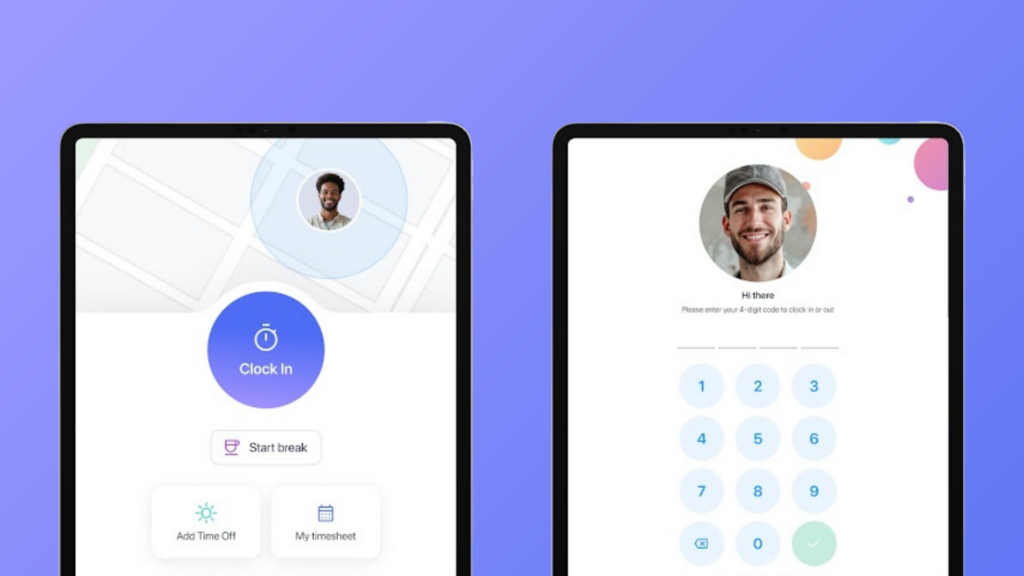
Connecteam is an all-in-one iPad time clock and employee management platform. It brings tools for time tracking, scheduling, communication, and operations into one easy-to-use app.
Why I chose Connecteam: What I love about Connecteam is that the iPad time clock is connected to a suite of other features designed to help you manage your team and help them with day-to-day tasks.
Let’s take a closer look at what Connecteam has to offer:
iPad time clock
Connecteam’s time clock kiosk app turns any iPad into a secure time tracking tool your whole team can use. What really stood out to me about the iPad app is that employees can clock in and out with their own 4-digit PIN, and the app automatically takes a timestamp.
For an added layer of security, admins can require that users take a selfie before logging in. I liked that this prevents buddy punching, because if employees know that their log in will be tied to a live photo, then there’s no point in even trying to log in for someone else.
You can keep the app as a basic time clock or give employees access to Connecteam’s other features like schedules, time-off requests, and training. The system logs users out automatically after inactivity, so the iPad stays secure. But the biggest benefit for me was that everything is tracked clearly, so you really have confidence in the hours you’re paying for.
Overtime, breaks and PTO
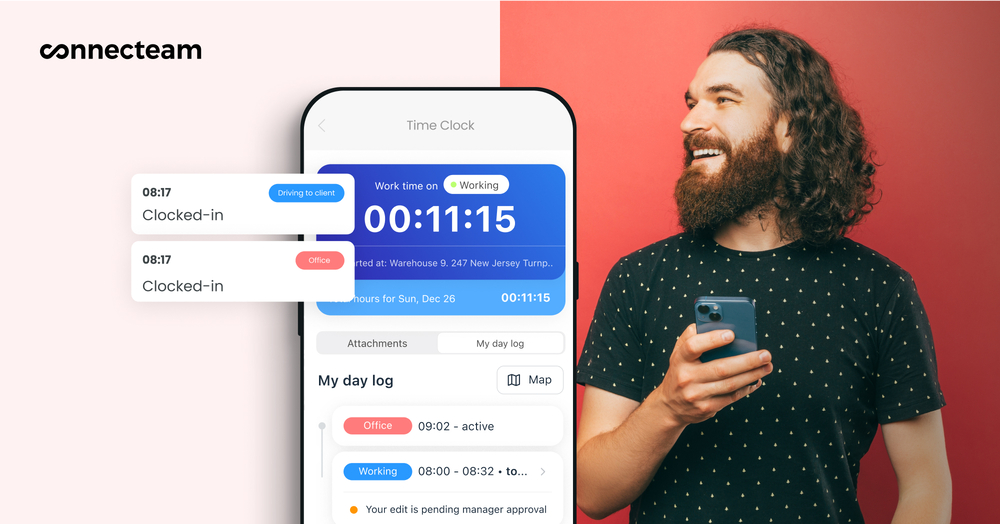
Connecteam lets you set custom break and overtime tracking rules. Connecteam calculates overtime for you to reduce manual errors. When an employee nears unapproved overtime, managers are notified and can even set the iPad time clock to automatically clock the employee out.
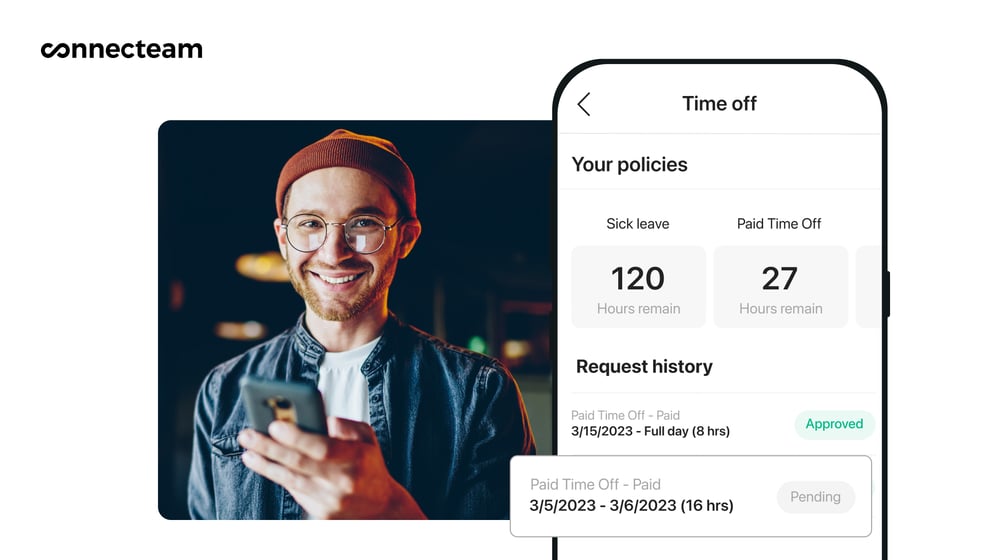
Time off management is just as simple. You can create PTO policies for vacation, sick, or personal leave, and accrual balances update as time is earned. I appreciated that employees can submit time-off requests in the app, so managers are notified right away to speed up the approval process.
Attendance reports
Connecteam’s automatic reporting makes it easy to see who’s working, who’s late, and who’s absent, without chasing timesheets or checking in manually. I liked that you can set up attendance reports once, and they run on your schedule. Use ready-made templates or customize your own to focus on specific projects, job sites, teams, or shifts. You always have the right information to know where things stand in real-time.
The reports also help you spot patterns early. You can quickly see who’s consistently on time, who’s often late, and where absences are becoming a problem. That turns time clock data into clear insights and makes it easier to manage attendance and keep expectations fair across your team.
Timesheets
Employee hours are logged automatically into Connecteam’s timesheets for payroll. You can filter by job, task, breaks, overtime, or even location, so it’s easy to see where time is really going. You can also set custom pay rates by employee or role to keep calculations accurate.
If you want, you can let employees review and fix their time entries from the iPad or mobile app. Once submitted, managers are notified to review and approve. That way, when it’s time to run payroll, everything is already in place. I was really impressed by how easy it was to export approved timesheets to popular payroll providers. It just takes one click, and you’re done.
Integrations
Connecteam has an API integration and connects other tools your business already uses, including:
And so much more…
If your team is usually on the go or in the field, Connecteam also includes a real time GPS tracker. For more flexibility, your employees can use the geofence time clock right from their mobile devices. It prevents early clock-ins outside approved areas and automatically clocks out employees when they leave the zone. Build schedules instantly with the employee scheduler and manage work as it happens with employee task tracking tools. Together, these features help you stay in control without constant check-ins, making it easier to run your business.
Connecteam also offers a free for life plan – Get Started Now!
0Key Features
- iPad time clock
- Automated timesheets
- PTO management
- Payroll integrations
- Break & overtime rules
- Attendance reports
Pros
- All-in-one platform
- Easy-to-use layout
- GPS & geofence time tracking
- Budget-friendly
Cons
- More integrations still in development
Pricing
Free-for-life plan availablePremium plans start at $29/month for 30 users
14-day free trial, no credit card required
Start your free trial -
QuickBooks Time — Good for payroll-ready time tracking with iPad support
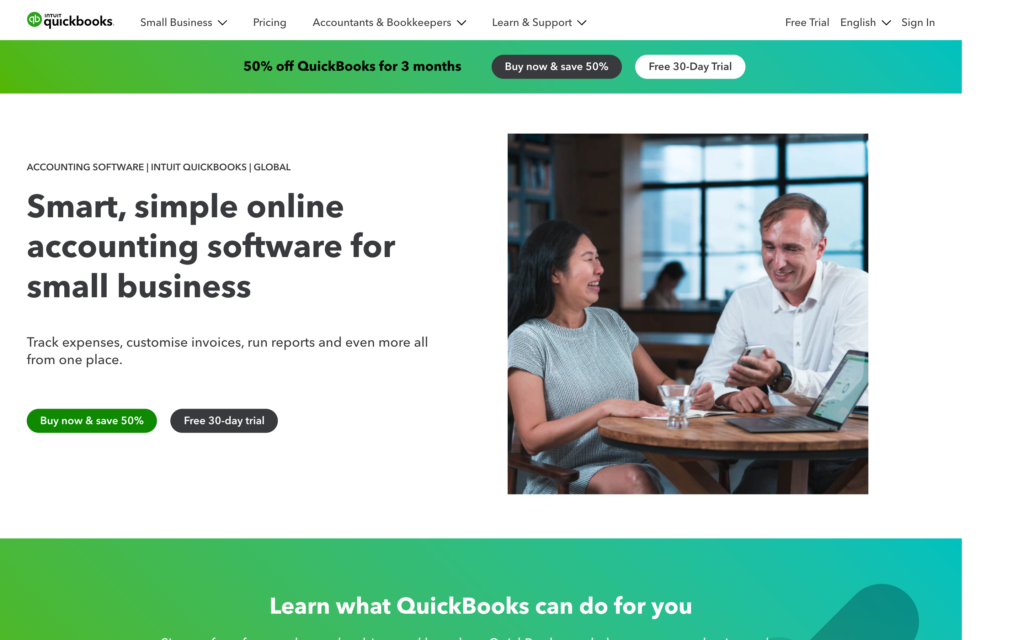
QuickBooks Time is an iPad time clock software built to track employee hours and sync time data with QuickBooks payroll and accounting.
Why I chose QuickBooks Time: I chose QuickBooks Time because it’s part of the QuickBooks ecosystem, making payroll processing smooth.
Kiosk time app
QuickBooks Time Kiosk turns an iPad or computer into a shared time clock where employees can clock in and out. Similarly to Connecteam, employees use a simple 4-digit PIN to clock in. I liked that you can require a photo at clock-in, which adds a layer of verification.
Employees can also record their breaks, switch between jobs, and submit timesheets all from the same device. It’s simple, but does what it needs to.
Timesheets and payroll
Time entries sync directly with QuickBooks Online Payroll, which is probably the app’s biggest strength. Because it’s already part of the QuickBooks ecosystem, you don’t have to export anything or reenter data. For busy admins, I can imagine this being a good time saver.
Managers just have to review, edit, and approve time from their phone or computer, and that’s it. The timesheets are sorted by job or shift, so it was pretty clear to read. That said, I found that editing in bulk took a lot more time and effort than it should.
Potential drawbacks
QuickBooks Time is one of the more expensive time tracking tools available. Pricing starts at $20 per month plus $8 per user, and jumps to $40 plus $10 per user on the higher plan. For larger teams, that adds up fast. A 30-person team can easily end up paying hundreds each month just to access features like mileage tracking or job costing.
I also noticed that many core features are locked behind the top plan. Things like project tracking and geofencing aren’t available unless you upgrade, which makes it a tough fit for small or growing teams.
The user experience was another shortcoming for me, especially on the web. Features often opened in stacked pop-up windows, so moving between tasks meant closing and reopening screens. It just felt cluttered and made a simple action unnecessarily complicated.
What users say about QuickBooks Time
I love how easy it is to process payroll and keep time. Its easy to spot errors and make corrections, as well as process multiple different locations at once.

I think it would work great for a small business with few employees. We have 25-30 employees at any given time and it is just is not cost effective for us
 0
0Key Features
- Kiosk time clock
- Geofencing
- Photo confirmation
- Automated timesheets
Pros
- Part of QuickBooks ecosystem
- Customizable reports
Cons
- More expensive than most competitors
- Cluttered user interface
Pricing
Starts at $20/month + $8/user/month Trial: Yes — 30 days Free Plan: No
-
Clockify — Good for free and flexible time tracking on iPad
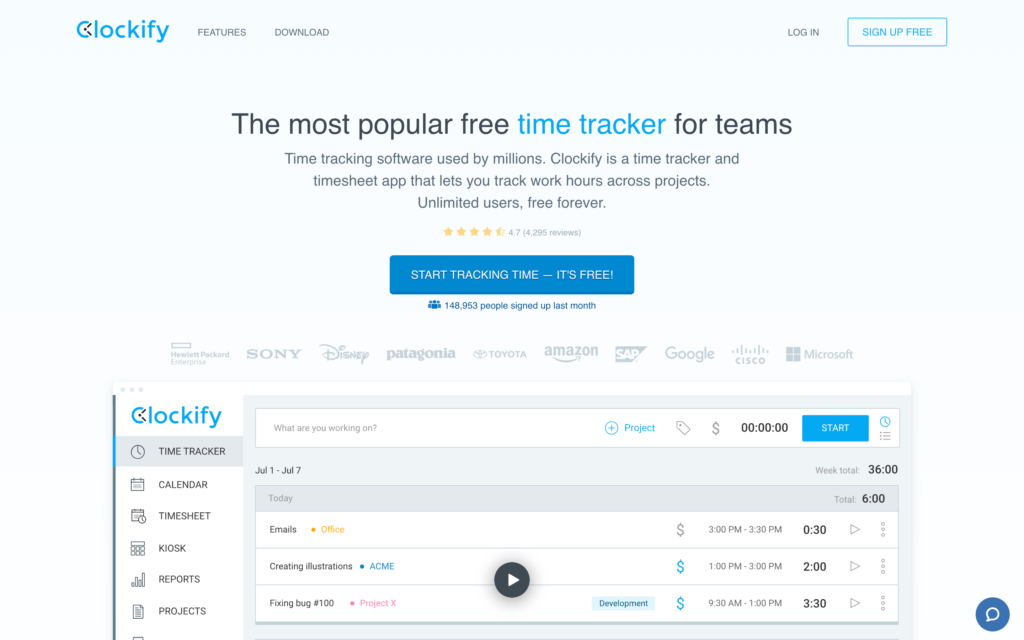
Clockify is a time clock app that lets you track hours for projects, tasks, and clients across iPad, desktop, and mobile apps.
Why I chose Clockify: Clockify stood out for its free plan with unlimited users, making it a good option for teams that need a simple iPad time clock.
Time clock for iPad
Clockify’s iPad time clock kiosk lets employees clock in and out using a PIN and a single button. You can set up multiple kiosks if you need, which I appreciated. Employees can track breaks, switch between tasks or projects, and see their total hours for the day. Meanwhile, managers get a clear view of who’s clocked in and what they’re working on.
Employees can log their hours manually at the end of the day or week on spreadsheet-like timesheets. Clockify also offers GPS tracking and screenshot monitoring for remote or mobile teams, but it’s important to note that these options are only available on paid plans.
Timesheets and approvals
Timesheets were easy to review and manage. Managers can create templates for repeat entries, lock submitted timesheets, leave comments, and approve entries in bulk. You can also assign clients, projects, and tasks to each time entry, which is useful for project-based or client-facing teams.
The major downside for me was the interface. It felt dated and very table-heavy, with no way to group or collapse projects. Finding specific information took a lot of scrolling and filtering. The mobile app also felt limiting on the admin side. While basic time tracking works, other tools like reporting, scheduling, and advanced settings aren’t available. I can see this being pretty frustrating if you need to manage things on the go.
Integrations and payroll
Clockify seems to offer a two-way integration with QuickBooks Online, but the integration isn’t compatible with QuickBooks Payroll—only accounting and billing. The integration is also a paid feature, which I found a bit strange.
Aside from QuickBooks, Clockify also promotes integrations with similar tools like ADP and Paychex. However, you have to manually export your time data into a PDF, Excel, or CSV file and then import it into your payroll provider. For me, that seems more like a workaround and less like a true integration. Not only does it add unnecessary admin work, but transferring the data manually also increases the risk of errors.
What users say about Clockify
Very solid for tracking employee hours, including clock-ins/outs, timesheets, and overtime. The reporting tools are strong and flexible
I do not like the set up of the app on my iPhone. I think it’s a little outdated and I think it can get confusing. I don’t find it extremely easy to use and sometimes it makes mistakes that don’t make any sense. I also feel like there could be an easier way to display/enter the times.
0Key Features
- Kiosk time clock
- Timesheets
- Break tracking
- Time off management
Pros
- Unlimited users on free plan
- Customizable time tracking
Cons
- Limited payroll integrations
- Outdated interface
Pricing
Starts at $3.99/user/month Trial: Yes — 7 days Free Plan: Yes
-

Hubstaff — Good for iPad time clocks with optional productivity insights
What’s new with Hubstaff
February 2026: Hubstaff previously offered a free plan for individual freelancers; it appears this plan has been discontinued.
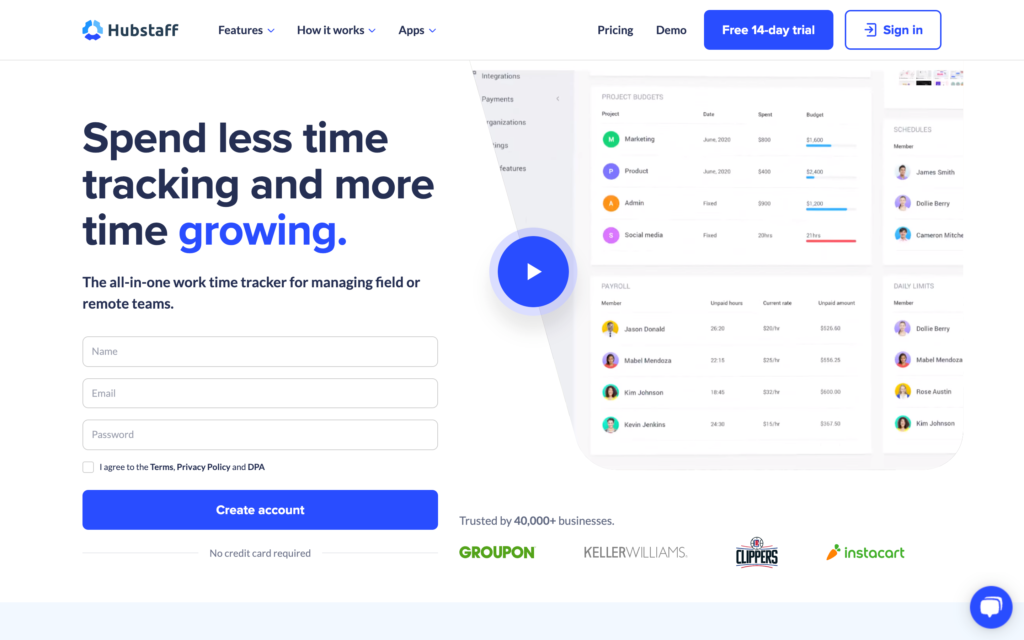
Hubstaff is a time clock and employee monitoring app designed for remote, hybrid, and in-office teams.
Why I chose Hubstaff: I chose Hubstaff because of its detailed monitoring features, which really give managers deep insight into how time is spent on the job, especially for remote teams.
Time tracking
For time tracking, Hubstaff has a timer that lets you track work hours, breaks, and overtime across desktop or mobile apps. There’s no dedicated iPad or kiosk app, which could be a major downside if you need a shared time clock. Instead, every employee has to use their own device to start and stop timers. You could use the mobile app on an iPad, but the timers are personal, so I’m not sure how effective it would be for every employee to log in and out just to start their timers.
However, I appreciated that managers can choose which devices employees are allowed to use for time tracking. For example, office staff can be limited to desktop timers, while field teams can only use mobile apps with GPS. That flexibility helps in mixed setups, but it doesn’t fix the core issue. If you need a centralized iPad time clock, you’re going to have to find a workaround with Hubstaff.
Timesheets and compliance
Hubstaff turns tracked time into timesheets that employees can review and comment on before submitting for approval. Managers can review all submissions, make edits if they need, and approve timesheets in bulk. Once approved, you can export hours to payroll for processing.
That said, I noticed a few gaps around compliance. Hubstaff doesn’t support daily or double-time overtime rules, which can be an issue for businesses with strict labor requirements. It also doesn’t offer biometric or facial verification to prevent buddy punching, relying instead on activity tracking.
Activity monitoring
One of Hubstaff’s strongest features is activity monitoring. I liked that it captures screenshots, tracks keyboard and mouse activity, and logs app and website usage. All of this activity is shown in clear dashboards. For desk-based teams, this makes it easier to spot productivity trends without digging through raw data. But these tools only work on the desktop app.
Mobile and field teams don’t get activity monitoring at all, which I guess makes sense because most of their work isn’t device-facing. They’re limited to basic time tracking, GPS, and geofencing. Geofencing isn’t enforced, so employees can still clock in outside approved areas. I also noticed that most admin tools, like reports and settings, are also desktop-only.
What users say about Hubstaff
It’s easy to use and it became an essential tool for our company to track the working hours of each employee.
The reporting is a bit clunky. It would be nice if it was a little easier to review each individual’s time on a biweekly basis.
0Key Features
- Time entry
- Activity monitoring
- Reporting dashboards
- Timesheets
Pros
- Cross-platform time tracking
- Screenshot capture
Cons
- Limited mobile access
- Weak geofencing
Pricing
Starts at $4.99/user/month Trial: Yes — 14 days Free Plan: No
-

Deputy — Good for iPad-friendly shift scheduling and time clock
What’s new with Deputy
Deputy recently raised its base price from $4.50 per user/month to $5 per user/month with a minimum monthly spend of $30 (on monthly plans) starting September 1, 2025.
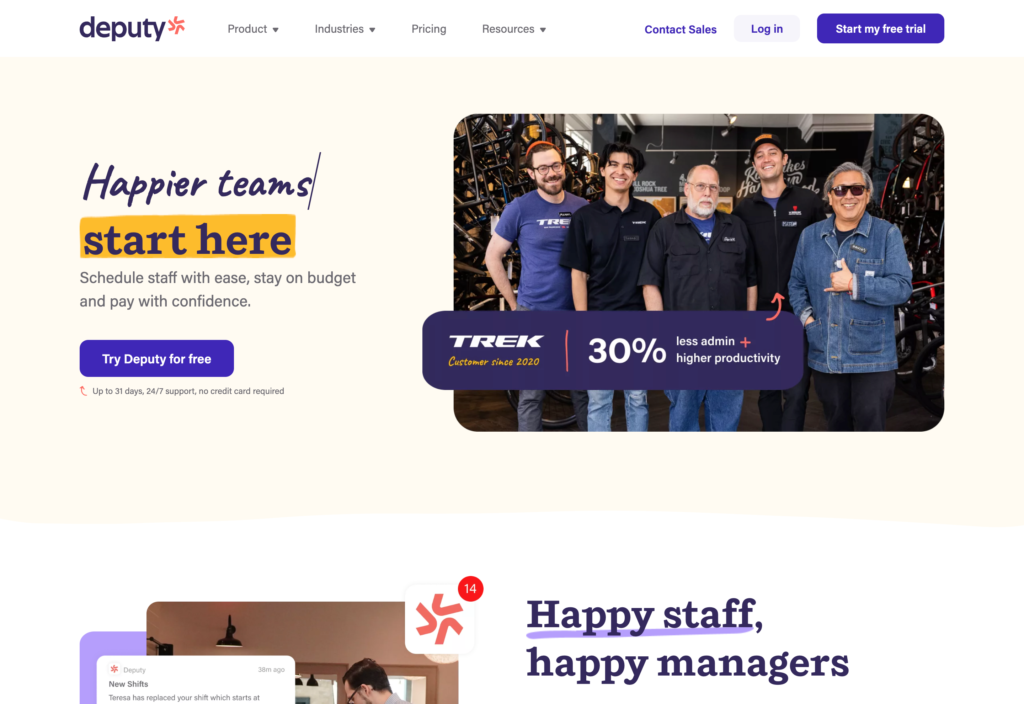
Deputy is a workforce management platform that includes iPad time clocks with scheduling, attendance tracking, and compliance features.
Why I chose Deputy: What I liked about Deputy was its touchless facial recognition feature, which is great for clocking in when you’re in a rush.
Time clock app
Deputy stands out for its touchless clock-in option on the iPad kiosk app. Employees can start and end shifts using facial recognition or voice commands, with no buttons or PINs. I really liked that this speeds up shift changes. I can see it being particularly useful in industries where hygiene is important, such as healthcare, food service, and manufacturing.
That said, facial recognition only works on iPads and Android tablets, not on phones or web browsers. That means you’ll need a dedicated device for the kiosk. The feature works, but slight changes like facial hair, glasses, or lightning can sometimes cause recognition issues.
Attendance and break compliance
With Deputy, managers get a live view of who’s working, who’s late, and who’s on break. The system helps enforce required meal and rest breaks automatically. From the dashboard, managers can spot gaps and fill open shifts quickly.
If someone clocks in late, works outside their schedule, or misses a break, the app asks them to confirm what happened, creating a clear record for compliance. However, I’m not so sure how well these reminders would work on a shared kiosk.
Time entries can be verified with GPS on mobile devices, which is a nice touch. Timesheets export to payroll in one tap, and I appreciated that Deputy integrates with providers such as ADP, Gusto, Paychex, and more.
Limitations and pricing
For me, Deputy’s biggest drawback for iPad time clocks is that it doesn’t work offline. If the iPad loses internet access, employees can’t clock in or out. This can be a problem at job sites or locations with unstable connections, since time can’t be saved and synced later.
Pricing is another consideration. Plans start at $5 per user per month and go up to $9 per user, which quickly adds up as teams grow. While competitive, it’s definitely higher than some alternatives, and certain advanced security features are only available on enterprise plans. Also, if you want to access HR, messaging, or analytics tools, there’s an additional cost per user.
What users say about Deputy
I really liked how easy it was to clock in and out, request time off, and check my schedule. The app is simple to navigate and keeps everything in one place, which made it very convenient for staying on top of shifts.
When employee enters a punch that overlaps with a time off request, the kiosk doesn’t log the punch or notify the employee that there is an issue.
0Key Features
- iPad time clock
- Timesheets
- Leave management
- Compliance support
Pros
- Biometric facial recognition
- Mobile app
Cons
- App doesn’t work offline
- Additional cost for analytics
Pricing
Starts at $5/user/month Trial: Yes Free Plan: No
Compare the best Employee Time Clock Apps for iPad
| Topic |
 Start for free
|
|
|
|
|
|---|---|---|---|---|---|
| Reviews |
 |
|
|
|
|
| Pricing |
Starts at just $29/month for the first 30 users
|
Starts at $20/month + $8/user/month
|
Starts at $3.99/user/month
|
Starts at $4.99/user/month
|
Starts at $5/user/month
|
| Free Trial |
yes
14-day
|
yes
30 days
|
yes
7 days
|
yes
14 days
|
yes
|
| Free Plan |
yes
Free Up to 10 users
|
no
|
yes
|
no
|
no
|
| Use cases |
Best all-in-one employee time clock app for iPad
|
Good for payroll-ready time tracking with iPad support
|
Good for free and flexible time tracking on iPad
|
Good for iPad time clocks with optional productivity insights
|
Good for iPad-friendly shift scheduling and time clock
|
| Available on |
What is an Employee Time Clock App for iPad?
An employee time clock app for iPad turns a familiar device into an easy way to track work hours. Instead of relying on punch cards or paper timesheets, your employees can clock in and out from a central kiosk with just a tap, PIN, or biometric authentication. It’s quick, accurate, and keeps all attendance records in one place. That means less guesswork, less admin work, and smoother payroll for businesses of any size.
Many iPad time clock apps also offer desktop versions, which allow admins to configure settings, user permissions, and time and attendance data.
How Does an Employee Time Clock App for iPad Work?
An employee time clock app for iPad creates a shared time clock, usually called a kiosk. Employees clock in and out at the beginning and end of their shifts, entering a password, PIN, or by using biometric data, such as facial recognition. Each entry is automatically saved with the exact time and date, creating a clear, reliable record of hours worked.
For managers, iPad time clocks go beyond just tracking time. You can see total hours, breaks, overtime, and time off in one place, then export everything straight to payroll. That means fewer errors and far less manual work. Many apps also include features like location checks, making sure employees clock in from the right place, whether they’re on-site or working remotely.
The Benefits of an Employee Time Clock App for iPad
Tracking employee time by hand is slow, messy, and easy to get wrong. An iPad time clock app fixes that by making the whole process simple and reliable, with real benefits you can see right away. Here’s how iPad time clocks can help your business:
Fewer mistakes
Paper timesheets and manual data entry leave plenty of room for mistakes. With an iPad time clock app, hours are tracked automatically and sent straight to payroll. That means fewer errors, less admin work, and more time for your team to focus on the real work that needs to get done. The result? Employees get paid correctly and on time, without the back-and-forth.
Better accountability
Time theft, like buddy punching or rounding hours, can quietly and quickly add up. An iPad time clock helps prevent this with tools like photo capture, facial recognition, and location checks. You know the right person is clocking in at the right place, which builds trust and keeps everyone accountable.
Smoother operations
Clocking in and out takes just a tap, so there’s no paperwork to manage. Managers can see who’s working in real time and make better staffing decisions on the spot. The result is a more efficient operation that runs with less friction and keeps up with today’s workforce.
Improved compliance
Keeping up with labor laws can be tricky, especially when it comes to breaks, overtime, and recordkeeping. An iPad time clock app helps by automatically tracking hours and storing clear, audit-ready records you can reference anytime.
Enhanced employee experience
Employees don’t have to guess if their hours were recorded correctly or chase down fixes. They can clock in quickly, trust that their time is being tracked accurately, and spend less time dealing with payroll issues. It’s a small change that goes a long way in creating a smoother, more respectful work experience.
How Much Does an Employee Time Clock App for iPad Cost?
An employee time clock app for iPad usually costs between $4 and $5 per user per month for basic plans. Pricing can increase as you add features like scheduling, reporting, or compliance tools. Some platforms use a flat base fee plus per-user pricing. QuickBooks Time, for example, charges a monthly base fee of $20, plus $8 per user per month, which is on the higher end of costs for iPad time clock apps.
Connecteam’s affordable pricing stands out. The Small Business Plan is completely free for up to 10 users, and paid plans start at just $29 per month for up to 30 users. Higher-tier plans start at $49/month for Advanced and $99/month for Expert, both also covering up to 30 users.
FAQs
You can ensure legal compliance when using iPad time clock apps by following labor laws, securing employee consent, protecting biometric and GPS data, and maintaining accurate records for audits. Verify the app complies with local employment regulations and data privacy laws like GDPR or CCPA.
Connecteam is the best clock in/clock out app for all-in-one workforce management. It offers time tracking, shift scheduling, GPS verification, task management, and real-time communication in one platform.
Use Connecteam to let employees clock in from desktop, mobile devices, or iPads. Connecteam records hours, tracks GPS locations, and integrates with payroll systems to reduce manual work and errors.
The Bottom Line on iPad Time Clocks
Managing time without a reliable system can get frustrating fast. When you can’t clearly see who clocked in, when they worked, or if breaks were taken, payroll gets messy and trust starts to slip.
A good iPad time clock app removes that guesswork. It records time automatically, gives you a clear view of labor hours, and adds simple checks to prevent misuse. When time data goes straight to payroll, you’re left with less admin work and more confidence. You spend less time fixing mistakes and more time managing your team.
Connecteam stands out as the best option. Its employee time clock app for iPad is easy to use and includes photo verification, GPS tracking, and automatic timesheets. Instead of charging per user or locking features behind higher plans, Connecteam gives you everything you need at a price that scales with your business. Plus, it offers scheduling, communication, and training in the app.