

Reliable Time-Tracking and Payroll-Processing Platform with Steep Pricing
What’s New in This Update:
- Retested QuickBooks Time to check whether overtime-tracking and mobile app issues were fixed from my previous review.
- Added a new sign-up and onboarding section covering the QuickBooks Online setup flow.
- Updated pricing, time tracking, breaks, scheduling, GPS, project management, payroll, reporting, security, and support with fresh testing notes.
- Added new findings on the QuickBooks Workforce app, offline mode, geofencing, route replay, and mileage tracking.
Verdict: 7.4/10
QuickBooks Time is a feature-rich time-tracking and payroll-processing platform for field and mobile workforces. With its powerful GPS functionality, QuickBooks Time makes it easier to track locations and helps verify that employees are on-site when they clock in and out. GPS and facial recognition work together to reduce time theft, ensuring employees are paid for hours they actually spend on the job.
I really like that QuickBooks Time has resolved the issues I highlighted in my previous review, such as the faulty overtime tracker and glitchy app. The app now works smoothly and supports businesses that need to follow labor laws.
That said, some issues still linger. QuickBooks Time’s scheduling module seems stuck in the basics, with the lack of automation tools being the clearest sign. Its project management module includes collaboration features, but without task management capabilities, managers are left without a way to delegate and track responsibilities.
Overall, QuickBooks Time’s deep integration with QuickBooks Online makes it suitable for existing QuickBooks users. However, for businesses outside the QuickBooks ecosystem, the steep pricing makes it difficult to justify the investment and get real value from QuickBooks Time.
QuickBooks Time Key Features
- Time tracking: Track time, breaks, and overtime in the web, mobile, or kiosk app, and use GPS verification and facial recognition to boost timesheet accuracy.
- Employee scheduling: Use the drag-and-drop scheduling and shift-copying tools to speed up shift assignment. QuickBooks Time doesn’t support recurring shifts, shift swapping, or automatic scheduling.
- Project management: Create projects and track time against predefined budget estimates to improve profitability.
- GPS location tracking: Monitor field employees’ movements from the comfort of your office while they’re clocked in. You can also view employees’ routes and record mileage for reimbursement.
- Payroll processing: Approve timesheets and export payroll reports to QuickBooks Online with a few clicks.
Pros
- Seamless integrations with QuickBooks Online
- Powerful geofencing and facial recognition
- Easy-to-use drag-and-drop scheduling
- Functional offline mode
Cons
- Comparatively pricey
- Difficult to find self-service support resources
- No scheduling automation
- Weak project/task management
QuickBooks Time Pricing
Verdict: 3/10
QuickBooks Time is expensive for small teams. Its base fee, per-user pricing, and Elite-only features push up the cost, while the lack of a free plan makes it harder to try before paying. It’s especially tough to justify if you don’t already use QuickBooks.
| Plan — Per Month | Features |
|---|---|
| No free plan | |
| Time Premium— $20 + $10 per user |
|
| Time Elite — $40 + $12 per user | Everything in Premium, plus:
|
| As of July 2026 | |
QuickBooks Time has two plans that use a hybrid pricing model with a base fee and a user-based subscription. However, the base fee inflates the subscription cost, and the user-based price is higher than that of many competitors.
July 2026 Update
QuickBooks Time has raised its per-user pricing by 25%. This makes QuickBooks Time even more expensive for growing teams, especially compared with tools that don’t combine a monthly base fee with higher per-user costs.
| Plan | QuickBooks Time (Elite) | TimeCamp (Ultimate) | Hubstaff (Team) | Connecteam (Advanced) |
|---|---|---|---|---|
| View pricing | View pricing | View pricing | View pricing | |
| 10 users | $160 | $99.90 | $100 | Free for life—all features and dashboards |
| 20 users | $280 | $199.80 | $200 | $49 |
| 30 users | $400 | $299.70 | $300 | $49 |
| 50 users | $640 | $499.50 | $500 | $99 |
| Read our in-depth TimeCamp review | Read our in-depth Hubstaff review | Learn more about Connecteam |
What’s more, essential tools for field teams, such as geofencing, project management, and mileage tracking, are restricted to the higher-tier Elite plan. This can put these tools out of reach for solo business owners and small teams on tight budgets.
Even worse for small teams, QuickBooks Time doesn’t have a free plan. This makes it harder to get started or test the software without committing financially up front.
Did You Know?
Connecteam’s Small Business Plan is free for life for businesses with up to 10 users and includes full access to all Connecteam hubs and features. That means small teams can manage scheduling, time tracking, team communication, tasks, and daily operations without adding another software bill.
The table below compares QuickBooks Time pricing to that of other time-tracking apps:
QuickBooks Time Free Trial
A few months ago, starting a QuickBooks Time 30-day free trial was a breeze and didn’t require a credit card. This time around, I had to jump through a few hoops to get the free trial. Most notably, I needed a QuickBooks Online account to sign up for QuickBooks Time.
Interestingly, QuickBooks Online doesn’t offer a free plan or trial, so I had to sign up for the lowest-tier subscription. The vendor advertises a 30-day free trial on its pricing page, but this applies only to the Intuit Expert Assisted plan, which is a separate product.
Once I had logged into QuickBooks Time, I had to activate a 30-day free trial of the Elite plan, which required a $1 pre-authorization hold on my card to verify it.
QuickBooks Time Sign-Up and Onboarding
Verdict: 5/10
QuickBooks Time is easier to set up if you already use QuickBooks Online, but onboarding is clunky for new users. The extra steps for adding employees and importing them slow down setup.
The deep integration with QuickBooks Online makes it easier for teams that already use QuickBooks Online to configure QuickBooks Time. But the sign-up process now feels clunky if you don’t already use QuickBooks.
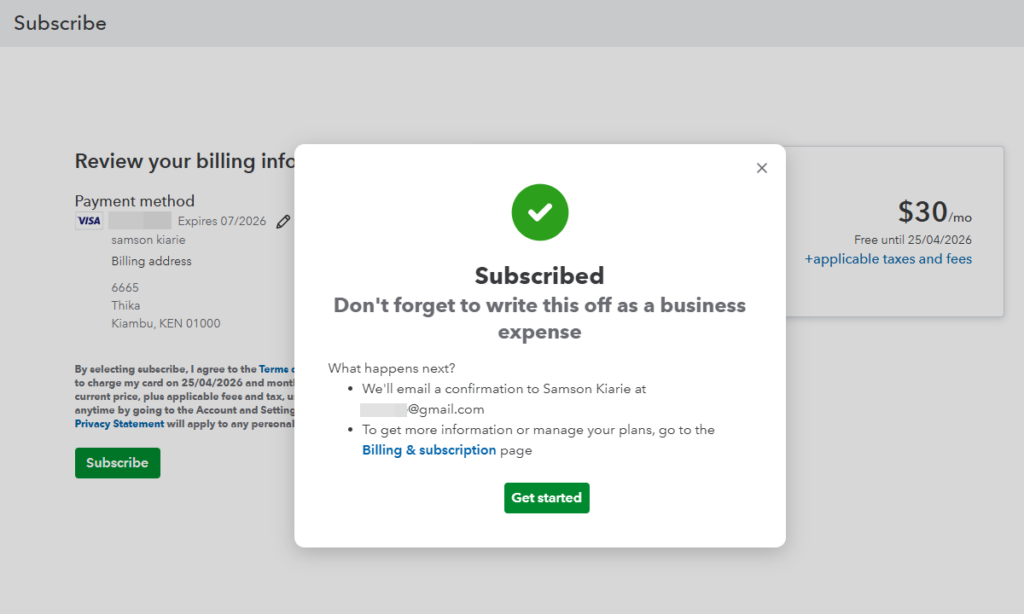
As I mentioned earlier, I had to subscribe to QuickBooks Online before I could open a QuickBooks Time account. The whole process felt repetitive and took longer than it used to: I spent 20 minutes figuring out the new flow and opening a QuickBooks Time account, but it should have taken only a few minutes.
When I first logged into the web app, QuickBooks Time presented me with a get-started wizard to set up my company. The wizard gathers essential settings in one place, letting managers add customers, invite team members, create projects, set up overtime, and build schedules without hopping between tabs.
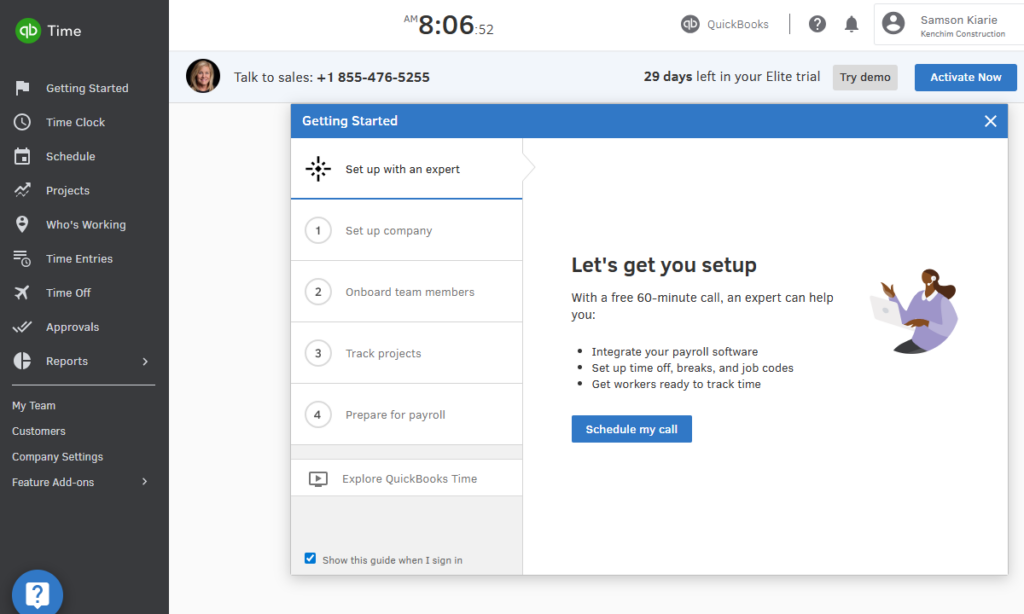
Some add-ons are preinstalled, such as mileage tracking and breaks, but I had to install others, such as the time clock kiosk, overtime alerts, time rounding, and sounds. While the installation is straightforward, I wish QuickBooks had these features built in to save time.
Overall, I needed around 30 minutes to get my team up and running, but you may need more time depending on the size of your workforce and customer base.
When I opened a feature for the first time, QuickBooks Time served up a video walkthrough that gave me a clear overview of how the feature works. This helped me get up to speed quickly and start using the features with confidence.
Setting Up Your Team
The last time I tested QuickBooks Time, I was able to add employees via an email invitation or a QR code, but these options no longer work as expected. When I opened the QR code tool during my recent testing, it displayed the error “QR Code isn’t available for accounts integrated with another product.”
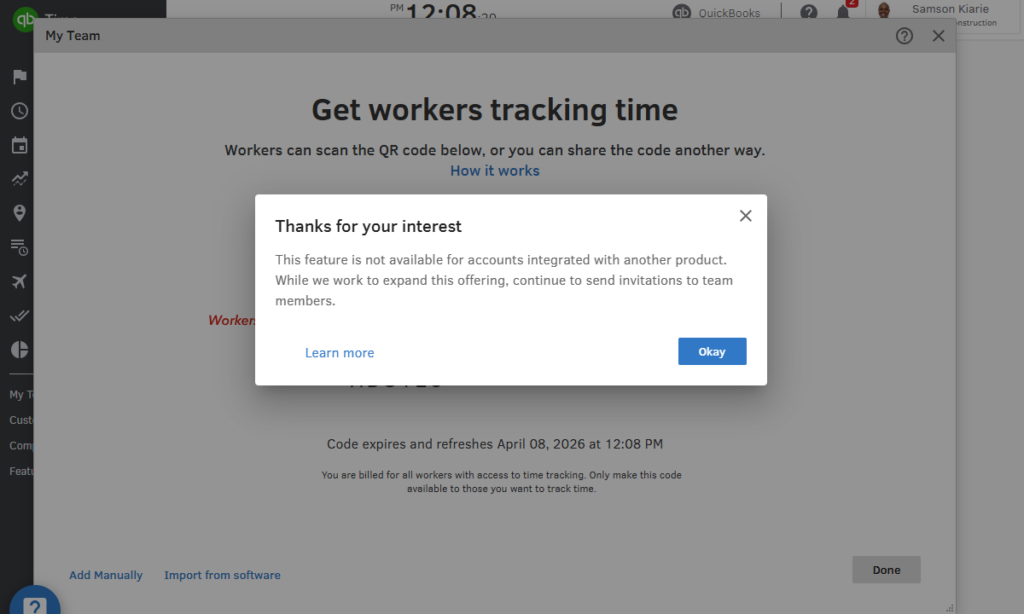
Usually, the email invite feature would require you to paste email addresses to invite all workers with a single click. QuickBooks Time works differently now. Instead of a quick, one-step invitation, it forces managers into a multi-step workflow that significantly slows down onboarding.
I first had to add employees manually in QuickBooks Online and then import them into QuickBooks Time before I could send invitations. Thankfully, employees can easily complete account creation on their end, saving the manager that extra work.
QuickBooks Time Usability and Interface
I tinkered with QuickBooks Time’s web and mobile apps to test out the usability. The user interface (UI) lacks a modern look and feel, but the design doesn’t hurt usability. Here’s what I found:
QuickBooks Time Web App
Verdict: 8/10
QuickBooks Time’s web app is easy to navigate and gives managers quick access to core tools like scheduling, approvals, reports, and team management. However, the floating overlay design can make the workspace feel cluttered when switching between tasks.
The QuickBooks Time web app is relatively easy to navigate. The UI is intuitive, but some design quirks may annoy busy managers. I’ll discuss this issue in more detail in a bit, but let’s focus on the positive aspects first.
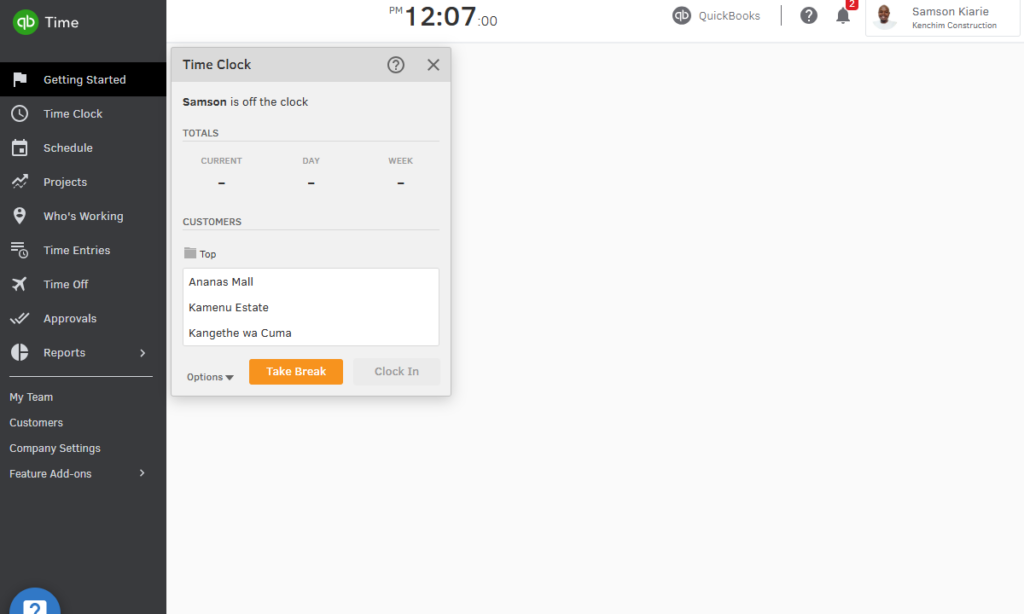
The web UI is well organized, with the main features — time clock, schedule, projects, who’s working, time entries, time off, approvals, reports, and team management — neatly organized in the left-hand panel.
You can click any feature to jump straight to what you want to do. Whether you want to track time, create employee schedules, monitor employee location, approve timesheets and time off, or run reports, you won’t struggle to find your way around.
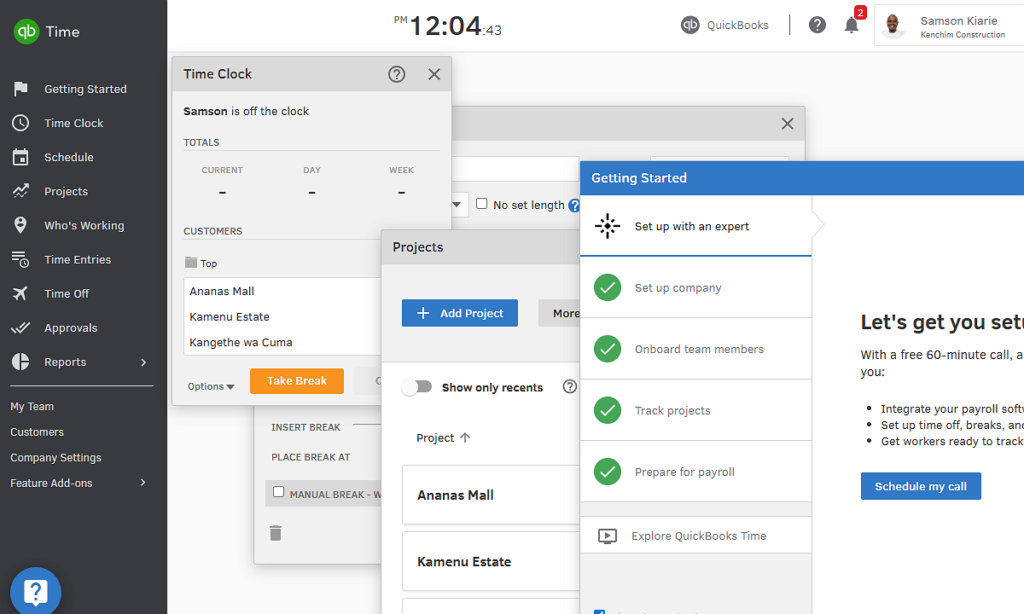
One major gripe is that the web app uses a floating overlay approach rather than the more familiar tab-switching workflow. When I opened a new feature, it didn’t replace the active window. Instead, the new feature was layered on top of existing tabs, making the UI look cluttered and overwhelming (see the image below).
QuickBooks Workforce App
Verdict: 9/10
QuickBooks Workforce offers an excellent mobile experience for both employees and managers, with intuitive navigation, fast access to time tracking, offline support, and useful field-ready admin tools.
QuickBooks Time has a powerful and well-designed mobile app called QuickBooks Workforce. I tested the Android version and found it to be user-friendly. The intuitive UI has a neat details area and a clearly labeled menu at the bottom of the screen.
Employee Version
When I launched the employee version of QuickBooks Workforce, it took me straight to the “track time” tab. This helps employees start logging hours immediately, without any extra navigation. In addition to tracking time, employees can manage schedules, view timesheets, request time off, and check paid-time-off (PTO) balances.
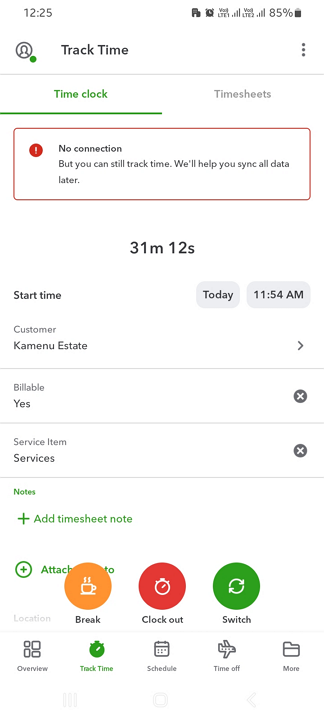
The distinguishing feature is the “switch task” button, which lets employees move between timer sessions across tasks without having to clock out. I also liked the app’s offline mode, which let me track time without an internet connection. This makes QuickBooks Workforce a good fit for users in areas with poor cellular or internet service.
Manager Version
By contrast, the manager version of QuickBooks Workforce took me straight to the overview dashboard. This means that the first thing a manager will see is a quick, high-level overview of key team metrics, which can help with faster decisions. I appreciated having the ability to add or remove tabs in the overview to customize it and display only the metrics that matter.
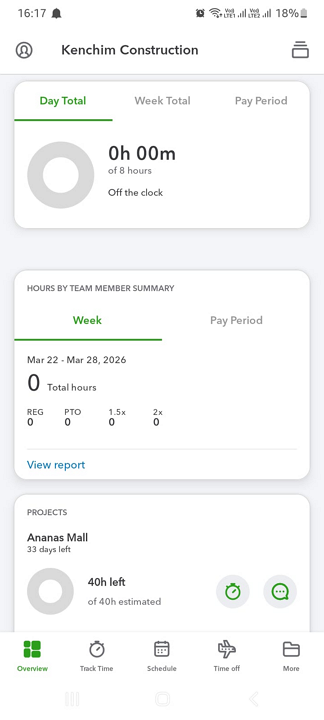
The app also helps managers perform admin tasks even when in the field. They can create and assign schedules, approve timesheets, create projects, add customers, monitor employee location, and manage their crew. During testing, the manager version ran smoothly even without an internet connection, suggesting that the glitches I experienced last time are now gone.
| Menu Item | Admin | Employee | ||
| Website | Mobile App | Website | Mobile App | |
| Feature | ||||
| Timesheet | ✅ | ✅ | ✅ | ✅ |
| Time tracker | ✅ | ✅ | ✅ | ✅ |
| Calendar | ✅ | ❌ | ❌ | ❌ |
| Schedule | ✅ | ✅ | ✅ | ✅ |
| Expenses | ❌ | ❌ | ❌ | ❌ |
| Time off | ✅ | ✅ | ✅ | ✅ |
| Analysis | ||||
| Dashboard | ✅ | ✅ | ✅ | ✅ |
| Reports | ✅ | ✅ | ✅ | ❌ |
| Activity | ✅ | ✅ | ✅ | ✅ |
| Management | ||||
| Kiosks | ✅ | ✅ | ❌ | ❌ |
| Approvals | ✅ | ✅ | ❌ | ❌ |
| Projects | ✅ | ✅ | ✅ | ✅ |
| Team | ✅ | ✅ | ❌ | ❌ |
| Clients | ✅ | ✅ | ❌ | ✅ |
| Locations | ✅ | ✅ | ✅ | ✅ |
| Tags | ❌ | ❌ | ❌ | ❌ |
| Invoices | ✅ | ❌ | ❌ | ❌ |
| Settings | ✅ | ✅ | ✅ | ✅ |
QuickBooks Time Core Functionalities
I put QuickBooks Time through its paces, testing real-world workflows and friction points. Keep reading to find out how each key feature performed, what I liked, and what I didn’t.
-
Time Tracking
-
Break and Overtime Tracking
- Recurring breaks for long shifts
- Reminders to start and end breaks
- Ending the break automatically when the time ends
-
Paid Time Off Management
-
Employee Scheduling
- Employee self-service tools: QuickBooks Time doesn’t let employees accept or reject assigned shifts. It also doesn’t have shift swap tools.
- Calendar integrations: It would be helpful for QuickBooks Time to integrate with calendar apps so employees can manage shifts alongside personal events. This can help them stay organized and reduce scheduling conflicts and no-shows.
- Scheduling automation: Since there are no automation tools, such as an auto-scheduler or recurring shift features, managers have to assign shifts manually. While manual workflows work for very small teams, they don’t fit the bill for larger companies or businesses with complex scheduling needs.
-
GPS Location Tracking
-
Project Management
-
Payroll and Invoicing
Verdict: 8.5/10
QuickBooks Time offers strong time tracking across web, mobile, and kiosk, with useful safeguards like task selection, geofence alerts, photos, reminders, and time rounding. It falls short on a few controls busy managers may want, including built-in kiosk setup, facial recognition, and stronger clock-in/out push notifications.
QuickBooks Time allows employees to track time on the web and mobile apps. You can also activate the kiosk app so on-site employees can clock in from a shared device.
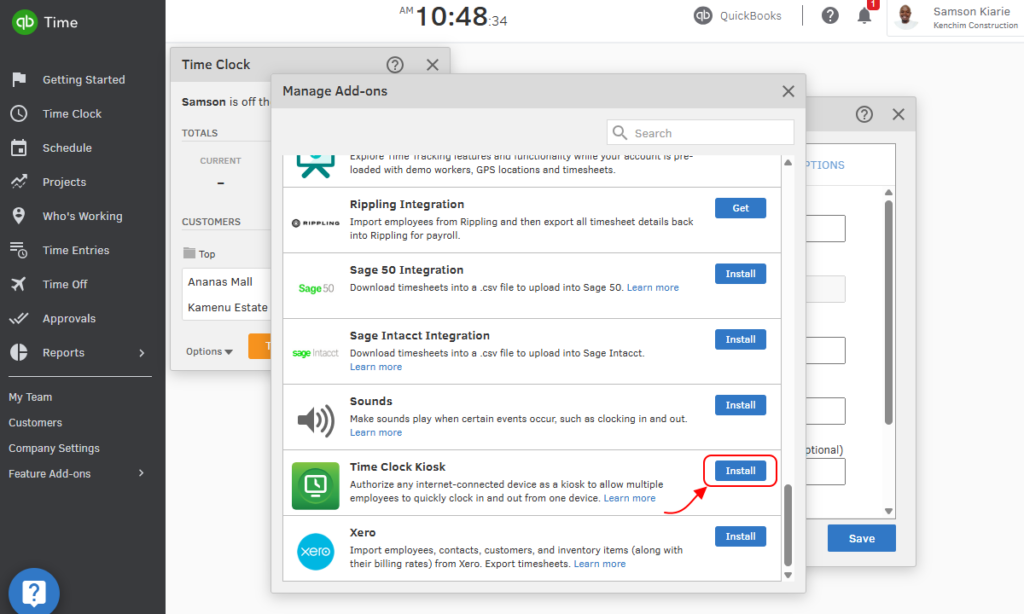
The kiosk app is a modern alternative to traditional punch clocks, and I was glad I could set it up on any computer or tablet (Android or iOS). However, the kiosk app isn’t built in. I had to install the “time clock kiosk” add-on before setting it up on my Windows computer.
During clock-in, the kiosk app took my photo automatically, but it’s not as advanced as other options on the market. Unlike some other time tracking apps, the QuickBooks Time kiosk doesn’t verify employee identity to prevent clock-ins in case of a face mismatch. Instead, it attaches the photo to the timesheet so the manager can manually verify the employee’s identity.
The web and mobile timers don’t support facial recognition, but they do use various restrictions and reminders to improve timesheet accuracy. For example, the app requires employees to select their assigned task when they clock in. This way, it automatically tracks time against the right project for accurate budget and labor cost tracking.
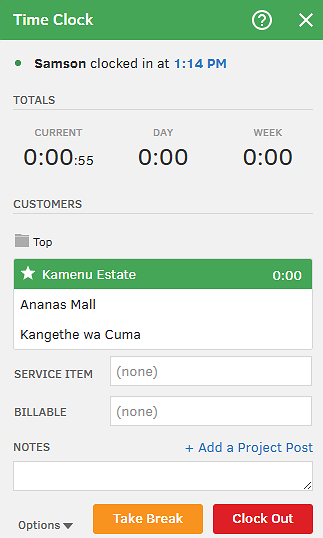
The app also sent me a notification when I forgot to clock in at the start of a shift or clock out at the end, but I missed the notifications (and many employees likely will, too) since they’re visible only inside the mobile app. Push notifications would work better for such important reminders.
QuickBooks Time rounds time to the nearest minute by default, but you can customize time rounding to your preferences. I recommend checking local rules before changing the default, since some federal and state laws affect how employers can round time and pay employees for hours worked.
Geofencing
During testing, the QuickBooks Workforce app blocked my attempt to clock in outside the geofence. It displayed the error “You’re outside a customer location” and gave me two options: “Clock me in when I arrive” or “Clock in now.”
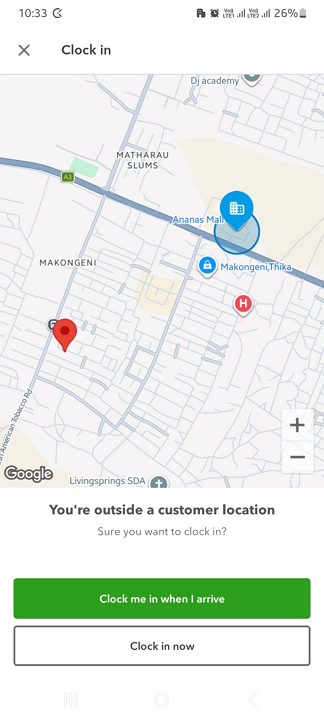
I set the app to clock me in when I arrived at the job site, and the automation worked exactly as expected. When I chose “Clock in now,” QuickBooks Time asked me to leave a note for my manager, probably to explain why I was punching outside the job site.
Adding a note is a nice way to hold employees accountable, but without a proper policy, they could exploit the channel to pad their timesheets. Thankfully, QuickBooks Time flags every attempt to clock-in outside the geofence, prompting managers to investigate each case during approval.
Verdict: 8.5/10
QuickBooks Time makes break and overtime tracking practical for busy managers, with customizable break rules, one-click break tracking, enforced meal breaks, and accurate overtime calculations. It loses points because it lacks break attestation, which can make compliance harder to prove during a dispute or audit.
QuickBooks Time comes with pre-configured 15-minute rest breaks and 30-minute lunch breaks. However, I found it easy to adjust these policies or add custom break rules to comply with various break-tracking laws. I appreciate the one-click break-tracking approach, which makes it easy for everyone to track breaks.
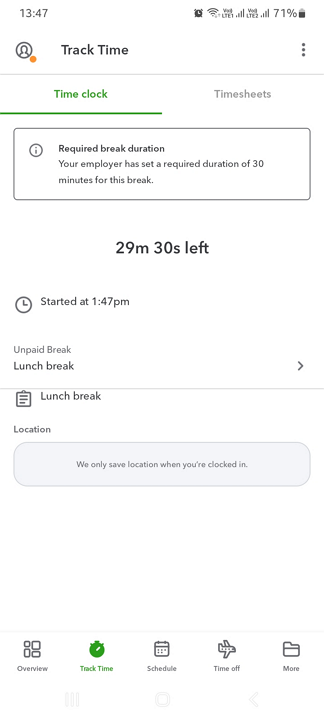
I was also able to choose where the app places automatic break time in the timesheet. This is useful in states like California, where employers must give employees a rest break every four hours. For an eight-hour shift, you can have QuickBooks Time place the automatic break in the middle of the shift on the timesheet.
QuickBooks Time uses various restrictions to enforce manual breaks. For example, when I started a meal break, the “end break” button vanished until I had taken the break in full. This is a clever way to prevent employees from ending their break early, helping support compliance.
Other helpful break features include:
That said, unlike Connecteam, QuickBooks Time doesn’t have a break attestation tool — a feature that requires employees to confirm they took their required breaks. Without these confirmations, it may be harder to prove break compliance during a dispute or audit.
Overtime Tracking
The last time I tested QuickBooks Time, its overtime tracker failed to record overtime and double time. To test whether the provider had fixed the issue, I set QuickBooks Time to track overtime and double time in accordance with California overtime law.
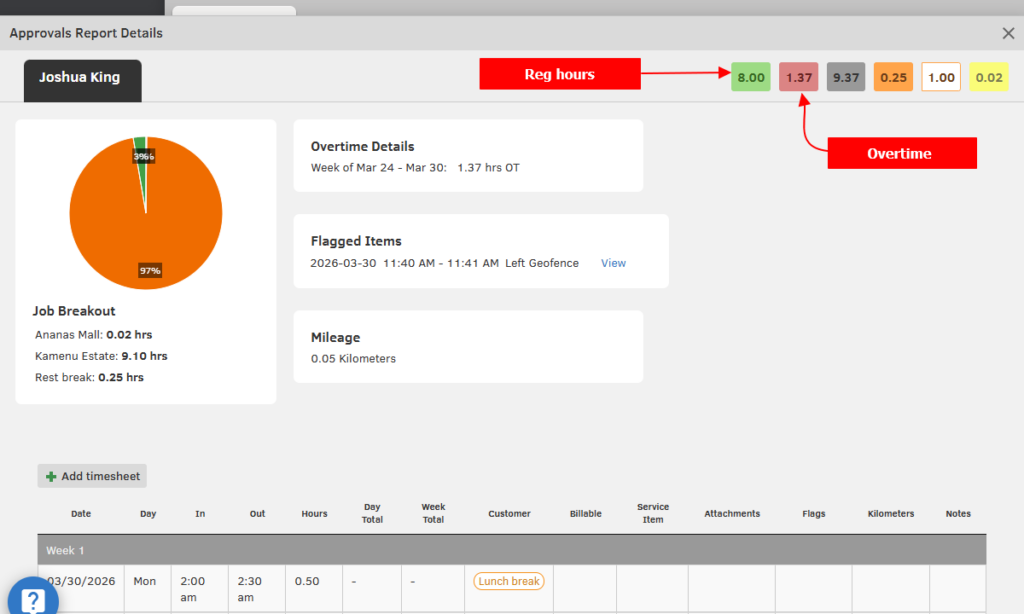
I left the timer running for 10 hours and 37 minutes. The app recorded 8 hours as regular hours, 1 hour of unpaid break, and 1 hour 37 minutes as overtime, which indicates that the overtime tracker now works as expected.
Verdict: 8/10
QuickBooks Time’s time-off tools are flexible and well suited for businesses that need PTO codes, accrual rules, employee requests, balance tracking, and manager approvals. I deducted points because the accrual settings may take time to configure for businesses with more complex leave policies.
QuickBooks Time also gives managers the tools they need to track paid and unpaid time off. During testing, I found it easy to create time-off codes for vacation, sick time, holidays, personal leave, and unpaid time off. I could also assign each code to individual employees or groups, which is useful for businesses with different PTO policies across teams or locations.
I appreciated how flexible the accrual settings were. QuickBooks Time lets you set accrual rules by year, pay period, or hours worked. You can also add balance caps, allow negative balances, delay accruals, reset balances, and create use-it-or-lose-it policies.
Employees can request time off by the hour or day, check projected balances before submitting a request, and view balances from the mobile app.
Managers can approve requests, edit balances, enter time off in bulk, and choose whether approvals are required. Approved time off also appears in the schedule, helping managers avoid assigning shifts to employees who are already out.
That said, accrual setup may take time if your business has complex PTO rules. Additionally, it doesn’t support blackout dates, which is helpful for businesses that want to restrict leave requests during peak periods. Moreover, there’s no option to set a minimum leave notice period, which makes it harder to prevent last-minute absences.
Verdict: 7/10
QuickBooks Time makes basic scheduling easy with a clear calendar view, drag-and-drop editing, shift locations, color-coding, and employee notifications. But it misses key tools busy managers may need, including conflict alerts, shift swaps, employee shift responses, calendar integrations, and scheduling automation.
Like many modern employee scheduling platforms, QuickBooks Time lets you build schedules on a calendar grid, using the day, week, or month views. I love the week view, as it provides a list of employees to the left and dates across the top, giving you an overview of who’s working on what and when.
To create a shift in the week view, all I needed to do was click the cell for the employee and date. In addition to the standard shift details, QuickBooks Time lets you link each shift to a location. This is a vital detail that helps mobile employees such as sales reps and field service techs easily find their way to a customer address.
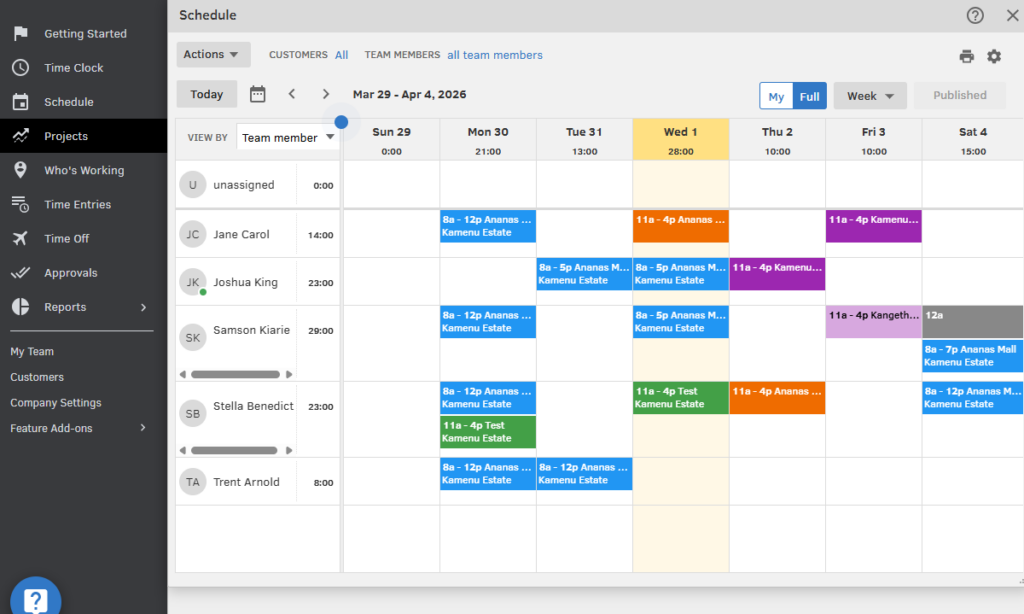
The QuickBooks Time drag-and-drop scheduler is even more efficient than it was the last time I tested it. It offers a quick, easy way to reassign and reschedule shifts, and the vendor has rolled out shift copying (Alt + drag-and-drop) to further simplify scheduling. Other useful tools include shift color-coding, which makes it easy to distinguish shifts or tasks at a glance.
QuickBooks Time notifies employees via email, push notifications, and in-app messages when you publish, edit, or change a schedule. The notifications keep employees in the loop on schedule changes, allowing them to adjust as needed.
QuickBooks Time Scheduling Issues
Although the QuickBooks Time scheduling module gets the job done, it misses several key features you’ll find in scheduling platforms like Connecteam. My biggest concern was that it failed to flag overlapping shifts during testing, a sign that it doesn’t have a built-in conflict detector.
A few other missing features are:
Verdict: 8.5/10
QuickBooks Time gives managers strong field visibility with live employee locations, geofenced job sites, route replay, and location tracking that stops when employees clock out. It loses points because mileage tracking may be less reliable for vehicle reimbursement if the app logs movement even when employees are walking.
I was impressed by various aspects of QuickBooks Time’s location-tracking capability. First, the app shows the real-time location of field employees. When I opened the “who’s working” tab and selected “map,” I could see the location of clocked-in employees.
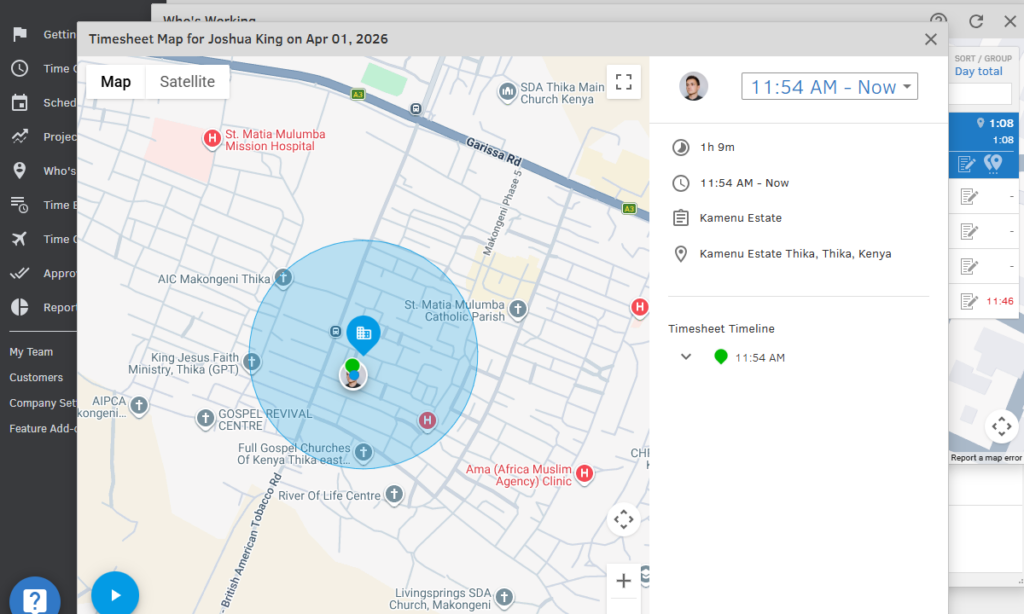
Location visibility can improve field employee safety and accountability. It can also improve dispatching. For example, a field service manager can use that information to send a nearby technician to an urgent task.
Second, QuickBooks Time has a feature called “nearby customers.” When I turned this feature on, I could see all nearby geofenced locations, such as job sites, warehouses, pickup sites, and customer locations. This feature helps door-to-door salespeople, field service technicians, and delivery teams plan the next stop more easily.
Third, when employees clocked out, QuickBooks Time stopped tracking their location, so they were no longer visible on the map. In my test, the app monitored employee location only during work time, which helps reduce intrusive tracking and build trust with employees.
Route and Mileage Tracking
QuickBooks Time logs mileage for mobile employees, but a support agent told me that it doesn’t use a minimum speed threshold. I noticed that the app logged mileage even when I was walking. This can lead to inaccurate mileage logs and reimbursement issues for employees who use personal vehicles for business.
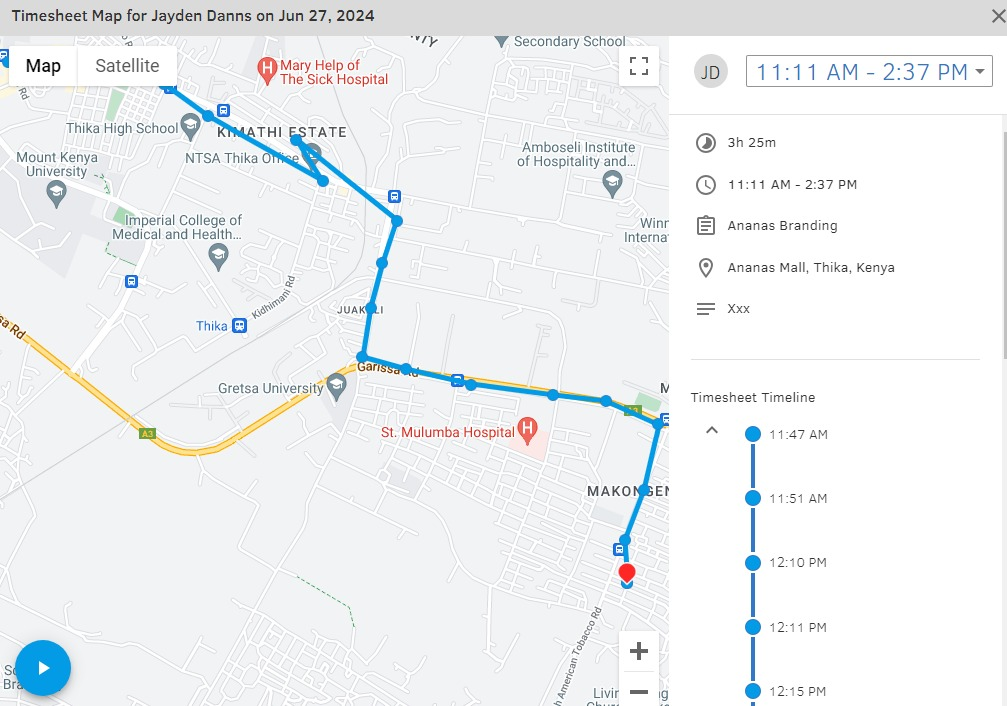
That issue aside, QuickBooks Time showed the turn-by-turn route of my trip. The route map has GPS “breadcrumbs”, which help you see where the employee was at different points in the day. There’s also a route replay feature, which lets you recreate the employee’s trip if you need to confirm anything.
Verdict: 7/10
QuickBooks Time is useful for basic project tracking, with easy project setup, budget estimates, tracked hours, and in-project communication. However, it lacks task-level breakdowns, monetary budgets, budget alerts, and broader team communication tools, which can limit visibility for managers running more complex work.
QuickBooks Time’s project management module isn’t as powerful as standalone project management software. But I liked how easy it was to create projects with start and end dates, addresses, and locations. The system imported the addresses based on the customer I selected.
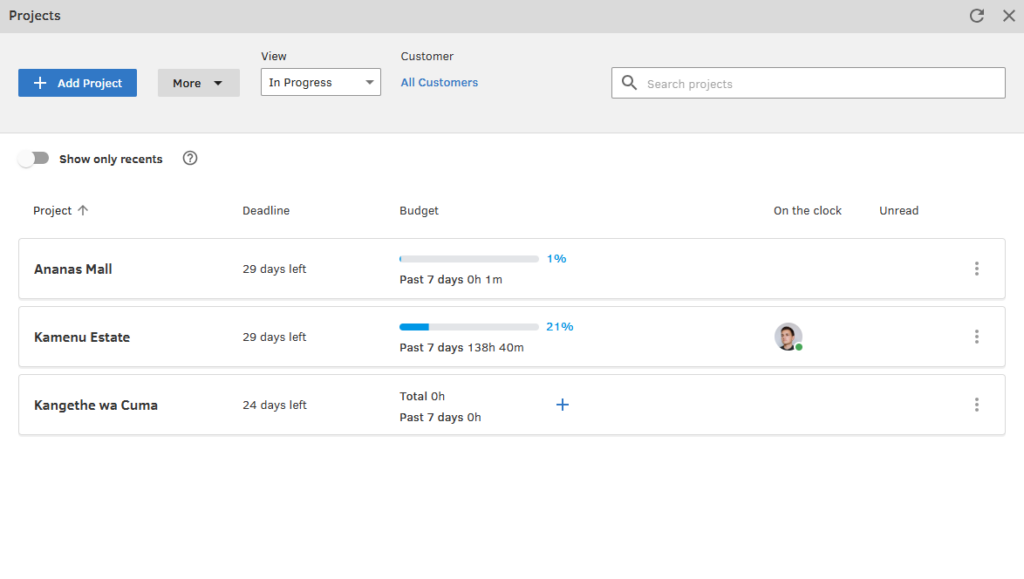
However, I couldn’t break projects into tasks, which didn’t sit well with me. Without task-level breakdowns, managers can’t assign clear responsibilities, track progress on specific activities, or hold employees accountable. This makes it difficult to manage projects that require collaboration among multiple team members.
This Might Interest You
Need a better way to assign tasks and track progress? Our guide to the best free task management software breaks down tools that can help managers keep work organized and hold team members accountable.
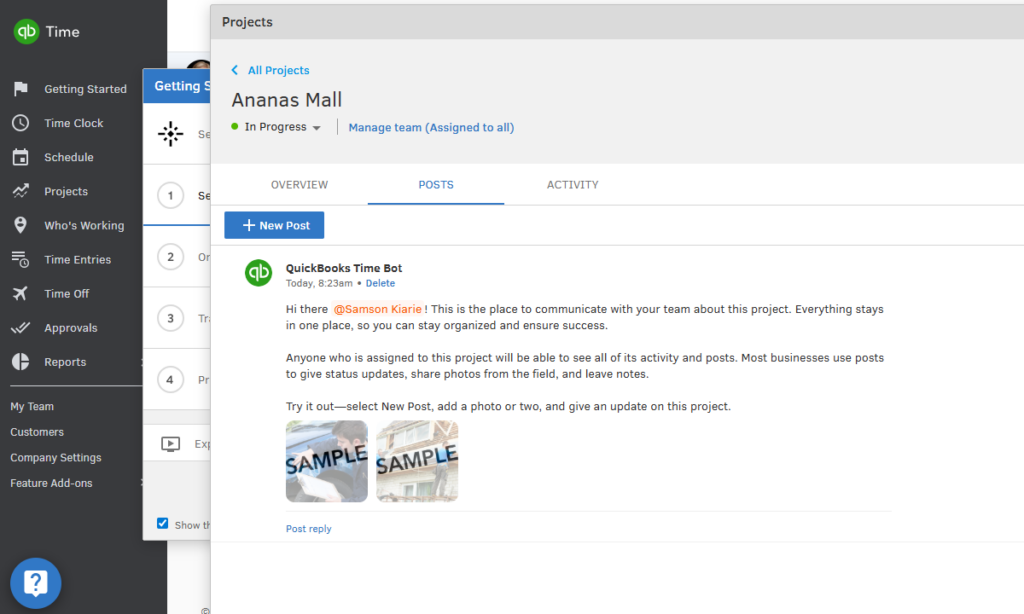
On a positive note, QuickBooks Time has rolled out an in-project communication feature called “posts.” It has useful chat features like @mentions, threaded replies, and file attachments, which let employees collaborate as they would in a standard chat app.
The interface feels dated, though, which can make it difficult for some users to chat. The chat tool is accessible only within projects, making it unsuitable for broader, cross-project discussions or company-wide announcements.
Budget Estimate
I appreciated having the option to set project budget estimates, which is useful for managers who want to better plan for resources, budgets, and timelines. You can set an hourly estimate if you want to track time-based costs or service-item estimates when managing specific deliverables.
That said, the budget estimate feature seemed half-baked compared to other providers. To begin with, I couldn’t set a monetary budget, which makes QuickBooks Time less ideal for companies managing fixed-price work.
Also, QuickBooks Time doesn’t notify managers when a predefined percentage of the budget estimate has been used. Without these notifications, managers can’t adjust timelines and resources to prevent cost overruns and protect profitability.
Verdict: 9.5/10
QuickBooks Time is excellent for payroll and invoicing, especially for teams already using QuickBooks Online, with automatic timesheet submission, simple approvals, and direct export to payroll and billing tools. It only loses a small point because kiosk timesheets still need manual submission and earned wage access depends on a QuickBooks Online integration.
When it comes to payroll and invoicing, QuickBooks Time’s capabilities truly stood out in my testing. Thanks to its deep integration with QuickBooks Online, one of the leading accounting platforms, payroll processing is much easier for existing QuickBooks users.
I really like that employees don’t have to flip a switch to submit timesheets; the web and mobile apps submit them automatically when employees clock out. However, kiosk users do have to submit timesheets manually, which adds a bit of disappointing friction. As a manager, I found it easy to review, edit, and lock hours in the “approvals” tab to ensure accurate payroll and billing.
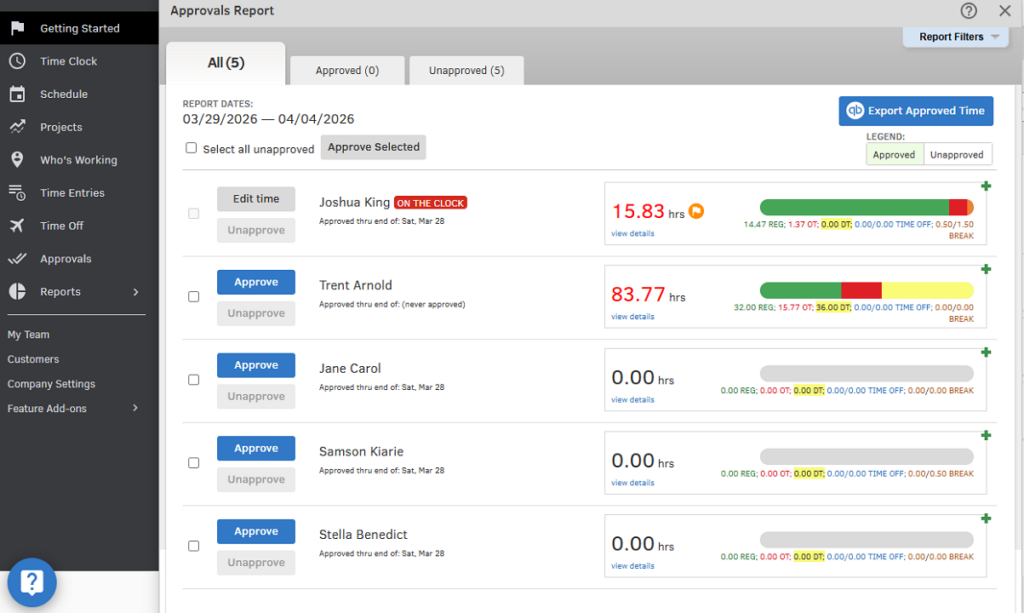
Once I approved the hours, QuickBooks Time let me export them directly to QuickBooks Online with just a few clicks. As a bonus, you can approve work hours directly in QuickBooks Online to eliminate the extra step of manually exporting approved time from QuickBooks Time.
QuickBooks Time also works with some third-party payroll solutions. If you use ADP, Square Payroll, OnPay, Justworks, PaymentEvolution, or Paychex, you can integrate it with QuickBooks Time to simplify payroll processing.
Earned Wage Access
Earned wage access, or on-demand pay, is a helpful feature that lets employees access a portion of their earned wages before payday. QuickBooks Time doesn’t offer earned wage access as a built-in feature, but it’s available through its integration with QuickBooks Online.
QuickBooks partnered with Clair to let employees request advances through their QuickBooks Workforce account. Clair deposits advance payments to employees’ bank accounts within one to three business days at no cost. However, employees can request immediate access to the funds for a $4.99 fee.
Reporting and Analytics
Verdict: 7/10
QuickBooks Time gives managers useful reports for payroll, job costing, schedules, mileage, and employee activity. However, the lack of a real-time reporting dashboard, limited report sharing, and raw-data-heavy reports may slow down busy managers who need quick, actionable insights.
QuickBooks Time has a useful reporting module that lets you generate reports to analyze key parts of your business. There are numerous filters, such as mileage tracking, hours, GPS points, payroll reports, and wage reports.
Reports that stood out to me include job costing and schedule-versus-worked summaries. These reports provide a quick overview of labor costs and workforce productivity. The payroll report also provides a detailed breakdown of employee activities, including hours worked, breaks, mileage, and items flagged on timesheets.
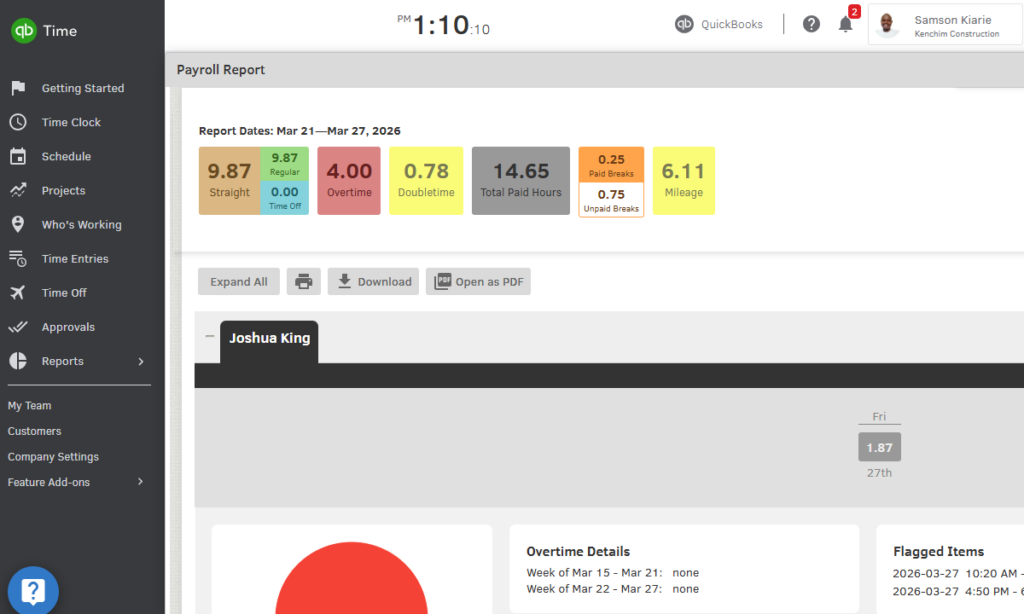
That said, I was disappointed to find that QuickBooks Time doesn’t offer a dashboard where managers can see real-time updates and reports. Another issue is that many reports present raw data without really turning it into actionable insights. As a result, managers may need to spend extra time interpreting the numbers before making decisions.
Another issue is that report-sharing options are limited to CSV export. There’s no option to email a report directly to recipients within the platform or to configure the system to regularly deliver reports to your inbox.
QuickBooks Time Security and Privacy
Verdict: 7/10
QuickBooks Time checks the main security boxes, with encryption, MFA, role-based access control, and several respected certifications, but the lack of HIPAA compliance, unspecified hosting region, and Intuit’s history of security incidents are worth considering if your business handles sensitive employee data.
| Feature | Availability |
|---|---|
| Data encryption | ✅ At rest (AES 256-bit encryption) & in transit (TLS) |
| GDPR compliant | ✅ |
| HIPAA compliant | ❌ |
| Certification | ✅ SOC 2 Type 2, ISO 27001, PCI, VPAT |
| MFA/2FA | ✅ MFA |
| Admin controls | ✅ Role-based access controls |
| Hosting region | Not specified |
QuickBooks Time implements solid security measures, including AES-256 encryption, secure cloud infrastructure, and multi-factor authentication. It has also obtained various certifications showing that third-party firms have audited its security infrastructure.
However, Intuit, QuickBooks Time’s parent company, has experienced multiple data breaches, security incidents, and related lawsuits in the past. This doesn’t mean QuickBooks Time is unsafe, but it’s worth considering if your business handles sensitive employee data. On the plus side, Intuit typically resolves these issues quickly to prevent further escalation.
On the compliance front, Intuit says it follows the EU’s General Data Protection Regulation (GDPR) and takes steps to comply with other relevant data privacy laws. The app isn’t compliant with the Health Insurance Portability and Accountability Act (HIPAA), though, which healthcare businesses in the U.S. should consider before using QuickBooks Time.
QuickBooks Time Customer Support
Verdict: 7/10
QuickBooks Time offers several support channels, and live agents responded quickly once I reached them. However, support feels less tailored to QuickBooks Time users, and getting to the right help guides or live chat takes more clicks than it should.
| Support Type | Availability |
|---|---|
| Live chat | ✅ 6 AM–6 PM. M–F PT |
| Phone support | ✅ |
| Email support | ✅ |
| Community forum | ✅ |
| Ticket submission | ✅ |
| Help center | ✅ |
While I love the range of customer support options, I found that they serve all Intuit customers. Given Intuit’s large customer base, support resources can feel spread too thin, often resulting in less specialized assistance.
Support options also aren’t as easy to access as they are in other time-tracking apps. For example, when I visited the help page, QuickBooks required me to select a product to customize my experience. But most of the recommended help guides weren’t related to QuickBooks Time, so I had to use the search function to find helpful guides.
Live chat was available only when I was logged into my QuickBooks account. Even so, it took me multiple clicks to finally access the chat function. Thankfully, the live support agents responded to my questions within minutes when they were online, which is an improvement from last time.
What Are QuickBooks Time’s Review Ratings From Review Sites?
(As of May 2026)
QuickBooks Time App Review
QuickBooks Time is now deeply integrated into QuickBooks Online, so the biggest value is for businesses that already use QuickBooks Online. In this case, the setup process is seamless, as you can import most of your company data, including employees, from QuickBooks Online. However, setup can be lengthy for users who don’t already use QuickBooks Online.
Based on my findings, QuickBooks comes into its own when used to track time and process payroll. It supports geofencing, facial recognition, and other clock-in restrictions to ensure field workers are paid only for the time they spend on actual work. I also love that users can export approved timesheets into QuickBooks Online with a few clicks, which makes payroll processing fast and seamless.
That said, QuickBooks Time has plenty of room for improvement. For example, I’d like to see it add scheduling automation tools and employee self-service tools to make scheduling easier for large workforces. The vendor should also add task management tools to help managers delegate assignments, enhance accountability, and track progress.
Connecteam: The Better QuickBooks Time Alternative
If you’re looking for a more affordable, and more powerful, alternative to QuickBooks Time, choose Connecteam. Connecteam is an all-in-one workforce management platform that offers time tracking, location tracking, scheduling, communication, and HR functions at a fraction of the cost of QuickBooks Time.
Some of the benefits of Connecteam compared to QuickBooks Time include:
Accurate, Compliant Time Tracking
With Connecteam, employees can access the time clock through the mobile app, an on-site kiosk, or a web browser, making it perfect for teams that work in the field, on job sites, or across multiple locations. The employee time clock app supports one-tap clock-in and clock-out, making it easy for all employees to track time.
Connecteam’s geofence also uses powerful automation to improve timesheet accuracy. I love that I can set the geofence to remind workers to clock in when they arrive at the job site. However, my favorite feature is automatic clock-outs when employees leave a job site.
Connecteam’s break tracker reminds employees to start or end their break on time and prevents them from returning early from their break, making break compliance easier to document. What gives it an edge over QuickBooks Time is the break attestation tool, which can tailor to your unique needs using Connecteam forms.
The overtime tracker lets you track any type of overtime, whether daily overtime, daily double time, weekly overtime, holiday overtime, or seventh-consecutive day overtime. Even better, Connecteam automatically calculates overtime pay based on preset rates.
Automatic Timesheets and Payroll Integration
Connecteam automates timesheet creation using tracked data, assigning hours to specific jobs or tasks to simplify billing and invoicing. Managers can set custom pay rates, and timesheets can be sent to employees for approval within the app.
To simplify payroll, Connecteam integrates with QuickBooks Online, as well as other payroll platforms, allowing for direct export of timesheets and reducing the risk of human error.
AI-Powered Automatic Scheduling
Creating schedules with Connecteam is effortless, thanks to features such as drag-and-drop scheduling, shift copying, and ready-made templates. Unlike QuickBooks Time, Connecteam places a stronger focus on compliance, helping teams stay on the right side of labor laws without using additional tools.
I really like the scheduling rules, which let you define work limits, maximum shifts per day, rest periods between shifts, and more. As you create schedules, Connecteam’s built-in conflict detector scans every shift using these rules, flagging issues before you publish the schedule.
My favorite tool is Connecteam’s auto-scheduler, which can assign hundreds of shifts in minutes based on employee availability and qualifications. This tool can save hours of manual planning while ensuring the right people are scheduled for the right roles every time.
And So Much More
Connecteam also provides essential workforce management features, including:
- Real-time location tracking
- Task management
- Team communication
- Internal knowledge base
- Hiring and onboarding
- Time-off management
- Employee training
- Recognition and rewards
QuickBooks Time Review FAQs:
QuickBooks Time helps businesses support compliance with overtime tracking, break rules, timesheet approvals, GPS logs, time rounding, encryption, MFA, and role-based access. However, it is not HIPAA compliant, and businesses must still set policies that match their local labor and data privacy laws.
QuickBooks Time is easiest to switch to if you already use QuickBooks Online, since you can import employee and company data. Switching away may take more manual work because reports are mainly exported as CSV files, and the review found limited report-sharing options.
Yes, QuickBooks Time integrates with payroll providers besides QuickBooks Online, including ADP, Paychex, OnPay, Square Payroll, Justworks, and PaymentEvolution. Its strongest payroll connection is still QuickBooks Online, where managers can approve hours and move time data into payroll.
QuickBooks Time’s main integration is with QuickBooks Online for accounting, payroll, and invoicing. It also connects with several payroll providers, but the review does not show strong evidence of broad HR, POS, scheduling, or project management integrations.
QuickBooks Time is secure enough for many businesses. It includes encryption, multi-factor authentication, role-based access controls, and several security certifications. However, businesses with strict data requirements should note that it is not HIPAA compliant and does not clearly specify its hosting region.
QuickBooks Time is easy to use day to day for most admins and employees. The web app is simple to navigate, and the QuickBooks Workforce mobile app gives employees quick access to time tracking, schedules, timesheets, time off, and PTO balances.
QuickBooks Time helps prevent time theft with GPS tracking, geofencing, clock-in restrictions, kiosk photo capture, timesheet flags, and manager approvals. However, facial recognition should not be listed as a confirmed core feature unless QuickBooks confirms how it works.
