


When task management is messy, deadlines slip, work falls through the cracks, and small misses turn into costly delays.
Some free task management software is best for personal use, while other tools are better for assigning and tracking employee work.
I reviewed 3 tools for personal task management and 5 for employee task management, and ranked them by ease of use, collaboration and employee-management features, and what you can actually do on the free plan.
Use these picks to stay organized, assign work clearly, and track completion with less follow-up.
Free task management software
|
Software |
Good for |
Free plan caps |
| Todoist | Simple personal task management | 5 projects; 3 filters |
| Trello | Lightweight team task boards | 10 boards; 10 collaborators |
| Notion | Flexible task tracking inside docs and workflows | 2+ member limits; 5MB uploads |
Free employee task management software
|
Software |
Good for |
Free plan caps |
| Connecteam | Managing tasks across frontline and field teams | Free for up to 10 users |
| ClickUp | Teams managing tasks across multiple workflows | 60MB storage; 1 form |
| Asana | Structured project-based task management | 2 users |
| SafetyCulture | Compliance and inspection-based task tracking | 10 users; 5 templates |
| MaintainX | Recurring operations and work-order tasks | Only 2 repeating work orders |
What’s New in This Update (April 2026)
- Updated the ranking criteria to prioritize practical free-plan value over feature volume
- Repositioned each tool so it fits a more specific use case instead of a generic roundup
- Re-verified free plan caps, limits, and paid-tier restrictions for all 8 tools
- Expanded the employee task management section with a stronger focus on assignment, recurring work, and accountability
- Refreshed the comparison table, FAQs, and product screenshots
Our Top Picks
-
1

Best for simple personal task management
-
2

Good for lightweight team task boards
-
3

Good for flexible task tracking inside docs and workflows
Why trust us?
Our team of unbiased software reviewers follows strict editorial guidelines, and our methodology is clear and open to everyone.
See our complete methodology
How Ranked the Best Free Task Management Software
Here’s what I looked for to narrow down my list:
Must-have task management features
- Simple task creation and organization: I looked for tools that make it easy to create tasks, organize work, and keep everything in one place.
- Clear visibility into progress: I prioritized software that makes it easy to see what is done, what is in progress, and what still needs attention.
- Due dates and reminders: Good task management software should help users set deadlines, stay on top of priorities, and avoid missed work.
- Recurring task support: I gave extra weight to tools that can handle repeat work without forcing users to recreate the same tasks over and over.
- Ease of use: I favored tools that are simple to learn and easy to use day to day.
I also checked for collaborative and employee task management features
- Task assignment: I looked for tools that make it easy to assign work clearly to the right person.
- Accountability and completion tracking: I ranked tools higher when they make it easier to track progress, confirm completion, and reduce constant follow-up.
- Shared visibility: I gave more credit to tools that help managers and team members see task updates in one place.
- Mobile access: Since many businesses manage work on the go, I prioritized tools that work well on mobile.
- Support for recurring employee work: For employee task management, I looked for tools that can support ongoing responsibilities, not just one-off tasks.
Finally, I screened for these free-plan limits
- User caps: How many people can use the tool to collaborate on tasks.
- Recurring-work limits: I checked whether free plans can handle repeat work, not just one-off tasks.
- Restricted oversight: If tracking and manager visibility were paywalled, I ranked the tool lower.
- Unclear free-plan boundaries: I ranked tools lower when the free plan looked usable at first but hid key limits behind paywalls.
3 Best Free Task Management Software
-
Todoist — Best for simple personal task management
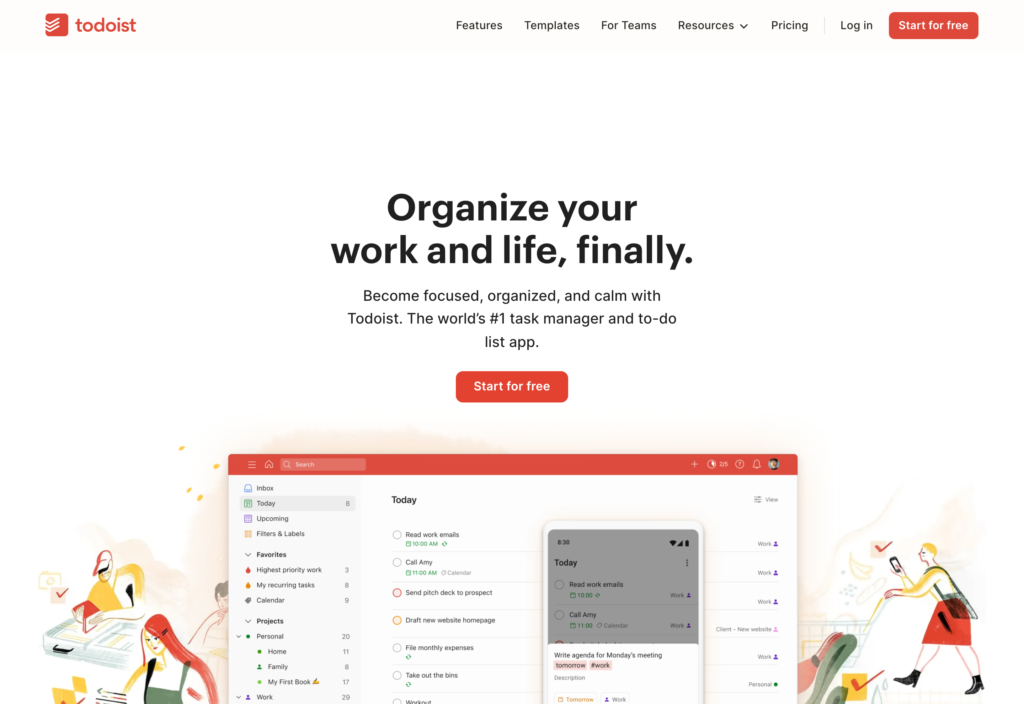
Todoist is a simple task management app for capturing tasks fast, organizing personal work, and keeping deadlines and recurring to-dos from slipping.
Why I chose Todoist: I chose Todoist because it was easy to get value from right away. Its free plan gives you enough to capture, organize, and stay on top of tasks without much setup. Plus, a great mobile app makes it easier to keep up away from your desk.
Organizing everyday tasks and priorities
What I liked most about Todoist was how easy it was to turn a thought into a task. Its quick capture workflow is one of its biggest strengths, and the natural language input makes it easy to add a task with useful details from the start.
Organizing tasks was simple too. Between projects, priorities, labels, sub-tasks, and list or board views, it was easy to keep everything structured without building a complicated system.
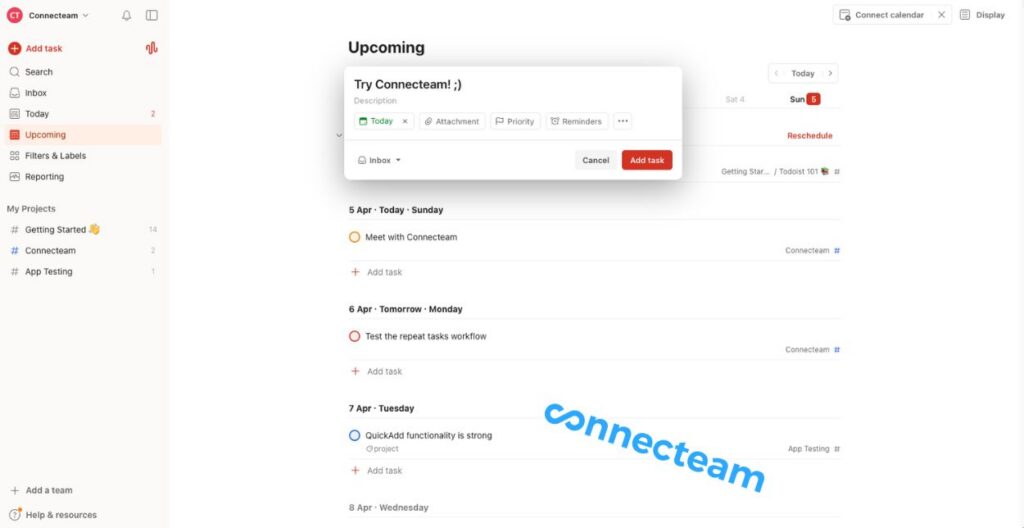
Todoist makes it easy to stay organized and ahead of your tasks. The free plan is good for that kind of everyday use. You get 5 personal projects, which is enough for most personal workflows, but it starts to feel tight if you want to break work into lots of separate buckets. You also only get 3 filter views, so custom ways of sorting and viewing tasks are more limited than they first seem.
The mobile experience helped too. The app is easy to use on the go, widget support makes quick capture easier, and Ramble turns spoken thoughts into structured tasks.
Staying on top of deadlines and recurring work
Todoist also felt strong once I moved from capture to follow-through. Due dates, reminders, and recurring tasks are easy to work with, which helps keep routine work from slipping.
It was easy to set up repeat tasks for ongoing responsibilities, reschedule things when plans changed, and keep a clearer view of what needed attention next.
Collaborating on shared tasks when needed
Todoist can handle light collaboration, and I liked that shared projects, task assignments, and comments were all easy to use. That works well when a couple of people need to stay aligned on a shared list without overcomplicating things.
It works best when that setup stays small. Since personal projects on the free plan support up to 5 people, Todoist is better for lightweight coordination than for larger shared workflows, especially on the free plan.
Free plan limits
Todoist’s free plan is capped at 5 personal projects, 3 filter views, 1 week of activity history, and 5 MB file uploads. Team workspace, team activity, and team projects are paid features, and you also only get a limited number of Ramble sessions on the free plan.
Key Features
- Natural language input
- Recurring task scheduling
- Due dates and reminders
- List and board views
- Mobile app and widgets
- Customizable project boards
Pros
- Quick task capture
- Great mobile experience
Cons
- Limited free-plan scale
- Limited for complex projects
Pricing
Starts at $5/month Trial: Yes Free Plan: Yes
-
Trello — Good for lightweight team task boards
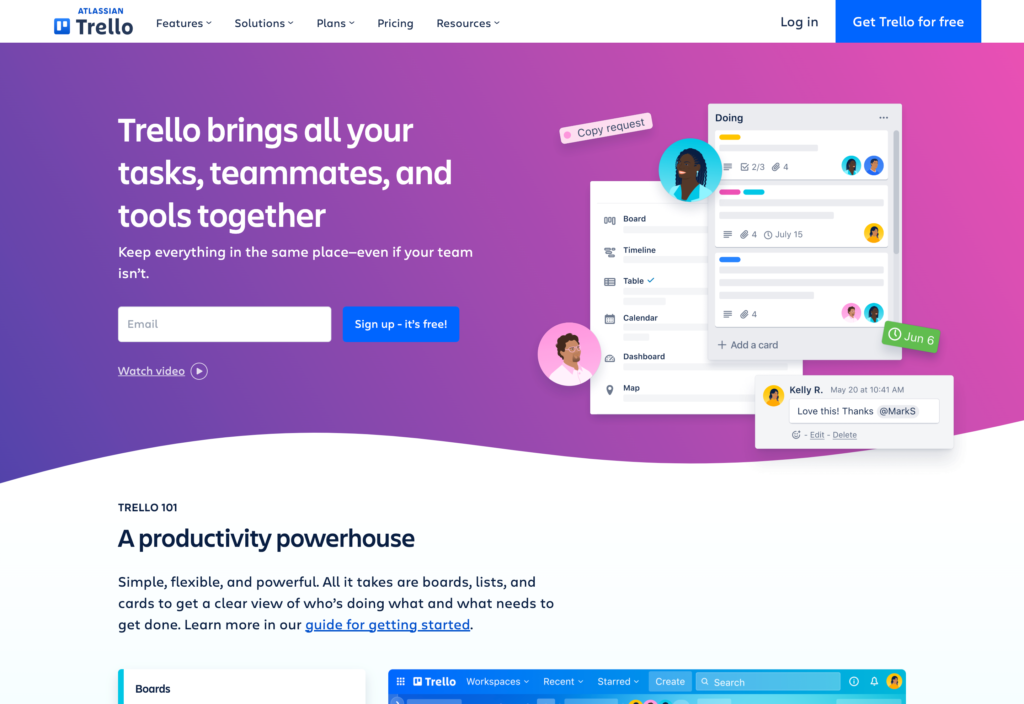
Trello is a visual task management app built around boards, lists, and cards that works great for
Why I chose Trello: I chose Trello because it was fast to get value from. The board layout makes work easy to scan, and the free plan gives small teams enough room to build useful shared workflows without much friction.
Organizing work visually
What makes Trello great in my book is how visual it is, making work easy to track at a glance. Boards, lists, and cards are simple to understand, so it does not take long to get a workflow up and running.
In our review, the tester said that setting up boards took just a few minutes, and that it gives you a clear way to break work into stages and move tasks forward visually instead of burying them in long lists.
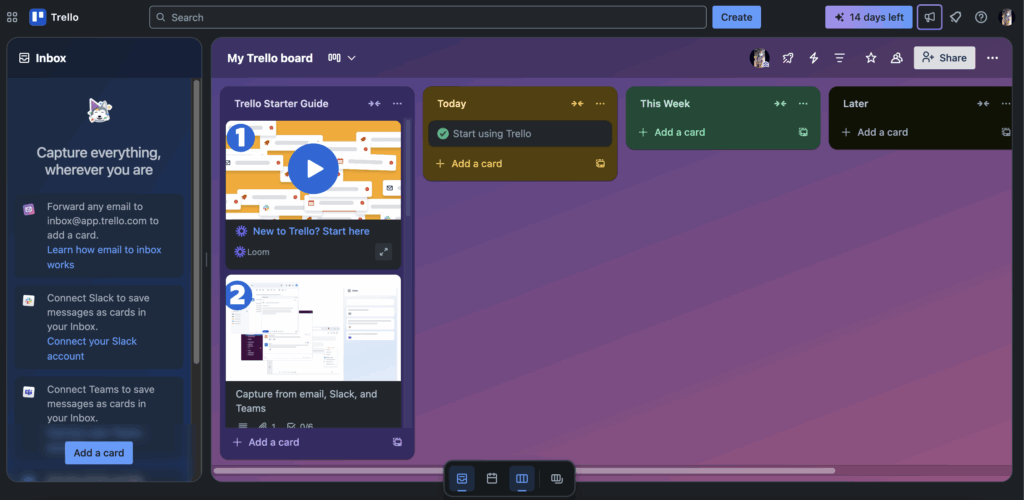
Our reviewer loved Trello’s clean and logical navigation. It also works well across different lightweight workflows. Trello is a good fit for internal planning, content calendars, brainstorming, and other setups where the main goal is to keep tasks visible and organized.
The free plan supports that kind of use well. You get up to 10 boards per Workspace, unlimited cards, and unlimited Power-Ups per board, so there is enough room to build simple systems before the limits start to show.
Our reviewer also liked that the mobile app felt close to the web version. And a real offline mode is a real plus, since teams can still create cards, edit content, and attach images without a connection.
Keeping lightweight team workflows moving
Trello also does a good job helping small teams keep work moving once tasks are on the board. Assignees, due dates, checklists, comments, and attachments make it easier to turn cards into actual next steps instead of just storing ideas.
This works great for collaborative, team projects. One person can update a card, attach what is needed, tag the next person, and move the work forward without shifting into email or chat to explain what changed.
Our reviewer found that templates, checklists, and built-in automation helped cut down manual work. Trello’s automation engine, Butler, can automate actions like moving cards, updating due dates, and assigning members to cards. On the free plan, though, it is limited to 250 command runs per month.
Free plan limits
Trello’s free plan is capped at 10 collaborators per Workspace, 10 boards per Workspace, 250 Butler command runs per month, and 10MB file uploads. Advanced Checklists and Custom Fields are paid. Calendar, Timeline, Table, Dashboard, and Map views are paid too.
Key Features
- Visual task boards
- Drag-and-drop cards
- Assignees and due dates
- Built-in Butler automation
- Templates and checklists
- Mobile and offline access
Pros
- Very easy to use
- Strong visual workflow
Cons
- Limited for complex workflows
- File upload cap
Pricing
Starts at $5/user/month Trial: Yes — for the Premium plan Free Plan: Yes
-
Notion — Good for flexible task tracking inside docs and workflows
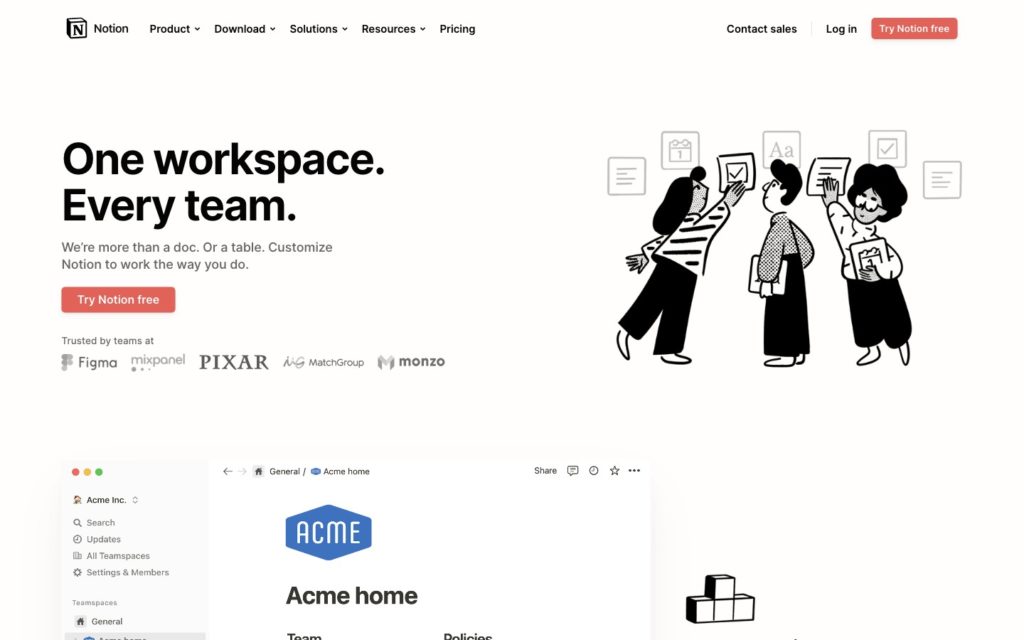
Notion is an all-in-one workspace that combines docs, databases, notes, and task tracking in one tool.
Why I chose Notion: I chose Notion because it gives you more freedom than most task tools. The free plan is strong enough to build a real personal task system, and I like that you can shape the workspace around how you already work instead of forcing everything into one fixed format.
Organizing tasks your own way
Notion’s biggest strength is flexibility. I liked that I could build a task database from scratch, add the fields I actually cared about, and decide how much structure I wanted.
That could be as simple as status, owner, and due date. Or it could be more detailed, with subtasks, dependencies, tags, and custom properties.
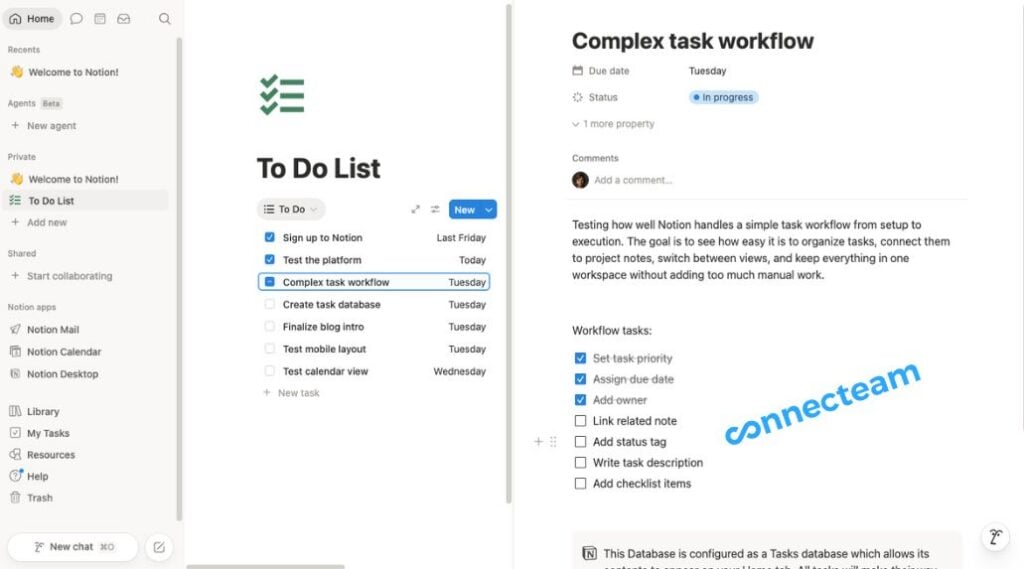
Notion makes it easy to connect different tasks in a database structure. I really liked the ability to look at the same work in different ways. I could switch between table, board, calendar, timeline, and gallery views depending on whether I wanted a clean task list, a kanban board, or a broader project view.
I also liked being able to link tasks to projects, deadlines, and owners from one place instead of spreading that information across different tools.
Notion is powerful, but it takes more work to build and maintain than Todoist or Trello. If you want something fast and ready to use out of the box, it can feel slower and more manual at first.
Keeping tasks connected to docs and workflows
Notion’s database and smart connections between notes and tasks is its real power. It works well when tasks need to sit next to meeting notes, project briefs, SOPs, client information, or other working docs.
I liked that text, databases, files, and layouts can all live on the same page. That makes it easier to keep the task and the context together instead of jumping between a task app and a docs tool.
That setup is especially useful for planning-heavy work. You can build a project page, drop in a task database, connect tasks to owners and deadlines, and keep notes and supporting material in the same workspace.
Free plan limits
Notion’s free plan is best for personal use. Pages and blocks are unlimited for individuals, but collaboration is limited once you have 2 or more members. File uploads are capped at 5MB, page history only goes back 7 days, and guest access is capped at 10. AI features are trial-only, while basic integrations require a paid plan.
Key Features
- Custom task databases
- Multiple project views
- Linked docs and tasks
- Subtasks and dependencies
- Custom task properties
- Flexible page layouts
Pros
- Highly customizable workflows
- Great docs-task connection
Cons
- More setup required
- Limited for teams on free
Pricing
Starts at $10/user/month Trial: Yes Free Plan: Yes
5 Best Free Employee Task Management Software
-
Connecteam — Best for managing tasks across frontline and field teams
Connecteam is an employee management platform that combines tasks, scheduling, time tracking, communication, and payroll-ready timesheets in one app.
Why I chose Connecteam: I ranked Connecteam first because it does not treat task management like a standalone feature. Managers can assign the work, connect it to the shift, track the hours, keep updates in one place, and move approved time into payroll without stitching together a bunch of separate tools.
Connecteam has a true free-for-life Small Business Plan for companies with up to 10 users, with full access to all premium features.
Managing employee tasks day to day
What I like most about Connecteam’s task management is that it’s built for real field and frontline work, so shifts, jobs, and tasks stay in one manager workflow.
Managers can assign quick tasks, forms, and checklists, attaching instructions to the shift, and see who completed what and when.
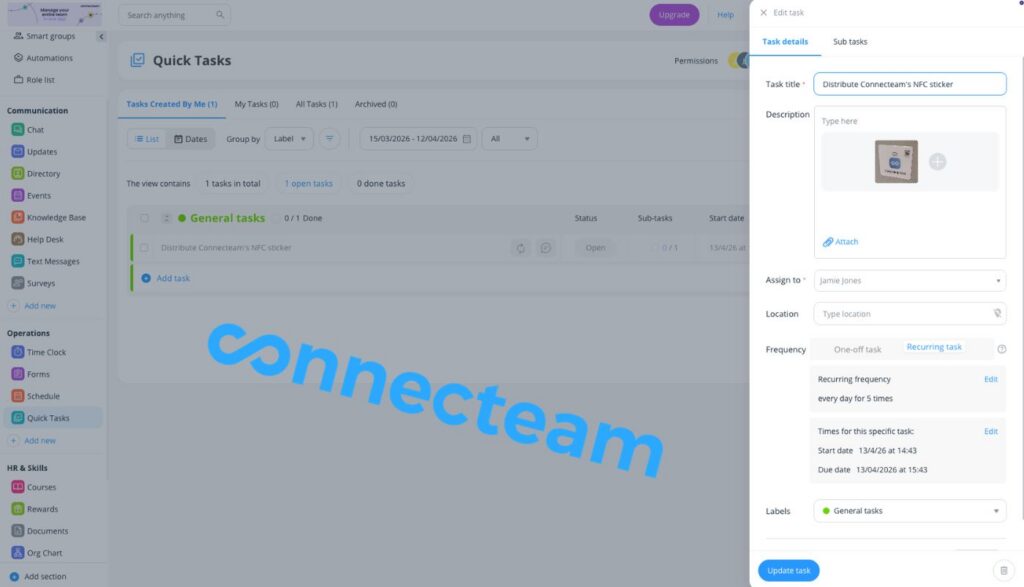
All the options to quickly assign work are easily accessible in Connecteam’s Quick Tasks feature. I also liked that the workflow stayed in one place. The manager can assign the job, add the instructions, and then check completion without jumping into texts or another app to chase updates. Instead of asking whether something got done, there is already a trail showing who completed it and when.
That makes recurring work easier to run too. Repeat routines do not have to be rebuilt every time, and the completion trail is easier to follow later. If you’re managing a field team or a crew with a rotating schedule, this can make a big difference and save hours each week.
Mobile workflow and worker experience
The mobile workflow felt especially strong. Employees can view the shift, open the task, follow the instructions, and clock in and out from the same app.
That cuts down on confusion fast. The worker does not have to switch between a scheduler, a task tool, and a time-clock app just to get through one shift. Connecteam’s time clock also supports GPS and geofencing, which tightens accountability around where and when work starts.
Connecting to the broader manager workflow
Connecteam also keeps going after the task is done. Approved time flows into payroll-ready timesheets, and the platform supports payroll integrations with QuickBooks Online, Gusto, Xero, Paychex Flex, PrismHR, ADP Workforce Now, and ADP Run. Team chat and updates are built in too, so the manager does not have to run tasks in one app, scheduling in another, payroll in a third, and communication somewhere else again.
Free plan limits
Connecteam’s Small Business Plan is free for life for companies with up to 10 users and includes full access to all premium features. Once the team grows past 10 users, the business needs to move onto paid plans.
When Connecteam may not be the best fit
If you only want a very simple personal task app, or you run an office-only team that mainly needs project planning, Connecteam’s extra features can feel a bit excessive. If you need features for monitoring employees and tracking their activity beyond GPS timestamps, Connecteam won’t work either.
0Key Features
Task checklists
Shift-linked task assignment
Built-in employee scheduling
In-shift instructions
Real-time task tracking
Team chat and updates
Pros
Strong mobile workflow
Tasks connected to jobs & schedules
Cons
Less suited to office workflows
Not for pure project planning
Pricing
Free-for-life plan availablePremium plans start at $29/month for 30 users
Task Management Becomes As Easy As The Click Of a Button
Create your FREE account -

ClickUp — Good for teams managing tasks across multiple workflows
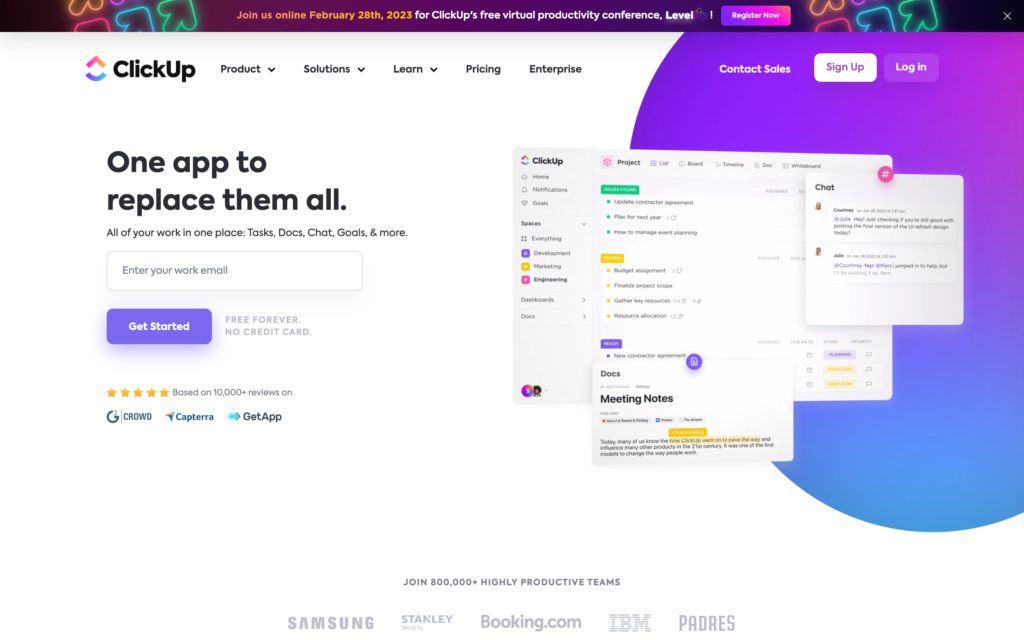
ClickUp is a work management platform that combines tasks, docs, views, and workflow tools in one workspace.
Why I chose ClickUp: I chose ClickUp because it gives managers a lot of control over employee work without forcing them onto a paid plan right away. You get unlimited tasks, unlimited free-plan members, recurring tasks, and flexible assignment options, which makes it a strong fit for teams juggling ongoing work across different functions.
It can feel like overkill if you just need a checklist, but if you need power features, ClickUp can be the right choice.
Managing employee work day to day
ClickUp handles employee task management well when the work has owners, deadlines, repeat steps, and follow-up built into it, rather than as a bucket of things that need to get done.
In our testing, we set up recurring responsibilities, assigned tasks to one person, multiple people, and Teams, and used assigned comments to push next steps forward without creating separate tasks for every small update.
That held up well in day-to-day use. Recurring tasks kept routine work moving, while assigned comments made handoffs cleaner and helped keep follow-up tied to the task itself. It was also easier to see who owned what and where work was getting stuck.
The downside was the setup. There are more layers, views, and options to sort through, so getting the system right took longer than it would in a lighter tool. But once it was in place, ClickUp gave managers more structure than most free plans do.
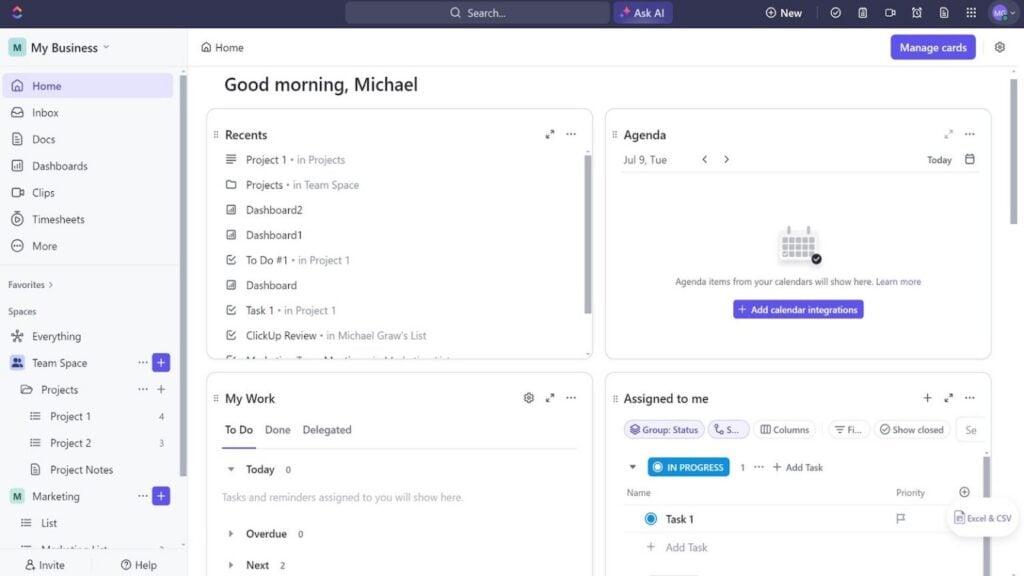
Our reviewer found the interface overwhelming, with lots of information displayed and multiple menus to navigate. Fitting ClickUp into the management workflow
In our testing, ClickUp handled task and project management great. Everything else? Not so much. Our reviewer found that time tracking felt clunky, and scheduling, payroll, and communication are not covered by the software.
If your team works irregular hours and you need features to schedule and track your workers, you’ll need other tools to fill the gaps. On the other hand, if your team works set hours and you’re looking for a tool to assign and track tasks only, ClickUp does the job very well once you set it up.
The same is true for communication. Comments inside tasks worked well, but for quick updates and everyday team communication, ClickUp was not nearly as smooth.
Free plan limits
ClickUp’s free plan gives you unlimited tasks and unlimited free-plan members, which is a big plus for teams. The main limits show up around storage and the broader workflow: you only get 60MB of storage and 1 form, while integrations, native time tracking, unlimited Gantt charts, goals, guest permissions, and resource management all require a paid plan. Paid plans start at $7/user/month.
Key Features
- Unlimited tasks
- Unlimited free members
- Recurring tasks
- Multiple assignees
- Assigned comments
- Docs and task views
Pros
- Strong free plan
- Flexible task workflows
Cons
- Can feel overwhelming
- Key features are paid
Pricing
Starts at $7/user/month Trial: Yes — 15-days Free Plan: Yes — (unlimited users)
-

Asana — Best for structured project-based task management
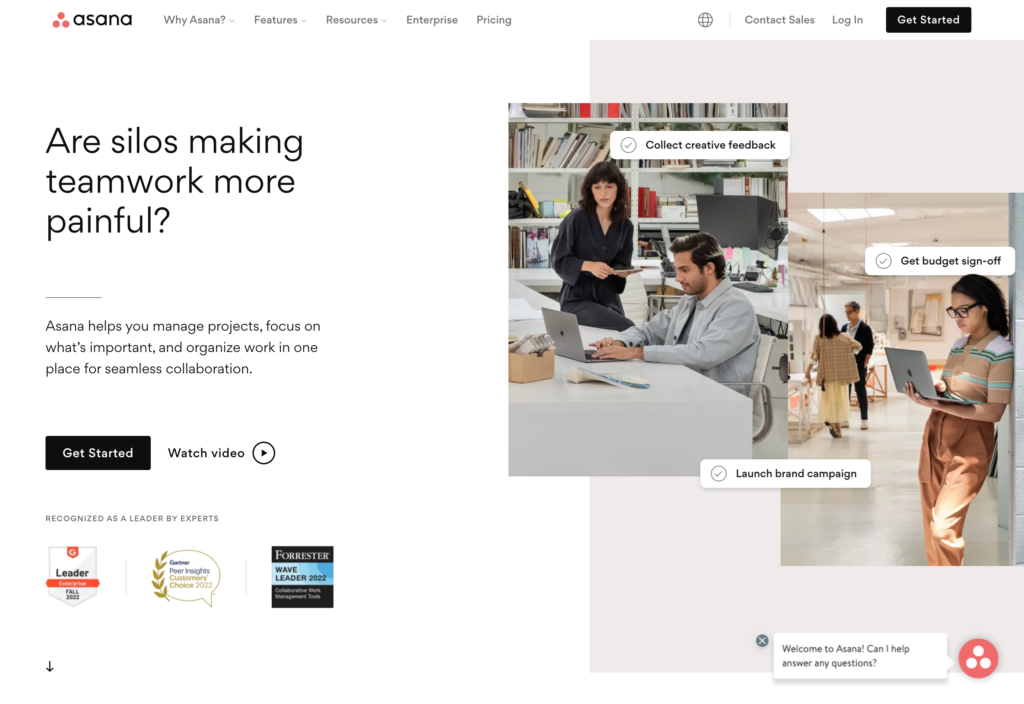
Asana is a project management platform built around tasks, projects, timelines, and team collaboration.
Why I chose Asana: I chose Asana because it makes structured task management feel clean and easy to follow. In our review, setting up projects, adding tasks, and building out workflows was straightforward, and the interface stayed simple while we did it.
Keep in mind that Asana’s free plan isn’t built for teams and covers only 2 seats. If you need more users, forms, custom fields, or timeline planning, you’ll have to move up to a paid tier.
Managing employee tasks and deadlines
Asana gives managers a clear way to assign work and keep it moving. Each task has one assignee, which keeps ownership simple, and you can add collaborators so other people can still follow updates and comment on the work. Our reviewer found that adding subtasks, dependencies, priorities, due dates, and collaborators was easy, and that helped make project work feel structured without becoming messy.
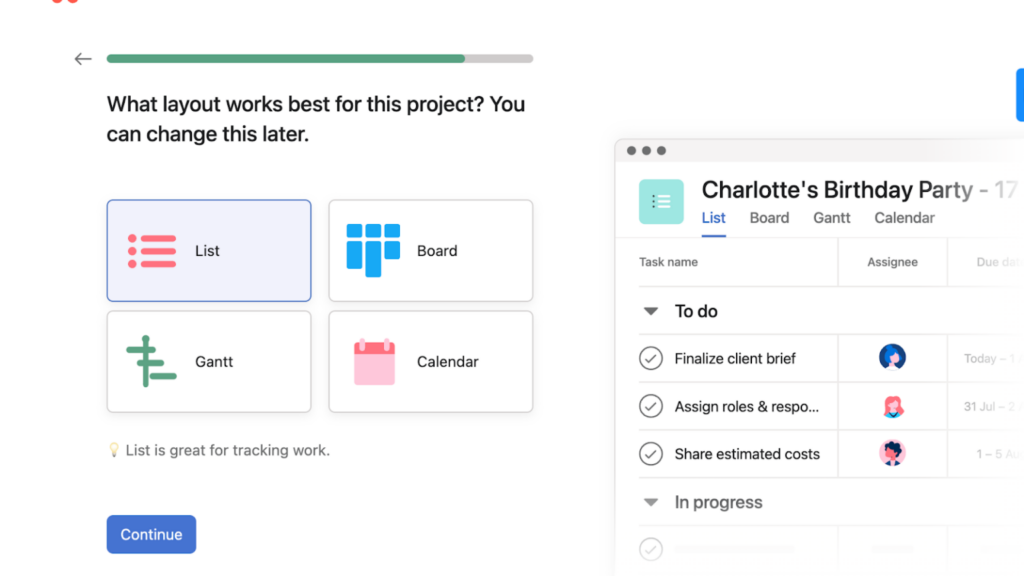
Our reviewer liked that Asana prompts you to create a project, add tasks, and pick your preferred task views when you’re signing up. Recurring tasks helped most with routine project work. Weekly check-ins, monthly deliverables, and repeat internal tasks did not have to be rebuilt every time, which made the workflow easier to maintain and easier to trust.
In our review, Asana handled project-based work well because it kept tasks, deadlines, and responsibilities easy to see. That made it easier to track what was due, who owned it, and where work was falling behind.
Time tracking and other gaps
Asana handled task management much better than the rest of the team-management workflow in our review. Time tracking took extra setup and felt clunky, scheduling employees was not really part of the product, and payroll was outside the system. Even communication worked best when it stayed tied to tasks, not as a broader day-to-day team communication tool.
That means Asana works best when the main job is managing project work. If you also need to schedule staff, track hours cleanly, and move time into payroll, you will need other tools around it.
Free plan limits
Asana’s free plan is limited to 2 users. Forms, custom fields, timeline, workflow builder, start dates, and unlimited users all require a paid plan. Native time tracking does not arrive until Advanced.
Key Features
- Single-owner task assignment
- Recurring tasks
- Subtasks and dependencies
- List, board, calendar views
- Project timelines
- Collaborator comments
Pros
- Clean, intuitive interface
- Strong structured workflows
Cons
- Important tools are paid
- Inbox is not intuitive
Pricing
Starts at $10.99/user/month Trial: Yes — (30 days) Free Plan: Yes — (Personal plan for up to 2 users)
-

SafetyCulture — Good for compliance and inspection-based task tracking
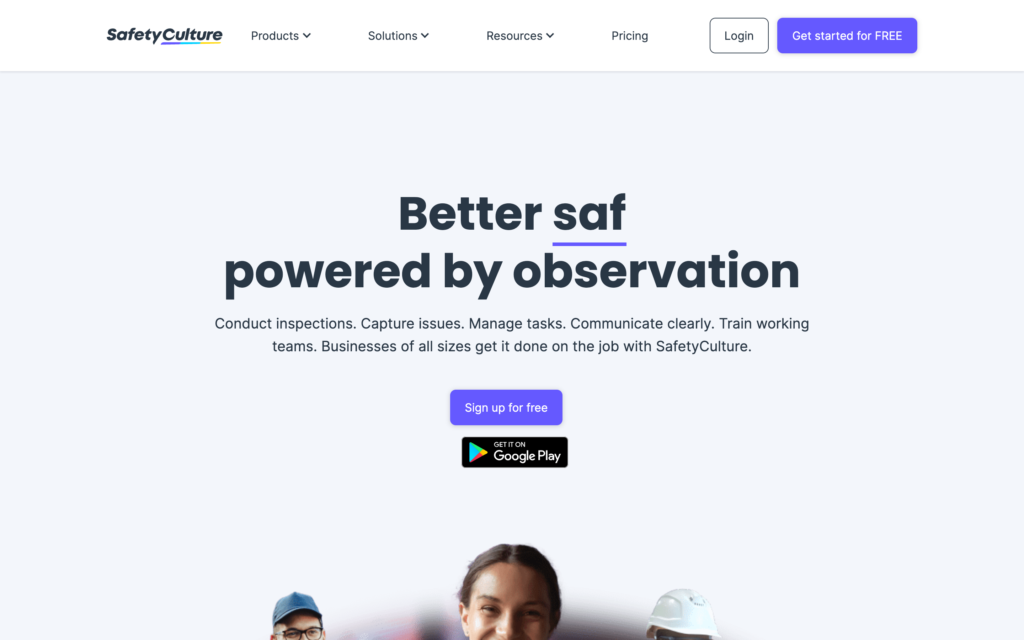
What’s new with Mitti (by SafetyCulture) (iAuditor)
In August 2026, SafetyCulture rebranded as Mitti.
SafetyCulture is an operations platform for running inspections, reporting issues, assigning follow-up tasks, and keeping training and compliance work in one place.
Why I chose SafetyCulture: I chose SafetyCulture because task management is the core workflow for the software. It’s built for recurring checks, issue reporting, and follow-up work, which makes it a strong fit for teams managing inspections, corrective actions, and compliance routines.
The free plan can work well for a small team, with up to 10 users and access to basic inspections, tasks, issue reporting, analytics, and training.
Managing inspections, issues, and follow-up
In our review, the tester found the inspection workflow easy to set up and easy to run, which made it a good fit for daily checks, monthly audits, and other repeat compliance work.
Recurring inspections and tasks can be automated, so managers don’t have to rebuild the same workflow every time. That cuts down on admin work and helps keep routine checks moving.
The action tracker was another strong point in our review. The tester liked the control it gave over follow-up, including status, required evidence, due dates, labels, and custom fields. Once an action was assigned, workers could update status and leave comments on the task itself, which kept follow-up tied to the work.
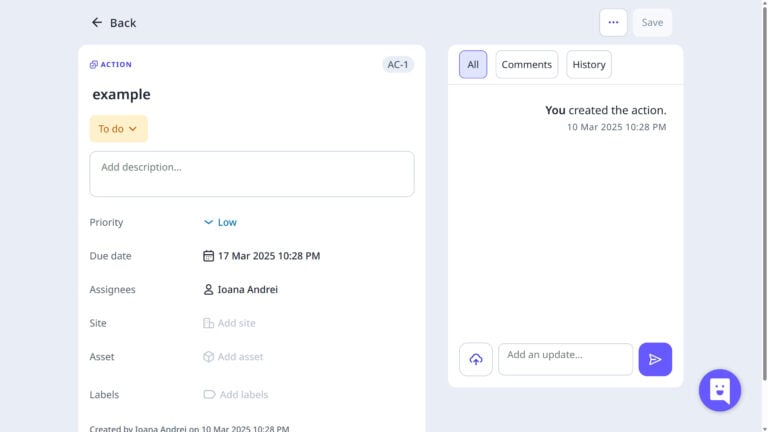
Our reviewer found SafetyCulture’s task management features easy to use and user-friendly. Issue reporting also held up well. In our review, the tester found it easy to submit an issue, add a location with mobile GPS, and upload photos and videos. That made it useful for hazards, incidents, or maintenance needs that did not start inside a formal inspection.
The mobile experience held up too. Our reviewer said the app was just as user-friendly as the web version, and offline support made it easier to keep inspections moving in the field.
Training is built into the workflow too. Managers can create, assign, and track short courses, which helps reinforce the same routines and standards they are checking for in inspections.
Scheduling, time tracking, and communication
SafetyCulture is much stronger on inspections and corrective actions than on the rest of the management workflow. You can schedule inspections, but not the rest of the team’s day. There is no real time clock, no payroll layer, and no built-in way to manage availability, time off, or timesheets in the same system.
Communication also felt more limited. Comments and Heads Up messages work for updates tied to inspections and actions, but not as a strong everyday crew communication tool.
Free plan limits
The free plan covers up to 10 users and 5 active inspection templates. You also get basic inspections, tasks, issue reporting, analytics, and training. Inspection approval workflows, recurring training, third-party integrations, custom analytics, advanced permissions, and Lite users all require a paid plan. Standard analytics are also limited to 30 days on the free tier.
Key Features
- Recurring inspections
- Follow-up task tracking
- Action tracker
- Mobile GPS reporting
- Offline mobile access
- Custom inspection templates
Pros
- Strong recurring inspections
- Great corrective action workflow
Cons
- Weak for crew scheduling
- Limited team communication
Pricing
Starts at $24/user/month Trial: Yes — 30 days Free Plan: Yes — (up to 10 users and 5 active inspection templates)
-

MaintainX — Good for recurring operations and work-order tasks
Available on
- Web
- iOS
- Android
- Windows
- Mac
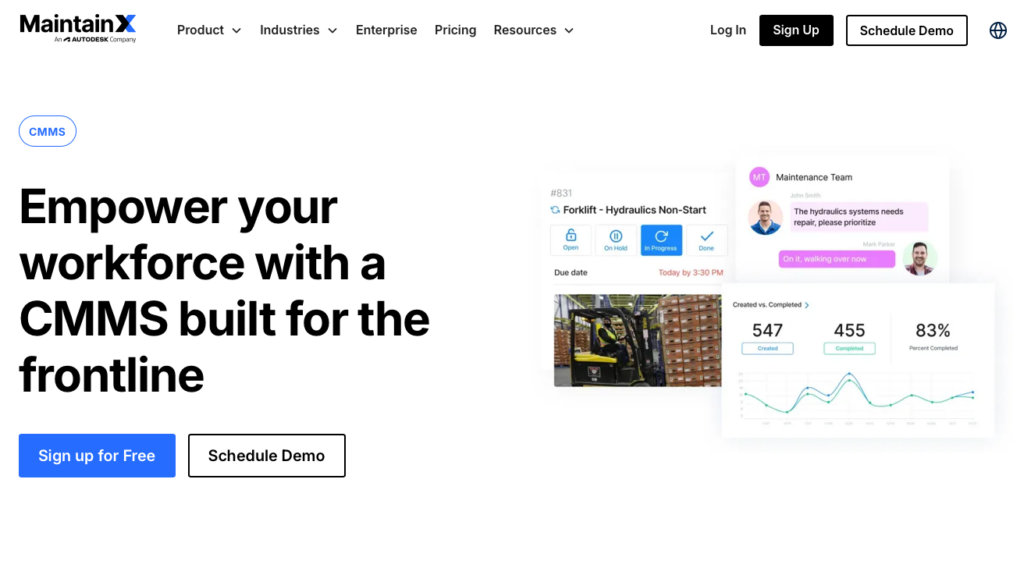
MaintainX is an operations platform built around work orders, procedures, messaging, and maintenance workflows.
Why I chose MaintainX: I chose MaintainX because it gives recurring operational work more structure than a general task tool. Managers can build work orders with the asset, location, assignee, due date, and maintenance context all attached, which makes the workflow easier to run and track.
The free plan is also usable for a small team, with unlimited work orders, unlimited procedures, unlimited requester users, and real-time messaging. The downside for free plan users is that repeating work orders and procedure-linked work orders are available only on paid tiers.
Managing work orders and recurring operational tasks
After a quick, clear onboarding, I went straight to setting up a recurring maintenance job, which is MaintainX’s core use case. Adding the asset, location, assignee, due date, estimated time, and procedure was easy, and I did not need to bounce around too much.
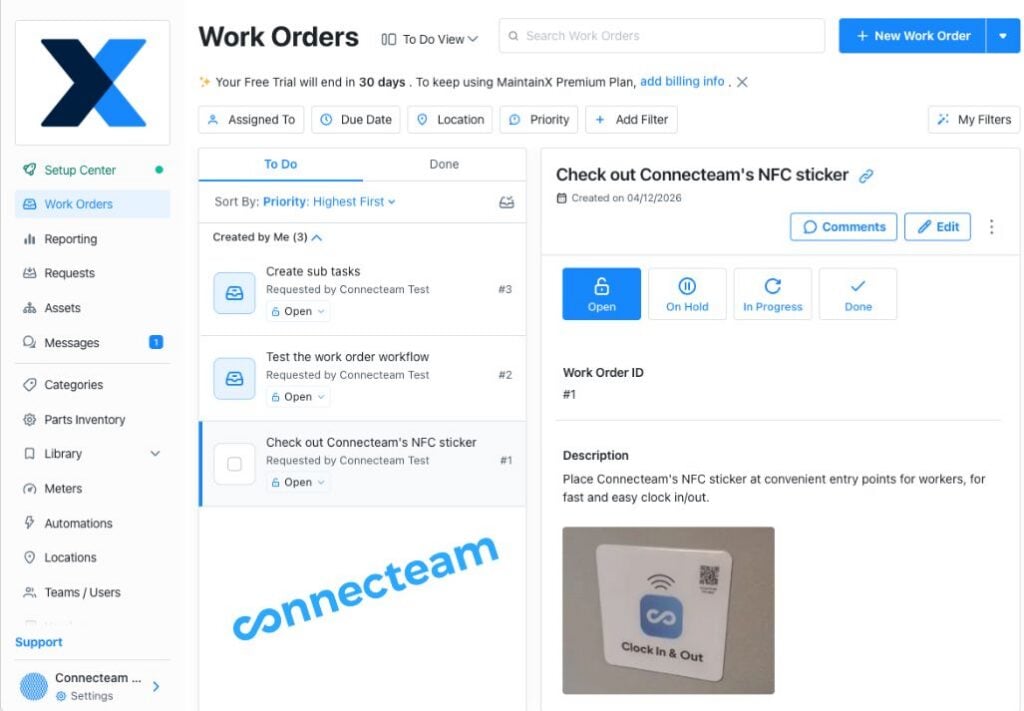
MaintainX keeps work orders, status updates, and job details in one place, which makes recurring maintenance work easier to track. The extra context you can add makes work go quicker out in the field. It’s also useful that you can create work orders with multiple assets, which helps when one job touches more than one piece of equipment.
Because the work order stays tied to the asset, the maintenance history is easier to follow over time too.
Setting recurring work was easy too. Once the job was set up, it felt like something I could leave in place and rely on instead of rebuilding every week or month. For maintenance and facilities teams, that makes repeat work easier to run and easier to trace later.
Communication and the rest of the workflow
I really liked that status changes, comments, photos, and attachments all lived on the work order itself, and that made the record of what happened easy to follow. That made it easier to look back at a job and see what was done, what changed, and what supporting photos or notes were added along the way.
Checklists and procedures help keep repeat jobs consistent too, especially when different techs might be doing the same task over time.
But if you need your operations platform to handle more general communications, then MaintainX loses its edge. It doesn’t cover much beyond the work-order workflow itself. Scheduling, time clock, and payroll need additional tools.
Free plan limits
Unlimited work orders, procedures, requester users, and real-time messaging. But only 2 active repeating work orders, 2 work orders with attached procedures, 5 work orders with attached images, and 1 month of advanced analytics. Time and cost tracking also require a paid plan. Integrations are paid, too.
Key Features
- Work order management
- Recurring work orders
- Procedure-based tasks
- Asset-linked tasks
- Real-time messaging
- Maintenance history tracking
Pros
- Strong work order structure
- Great for recurring maintenance
Cons
- Limited repeating work on free
- No payroll or scheduling
Pricing
Starts at $20/user/month Trial: No Free Plan: Yes
Compare the Best Employee Task Management Softwares
| Topic |
|
|
|
 Start for free
|
|
|
|
|
|---|---|---|---|---|---|---|---|---|
| Reviews |
  |
|
|
|
|
|
|
|
| Pricing |
Starts at $5/month
|
Starts at $5/user/month
|
Starts at $10/user/month
|
Premium plans start at just $29/month for the first 30 users
|
Starts at $7/user/month
|
Starts at $10.99/user/month
|
Starts at $24/user/month
|
Starts at $20/user/month
|
| Free Trial |
yes
|
yes
for the Premium plan
|
yes
|
yes
14-day
|
yes
15-days
|
yes
(30 days)
|
yes
30 days
|
no
|
| Free Plan |
yes
|
yes
|
yes
|
yes
Free Up to 10 users
|
yes
(unlimited users)
|
yes
(Personal plan for up to 2 users)
|
yes
(up to 10 users and 5 active inspection templates)
|
yes
|
| Use cases |
Best for simple personal task management
|
Good for lightweight team task boards
|
Good for flexible task tracking inside docs and workflows
|
Best for managing tasks across frontline and field teams
|
Good for teams managing tasks across multiple workflows
|
Best for structured project-based task management
|
Good for compliance and inspection-based task tracking
|
Good for recurring operations and work-order tasks
|
| Available on |
Web, iOS, Android, Windows, Mac
|
The Bottom Line on Free Task Management Software
Free task management software can work well, but only if it actually supports how you run your work day to day. Personal tools like Todoist and Notion are great for staying organized on your own, while lightweight team tools like Trello help keep shared work visible.
Once tasks involve employees, recurring work, and real accountability, you need something built for that reality.
That’s where Connecteam stands out, giving you a way to assign, track, and complete work in one place without hitting the usual free-plan walls.
FAQs
The best employee management software for deskless teams is Connecteam because it combines tasks, scheduling, time tracking, communication, and payroll-ready timesheets in one app.
The best task management software depends on the job. Todoist is best for simple personal task management, while Connecteam is better for managing employee tasks across frontline and field teams.
The best way to keep track of employee tasks is to use one system to assign work, set due dates, track status, and record completion. That gives managers clear ownership and a visible trail of what got done and when.
The 3 3 3 rule for tasks is a productivity method: spend 3 hours on your most important task, complete 3 shorter tasks, and handle 3 maintenance tasks. It is meant to simplify your day and reduce task overload.
The best free task management software depends on your needs. Todoist is a strong pick for personal task management, while Connecteam is the best free option for assigning and tracking tasks for employees.
Yes, free task management software can work for teams, but only if the free plan supports enough users, recurring work, and visibility. Many free tools work well for small teams but get restrictive once the workflow becomes more complex.
Look for clear task assignment, status tracking, recurring tasks, mobile access, and enough free-plan room for your team to actually use it. For employee teams, accountability and ease of day-to-day use matter more than feature count alone.