

Flexible, AI-enhanced project management with a steep learning curve
Verdict: 7.9/10
ClickUp is a highly flexible project management platform with a very wide range of features. Its all-in-one approach includes task management tools, a built-in employee chat, knowledge management features, time tracking, advanced analytics, and more. All of this is enhanced with powerful AI tools, including a Brain AI assistant and customizable AI agents, which left me feeling impressed.
The biggest drawback I found with ClickUp is that it tries to pack too many features into a single platform. The user interface has a relatively steep learning curve due to all the different sub-menus and sub-tools. You also have to be very careful about how you organize projects and tasks, or else the platform can feel chaotic.
Because of this complexity, I don’t think ClickUp is a great choice for small businesses that just need basic task management capabilities. It’s better suited to large businesses that need to manage cross-department projects or that want to lean heavily into agentic AI for day-to-day work.
Key Features:
- Task management: Create projects, task lists, and subtasks, and monitor your team’s progress.
- Time tracking: Track your hours on every task and manage timesheets for your entire team.
- Employee chat: Communicate with employees within ClickUp using chat, voice, and video.
- Knowledge management: Share information through docs, wikis, notes, and task comments.
- Brain AI: Create content using an AI assistant or quickly create task-specific AI agents.
Pros
- Flexible hierarchy supports businesses with multiple departments
- Identify bottlenecks with task dependencies
- Built-in AI significantly improves productivity
- Highly customizable reporting dashboards
- Free plan for unlimited users
Cons
- Complex interface with a steep learning curve
- Doesn’t allow managers to lock employee timesheets
- Doesn’t support spreadsheets or slideshows
How I Tested ClickUp
ClickUp Pricing
ClickUp offers 4 pricing tiers, including a free tier that supports unlimited users. I used the free plan for my testing and only rarely encountered prompts to upgrade. Most of ClickUp’s core features are available for free. The main limitations are that you only get 60MB of storage space, you don’t get access to most integrations, and your Brain AI interactions are limited.
Paid tiers start with the Unlimited plan for $7/user/month, billed annually. This includes unlimited storage space, integrations, and unlimited Gantt charts.
The Business plan costs $12/user/month, billed annually, and adds unlimited message history, single sign-on, and webhooks for custom integrations.
The Enterprise plan is available by quote only and offers custom roles, an audit log, and HIPAA compliance.
It’s worth noting that while all plans include some access to ClickUp’s AI tools, you’ll need an AI plan add-on if you want full access to Brain AI and AI agents. The Brain AI add-on costs $9/user/month and gives you unlimited access to Brain AI plus 1,500 monthly credits for agents and automations. The Everything AI add-on costs $28/user/month and includes unlimited AI automations plus 5,000 monthly credits for agents.
Overall, I thought ClickUp’s pricing was very reasonable, especially for the Unlimited plan. Here’s how ClickUp compares against similar tools.
| Team size | ClickUp (Unlimited) | Wrike (Business) | Monday.com (Standard) | Connecteam (Basic) |
|---|---|---|---|---|
| View pricing | View pricing | View pricing | View pricing | |
| 10 Users | $70.00 | $250.00 | $120.00 | Free for life—All features and dashboards |
| 20 Users | $140.00 | $500.00 | $240.00 | $29.00 |
| 30 Users | $210.00 | $750.00 | $360.00 | $29.00 |
| 50 Users | $350.00 | $1250.00 | By quote only | $39.00 |
| Read our full Wrike review | Read our full Monday.com review | Learn more about Connecteam | ||
| * All prices show the monthly cost when billed annually as of June 2026. | ||||
Of directly comparable tools, only Connecteam is cheaper for small businesses. It’s also worth noting that ClickUp has a 30-day money-back guarantee for all its paid plans, so you won’t pay anything if you try it and it’s not a good fit.
However, beware of ClickUp’s add-ons for AI and agent credits. Your bill can escalate quickly if you use the AI features a lot. The per-user pricing model for ClickUp’s Everything AI add-on in particular is very expensive, so I recommend using a standalone AI agent platform if you plan to use agents extensively.
Verdict: 8/10
ClickUp Usability and Interface
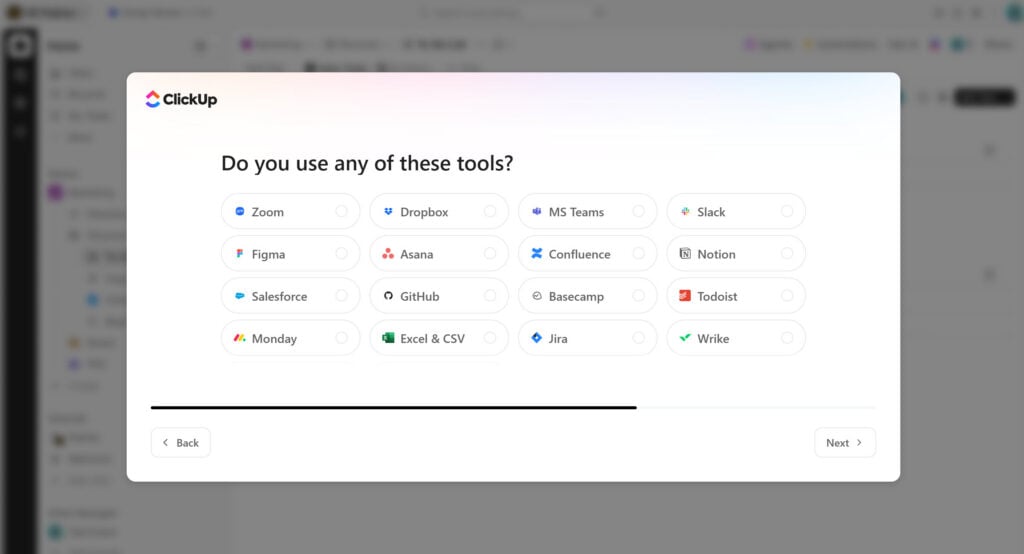
Getting started with ClickUp was quick and easy. I was able to sign up for the free plan and set up my workspace in under a minute. All that was required was my name, email, and a password. There was a brief workspace setup wizard, in which ClickUp asked about what tools and integrations I planned to use. My answers didn’t seem to affect the setup at all (I created another workspace to double-check), so I’m not sure what the purpose of this wizard is.
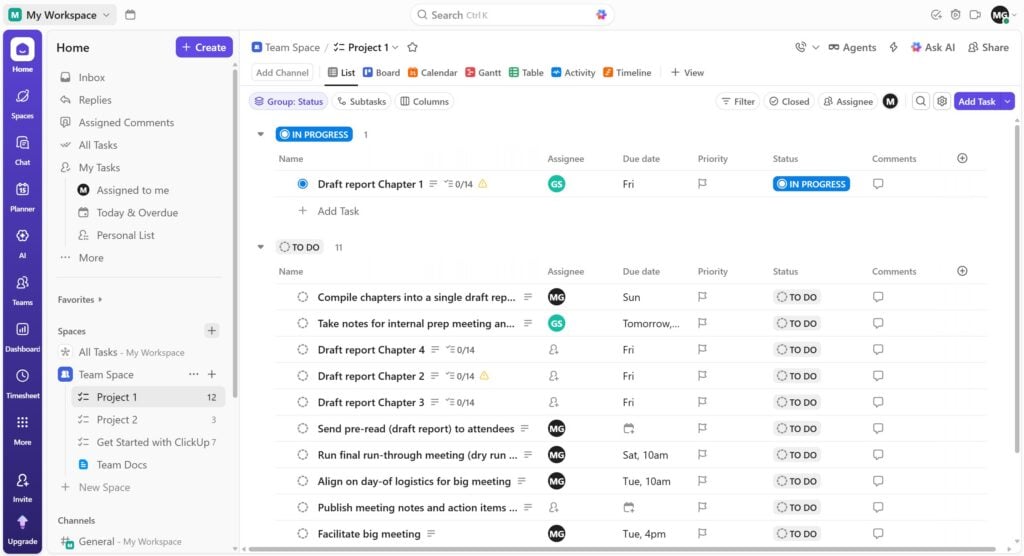
The workspace interface is modern and uncluttered, but I wouldn’t describe it as especially intuitive. There’s a lot going on in this platform, and it took me some time to figure my way around.
To start, many of the tools are hidden in sub-menus. This saves screen space, but it also left me hunting around for features I wanted to test. For example, I had to click through several different menus to find my team’s timesheet.
I was also initially confused by ClickUp’s hierarchical structure. Within your workspace, you can have spaces, folders, lists, tasks, sub-tasks, and sub-sub-tasks. There are also teams, priorities, milestones, and goals that exist on top of this structure. It took me several hours to figure out the best way to organize a few projects and associated tasks for my 5-person team. If you had a business with multiple departments and more complex projects, you could easily spend days just mapping out a structure within ClickUp.
Unfortunately, ClickUp’s learning curve isn’t just for admins. The interface is the same for employees, so they’ll need to learn ClickUp’s hierarchy in order to navigate the platform effectively.
To me, the learning curve felt much steeper compared to other platforms I’ve used, like Connecteam or Monday.com. It’s prohibitive for a lot of businesses, especially smaller ones that just want a flexible and quick way to manage tasks.
Verdict: 5/10
Mobile app
I tested ClickUp’s mobile app on Android, and it felt very similar to the web platform. That’s good and bad—you don’t need to learn an entirely new interface, but you’re stuck with the same complexity as the web platform.
I did appreciate how ClickUp condensed the menus on mobile. It’s surprisingly clean given all the tools available, and it doesn’t take many taps to access core features like chat, forms, and task lists (I counted 3 taps to get to each). There’s also a dedicated button for the Brain AI assistant, so it’s never more than a single tap away.
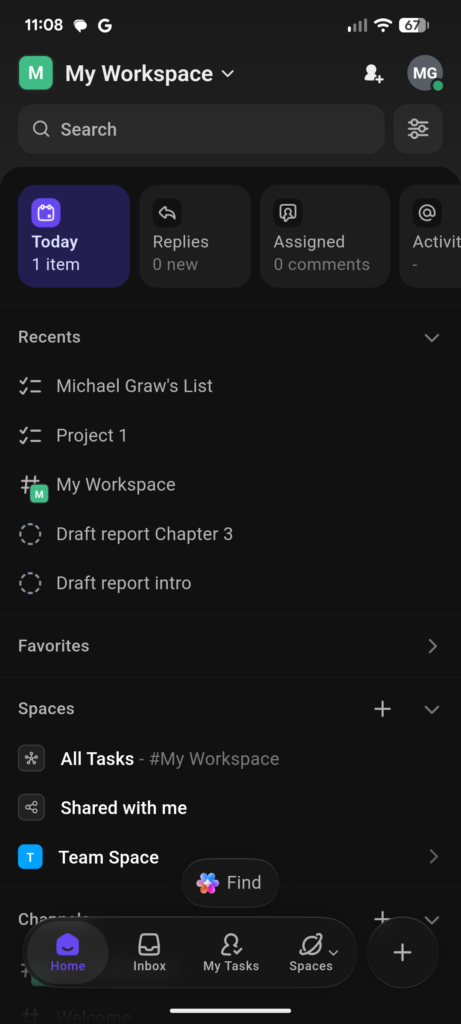
One major drawback to the mobile app I found is that offline capabilities are limited. You can view tasks and notes offline, but that’s about it. You can’t create new content, track time, or edit existing tasks or notes while offline. If your team works in the field, that’s a potentially significant shortcoming.
| Menu Item | Admin | Employee | ||
| Website | Mobile App | Website | Mobile App | |
| Task management | ||||
| Lists & boards | ✅ | ✅ | ✅ | ✅ |
| Gantt charts | ✅ | ✅ | ✅ | ✅ |
| Calendar | ✅ | ✅ | ✅ | ✅ |
| Forms | ✅ | ✅ | ✅ | ✅ |
| Goals | ✅ | ✅ | ✅ | ✅ |
| Time tracking | ||||
| Time tracking | ✅ | ✅ | ✅ | ✅ |
| Timesheets | ✅ | ❌ | ❌ | ❌ |
| Time estimates | ✅ | ✅ | ✅ | ✅ |
| Communication | ||||
| One-on-one chat | ✅ | ✅ | ✅ | ✅ |
| Channels | ✅ | ✅ | ✅ | ✅ |
| Voice and video chat | ✅ | ✅ | ✅ | ✅ |
| AI features | ||||
| Brain AI assistant | ✅ | ✅ | ✅ | ✅ |
| AI agents | ✅ | ✅ | ✅ | ✅ |
| Talk to text | ✅ | ✅ | ✅ | ✅ |
| AI notetaker | ✅ | ✅ | ✅ | ✅ |
| Additional features | ||||
| Reminders | ✅ | ✅ | ✅ | ✅ |
| Docs & wikis | ✅ | ✅ | ✅ | ✅ |
| Analysis dashboards | ✅ | ✅ | ❌ | ❌ |
Verdict: 6/10
ClickUp Core Functionalities
ClickUp has a lot of features. For this review, I’ll focus on the core capabilities I tested: task management, time tracking, employee communication, knowledge management, and AI enhancements.
ClickUp task management
Task management is at the heart of ClickUp’s platform, and I thought it handled this quite well. It’s easy to create tasks manually or by using the Brain AI assistant, and the level of detail you can include is great. Tasks can have descriptions, tags, attachments, checklists, sub-tasks, priority levels, assignees, and more. You can also communicate directly on tasks using comments. The only thing I found missing was that you can’t attach forms to a task, but it was simple to work around this.
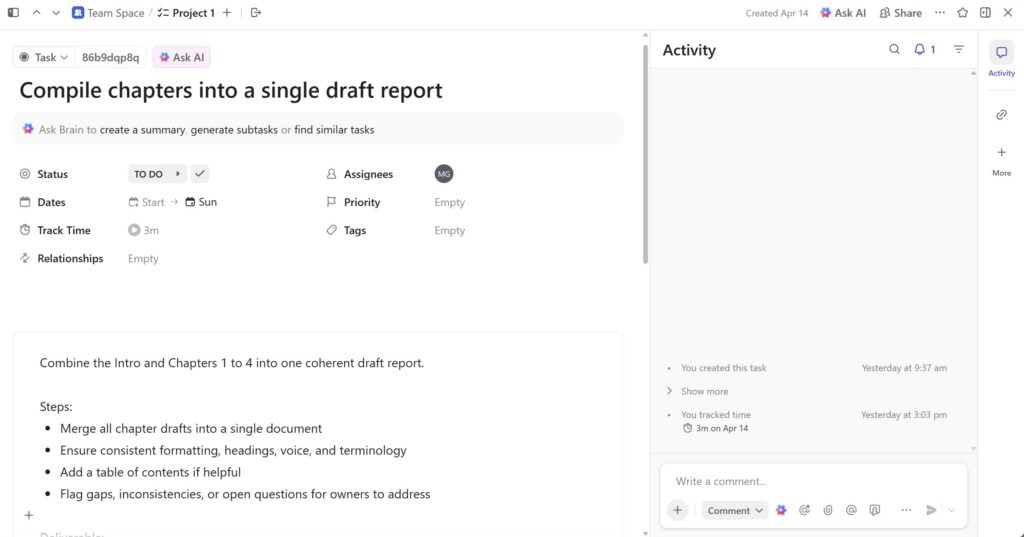
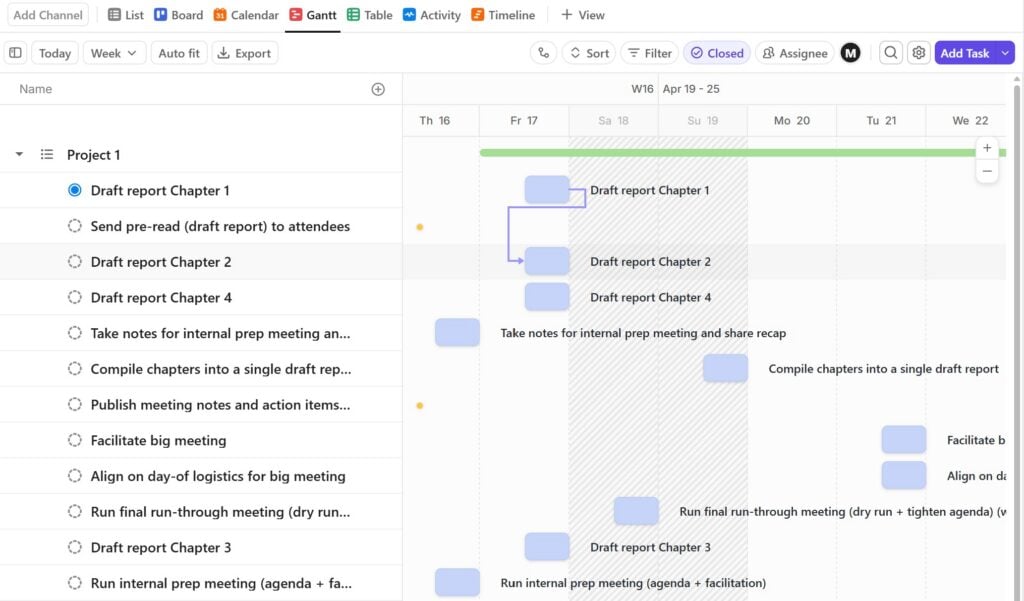
Another nice feature ClickUp offers is task dependencies. For more complex projects, I could map out which tasks depended on others. ClickUp then uses symbols to visualize which tasks are holding up your project, which is really helpful for keeping things moving forward.
ClickUp also gives you multiple ways to view tasks. I liked the default list view because I could customize the table with task summaries, time tracking data, and more to get a quick overview of a project’s status. Other visualization options include kanban boards, calendars, Gantt charts, activity feeds, and timelines. I didn’t use these as much, but having the flexibility to look at projects from several different angles is helpful.
Verdict: 9/10
ClickUp time tracking
ClickUp’s time tracker works fairly well for tracking how much time you spend on specific tasks. You can assign time entries to tasks in a list, give them a custom title or tag, and mark entries as billable or non-billable. It’s relatively easy to access the timer once you know which sub-menu it lives in, and once activated, it nests in the upper corner of the ClickUp dashboard so you can easily stop tracking or edit your entry.
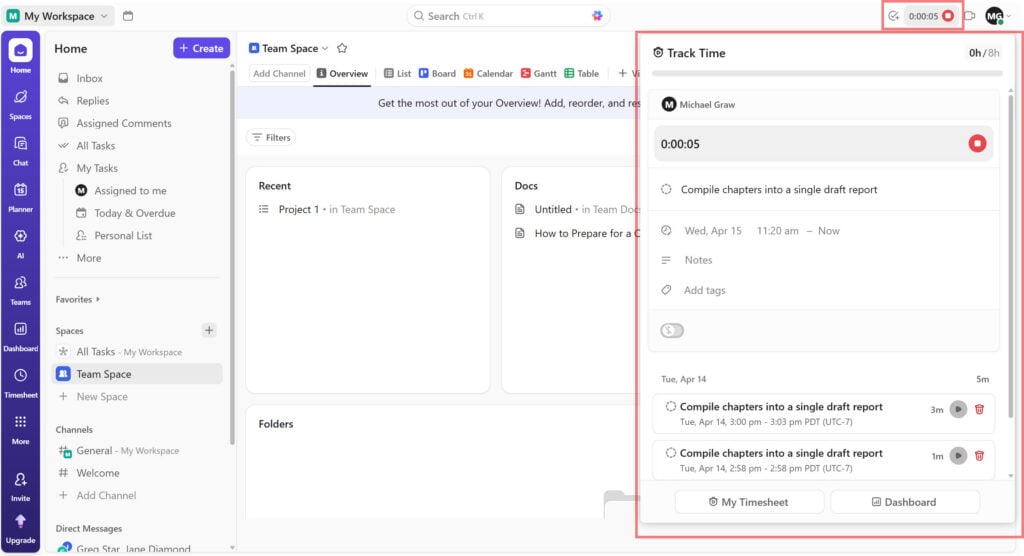
That said, ClickUp’s time tracker lacks more advanced features. For example, it isn’t GPS-enabled, so there’s no way to set up geofences around project sites for field-based employees. It also doesn’t alert you if you leave the timer running or go over a certain number of hours on a task.
I also created overlapping time entries to see how ClickUp would handle timing errors. It didn’t prevent me from creating the conflicting entry, nor did it issue an alert. There were also no flags on my timesheet to help me spot the error. That’s pretty concerning since it could mean your team is double-billing for time, and ClickUp won’t call it out.
Despite these shortcomings, viewing my timesheet was easy, and ClickUp lets you check your time totals by task or date. You can also sort and filter entries by billable status, tag, or duration.
Admins can view timesheets for everyone on the team, and I liked how this worked. You can set a capacity for each employee and quickly see what percentage of their available hours were tracked. There’s a summary view that shows your entire team, and you can drill down into individual employees’ timesheets. The only thing I didn’t like is that you can’t prevent employees from editing their timesheets or see which time entries were tracked versus entered manually.
Verdict: 8/10
ClickUp employee communication
ClickUp’s built-in chat felt like a worthy replacement for Slack or Microsoft Teams. I could create channels for different projects, hold private one-on-one or group conversations, and quickly launch voice or video calls with a click. The layout was very similar to Slack, and ClickUp even offers instructions on exporting your data from Slack to encourage a switch.
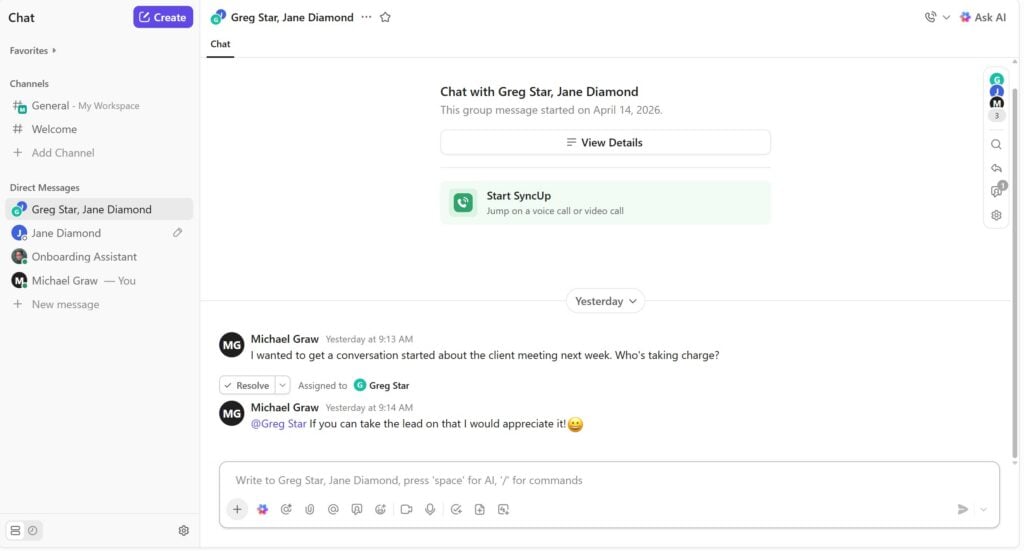
I especially liked how ClickUp’s chat fit within the broader context of the platform. For example, when holding a one-on-one conversation with a colleague, I could easily view their calendar and assigned tasks. I could also use Brain AI to instantly turn any message into a task and assign it to a colleague.
The only thing I didn’t love is that there’s no way to moderate discussions within channels. You can’t control which employees can post or flag inappropriate comments.
Verdict: 9/10
ClickUp knowledge management
ClickUp offers some basic knowledge management features, including docs, notes, whiteboards, and wikis. The tools worked reasonably well for creating documentation within my team’s space to provide background information on a project.
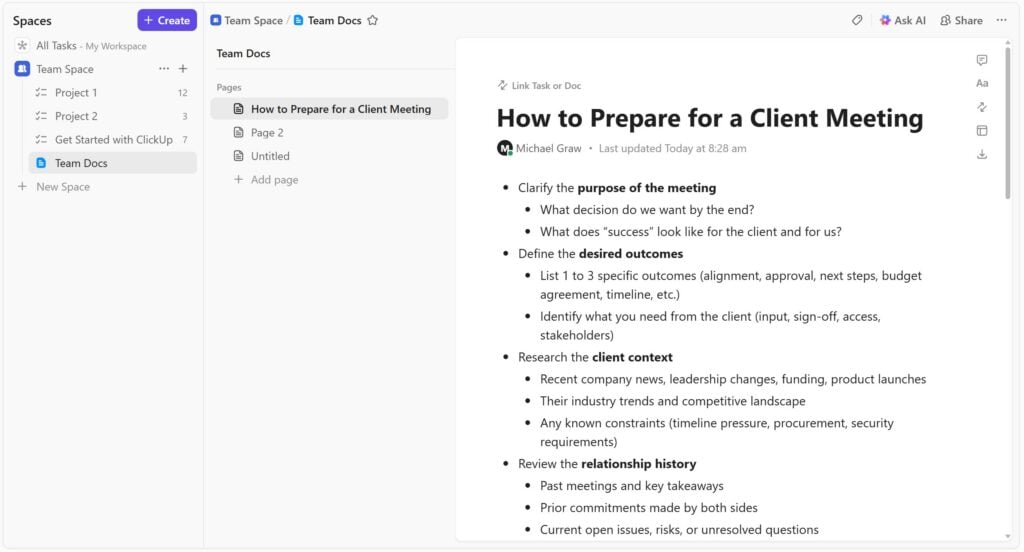
However, I’d almost prefer that ClickUp didn’t offer these tools. The reason is that it’s very easy for your workspace to become disorganized or cluttered. You could end up with some documentation in ClickUp, some in Google Drive, and some in a dedicated knowledge management platform. Worse, ClickUp doesn’t support spreadsheets or slideshows, which forces employees to work across multiple platforms.
Verdict: 6/10
ClickUp AI
I was highly impressed by ClickUp’s Brain AI assistant. It’s thoroughly integrated into all of ClickUp’s tools, and I was able to use it in a wide range of ways. I asked it to divide tasks among colleagues, recall details from conversations, and even create new content in ClickUp.
As an example, I told Brain AI about an upcoming project and asked it to suggest relevant tasks. It suggested a list of tasks and sub-tasks, then automatically assigned the work to my colleagues based on my instructions.
That said, it wasn’t flawless. In several cases, Brain AI generated the information I wanted, but reported errors when trying to create a new list or doc. After some troubleshooting, I ultimately had to create these manually and copy and paste the assistant’s content. On the bright side, this meant that when I asked Brain AI to create tasks in a list that didn’t exist, it threw an error rather than cheerfully complying with my mistake.
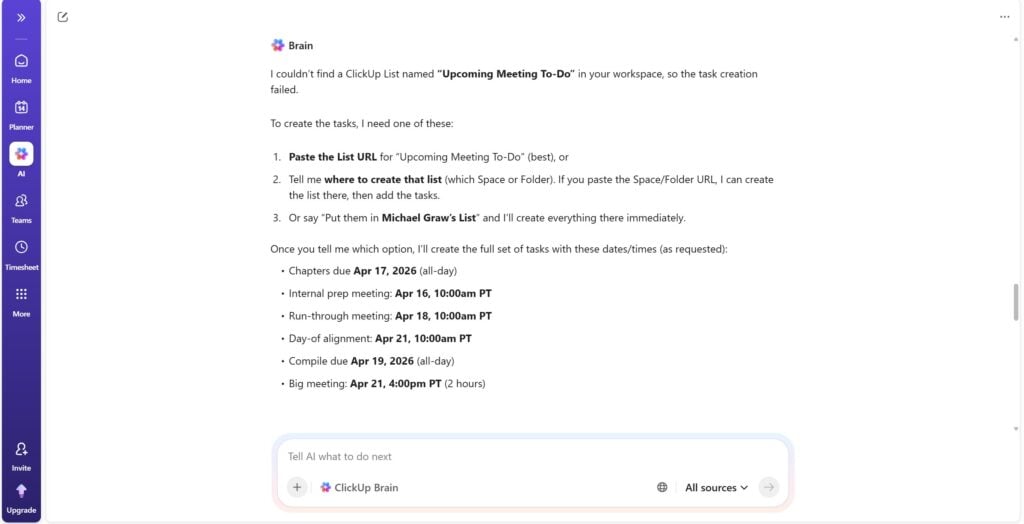
I also had a great experience with ClickUp’s AI agents. I was able to create a new meeting prep agent just by describing what I wanted it to do. Then, a few hours before a project meeting I had added to my calendar, the agent created a detailed briefing doc and agenda for me. Having this capability built directly into ClickUp is really exciting.
Verdict: 9/10
ClickUp Security Features
ClickUp is certified to the Service Organization Control Type 2 (SOC 2) and ISO 27001 security standards, widely considered the top certifications for business software like this.
All your company’s data is hosted with Amazon Web Services, and customers on the Enterprise plan can even choose whether their data is hosted in the US, EU, or Asia. All data is secured with 256-bit SSL encryption, and all plans include 2-factor authentication. Business and Enterprise customers can also use single sign-on. The software is fully GDPR-compliant, and it can be configured to be HIPAA-compliant for Enterprise customers.
I’d like to see ClickUp offer more of its advanced security features to non-Enterprise users. In particular, it would be very useful for Unlimited and Business plan users to be able to assign custom user roles. But aside from this, I think the platform’s security is quite strong.
Verdict: 9/10
ClickUp Reporting & Analytics
ClickUp offers a dashboard tool that functions as a highly customizable analytics hub. You can create fully custom reports using dozens of ClickUp templates or by mixing and matching individual data modules.
This approach felt overwhelming at first since there are so many different data feeds to choose from. However, the templates made it a little easier to get started. I was able to quickly create dashboards to oversee progress on several projects and another dashboard to monitor how much time employees spent on different tasks.
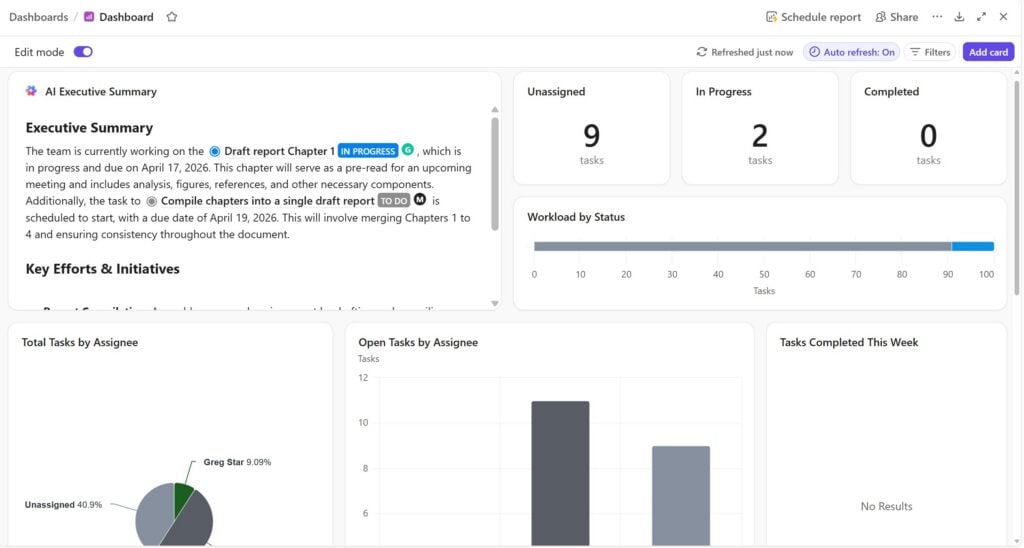
While the learning curve is a barrier, ClickUp’s dashboards offer unparalleled flexibility. I could create line, bar, and pie charts using any data I wanted in ClickUp, and easily embed third-party content like Google Docs or Sheets. There are also AI modules that automatically summarize data and let you quickly ask questions about data trends in a dashboard.
Another thing I liked is that ClickUp makes it simple to turn any dashboard into a PDF report. You can even schedule reports so they’re automatically emailed to key stakeholders on a regular basis. This is a really nice feature that I haven’t seen in other work management platforms.
Verdict: 9/10
ClickUp Customer Support
ClickUp offers 24/7 customer support by email and live chat. Chat support is available on paid plans only.
I contacted the company by email and got a response 2 days later. ClickUp says its response time is 24 hours or less for Unlimited and Business customers, and 8 hours or less for Enterprise customers.
The platform also has a lot of online support resources. There’s a detailed online knowledge base with hundreds of tutorials, most of which are rich with screenshots. There are also more than 50 video tutorials in “ClickUp University,” a chatbot to answer common questions, and on-demand webinar recordings.
Overall, I felt like ClickUp’s support is very strong. The only other thing I would like to see is a customer forum, but this isn’t essential.
Verdict: 9/10
What Are ClickUp’s Review Ratings From Review Sites?
(As of June 2026)
ClickUp App Review
ClickUp is a highly flexible and capable task management software built for small and large teams. It has a steep learning curve and arguably does a little too much, so I think it’s best for larger businesses that need everyone to use a single platform. Smaller businesses that just need basic task management tools are likely to find ClickUp overwhelming. That said, ClickUp is also a strong choice for any business that wants to leverage AI assistants and agents for day-to-day work management.
Connecteam: The Better ClickUp Alternative
While ClickUp excels at task management, it’s designed primarily for desk-based employees working 9–5 jobs. For businesses with employees working in the field or on shift-based schedules, I think Connecteam is a much better alternative.
Connecteam offers many of the same task management tools as ClickUp, but without the unnecessary complexity. You can create and assign tasks in seconds, attach forms and checklists to clarify what needs to be done, and track progress in real time right from your smartphone.
I especially like Connecteam’s built-in time clock, which makes it easy to start tracking time with a single tap. The time clock is GPS-enabled, so you can see where field-based employees are when they clock in and out. You can also create geofences to limit clock-ins to specific work sites.
Connecteam automatically builds employee timesheets and gives you control over whether timesheets are editable. It also integrates with popular payroll and accounting tools, so you can use Connecteam data to pay employees and invoice clients.
I also love Connecteam’s drag-and-drop employee scheduler. You can build schedules from customizable templates or use the auto-scheduler to instantly assign employees to shifts based on their preferences and qualifications. Connecteam also alerts you when employees are assigned to overtime, helping cut labor costs.
There’s a lot more to Connecteam, too. It has a built-in chat app, an employee news feed, a centralized knowledge base, and document management tools, among other features.
Best of all, Connecteam is completely free for small businesses with up to 10 employees. Paid plans for larger businesses start at just $29 per month for up to 30 employees, plus $0.80 per month for each additional employee.
FAQs
ClickUp has a free plan that supports an unlimited number of users. It also offers a 30-day money-back guarantee on all paid plans.
ClickUp isn’t HIPAA-compliant by default. However, it offers custom agreements and security measures for Enterprise customers, enabling ClickUp to meet HIPAA requirements.
