


Time Tracking and Employee Monitoring App for Desk-Based Teams
What’s New in This Update:
May 2026
- Updated Hubstaff’s pricing, plan limits, add-ons, support options, and review ratings.
- Retested Hubstaff across its web, desktop, and mobile apps to check what has changed since the last review.
- Revisited previously identified issues to see which ones Hubstaff fixed and which ones still remain.
- Expanded mobile testing to better evaluate Hubstaff’s employee and manager experience on iOS and Android.
- Added deeper testing for geofencing, location tracking, scheduling, break controls, overtime tracking, and time-off management.
- Refocused the review around real-world usability for desk-based, remote, field, and frontline teams.
Verdict: 7.8/10
Hubstaff began as a powerhouse for computer-based time tracking and has since expanded its software to win over teams that don’t work behind a desk. While it still excels for office workers, my testing shows that its tools for non-office teams are catching up, but are not quite there yet.
If you need a platform to track employee time, monitor attendance, and track desktop activities, Hubstaff is a strong choice. It captures screenshots, detects idle time, and records the apps and websites employees visit when clocked in. It then pieces the data together to give managers clear insights into work patterns and overall productivity.
Frontline, mobile, and on-site teams could benefit from Hubstaff’s geofencing, which can automatically clock field employees in and out as they enter or leave a job site. However, if compliance is a priority, Hubstaff doesn’t tick all the boxes. For example, it doesn’t prevent early returns from breaks and can track only weekly overtime.
Hubstaff Key Features
- Time tracking: Hubstaff tracks regular hours, overtime, and work breaks on mobile, desktop, and web apps, as well as via a Chrome extension.
- Activity monitoring: Hubstaff records keystrokes, captures screenshots, and monitors the applications and URLs an employee visits during work hours.
- Scheduling: Hubstaff doesn’t support drag-and-drop scheduling, but creating and assigning shifts is a breeze.
- Project management: Hubstaff offers an agile, visual project management module with list, Kanban, and timeline views.
- Time-off management: Hubstaff allows employees to request time off and manage time-off balances on desktop devices. Managers can quickly approve requests only on their desktop devices.
- Insights: Hubstaff aggregates activity-monitoring data and presents it in a visually appealing way to help managers see team performance at a glance.
Pros
- Easy-to-use mobile, desktop, and web apps
- Powerful time tracker with overtime and break tracking
- Geofenced time tracking
- GPS location history for routes
Cons
- Shifts don’t include task or location data
- Doesn’t support facial recognition or biometric verification
Hubstaff Pricing
Verdict: 8/10
Hubstaff is affordable, but lower tiers offer basic features and often force users to get paid add-ons to unlock essential tools. While its hybrid pricing model makes premium features available across all plans, it can quickly inflate the overall cost depending on what you need.
| Plan — Per Month (Billed Annually) | Features |
|---|---|
| No free plan | |
| Starter — $4.99 per seat2 seat minimum |
|
| Grow — $7.50 per seat 2 seat minimum | Everything in Starter, plus:
|
| Team — $10 per seat 2 seat minimum | Everything in Grow, plus:
|
| Enterprise — $25 per seat | Everything in Team, plus:
|
| As of May 2026 | |
Hubstaff’s standard plans sit in the middle tier of the pricing spectrum among time-tracking apps. Its entry plan costs $4.99 per seat, which may not be the most expensive on the market, but it’s pricey compared to apps like Connecteam.
While there are no hidden costs, basic tools such as location tracking and task management are available only as paid add-ons. As a result, what starts as an affordable plan can quickly become expensive as you buy add-ons to cover the features your team needs.
Hubstaff Free Plans and Trials
Hubstaff doesn’t offer a free plan, but most plans include a 14-day free trial. According to Hubstaff, the trial doesn’t require a credit card. However, during onboarding, I was first directed to choose a paid plan, which triggered a credit card request.
There is a “pick a plan later” option at the bottom of the page that lets you continue without adding payment details, but it’s very easy to miss. This makes the signup flow feel less transparent than it should, especially for users who want to test the platform before choosing a plan.
Hubstaff also offers a 30-day money-back guarantee to first-time users. This means that if you cancel your plan within 30 days of subscription, Hubstaff will give you a refund.
Hubstaff Add-Ons
Hubstaff’s popular add-ons include:
- Insights ($2.50/seat/month): Get features such as categorized work time, suspicious activity detection, and behavioral highlights.
- More screenshots ($2.50/seat/month): Take up to 10 screenshots every 10 minutes.
- Tasks ($2.50/seat/month): Manage tasks with Kanban and timeline views
- Locations ($3.33/seat/month): Supports location tracking on mobile with geofenced job sites (available only on Team and Enterprise plans).
- Silent app: ($2.50/seat/month): Track time and employee activity in the background on company-owned computers.
What didn’t sit well with me is that the location add-on is available only to Team and Enterprise subscribers. This means that a business on the Grow plan must first upgrade to Team to buy the locations add-on. In this case, Hubstaff pushes you to pay for features you may never use just to unlock one essential add-on.
Hubstaff Sign-Up and Onboarding
Verdict: 8.5/10
Overall, setting up a team on Hubstaff is straightforward, and many managers won’t need to get up to speed with guides to get their teams configured.
To test the Hubstaff signup process, I set up a company with five employees and one admin. It took 20 minutes to set up everything, including my organization workspace, team limits, and employee accounts.
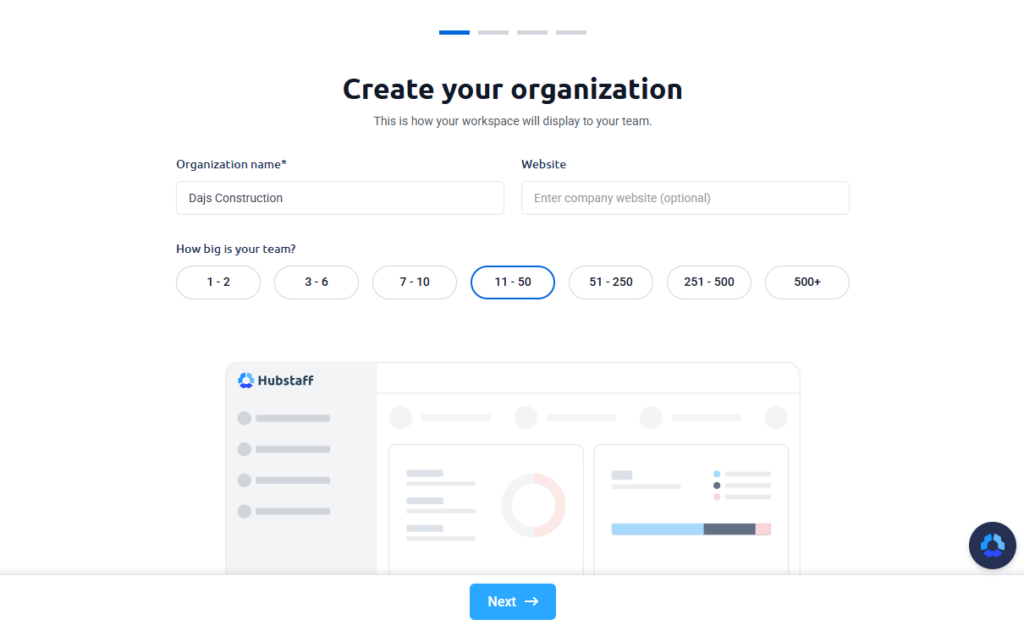
I used email invites to add users, though businesses with large workforces can use the invite link option. Regardless of the route you choose, Hubstaff requires employees to set up their own profiles, saving managers a great deal of time.
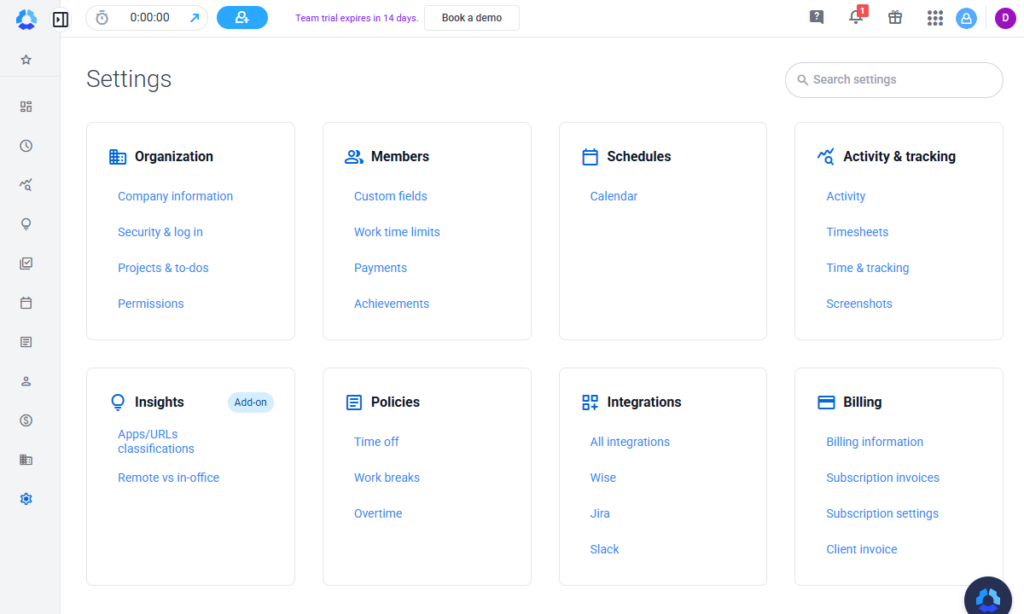
Since I last tested Hubstaff, they’ve reorganized the settings page to group related settings in a single tab. The new layout makes vital settings easier to access, speeding up the configuration process.
It took me approximately 15 minutes to configure permissions, time off, breaks, overtime, activity tracking, and other essential settings to get my team up and running.
Once I completed onboarding, Hubstaff provided a quick video walkthrough to help me get started. This was a nice touch that helped me get to know the platform from the very first day.
I also liked the short walkthrough videos that pop up when you open a feature for the first time. While not very detailed, the videos help first-time users understand how each feature works and what its benefits are, so they can get maximum value from day one.
Hubstaff Usability and Interface
Verdict: 7.5/10
Hubstaff is easy to use across different devices, thanks to its intuitive UI and synchronized experience on web, desktop, and mobile apps.
I took Hubstaff for a spin on the web, mobile, and desktop apps to test its usability. Although the user interface (UI) differs across these apps, my overall user experience was excellent. Let’s get into the nitty-gritty details:
Hubstaff Web App
Despite being feature-rich, Hubstaff’s web app doesn’t feel cluttered or overwhelming for first-time users, thanks to its intuitive UI.
Once you log in, you’ll find a well-designed UI with three sections: a left-side panel, a top panel, and the main details area. The key features — dashboard, timesheets, activity, project management, calendar, reports, financial, people, and settings — are neatly lined up on the left-side panel for quick access.
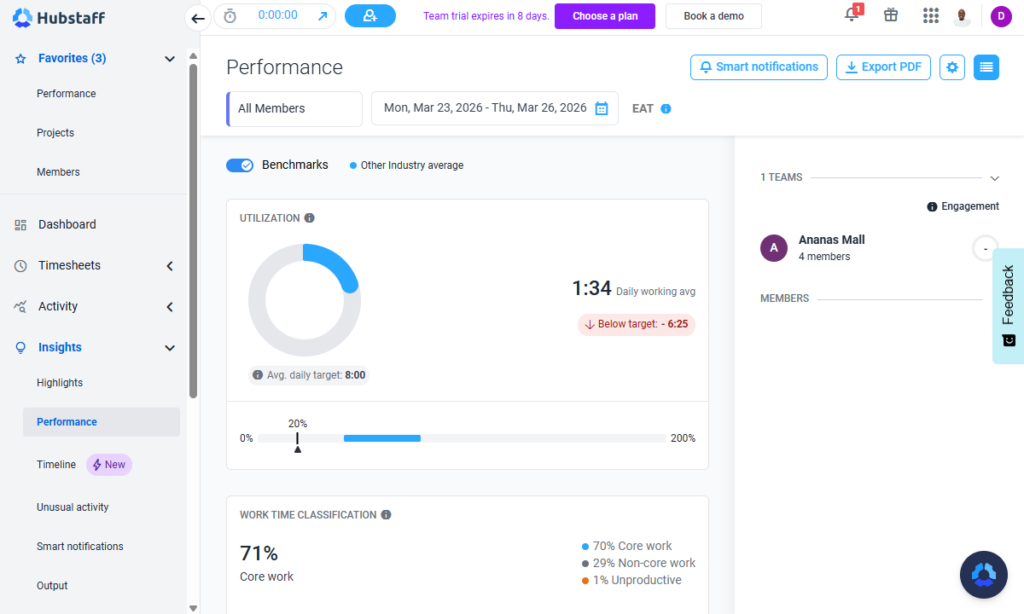
The menu panel includes expandable options to further simplify navigation. When I clicked the arrow next to each feature, it opened a list of subfeatures, allowing me to jump straight to the tasks I needed to do.
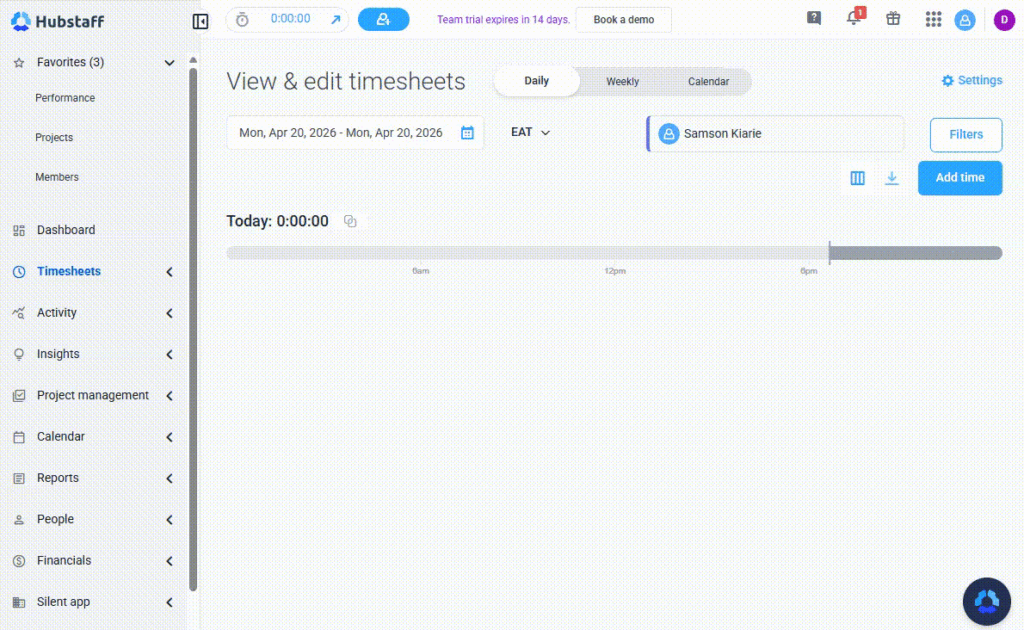
I also liked that the tabs displaying rich datasets and team metrics, such as dashboards and insights, don’t look overly cluttered. They organize data into appealing visuals and graphs to give managers an at-a-glance overview of their team’s performance without feeling overwhelming.
Sadly, Hubstaff doesn’t offer any usability features for users with visual or hearing impairments. That said, even non-tech-savvy users will still easily find their way around Hubstaff’s web app, thanks to its intuitive interface.
Hubstaff Mobile App
Hubstaff’s iOS and Android apps are trimmed-down versions of the web app, with fewer features but a cleaner and more polished interface. The home UI displays a conspicuous timer and a menu at the bottom of the screen.
The menu displays the main features — dashboard, timesheet, timer, and reports — making it easy for users to jump straight to tasks they want to accomplish. With the app, employees can track time, view timesheets and reports, and stay on top of schedules from their smartphones.
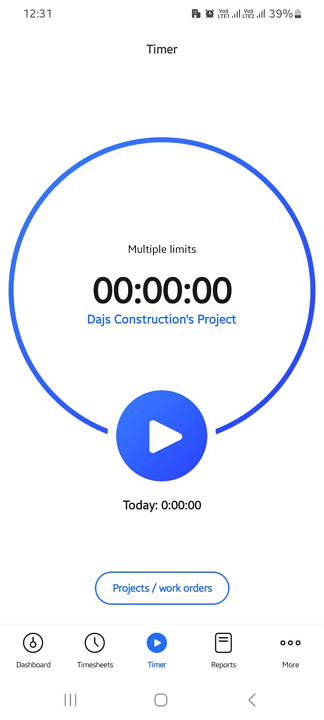
Sadly, some vital functionalities, such as time-off requests and invoicing, aren’t available on the mobile app, which is a huge miss for non-office workforces.
Managers also can’t perform administrative tasks in the mobile app — not even the simplest ones, such as approving time-off requests and timesheets.
Pro Tip
For field teams, mobile admin tools matter. Connecteam helps managers handle scheduling, approvals, and daily operations from one mobile app.
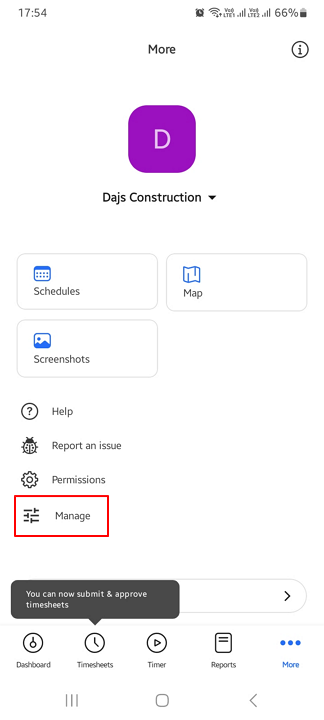
I also noticed that Hubstaff’s mobile app offers the same interface and features for employees and managers. Managers don’t get built-in admin tools in the app itself. Instead, they can tap the “Manage” button to open Hubstaff’s web app in a mobile browser, where those features are available. While this setup can work, it feels less effective than a built-in Manager view.
In the table below, you can see which features are missing from the mobile app:
| Menu Item | Admin | Employee | ||
| Website | Mobile App | Website | Mobile App | |
| Feature | ||||
| Timesheet | ✅ | ✅ | ✅ | ✅ |
| Time tracker | ✅ | ✅ | ✅ | ✅ |
| Calendar | ✅ | ❌ | ✅ | ✅ |
| Schedule | ✅ | ✅ | ✅ | ✅ |
| Expenses | ✅ | ❌ | ✅ | ❌ |
| Time off | ✅ | ❌ | ✅ | ❌ |
| Analysis | ||||
| Dashboard | ✅ | ✅ | ✅ | ✅ |
| Reports | ✅ | ✅ | ✅ | ✅ |
| Activity | ✅ | ✅ | ✅ | ✅ |
| Management | ||||
| Kiosks | ❌ | ❌ | ❌ | ❌ |
| Approvals | ✅ | ❌ | ❌ | ❌ |
| Projects | ✅ | ❌ | ✅ | ❌ |
| Team | ✅ | ❌ | ✅ | ❌ |
| Clients | ✅ | ❌ | ❌ | ❌ |
| Locations | ✅ | ✅ | ✅ | ✅ |
| Tags | ❌ | ❌ | ❌ | ❌ |
| Invoices | ✅ | ❌ | ✅ | ❌ |
| Settings | ✅ | ✅ | ✅ | ✅ |
These issues aside, the Hubstaff time tracker allowed me to clock in or out and track time without an issue when I turned off the internet connection. This shows that its offline tracking capabilities are functional, making Hubstaff a good fit for teams working in areas with poor cellular service.
Hubstaff Core Functionalities
Hubstaff offers a wide array of time-tracking and workforce management tools. In this section, I’ll dissect the core Hubstaff features to help you make an informed decision. Let’s dive in.
Time Tracking
Verdict: 7.5/10
Hubstaff has some useful tools for remote and field teams, such as automatic geofencing clock-ins and accurate break and overtime trackers. However, it lacks a time clock kiosk and facial recognition, making it less ideal for environments requiring strict on-site identity checks.
The time tracker lets employees track time through Hubstaff’s mobile, web, and desktop apps, or through the Chrome extension. I really liked that I could create a policy dictating which app teams can use for time tracking. This helps prevent employees from tracking time across multiple apps, eliminating double sessions.
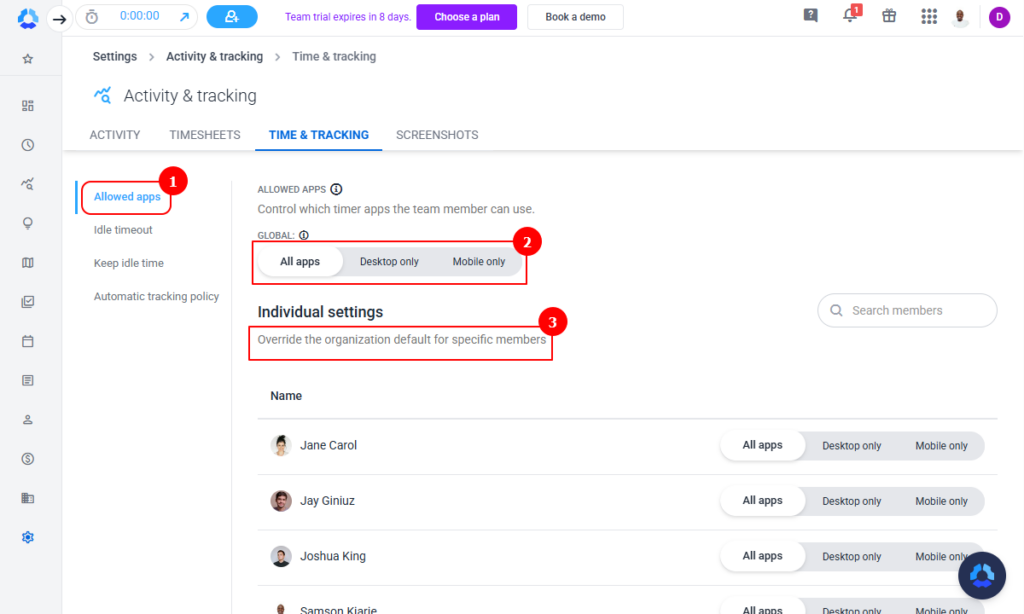
Hubstaff also lets managers set an automatic time tracking policy, so that the timer starts and stops at predefined times of the day. You can add more triggers to improve tracking accuracy, such as setting the timer to start only when the mouse or keyboard is active. Keep in mind that the automatic timer is suitable only for employees on a fixed schedule.
While these diverse time-tracking options may appeal to office workers, Hubstaff lacks tools vital for non-office teams. Most notably, Hubstaff doesn’t offer a kiosk option, which is a major downside for businesses that require employees to clock in and out from the same device, for example, in restaurants or hospital settings.
It also doesn’t support facial recognition or biometric verification. With facial recognition, users must take a selfie at clock-in. Managers use these photos to verify employees’ identities during timesheet approval to flag any suspicious or fraudulent clock-ins. Unfortunately, Hubstaff doesn’t offer these benefits.
Hubstaff Geofencing
The last time I tested Hubstaff, it didn’t prevent employees from clocking in or out when they’re outside of their designated job sites. The provider has since introduced this function. It also notifies employees to clock in or out when they enter or leave a geofenced area, and it can also automate clock-ins and clock-outs.
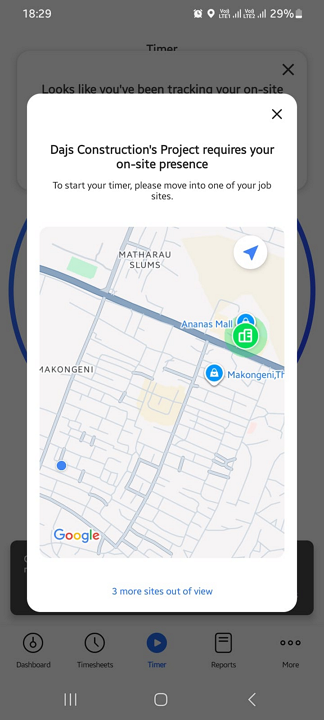
To test the effectiveness of Hubstaff’s geofencing, I set up two job sites — site A and site B — along the same route. I configured the geofence to notify me when I entered or left site A, and to clock me in and out automatically when I entered and left site B.
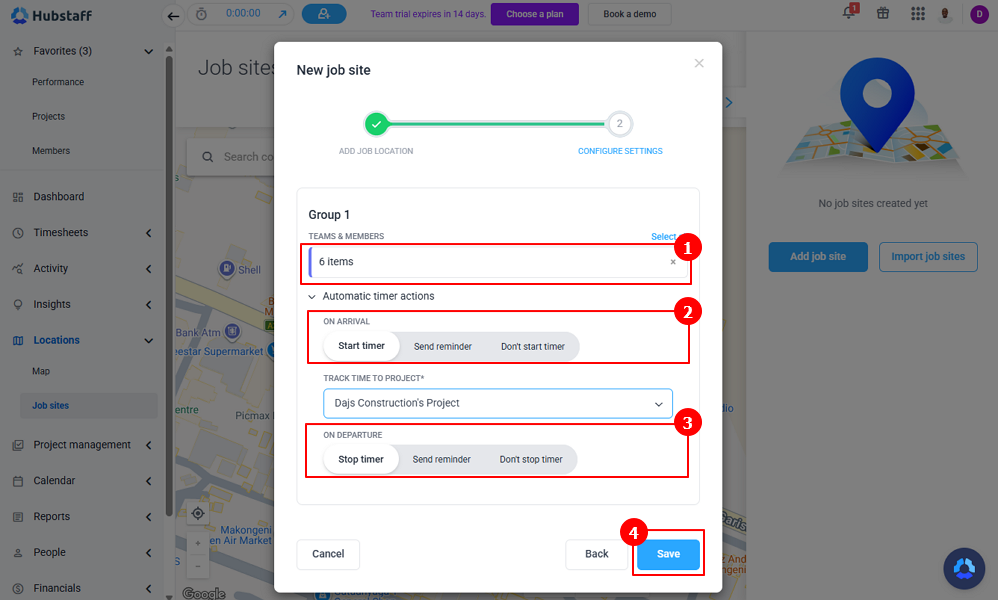
The app blocked my attempt to clock in when I was outside the geofences. I then drove along the route, and Hubstaff prompted me to clock in and clock out when I entered and exited Site A. It also automatically clocked me in or out when I entered or left site B, proving that the hands-off approach to time tracking works.
Automatic clock-ins and clock-outs help employers accurately track billable hours. For example, service businesses can accurately compute the time that a field service agent spends at a client’s location, while a sales manager can use the feature to calculate the time a sales rep spends with their assigned accounts.
Break Tracking
One aspect of Hubstaff I really like is the ability to create break policies that align with labor laws. During testing, I created a 15-minute rest break and a 30-minute meal break in accordance with California break law.
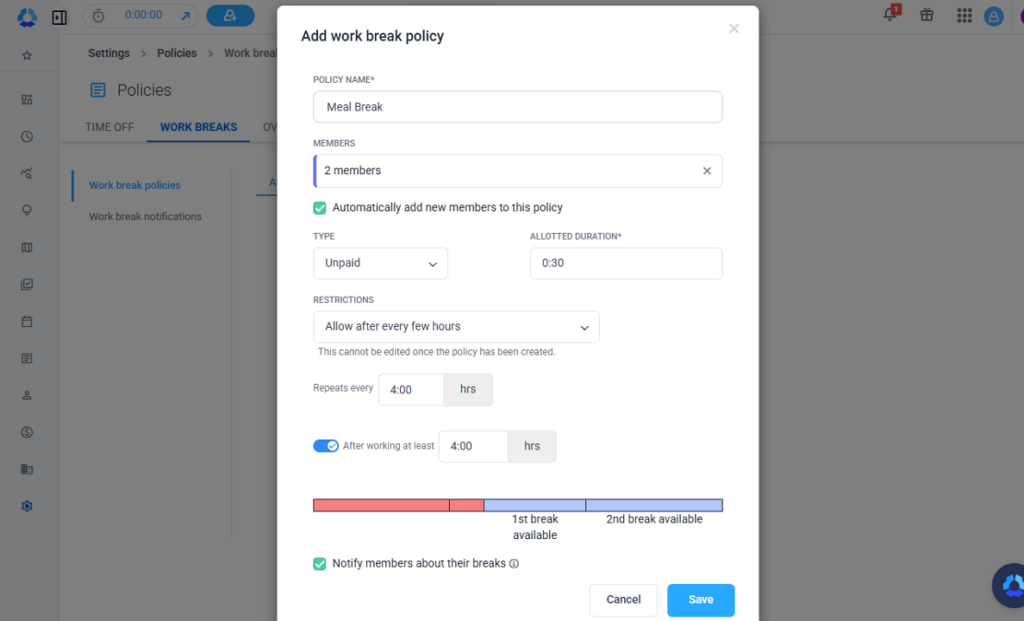
I was also impressed by the recurring break option, which let me set the meal break to repeat after a certain number of hours. This feature is particularly useful for businesses in regions that mandate multiple meal breaks for long shifts, such as California.
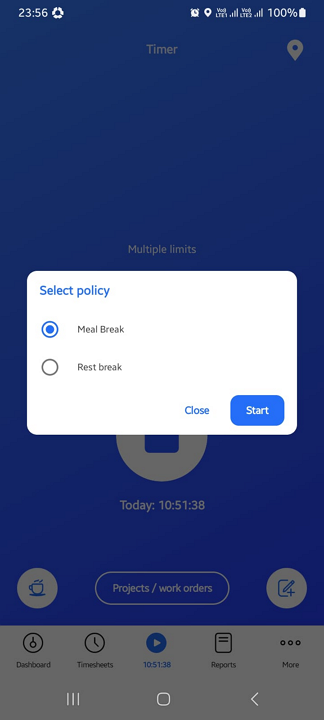
My only issue is that Hubstaff lacks tools for strictly enforcing break policies. The platform claims to notify employees 2 minutes before a break; the notification is automated and can’t be customized. However, during testing, my mock employees didn’t receive the notification.
I do wish the app would prevent employees from ending their break early to ensure no one takes shorter breaks, though. Under certain laws, such as California’s break law, employees must take an uninterrupted break. If anyone returns early, the break becomes invalid, and the worker is entitled to one hour of premium pay. Hubstaff can’t help prevent such violations.
Break rules can be costly to get wrong. Connecteam helps teams manage breaks with customizable settings, mobile break tracking, and payroll-ready timesheets.
Overtime Tracking
Overtime tracking is one area where Hubstaff needs to improve to appeal to businesses that prioritize compliance with labor laws. Currently, it tracks only weekly overtime and lacks tools to track daily, double-time, holiday, or seventh-consecutive-day overtime.
Employee Scheduling
Verdict: 7/10
Hubstaff is sufficient for simple, manual shift planning. However, the lack of drag-and-drop scheduling and automation tools limits its effectiveness for fast-paced teams with complex scheduling needs.
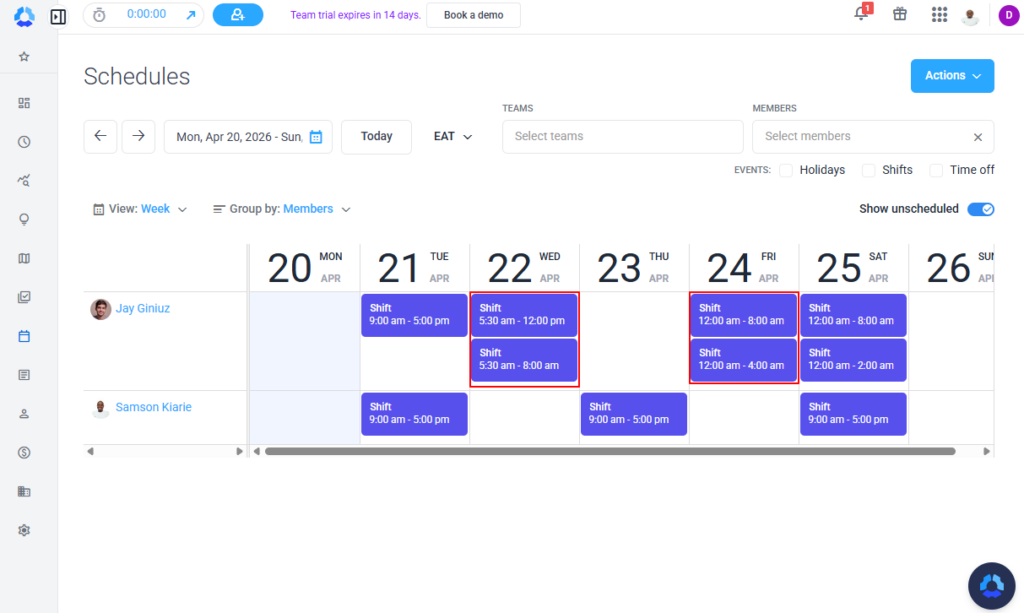
Hubstaff’s scheduling feature is tucked under “Calendar” in the main menu, which can make it harder for some users to find. Hubstaff lets you schedule employees on the weekly calendar view by default, with employees listed on the left and dates across the top. However, you can switch to a monthly or daily view.
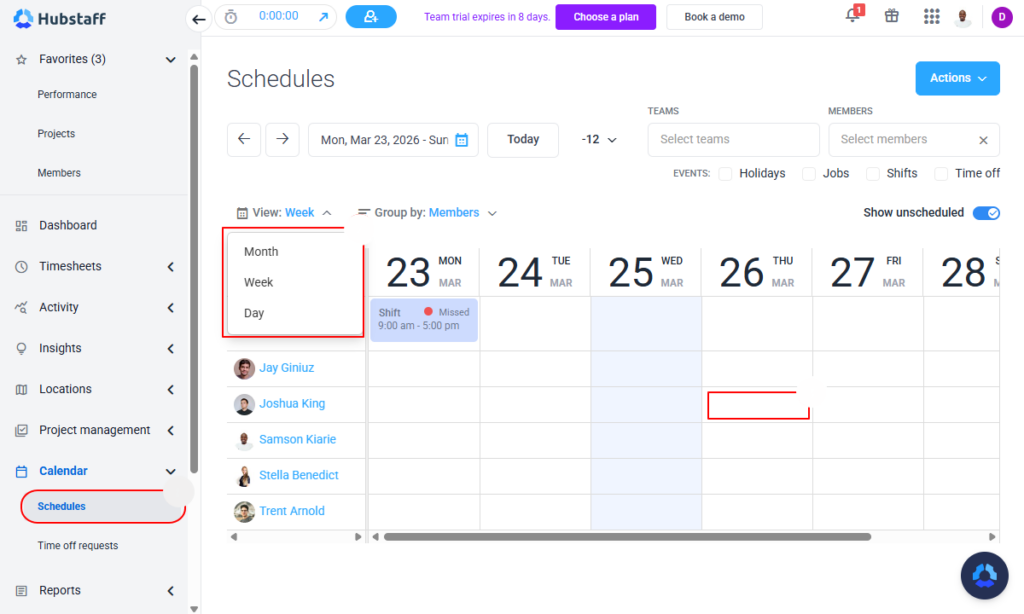
Creating and assigning a shift was easy. All I needed to do was click on a cell on the grid corresponding to an employee and their shift date. It was easy to set the shift assignee, duration, time zone, and recurrence frequency in the pop-up window.
Hubstaff notifies employees of upcoming shifts to minimize no-shows. It also alerts the manager when an employee misses a shift or is late, prompting them to find shift covers in time to avoid unnecessary bottlenecks.
Hubstaff Scheduling Issues
Hubstaff doesn’t offer the essential tools I expect from a modern scheduling platform. For example, it doesn’t support drag-and-drop scheduling, copying schedules, or saving schedule templates. Moreover, it lacks automatic scheduling capabilities. These tools save time; without them, scheduling a large workforce can be a real headache.
However, my biggest issue with Hubstaff is that it doesn’t support draft scheduling, which lets shifts be created and saved as part of an unpublished schedule. Instead, when you save an individual shift, Hubstaff publishes it immediately and notifies the assignee.
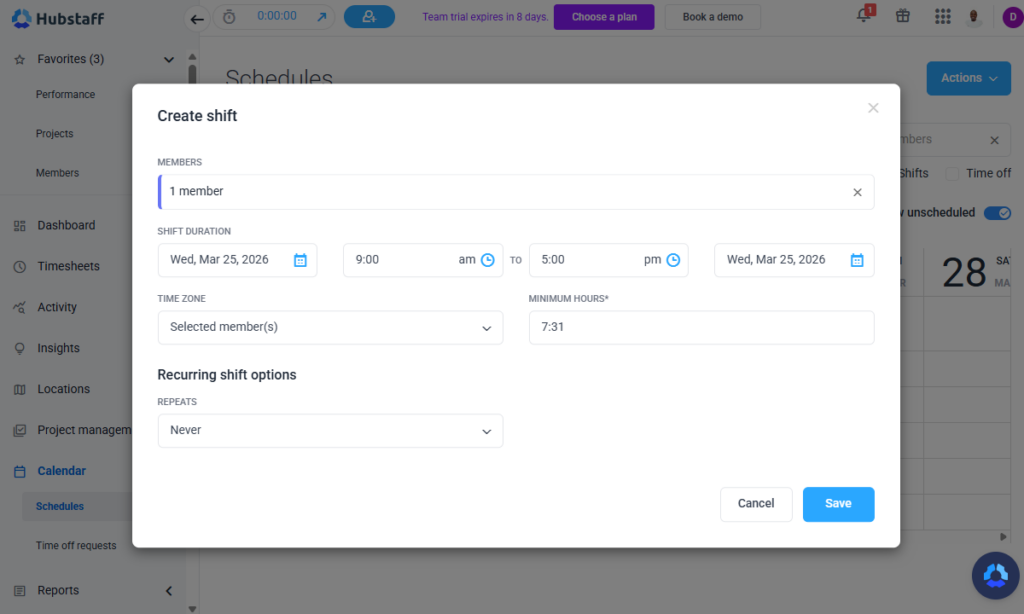
As a result, managers don’t get a second chance to check for errors before publishing. This approach leaves room for conflict-laden schedules, especially since Hubstaff lacks an automatic conflict detector.
I created two overlapping shifts, and Hubstaff published them both without any warning. Even worse, it didn’t warn me when shifts exceeded an employee’s daily or weekly limits. This inability to catch obvious errors can cause scheduling conflicts and increase employee no-shows.
Need stronger scheduling tools? Connecteam has drag-and-drop scheduling, schedule templates, draft publishing, and conflict alerts to help managers avoid costly mistakes.
Activity Monitoring
Verdict: 9/10
Hubstaff offers strong visibility into employee productivity, making it a solid fit for remote teams focused on accountability and output tracking. However, if your company prefers trust-based workflow over detailed employee tracking, its activity monitoring features may feel intrusive.
Hubstaff’s activity monitoring is designed for office workers who spend most of their day on a computer. As with many competitors, the monitoring features are available only on the desktop app. They include:
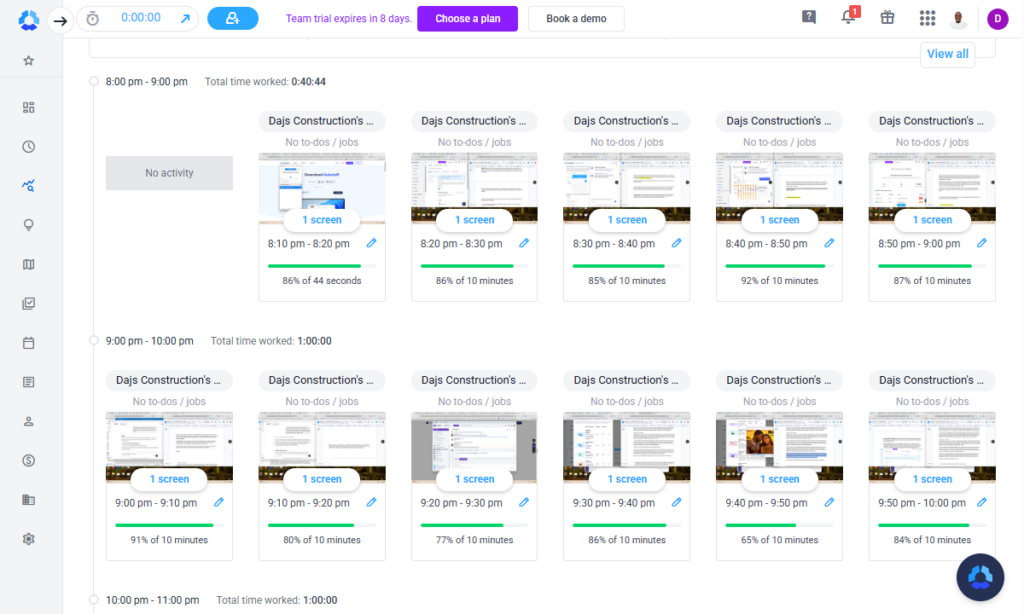
- Screenshot recording: This tool takes screenshots at a preset frequency to help you determine how much time employees spend on personal and work-related content. Hubstaff took screenshots only when I was clocked in, which is a great way to monitor productivity without intruding on employees’ privacy. I was also able to configure the app to take blurred screenshots to protect sensitive on-screen data.
- App and URL tracking: With these features, Hubstaff tracks the apps and websites employees visit when clocked in. It helps uncover trends such as how much time an employee spends on productive and unproductive work. I appreciated having the option to blur app and website names to protect sensitive tools, projects, or client identities.
- Idle time detection: Hubstaff can detect when desktop activity stops and displays an idle time alert or inactivity warning, prompting users to either keep or discard the idle time.
Bear in mind that some plans have limits on screenshots, apps, and URLs. For example, teams on the Starter plan have a monthly limit of 500 screenshots per user, which is sufficient for everyday use with low screenshot frequency. Teams on lower tiers will need the More Screenshots add-on to increase the capture frequency.
Productivity Insights
Hubstaff didn’t just track my activity; it strung the data together to deliver helpful productivity insights. Each screenshot had a green, yellow, or red activity-level bar, depending on my level of activity during the 10-minute block. The bar was green when keyboard and mouse activity was high, and red when it was low.
I was also impressed by Hubstaff’s Insights reports, which summarized my activities during the workday. What stood out to me was its ability to flag abnormal activity levels and apps that generate fake activity. For example, if an employee uses an auto-clicker to make it appear that they were active, Hubstaff will show this on the insights dashboard.
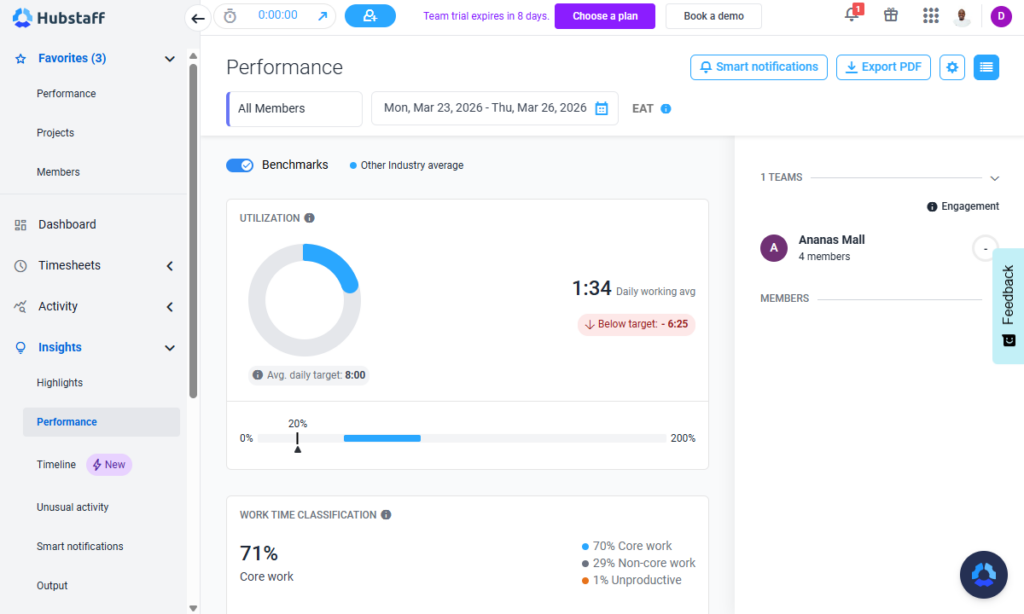
The last time I reviewed Hubstaff, the smart notification feature provided weekly updates on employees’ productivity levels. The vendor has since revamped this feature to include new capabilities. In addition to productivity alerts, Hubstaff now notifies managers when it detects an employee engaging in suspiciously high activity or using apps to generate fake activity.
Project and Task Management
Verdict: 8.5/10
Overall, the project and task management tools make it easy to assign work and track time against tasks, making Hubstaff well-suited for teams that need lightweight coordination tied to time tracking. However, the feature would benefit from the addition of task reminders, tags, and priority tools to enhance team accountability and ensure tasks are completed on time.
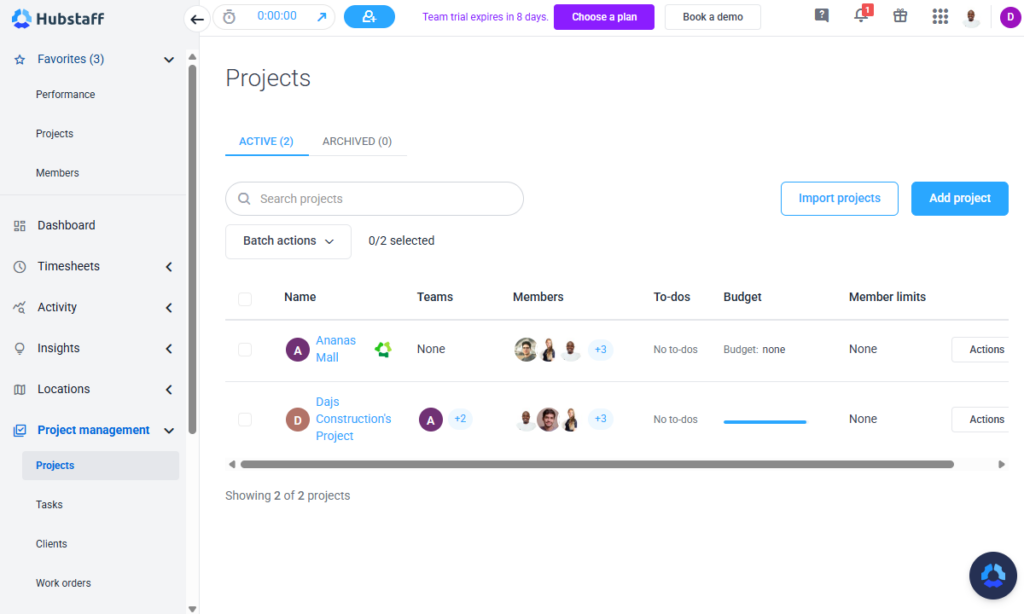
Hubstaff isn’t as powerful as standalone project management software, but it covers the basics well. I found it easy to create projects, assign them to employees, set budgets, and track time for specific tasks. I was able to set an hourly or fixed-cost budget and configure Hubstaff to notify me when the team reached a specified percentage of that budget.
I was also able to break projects down into tasks to simplify delegation and improve accountability, but this required the Tasks add-on. A Hubstaff agent told me that I must link a project to Tasks to access the task management tools. Thankfully, linking projects to tasks takes just a single click.
Hubstaff Tasks offers three project views: list, Kanban, and timeline. I like the Kanban view because it lets you manage projects with a structured workflow, just as you would in a Kanban project management tool like Trello. You can create lists on the Kanban board, add task cards, or move cards with a simple drag-and-drop.
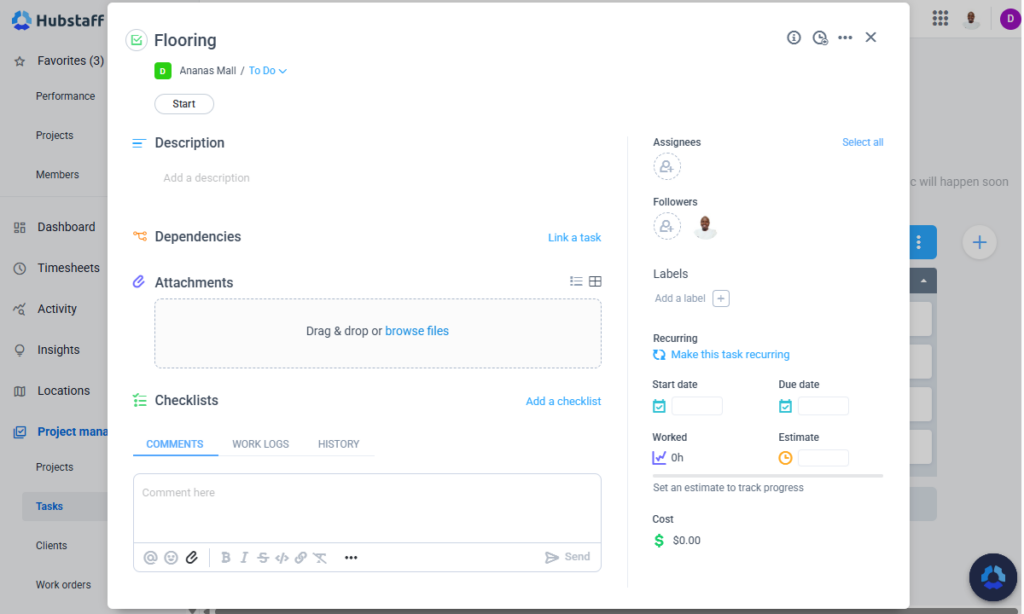
Unfortunately, Hubstaff doesn’t let you create color-coded lists, but the task cards come with all the bells and whistles. I was able to link related tasks and create dependencies to define the execution sequence. In addition, Hubstaff lets you add task descriptions, attachments, and checklists to ensure everyone knows what’s expected.
Time-Off Management
Verdict: 6.5/10
With support for both fixed and hourly accruals, Hubstaff works well for businesses that need flexible and accurate leave tracking, but the lack of advanced controls, such as blackout dates and notice periods, limits its effectiveness for teams that require tighter control over time-off planning.
During testing, it was easy to set up time-off policies and assign them to team members with the Hubstaff time off manager. I appreciated having the flexibility to create fixed or hourly paid-time-off (PTO) accruals. Having both options enables businesses to set policies that align perfectly with the diverse needs of their workforce.
With fixed accruals, PTO balances can refresh monthly, annually, or on the anniversary of an employee’s join date. You can also configure negative balances and rollovers, set up an approval workflow, and delegate approval duties to the team lead. This level of customizability makes fixed accruals more accurate, fair, and easier to manage.
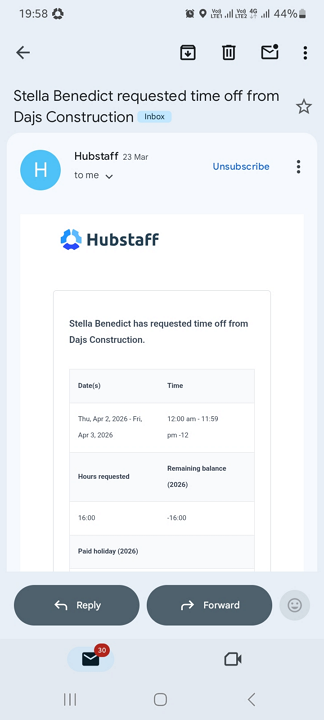
Hubstaff instantly notified me (the manager) when a worker submitted a request. This prompted me to review requests immediately, helping reduce delays and keep scheduling decisions moving smoothly.
Unfortunately, Hubstaff doesn’t provide time-off request or approval features on its Android or iOS app. Moreover, it would be helpful if it supported a time-off notice period and blackout dates. A notice period lets you decide how many days in advance employees should submit requests. Blackout dates let you restrict time-off requests on specific days, such as during peak season.
Location Tracking
Verdict: 7/10
Overall, Hubstaff location tracking is a good fit for field teams that need basic oversight, but falls short for businesses that demand precise route mapping, such as logistics, delivery, and field service.
Hubstaff’s iOS and Android apps have built-in GPS capabilities that let businesses track the movements of field employees. I asked my mock employees to install the Hubstaff mobile app and take a round-trip to put the location and route trackers to the test.
The location tracker worked as expected. When I opened the map view, I could see where the employees were. I could also select an employee from the list to zoom in on details, such as the project they were working on and the sites they had visited.
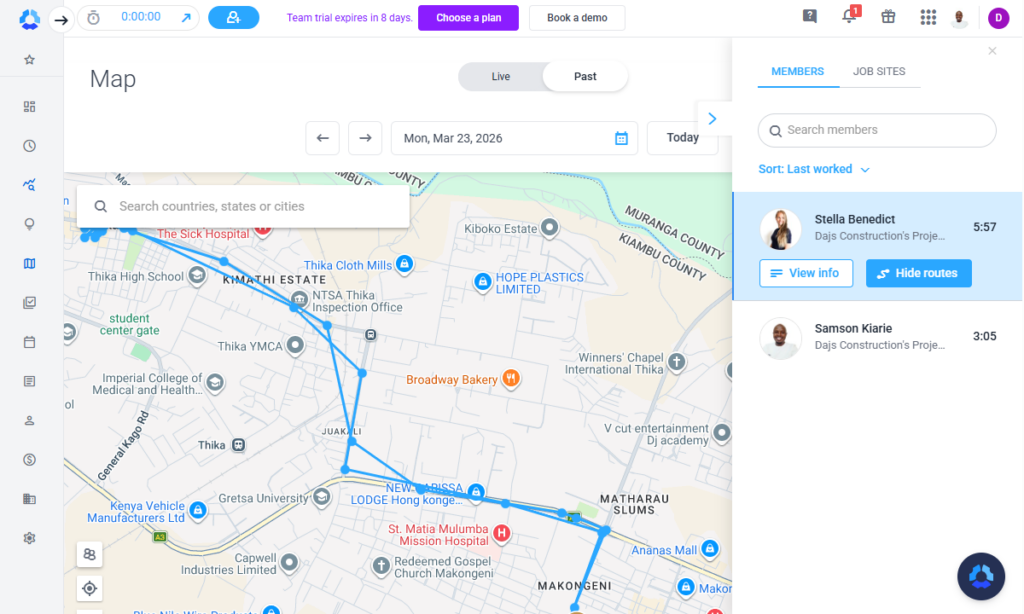
However, I wasn’t particularly impressed with Hubstaff’s route tracker. It uses straight lines to map routes, even around corners. This results in routes that don’t accurately reflect the actual roads an employee took. The route does include timestamped breadcrumbs, though, which can help managers determine when an employee was at a specific location.
During testing, Hubstaff automatically clocked out one of my mock employees but continued to track their location. Whether this is a bug, a glitch, or intentional, this is a serious privacy concern, especially for employees who expect location tracking to stop when they clock out. In addition, location tracking is available only as a paid add-on for teams on higher plans.
Reporting and Analytics
Verdict: 8/10
Overall, Hubstaff gives managers visibility in various business aspects — time, activity, and project performance – thanks to its wide range of reports and filters. However, it feels underwhelming for teams that need automated analytics or easy, decision-ready reporting.
Hubstaff provides powerful reports broken down into seven categories: general, payments, budget and limits, time off, schedule, job site, and invoices. The reports help you drill down into any aspect of your team, including work hours, projects, activities, and budget spend. Popular reports include:
- Time and activity
- Daily totals
- Project budgets
- Time-off balances
- Shift attendance
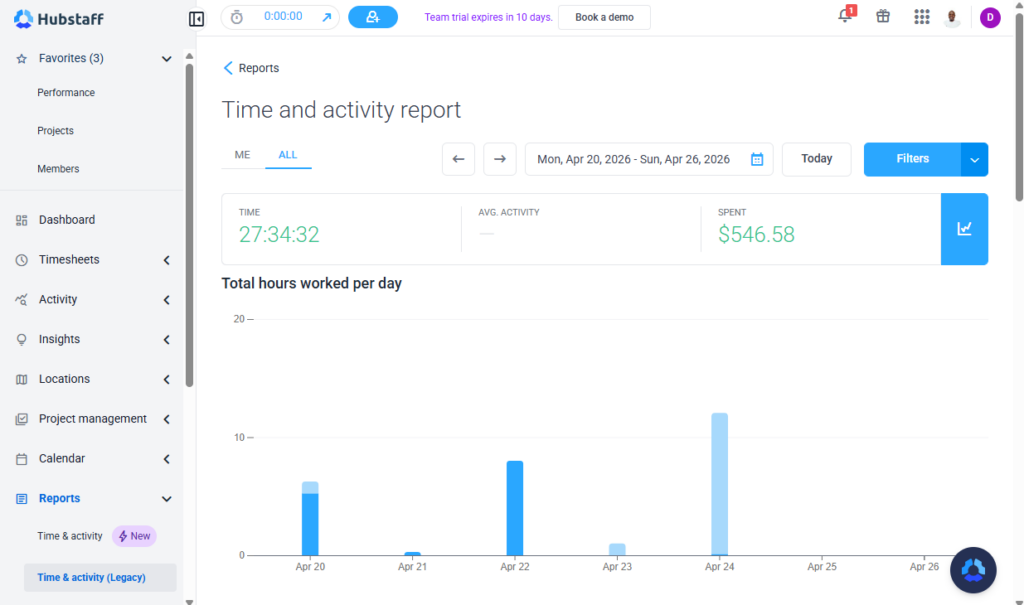
I was impressed by the option to create and save popular report filters. By saving filters, I was able to generate frequently used reports in seconds, rather than hours, speeding up decision-making. When it comes to report sharing, Hubstaff offers a nice range of options.
You can export reports in CSV or PDF format, or better yet, email them to multiple recipients directly within the platform. My favorite option is report scheduling, which lets you configure the app to automatically generate reports and email them to the recipient’s inbox on a recurring basis.
All in all, Hubstaff reports compile raw data without analyzing it to produce actionable insights. Moreover, the provider doesn’t offer artificial intelligence (AI) predictions or insights. It takes an experienced manager to turn the raw data into helpful insights for better decision-making.
Hubstaff Security and Privacy
Verdict: 8.5/10
Hubstaff’s advanced data protection and enterprise-grade compliance, including GDPR, HIPAA, and SOC 2 Type II, make it a reliable choice for security-conscious businesses operating in highly regulated industries.
| Category | Hubstaff |
|---|---|
| Data encryption | ✅ TLS 1.2 in transit and AES 256-bit at rest |
| GDPR compliant | ✅ |
| HIPAA compliant | ✅ |
| Certification | ✅ SOC 2 Type 2 |
| MFA/2FA | ✅ 2FA |
| Admin controls | ✅ Role-based access control |
| Hosting region | U.S. |
Hubstaff leaves nothing to chance when it comes to data security and privacy. The provider follows current best practices, including encrypting data in transit and at rest. It also lets you set access roles and permissions so that every employee has access to data relevant to their role.
Hubstaff adheres to the General Data Protection Regulation (GDPR), a key requirement for businesses that handle data pertaining to users in the European Union (EU). It’s also HIPAA compliant, meaning the provider has implemented the required security measures to safeguard protected health information (PHI). This makes it ideal for healthcare organizations in the United States.
Hubstaff Customer Support
Verdict: 8/10
Overall, Hubstaff delivers fast, reliable support, with live chat standing out thanks to near-instant responses and helpful agents. However, its best support channels are locked behind higher-tier plans, leaving lower-tier users to rely on slower, self-service options.
| Support Type | Hubstaff |
|---|---|
| Live chat | ✅ 24/5 |
| Phone support | ✅ |
| Email support | ✅ |
| Community forum | ❌ |
| Ticket submission | ✅ |
| Help center | ✅ |
Hubstaff offers email, live chat, and knowledge base support options. The knowledge base is well organized and contains helpful guides for the most common issues. The guides are grouped into various categories, making it easier to navigate and find relevant articles. Phone support is available only for Enterprise customers, so I wasn’t able to test this option.
The live chat was the standout support channel. Every time I sent a message, the agents responded within seconds, which was impressive. That said, live chat support is available only for Team and Enterprise subscribers. Users on lower tiers can find help only through email and self-service channels.
What Are Hubstaff’s Review Ratings From Review Sites?
(As of May 2026)
Hubstaff App Review
Hubstaff is a solid pick for teams that need reliable time tracking with detailed employee activity monitoring. It’s easy to roll out, the web dashboard is clean, and the core workflows feel intuitive once you’re in. Where it really shines is visibility for managers: you can track hours, review timesheets, spot attendance issues, and dig into productivity data without spending weeks learning the platform.
That said, Hubstaff’s effectiveness depends largely on how your team works. The employee monitoring features are tied to the desktop app, so the biggest value is for office-based or computer-based roles. Field teams can still track time on mobile and benefit from location tools like geofencing, but they miss out on the deeper productivity view.
The mobile app is clean and usable for employees, but it is not built for managers who need to run the workday from their phone. Employees can clock in and out, track breaks, check schedules, and review basic time data, but key features are missing on mobile.
Approvals, time-off management, and other managerial tasks generally require the web app, which can be a dealbreaker if you manage a distributed workforce and need to respond quickly.
Connecteam: The Better Hubstaff Alternative
Hubstaff works best for desk-based teams that prioritize accurate time tracking and desktop productivity monitoring. It has some features for field and on-site teams, such as break tracking and scheduling, but they are still a work in progress.
It also doesn’t support stricter controls for overtime and break compliance, or richer scheduling features that prevent conflicts and support more complex shift planning. If you need an all-in-one platform that can track time, schedule employees, and track location in real time, all while helping you comply with local labor laws, Connecteam is the better choice.
Some of the reasons Connecteam is more appealing to field and frontline workforces include:
Full-Featured Mobile App
Connecteam brings the functionality of its web app to the intuitive Android and iOS apps. Unlike Hubstaff’s mobile app, which lets users only track time and manage schedules, Connecteam lets employees track time, manage schedules, request time off, chat with colleagues, and complete training courses anywhere, anytime.
For managers on the go, Connecteam’s mobile experience is fully operational. You can approve timesheets, manage time off, edit schedules, respond to requests, and communicate with your team directly from the app. With Hubstaff, many administrative tasks still require the web interface, which limits flexibility for field-based leaders.
Compliant Time Tracking
Unlike Hubstaff, which limits some compliance logic and monitoring features, Connecteam time tracker lets you build policies that actually reflect how your workforce operates. You can create break policies that align with local labor laws and use reminders, prevent early returns, and require attestation at the end of shifts for strict enforcement.
Moreover, unlike Hubstaff, which can track only weekly overtime, Connecteam tracks all types of overtime, including daily, weekly, double-time, holiday, and seventh-consecutive-day overtime. What impresses me is that Connecteam calculates overtime pay using predefined rates, saving managers the headache of manual calculations.
Automatic Scheduling
Scheduling is another area where Connecteam stands out. It provides all the tools you need to speed up manual scheduling, including drag-and-drop, shift copying, shift templates, and recurring shifts.
I really like the scheduling rule feature, which lets you set employee limits, the maximum number of shifts per day, and the rest period between shifts. The automatic conflict detector scans every schedule through the lens of these rules, flagging any issues before they turn into no-shows or payroll disputes.
My favorite feature is Connecteam’s auto-scheduler, which automatically assigns shifts based on employee availability and qualifications. Connecteam also supports shift swaps, allowing workers to find shift replacements on their own when life happens. This reduces the manager’s admin workload and prevents scheduling gaps that often disrupt operations.
The cherry on top? Connecteam is more affordable than Hubstaff. Its Small Business plan allows small businesses with up to 10 employees to access the core functionalities for free. Paid plans start at $29 per month for 30 employees, which works out to less than $1 per employee.
For the price, you get time tracking, scheduling, communication, task management, HR tools, and payroll-ready reports in a single platform, without having to rely on add-ons to unlock essential functionality.
Hubstaff Review FAQs:
Hubstaff helps with basic labor tracking through break policies, weekly overtime tracking, timesheet approvals, and scheduling limits. However, it has major compliance gaps: it doesn’t track daily, double-time, holiday, or seventh-day overtime, and it doesn’t prevent employees from ending required breaks early.
Hubstaff protects business and employee data with role-based permissions, 2FA, encryption, GDPR compliance, HIPAA compliance, and SOC 2 Type II controls. These protections help businesses manage time tracking, activity, and workforce data more securely.
Switching to Hubstaff is fairly easy. In testing, setup took about 20 minutes, and invited employees could create their own profiles. Hubstaff also supports bulk imports for members and projects, which can help larger teams speed up setup.
Leaving Hubstaff is possible, but it may take manual work. You can export timesheets and reports as CSV or PDF files, but you’ll likely need to manually move employee records, projects, payroll details, policies, settings, and historical data into your next platform.
Hubstaff supports payments and payroll features on higher-tier plans and offers payroll-related integrations. Businesses should check whether Hubstaff connects with their specific payroll provider, region, and approval workflow before relying on it for payroll processing.
Hubstaff offers integrations for project management, accounting, payments, payroll, communication, CRM, and help desk tools. Popular options include QuickBooks, Gusto, Jira, Slack, and Zapier. Integration access depends on the plan: Grow includes 1 integration, while Team and Enterprise include unlimited integrations.
Hubstaff is easy to use on the web, desktop, and mobile apps, but the mobile app is limited for managers. Employees can track time, view schedules, and check reports, but managers still need the web app for key tasks like approvals, time-off management, projects, invoices, and team administration.
Hubstaff helps prevent time theft with GPS tracking, geofencing, idle time detection, screenshots, app and URL tracking, activity levels, and timesheet approvals. It does not offer a time clock kiosk, facial recognition, or biometric verification, so it is weaker for strict identity checks.cta
