


When team messages are scattered across WhatsApp, email, and other tools, critical updates get missed, shifts go uncovered, and small mistakes become daily disruptions. I reviewed 6 team communication apps for mobile usability, targeted messaging, search, and read visibility.
Use these picks to centralize communication, reach the right employees quickly, and keep teams aligned across shifts, roles, and locations without adding more operational friction.
| App | Best for | Starting Price | Key Considerations |
| Connecteam | Managing communication tied to tasks, shifts, and updates | Just $29/month for the first 30 users | Real-time coordination without managing multiple apps for chat, scheduling, and announcements |
| Beekeeper | Frontline teams needing mobile-first communication | Contact vendor | Now part of LumApps and no longer available as a standalone platform |
| Slack | Teams organizing communication in channels | $7.25/user/month, billed annually | Powerful search and organized channels; not ideal for urgent communication |
| Microsoft Teams | Businesses already using Microsoft 365 | $4/user/month | Ideal for desk teams that need chat, meetings, file collaboration, and reporting |
| Chanty | Budget-conscious teams wanting essential communication tools with a free plan | $3/user/month | Free plan includes core communication features, but video calls are unreliable and integrations are limited |
| Google Chat | Teams working inside Google Workspace | $7/user/month | Simple messaging inside Gmail; included in Google Workspace |
What’s New in This Update (July 2026)
- Reworked the introduction to better address reader needs
- Replaced Sling with Chanty to better represent budget-friendly communication options
- Re-verified pricing, features, and availability for all 6 communication apps to ensure accuracy as of July 2026
Our Top Picks
-
1

Best for managing communication tied to tasks, shifts, and updates
-
2

Best for frontline teams needing mobile-first communication
-
3

Best for teams organizing communication in channels
Why trust us?
Our team of unbiased software reviewers follows strict editorial guidelines, and our methodology is clear and open to everyone.
See our complete methodology
How I Ranked the Best Team Communication Apps
Here are the key features I looked for when evaluating the best team communication apps for everyday business use.
Must-have communication features:
These are the essentials I looked for in every employee communication app. To rank, a tool needed to help teams communicate quickly, stay organized, and make important information easy to find.
I prioritized:
- Instant messaging: The app must support real-time one-on-one and group chats, so team members can ask questions, share updates, and solve issues quickly.
- Updates and notifications: Teams need to receive important announcements, shift changes, and urgent updates as soon as they happen.
- File sharing and storage: The app should make it easy to share, store, and access documents, images, videos, and files without switching between different platforms.
- Search and message history: Employees should be able to quickly find past conversations, files, and announcements without digging through endless threads.
- Channels or segmentation: It should be easy to organize communication by team, role, department, or location, so the right people get the right information.
- Custom roles and permissions: The app should support different access levels, so employees only see the messages, channels, and information most relevant to their role.
- Security and privacy: There should be strong security features, such as encryption, secure logins, and admin controls to protect conversations and company information.
I also looked at how it performs day-to-day:
Beyond the core features, I evaluated how well each app supports everyday use.
- Ease of use: Team members should be able to navigate the app quickly, regardless of their technical experience.
- Scalability: The software should work well for small teams while still fitting the needs of larger, multi-site businesses.
- Mobile access: Your employees should be able to stay connected and informed from anywhere, especially if they’re working across locations or on the move.
Finally, I checked for these bonus features:
- Activity insights: The app should offer analytics or reporting on team activity and engagement, such as read receipts, open rates, and usage trends.
- Integrations: The app should connect with other business tools, such as project management software, HR systems, payroll platforms, or CRMs.
- Employee directory: This helps employees quickly and easily contact the right person for specific tasks or issues without wasting time.
I evaluated each app against the same checklist: how reliably it reaches the right employees, segments messages, confirms critical updates were seen, keeps history searchable, and works on mobile. Tools ranked lower when urgent messages were easy to miss, read status was unavailable, or core communication required another app.
The 6 Best Team Communication Apps of 2026
-
Connecteam — Best for managing communication tied to tasks, shifts, and updates
Connecteam is the best choice for businesses with deskless, frontline, or multi-location teams because it combines team communication tools with mobile-first access in one platform. It’s especially strong for teams that need real-time coordination and accountability without managing multiple apps for chat, scheduling, and announcements.
Why I chose Connecteam: I ranked Connecteam #1 because it was the most complete option for everyday team communication, especially in areas like real-time messaging, mobile access, and ease of use.
Here’s what Connecteam has to offer:
Team instant messaging
Connecteam’s team instant messaging makes internal communication structured without feeling complicated. Managers can send direct messages or create group chats by project, location, or department. The interface is intuitive, so teams can start using it right away across desktop or mobile.
Teams can send photos, videos, files, GIFs, links, contacts, locations, and voice messages, and they can even make phone calls directly from the app. You can also share external resources, such as reports or data, using API integrations. Plus, messages are fully searchable, so it’s easy to find past conversations or important details quickly.
For more urgent communication, managers can tag employees and enable push notifications so important updates are easier to spot right away.
The chat also fits into Connecteam’s broader platform, so you can start chats directly from other tools, like the scheduler and task manager, without switching apps.
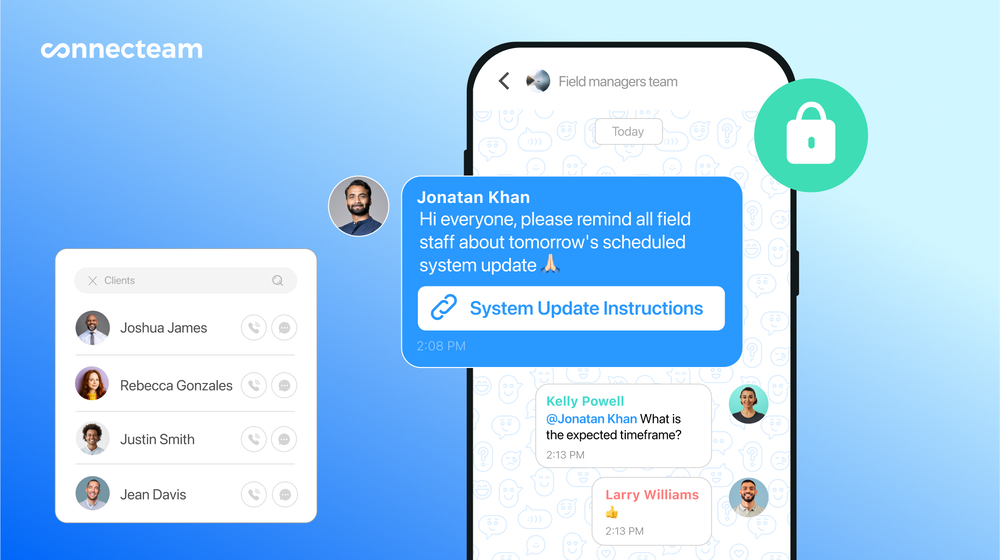
You can send links and tag people in Connecteam’s team chat. Custom admin controls
Connecteam gives managers strong admin control over how communication is used. They can decide who’s allowed to start chats, lock conversations, and delete messages. Managers can also limit direct messaging if needed and prevent media from being saved to personal devices.
I appreciated that you can schedule messages to only be sent during work hours, helping keep communication organized while supporting employees’ work-life balance.
Connecteam also ensures data security and offers encryption, making it a good fit for businesses that need to stay HIPAA compliant.
Company update feed
Connecteam’s company update feed helps make sure important announcements are actually seen. It works like a social media feed, so posting and reading updates feels natural, and since it’s front and center in the app, it’s great for sharing safety information, schedule changes, and company news.
My favorite part about updates is how Connecteam’s AI can enhance your message and auto-translate it into each employee’s preferred language. For example, if you post an update in English but an employee’s phone is set to Spanish, they’ll see the update in Spanish. It’s a great way to ensure that everyone gets the right information the way they need it.
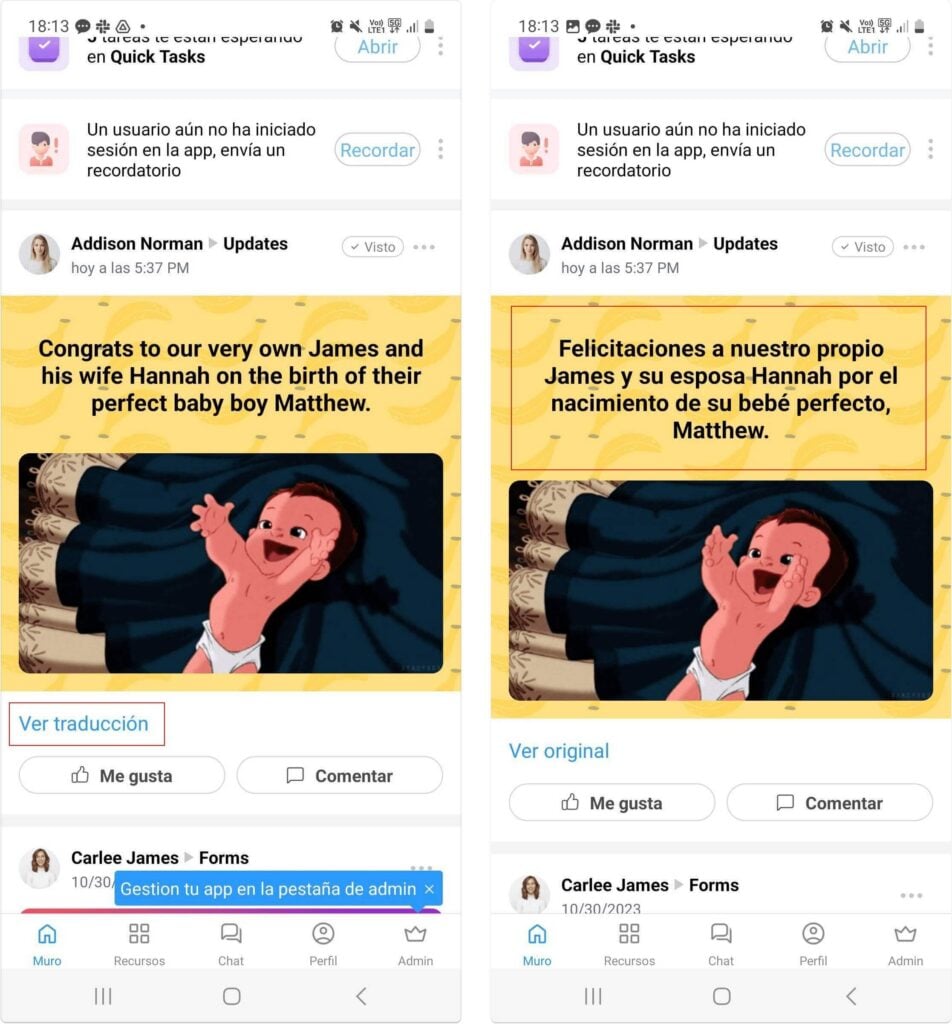
Connecteam’s AI automatically translates updates into each employee’s set language. The feed is really customizable. Managers can enable comments and reactions, and target posts by team, location, or role so employees only see what matters to them. It also offers strong visibility into engagement. I liked that you can track who viewed posts, require read confirmations, and review engagement data, so you can verify that no one misses a critical update.
Company directory
With Connecteam’s built-in employee directory, you don’t have to store work contacts on your personal devices. You can quickly search the directory by name, role, team, or location and start a chat or call instantly, without digging through old messages or contact lists.
It stays up to date automatically as teams change, so there’s no clutter from outdated contacts. You can also add external partners like vendors or clients, making it easier to reach key people.
Managers have full control over visibility, deciding who can see which contacts to keep information secure while still enabling fast communication.
And so much more…
- Company knowledge base: Store SOPs, guides, and policies in one searchable place. Ask the built-in AI agent for instant answers, pulled directly from your documents.
- Internal help desk: Speed up support with a chat-based ticketing system. Create customized desks for different departments so requests reach the right person.
- Employee task tracking: Assign recurring or one-off tasks to team members, add subtasks, and monitor completion progress in real-time.
- Employee scheduling: Create schedules with the drag-and-drop editor or use the AI-powered auto-scheduler to fill shifts based on availability, roles, and qualifications.
- Live polls & surveys: Create custom polls and surveys or use templates, add various question types, collect anonymous responses, and track participation.
When Connecteam isn’t the best fit
Connecteam may not be the best fit for remote or office teams that want a desktop-first messaging platform with built-in video meetings. It’s also less suitable for businesses that depend heavily on external collaboration; those teams could benefit more from a tool designed specifically for client-facing communication or large cross-company workflows.
Connecteam also offers a free for life plan – Get Started Now!
0Key Features
- Team instant messaging
- Group and one-on-one chats
- Searchable message history
- Built-in company directory
- Updates with auto-translation
- Multi-file and media sharing
Pros
- Mobile and desktop communication
- Strong admin controls and permissions
- In-chat voice messaging and phone calls
- HIPAA compliant with encryption
Cons
- Not ideal for video conferencing
- Lacks client-facing communication
Pricing
Free-for-life plan availablePremium plans start at $29/month for 30 users
Improve your internal communication with Connecteam secured chat
Let’s Get Started -
Beekeeper — Best for frontline teams needing mobile-first communication
What’s new with Beekeeper
In July 2025, Beekeeper merged with LumApps and is no longer available as a standalone platform. Our hands-on testing took place before the merger.
Beekeeper is a frontline employee communication app that offers tools for internal messaging and employee engagement.
Why I chose Beekeeper: I chose Beekeeper because it’s easy for frontline teams to pick up right away, without being overwhelmed by unnecessary features.
Team communication
In our full Beekeeper review, we tested streams and chat. Streams are channels that let managers post company-wide announcements, recognition posts, and updates by team, department, or topic.
Chat works more like direct messaging, with support for one-on-one and group conversations. I also liked that Beekeeper sends push notifications for both stream posts and chats, so important messages reach the right employees quickly.
However, while notifications are strong, we found that Beekeeper doesn’t show stream engagement, so managers can’t see who has read or missed a post. I can see that being a real drawback for teams that need stronger visibility into message delivery. The home screen also felt cluttered during testing, which may make it more difficult to navigate the day-to-day communication features at first.
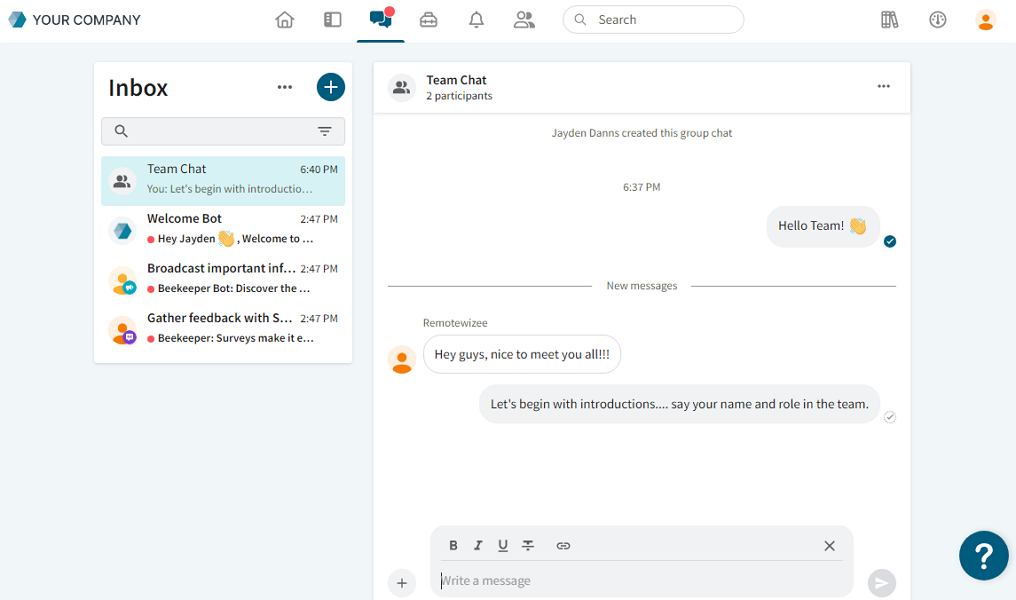
We created multiple one-on-one and group chats with Beekeeper. Employee engagement
Beekeeper provides a mix of tools like campaigns, surveys, newsletters, and slideshows to keep frontline teams informed and engaged. I liked that campaigns can be targeted by teams or departments, and that managers can track message performance. The slideshow feature is also useful because it displays updates in a visual, rotating format to keep information front and center.
The platform also includes workflows and forms, which allow employees to submit requests and trigger processes directly from their phones. That said, we found that setting up workflows can be pretty complex. I can see that making it harder for less tech-savvy users to build and manage processes effectively.
Reporting
Beekeeper’s reporting uses AI to analyze employee sentiment, track operations, and measure engagement, with insights across tasks, forms, and content. I also liked that there’s benchmarking against data from over a thousand frontline businesses and the ability to gauge sentiment from posts and comments without constant surveys.
What users say about Beekeeper
Easy internal communication: Beekeeper does a great job replacing scattered emails and group texts with a single, organized communication hub—especially useful for frontline and deskless workers.

You pay per user, which may not make sense for high turnover industries. The desktop version in the chat feature does not have as many options as the mobile version.
Key Features
- Streams for company-wide updates
- One-on-one and group chat
- Campaigns, surveys, and newsletters
- Slideshows for visible team updates
Pros
- AI-powered reporting and sentiment analysis
- Benchmarking for engagement insights
Cons
- No visibility into stream engagement
- Workflows can be hard to set up
Pricing
Contact vendor Trial: No Free Plan: No
-
Slack — Best for teams organizing communication in channels
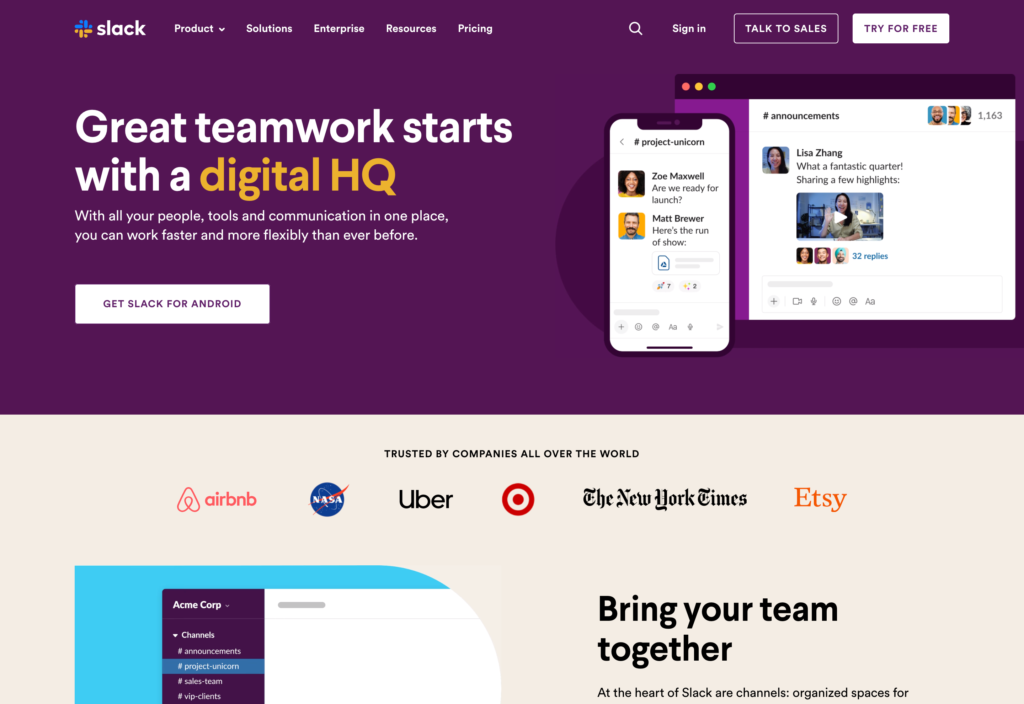
Slack is an employee communication app that offers channels, messaging, voice, and video calls.
Why I chose Slack: I liked that Slack pairs a clean team communication experience with a powerful search and organized channels.
Team messaging
In our full Slack review, we tested its messaging tools and found them pretty flexible. You can send direct messages to individuals or groups, and add text formatting, emojis, audio clips, video clips, and files. For more customization, you can set up reminders, scheduled sends, pins, and notifications.
I also liked the thread feature, which keeps side conversations organized without adding clutter to the main discussion. Impressively, Slack AI summarizes messages, which is extra useful for busy teams.
During testing, we found that admins can’t override employees’ notification preferences or do-not-disturb settings. This could be an issue for urgent workplace communication, especially when teams need to make sure important messages are actually seen.
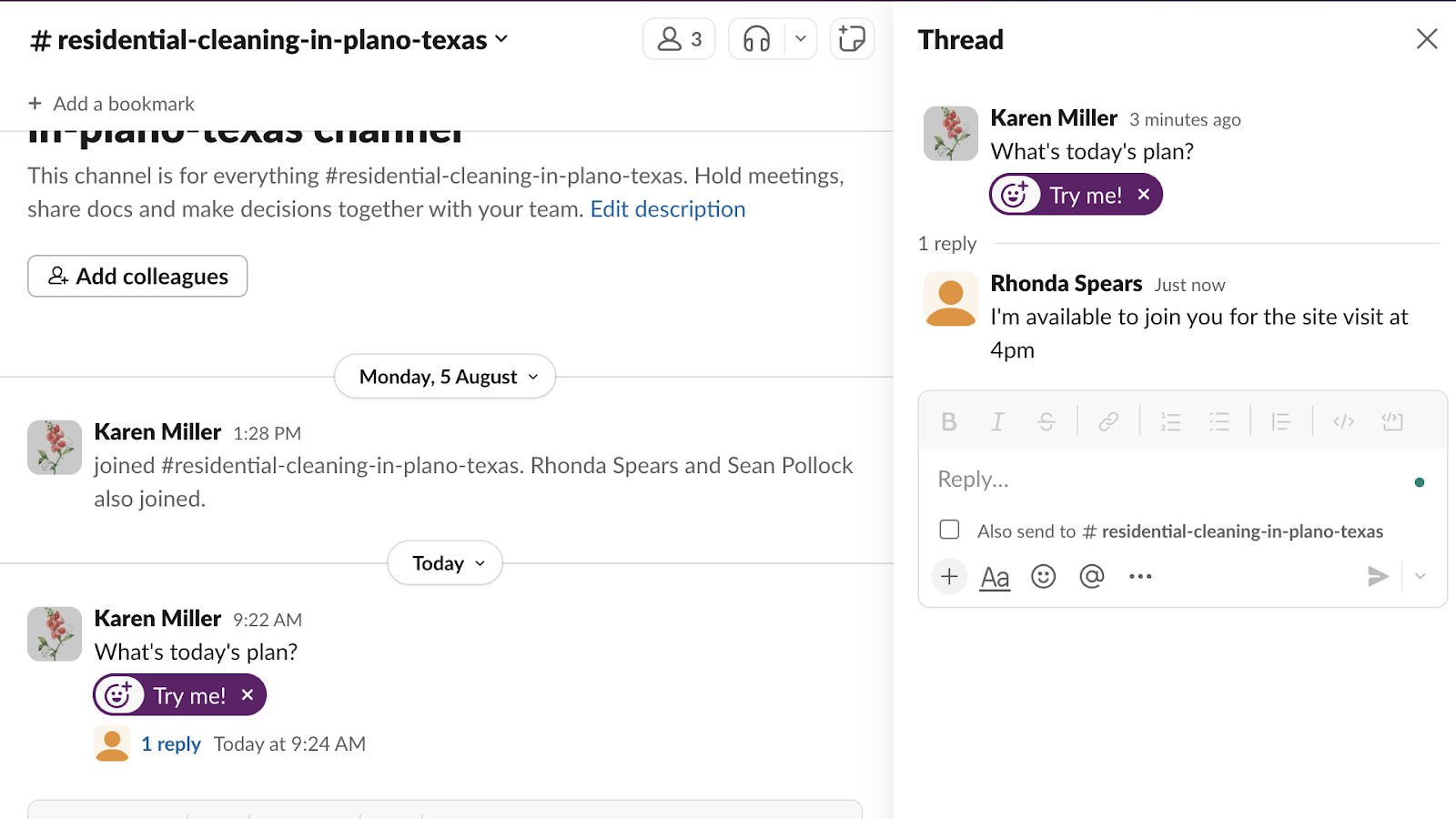
With Slack, we could start a thread from within a channel. Company channels
Slack’s channels help keep communication organized. Teams can create public or private channels by project, department, or location, and even collaborate with external partners through Slack Connect.
I especially liked that channels support mentions, file sharing, pinned messages, threads, and archiving, so it’s easy to keep information structured and accessible.
That said, I think the full value really depends on a paid plan. The free version only includes access to the last 90 days of messages and files, which seems like a significant limitation for teams that need long-term visibility into past conversations.
Huddles
Slack’s huddles make voice and video communication fast and simple. You can start a huddle with a single click instead of creating a meeting link, and team members can jump in quickly to ask questions or sort things out.
Huddles also support screen sharing, file sharing, discussion threads, and live captions, which makes them more useful than a basic call feature.
However, Huddles only support up to 50 participants, which won’t be enough for larger company-wide meetings. I was also disappointed to see there’s no meeting recording, and captions are available only in English.
What users say about Slack
This is the most user friendly messaging experience I ever experienced. It made our team meeting more productive since it was quicker than meeting face to face. All my colleagues were happy with it.
I’ve always found notifications in Slack confusing and inefficient. Even when you have read the notification, Slack often suggests it’s still unread which is annoying.

Key Features
- Direct messaging with threads and reminders
- Public and private team channels
- Huddles for instant voice and video calls
- File sharing and pinned content
Pros
- Clean interface with strong search tools
- External collaboration with Slack Connect
Cons
- Free plan keeps only 90 days of history
- Huddles lack recording and large capacity
Pricing
Starts at $7.25/user/month, billed annually Trial: Yes — 30-day Free Plan: Yes
-

Microsoft Teams — Best for businesses already using Microsoft 365
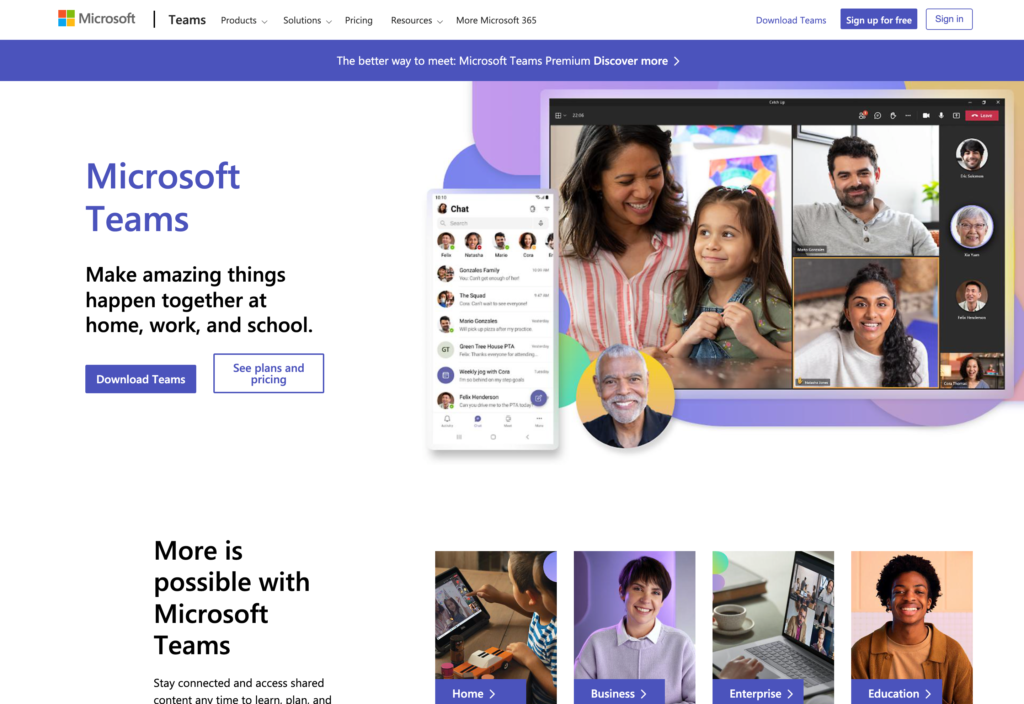
Microsoft Teams is a communication and collaboration app that helps office-based teams work together.
Why I chose Microsoft Teams: Microsoft Teams is a strong fit for companies already using Microsoft 365 and need chat, meetings, file collaboration, and reporting.
Internal collaboration
In our full Microsoft Teams review, we tested the chat and messaging, video conferencing, and channels. Teams supports 1:1 and group chats with rich formatting, file sharing, reactions, and threaded conversations. I really liked that users can pin important chats, and organize discussions inside channels for specific teams or projects. There are even private channels for sensitive work, and team owners can assign channel moderators to keep conversations focused.
That said, Teams may feel heavy for businesses that want something simpler. The number of features might be overwhelming for new users, and the difference between chat and channel conversations isn’t intuitive. Plus, most communication features rely on stable internet access, which could be difficult for deskless or field-based teams.
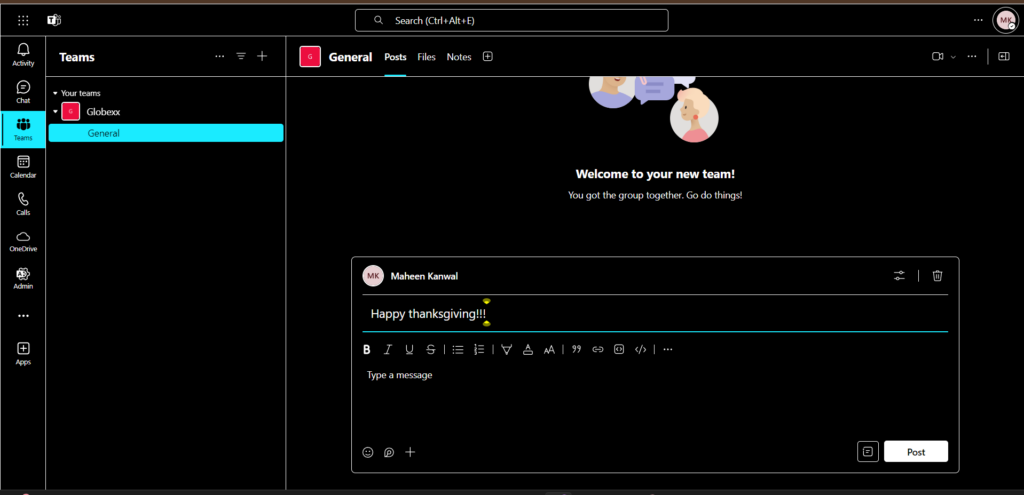
We were able to send messages to groups with Microsoft Teams. Team meetings
Calendar-based meetings are a core part of Microsoft Teams. You can schedule meetings directly from chat, including important details such as the date, time, frequency, and location. I also appreciated that it supports video calls with features like screen sharing, virtual backgrounds, breakout rooms, live captions, and transcriptions in multiple languages.
The AI-powered tools help with real-time speech translation, meeting recaps, and personalized insights. There’s also the Activity Feed, which is helpful for finding mentions, invites, and cancellations in one place.
Documents and reporting
With Microsoft Teams, you can upload files directly into chats or channels, making them instantly accessible to the right people. I liked the real-time co-authoring, which lets multiple team members edit documents together. There’s even a version history for tracking changes and restoring earlier versions.
Document libraries also help keep everything organized, and it’s easy to find what you need with the search, which filters by team, file type, last editor, or date.
Beyond document management, Microsoft Teams also offers strong reporting capabilities. You can access detailed reports on usage, user activity, app performance, inactive teams, and overall collaboration. I liked that admins can track metrics like messages, meetings, calls, and external collaboration, and easily export reports for further analysis. Plus, AI-driven insights help highlight trends and recommend improvements.
What users say about Microsoft Teams
The platform is awesome. It is easy to use, easy to create groups for specific projects and collaboration. The customization options are fantastic and the connection with Outlook Calendar is a life saver.
Microsoft Teams, like many Microsoft products, has a very steep learning curve and can feel overwhelming and clunky for some team members/new hires. Members of our team often struggle to differentiate between chats, channels and teams.
Key Features
- 1:1 and group chats with threaded replies
- Channels for team and project discussions
- Video meetings with AI tools
- File collaboration in Microsoft 365
Pros
- Advanced file search
- Detailed usage and activity reports
Cons
- Steep learning curve for new users
- Less suitable for deskless workforces
Pricing
Starts at $4/user/month Trial: Yes — 30-day Free Plan: Yes
-

Chanty — Best for budget-conscious teams wanting essential communication tools with a free plan
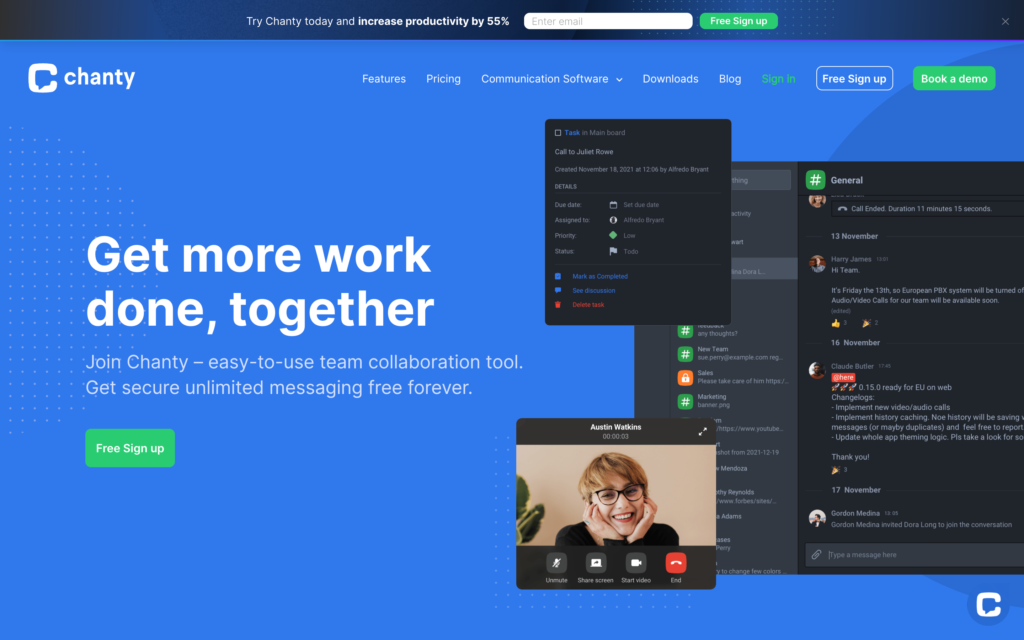
Chanty is a communication platform designed for teams seeking straightforward messaging, calling, and task coordination without premium pricing.
Why I chose Chanty: I included Chanty because it delivers essential communication capabilities at a low cost, making it an accessible option for growing teams or those with limited software budgets.
Team communication
In our full Chanty review, we found that it supports direct messaging and channel-based conversations, so teams can organize discussions by project, department, or topic. The platform handles one-on-one chats and group channels with equal ease, and users can send voice messages for more nuanced communication. The search functionality helps teams locate past conversations and shared content quickly, which is valuable for teams that don’t always work at the same time.
We found the interface simple and easy to navigate, and I especially liked the “teambook”, which is a centralized hub that consolidates messages, files, links, and activity history in one location.
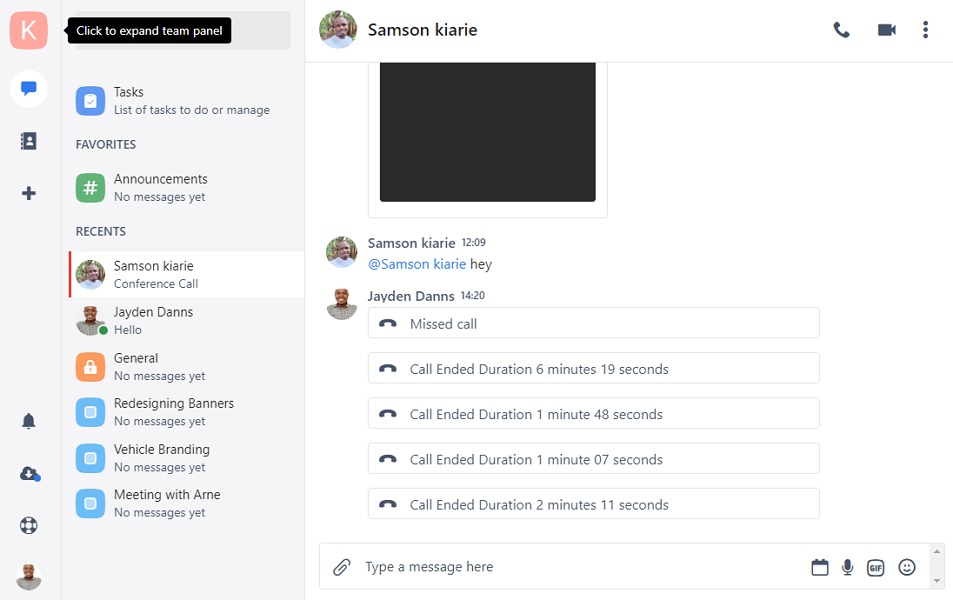
Chanty’s sleek interface lets employees start private or group conversations. Audio and video calling
Chanty supports audio and video calls with up to 1,000 participants, so large teams can connect at the same time when needed. Screen sharing is also included, making it easy to present ideas or troubleshoot issues collaboratively.
However, during testing, we experienced a few instances where videos loaded slowly or failed to load altogether. If this happens regularly, it could make the video calling feature unreliable for day-to-day collaboration.
Task management and message-to-task conversion
One of Chanty’s standout features is the ability to convert messages into tasks with a single action, streamlining workflow management. Teams can create and assign tasks, set priorities and due dates, and view them in either list or Kanban formats depending on preference. The task module is straightforward and works well for simple workflows, but we found that it lacks the depth needed for managing complex, multi-layered projects.
What users say about Chanty
I like Chanty’s simple and clean interface. It’s easy to use, messages load fast, and features like task management and file sharing make team collaboration straightforward without feeling hard.
Integrations are lacking; Chanty has fewer third-party integrations compared to larger platforms like Slack or Teams. The built-in task management lacks some advanced project management capabilities like dependency tracking. Customization is limited, and the search experience isn’t optimal.

Key Features
- Direct and group messaging
- Audio and video calling
- Voice and scheduled messages
- Teambook hub
Pros
- Strong free plan with core communication features
- Message-to-task conversion saves workflow steps
Cons
- Video calling wasn’t reliable during testing
- Task management unfit for complex projects
Pricing
Starts at $3/user/month Trial: No Free Plan: Yes — Up to 5 team members
-

Google Chat — Best for teams working inside Google Workspace
Available on
- Web
- iOS
- Android
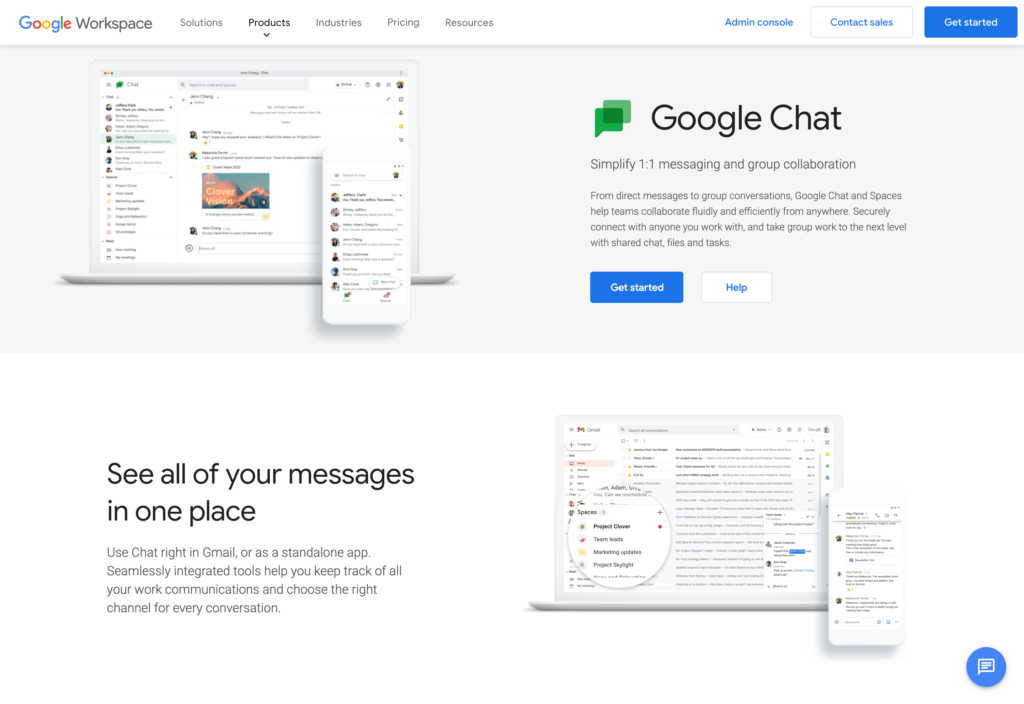
Google Chat is a team messaging app built within the Google Workspace ecosystem.
Why I chose Google Chat: I chose Google Chat because it keeps messaging simple, works directly inside Gmail, and connects to Google Workspace.
Messaging and spaces
Google Chat is a strong team communication tool with one-on-one messaging, group chats, and dedicated collaboration areas called spaces. I liked that spaces are designed for ongoing discussions around a team, project, client, or topic, while regular group chats work better for quick conversations.
There are also threaded conversations and @mentions, which help keep discussions organized.
That said, Google Chat has some limits: it’s a bit simpler than other internal communication apps and you can’t change the settings once a space is created.
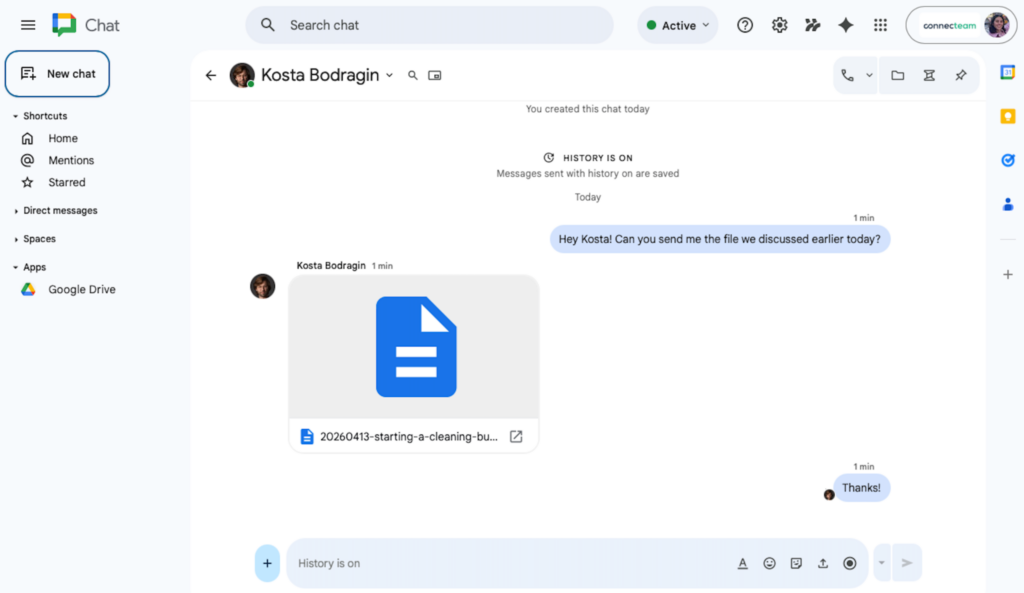
We could send messages and files with Google Chat. Meetings and file sharing
Google Chat supports collaboration, but not all within the same tool. Audio and video calls run through Google Meet rather than natively in Chat. While you can start calls or generate meeting links directly from Chat, you still need to use a separate app.
File sharing is another strong area. Users can easily share files from Google Drive or upload directly, and everything stays accessible within the chat or space. I also liked the Gmail integration, which makes it easy to switch between email and messaging in one place.
Integrations and task management
Google Chat is most useful when it’s paired with the rest of Google Workspace. It integrates with Gmail, Docs, Calendar, Sheets, Drive, Slides, and Meet, with support for APIs, webhooks, and integrations with apps like Jira, GitHub, and Asana. I also liked that users can create tasks directly in Chat, assign them, set due dates, and track progress.
If you’re looking for a simple, standalone app for real-time team communication, Google Chat may feel like more than you need. It’s part of Google Workspace, so you’re getting a full suite of tools alongside it. While that can work well for office-based teams, frontline or mobile teams may find the added complexity unnecessary.
What users say about Google Chat
It is easy to chat with others as well as hop on a quick video call without there being too much human error (or for people without much computer experience). It’s easy to copy and paste photos from snips to share quick info.
One thing I dislike about Google Chat is that it can send too many notifications and sometimes important messages are hard to find in busy group chats
Key Features
- 1:1 and group chats
- Threaded conversations
- File sharing through Google Drive
- Google Meet calling
Pros
- Integrated within Google Workspace
- Built-in tasks plus API and webhooks
Cons
- Fewer third-party integrations
- Not available as a standalone app
Pricing
$7/user/month Trial: Yes — Yes, 14-day Free Plan: No
Compare the Best Team Communication Apps
| Topic |
 Start for free
|
|
|
|
|
|
|---|---|---|---|---|---|---|
| Reviews |
|
|
|
|
|
|
| Pricing |
Starts at just $29/month for the first 30 users
|
Contact vendor
|
Starts at $7.25/user/month, billed annually
|
Starts at $4/user/month
|
Starts at $3/user/month
|
$7/user/month
|
| Free Trial |
yes
14-day
|
no
|
yes
30-day
|
yes
30-day
|
no
|
yes
Yes, 14-day
|
| Free Plan |
yes
Free Up to 10 users
|
no
|
yes
|
yes
|
yes
Up to 5 team members
|
no
|
| Use cases |
Best for managing communication tied to tasks, shifts, and updates
|
Best for frontline teams needing mobile-first communication
|
Best for teams organizing communication in channels
|
Best for businesses already using Microsoft 365
|
Best for budget-conscious teams wanting essential communication tools with a free plan
|
Best for teams working inside Google Workspace
|
| Available on |
Web, iOS, Android
|
What are Team Communication Apps?
Team communication apps are software tools designed to help employees talk, share updates, and stay connected in one place. Teams can use these apps to send quick messages, post announcements, share files, and keep conversations organized, replacing scattered emails and text messages.
These apps make it easier for employees to get the information they need when they need it. They are especially useful for companies with remote teams, frontline staff, or multiple locations because they help everyone stay aligned, even when employees aren’t working at the same site.
How Do Team Communication Apps Work?
Team communication apps work by giving employees a shared digital space where conversations, updates, and resources live together. Users can usually send direct messages, take part in group chats, join channels, and receive company-wide announcements. Most tools also let admins control who can access certain groups or content, helping keep communication relevant and organized.
These internal communication apps act like a central hub for employees to check notifications, respond to messages, find past conversations, and open shared files. Many tools also connect with other business software, so teams can receive updates from project management tools, HR systems, or customer platforms without switching between multiple platforms.
Many communication apps also offer mobile access. That means employees can stay informed, respond quickly, and keep up with changes whether they are on site, in the field, or moving between job sites.
The Benefits of Team Communication Apps
Here are some of the ways team communication tools can help your business:
Faster responses
A strong team communication app helps people get answers faster. Instead of waiting on long email threads or missed calls, employees can ask a question, tag the right person, and get a reply in real-time. When communication moves faster, work moves faster too. Teams can solve problems earlier, make decisions with less back-and-forth, and keep daily operations running more smoothly.
Better alignment
When updates, announcements, and shared files are all in one place, it becomes much easier for employees to understand priorities, follow changes, and stay connected. This is especially useful for larger companies or multi-location teams, where key information can easily get lost. A good communication app creates more consistency across departments, shifts, and offices.
Saved time
It’s no secret that employees waste time trying to find what was already shared or asking repeat questions. The right app keeps conversations, files, and updates in one searchable system. Teams save time because information is easier to find, easier to reference, and easier to act on.
Stronger engagement
When employees feel informed, they’re more likely to feel included. Team communication apps help businesses build that connection by making it easier to share company news, recognize wins, and give employees a direct line to managers and coworkers. A better communication system helps people more involved in day-to-day operations.
More scalable
As a business grows, communication gets harder to manage. What works for a small team often breaks down once there are more employees, locations, departments, or moving parts. A great communication app gives businesses a more structured way to share information at scale without creating chaos.
How Much Do Team Communication Apps Cost?
Team communication apps typically charge either a per-user monthly fee or a flat monthly rate, depending on the business size and features required. Per-user pricing often starts around $3–$4 per month, with entry-level plans going up to $7–$8 per user. Some platforms, like Beekeeper, offer flat-rate pricing starting at $124 per month, which may work better for teams that want more predictable costs.
Connecteam stands out for its Small Business Plan, which is completely free for up to 10 users. Paid plans start at just $29 per month for up to 30 users. Higher-tier plans start at $49/month for Advanced and $99/month for Expert, both also covering up to 30 users.
The Bottom Line On Team Communication App
Team communication apps are a great fit for businesses that need a faster, more organized way to keep employees connected. They’re especially helpful for teams that work across shifts, locations, or job sites. When choosing the right tool, the most important things are ease of use, strong mobile access, and the ability to reach the right people with the right information.
Connecteam stands out as the best option for businesses that need reliable, everyday team communication. If you want a platform that helps your team stay aligned without adding complexity, try Connecteam for free today.
FAQs
Team chats are built for work, with organized channels, roles, and integrations that keep communication tied to tasks. Group chats are typically casual, with free-flowing conversations and little structure or accountability.
They use encryption, role-based permissions, secure cloud storage, and compliance standards (like GDPR). Advanced platforms like Connecteam also offer admin controls, audit logs, and user access management.
Consider updates, scalability, onboarding, and customer support. SaaS tools like Connecteam handle maintenance automatically, reducing IT burden while offering ongoing updates, support, and reliability as your team grows.


![image of [Free eBook] Building an Effective Internal Communication Strategy](https://connecteam.com/wp-content/uploads/2020/07/Scene-4-768x512.png)