


If you’re still fixing timesheets on weekends, chasing missed punches, or second-guessing hours, your current system isn’t doing its job.
In this article, I ranked the 8 best employee time tracking apps based on how well they handle real payroll workflows, from clock-in to approval to payroll export, not just feature lists.
The right tool should show you exactly when and where work happened, flag problems before they become expensive, and give you clean, reviewable timecards at the end of every pay period.
Heads up before you read: We’re Connecteam, and we’ve included ourselves in this list — because after testing apps on this list, we’re convinced we’ve earned it. That said, we’ve called out real limitations for every tool on this list, including ours. If something else fits your team better, we’ll tell you. We’ve linked to in-depth reviews throughout so you can check our work and decide for yourself.
| App | Best for | Starting Price | Key Considerations |
| Connecteam | Field teams needing GPS tracking and payroll-ready workflows | Just $29/month for the first 30 users | Strong GPS and clock-in controls, but no offline mode and some admin tools are web-only. |
| Deputy | Retail and hospitality teams focused on scheduling | $5/user/month (minimum $30/month) | Offline mode is read-only; advanced controls gated to Pro |
| Buddy Punch | Small teams wanting a simple time clock | $19/month + $4.49/user/month | No offline mode support; add-ons can increase total cost |
| Hubstaff | Remote teams needing activity monitoring | $4.99/user/month | Weak geofencing and limited mobile admin capabilities |
| OnTheClock | Small teams needing basic GPS location tracking | $5/month + $4/user/month. | Lacks offline mode and requires manual fixes for overtime calculations |
| QuickBooks Time | Businesses using QuickBooks for payroll | $20/month + $10/user/month | Overtime calculations may need manual validation |
| Clockify | Teams looking for a free time tracking solution | $3.99/user/month | Limited controls and no strong location enforcement |
| When I Work | Small service teams wanting basic scheduling and tracking | $2.5/user/month | No live GPS tracking and occasional app stability issues |
What’s New in This Update (August 2026)
- We found that Deputy’s mobile app operates in a “read-only” mode offline and gates advanced admin controls to its Pro plan.
- We also found that Buddy Punch lacks offline support entirely but has improved its GPS tracking with turn-by-turn route history.
Our Top Picks
-
1

Best for field teams needing GPS tracking and payroll-ready workflows
-
2

Best for retail and hospitality teams focused on scheduling
-
3

Best for small teams wanting a simple time clock
Why trust us?
Our team of unbiased software reviewers follows strict editorial guidelines, and our methodology is clear and open to everyone.
See our complete methodology
How I Ranked the Best Employee Time Tracking Apps
To rank these tools, I focused on how well they handle the full-time tracking workflow, from clock-in to payroll export. If a platform created extra cleanup work, unclear timecards, or required manual fixes before payroll, it ranked lower.
All rankings are based on Connecteam’s in-depth reviews, which use a consistent testing checklist and scoring system.
Must-have time tracking features
At a minimum, a time tracking app must help you capture accurate employee time tracking data and close payroll without spending hours fixing mistakes. If a tool could not handle mobile clock-ins, timesheets, approvals, and payroll handoff without workarounds, it ranked lower.
I prioritized:
- Mobile clock-in and clock-out: Employees should be able to clock in within seconds, with a clear status for both workers and managers.
- Missed punch handling and reminders: Apps must flag missed punches, long shifts, and irregular activity early. If issues only surface at payroll, the system is already failing.
- Timesheet edits, approvals, and audit trail: Timecards should be easy to review and approve, with visible edits and a clear history to prevent disputes.
- Payroll exports and integrations: Approved hours should flow directly into payroll systems or export cleanly without manual rework.
- GPS and geofencing: For teams in the field, location stamps and job-site boundaries must be reliable. Weak enforcement reduced rankings.
- Break and overtime tracking: Breaks and overtime should calculate correctly based on real rules. Any system that required manual correction scored lower.
Day-to-day usability
Strong features don’t matter if the app is hard to use.
- Flexible clock-in options: Support for mobile, kiosk, NFC, and web ensures teams can clock in based on how they actually work.
- Job and project tracking: Time should be assignable to jobs, sites, or clients so labor costs don’t end up in one bucket.
- Customer support: When something breaks close to payroll, fast and reliable support matters.
Workflow fit
These are not required for employee time tracking software, but they matter if you want something that supports daily operations:
- Scheduling tie-in: Helps compare planned vs actual hours and catch labor cost drift.
- Tasks and checklists: Useful for teams that need consistent on-site execution.
- Team communication: Basic coordination reduces reliance on scattered messages and keeps updates tied to work.
The 8 Best Employee Time Tracking Apps
-
Connecteam — Best for field teams needing GPS tracking and payroll-ready workflows
Connecteam is built for frontline teams that need accurate time tracking, strong guardrails, and a clean path to payroll. It combines mobile clock-ins, GPS verification, and automated timesheets in one system, making it easier to catch issues early and close payroll without cleanup work.
Why I chose Connecteam: Connecteam brings the full time-tracking workflow into one place, from controlled clock-ins and GPS verification to automatic timesheets and payroll exports. It works especially well for field teams that need reliable location controls and on-site teams that prefer kiosk or NFC clock-ins.
Accurate clock-ins with GPS and guardrails
With Connecteam’s employee time tracking clock, clocking in and out from the mobile app is fast and clear. With GPS enabled, each punch includes location, and geofences can stop early or out-of-area clock-ins. If you want tighter control, automatic clock-outs can close a shift when someone leaves a site, which helps prevent timecard inflation caused by workers forgetting to clock out.
Break reminders are also useful, and can handle split shifts, short breaks that get forgotten, and people returning early. They sit inside the same clock workflow, so the break record stays tied to the shift instead of turning into a manual fix later.
On the manager side, the live status view shows who’s currently clocked in, and alerts surface issues while they are still easy to fix, including missed punches, long shifts, and break issues.
If you need job costing, employees can also tag time to a job, site, customer, or project during the day so hours are reported correctly.
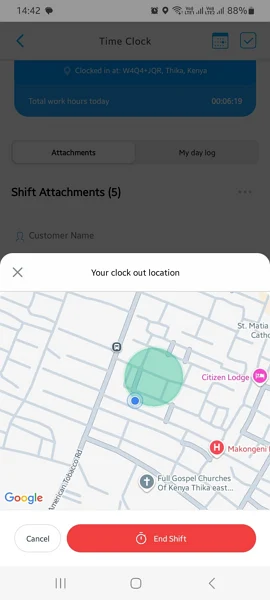
Connecteam shows you employee locations within the geofenced job site. NFC and kiosk clock-ins for on-site teams
NFC time tracking and the kiosk app give you a fixed place for employees to punch in, which is often more accurate than relying on a geofence radius. With NFC, employees clock in or out by tapping their phone on a tag placed at a job site entrance or front desk, so the location serves as a static checkpoint, not GPS.
Connecteam also supports shared-device kiosks with PIN and selfie logins to reduce buddy punching, plus web clock-ins.
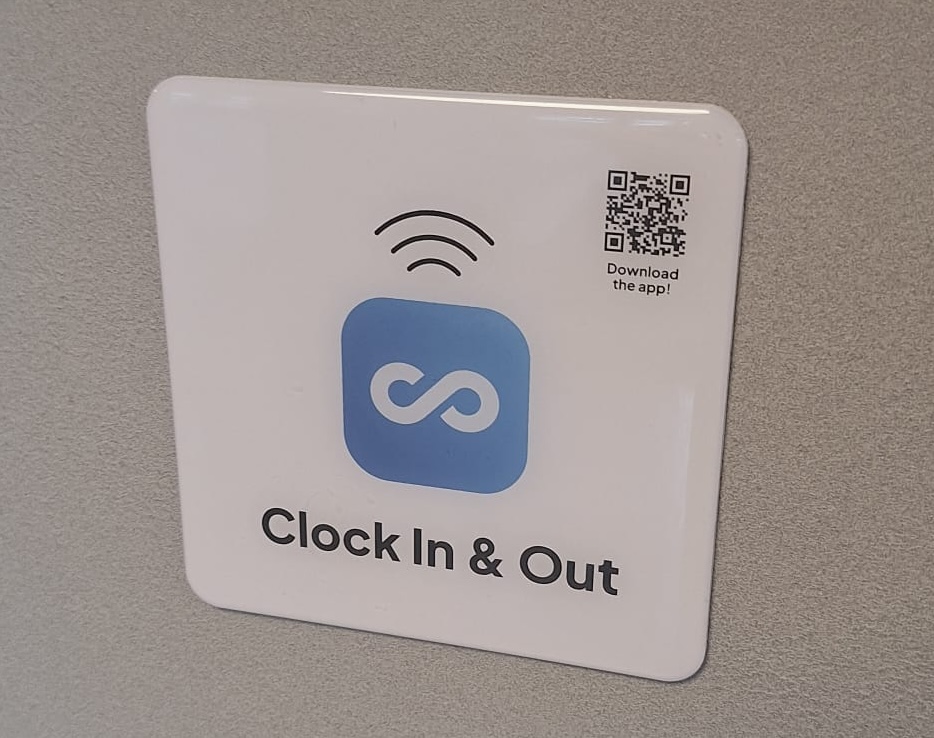
You can place Connecteam’s NFC tags at entrances or job sites so employees can clock in with a quick tap at a fixed location. Automatic timesheets and payroll handoff
Managers can review timesheets for payroll, see what needs attention, and control who can edit, approve, or reopen timesheets. Once hours are approved, you can export timesheets or sync them directly to payroll, eliminating the need for manual spreadsheet work.
Pay rates and overtime rules are quick to set up, and managers can review them alongside employee hours before payroll. The system flags overtime risks and potential rule violations, giving managers a chance to fix problems before approving and exporting the timesheet.
Connecteam integrates with payroll providers, including QuickBooks, Gusto, Xero, Paychex, PrismHR, and is an ADP Marketplace Partner.
Job-specific time tracking options
If you need job costing or client billing, Connecteam lets employees track time by job, site, customer, or project, so hours don’t get mixed up. Employees can switch jobs mid-shift without creating messy extra punches, and reporting shows hours by job or customer for billing and margin checks. For example, a tech can work at Site A and then drive to Site B to work on a different project, logging each project and drive time with only a tap or two on the screen.
And so much more…
Besides time tracking, Connecteam has all the tools you need to manage your employees:
- Automatic reports: Spot high-cost hours and staffing gaps faster, using labor and schedule data when you need it.
- Employee scheduling: Build schedules, publish updates, and compare planned vs actual hours without jumping between tools.
- Employee task tracking: Assign repeatable shift tasks, track completion, and reduce missed steps on-site.
- Digital forms: Collect incident reports, inspections, and proof of work in a consistent format, tied to the shift.
- Online team chat: Keep shift changes, quick questions, and announcements in one place, with controls so work messages do not spill into personal chats.
When Connecteam may not be the best fit
If you need activity monitoring like screenshots, app and URL tracking, or productivity scoring, Connecteam isn’t built for that style of oversight. It may also be a weaker fit for teams that work primarily in areas with no signal and need offline-first time tracking. Connecteam may also be too limited for businesses that need advanced project management, deeper HRIS functionality, or unified company-wide analytics.
Connecteam also offers a free for life plan – Try Connecteam here!
0Key Features
- Mobile, web, and kiosk clock-ins
- GPS location stamps and live tracking
- Geofencing for job-site enforcement
- NFC tap clock-ins for fixed locations
- Automated timesheets and approvals
Pros
- Strong control over employees clock ins
- Reliable GPS tracking with live visibility
- NFC and kiosk options for on-site teams
- Built-in guardrails reduce payroll errors
Cons
- No offline time tracking
- More setup required than basic time trackers
Pricing
Free-for-life plan availablePremium plans start at $29/month for 30 users
See Connecteam’s Time Tracking in Action
Request a Free Demo -
Deputy — Best for retail and hospitality teams focused on scheduling
Deputy is a scheduling-first workforce tool that also covers time tracking, approvals, and labor rule controls. It is a strong fit for retail and hospitality teams that live in shift schedules and want timecards to stay tied to that schedule.
Why I included Deputy: Deputy stands out for teams that build schedules first and want time tracking to follow that structure. It keeps shifts, attendance, and approvals connected, which helps reduce payroll cleanup for multi-location teams.
Clock-ins, shared devices, and missed-punch prevention
In our full Deputy review, we found that the time clock felt flexible enough for how shift teams actually operate. Employees can punch in and out from their phones or a browser, and Deputy also supports central kiosks. For shared devices, you can use PIN-based clock-ins and touchless biometric facial recognition, which is useful when a whole team clocks in from one tablet.
Deputy also keeps time tracking connected to the schedule, which helps reduce cleanup later. Compliance support features like break tracking and overtime tracking are also treated as part of the core experience, not an add-on.
However, we noticed that Deputy’s mobile app operates in a “read-only” mode when offline, which stops employees from clocking in or out without an active internet connection. Additionally, advanced admin controls and custom roles are gated to the Pro plan, making it harder for growing teams on the Core plan to manage permissions.
From the manager’s side, our reviewer found the interface easy to navigate and liked that the dashboard surfaced pending schedules, timesheets, and other items requiring approval. This made it easier to see what still needed attention before closing payroll.
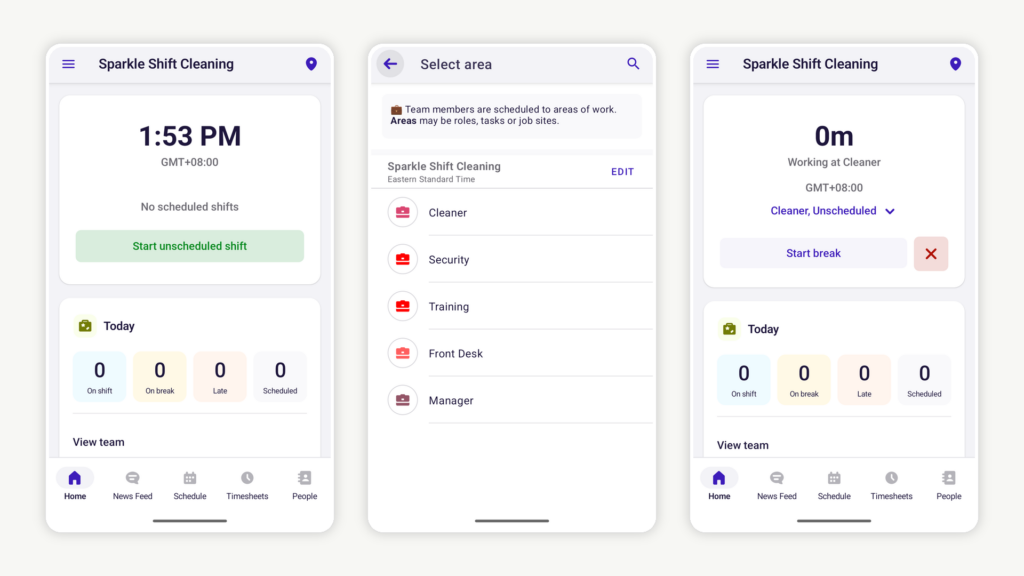
Deputy lets employees punch in and out from their phones. GPS stamps and geofencing
For teams that need location confidence, Deputy covers the basics well. It supports GPS location capture and geofencing, so you can restrict clock-ins to a job site boundary instead of relying on trust alone. The way it plays out in practice is simple. You use GPS and the fence as a check on where punches happen, then handle exceptions during approval.
This is a good fit for retail and hospitality teams with multiple locations, and for any operation where managers cannot physically watch every clock-in.
Timesheets, approvals, and payroll handoff
Deputy turns tracked time into timesheets that managers can view, edit, and approve from web or mobile. I liked that timesheets can show wages and premium rates, which helps you spot costly patterns while you are approving time instead of after payroll is already run.
Payroll is where you need to set expectations. Since Deputy’s native payroll isn’t available in all regions, you might have to export timesheets through exports or a payroll partner.
During testing, exporting timesheets was straightforward. Our reviewer also submitted support tickets and received helpful responses within around an hour, while live chat was similarly responsive. A phone support number was difficult to find, which may matter to businesses that prefer phone-based assistance.
What users say about Deputy
I liked how user‑friendly the Deputy app is. It made scheduling, clock‑ins, and team communication easy to manage, and the real‑time updates were especially helpful.

Sometimes the app can be a bit slow or glitchy, especially when trying to load shifts. Also, some features are not very clear at first and take time to understand.
0Key Features
- Mobile and web time clock
- Kiosk mode for shared devices
- PIN and facial recognition clock-ins
- GPS location stamps on clock-ins
Pros
- Strong link between scheduling and time tracking
- Works well for multi-location teams
Cons
- Reporting customization is limited
- “Read-only” offline mode
Pricing
Starts at $5/user/month (minimum $30/month) Trial: Yes — 31 days Free Plan: No
-
Buddy Punch — Best for small teams wanting a simple time clock
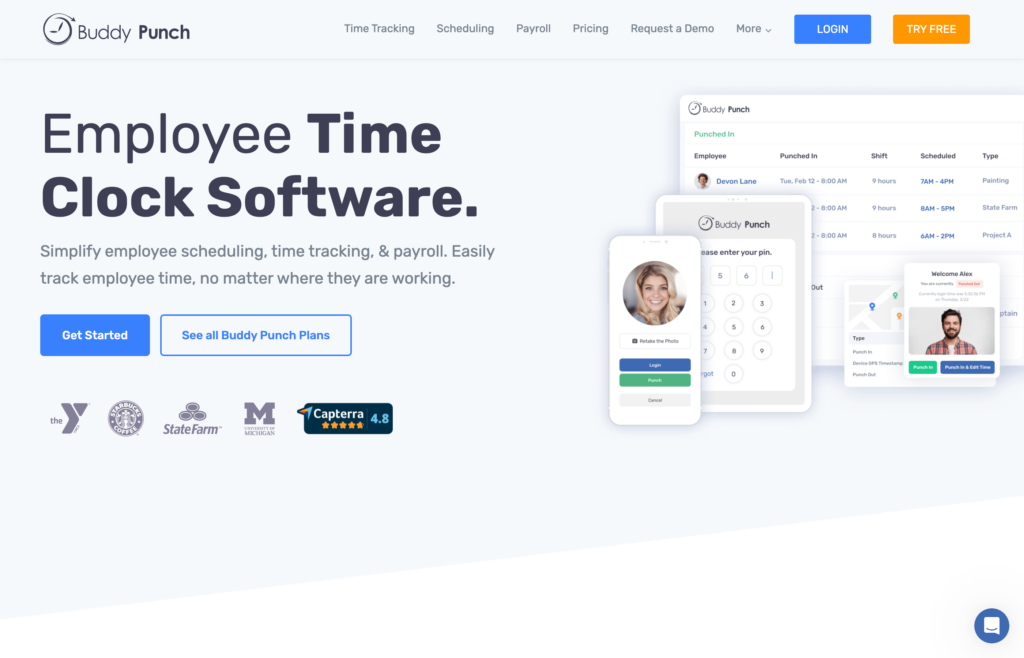
Buddy Punch is a simple online time clock built for small teams that want clean punches, clear approvals, and strong time theft controls without a lot of complexity.
Why I included Buddy Punch: I included Buddy Punch because it’s easy to set up, easy for employees to use, and it gives managers the controls they usually need to close payroll without chasing fixes. The main tradeoff is that some useful features, like advanced location tracking and scheduling, sit behind add-ons, so total cost can become less predictable as needs grow.
Clock-ins, shared devices, and punch controls
In our full Buddy Punch review, we found that it works from both web and mobile, and supports shared-device workflows when a team clocks in from a single spot. Depending on the setup, that can include PIN-based punching, QR code workflows, and webcam photos for identity checks. We found the setup easy and were able to quickly configure key policies, including breaks, overtime settings, approval rules, and location controls.
Buddy Punch also does a good job keeping managers in the loop. The dashboard is built around what needs attention, like missing punches, approvals, and time-off items, which is the view you want when you are trying to clean up timecards before payroll.
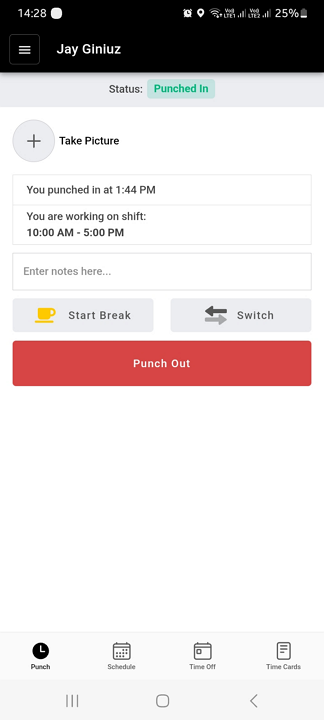
Buddy Punch shows when you’re punched in, but there’s no running timer like many other time tracking apps. GPS stamps and geofencing
Buddy Punch supports GPS stamps on punches and geofencing rules around work locations. During testing, geofencing did what most teams want it to do: it blocked an off-site clock-in and showed a clear error message.
Unfortunately, Buddy Punch does not auto-clock people in or out based on entering or leaving a zone. It is still a punch-based workflow, with location rules applied at punch time.
Timesheets, edits, and approvals
Buddy Punch turns punches into timesheets for review and approval, and it includes an audit trail-style approach through logs that help explain what changed and when. That matters for small teams because the most common payroll problems are not complicated; they are missed punches, edits made late, and confusion about what is final.
Break tracking is supported, but enforcement is not as automated as some tools. For example, it does not proactively remind someone to start a break if they forget, so you still need a clear policy and manager follow-through.
Payroll exports and add-ons
Buddy Punch is designed to send approved time off to payroll through exports and integrations, and the workflow is built around getting to a payroll-ready timesheet. Just keep in mind that some capabilities are add-ons. If you start adding real-time GPS tracking or scheduling, the product can move from a simple time clock into a more layered setup.
What users say about Buddy Punch
Overall, it’s been very easy to use and accurate with keeping everyone’s time entries up to date and the PTO feature is the favorite of the employees
My only issue with Buddy Punch is that it does not communicate hours with Quickbooks Online very well. I have to manually make edits to overtime because they don’t communicate well.
 0
0Key Features
- Mobile and web time clock
- GPS location stamps on clock-ins
- Geofencing to restrict clock-ins by location
- Photo verification at clock-in
- Timesheets with approvals
- Payroll exports and integrations
Pros
- Strong geofencing with strict enforcement
- Simple and easy approval workflow
- Reliable clock-in verification
Cons
- Add-ons can increase total cost quickly
- Limited automation compared to other tools
Pricing
Starts at $19/month + $4.49/user/month Trial: Yes — a 14-day free trial is available. Free Plan: No
-

Hubstaff — Best for remote teams needing activity monitoring
What’s new with Hubstaff
February 2026: Hubstaff previously offered a free plan for individual freelancers; it appears this plan has been discontinued.
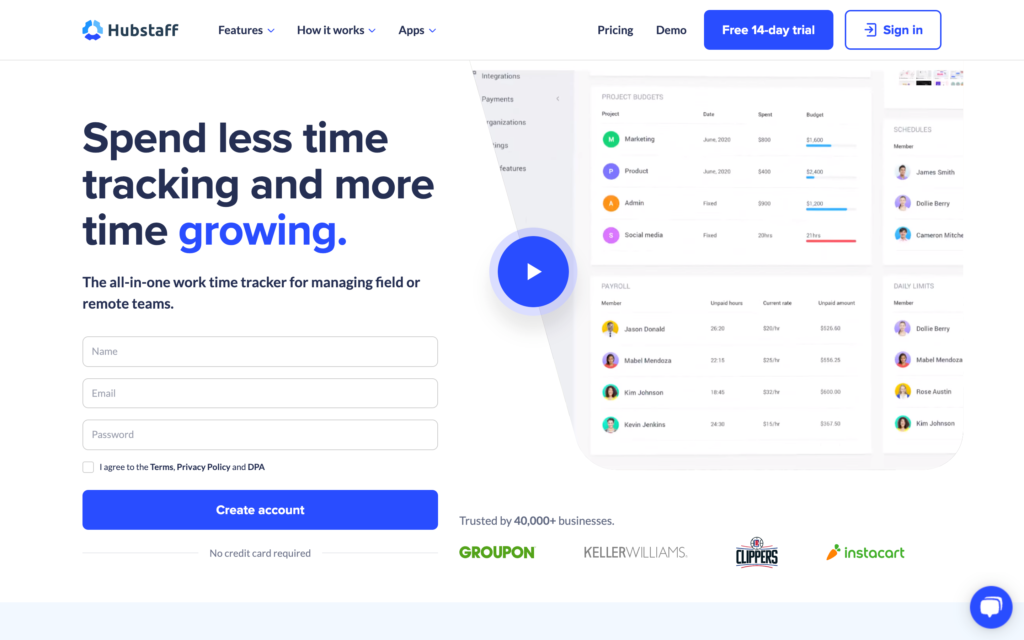
Hubstaff is a time tracking tool built for remote teams that want proof of work, not just hours. It pairs a multi-platform time clock with activity monitoring, so managers can see time, apps, and URLs, and optional screenshots in the same place.
Why I included Hubstaff: Hubstaff is one of the clearest picks for remote teams that need time tracking with activity monitoring. It gives you visibility into how time was spent, not just when the timer was running. The tradeoff is that several controls that matter in hourly, on-site work are weaker here, especially geofence enforcement, break controls, and daily overtime rules.
Time tracking and GPS controls
In our full Hubstaff review, we found that the platform supports time tracking from desktop apps, mobile apps, a web timer, and a Chrome extension.
We found the mobile experience limited compared to desktop, with most manager actions only available on the web app. It is a better fit when managers approve time, review activity, and handle exceptions from a computer.
Hubstaff has GPS tracking and geofencing for teams in the field, but our review flagged that the geofence did not reliably stop off-site clock-ins , which makes it closer to a review and follow-up model than strict blocking.
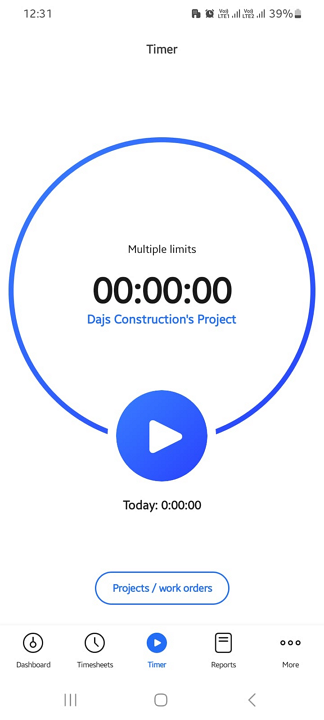
Hubstaff’s employee time tracking app is simple and intuitive. Activity monitoring and proof of work
This is Hubstaff’s signature feature. On desktop, it can capture activity levels, app and URL usage, and screenshots, and those views are built into the main workflow. Hubstaff also positions this as non-intrusive in the sense that it does not log the content of keystrokes, but it does track keyboard and mouse activity and can capture screens if you enable it.
The limitation here is scope. Activity monitoring is a desktop feature. If your team tracks time on mobile, the activity story is much thinner. In practice, Hubstaff is best when most tracked time happens on laptops and desktops.
Timesheets, breaks, and overtime
Hubstaff turns tracked time into timesheets, and approvals exist, but plan gating matters. We found that manager approvals were locked behind higher-tier plans, so it’s a good idea to verify plan features before expecting built-in approval workflows.
Breaks and overtime can be a weak spot for companies complying with strict labor laws. During testing, the break tracker did not prevent ending breaks early, and the overtime policy did not support daily overtime and double time tracking.
Customer support was another concern during testing. Our reviewer tried live chat and submitted an email ticket during the trial but did not receive a response through either channel. That may be a problem for teams that need fast help when resolving timesheet or payroll issues.
What users say about Hubstaff
What I liked most about Hubstaff was how easy it was to track time and stay organised. The interface is simple to use, and I liked being able to monitor productivity without things feeling too complicated.
What I like least is that some employees may feel uncomfortable with the level of monitoring, especially the screenshot feature. Also, the interface could be more intuitive in some areas, and the reporting features could offer more customization.
0Key Features
- Time tracking with automatic timesheets
- Activity monitoring and productivity tracking
- GPS tracking for field teams
- Project and job-based time tracking
Pros
- Strong activity and productivity tracking
- Automated payroll with flexible pay rates
Cons
- Interface can feel complex and hard to navigate
- Customer support can be difficult to reach
Pricing
Starts at $4.99/user/month Trial: Yes — 14 day Free Plan: No
-

OnTheClock — Best for small teams needing basic GPS location tracking
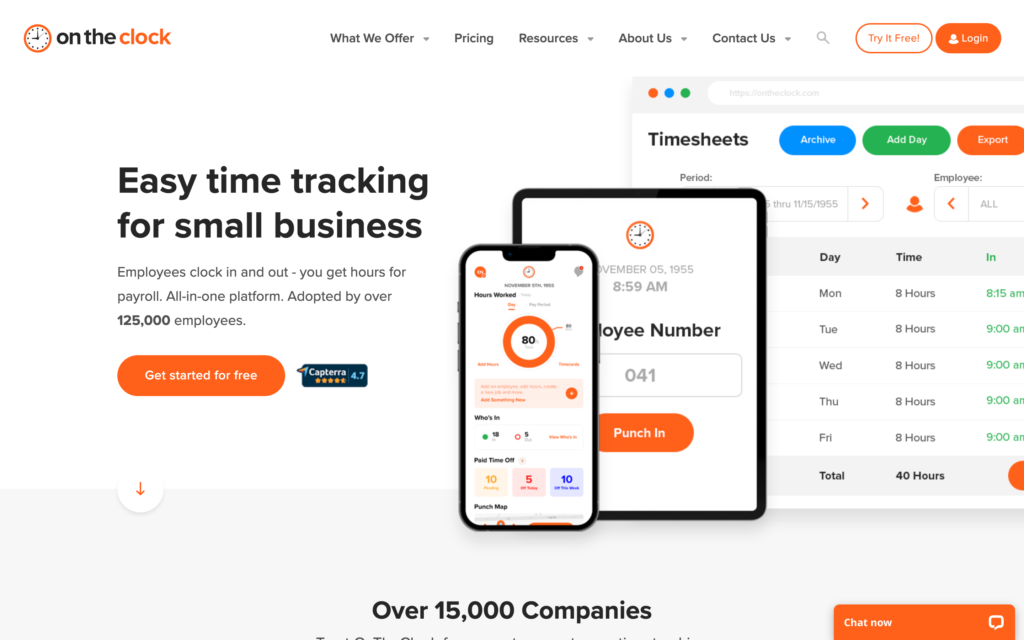
Key Features
- GPS breadcrumb route tracking
- Geofence clock-in restrictions
- Device, IP, and fingerprint authorization
- Drag-and-drop shift scheduling
Pros
- Geofencing accurately blocks off-site punches
- Breadcrumb tracking shows exact field routes
Cons
- No offline mode for areas without service
- Overtime doesn’t split at midnight
OnTheClock is an employee time tracking and workforce management tool built for small businesses that want to verify employee locations at clock-in.
Why I chose OnTheClock: OnTheClock stands out for its layered approach to punch verification. Geofencing, device authorization, IP locking, and fingerprint readers all work together to prevent time theft.
GPS tracking and geofencing
In our full OnTheClock review, we found that its location verification tools are super reliable. The geofencing feature lets you draw a boundary around a job site, and any clock-in attempt from outside that radius gets blocked outright, not just flagged.
Beyond the geofence, OnTheClock records a breadcrumb trail of employee movement throughout the day. The trail maps out exact stops, direction of travel, and driving speed at each point, which gives managers a clear picture of whether field workers followed efficient routes.
On the anti-fraud side, I liked that you can lock clock-ins to a specific device, browser, or IP address. A new device triggers an authorization request to the manager before any punch goes through. Fingerprint readers are also supported for on-site teams, but they require a separate hardware purchase.
The main gap is that OnTheClock has no offline mode. When we turned off the internet connection during testing, the app became completely unusable. For teams that work in areas with unreliable cell coverage, this might mean lost hours and manual corrections after the fact.

OnTheClock let us clock in and out only when we were in the geofence. Break and overtime tracking
OnTheClock includes preset overtime thresholds for some states in the U.S., including California’s daily overtime rules. When we applied the California setting, the system correctly identified overtime and double-time hours based on the state’s regulations. Unfortunately, you can’t create custom overtime rules, which could be a limitation for non-U.S. businesses.
The problem shows up with overnight shifts. We found that the system doesn’t split hours at midnight, which throws off calculations for employees working past 12:00 AM. That kind of error requires manual correction every pay period.
Break tracking is even more limited. The only option is an automatic deduction. You can’t create manual break rules, and you can only assign one break per shift. There’s no way to separately track rest and meal breaks, which is a compliance risk in states that require documented proof that employees took their legally mandated breaks.
Shift scheduling
OnTheClock’s scheduler uses a drag-and-drop interface to create shifts, with options to set locations, job types, dates, notes, and copy schedules to other employees or dates. It covers basic scheduling needs well.
However, it has some notable limitations. In testing, the system showed a publishing error even though employees still received schedule notifications. Employees also can’t view upcoming shifts in the mobile app, forcing them to use the web version. And since there’s no shift swapping or trading, managers must manually handle any schedule changes.
What users say about OnTheClock
I appreciate that the GPS tracking is precise, while still recognizing your location as correct if you’re within a certain radius.

Sometimes it can be slow or glitchy, it frequently freeze. Sometimes the weekly overview will not work and won’t load.
0Pricing
Starts at $5/month + $4/user/month. Trial: Yes — a 30-day free trial is available with no credit card required. Free Plan: No
-

QuickBooks Time — Best for businesses using QuickBooks for payroll
QuickBooks Time is built for businesses already using QuickBooks for payroll. It combines a mobile and web time clock with approvals, reporting, and direct payroll sync, making it easier to move approved hours into payroll without manual exports.
Why I picked QuickBooks Time: If you run payroll in QuickBooks, this is one of the most straightforward ways to get approved time into payroll without reformatting data. The main trade-off is that some controls rely on manual review to stay accurate.
Clock-ins and missed punch handling
In our full QuickBooks Time review, it was easy to clock in from mobile or web. Managers can quickly check who’s on the clock using the “See who’s working” view, which gives them a good sense of where people are.
QuickBooks Time also supports a kiosk setup for shared devices with photo capture at clock-in and clock-out.
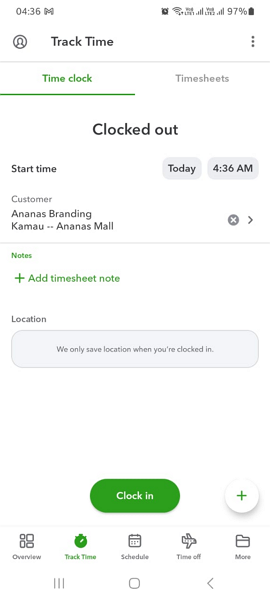
We found that the QuickBooks Time app works well on Android and iOS smartphones. GPS and geofencing
In our test, the live map made it easy to see where clocked-in employees were, and location tracking only ran while someone was on the clock.
Geofencing worked, but it’s not always a hard block. When we tried to clock in outside the geofence, QuickBooks Time let us either wait to be clocked in on arrival or clock in right away with a required note. The punch is flagged for approval, so enforcement depends on managers reviewing those exceptions.
Timesheets, edits, and approvals
QuickBooks Time organizes punches into timesheets for approval, then turns approved time into payroll and wage reports.
One usability snag is the web app. We found that the interface can get messy when you jump between features, because new screens float on top of old ones instead of replacing them. It’s not a deal breaker, but it can slow you down when you’re bouncing between approvals, reports, and who is working.
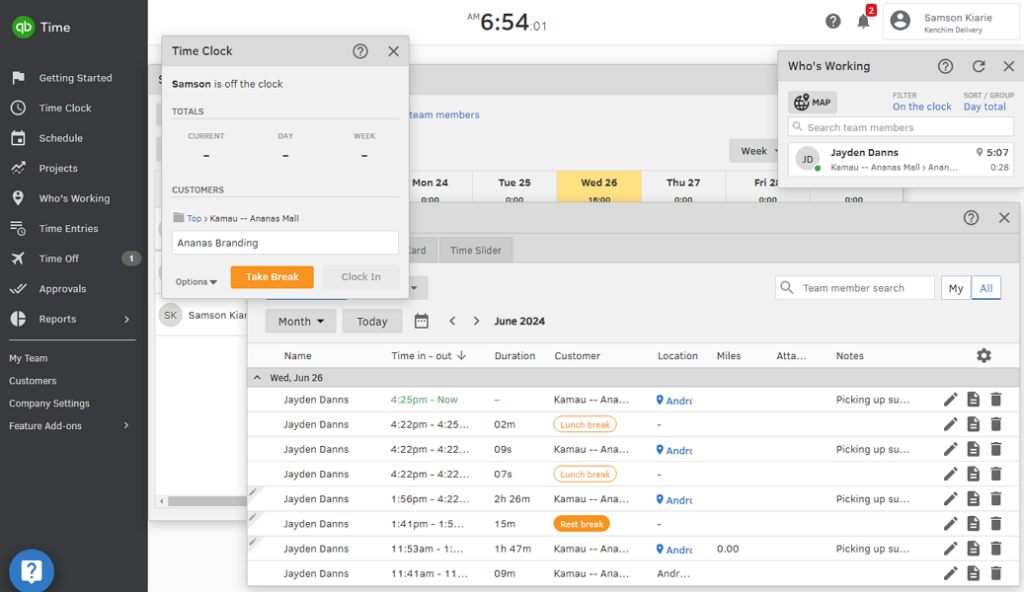
The QuickBooks Time UI can quickly get cluttered as you access multiple features. Payroll handoff, pay rules, and overtime
QuickBooks Time supports break rules and overtime rules, including daily overtime and double time, as well as a built-in California setting. During our review, the tester left the timer running for more than 26 hours. The system did not calculate overtime and double time as expected. Businesses with complex overtime requirements should test representative shifts before relying on the calculations for payroll.
QuickBooks Time’s strongest payroll advantage is its direct connection with QuickBooks Online Payroll. Once managers approve the hours, they can sync them into payroll without creating a separate export.
Its value is more limited outside the QuickBooks ecosystem because the platform offers relatively few third-party integrations. Businesses using other payroll or accounting systems may need a more flexible option.
What users say about QuickBooks Time
I love the level of ease when using QuickBooks Time. It’s very user-friendly and accurate. Time off requests are easy for staff to enter and for admins to review. I find it very easy to navigate, and it works well for our business and employees.
I don’t like that QuickBooks Time does not automatically tally up the hours from a specific pay period, so we had to enter the daily amount of hours into a program when payroll hit and then add it up to actually pay the employees.
0Key Features
- Mobile and web time clock
- GPS tracking with location map
- Geofencing with exception flags
- Kiosk mode with photo verification
- Timesheets with approvals and payroll sync
- Direct QuickBooks payroll integration
Pros
- Seamless sync with QuickBooks payroll
- Clear visibility into who’s working and where
- Flexible clock-in options including kiosk mode
Cons
- Geofencing relies on manual approval, not strict enforcement
- Overtime calculations may require validation
Pricing
Starts at $20/month + $10/user/month Trial: Yes — (30 days) Free Plan: No
-

Clockify — Best for teams looking for a free time tracking solution
What’s new with Clockify
April 2026: Clockify capped its free plan at 5 users, replacing its previous unlimited-user model.
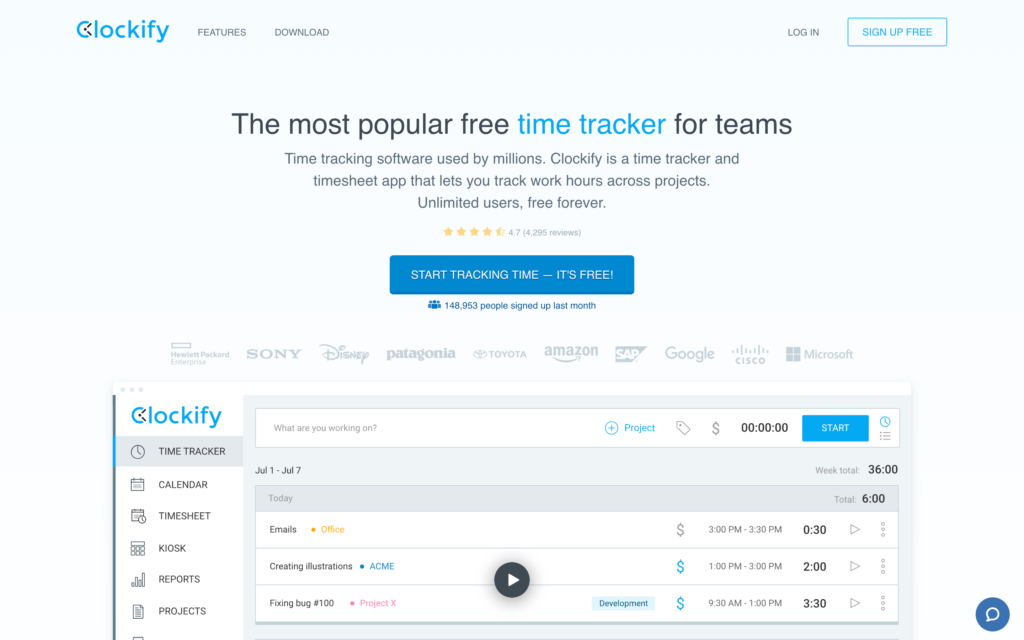
Clockify is a simple project-based time tracker. It works well for teams that need to log hours against clients, projects, or tasks and keep timesheets tidy without a lot of setup.
Why I included Clockify: I included Clockify because it stays simple while still covering the workflows most teams need, timer tracking, manual entries, and project reporting. It is also one of the few options that lets a team get started without immediate pricing friction, then upgrade only if they need approvals, reminders, or stricter policies.
Clock-ins, breaks, and reminders
In our Clockify review, we found the web, desktop, and mobile experiences consistent and easy for employees to pick up quickly. The one small friction point was the mobile start flow. Instead of one obvious “start work” button, employees tap a plus icon and choose between starting a timer or starting a break. It is not hard, but it is one extra decision at the exact moment you want the punch to be mindless.
If you want stronger guardrails, most of them sit on paid plans. That is where you get things like reminders, approvals, and tighter controls around time entry behavior. This matters if your main problem is not tracking time, but getting clean timecards without chasing people down at the end of the week.
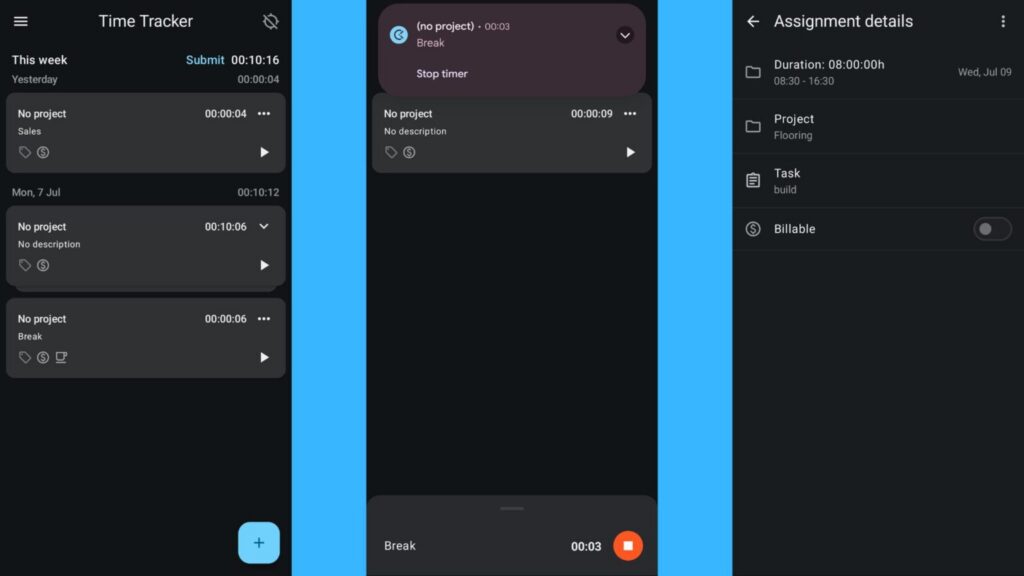
Clockify’s mobile app is intuitive but doesn’t support admin scheduling. Timesheets and manager workflow
Clockify is strong on the employee side. The mobile app mirrors the web experience and lets employees log time, edit entries, request time off, and view reports.
Admin work is where the mobile limits show up. We found that admins could not approve timesheets or manage key settings from the mobile app. If managers need to review and approve time from their phones, that is something to factor in.
Reporting is another place where the plan you choose matters. On the free plan, reporting history is limited to a shorter window, which is fine for weekly payroll, but it can feel tight if you want longer trend views without upgrading.
Location, payroll, and limitations
Clockify can record GPS locations, but it is not built for strict job site enforcement. Location is more of a light-proof point than a control system, and it does not offer geofencing that blocks clock-ins outside a defined boundary. If your priority is “no off-site punches,” Clockify is not the right fit.
Payroll handoff is also more manual. Clockify is not a payroll tool, so the workflow is exports and reports, plus optional integrations depending on your plan. It can work fine if you are already used to exporting hours, but it is not the kind of setup where payroll feels fully automated end to end.
What users say about Clockify
What I liked most about Clockify is that it is simple to use and makes tracking work hours very easy. It also helps organize tasks and projects clearly.
While it’s improved, some parts of the interface can still feel a bit clunky when managing a high volume of projects or making bulk edits.
0Key Features
- Project and client-based time tracking
- Break tracking and reminders
- GPS location history on clock-ins
- Kiosk mode for shared devices
Pros
- Free plan for up to 5 users
- Strong project and client tracking
Cons
- Limited admin functionality on mobile
- Weak geofencing and location controls
Pricing
Starts at $3.99/user/month Trial: Yes — a 7-day free trial is available. Free Plan: Yes — limited to 5 users.
-

When I Work — Best for small service teams wanting basic scheduling and tracking
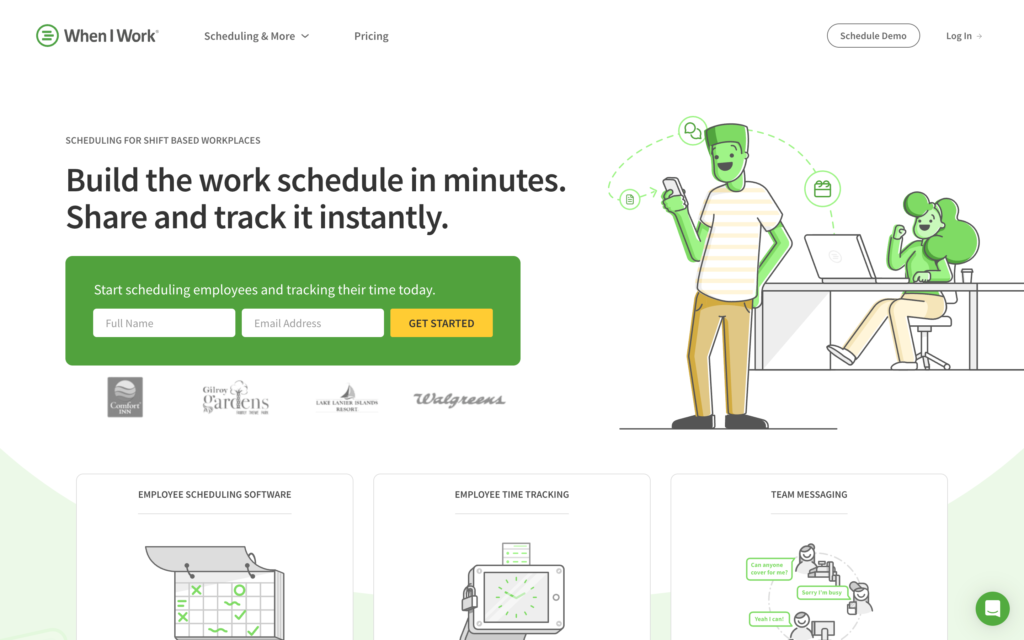
When I Work is a scheduling and time tracking tool built for shift-based teams that want something simple and quick to roll out. It covers the basics for clock-ins, timesheets, and team coordination, and it works best when your team is mostly in one place, and you do not need live location tracking during shifts.
Why I included When I Work: When I Work is simple to roll out for a single-location team, and it offers practical punch controls like early clock-in limits, geofencing, and photo verification.
Clock-ins and time verification
In our full When I Work review, we found the clock-in flow simple. Employees can clock in and out from any device, and the time verification settings are easy to understand. You can limit how early people can clock in, require photo verification at punch time, and use geofences to reduce off-site punches.
The downside is reliability in real use. In testing, the mobile app froze when we tried to clock in as a worker, and it also froze when we tried to open Work Chat.
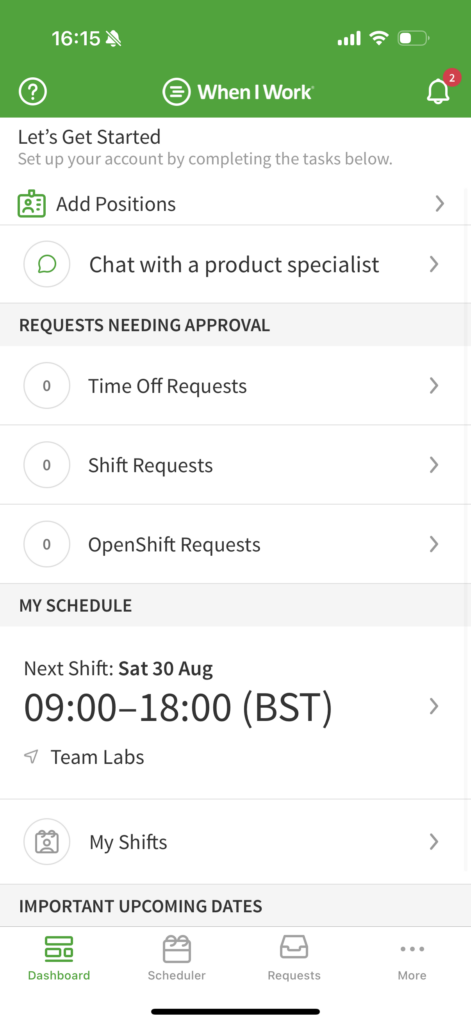
When I Work’s mobile app interface feels cluttered because of the large font size. GPS stamps and geofencing
If you mainly need to confirm where punches happened, When I Work does that well. It supports geofencing and captures location at punch time, so you can draw a boundary around a site and use it as a rule for clock-ins.
Where it falls short is live visibility. When I Work does not offer live location tracking, so it is not the best match for teams on the move where managers need to see where people are during the shift, not just where they clocked in.
Timesheets, edits, and payroll handoff
When I Work turns punches into timesheets for review, and once time is accurate and approved, you can hand it off to payroll partners. I liked having overtime alerts as a simple way to prevent surprise labor costs before they hit payroll.
But we also ran into a few issues that matter at payroll close. Even after we added custom pay rates, the timesheets did not show labor costs. There is no way to track billable versus non-billable hours, which is a problem if you need clean splits for client invoicing. And more concerning, we did not receive missed clock-out alerts or emails during testing.
What users say about When I Work
When I Work has very accurate geofencing that allowed our team to track employee arrivals, departures, and location.
I do wish there were a way to tag some classes of employees as “must clock in/out” and others can be excused.
0Key Features
- Mobile and web time clock
- GPS location stamps and geofencing
- Timesheets with approvals
- Overtime alerts and notifications
Pros
- Simple and easy for teams to adopt
- Solid clock-in verification with photo capture
Cons
- No live GPS tracking during shifts
- Limited depth for complex time tracking needs
Pricing
Starts at $2.5/user/month Trial: Yes — 14 days Free Plan: No
Compare the Best Employee Time Tracking Apps
| Topic |
 Start for free
|
|
|
|
|
|
|
|
|---|---|---|---|---|---|---|---|---|
| Reviews |
|
|
|
|
|
|
|
|
| Pricing |
Starts at just $29/month for the first 30 users
|
Starts at $5/user/month (minimum $30/month)
|
Starts at $19/month + $4.49/user/month
|
Starts at $4.99/user/month
|
Starts at $5/month + $4/user/month.
|
Starts at $20/month + $10/user/month
|
Starts at $3.99/user/month
|
Starts at $2.5/user/month
|
| Free Trial |
yes
14-day
|
yes
31 days
|
yes
a 14-day free trial is available.
|
yes
14 day
|
yes
a 30-day free trial is available with no credit card required.
|
yes
(30 days)
|
yes
a 7-day free trial is available.
|
yes
14 days
|
| Free Plan |
yes
Free Up to 10 users
|
no
|
no
|
no
|
no
|
no
|
yes
limited to 5 users.
|
no
|
| Use cases |
Best for field teams needing GPS tracking and payroll-ready workflows
|
Best for retail and hospitality teams focused on scheduling
|
Best for small teams wanting a simple time clock
|
Best for remote teams needing activity monitoring
|
Best for small teams needing basic GPS location tracking
|
Best for businesses using QuickBooks for payroll
|
Best for teams looking for a free time tracking solution
|
Best for small service teams wanting basic scheduling and tracking
|
| Available on |
How to Choose the Right Employee Time Tracking App
Choosing the right time tracking app depends on your business model, team size, and where your employees work. To find the best fit, consider these key questions:
Where does your team work?
If you have a field crew or mobile team, you need an app with strong GPS and geofencing capabilities to ensure they are on-site when they clock in. If your team is based in a single physical location like a retail shop or restaurant, a shared tablet kiosk with photo or facial recognition is a better fit.
How do you run payroll?
The biggest time-saver is a direct integration between your time clock and your payroll software. Look for a tool that syncs directly with your payroll provider, or at least exports clean, pre-formatted CSV files that match your payroll system’s requirements.
Do you need scheduling?
Some businesses only need to track hours, while others need to build complex shift schedules. If you need both, choosing an all-in-one tool that links scheduling directly to the time clock will save you hours of manual cleanup and prevent employees from clocking in outside their scheduled shifts.
Key Questions to Consider
- Do my employees work in a single location, or are they mobile and spread across multiple job sites?
- Does the app integrate directly with my payroll provider (e.g., QuickBooks, Gusto, ADP)?
- Do I need real-time GPS tracking, or are simple clock-in and clock-out location stamps sufficient?
- Does my team need to build shift schedules, or do we only need to track work hours?
- Will my employees find the mobile app simple enough to use every day without constant reminders?
- Do I need built-in guardrails like automatic clock-outs to prevent accidental overtime?
- Is phone support critical for my administrative team, or is live chat and email support enough?
What is Employee Time Tracking Software?
Employee time tracking apps record when employees start and end their shifts, track breaks, and calculate total hours worked. Instead of relying on paper timesheets or spreadsheets, everything is captured automatically and stored in one place.
Most tools go beyond basic clock-ins. They add structure to how time is tracked, reviewed, and approved before payroll. This includes GPS verification, job-based tracking, overtime rules, and payroll-ready timesheets.
For small businesses, the main value isn’t just tracking hours. It’s reducing payroll errors, preventing time theft, and giving managers clear visibility into labor costs as the week unfolds.
How Does Employee Time Tracking Software Work?
Employees clock in and out using a mobile app, web browser, or shared device. Each entry is recorded in real time and tied to the employee, shift, and sometimes a specific job or location.
From there, the system applies your rules automatically. It calculates regular hours, overtime, and breaks, and flags issues like missed punches or unusually long shifts.
Managers can see who is currently working, review flagged entries, and approve timesheets at the end of the pay period. Instead of fixing errors after the fact, most problems are caught during the week.
Once approved, hours can be exported or synced directly with payroll, reducing manual work and minimizing mistakes.
The Benefits of Employee Time Tracking Software
Most businesses don’t switch to time tracking software for convenience. They do it because manual systems break under pressure.
Accurate payroll without constant fixes
Manual tracking introduces small errors that add up. Missed punches, rounding, and handwritten edits create risk every pay cycle. Time tracking apps calculate hours automatically based on your rules, which reduces manual corrections and improves payroll accuracy.
Visibility into labor costs before payroll
Without real-time tracking, overtime is often discovered too late. Time tracking apps show who is approaching overtime while the week is still in progress, giving managers time to adjust schedules before costs increase.
Less time spent chasing errors
Payroll shouldn’t feel like cleanup work. Instead of tracking down missing punches and fixing spreadsheets, managers review flagged issues and approve timesheets. This turns payroll into a controlled process instead of a reactive one.
Reduced time theft and buddy punching
Features like GPS stamps, geofencing, and photo verification add accountability to every clock-in. These controls don’t eliminate abuse entirely, but they make it much harder to manipulate time records.
Clear records for disputes and compliance
Every edit, approval, and timestamp is logged. If there’s a dispute or audit, managers can review exact records instead of relying on memory or incomplete documentation.
Better alignment between scheduled and actual hours
When time tracking connects to scheduling, businesses can compare planned shifts with actual hours worked. This helps identify patterns like early clock-ins, extended shifts, or recurring attendance issues.
Scales as the business grows
Manual systems may work for a few employees, but they break as teams grow. Time tracking apps maintain structure without adding administrative overhead, which is critical for growing businesses.
How Much Does Employee Time Tracking Software Cost?
Most time tracking apps use a subscription model with a base monthly fee plus a per-user cost.
Entry-level plans typically start around $3 to $10 per user per month, often with a base fee between $20 and $50, depending on features. Some tools charge per location instead of per user, which can be more cost-effective for single-site businesses but expensive for multi-location teams.
Free plans are available, but they usually come with limitations such as restricted features, user caps, or a lack of control tools.
Connecteam stands out with a completely free plan for up to 10 users. Paid plans start at $29 per month for up to 30 users, with higher tiers offering more advanced controls and features.
The Bottom Line On Employee Time Tracking Apps
Time tracking software is no longer just about logging hours. It’s about preventing payroll errors, controlling labor costs, and giving managers visibility before problems escalate.
The best tools don’t just record time. They enforce rules, flag issues early, and make payroll a simple review-and-approve process.
For most small and mid-sized teams, Connecteam is the strongest option. It combines accurate time tracking, GPS controls, automated timesheets, and scheduling in one system, without adding complexity.
If you want fewer payroll headaches and more control over labor costs, it’s a practical place to start. Try Connecteam for free today to simplify your operations and close payroll in minutes.
FAQs
If you have a mobile or field-based team, GPS tracking is essential to verify that employees are actually at the job site when they clock in. For office-based or retail teams, GPS is less critical, and a shared tablet kiosk is usually a better fit.
Yes, most top-tier time tracking apps integrate directly with popular payroll providers like QuickBooks, Gusto, ADP, and Paychex. This allows you to sync approved timesheets in a single click, eliminating manual data entry.
Free plans can work well for very small teams (usually under 5 or 10 users) with basic tracking needs. But free plans usually lack advanced features like GPS geofencing, scheduling, and direct payroll integrations, which are critical for growing businesses.