

Simple scheduling for shift-based teams, but glitches and no GPS tracking hold it back.
Verdict: 6.8/10
When I Work is a workforce management platform designed for shift-based companies. It offers a solid set of features, including scheduling, time tracking, team communication tools, and payroll integrations. Most features are basic and lack advanced functionality, which makes the platform a better choice for small businesses, in my opinion.
When I Work is also pretty affordable for companies operating from a single location. Multi-location businesses see higher prices for the same core features. So, I’m not sure When I Work offers the best bang for your buck if you’re a medium or large-sized company working from more than one site. I also don’t think it’s the best for businesses on the move, especially since it doesn’t offer live location tracking.
Key Features:
- Shift scheduling. Create and assign job schedules using drag-and-drop tools, ready templates, or auto-scheduling, and publish them directly to workers’ smartphones.
- Shift self-service tools. Let employees pick their own jobs and empower them to drop and swap shifts as needed.
- Time tracking. Allow workers to clock in and out from any device. Activate geofencing and photo verification to prevent time theft and buddy punching.
- Team communication. Keep internal comms organized and teams up to date with 1-to-1 and group chats, company-wide broadcasts, and more.
- Labor forecasting and budgeting. Compare scheduled vs. actual hours worked, track labor costs against budgets, and use overtime prevention tools to cut costs.
- Integrations. Sync your When I Work account with payroll and HR systems.
Pros
- Mobile app accessible from anywhere
- Relatively affordable pricing
- Responsive customer support
Cons
- Several glitches and usability issues
- Limited integrations
- Costs can add up for multi-location businesses
How I Tested When I Work
I signed up for When I Work’s 14-day free trial, added 5 team members (with different roles and permission levels), and tested both the web and mobile apps. I explored every core feature, from scheduling and time tracking to the work chat and time off management.
I also checked to see how the app handled real-world mistakes, such as scheduling an unavailable employee for a shift, leaving my time clock running beyond permitted hours, and more.
When I Work Pricing
When I Work offers 2 pricing plans:
| Single location or schedule | Multiple locations or schedules |
|---|---|
| $2.50/user/month | $5/user/month |
| Everything in the single location plan, plus:
|
I love how clear and straightforward When I Work’s pricing plans are. To the best of my knowledge, there are no hidden costs and no recurring platform fees.
While the website is transparent about what each plan includes, it doesn’t mention the 5% discount for annual billing. I happened to stumble across this in “account & billing,” within the web app. This makes me wonder if the 5% discount isn’t a permanent fixture, and maybe that’s why it isn’t advertised on the website.
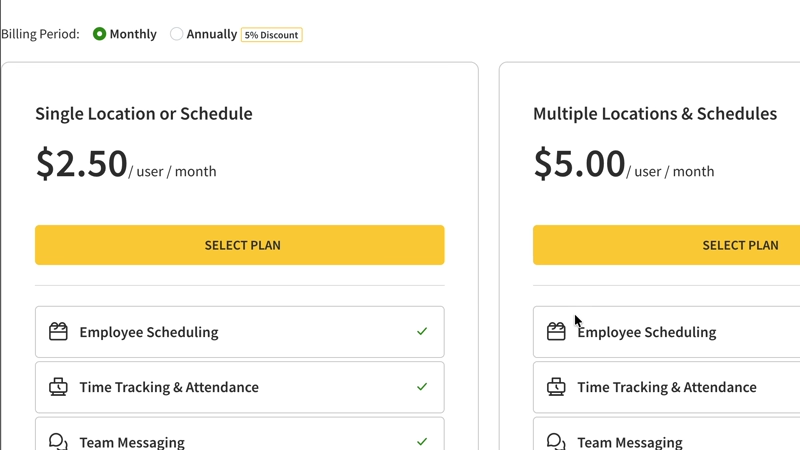
You don’t need to overthink what plan to pick, either. With both plans offering nearly all the same core features, your choice will typically depend on the number of locations or schedules you require.
Standalone restaurants, shops, or local businesses can access a full-featured stack at a relatively low per-user cost. Meanwhile, the pricing is higher for multi-site operations. But I still think it offers more tools for a lower price than most competitors.
Here’s how When I Work’s pricing stacks up against competitors:
| Team size | When I Work (Multi-location) | Deputy(Core) | Hubstaff(Grow) | Connecteam (Advanced) |
|---|---|---|---|---|
| View pricing | View pricing | View pricing | View pricing | |
| 10 Users | $47.50/mo | $65/mo | $75/mo | Free for life—All features and dashboards |
| 20 Users | $95/mo | $130/mo | $150/mo | $49/mo |
| 30 Users | $142.50/mo | $195/mo | $225/mo | $49/mo |
| 50 Users | $237.50/mo | $325/mo | $375/mo | $99/mo |
| Read our full Deputy review | Read our full Hubstaff review | Learn more about Connecteam | ||
| * All prices show the monthly cost when billed annually as of May 2026. | ||||
As is evident, When I Work’s pricing is competitive. However, since the platform is priced per user, costs can add up quickly as you scale. Larger teams might benefit from a flat-fee or hybrid pricing model (similar to Connecteam’s).
Finally, I would have liked to see When I Work offer a free plan for small businesses (a handful of platforms do this). That said, I was pleased with the 14-day free trial, which makes it easy to explore the platform before committing.
Verdict: 8/10
When I Work Usability and Interface
Here’s my take on When I Work’s user experience.
Signing up
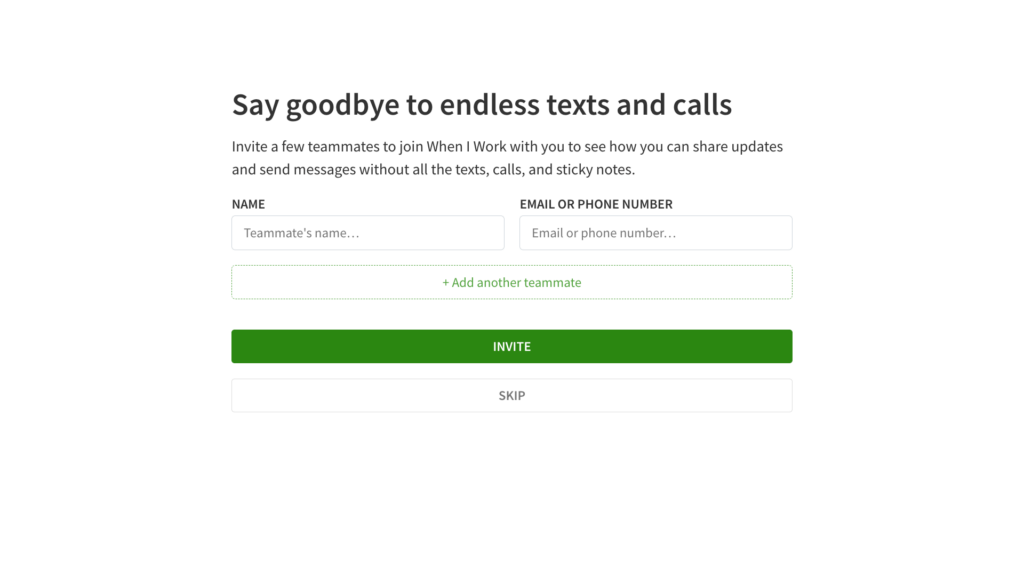
Setting up a free trial on When I Work was quick and smooth, and didn’t require any credit card details. It took only 4 steps and less than 5 minutes. I appreciated that it didn’t waste time asking where I’d heard about the platform or how I planned to use it. Instead, the steps focused on simplifying my setup. It gave me the option to:
- Import an existing schedule, and not just in Excel or CSV, but also as a PDF or image.
- Add team members by their names and/or email addresses.
I was also grateful that, despite asking for a phone number, I could proceed without sharing one at this stage.
My only qualm was that I couldn’t assign roles, such as employee, manager, supervisor, or admin, to team members while adding them during the sign-up process, as I could do when testing Homebase. I had to do this later on under user settings.
Web design and layout
I was pleased with When I Work’s modern and minimalist appearance. The white, light green, and grey color scheme didn’t feel jarring to me.
I also appreciated the platform’s intuitive layout. You can easily locate core features, such as the dashboard, scheduler, attendance, work chat, and reports, on the top bar.
However, sub-features (such as shift tasks and forecast tools) were a bit harder to find: they sit in the left sidebar, within the scheduling feature. Similarly, time off management doesn’t appear as a standalone tool; you only see “time off” when you click to add a shift to the scheduler or go into settings, which makes it easy to miss.
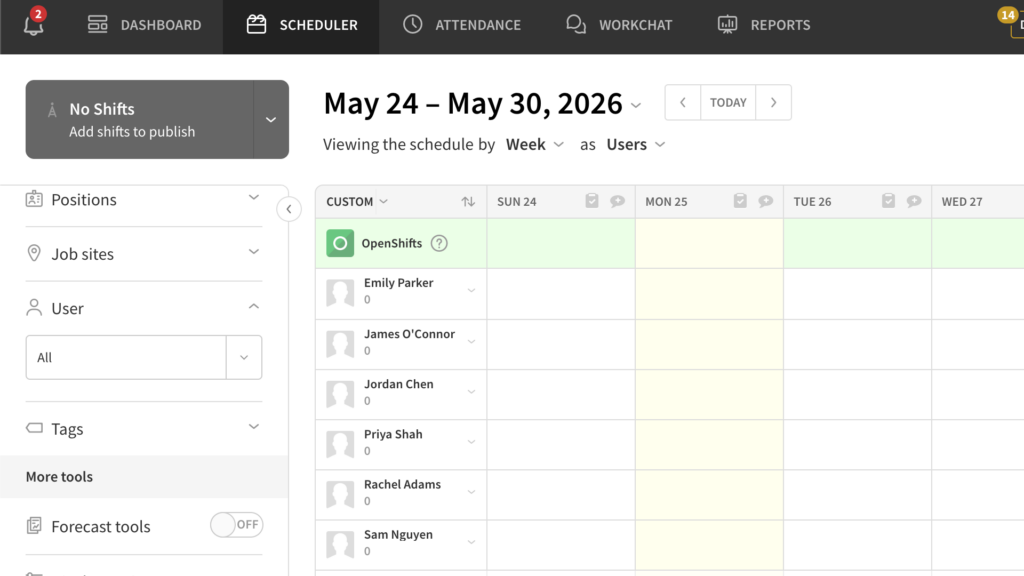
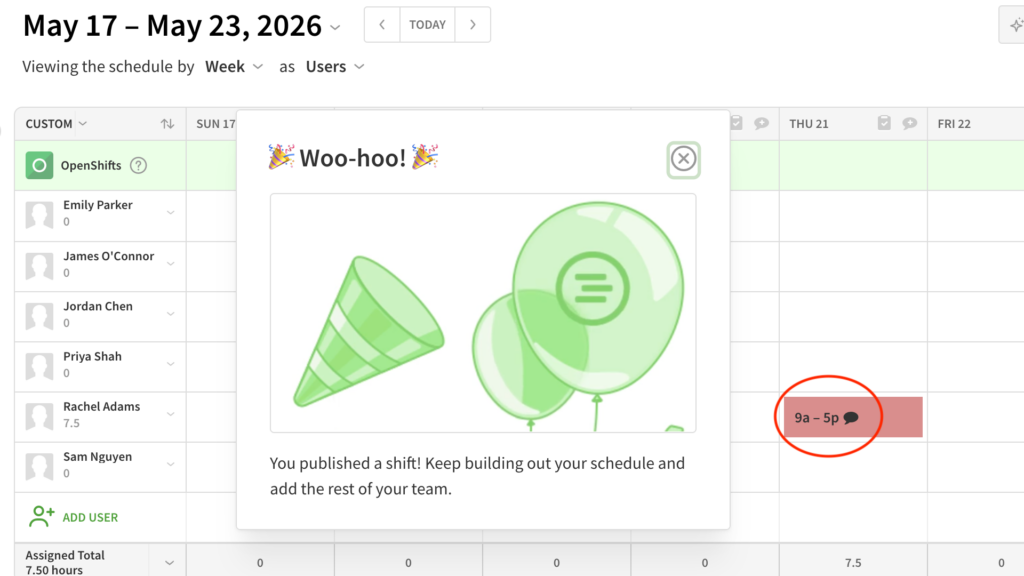
That said, I noticed some parts of the platform weren’t well-designed and looked unprofessional. Any references to time, for instance, looked incomplete because they only said “a” instead of “am,” and “p” instead of “pm.” I don’t know if this is some sort of character limit issue, but I couldn’t get behind it.
Something else that confused me was a speech bubble symbol that appeared in a published shift with no explanation about what it meant. Clicking on it didn’t help either.
Usability
In terms of usability, I found the platform had a gentle learning curve and didn’t require technical expertise. It took me about a minute to set up each user’s role, position, and pay rate from user settings.
Unfortunately, though, I thought the app was very slow. Every time I made a change and refreshed the page, it took ages to load, which was frustrating. When I clocked in via the mobile app, I couldn’t see any timer ticking in my web app. From the timesheets, I could tell they were syncing in the background, but I still had to keep refreshing the page to track it.
I also saw mixed online reviews about the overall user experience. For example, according to G2’s AI-generated review summary, while “users consistently praise the ease of use and intuitive interface…some users note that the app can experience glitches.”
Finally, When I Work lacks accessibility features, such as screen reader support and light and dark modes on the web app, which are sometimes essential for individuals with visual or motor impairments.
Verdict: 6/10
Mobile app
When I logged in to the web portal, I could request a direct SMS link or scan a QR code on my phone to download the iOS or Android app. The SMS functionality didn’t work for me (same as when I tested this app a year ago), but I was able to download the iOS app using my iPhone.
Although the mobile app has the same look and feel as the web portal, it felt more cluttered and overwhelming, to be honest. The font size was abnormally large for my screen, and the features and tools felt packed into a small space.
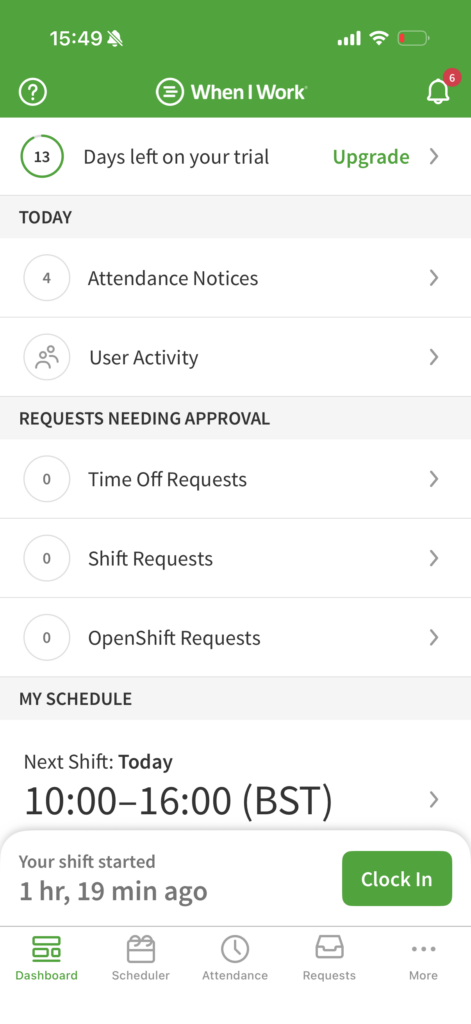
On the bright side, the mobile app was well-equipped. Here’s how When I Work’s mobile app compares to its web portal:
| Menu item | Workers | Admins | ||
| Web | Mobile | Web | Mobile | |
| Core features | ||||
| Shift scheduling | ❌ | ❌ | ✅ | ✅ |
| My shifts | ✅ | ✅ | ✅ | ✅ |
| Open shifts | ✅ | ✅ | ✅ | ✅ |
| Shift dropping and swapping | ✅ | ✅ | ✅ | ✅ |
| Shift tasks | ✅ | ✅ | ✅ | ✅ |
| Time tracking | ✅ | ✅ | ✅ | ✅ |
| Geofencing verification | ✅ | ✅ | ✅ | ✅ |
| Photo verification | ❌ | ✅(iOS only) | ❌ | ✅(iOS only) |
| Time off requests | ✅ | ✅ | ✅ | ✅ |
| Work chat | ✅ | ✅ | ✅ | ✅ |
| Analysis features | ||||
| Reporting | ❌ | ❌ | ✅ | ❌ |
| Dashboard | ❌ | ❌ | ✅ | ✅ |
| Timesheets | ✅ | ✅ | ✅ | ✅ |
| Management features | ||||
| Users | ❌ | ❌ | ✅ | ✅ (cannot change pay rates) |
| Time tracking and geofencing rules | ❌ | ❌ | ✅ | ❌ |
| Documents | ✅(view only) | ✅(view only) | ✅ | ✅(view only) |
| Positions | ❌ | ❌ | ✅ | ✅ |
| Job sites | ❌ | ❌ | ✅ | ✅ |
| Customer support | ✅ | ✅ | ✅ | ✅ |
Overall, I thought When I Work’s mobile app was feature-rich. I liked that it offered most management- and admin-side features, which many platforms only have on their web portals. I could also view all key features within the worker-side mobile app.
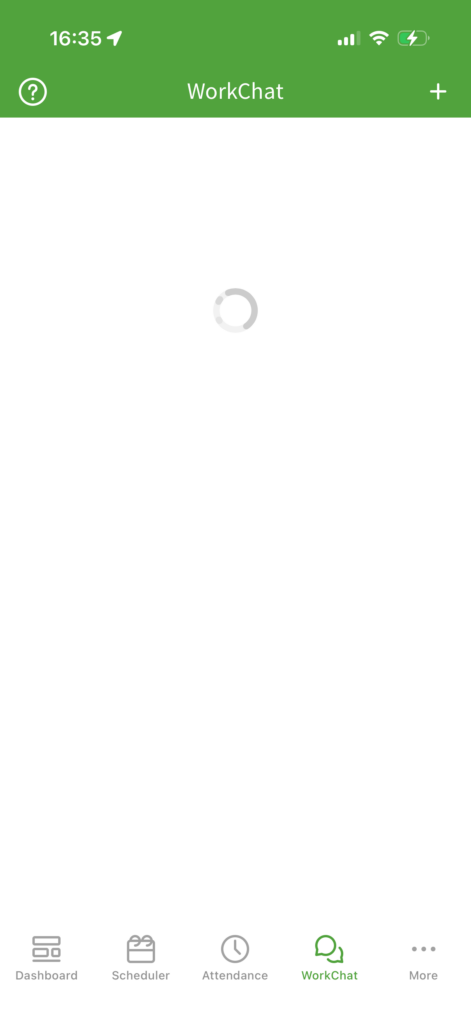
I did face a minor glitch with the app, which, funnily, I also encountered when I tested it last year. When I tried to open the work chat, the app froze, showing a continuous loading sign. I had to log out and log back in for this to resolve.
I was also disappointed that the mobile app doesn’t work offline, which makes it less suitable for companies operating from job sites in remote areas. Some other apps let workers track their hours even without an internet connection and sync the data when they’re back online.
Verdict: 7/10
When I Work Core Functionalities
Shift scheduling
I had mixed feelings about When I Work’s scheduler.
Creating shifts
Let’s get into the positives first. I found it easy to create shifts. I hovered over my desired slot and clicked on “add a shift.” I was very impressed by the level of detail and customization available when adding new shifts. I could:
- Assign a shift to someone or leave it open
- Enter scheduled hours and any paid or unpaid breaks
- Add shift tasks and notes
- Select tags that apply to this shift (e.g., if it requires a specific license or certification)
- Toggle “repeat shifts” or save the shift as a template
- Drag-and-drop shifts across the scheduler
- Save shifts in draft mode or publish them as needed
Auto-assigning shifts
I was also impressed that When I Work offered auto-scheduling to assign open shifts to team members, based on their positions, tags, and availability, and even let me set criteria such as “don’t go over max hours,” “schedule weekend shifts first,” and “allow multiple shifts in a day.”
Disappointingly, the tool didn’t actually work for me when I clicked on the auto-scheduling icon. It said I didn’t have any unpublished open shifts (I did).
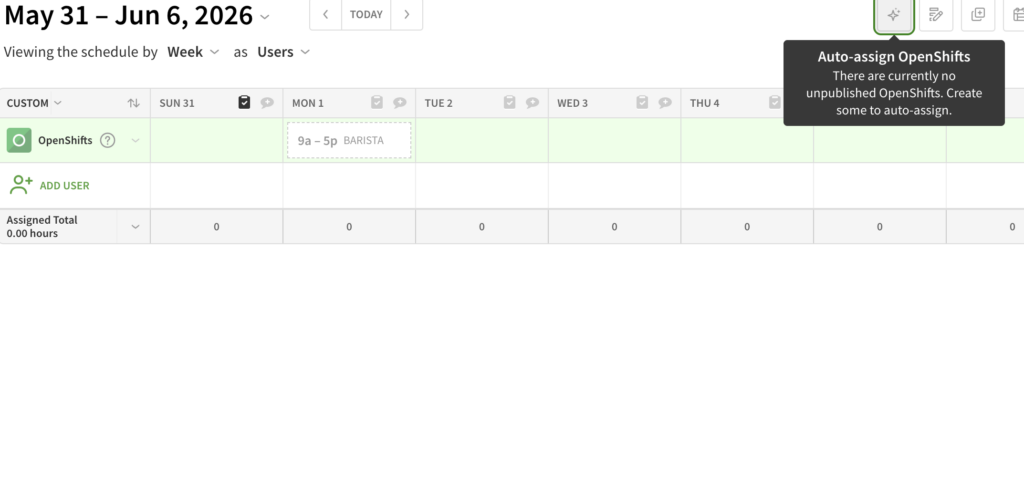
I could still test it by clicking on the open shift and choosing auto-assign, and this time it worked.
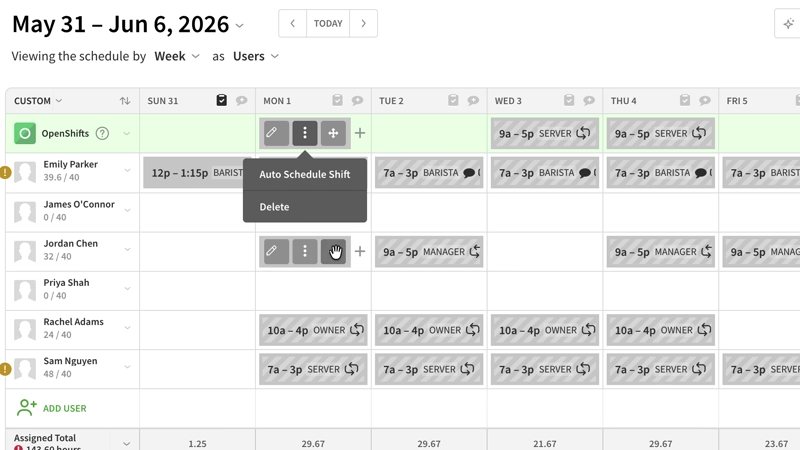
But I was unhappy that auto-scheduling couldn’t take employees’ locations or skills into account when assigning shifts. Some apps like Deputy and Connecteam offer this, and it’s so handy in real-world scenarios where shifts often require different skill sets, even for the same “positions” (for example, assigning a customer service agent to a specific shift because they speak the client’s language).
Scheduling interface
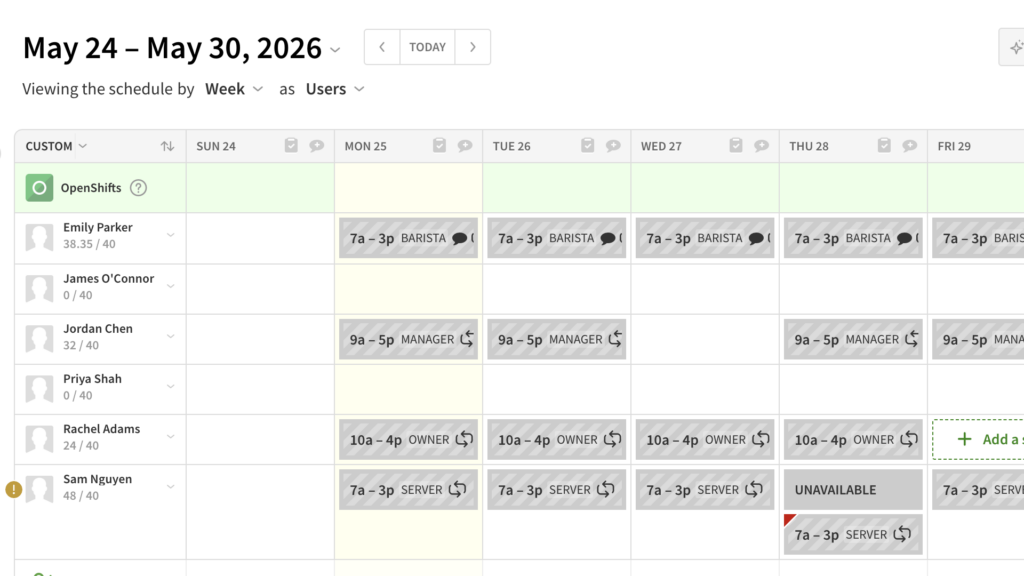
The scheduler was formatted like a calendar, with dates at the top and team members on the left, giving me a bird’s eye view of the entire week’s schedule. I also liked that I could see my projected labor costs for each day based on the assigned working hours and the team member’s pay rate. This was a great way to check that I hadn’t exceeded budgets.
But there were some problems:
- The scheduler showed team member names but not their positions. In a small team, I’d know who does what and can ensure there’s enough coverage for each position on a given day. But in a larger team, it’s a critical miss because many admins don’t know who does what off the top of their heads.
- When I created “positions” such as barista and server, I color-coded them, so I was confused about why the schedule appeared grey for all shifts. I never saw these colors being used, which felt pointless.
- I couldn’t add custom tasks directly while creating a shift. I had to first go into the separate “shift tasks” feature and create task lists there. Only then were these task lists available to add to a shift. I found these extra steps unnecessary.
Suffice to say, When I Work has some technical issues that need to be fixed.
Employee self-service tools
Once shifts were published, I logged in to my employee profile to accept them. I could also claim open shifts, release shifts (change them to open), or drop them (weirdly, “drop” meant “swap” in this app).
Admins can decide how much flexibility to allow, establish whether changes need manager approval, and set additional rules like which users can pick up specific shifts. I thought the platform performed well on this front.
Scheduling mistakes and conflicts
Finally, I tested When I Work for some common real-world scheduling mistakes. I was relieved to see that the platform flagged when I’d scheduled a shift for an unavailable employee. It also cautioned about exceeding the maximum weekly hours and overtime limit I’d set for the employee. Sadly, though, it didn’t warn me when I “accidentally” created and published a schedule for the previous week instead of the current one.
Verdict: 7/10
Time tracker and verification tools
In theory, When I Work offers key time tracking tools. But I didn’t find them so easy to use in practice.
Setting up
First, I had to set up time tracking rules under the attendance tab. I was impressed that it was super customizable. For instance, I could control whether employees could punch in and out of their mobile apps, computers, or both. I could also set pay periods and pay frequency, including weekly, bi-weekly, monthly, and custom dates.
But here’s what got weird. The platform let me activate geofencing (for mobile or computer clock-ins), but it didn’t ask me to add any geolocation or address (and, no, I hadn’t added this anywhere in my account). So, although I had geofencing enabled, I could clock in and out in my mobile app from the wrong location without a problem.
The other issue I had was that I know When I Work offers photo verification, so I wondered why I couldn’t do this while setting up the attendance feature. Also, I wish the platform offered live GPS tracking. Without this, it’s not a great solution for shift-based businesses on the move, such as cleaning or delivery companies.
Testing the time clock
Anyway, once things were set up, I tested the clock-in and clock-out functionality. While the time clock was easy to locate on the mobile app, it was hidden under the attendance tool in the web portal. Further, unlike the mobile app, the web portal didn’t show me a running timer. Considering this is one of When I Work’s core features, it wasn’t as intuitive as I’d like.
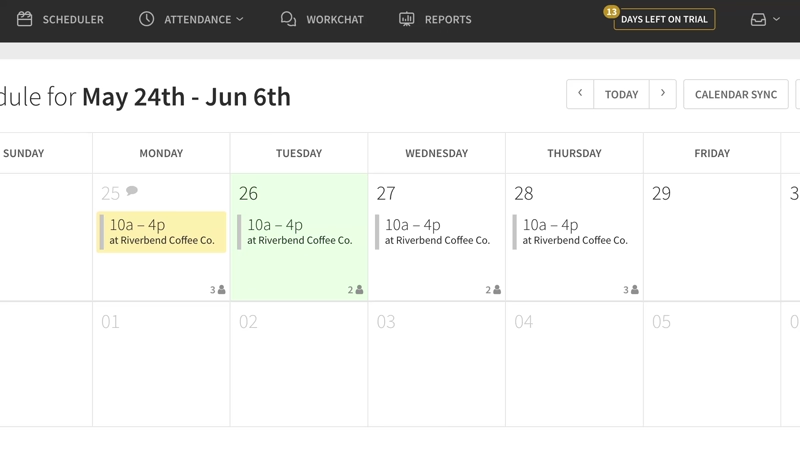
Also, when I enabled photo verification in the iOS app settings, it didn’t work. I easily bypassed it and clocked in from my iPhone with no photo required. And I left my clock running overnight and didn’t receive any overtime alerts (as either the employee or the manager) despite having the right notification preferences switched on.
Timesheets and payroll
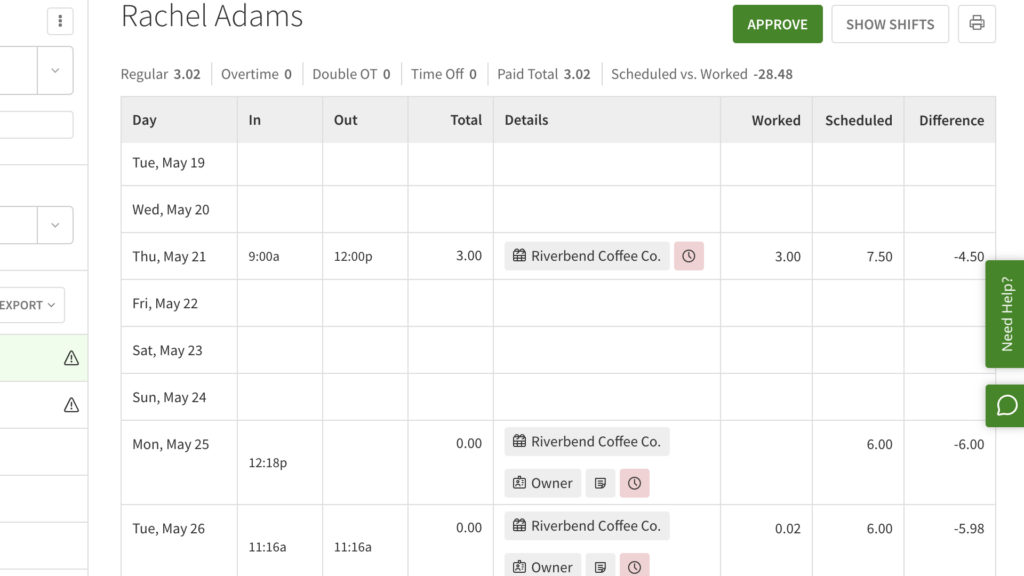
On the plus side, I could see early/late clock-in and clock-out warnings within timesheets, and even make manual changes as needed. It wasn’t an ideal way to spot and fix mistakes, but it was something.
When I Work’s timesheets also showed me clock-in and out time, total hours worked, and how they compared to scheduled hours. Unfortunately, despite adding custom pay rates for my users, the timesheets didn’t show their labor costs, which was strange considering these reports are meant to be used for payroll. Once timesheets are accurate and approved, you can integrate them directly with one of When I Work’s payroll partners.
Overall, the platform is on the right track with its offering, but it seriously falls short in its practical application. In my opinion, this can lead to a range of issues, such as overworked employees, compliance breaches, and unexpected labor costs.
Verdict: 5/10
Time off management
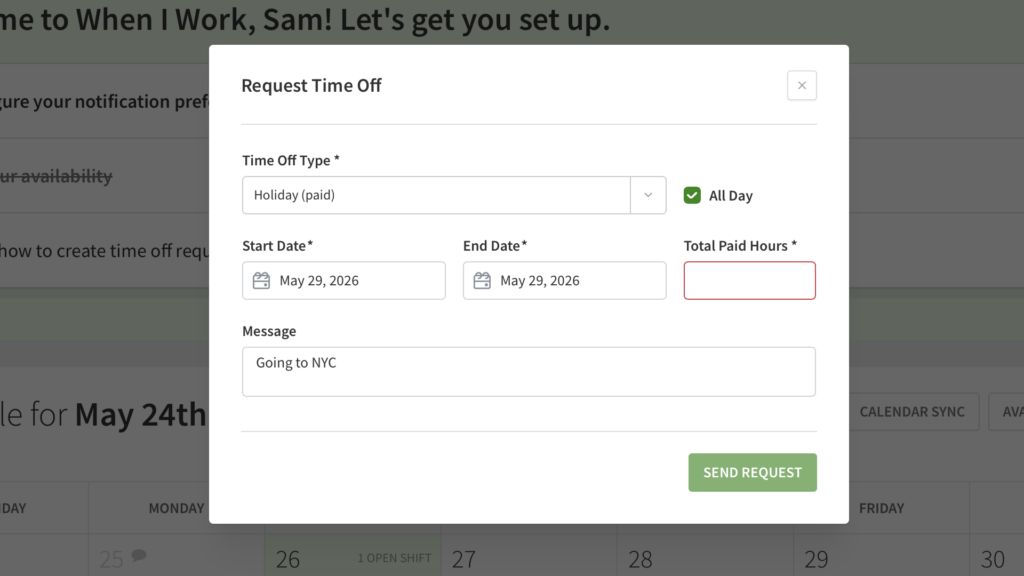
When I Work helps you manage workers’ time off requests right from the app. As a worker, it was easy to request time off. One complaint I had, however, was that I had to input the paid hours I’d take off when creating a leave request. Ideally, this should be automated or added by managers to avoid disputes.
As a manager, I could approve or deny the employee’s time off request from within my notifications center and even leave a message explaining my reasoning. I thought this was a nice touch because it helps workers understand why their leave request was denied and reduces unnecessary resentment.
Finally, while I was pleased that I could create custom time off types, mandate advance notice, and set up accrual policies for each leave type, there was no way to set allowances or carryover rules. This makes policies less clear and leaves more room for misunderstandings between employers and staff members.
Also, I would have liked to see additional compliance support, such as warnings when leave policies haven’t met legal requirements.
Verdict: 6/10
Work chat
The platform’s built-in messaging feature helps you communicate with your team members without swapping personal phone numbers. You can send your staff direct messages or set up group chats/channels.
Unfortunately, I found the chat interface too basic for my liking. It doesn’t offer rich-text formatting, and you can attach files only as PNG, JPG, or GIF. This means you can’t send any other critical files via chat, which is a huge miss. I also found it unusual that the chat box appeared hanging from the top bar in the web interface.
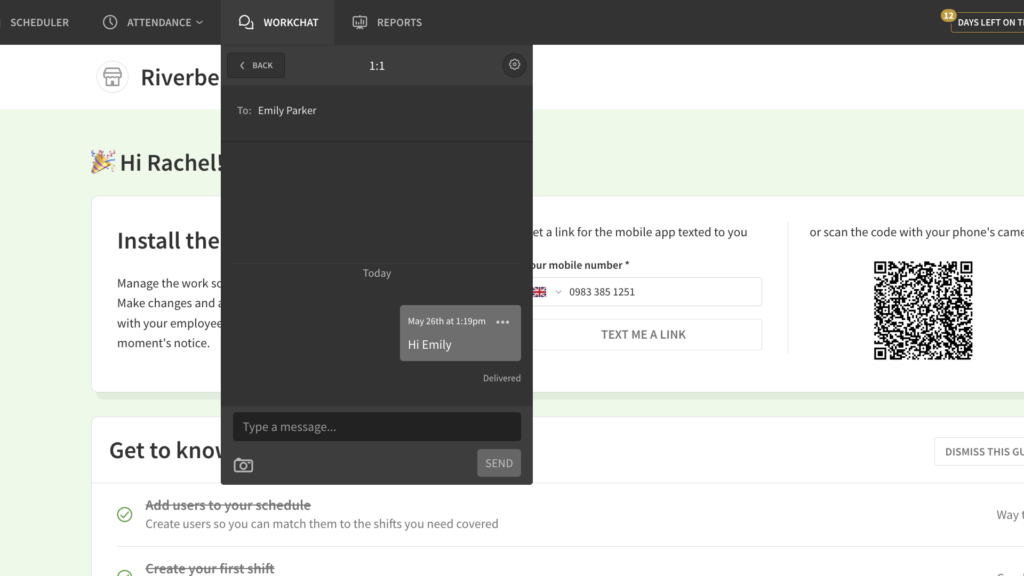
When I Work also boasts a company-wide announcements feature. But I couldn’t locate this on the web app, despite “Googling” it. On the mobile app, it was called “annotations” for some reason, and hidden within settings. I created an “annotation,” and it appeared on everyone’s mobile dashboard instantly. Again, impressed with the intent but not with the execution.
Verdict: 6/10
Integrations
When I Work primarily integrates with payroll platforms such as QuickBooks, Gusto, ADP, Square, and Paychex. It advertises a special offer, where When I Work customers get 6 months of free access to Rippling. It also integrates with a handful of business operations and HR platforms.
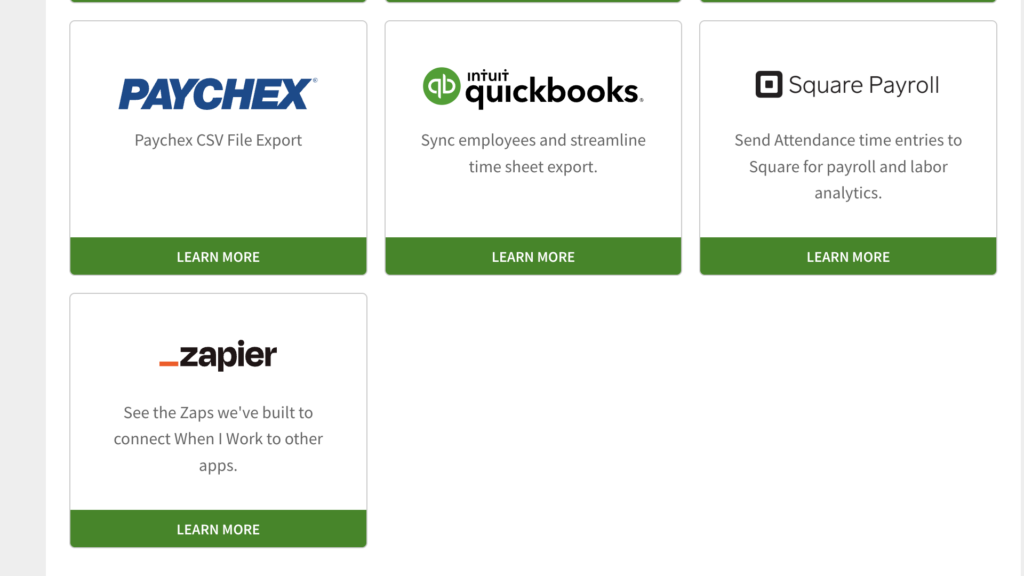
Overall, though, I would have liked to see more native integrations with customer relationship management (CRM), internal communications, and project management platforms.
Verdict: 6.5/10
When I Work Security Features
When I Work offers a handful of security measures and holds a SOC-2 Type II certification.
- Data encryption: All data, whether in transit or at rest, is encrypted end-to-end to prevent unauthorized parties like hackers from decoding information.
- Authentication: You can mandate 2-step verification or use the platform’s token-based authentication with automatic expiration to boost account security and prevent long-term open sessions, respectively.
- Role-based controls: Set custom permission levels for different types of users, such as employees, supervisors, and admins, to limit access strictly to those who need it.
- Infrastructure-level security: The platform runs on Amazon Web Services and adheres to industry-standard practices for access management and monitoring.
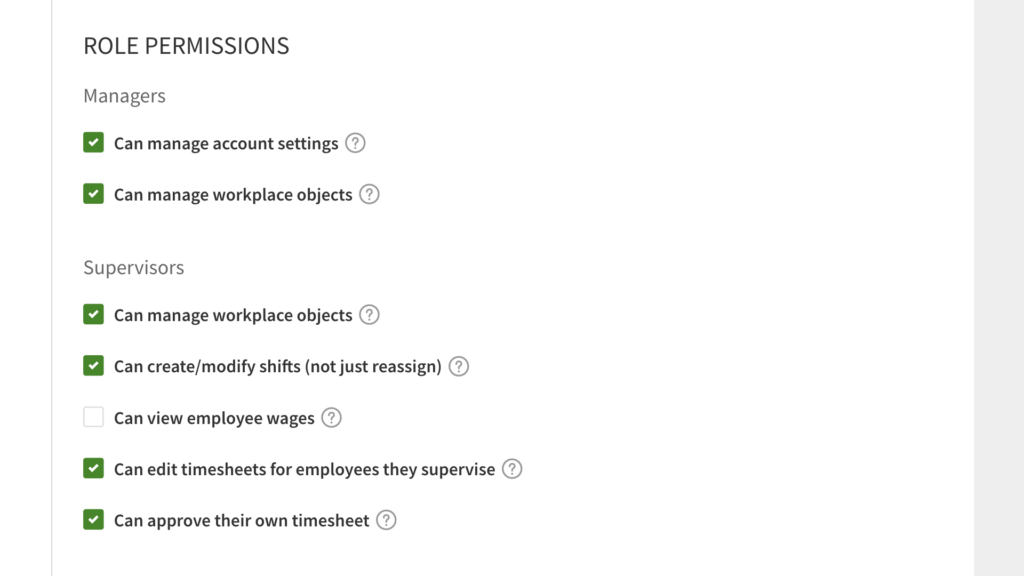
These are solid security basics that cover most small- to medium-sized businesses’ needs, but I believe there’s still a significant gap.
For instance, I didn’t see:
- Confirmed GDPR (General Data Protection Regulation) or CCPA (California Consumer Privacy Act) compliance.*
*When I Work’s privacy policy advises contacting their support team for questions related to these.
- Compliance with HIPAA (the Health Insurance Portability and Accountability Act) regulations to safeguard protected health information.
My unfiltered opinion? Regulated industries like healthcare, online retail, and finance may want to consider alternatives like Connecteam to meet their strict data privacy requirements.
Verdict: 7/10
When I Work Reporting & Analytics
When I Work offers 3 main types of reporting features:
Dashboard
As a manager or admin, I could access a dashboard that showed me scheduling, attendance, and timesheet data at a glance. I could see who’s scheduled for which shifts, track absences, process shift or time off requests, get insights into open shifts, view labor costs, and more, all in one place.
Ready reports
In addition, the platform offers a set of ready-made reports. You can pull data on a wide variety of topics, including absences and attendance, schedules, shift requests, timesheets, time off requests, labor cost breakdowns, and more, and download these for analysis or payroll processing as needed.
I selected the time off report, set a custom start and end date, and exported it as an Excel file. It worked just fine.
Custom reports
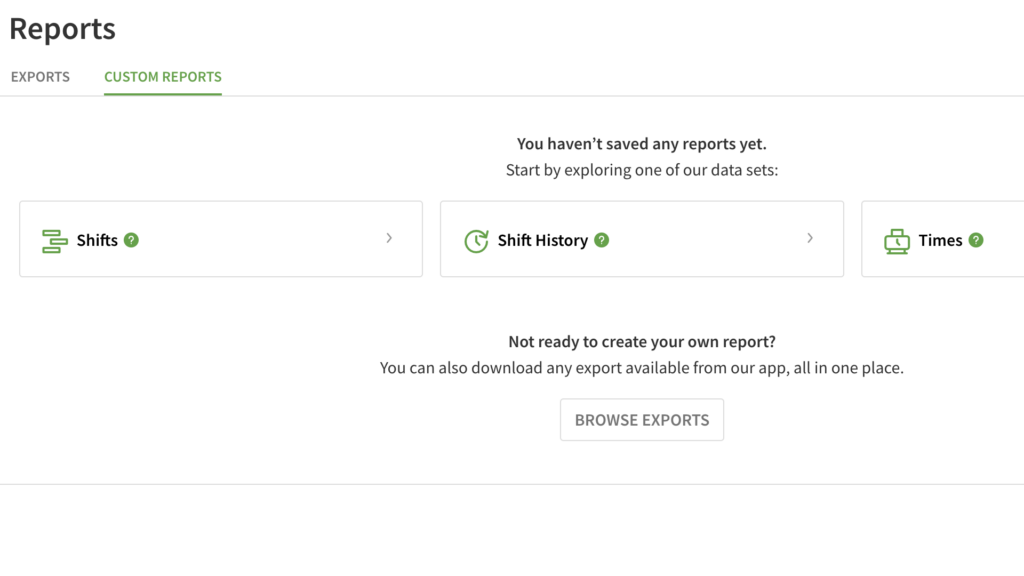
The platform also offers custom reports. You have to pick 1 out of 3 base types: “shifts,” “shift history,” or “times,” and then apply your chosen fields and filters.
Unfortunately, I couldn’t see all the fields I needed. For instance, I couldn’t create a report showing both overtime data and labor costs for shifts, so this tool does have its limitations.
Verdict: 8.5/10
When I Work Customer Support
Overall, I was impressed by the types of customer support When I Work offers, which I could easily access from my web and mobile apps.
| Type | Availability |
|---|---|
| Live chat | Mon–Fri: 7 am–7 pm CSTSat–Sun: 9 am–4:30 pm CSTHolidays: 8 am–5 pm CST |
| Support tickets | Mon–Fri: 7 am–9 pm CSTSat–Sun: 9 am–4:30 pm CSTHolidays: 8 am–5 pm CST |
| Help center, training center, and webinars | Accessible anytime |
Like most platforms today, When I Work uses an AI chatbot in its live chat tool within the app. I asked it a very basic question, which it didn’t answer. That said, it connected me with a human customer support agent, who responded to my question in under a minute.
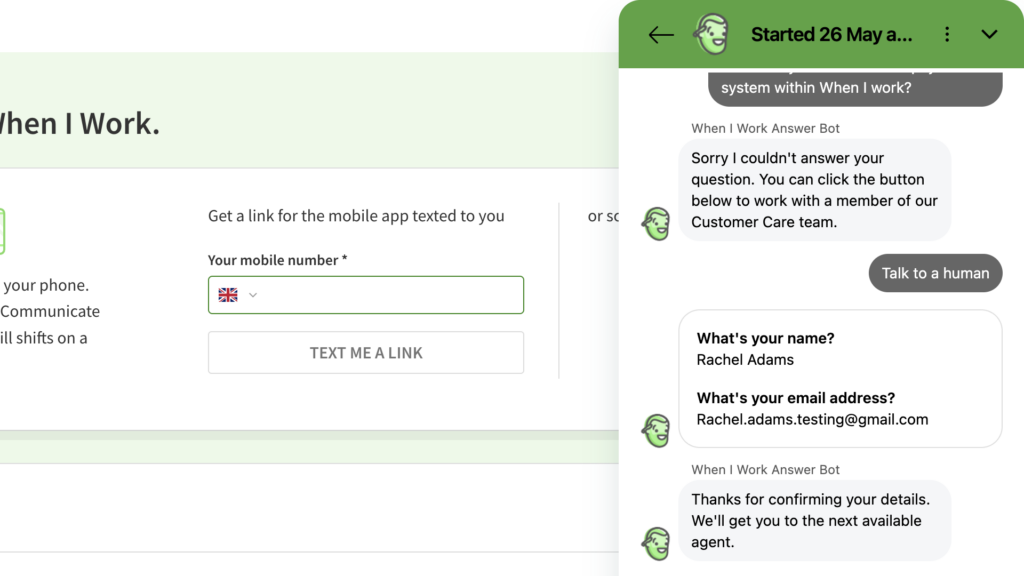
While I see why some customers would be upset at the lack of phone support, I think it’s becoming more obsolete. I didn’t cut points from When I Work for not offering this (especially since I got what I needed instantly via live chat).
Verdict: 8.5/10
What Are When I Work’s Review Ratings From Review Sites?
(As of May 2026)
When I Work App Review
When I Work is a workforce management platform built for shift-based companies. It offers features to simplify scheduling, time tracking, internal communications, time off management, and payroll.
I tested the app and liked When I Work’s overall appearance, scheduling tools, and quick customer service. However, I encountered usability issues with several features and the mobile app. I was also unhappy with its bare-bones messenger.
I feel the app works well for small and single-location companies, but I’d recommend alternatives for larger businesses that can get better value for money elsewhere.
Connecteam: The Better When I Work Alternative
Connecteam’s intuitive design, free small business plan, strong security measures, and comprehensive features put it above When I Work.
Smart scheduling and employee self-service tools
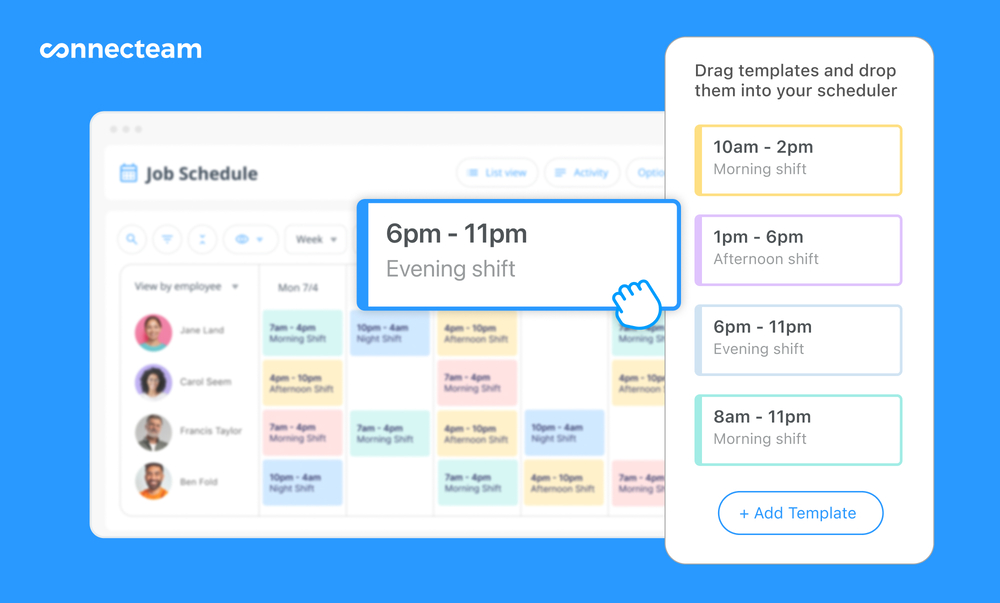
With Connecteam’s employee scheduler, I could create schedules using drag-and-drop tools or ready templates, by copying previous schedules, or importing them from Excel.
I was also impressed with the AI scheduler (my favorite feature), which auto-allocates jobs to employees based on their location, availability, preferences, and qualifications in a single click. Once a schedule is published, workers can pick from open shifts or swap shifts with or without manager approval, empowering them to act quickly when needed.
I also love the integrated tasks feature, which lets you build employee task tracking, digital forms, and checklists right into shifts, and even add photos, videos, and more, so employees know exactly what to do on the job. In contrast, When I Work’s task lists are nowhere near as robust and customizable.
Time and location tracking
Workers can use the employee time clock to punch in and out from any device or a shared kiosk. You can set geofences, overtime alerts, and track your team’s live location, making it easy to verify hours even for teams on the move.
Connecteam allowed me to view, amend, and finalize all timesheets for payroll easily from my dashboard before syncing them with partners (such as Gusto, ADP, Xero, and Paychex).
Time off management, communication, and more at affordable prices
With Connecteam’s time off management tools, I could create custom leave types, each with its own permitted hours off, accrual policies, and carryover rules. Employees can request leave, and managers can approve or deny it quickly as well.
There’s also an online team chat that’s significantly more powerful than When I Work’s. I could send rich-text messages, files, photos, videos, and even voicenotes, in 1:1 or group settings.
Connecteam also offers a social updates feed, document management, training, surveys, and more, at a lower price.
Yes, When I Work offers a free 14-day trial.
No, When I Work doesn’t appear to comply with HIPAA regulations.
