


Reliable time- and location-tracking app, but with no advanced scheduling features
Verdict: 7.9/10
Buddy Punch is a time-tracking and scheduling app designed for small to mid-sized businesses with hourly employees, mobile teams, or staff working across multiple locations. It sets itself apart with an unparalleled range of time-tracking options, including standard apps, a kiosk terminal, QR code punching, and text-to-punch.
The apps are so intuitive that newbies usually don’t need help tracking time, requesting time off, or managing schedules. The break and overtime trackers work exactly as expected, helping businesses comply with labor laws.
I like that Buddy Punch offers an easy-to-use drag-and-drop scheduler and a recurring shifts tool to speed up manual scheduling. However, the lack of tools that automatically prevent scheduling conflicts, overtime issues, or missed rest periods makes Buddy Punch unsuitable for scheduling in industries with strict and complex labor rules.
My biggest concern is the lack of an offline mode. Buddy Punch is unusable without an internet connection, which is a major limitation for teams working in areas with unreliable connectivity. Another drawback is that Buddy Punch is not HIPAA-compliant, which makes it unsuitable mainly for healthcare businesses in the United States.
Buddy Punch Key Features
- Time tracking: Track employee hours, breaks, and overtime, and help support compliance with labor laws. Using geofencing and a webcam to prevent time theft.
- GPS location tracking: Monitor field employees’ movements in real time to support their safety and help assign urgent jobs to the nearest available employee.
- Employee scheduling: Use the drag-and-drop scheduler and recurring shifts tool to build out coverage with ease. Employees can’t accept or reject assigned shifts, but they can trade shifts and find shift covers.
- Payroll processing: Track time and process payroll on a single platform with Buddy Punch’s built-in payroll. However, the payroll feature is available only as a paid add-on.
- Job tracking: Use department codes to track employees’ hours by job for more accurate billing and pay.
Pros
- Easy-to-use web and mobile apps
- Accurate time tracking
- Flexible break and overtime policy
- Geofence and webcam to curb time theft
Cons
- Not HIPAA compliant
- Live chat not available 24/7
- No offline mode
Buddy Punch Pricing
Verdict: 7/10
Overall, Buddy Punch offers transparent and relatively affordable pricing, but the lack of a free plan, the monthly base fee, and paid add-ons for core features may reduce its value for smaller or budget-conscious teams.
| Plan — Per Month | Features |
|---|---|
| Starter $19 + $4.49 per user |
|
| Pro $19 + $5.99 per user | Everything in Starter, plus:
|
| Enterprise $19 + $10.99 per user | Everything in Pro, plus:
|
| As of May 2026. All prices are per month if billed annually. | |
Buddy Punch keeps its pricing simple and transparent, offering three paid plans, but no free plan. The lack of a free tier may be a dealbreaker for freelancers, independent contractors, or small businesses looking to use the platform without a financial commitment.
Another issue is the $19 base fee Buddy Punch charges on all plans. While modest, the base fee does increase the overall cost and may deter budget-conscious small businesses. That said, Buddy Punch’s per-user pricing is relatively low. Even with the base fee, the total cost for each plan remains more affordable than that of some competitors.
Each plan offers a 14-day free trial that doesn’t require a credit card. This lets teams test Buddy Punch without any up-front commitment or risk. I signed up for a free trial of the Enterprise plan to test all the features for this review.
The table below compares Buddy Punch’s pricing to that of its top competitors:
| Plan | BuddyPunch (Pro) | TimeCamp (Ultimate) | Hubstaff (Team) | Connecteam (Advanced) |
|---|---|---|---|---|
| View pricing | View pricing | View pricing | View pricing | |
| 10 users | $78.90 | $99.90 | $100 | Free for life—all features and dashboards |
| 20 users | $138.80 | $199.80 | $200 | $49 |
| 30 users | $198.70 | $299.70 | $300 | $49 |
| 50 users | $318.50 | $499.50 | $500 | $99 |
| Read our in-depth TimeCamp review | Read our in-depth Hubstaff review | Learn more about Connecteam |
Buddy Punch Add-Ons
Buddy Punch’s base plans are fairly affordable, but it’s worth noting that some useful features are only available as paid add-ons. This can increase the total cost, depending on which tools your team needs.
The biggest issue is that Buddy Punch charges extra for scheduling and real-time GPS. Scheduling is $1/user/month on Starter and included in Pro and Enterprise. Real-time GPS costs $2/user/month on Starter and Pro (included on Enterprise). Buddy Punch claims this ensures users on lower tiers pay only for the features they need.
There’s some truth to this claim, but it doesn’t hold up when you consider that many of Buddy Punch’s competitors offer scheduling and real-time location tracking on standard plans. These are core workforce management tools, so charging extra for them may weaken Buddy Punch’s overall value for money.
You can include the payroll add-on with any paid plan for a $39 base fee and $6 per user per month. The add-on pricing is in the same range as most standalone payroll platforms. However, from a value-for-money perspective, I would pick a standalone payroll solution over the Buddy Punch add-on.
Some of the features you get with Buddy Punch payroll include:
- Integrated timesheets
- W-2s and 1099s
- Automated payroll payments
- Tax filings
- Direct deposit
- Employee self-onboarding
Buddy Punch Sign-Up and Onboarding
Verdict: 6.5/10
Buddy Punch’s guided setup and helpful tutorials enable small teams to get up and running in under one hour. However, the clunky onboarding and scattered settings can slow down setup for large teams.
Signing up with Buddy Punch was a breeze. Once I had signed up and selected “create a new organization,” Buddy Punch took me through a five-step guided setup process. I was able to create my workspace, set up pay periods, and select my preferred punch-in method. I also picked my preferred features (I selected all features for this review).
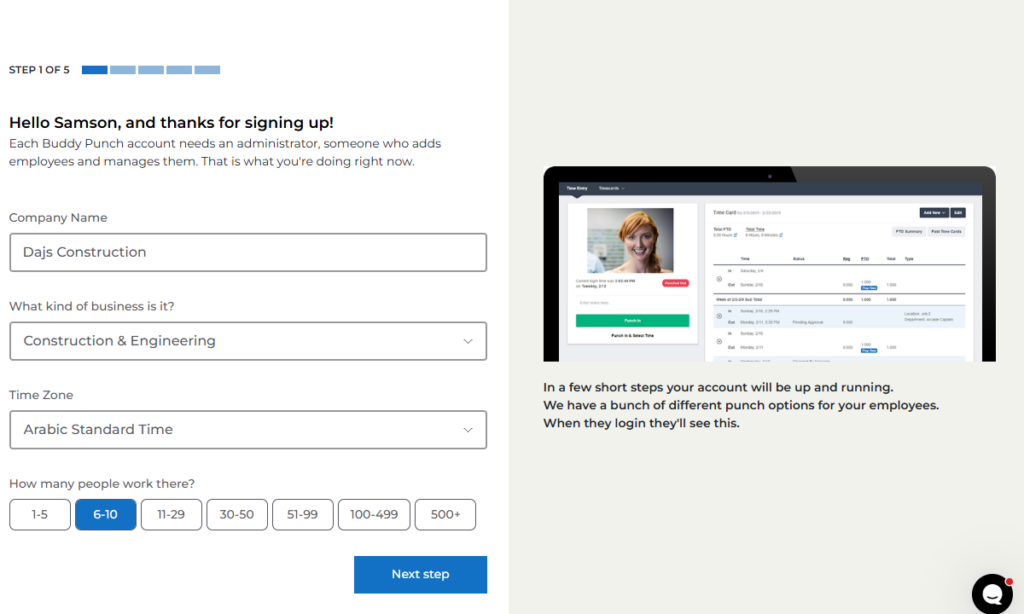
Overall, I completed the setup process in less than 10 minutes. Once I was finished, Buddy Punch suggested video tutorials to help me familiarize myself with its time-tracking and scheduling features. The videos gave me a quick overview of how the features work, helping me make the most of them from day one.
While the initial setup was straightforward, I needed around 30 minutes to configure the workspace settings. The settings menu was easily accessible from the menu, but unlike other apps, the settings aren’t on one page. I had to hop between tabs to get my team up and running.
Thankfully, short descriptions explained how the key settings work, making it easier for me to adjust them to my liking.
Setting Up Your Team
Buddy Punch lets you add employees one by one through email invites or by importing your entire workforce from a spreadsheet. However, while the email invite option is readily available in the users tab, the spreadsheet import option is tucked away on the settings page and can be difficult to find.
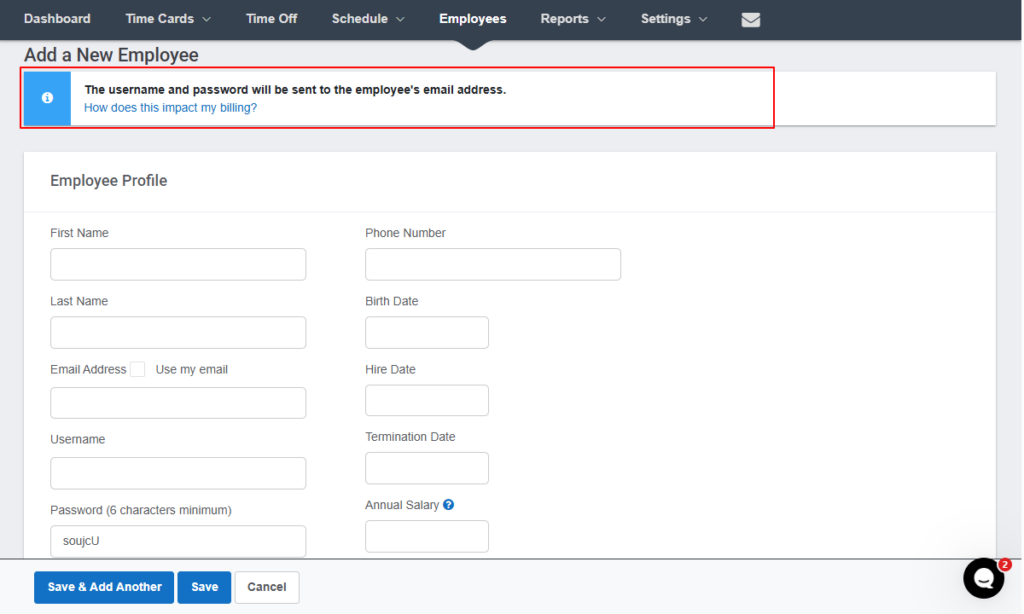
Another issue is that the email invite option doesn’t let managers paste multiple email addresses to invite the entire workforce at once. As the admin, I had to add one employee at a time and create their username and password on my end.
This added to my workload, turning a simple team setup into a tedious, time-consuming task. I needed about 20 minutes to set up a team of five members, a process that usually takes just a few minutes with other apps.
Buddy Punch Usability and Interface
Verdict: 8/10
Overall, Buddy Punch is easy to use thanks to its clean, intuitive interface on both web and mobile. However, the lack of an offline mode and occasional glitches in the mobile app can keep it from being truly seamless for field teams.
Buddy Punch offers native apps for Android and iOS devices only (including tablets). You can also access the web app on any device or computer connected to the internet. I tested the software on an Android smartphone and on Google Chrome on a Windows computer.
Buddy Punch Web App
Once I completed the setup, Buddy Punch took me to the dashboard, which acts as the home screen for managers and admins.
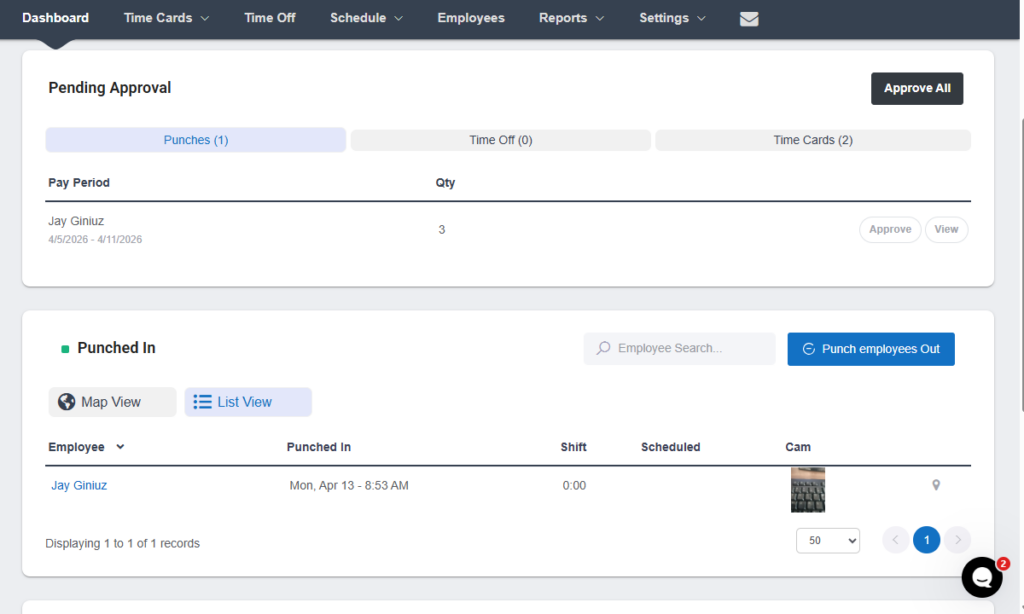
I loved landing on the dashboard every time I logged in as a manager, because it gave me a 360-degree view of the team’s performance. I was also able to review pending punches, timecards, and time-off requests without scrolling through menus, which is a great time-saver for busy managers.
Buddy Punch has adopted an unusual but effective design for the web app. While many providers keep their menus in a side panel on the left, Buddy Punch displays the menu at the top of the screen.
Despite this UI design tweak, the web app offers an excellent user experience. The top panel is easily accessible from anywhere in the app, putting all features within arm’s reach. No matter which feature I opened, the main details area was well organized, clean, and clutter-free, which improved my experience.
The employee web version is slimmed down to four main features: time entry, timecard, schedule, and messaging. The limited feature set and intuitive design make Buddy Punch easy to use for all employees. The time entry feature serves as the home screen, allowing employees to punch in or out and review their timecards without scrolling through menus.
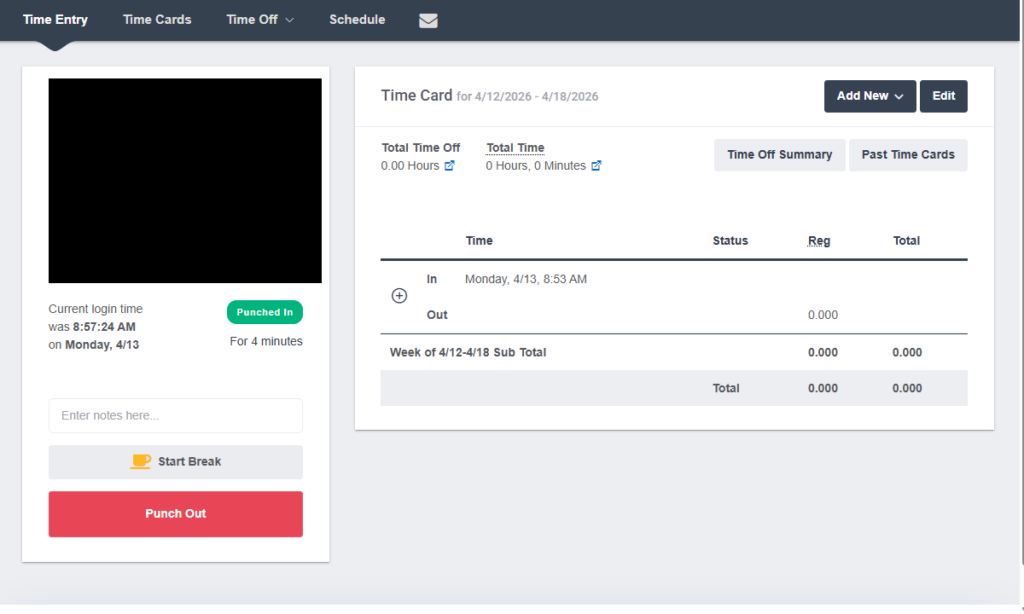
The only issue is that the Buddy Punch web app design doesn’t consider users with impaired vision or hearing. That aside, the overall user experience is faultless, and employees and managers alike will enjoy using the web app.
Buddy Punch Mobile App
For this review, I examined Buddy Punch’s app from both the employee and the manager perspective. I noticed during testing that the Android and iOS apps have nearly identical designs, so the descriptions below apply to both.
Buddy Punch’s mobile app has an intuitive, well-organized UI that makes it easy for beginners to use. There are three action areas: the menu icon at the top, the details area, and the menu at the bottom of the screen.
Employee Mobile App Version
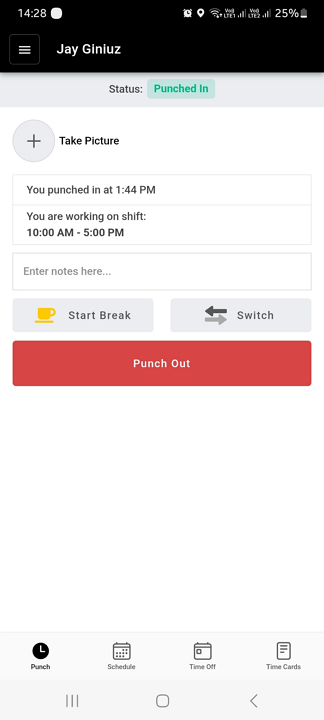
I really appreciate that Buddy Punch takes employees straight to the punch tab upon login. This lets them clock in for their shift with just a few taps on the screen. In addition to tracking time, employees can view schedules, set availability, request time off, trade shifts, and manage time cards.
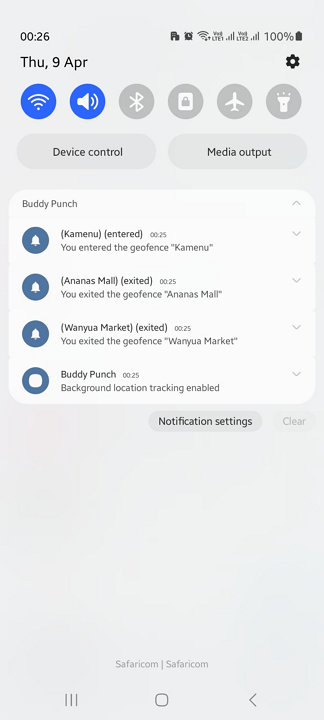
During testing, I did notice a glitch in the Android app: when I turned my internet back on, Buddy Punch sent multiple geofence alerts claiming I had entered or exited job sites I hadn’t even visited. While I only experienced this during testing, it could become a major usability issue if it happens often, especially for teams that rely on geofence alerts to verify employee locations.
Manager Mobile App Version
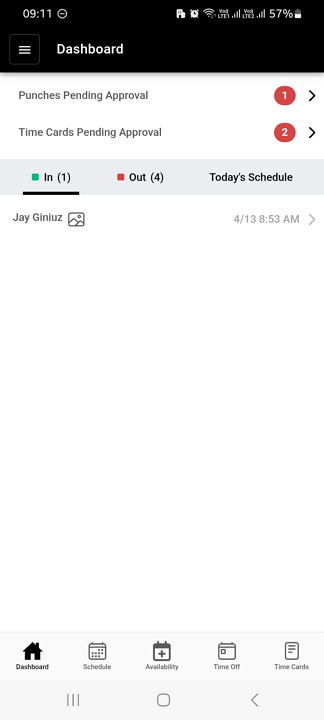
When I logged in as a manager, I landed on the dashboard displaying the team’s schedule and lists of employees who were clocked in or out. This smart design tweak helps managers access insights straight away, which can help them make faster decisions.
Managers can easily access additional features to assign shifts, approve timecards, and review time-off requests. Even better, Buddy Punch now lets managers add locations and set geofences on mobile, two features that were previously unavailable when I last tested the app.
As was the case during my last round of testing, Buddy Punch’s mobile app returned a network error when I tried to log in or access features with my internet connection off. In other words, field employees can’t track time or view schedules, and managers lose admin access if they don’t have an internet connection, making Buddy Punch unsuitable for teams in areas with no internet or cellular signal.
In the table below, you can see which features are missing from the mobile app:
| Menu Item | Admin | Employee | ||
| Website | Mobile App | Website | Mobile App | |
| Feature | ||||
| Timesheet | ✅ | ✅ | ✅ | ✅ |
| Time tracker | ✅ | ✅ | ✅ | ✅ |
| Calendar | ✅ | ❌ | ❌ | ❌ |
| Schedule | ✅ | ✅ | ✅ | ✅ |
| Expenses | ❌ | ❌ | ❌ | ❌ |
| Time off | ✅ | ✅ | ✅ | ✅ |
| Analysis | ||||
| Dashboard | ✅ | ✅ | ❌ | ❌ |
| Reports | ✅ | ❌ | ❌ | ❌ |
| Activity | ✅ | ✅ | ❌ | ❌ |
| Management | ||||
| Kiosks | ✅ | ✅ | ✅ | ✅ |
| Approvals | ✅ | ✅ | ❌ | ❌ |
| Projects | ✅ | ❌ | ❌ | ❌ |
| Team | ✅ | ❌ | ❌ | ❌ |
| Clients | ❌ | ❌ | ❌ | ❌ |
| Locations | ✅ | ✅ | ❌ | ❌ |
| Tags | ❌ | ❌ | ❌ | ❌ |
| Invoices | ❌ | ❌ | ❌ | ❌ |
| Settings | ✅ | ✅ | ✅ | ✅ |
Buddy Punch Core Functionalities
I tested Buddy Punch to determine how its core features work, from time and location tracking to scheduling and time-off management. During testing, I focused on the strengths and weaknesses of Buddy Punch’s features to help determine whether the app suits various business needs. Let’s dive in to see what I learned.
Time Tracking
Verdict: 8.5/10
Overall, Buddy Punch’s time-tracking options, including web, mobile, kiosk, QR, and more, make it a solid choice for field and frontline teams. It also offers solid IP locks and geofencing, but its manual facial verification can be ineffective for large teams looking to prevent buddy punching.
In addition to tracking time on the web, mobile, and kiosk apps, Buddy Punch supports QR code punching and text-to-punch, making it a versatile option for teams that work in the field, travel between job sites, or don’t spend most of their day at a desk.
I tested all of these time-tracking options (except text-to-punch, which requires Zapier and ClickSend integrations) and appreciated how easy it was to punch in or out.
Buddy Punch’s kiosk terminal works on any internet-enabled device, making it a good modern alternative to traditional punch clocks. Like many kiosk terminals, Buddy Punch requires users to clock in and out using a unique four-digit PIN.
Beyond these options, I was able to restrict clock-ins and clock-outs to specific devices or IP addresses. The IP lock ensures employees clock in or out only when their devices are connected to the workplace Wi-Fi. This is a nice way to prevent off-site punching, but it’s not as effective and accurate as geofencing.
Other restrictions include automatically clocking out employees after they’ve worked a certain number of hours. I set Buddy Punch to clock me out when I hit 20 hours, and it worked exactly as I expected. However, the manager has to approve the auto-clock-out punch for the time to be reflected on the timecard.
Geofencing
Buddy Punch lets you create virtual boundaries (geofences) around job sites. You can enter the latitude and longitude for each job site to achieve pinpoint accuracy, especially for remote job sites. However, for sites at known locations, you can search for the address to speed up the process.
While the geofence radius can range from 50 to 1,500 meters, you should choose the smallest radius for more accurate tracking. Bear in mind that if you want Buddy Punch to remind users to clock in or out when they enter or exit a job site, the radius must be set to at least 200 meters.
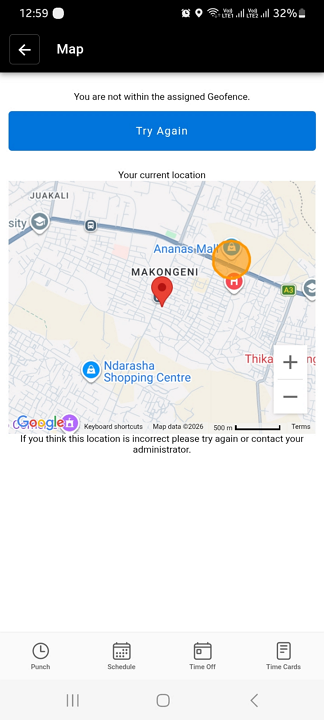
For this review, I set a geofence with a 210-meter radius. Buddy Punch blocked my attempt to clock in while outside the job site and displayed the error message “You are not within the assigned geofence.” This shows that Buddy Punch works well to prevent off-site punching.
When I entered the area within the geofence, the system notified me instantly, prompting me to punch in. When I exited, Buddy Punch reminded me to clock out. That said, geofencing features, including reminders, work only with an active internet connection, limiting their usefulness for employees in areas with poor cellular or internet service.
Facial Recognition
Buddy Punch’s biggest promise is preventing buddy punching, where employees punch in or out for their colleagues. Given that focus, I expected to find an advanced facial verification system, but the available option felt underwhelming.
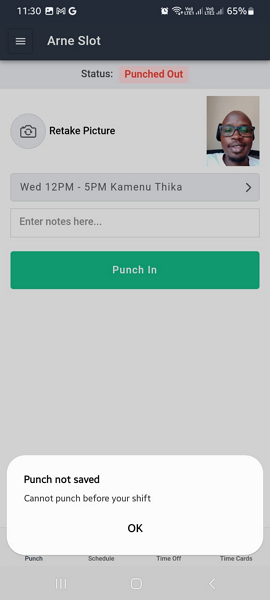
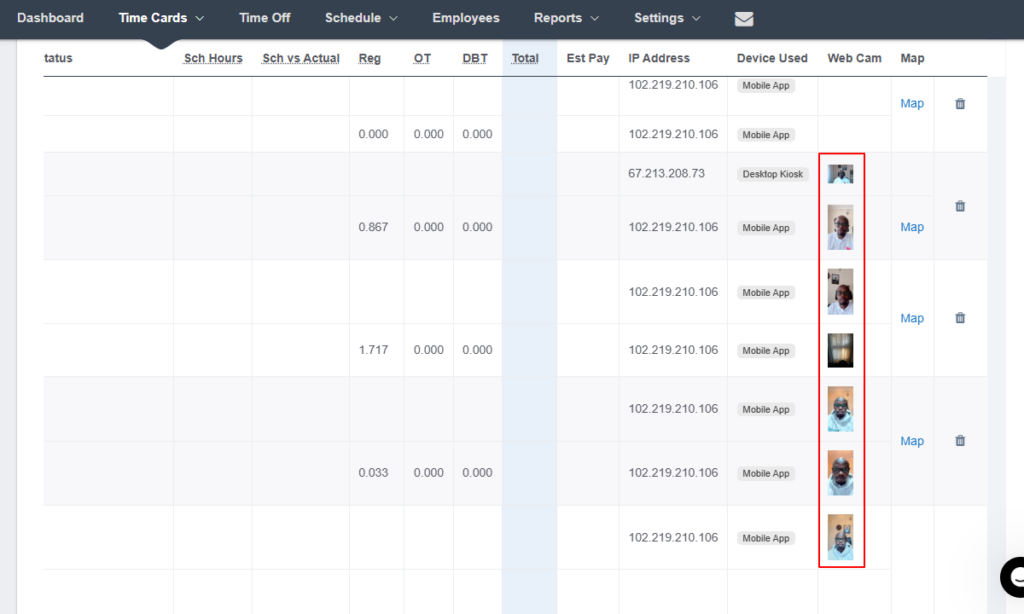
When I attempted to punch in or out, start a break, or switch tasks, Buddy Punch prompted me to take a selfie. However, unlike more advanced platforms that use AI to detect facial mismatches and block fraudulent clock-ins, Buddy Punch simply attaches the photo to the timecard for manual manager review.
The app clearly displays punch photos on each timecard, making it easy for managers to verify employees’ identities and spot buddy punchers. However, the manual review process can be tedious and time-consuming for large workforces.
Break and Overtime Tracking
Verdict: 8/10
If you need to track both overtime and breaks while supporting labor-law compliance, Buddy Punch may not check all the right boxes. While it accurately tracks overtime, it lacks the advanced features needed to enforce break policies in tightly regulated jurisdictions.
During testing, I configured Buddy Punch to track breaks under California’s break-tracking law, which is among the strictest in the world. I created a 15-minute automatic rest break (paid) and a 30-minute manual meal break (unpaid). You can tweak the policy to align with labor laws in your state or region.
I liked that I could set a break to trigger automatically after a certain number of hours. Unfortunately, I couldn’t set a restriction for manual breaks, which meant I could start a break immediately after clocking in. In the real world, this could lead to employees taking a meal break outside the designated time window.
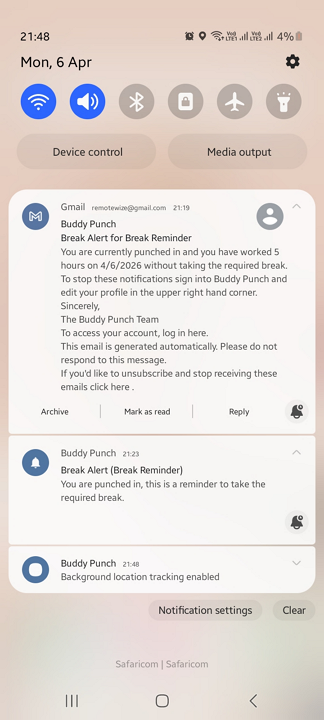
While Buddy Punch reminded me to start my meal break, it didn’t remind me to end it on time or prevent me from ending it early. Without these restrictions, some employees could take prolonged breaks or shorter ones, which could lead to compliance issues.
Even worse, I couldn’t set recurring meal breaks with Buddy Punch. Remember that some states, like California, mandate multiple meal breaks for shifts longer than 10 hours.
Buddy Punch Overtime Tracking
I was able to configure the platform to track overtime in accordance with various labor laws, such as California and Australia overtime laws. I liked the preconfigured overtime options, which let managers create policies with only a few clicks.
The app tracks daily overtime, daily double time, weekly overtime, and seventh-consecutive-day overtime. To test out the overtime tracker, I left the timer running for 20 hours across two days.
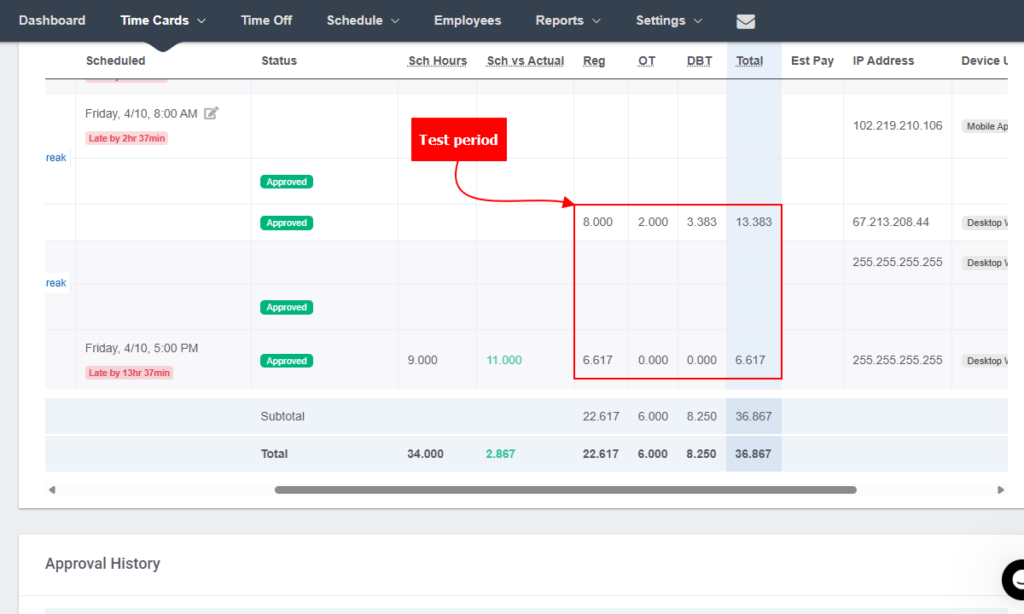
Buddy Punch did split time at midnight, so hours are allocated to the right workday for accurate overtime calculations. It also calculated overtime and double time correctly. However, I wish it would calculate employee pay automatically.
Employee Scheduling
Verdict: 7.5/10
Overall, Buddy Punch packs essential features businesses need to create conflict-free schedules. However, the lack of automation tools makes scheduling for large workforces more tedious and time-consuming than it should be.
With Buddy Punch, managers can assign shifts on a calendar grid using day, week, and month views. I used the week view for this review, and I liked how easy it was to assign shifts. All I needed to do was click a cell corresponding to a day and an employee and add the shift details.
The drag-and-drop scheduler makes it easy to reassign or reschedule shifts to reduce conflicts and balance the team’s workload. My only gripe is that Buddy Punch lacks shift-copying capabilities and schedule templates, which would speed up manual scheduling.
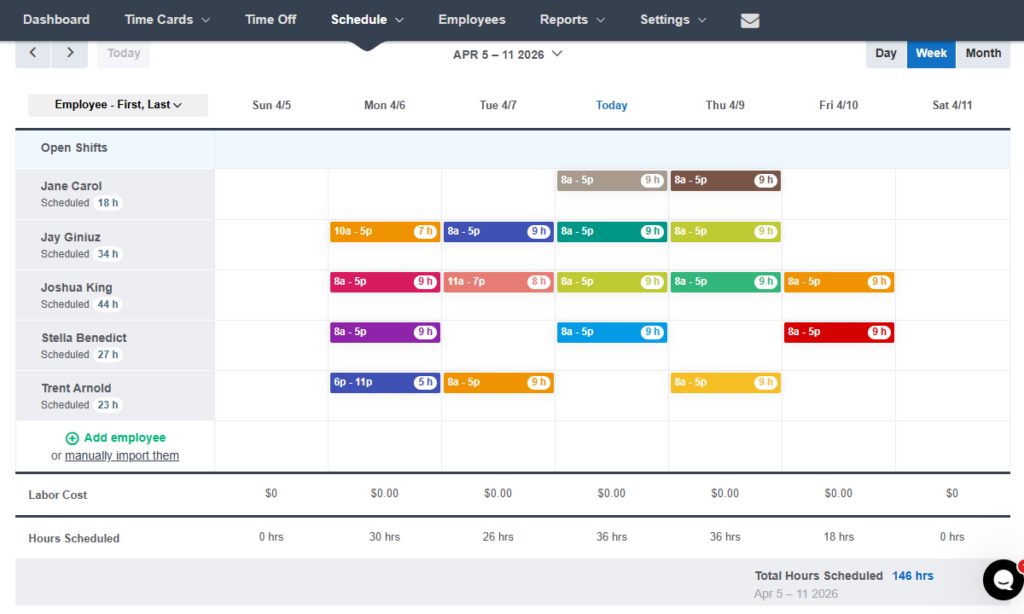
The recurring shift feature comes in handy when assigning shifts that follow a regular pattern. Managers can create a shift once and set it to repeat at a custom frequency. However, Buddy Punch offers no additional automation tools, so managers have to create shifts one by one and assign employees individually. This can be a dealbreaker for managers handling complex, dynamic schedules.
Buddy Punch uses a draft-first workflow in which any new or reassigned shifts are saved to a draft schedule. This helps managers build out coverage, resolve conflicts, and fine-tune shift assignments before publishing the finalized schedule with a single click. When I created overlapping shifts, the built-in conflict detector wouldn’t let me publish the schedule, which was great.
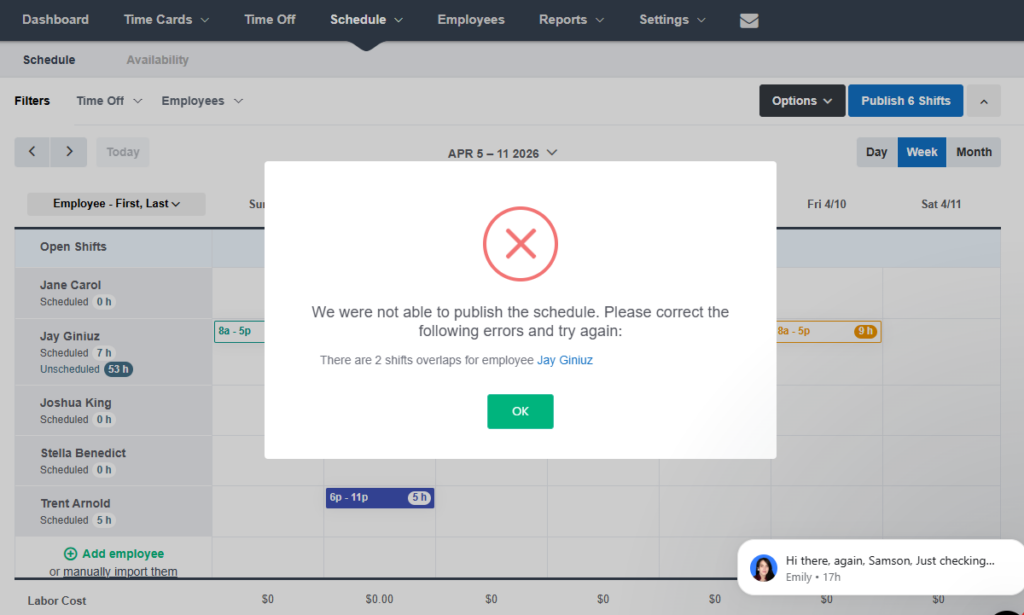
Even so, I was disappointed by the lack of options to set daily and weekly limits for employees. Without these vital restrictions, it becomes difficult to strictly enforce caps on daily and weekly hours or a mandatory rest period between shifts, as mandated by some jurisdictions and union agreements. It also makes Buddy Punch unsuitable for scheduling in industries where overwork and fatigue can pose safety risks.
Did You Know?
Connecteam helps prevent scheduling issues before they happen. Managers can use templates, auto-scheduling, and built-in rules for employee hours and rest periods to create safer, more compliant schedules faster.
Some other Buddy Punch features I liked are:
- Shift swaps: Buddy Punch lets employees find shift covers when they cannot honor their shift for a legitimate reason.
- Availability preferences: When employees set themselves as unavailable, the manager can’t add a shift to the “unavailable” slots.
- Shift color-coding: Buddy Punch lets managers add shift colors by department, location, or role. Color-coding provides instant visual clarity, enabling managers to understand the schedule at a glance without digging into details.
GPS Location Tracking
Verdict: 8.5/10
Buddy Punch is a strong fit if you need real-time visibility into field employees’ activity to boost safety and speed up proximity-based dispatch and scheduling. It also can also work well if you want to stay on top of employees’ routes during the day.
Buddy Punch tracks field employees’ location in near real time, allowing managers to monitor field activities without leaving the office. The location-tracking features were just as effective as when I last reviewed the platform.
When I opened the map view under the “punched in” section on the dashboard, I could see each employee’s real-time location. Staying on top of field employees’ locations can support their safety. Also, a dispatch manager can look up field employees’ locations to quickly assign urgent tasks based on a worker’s proximity to the customer’s address.
The last time I tested Buddy Punch, it linked GPS waypoints with straight lines, creating a route that didn’t accurately reflect the employee’s actual movement.
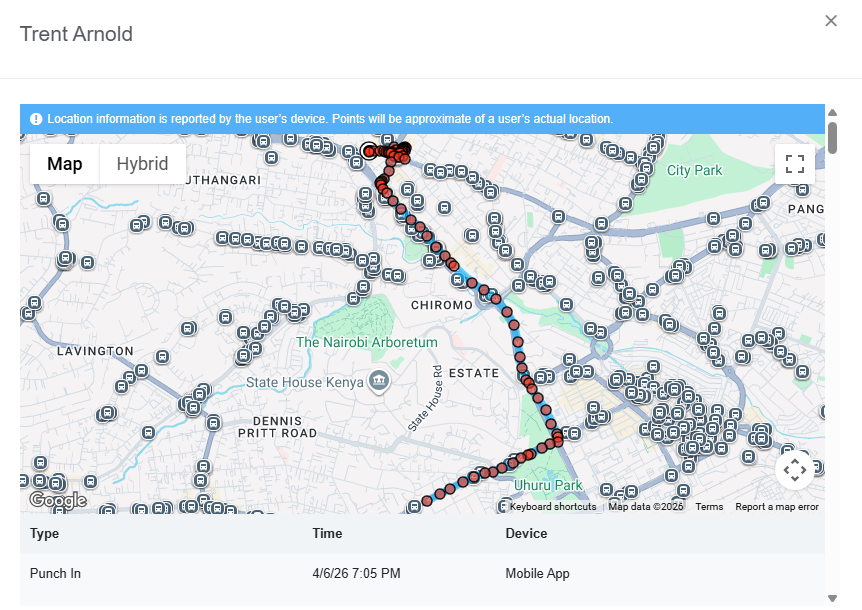
I’m glad that Buddy Punch has improved this feature; it now generates turn-by-turn routes that mirror the employee’s actual path. Even better, the app captures more GPS timestamps, enabling managers to easily pinpoint when an employee was at a specific location.
Time-Off Management
Verdict: 8.5/10
Overall, Buddy Punch has the tools you need to manage PTO accruals and prevent last-minute requests. However, without a minimum notice period for time-off requests, it falls short for businesses that need tight control over time off during peak periods.
Two aspects of Buddy Punch’s time-off module stood out during testing. First, submitting a request on a mobile device is quick and intuitive. Second, the real-time notifications help managers stay on top of approvals, ensuring no request is overlooked even in a large workforce.
Common types of paid time off (PTO) — holidays, sick leave, vacation days, and personal time — are set up by default, so half of the configuration work is done for you. However, you can add new PTO options or tailor existing ones to your workforce’s needs.
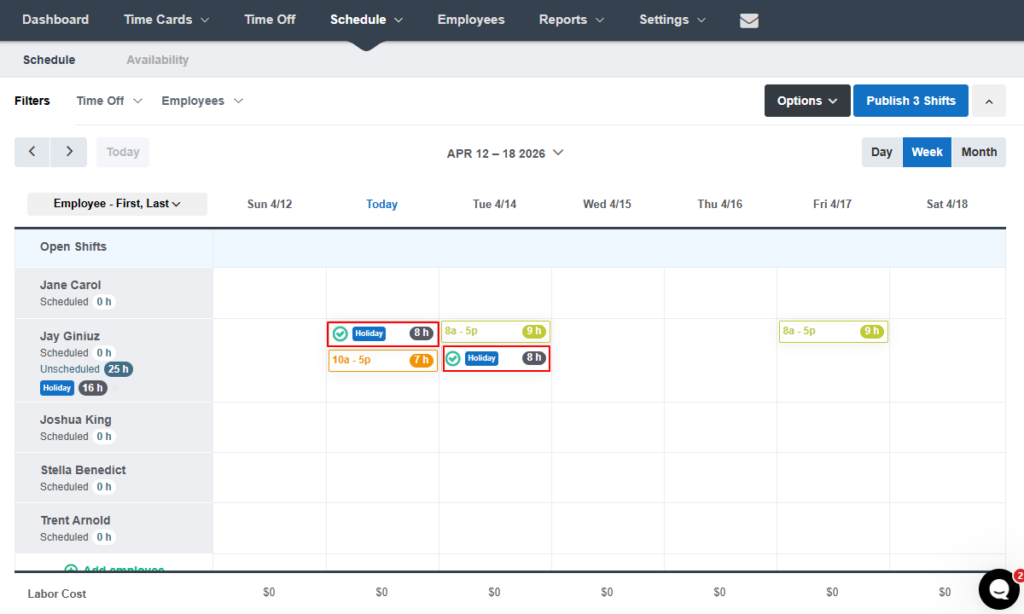
Buddy Punch supports both fixed (lump sum) and hourly accruals, making it a great fit for teams with varied work arrangements. I also appreciate the blackout dates feature, which blocks employees from taking time off on specific dates. This makes a difference for industries where maintaining full staffing during peak periods or critical operations is non-negotiable.
That said, Buddy Punch doesn’t let managers set a minimum notice period for time-off requests. It still works well without this nice-to-have tool, but it makes last-minute requests more difficult to prevent.
Job Tracking
Verdict: 8.5/10
Buddy Punch’s job tracking is strong for teams that need to track hours by task, location, or department, but setup and code selection add some extra steps.
Buddy Punch lets you create job codes (or time labels) to track employee hours by job. You can set the codes to represent the various tasks at each job site. Once you create and link job codes to locations, employees can access them when clocking in or switching tasks.
During clock-in, employees must select the designated location and pick a departmental code corresponding to the assigned task. Employees can switch between departmental codes as they complete different tasks throughout their shift.
Tracking time by task makes budget and labor cost tracking easier. Managers can generate reports to determine the time and human resources spent on a specific project, client, or task. These insights help forecast budgets and find better ways to manage projects to maximize profitability.
Payroll Processing
Verdict: 8/10
Buddy Punch enables teams to track time and process payroll on a single platform, eliminating human data entry errors. However, the built-in payroll is a paid add-on that offers less value than dedicated payroll or accounting software.
Buddy Punch requires employees to manually submit their timesheets for approval at the end of the pay period. Manual timesheet submission can slow down payroll processing, especially when managers constantly have to chase down employees to submit their hours on time.
Luckily, you can set up automatic reminders to ensure no one forgets to submit their timecard. I also liked that I could set rules to round employee time entries, which can make payroll easier to manage.
My favorite part is that Buddy Punch now offers built-in payroll, which lets you track time and pay employees all on the same platform. Doing so helps reduce human error, ensuring employees are paid accurately and on time. I didn’t test the built-in payroll feature, though, since it’s a paid add-on and isn’t available with the free trial.
Buddy Punch also integrates with third-party payroll and accounting software, including:
- QuickBooks Online
- ADP
- Rippling
- Deluxe Payroll
- Gusto
- Justworks
- PayChex
- Paycor
- Paylocity
- Payment Evolution
Reporting and Analytics
Verdict: 6.9/10
Buddy Punch offers a solid range of reports that help managers analyze the key aspects of their businesses. However, without visuals or deep analytics, it leans heavily on manual analysis, making it less effective for teams that need quick, actionable reporting.
Buddy Punch lets you generate an impressive 17 reports about employee hours and attendance. However, the value of the reporting module lies not in the number of reports it offers but in the quality of insights it helps business owners get from the data. Buddy Punch falls short in this area.
As I discovered, many of these reports only compile data and don’t provide any actionable insights. I also noticed that the reports do not include any visuals, such as pie charts or graphs. They present data in spreadsheets, which means less experienced managers could struggle to draw meaningful insights.
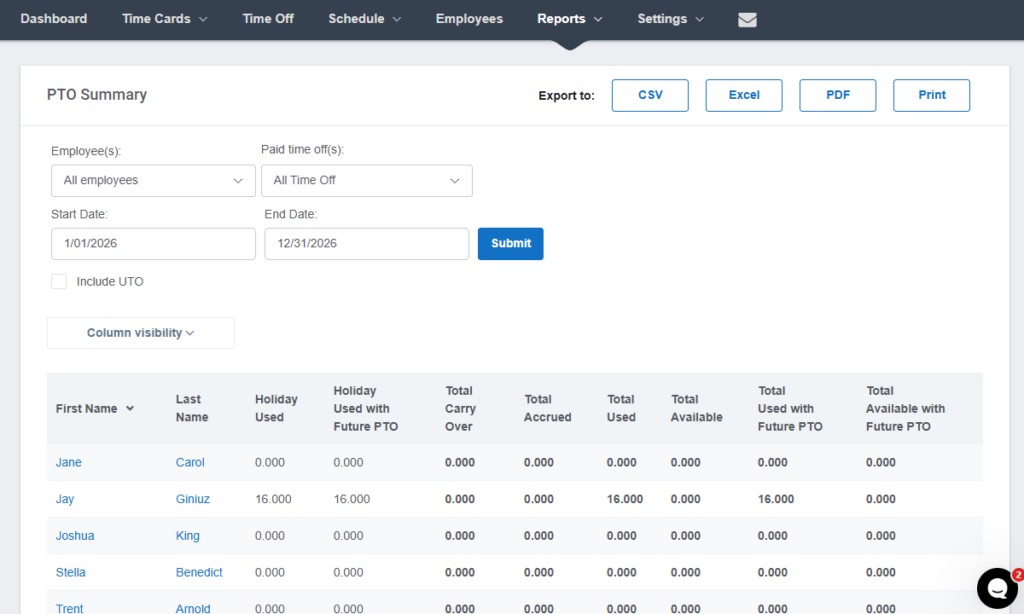
Notable report types include:
- Scheduling reports: These reports help you analyze the team’s attendance — for example, you can see which employees were absent or late for their shifts during the reporting period.
- GPS activity reports: These reports summarize employees’ GPS activity over a specified period, including the places they visited and the routes they took.
- Payroll reports: These reports enable you to drill down to every aspect of an employee’s hours, job costs, overtime, and locations.
- Employee error log: These reports provide an overview of how many times an employee encountered an error while clocking in or out. The report includes errors instigated by rules such as punch limiting, geofencing, device locks, and IP address locks.
You can print reports if you need hard copies, or download copies in CSV, Excel, or PDF formats. My main gripe is that I couldn’t share reports via email without first downloading them. Moreover, the option to schedule reports for automatic delivery is available only as a paid add-on.
Buddy Punch Security and Privacy
Verdict: 7/10
Robust encryption, multi-factor authentication, and role-based access make Buddy Punch a secure choice for most teams. However, without HIPAA or SOC 2 Type II compliance, it may not be a viable option for enterprises and businesses with strict data security requirements.
| Feature | Availability |
|---|---|
| Data encryption | ✅ In transit & at rest |
| GDPR compliant | ✅ |
| HIPAA compliant | ❌ |
| Certification | ❌ |
| MFA/2FA | ✅ MFA |
| Admin controls | ✅ Role-based access control |
| Hosting region | Not specified |
Buddy Punch covers the basics well: it lets you set up role-based access controls (RBACs) to ensure everyone has access to data relevant to their roles. In addition to standard password login, users can implement multi-factor authentication for an added layer of protection.
Buddy Punch encrypts data in transit and at rest. It’s also GDPR compliant, making it a safe option for businesses that process data for users in the European Union. Sadly, though, Buddy Punch isn’t HIPAA compliant, which is disappointing for healthcare businesses in the United States.
While Buddy Punch claims to conduct regular security audits, I couldn’t find any publicly available reports to verify this. Moreover, a support agent told me that the platform currently isn’t SOC 2 Type 2 compliant. This means Buddy Punch hasn’t undergone an independent audit to verify that it maintains strong, consistently applied controls for protecting customer data over time.
Buddy Punch Customer Support
Verdict: 8/10
Overall, Buddy Punch delivers fast, reliable support with responsive live chat and excellent ticket turnaround times. However, limited live chat hours can hinder immediate response for urgent issues.
| Support Type | Availability |
|---|---|
| Live chat | ✅ 9 AM – 6 PM (M–F, CT) |
| Phone support | ❌ |
| Email support | ✅ |
| Community forum | ❌ |
| Ticket submission | ✅ |
| Help center | ✅ |
My overall experience on various support channels was excellent. The knowledge base includes a comprehensive library of guides grouped by features, and it has a powerful search that helped me find relevant guides in seconds.
Buddy Punch’s live chat is available between 9 AM and 6 PM (M–F, CT). When the agents were online, I usually received replies in less than a minute, which was impressive. During offline hours, live chat defaulted to email replies, with agents responding within 10 hours.
Lastly, creating a support ticket was very easy. All I needed to do was fill in the ticket form on the “contact us” page. Similar to my last round of testing, I received a response in less than 20 hours, which is great by ticket support standards. The only issue is that you can’t attach files to the support ticket to better describe the issue.
What Are Buddy Punch’s Review Ratings From Review Sites?
(As of May 2026)
Buddy Punch App Review
Buddy Punch’s real strength lies in time tracking. It combines a wide range of tracking options with geofencing and webcam features to prevent time theft, making it a solid fit for hourly teams that work on-site, in the field, or across multiple locations. Moreover, its flexible breaks and overtime tracking help businesses stay compliant with labor laws and avoid wage disputes.
Beyond time tracking, other key features felt half-baked. While the scheduler helps managers establish a predictable routine for hassle-free operation, the lack of advanced automation is disappointing. Even worse, Buddy Punch doesn’t flag schedules that exceed hour limits. This is a potential compliance risk in regulated industries, where maximum hours and rest periods must be enforced.
However, my biggest concern is the lack of an offline mode, which can disrupt time tracking for field teams operating in areas with bad service, leading to missed or inaccurate entries. Moreover, Buddy Punch may be less suitable for healthcare organizations in the United States since it’s not HIPAA-compliant.
Connecteam: The Better Buddy Punch Alternative
Buddy Punch has some strong features, especially for tracking employee time and location. However, if you’re looking for a more complete and cost-effective solution for managing your entire workforce, Connecteam is the better choice.
Some of the reasons why hourly teams choose Connecteam over Buddy Punch include:
Accurate, Compliant Time Tracking
Like Buddy Punch, Connecteam’s time clock lets employees track time on web, mobile, and kiosk apps. It also lets you set up geofences, see where your team clocks in and out, and split time at midnight to ensure hours are accurately allocated across workdays for payroll and compliance.
Even better, Connecteam lets you create custom overtime and break-tracking rules. Unlike Buddy Punch, though, its setup is more flexible and intuitive, especially when you need to follow state-specific compliance rules or labor laws.
Efficient, Automated Scheduling
Connecteam’s drag-and-drop scheduler is more advanced than Buddy Punch’s. You can build schedules from scratch, copy previous weeks, or use smart templates to speed up scheduling. Need to save time? Use Connecteam’s auto-scheduler to build an entire schedule in minutes, not hours.
The best part? The auto-scheduler assigns shifts automatically based on employee availability, skills, and preferences. You can rest easy knowing that everyone is assigned the right shifts at the right time, without conflicts or gaps.
Plus, like Buddy Punch, Connecteam lets employees set their own availability, swap shifts, or request time off right from their phones. However, while Buddy Punch supports task tracking using job codes, Connecteam lets you assign full tasks with checklists, due dates, photos, and notes. This means you not only track employee hours but also manage the actual work they’re doing.
Built-In Chat
Connecteam has a key feature that Buddy Punch completely lacks: a built-in chat. You can message your entire team or chat privately with individuals, send announcements, and even attach files and GIFs. It replaces the need for WhatsApp or texting and helps you centralize all workforce communication.
Best of all, Connecteam is much more affordable than Buddy Punch. You can get started 100% for free with up to 10 users, and paid plans start at just $29 per month for 30 users — no base fee required. Each additional user after that is only $0.80 per month for the Operations Hub, compared to Buddy Punch’s $19 base fee and high per-user pricing.
If you want a more complete, user-friendly platform with built-in communication and offline support, Connecteam is a better Buddy Punch alternative.
Buddy Punch Review FAQs:
Buddy Punch supports labor-law compliance by tracking hours, breaks, overtime, and timecard approvals. It also supports daily, weekly, double-time, and seventh-day overtime rules. However, it does not fully enforce complex break timing, rest periods, or schedule hour limits for regulated teams.
Buddy Punch protects business and employee data with encryption in transit and at rest, multi-factor authentication, and role-based access controls. However, Buddy Punch is not HIPAA compliant or SOC 2 Type II compliant, which makes it a poor fit for teams with strict data security requirements.
Buddy Punch does not have a free plan. It offers a 14-day free trial. Paid plans start with a $19 monthly base fee plus per-user pricing. Some features, such as payroll, scheduling on Starter, and real-time GPS on lower plans, can add extra costs.
Switching to Buddy Punch is fairly easy for small teams. The guided setup helps you create your workspace, set pay periods, and choose punch-in methods. You can add employees one by one by email or import them from a spreadsheet.
Switching from Buddy Punch requires some manual work. You can export reports in CSV, Excel, and PDF formats, but settings, employee profiles, policies, schedules, and historical records may need to be moved to your new system by hand.
Buddy Punch offers built-in payroll as a paid add-on and integrates with payroll and accounting tools such as QuickBooks Online, ADP, Gusto, Paychex, Paylocity, Paycor, Rippling, Justworks, Deluxe Payroll, and Payment Evolution. It also lets teams export payroll reports for processing.
Buddy Punch is easy to use on web and mobile. Employees can clock in, view schedules, request time off, and manage timecards with little training. However, the mobile app does not work offline, and managers may still need the web app for some reporting and admin tasks.
Buddy Punch does not work offline. In testing, the mobile app returned network errors without an internet connection. This is a major drawback for field teams, construction crews, and mobile workers who need to track time in areas with weak service.
Buddy Punch helps prevent time theft with geofencing, GPS tracking, IP and device locks, kiosk PINs, QR code punching, and webcam photos. However, its photo checks rely on manager review rather than automatic facial matching, so large teams may need extra oversight.
