


Small business management software helps you lead your team and run your daily operations with confidence.
As a small business owner, you’re the ultimate multitasker. Between handling people, paperwork, and payroll, it’s hard to find time to focus on growing your business.
The right small business management software helps you organize tasks, save time, and keep operations running smoothly.
In this article, I looked at the 6 best small business management software in 2026, including:
- Connecteam
- SuiteDash
- Monday.com
- FreshBooks
- Zoho One
- Odoo
Our Top Picks
-
1

Best all-in-one small business management software
-
2

Good for managing client projects and automating workflows
-
3

Good for managing tasks and project visibility
Why trust us?
Our team of unbiased software reviewers follows strict editorial guidelines, and our methodology is clear and open to everyone.
See our complete methodology
What to Look For in a Small Business Management Software
Here are the key features I looked for when reviewing the best small business management software:
Must-have features:
- Scheduling: The software must let you easily create, edit, and share employees schedules in real-time.
- Task management: Managers need to be able to assign tasks, set deadlines, and track progress without manual oversight.
- Time tracking: The software should allow employees to clock in/out, accurately logging all work hours.
- Built-in communication: You should be able to connect with your team instantly without relying on external apps.
- Checklists and forms: The software should support workflows through custom checklists or forms.
- Document storage: Staff should be able to easily upload and access important documents, including licenses, certifications, and personal records.
I also made sure the software is:
- Customizable, so you can tailor the software to how your team works.
- Affordable, so businesses of any size (and budget) can use it.
Finally, I checked for these standout features:
- Reporting and analytics to track key business metrics, measure progress, and turn accurate data into actionable insights.
- Mobile access to give teams access to the tools they need from anywhere.
- Real-time notifications to keep your team in the loop even when they’re off the clock.
6 Best Small Business Management Software of 2026
-
Connecteam — Best all-in-one small business management software
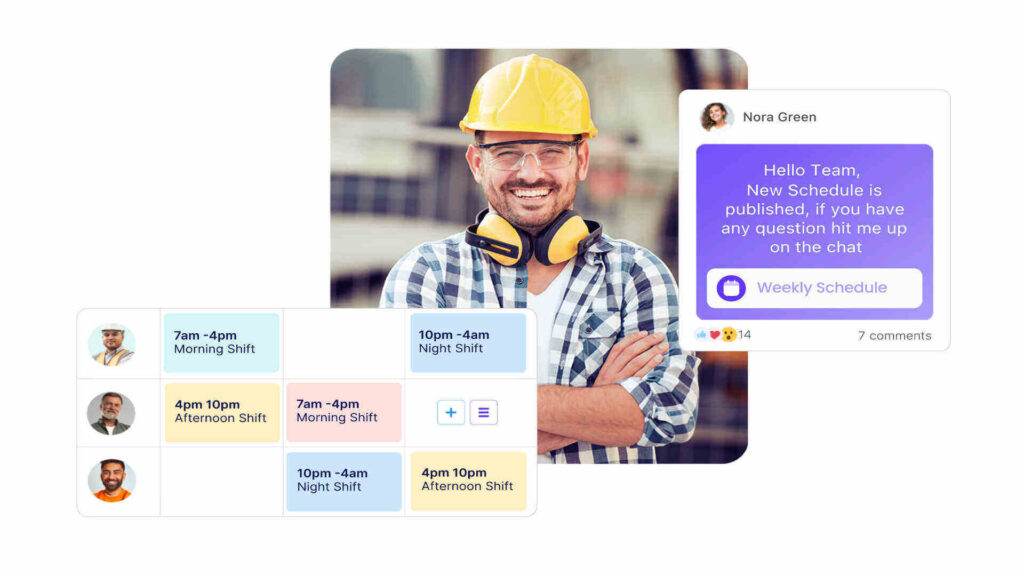
Connecteam is an all-in-one employee management platform designed to help small businesses simplify their operations. It combines scheduling, time tracking, task management, communication, and more into one easy-to-use app.
Why I chose Connecteam: Connecteam really feels like it was built to meet the needs of small businesses. I liked how seamlessly the tools work together, so you can actually attach tasks to shifts or send a form in a chat.
Let’s take a deeper look at what Connecteam has to offer:
Schedule smarter
Connecteam’s employee scheduler makes planning ahead simple. The drag-and-drop editor makes it easy to create and adjust schedules in seconds. I liked that you can add details to each shift like location, tasks, instructions, and files, so your team has what they need to succeed.
Employees can request time off, set their availability, and mark preferred workdays directly in the app. Connecteam’s AI-powered auto-scheduler can instantly assign open shifts to employees, based on their availability, role, and qualifications. Once you publish or update a schedule, employees are notified in real-time and can access the latest version from their mobile devices.
I was really impressed by how Connecteam handles shift replacements. When an employee can’t make their shift, they can release it through the app for other qualified teammates to pick up. Managers can choose to require approval, which still gives them final say over the schedule. It’s a great way to offer staff flexibility without compromising on coverage, accountability, or control.
Track employee hours
With Connecteam’s employee time clock, staff can clock in and out right from their mobile devices. If you need more visibility, you can enable the geofence time clock to automatically clock out employees when they leave the designated work zone. I also liked that you can monitor attendance in real-time and notify employees who haven’t clocked in yet.
Employee work hours are automatically logged into timesheets for payroll, and you can set custom rules for break and overtime to ensure accurate calculations. At the end of each pay period, just review, edit, and approve timesheets (individually or in bulk), and export them directly to your payroll provider. With everything in one app, the process runs smoothly from start to finish.
Manage tasks and workflows
Connecteam’s employee task tracking lets you assign tasks, set deadlines, and monitor progress in real-time. You can create one-time or recurring tasks, add subtasks, leave comments, and assign work to individuals or entire teams. I was impressed by the level of detail you can include: instructions, files, photos, videos, and even location data.
What really stood out to me is how well task management integrates with the rest of Connecteam’s platform. You can attach digital forms or checklists directly to tasks or scheduled shifts. You can easily create a form from scratch, or start with one of Connecteam’s customizable templates. If you already have a form that works, just upload the file or snap a photo and Connecteam’s AI will digitize it instantly.
The form builder is also super flexible. Beyond just text, dropdowns, and multiple choice, you can include speech-to-text, which uses AI to summarize and sort responses for busy teams. You can also attach files, scan documents, collect signatures, and take photos. Every form submission is time-stamped and stored in the app for quick access.
Communicate with your staff
Connecteam’s online team chat makes it easy for managers to send direct messages or create group chats using a familiar, intuitive interface. You can tag team members, search past conversations, and share files, images, videos, and links. What I liked most is that it creates a dedicated channel for work-related communication, helping both employees and supervisors maintain clear boundaries between work and personal life.
I also appreciated that managers have full control over the chat’s settings, including who can start conversations and delete messages. You can also enable push notifications and read receipts to ensure nothing is overlooked.
Beyond chat, Connecteam offers a company update feed for announcements and news. I liked that you can track who’s viewed each post, require read confirmations, and enable comments or reactions to encourage staff engagement. Since it works like a social media feed, it’s easy for employees to pick up and use right away.
Integrate with your favorite tools
Connecteam offers an API integration and connects with the tools your business already uses, including:
And so much more…
Connecteam offers so many tools to help small businesses run more efficiently, including:
- Training and onboarding: Use the AI Course Creator to build custom training materials in minutes, and get employees up to speed quickly.
- Automatic reports: Get real-time insights into attendance, task completion, form submissions, and more so you can make smarter decisions, faster.
- Company knowledge base: Store SOPs, guides, and policies in one searchable place. Ask the built-in AI agent for instant answers, pulled directly from your documents.
- Staff documents: Upload and organize employee documents like contracts, certifications, licenses, and tax forms. Receive automatic reminders about upcoming expiration dates.
- Company employee directory: Give employees quick access to contact info for teammates and key business contacts without sharing personal phone numbers.
Connecteam also offers a free for life plan – Get Started Now!
Key Features
- Employee scheduling
- GPS time clock
- Digital timesheets
- Task management
- Custom forms
- In-app team chat
Pros
- All-in-one app
- Intuitive and easy to use
- AI time-saving tools
- Fully mobile accessible
Cons
- More integrations still in development
Pricing
Free-for-life plan availablePremium plans start at $29/month for 30 users
14-day free trial, no credit card required
Start your free trial -
SuiteDash — Good for managing client projects and automating workflows
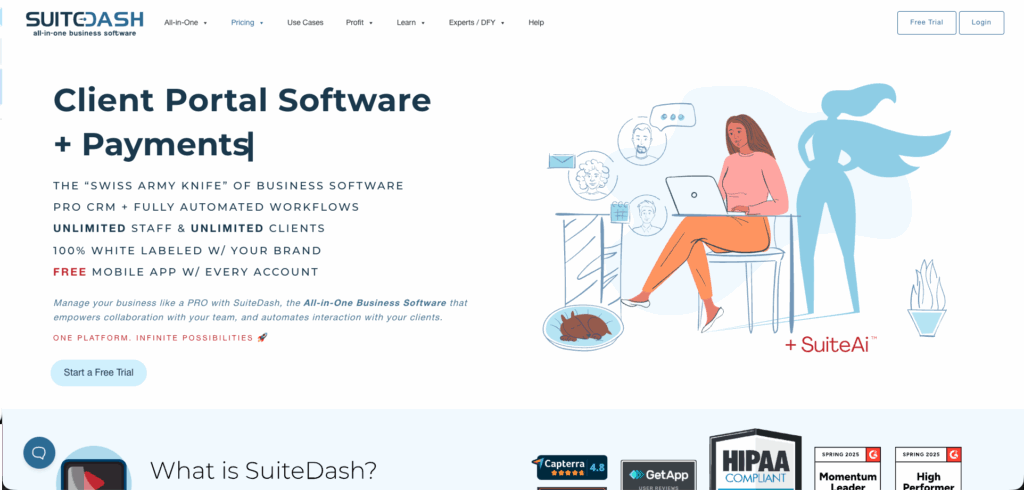
SuiteDash is a business management platform that offers CRM capabilities, project management, client invoicing, and communication tools.
Why I chose SuiteDash: I chose SuiteDash for its “unlimited everything” pricing model, which lets you add unlimited team members and clients without paying extra.
Task and project management
SuiteDash’s project and task management tools let you build projects tied to specific clients with detailed tasks nested within. I liked that you can create and assign tasks from different places in the platform, so it’s easy to add items as you work. It was interesting that you can also assign tasks to clients for their approval, which helps get their sign-off throughout the project.
There are a lot of different options for managing tasks. You can set dependencies, schedule recurring tasks, and break tasks into subtasks with checklists. I found the dependency feature especially helpful, because it prevents tasks from being edited or viewed until you complete prior, required tasks.
Communication and forms
SuiteDash offers a Secure Messaging system that centralizes both client and internal communication into one inbox. It works like email: you can add subject lines, format text, attach files, and include links. You can send messages internally or to clients, and choose to keep communication in the platform or receive email notifications. I thought it was interesting that you can respond to messages directly from your email, without logging back into SuiteDash.
It seems like SuiteDash has built a full email system into the platform. It felt formal and rigid to me, especially compared to a lightweight chat tool. While having all communication in one place is convenient, I can also see it being a hurdle for small businesses that rely on quick, real-time messaging throughout the day.
In addition to messaging, SuiteDash offers a pretty powerful form builder. It has six different types of forms, which can trigger automated workflows, add clients to your CRM, assign clients to projects, and more. I found the forms versatile, and I liked that they can automate routine data collection processes.
Scheduling and time tracking
You can view appointments, tasks, and events on SuiteDash’s calendar. Honestly, I was a bit disappointed that the feature focuses more on client bookings rather than true employee shift scheduling. It seemed like an overview of what’s coming up, rather than an active management tool. The interface also felt sparse to me, much like the rest of the platform.
On a different note, SuiteDash’s time tracking is integrated pretty well with projects and billing. You can start, stop, and manage timers from anywhere in the platform, and track time against tasks, projects, or clients. I liked that you can easily convert logged hours into invoices, and that you can make manual edits when you need. Like scheduling, time tracking is designed for client billing, not traditional payroll, which may not suit small businesses with hourly staff.
What users say about SuiteDash
SuiteDash is extremely customizable, allowing you to create multiple dashboards that reflect the current status of each project. This flexibility ensures that the system is tailored to meet your specific needs and enhances project management efficiency.

Too many clicks to get things done. The navigation isn’t intuitive, and finding stuff can be a real pain sometimes. The dashboard feels overcrowded.
Key Features
- Project management
- Secure messaging
- Form builder
- Time tracking
Pros
- Workflow automations
- Unlimited users and clients
Cons
- Lacks employee shift scheduling
- Steep learning curve
Pricing
Starts at $19/month Trial: Yes — 14-day Free Plan: No
-
Monday.com — Good for managing tasks and project visibility
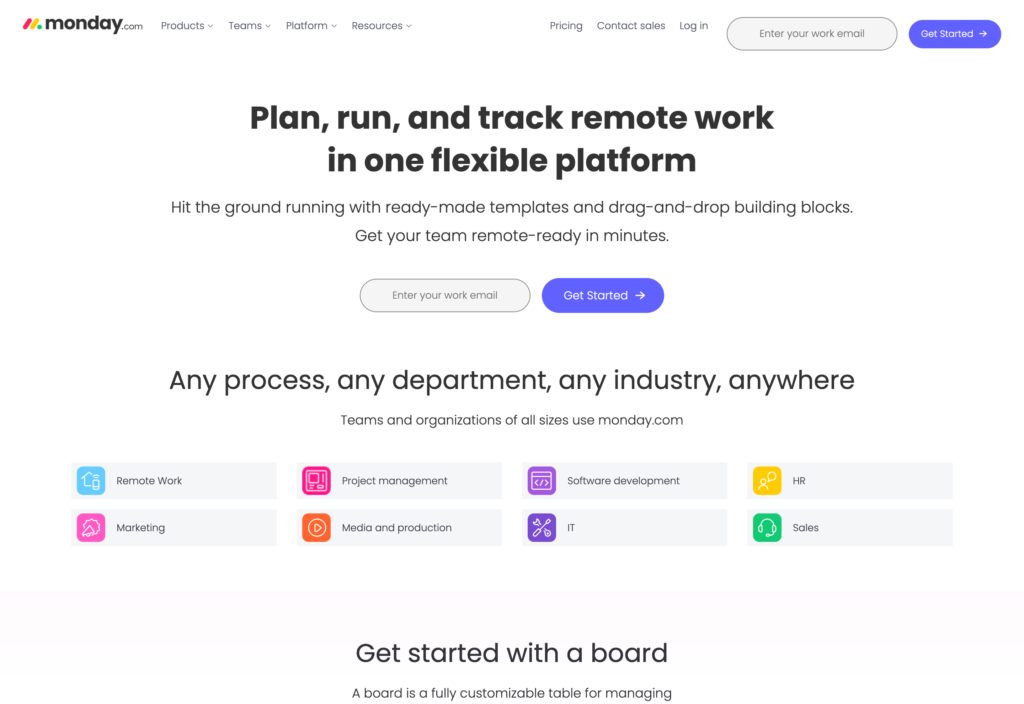
Monday.com is a work management platform designed to help teams plan, track, and collaborate on projects through customizations, automations, and integrations.
Why I chose Monday.com: I liked that you can customize Monday.com’s platform to fit how your team works.
Task management
It’s not surprising that Monday.com is known for its task management tools. I was impressed by the task-related capabilities, especially the customization options. You can create, assign, and track tasks with multiple views, including Kanban, Gantt, calendar, and more to tailor your workflows to different teams. The color-coded status and priority labels also made it easy to view progress at a glance.
When you assign due dates and time frames to tasks, you can view them on a calendar. There’s also the option to set specific hours for tasks, which helps with building daily schedules. But this is as close as Monday.com gets to actual scheduling. You can’t schedule employees or create shifts, and everything has to be tied to a specific task.
That said, the Workload view really stood out to me. It gives managers a real-time rundown of task distribution across team members. I liked that you can filter workload by task count, hours, or priority, which can be helpful for reallocation. Unfortunately, this feature isn’t available in the mobile app, which might be a drawback for managers who need oversight in the field or on the go.
Time tracking
Monday.com markets itself as a time-tracking solution, but I thought its capabilities in this area were pretty limited. To start, time tracking is only available on the Pro plan and above, which seems a bit excessive for such a basic function. The tool is straightforward: it’s a timer in a column of a task board. Users can start and stop the timer, tracking time against the task.
While you can record time on tasks, there’s no built-in timesheet functionality. You need a third-party integration for payroll, adding complexity and cost. With no geofencing, GPS tracking, or billable hour distinction, it might not be the best solution for businesses with field teams or client billing needs.
Communication and automations
One of Monday.com’s major limitations is the lack of built-in team messaging. Even though users can comment on tasks and leave updates, there’s no real-time chat feature or dedicated communication hub. Like with time tracking, you’ll need to rely on (and potentially pay for) external apps to fill the gap.
On the plus side, Monday.com’s automation builder is intuitive and powerful. I liked that you can set up custom workflows or use templates to automate routine actions like sending reminders, assigning tasks, or updating statuses.
What users say about Monday.com
It allows easy management of project and helps to streamline workflows. It is an easy to use system and has great support.
Some essential features are only available on higher-tier plans, which can be frustrating for small teams. Also, mobile performance could use improvement — especially when switching boards or loading large projects.

Key Features
- Time tracking
- Task scheduling
- Automations
- Multiple integrations
Pros
- Flexible dashboards
- Customizable interface
Cons
- No built-in timesheets
- Limited time tracking capabilities
Pricing
Starts at $8/user/month Trial: Yes Free Plan: Yes
-

Freshbooks — Good for project-based time tracking and billing
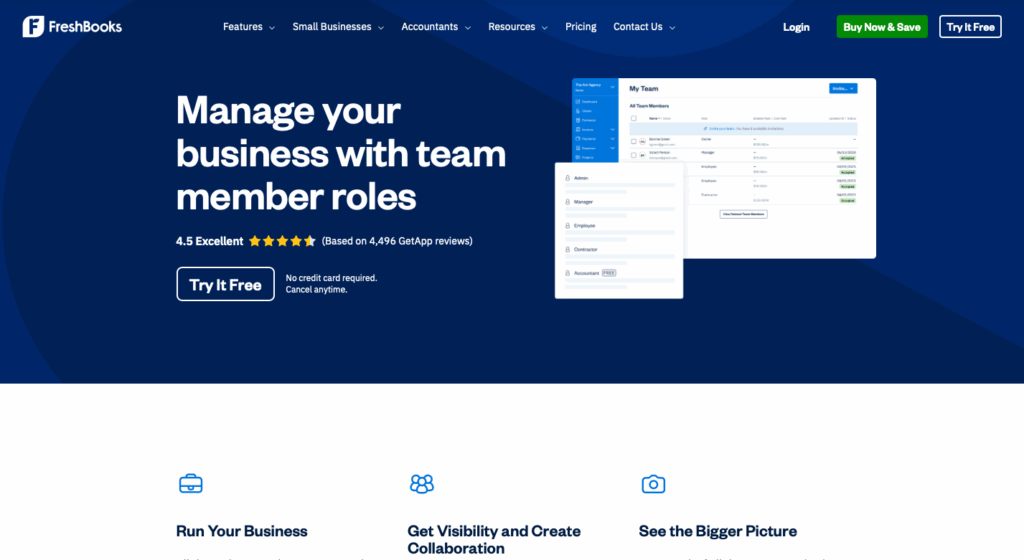
FreshBooks is an accounting and invoicing platform that offers tools for expense tracking, time logging, and financial reporting to small businesses.
Why I chose FreshBooks: I chose FreshBooks because of its strong accounting tools that help small businesses manage their finances.
Time tracking and invoicing
I liked that FreshBooks offers several flexible ways for team members to track time. They can use a real-time timer, manually log hours on a daily or weekly basis, or use the Chrome extension. The process felt pretty straightforward for everyone, regardless of their role.
What I liked most is how seamlessly time tracking integrates with invoicing. Admins can view all time entries from a centralized dashboard, filter by employee or project, and see a clear breakdown of billed, unbilled, and non-billable hours. I was impressed by how FreshBooks generates invoices. You just select unbilled hours and the platform creates a professional invoice.
Project management and collaboration
In FreshBooks, a “Project” is basically a folder for billable activities related to a specific client. You can create flat-rate or hourly projects, assign them to clients, and invite team members to track their time against each project.
I liked that you can set a budget for the project’s total hours to monitor progress. You can also adjust billable rates based on the team members involved or the type of work. It’s a good way to track project profitability with all your time entries, expenses, and invoices organized in one place.
However, collaboration is limited to the billing side of projects. Managers can assign team members to track time and designate project managers, but that’s about it. There are no built-in tools to create task assignments, checklists, or dependencies. While you can leave comments on project-related items, there’s no central chat. These missing features make it clear that FreshBooks is built to track billable work, not to manage the work itself.
Where it falls short
FreshBooks definitely stands out for its invoicing and clean, user-friendly interface. As an accounting software, it delivers. However, as a business management solution, it’s pretty limited. There aren’t many customization options, aside from minimal branding and invoicing, and the platform can’t support general operational workflows.
There are major feature gaps, with scheduling being the most obvious. While FreshBooks offers many integrations, relying on extra tools to handle basic operations seems unnecessary, especially for small businesses.
What users say about FreshBooks
FreshBooks is easy to use and great for tracking expenses, sending invoices, and managing time. It helps small businesses and freelancers stay organized and get paid faster.
The pricing structure could be more flexible, especially for small businesses or freelancers with only a few clients. Some advanced reporting features are only available in the higher-tier plans, which might not justify the cost for all users.
Key Features
- Time tracking
- Invoicing
- Financial reports
- Project-based billing
Pros
- Easy, professional invoices
- User-friendly interface
Cons
- No scheduling or task management
- Limited operational features
Pricing
Starts at $21/month + $11/team member/month Trial: Yes — 30-day Free Plan: No
-

Zoho One — Good for businesses looking to replace multiple tools
Available on
- Web
- iOS
- Android
- Windows
- Mac
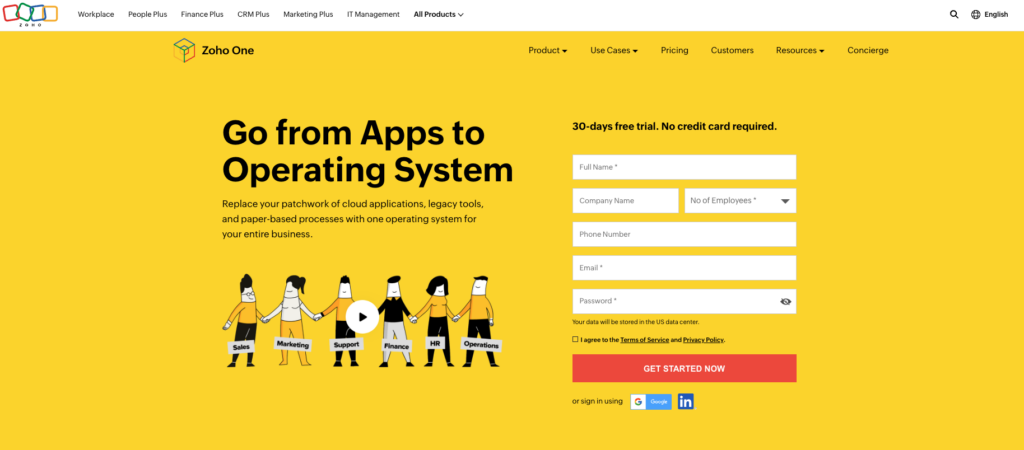
Zoho One is a software suite for small businesses that includes over 45 integrated apps for managing HR, operations, sales, finance, and more.
Why I chose Zoho One: I liked that Zoho One gives businesses access to Zoho’s integrated ecosystem, offering a powerful and feature-rich platform.
Scheduling and time tracking
Zoho One offers employee scheduling and time tracking through Zoho Shifts. The schedule editor was easy to use, especially with the drag-and-drop functionality. Managers can use shift templates and recurring shifts, while employees can submit their availability and drop, swap, or offer shifts to coworkers. I liked that this flexibility enables employees to manage their own schedules without heavy manager oversight.
That said, scheduling is a manual process. There’s no automatic scheduler, which I can see being a drawback for larger teams or businesses with complex scheduling needs.
Time tracking is pretty straightforward. Employees can clock in and out from any device, and there’s a smartphone-based kiosk option, which I appreciated. While you can track breaks, it’s manual, so employees have to remember to log them. The lack of automatic break tracking and reminders could cause compliance issues, especially in highly regulated industries or stricter states.
Project management
Zoho One features Zoho Projects as the solution for task and project management. It’s a powerful tool, designed to support planning, tracking, and collaboration across projects. I liked that there were different ways to manage work, ranging from task lists and Kanban boards to more detailed Gantt charts. The Gantt view is especially useful for planning timelines, tracking dependencies, and identifying delays.
You can also view tasks on Zoho Calendar, but what confused me is that this is a separate calendar from Zoho Shifts. That means that you essentially have one calendar for employee shift scheduling, and a completely different one for tasks and events. I wish there was a truly unified view, especially since these features exist within the same operating system.
I was a bit overwhelmed by the different types of collaboration offered in Zoho Projects. You can share files and updates, but there’s also a feed, chat, forums, documents, and more. In addition, there are powerful automation tools to create workflows and speed up routine tasks. Because Zoho’s project management tools are so complex, they may be overkill for small businesses that just need the basics.
Team messaging and communication
You can communicate with your team through a mix of apps within the Zoho ecosystem. Zoho Shifts features basic messaging that lets you send direct messages and create private channels. For a full-featured experience, use Zoho Cliq, a separate app with channels, integrations, and messaging. If you want a company intranet, there’s also Zoho Connect, which comes with a feed.
Zoho definitely covers business communication needs, but I had a hard time understanding how the different tools worked together. Each feature lives in a separate app, which can create friction. If employees have to check both Shifts and Cliq for updates, communication can become inefficient pretty quickly.
What users say about Zoho One
Zoho One is a comprehensive solution to our teams daily operations. It is pivotal for internal / external communications, reporting, marketing, document sharing and more.
Some modules seem not as mature as others and keeping data in sync between apps sometimes requires manual cleanup.
Key Features
- Scheduling
- Time tracking
- Project management
- Team communication
Pros
- Comprehensive product suite
- Power automations
Cons
- No auto-scheduling
- Functions split across apps
Pricing
Starts at $30/month per user Trial: Yes Free Plan: No
-

Odoo — Good for desk-based and remote teams that want full operational control
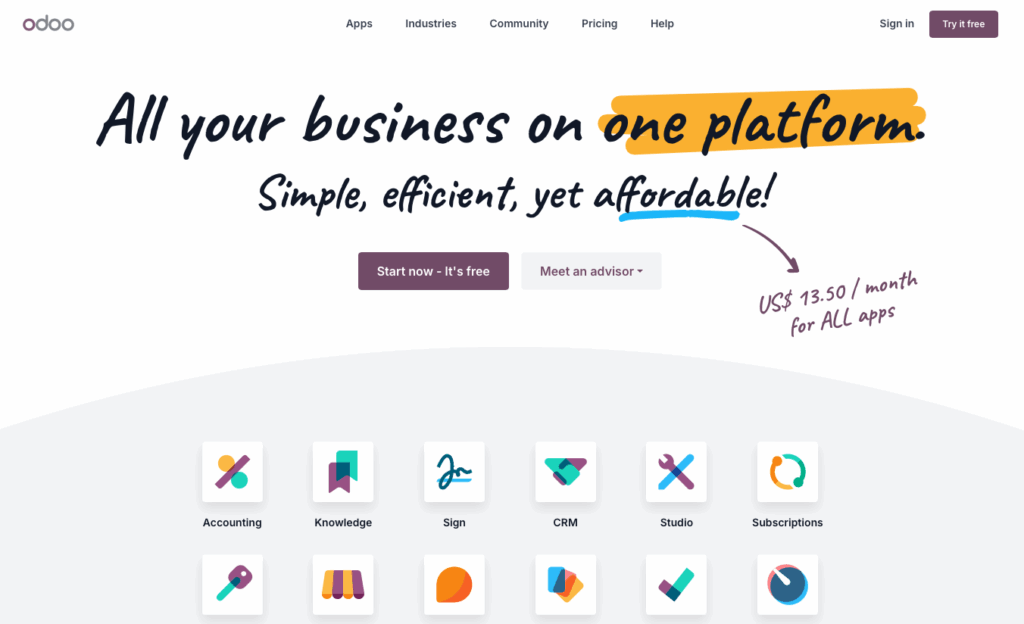
Odoo is an open-source business management software that offers a suite of apps for sales, inventory, HR, project management, and more.
Why I chose Odoo: I liked that Odoo offers a range of apps for a fixed price, making it accessible for small businesses without the high cost of a multi-tool stack.
Employee scheduling and planning
Odoo’s Planning app pleasantly surprised me. It’s a dedicated solution for building and managing employee schedules. I liked that you can create and assign both shifts and resources, and define roles for employees. There’s also auto-scheduling, drag-and-drop editing, and a Gantt view. Employees can set their availability in the Time Off app, so it’s visible as you build the schedule.
While the Planning app works, it seems like a better fit for project-based scheduling than for managing hourly operations. There’s no built-in support for shift swaps, and attachments are limited to links to other Odoo apps, like Projects. The interface is clean, but I thought it was missing the visual appeal and polish of other tools.
Project management
Odoo’s Project app uses a Kanban-style layout to organize tasks and workflows. I liked that you can create projects, divide them into tasks, and assign them to employees. In addition to assignees, you can also add deadlines, estimated time, tags, and more to each task. I also thought it was helpful that you can automatically generate tasks from emails or web forms.
I was really impressed by task dependencies. The feature lets you link tasks together and require a specific order of completion. You can manage dependencies in a Gantt chart view
It’s important to note that Project is a separate module that you need to install and configure. Task management isn’t part of the core platform by default. For small trying to simplify their tool stack, I can see this multi-app setup being a challenge.
Time tracking and attendance
Odoo’s Attendances app let’s employees check in and out either through a kiosk or from any screen within the Odoo platform. I thought it was convenient to have this flexibility for time tracking. The automatic check-out feature includes a customizable “tolerance” period, which helps cover employees who forget to clock out. I liked that managers can set overtime tolerances to keep costs under control.
You can also enable the platform to log location data, including IP addresses and GPS coordinates. But these location-based features feel built for desktop use. While that works for office-based teams, the lack of mobile-specific tools (like GPS tracking or geofencing) could be a barrier for teams that are on the go or in the field.
What users say about Odoo
The best thing about Odoo is its modular structure – you can start small with just the apps you need (like CRM or Inventory) and scale up as your business grows.
What I don’t like about Odoo is that sometimes some things don’t work as they should or feel incomplete. There are features that could be easier to use. I’ve also noticed that some updates bring new bugs or change things without much notice.

Key Features
- Task management
- Shift planning
- Time tracking
- Auto-scheduling
Pros
- Customizable and flexible
- Modular system
Cons
- Fragmented core features
- Designed for desktop use
Pricing
Starts at $13.50/user/month Trial: Yes — 15 days Free Plan: Yes
6 Best Small Business Management Software of 2026
| Topic |
 Start for free
|
|
|
|
|
|
|---|---|---|---|---|---|---|
| Reviews |
|
N/A
|
|
|
|
|
| Pricing |
Starts at just $29/month for the first 30 users
|
Starts at $19/month
|
Starts at $8/user/month
|
Starts at $21/month + $11/team member/month
|
Starts at $30/month per user
|
Starts at $13.50/user/month
|
| Free Trial |
yes
14-day
|
yes
14-day
|
yes
|
yes
30-day
|
yes
|
yes
15 days
|
| Free Plan |
yes
Free Up to 10 users
|
no
|
yes
|
no
|
no
|
yes
|
| Use cases |
Best all-in-one small business management software
|
Good for managing client projects and automating workflows
|
Good for managing tasks and project visibility
|
Good for project-based time tracking and billing
|
Good for businesses looking to replace multiple tools
|
Good for desk-based and remote teams that want full operational control
|
| Available on |
Web, iOS, Android, Windows, Mac
|
What Is Small Business Management Software?
Small business management software is a digital tool designed to help small business owners manage their daily operations more efficiently. These platforms usually offer features such as task management, scheduling, time tracking, invoicing, payroll, and internal communication in one system. Some providers also offer advanced features such as automations, reporting, and integrations.
Most platforms are cloud-based and accessible via both desktop and mobile apps, allowing teams to stay connected and informed from anywhere. By providing a central place for key operations, small business management software saves businesses time and reduces manual errors.
How Does Small Business Management Software Work?
Small business management software works by integrating essential business tools into one platform. Users can log in through a desktop or mobile app to access task assignments, employee scheduling, time tracking, internal communication, and more. These features are often organized in one dashboard, so it’s easier to manage daily activities without switching apps.
Most software for managing small businesses is cloud-based, so data is updated in real-time. This enables owners and employees to connect, share files, update tasks, and track progress from anywhere, at any time. Most platforms include role-based access, so team members can only access the features that are relevant to their jobs.
Some systems also offer automations for routine items such as shift reminders, timesheet approvals, and task updates. Reporting tools help track performance metrics, attendance, and workflow progress.
The Benefits of Small Business Management Software
Small business management software can benefit growing organizations in multiple ways, including:
Saved time
When your time is spent juggling schedules, spreadsheets, and separate systems, it’s hard to work on your growth strategy. The right small business management platform reduces the time you spend on admin tasks so you can focus more on marketing, sales, and improving your business.
Better organization
Without the right software, it’s easy to lose track of details, miss deadlines, and duplicate work. Small business management software brings everything into one place, so you can keep operations running smoothly. Staying organized helps reduce stress and keeps your team aligned.
Fewer mistakes
If you’re relying on manual processes, you’re more likely to run into missed shifts, billing errors, and payroll inaccuracies. While these mistakes may slow things down, they can also lead to compliance issues and lost trust. Small business software helps automate repetitive tasks, reducing the risk of human error.
Clearer insights
Built-in reporting tools provide clear insights into how your business is performing. You can automatically track project progress, employee hours, revenue trends, and more, without the stress of manually managing spreadsheets. That level of visibility helps you make faster, more informed decisions.
Improved teamwork
With one system for communication, task tracking, and scheduling, your team knows exactly what’s expected of them. That means less confusion, more accountability, and full transparency across your team.
How Much Does Small Business Management Software Cost?
The cost of small business management software can varies based on pricing models and feature sets. Flat-rate plans start around $10 to $19 per month, while per-user pricing can begin anywhere from $9 to $37 per user per month. Costs can rise quickly as you add users and upgrade to higher-tiered plans.
Connecteam offers the best value for small teams, with a dedicated Small Business Plan that’s completely free for up to 10 users. Paid plans start at $29 per month for up to 30 users. Higher-tier plans start at $49/month for Advanced and $99/month for Expert, both also covering up to 30 users.
FAQs
Look for data encryption, two-factor authentication, user access control, and regular security updates. These features protect sensitive business and employee data from unauthorized access, reduce cyber attack risks, and ensure compliance with data privacy laws.
Small business management software improves employee productivity by streamlining tasks, automating workflows, and centralizing communication. It reduces time spent on manual processes and gives employees quick access to schedules, documents, and updates for faster decision-making and better task execution.
Implement small business management software by setting clear goals, training employees, integrating it with existing tools, and monitoring adoption. Start with a phased rollout, collect feedback, and adjust workflows as needed to ensure long-term success.
The Bottom Line on Small Business Management Software
Running a small business means constantly managing staff, schedules, tasks, and timesheets, all at once. If you don’t have the right system, it can be easy to fall behind, make mistakes, and lose track of important details.
That’s where small business management software comes in. The right platform can transform your daily operations, giving you more time to focus on the big picture.
Connecteam stands out as the best choice. With its mobile-first design, Connecteam offers thoughtful solutions for everything from scheduling and time tracking to employee engagement and training. If you need a reliable, all-in-one platform to keep your business organized and stay in control, look no further than Connecteam.

![image of [Free eBook] Building an Effective Internal Communication Strategy](https://connecteam.com/wp-content/uploads/2020/07/Scene-4-768x512.png)