


When one call-out forces you to rebuild the roster, coverage gaps spread fast, labor costs rise, and your team loses trust in the schedule.
I reviewed 7 WhenToWork alternatives and compared their schedule builders, availability and shift-change workflows, mobile access, time clocks, payroll connections, and labor controls.
Use these picks to publish schedules faster, fill open shifts with less chasing, and keep hourly teams working from the same plan.
| App | Best for | Starting Price | Key Considerations |
| Connecteam | Best overall for shift teams that need scheduling plus workforce management | Just $29/month for the first 30 users | Combines scheduling, time tracking, and workforce operations tools. Advanced scheduling automations require higher-tier plan. |
| When I Work | Hourly-team scheduling and messaging | $2.5/user/month | Includes OpenShifts, attendance, and WorkChat. Its mobile app doesn't work offline. |
| Deputy | Scheduling plus compliance and labor controls | $5/user/month | Connects roster building with time and labor controls. Mobile apps are read-only offline. |
| Homebase | Small hourly businesses | $24/location/month | Keeps schedules, time cards, and communication together. The AI scheduler didn’t work during testing. |
| Findmyshift | Straightforward employee scheduling | $24/team/month | Multi-cell editing speeds up manual rota work. Lacks recurring shifts and auto-scheduling. |
| 7shifts | Restaurants scheduling and labor management | $39.99/month | Restaurant schedules tied to labor targets and Shift Pool. Mobile clocking uses a separate app. |
| Sling | Budget-friendly scheduling and communication | $1.70/user/month | Offers scheduling and team communication. Conflict warnings don't block publication. |
What’s new in this update (September 2026)
- Removed Buddy Punch and added When I Work and Findmyshift to the list.
- Updated starting prices, free-trial details, and free-plan limits.
- Added latest hands-on testing evidence for scheduling, time tracking, and mobile limits.
Our Top Picks
-
1

Best overall for shift teams that need scheduling plus workforce management
-
2

Best for hourly-team scheduling and messaging
-
3

Best for scheduling plus compliance and labor controls
Why trust us?
Our team of unbiased software reviewers follows strict editorial guidelines, and our methodology is clear and open to everyone.
See our complete methodology
What is WhenToWork?
WhenToWork is employee scheduling software for managers who need to build and publish shift schedules. Its core tools include a drag-and-drop builder, saved weekly templates, and Single-Click AutoFill, which can assign shifts using availability, approved time off, maximum hours, minimum rest, positions, and work preferences.
Employees can check schedules from the mobile app, submit time-off requests when managers enable them, and use the Tradeboard to trade, drop, cover, or pick up shifts. Managers can choose an At Will workflow or require approval, and schedule changes can trigger email, text, or app notifications.
The official pricing calculator starts at $28/month for up to 10 employees. There’s no permanent free plan, but new accounts get a 30-day free trial without a credit card or phone number.
WhenToWork suits teams that want dedicated staff scheduling without a large workforce management suite. It isn’t designed to replace a time clock, payroll system, paid-time-off accrual tracker, or labor-cost platform.
Why Are People Moving Away From WhenToWork?
WhenToWork still handles basic staff scheduling well for many teams. However, it’s still worth considering why people are moving away from the platform.
Multiple users find its interface and mobile app dated or difficult to use. One reviewer also found managing multiple facilities inconvenient because each requires a separate account and PIN.
Scheduling workflows have limitations too. Users describe the trade board as confusing, while employees must reportedly receive manager access to add their own shifts. Other reviewers point to limited historical reporting and no built-in labor cost tracking, which can make future planning and budget monitoring harder.
How I Ranked the Best WhenToWork Alternatives
I compared direct WhenToWork competitors and shift scheduling software for different hourly-team settings, focusing on the full labor scheduling workflow from roster building to timesheet review.
Here’s what I prioritized:
- Building repeat schedules: Fast shift creation through drag-and-drop tools, schedule templates, recurrence, or safe automation.
- Avoiding coverage gaps: Availability, time-off visibility, conflict checks, and qualification controls.
- Handling last-minute changes: Open shifts, trades, coverage requests, and manager approvals.
- Keeping teams updated: Mobile scheduling, clear publishing controls, and schedule notifications.
- Preparing usable timesheets: Accurate time clocks, manager review, and payroll handoffs.
- Controlling labor risk: Break, overtime, rest, and labor-cost controls.
The 7 Best WhenToWork Alternatives
-
Connecteam — Best overall for shift teams that need scheduling plus workforce management
Connecteam combines employee scheduling, time tracking, and broader operational tools for frontline and mobile teams. Managers can coordinate work across locations, departments, and time zones, then connect published shifts with timesheets and team communication.
Why I chose Connecteam: I ranked Connecteam as the top alternative because its custom scheduling rules and qualified replacements help managers protect coverage before shift changes become final.
Build and publish job schedules
With Connecteam’s employee scheduler you can use the drag-and-drop editor to build and adjust schedules across locations, departments, and time zones. Managers can add notes, link tasks, and attach files so employees see job-specific information with each assignment.
Employees can mark their preferred work days and availability, submit time-off requests in the app, and access the latest published schedule from the mobile app. Custom scheduling rules let you require specific roles or certifications on a shift, while conflict detection flags overlapping shifts and double-bookings before the schedule goes live.
Fill gaps with open shifts and replacements
Managers can post open shifts for employees to pick up instead of chasing replacements through calls or messages. If someone can’t work an assigned shift, they can offer it up or swap it with a qualified teammate.
Admins can require approval before a replacement becomes final, keeping managers in control of the published schedule. Once custom rules are set, you can use auto-scheduling to assign open shifts based on availability, roles, qualifications, and staffing needs.
Track time and review timesheets
Connecteam’s employee time clock lets employees clock in from mobile, desktop, or a shared kiosk. GPS stamps, geofences, and NFC tools add location checks, while all hours are recorded in timesheets for employee and manager review before payroll.
Managers can configure manual or automatic breaks. Automatic breaks are always unpaid, so teams that need paid breaks should use the manual option. Connecteam calculates overtime automatically and can alert managers when an employee approaches unapproved overtime or clock them out automatically.
Coordinate work beyond the schedule
Connecteam also includes task management, digital forms and checklists, team messaging, onboarding, and training. Managers can assign tasks to shifts, share files and updates, and track who’s read them, keeping schedules, daily operations, and communication in one app.
0Key Features
- Drag-and-drop scheduling with conflict detection
- Open shifts and replacements with approval
- Multi-device time clock and timesheets
- In-app tasks, forms, and messaging
Pros
- Scheduling and time tracking share one platform
- AI auto-scheduling speeds up roster creation
Cons
- Automatic breaks are always unpaid
- Doesn’t work offline
Pricing
Free-for-life plan availablePremium plans start at $29/month for 30 users
14-day free trial, no credit card required
Start your free trial -
When I Work — Best for hourly-team scheduling and messaging
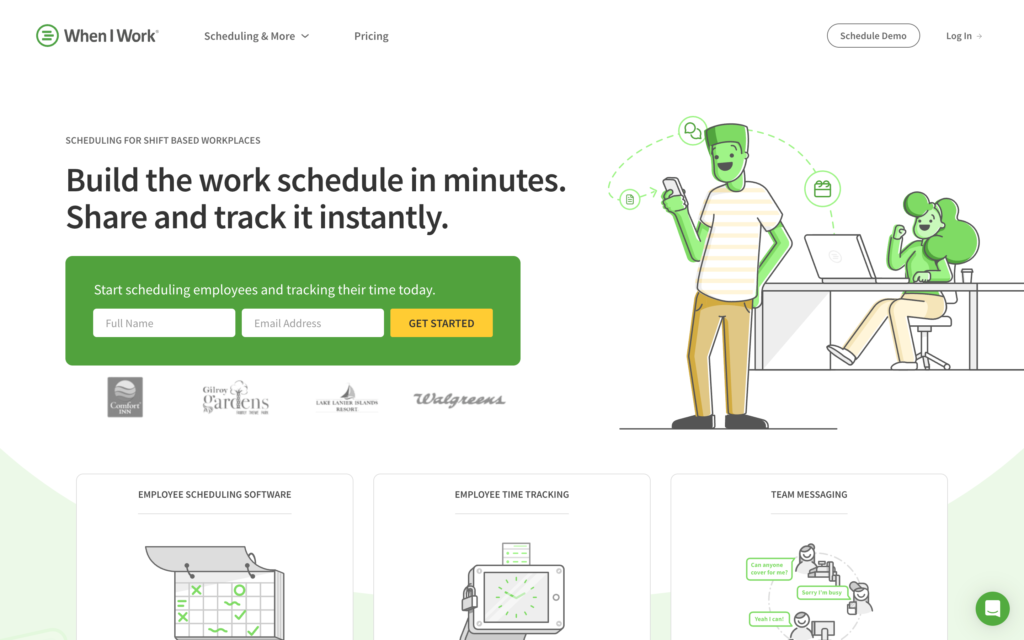
When I Work combines employee scheduling, time tracking, team communication, and payroll integrations for shift-based companies.
Why I chose When I Work: I included When I Work because its OpenShifts, attendance, and WorkChat keep core shift coordination in one platform.
Shift scheduling and coverage controls
When I Work lets managers create shifts with hours, breaks, tasks, notes, and tags. They can save work as a draft, publish it, repeat it, or reuse it as a template. Employees can also claim, release, or drop shifts, while admins decide whether changes require manager approval.
Auto-scheduling assigns OpenShifts using positions, tags, availability, and rules like maximum hours. But the feature needs review before publication. During our testing, auto-scheduling missed a visible OpenShift.
Time clock and time off
Admins can let employees clock in from mobile apps, computers, or both. Timesheets show clock-in and clock-out times, worked hours, scheduled-hour comparisons, and early or late warnings. Managers can review and correct entries before sending timesheets to payroll.
There were two mobile limits that stood out in testing. We were able to clock in on the iOS app without taking a selfie, bypassing the photo verification. The mobile app also doesn’t work offline, so remote teams can’t check or update work without service.
Employees can request time off, but they need to enter the exact number of paid hours, and managers can’t set allowances or carryover rules.
WorkChat and reporting
When I Work offers WorkChat, which supports direct and group messaging. For analytics, managers can access ready reports for schedules, requests, time off, and labor costs. Custom reports start with shifts, shift history, or times, but they can’t combine overtime and shift labor costs.
0Key Features
- Shift drafts, repeats, templates, and auto-scheduling
- OpenShifts and coverage changes
- Time tracking with timesheets
- Direct and group messaging
Pros
- Mobile tools support workers and administrators
- Flexible shift coverage and approval controls
Cons
- Auto-scheduling missed an OpenShift in testing
- Mobile app doesn’t work offline
Pricing
Starts at $2.5/user/month Trial: Yes — 14 days Free Plan: No
-
Deputy — Best for scheduling plus compliance and labor controls
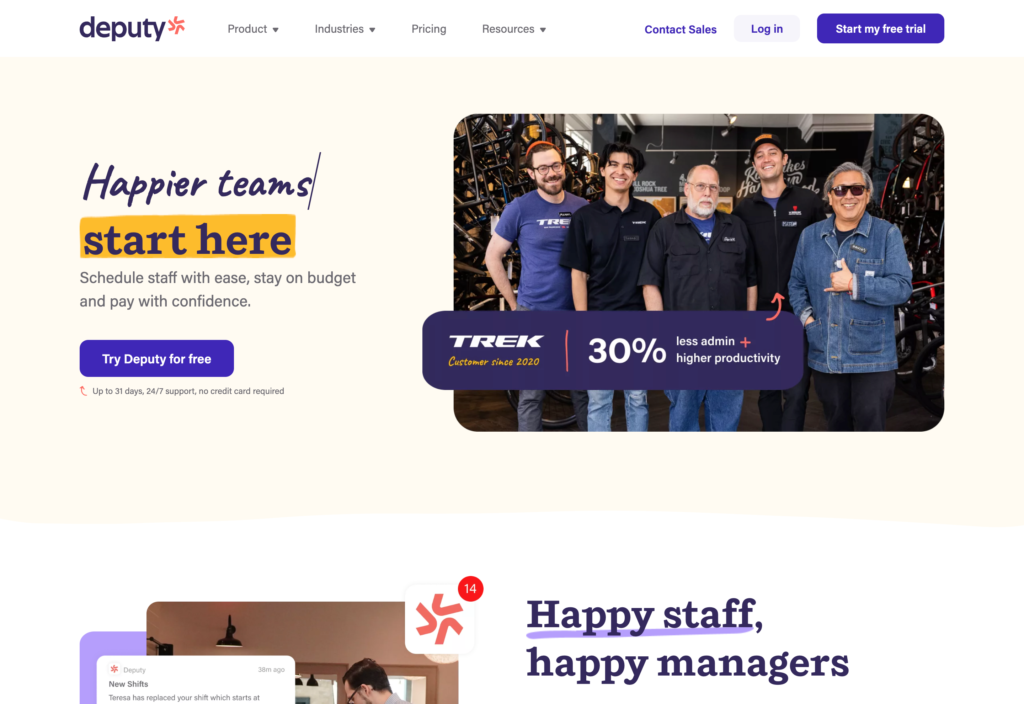
Deputy combines scheduling and time tracking with communication, tasks, HR tools, and analytics for shift-based businesses.
Why I chose Deputy: Deputy connects scheduling, open shifts, multi-device clock-ins, and break and overtime controls in one workflow.
Schedule building, open shifts, and compliance
Managers can build a weekly roster with drag-and-drop editing, templates, or copied shifts. Published schedules group work by area and can include notes. Managers can assign employees directly or leave shifts open for employees to claim with or without approval.
Before assigning a shift, Deputy checks approved leave, availability, certifications, and qualifications. It also supports break and overtime rules. Still, when we created overlapping shifts across two areas, Deputy didn’t flag a conflict or warn about leave that was still awaiting approval. A manager could easily miss a double booking unless they review the schedule across work areas.
Time clock and timesheets
Employees can clock in from desktops, phones, and tablets. Timesheets show absent staff, worked hours, breaks, and approval actions in one table. Mobile clocking can also capture GPS locations, geofences can restrict clock-ins, and shared kiosks support photos and touchless facial recognition.
The time-clock safeguards handled short entries more firmly than the scheduler handled conflicts. When we ended a shift too early, the mobile app warned that it would be deleted upon submission.
Mobile scheduling and plan limits
Deputy’s main mobile app provides most web features, though drag-and-drop editing isn’t included. There’s also a separate Time Clock app that gives employees a simpler way to clock in and out online.
When offline, the main apps operate in “read-only” mode, so users can’t update schedules, timesheets, or draft announcements. Your plan choice also changes the feature depth: Lite has no auto-scheduling, Core adds auto-scheduling and demand forecasting, and Pro adds audit reporting and automated report sharing.
0Key Features
- Drag-and-drop schedules with reusable templates
- Open shifts and availability checks
- Multi-device clocks with GPS and geofencing
- Break, overtime, and labor-budget controls
Pros
- Strong scheduling and timesheet workflow
- Touchless clock-in supports shared workplaces
Cons
- Overlap conflicts weren’t flagged during testing
- Mobile apps are read-only offline
Pricing
Starts at $5/user/month Trial: Yes — 30 days Free Plan: No
-

Homebase — Best for small hourly businesses
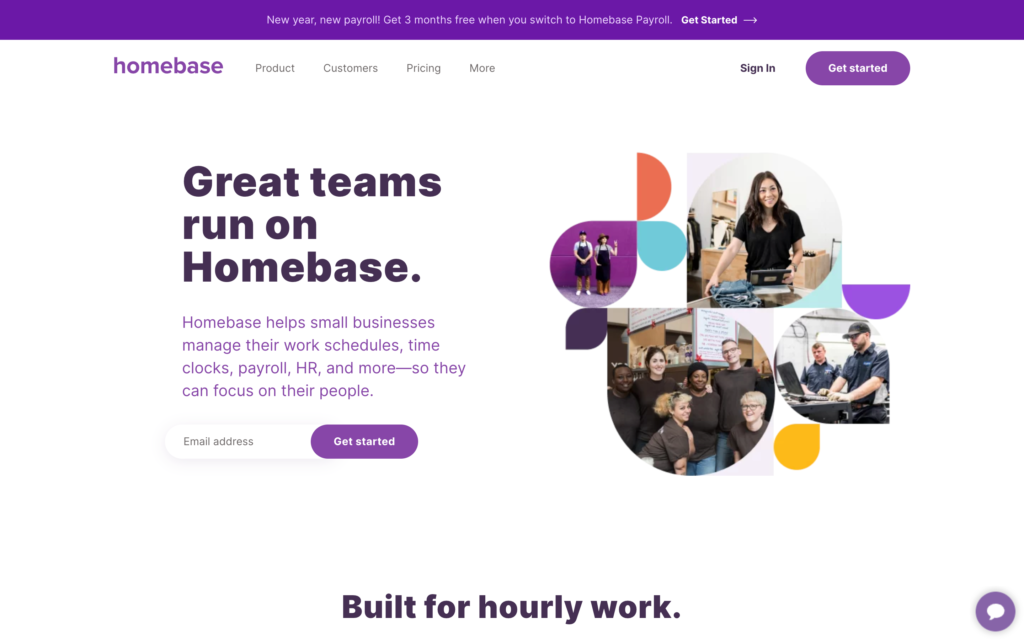
Homebase combines scheduling and time tracking with payroll, hiring, and team communication for small businesses.
Why I chose Homebase: Homebase made the list because its location-based setup brings scheduling, time cards, payroll, hiring, and team communication together for businesses managing one site.
Scheduling, availability, and shift coverage
Homebase lets managers build schedules from scratch, copy previous weeks, create templates for recurring shifts, add open shifts, and move work around a weekly calendar. The scheduler shows estimated hours and labor costs before publication. During testing, Homebase successfully flagged all of the schedule conflicts we created.
Employees can mark their preferences and request a shift cover or trade.
However, we couldn’t access AI scheduling even after troubleshooting with support. If you need this feature, confirm that it’s available before purchasing it.
Time clock, time cards, and payroll
Homebase’s time clock works on phones, tablets, desktops, and supported POS systems. Managers can enable clock-ins on personal phones or set up a shared tablet with individual PINs. Each entry goes into a timecard showing hours, breaks, overtime, and estimated wages.
Homebase also supports GPS tracking, clock-in photos, and geofences. However, during testing, an overtime shift didn’t trigger a manager alert, and the iPhone time clock didn’t work offline. This may make it less reliable for low-signal job sites.
Homebase offers built-in payroll, but it costs extra.
Team communication and time off
Homebase’s messenger supports one-to-one messages, group chats, announcements, attachments, and polls.
For time off, employees can request leave, and managers can approve or deny requests. Time-off policies, including blackout periods and PTO, are limited to the Plus and All-in-One plans.
0Key Features
- Scheduling with templates and open shifts
- Multi-device time clock and time cards
- GPS, photo, and geofence verification
- Team messaging and leave requests
Pros
- Scheduling and time cards share one platform
- Geofences support location-based clock controls
Cons
- AI scheduler wasn’t usable during testing
- iPhone clock-in failed without internet
Pricing
Starts at $24/location/month Trial: Yes — (14-day) Free Plan: Yes — (one location and up to 10 employees)
-

Findmyshift — Best for straightforward employee scheduling
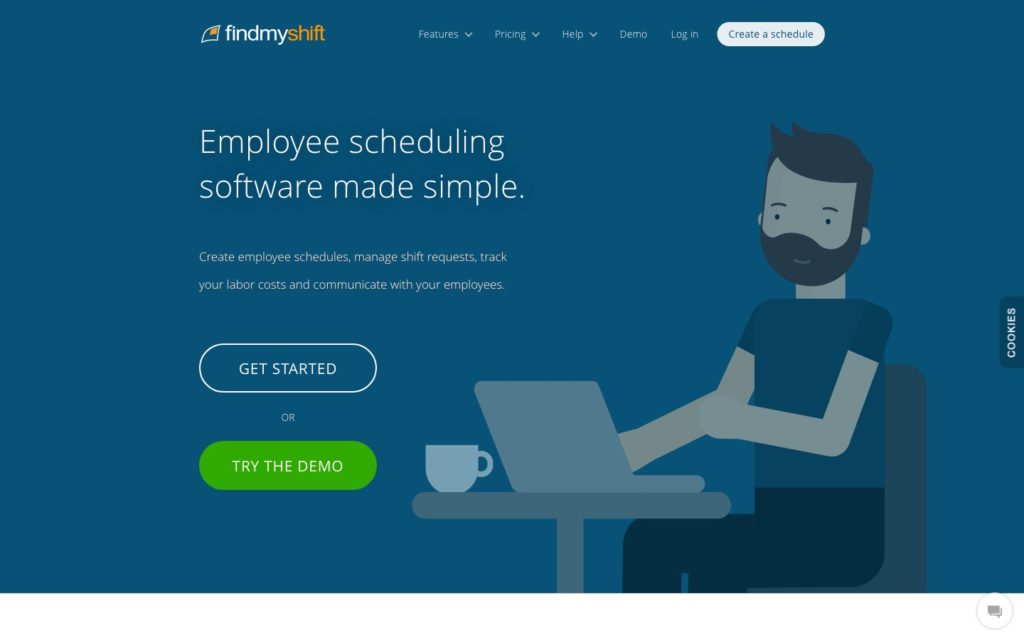
Findmyshift is scheduling and time-tracking software for small businesses that need basic, everyday shift tools.
Why I chose Findmyshift: I chose Findmyshift because its multi-cell editing and drag-and-drop scheduler give small teams a simple way to assign shifts quickly.
Manual scheduling and multi-cell editing
Findmyshift helps managers build schedules with multi-cell editing, which can assign hundreds of shifts at once. You can also drag and drop existing shifts or reuse templates. Still, a lot of the scheduling work is manual because there’s no recurring shifts or automatic scheduling. This can become time-consuming if you manage large or repetitive schedules.
Findmyshift prevents overlapping shifts, but it doesn’t let you limit how many hours an employee works per day or week.
Time clock controls and access
Employees can track their hours through the web or mobile app. Alternatively, teams can use a shared device as a time clock, with PIN or QR codes to clock in. Managers can block early clock-ins and automatically clock employees out at a set time.
The Enterprise plan adds geofencing, but managers need to configure each location and link it to a shift. Employees can also take selfies when clocking in from mobile, which is added to their timesheet. Just know that employees can’t track time without an internet connection.
Time off, messages, and pay controls
Employees can submit time-off requests from the mobile app, and approved leave appears on the schedule. Managers set annual allowances, customize leave types, and require advance notice, but employees can’t check their remaining balances on mobile.
Managers can send one-way messages with files or schedules by email, text, or push notification. Findmyshift also deducts preset unpaid breaks automatically instead of letting employees record them. Daily overtime and double-time rules aren’t supported.
Key Features
- Multi-cell and drag-and-drop scheduling
- Shift templates for repeat planning
- Web, mobile, and kiosk time tracking
- Time-off requests and leave allocation
Pros
- Bulk editing assigns many shifts quickly
- Geofences cover exact worksites
Cons
- Shift assignment is mostly manual
- Preconfigured breaks deducted automatically
Pricing
Starts at $24/team/month Trial: Yes — 90 days Free Plan: Yes — 5 employees, 1 manager, and 5 facilities
-

7shifts — Best for restaurants scheduling and labor management
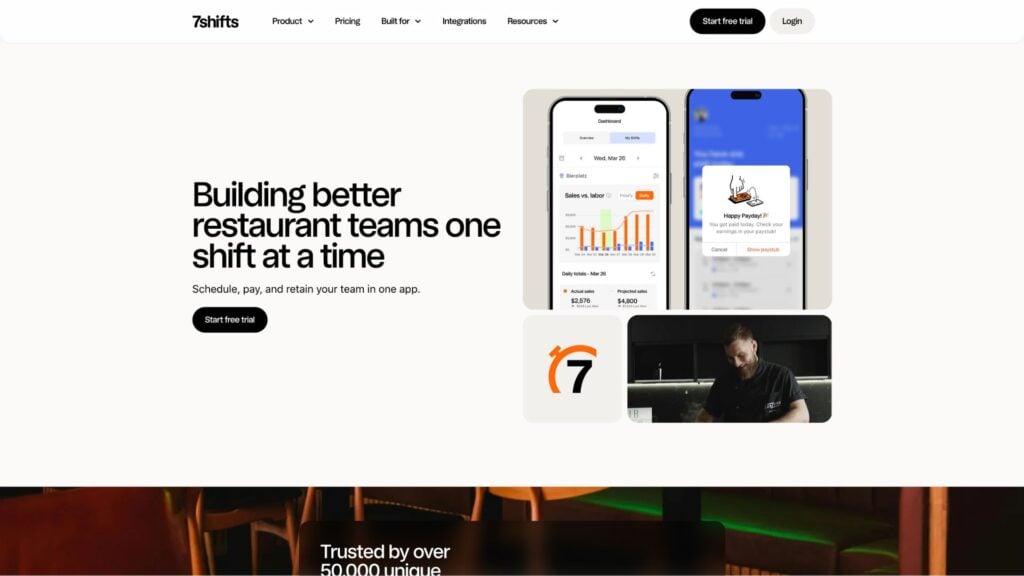
7shifts is employee scheduling and workforce management software built specifically for restaurants.
Why I chose 7shifts: I included 7shifts because its scheduler uses projected sales and labor targets, while the Shift Pool organizes employee coverage changes.
Restaurant scheduling and Shift Pool
With 7shifts, managers can use drag-and-drop scheduling across departments and locations. They can add shift times, breaks, and notes, repeat a shift across several days, and set labor targets from projected sales.
The machine-learning auto-scheduler analyzes eight to 10 past schedules and considers labor costs, sales forecasts, overtime, time off, availability, and labor compliance. The Shift Pool lets employees offer, request, or trade shifts from the web or mobile app, while managers can approve or decline the changes.
Availability, time off, and team communication
Employees can submit availability and time-off requests from web or mobile. Managers receive an immediate notification and can approve requests from either device. Once approved, unavailable days are blocked off to prevent shift assignments during that period.
Managers decide how far in advance employees must request time off.
7shifts lets teams use direct and group messages for everyday conversations, while managers can send one-way announcements to specific locations, departments, or roles and see how many employees have read them.
Time clock, labor controls, and access limits
Time tracking runs on a separate mobile app (7punches) or through a POS system, so employees can’t clock in through the main app. The separate app also doesn’t provide a timer widget. That said, 7punches does record regular hours, breaks, and overtime.
Geofencing, break verification, break settings, and overtime alerts help managers identify attendance issues.
The Essentials plan includes Basic Time Clocking, while Advanced Time Clocking and Labor Compliance are only available on Pro and Premium. 7shifts doesn’t work without the internet, which limits use in low-connectivity restaurants.
0Key Features
- Restaurant scheduling with projected-sales labor targets
- Machine-learning auto-scheduler
- Shift Pool coverage workflows
- Time clock with geofencing and break verification
Pros
- Scheduling reflects restaurant demand and labor targets
- Shift Pool organizes employee coverage changes
Cons
- Mobile time clock uses separate 7punches app
- The app doesn’t work without internet
Pricing
Starts at $39.99/month Trial: Yes — 14 days Free Plan: Yes — up to 15 users, 1 location
-

Sling — Best for budget-friendly scheduling and communication
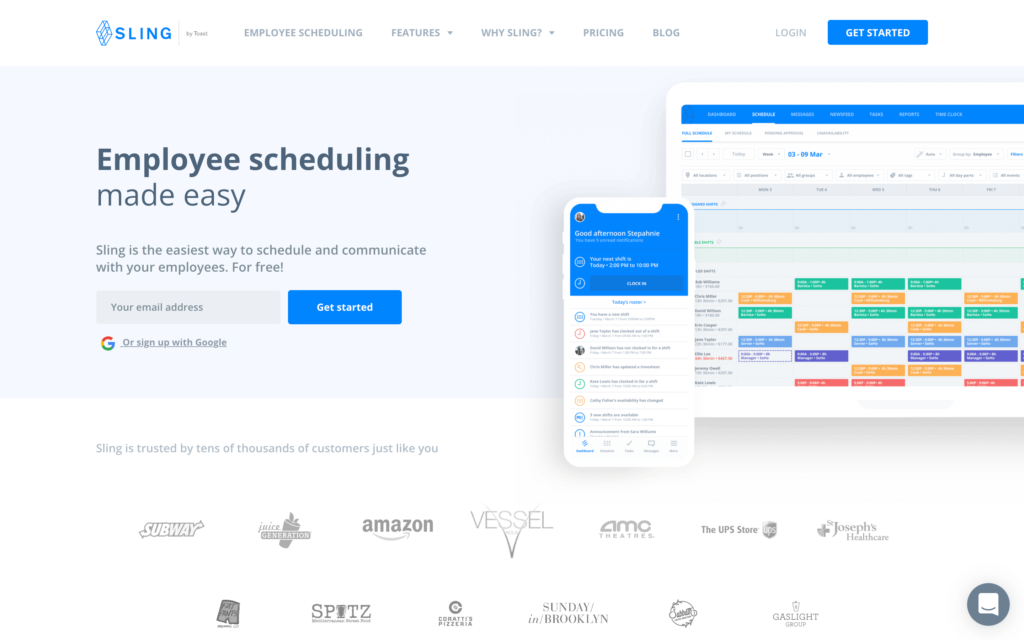
Sling combines employee scheduling and team communication for small businesses.
Why I chose Sling: I chose Sling because its free scheduling and communication tools give small teams a budget-conscious way to coordinate shifts and updates.
Scheduling and availability
Managers can build shifts through a drag-and-drop scheduler and add tags, notes, and tasks on the same screen. Sling also supports open shifts, shift swaps, availability, time-off requests, and templates for recurring shifts. The Premium plan adds shift swaps and templates.
Warnings help managers spot scheduling conflicts, but they still need attention. When we created overlapping shifts and conflicting roles, Sling warned us but did not strictly block conflicting assignments. Managers remain responsible for correcting coverage, rest, or role conflicts before publication.
Time tracking and reporting
The Premium plan lets employees track time from their phones, while the Business plan adds a shared kiosk. Managers can block early or off-site clock-ins and automatically end shifts shortly after their scheduled finish time.
Sling records clock-in times, locations, and comments, but there’s no running timer for employees to view during their shifts.
The Business plan also includes reporting, but full reports are only available on desktop. If managers need detailed reports while on the go, it’s worth testing the mobile workflow first.
Messaging, tasks, and mobile limits
Sling supports individual and group messaging, announcements, newsfeeds, and file sharing. Managers can also assign tasks and subtasks to shifts or employees, add checklists, and send reminders.
The mobile app covers core scheduling and communication, but it requires an active internet connection. Employee documents aren’t fully accessible from mobile, and settings and permissions are only partially available.
0Key Features
- Drag-and-drop scheduling and templates
- Open shifts, swaps, and time-off requests
- Mobile and kiosk time tracking
- Messaging, announcements, and task management
Pros
- Drag-and-drop shifts with notes and tasks
- Communication and scheduling share one platform
Cons
- Warnings don’t block conflicting assignments
- Full reports aren’t available on mobile
Pricing
Starts at $1.70/user/month Trial: Yes — (15 days) Free Plan: Yes — (for up to 30 users)
Compare the Best WhenToWork Alternatives
| Topic |
 Start for free
|
|
|
|
|
|
|
|---|---|---|---|---|---|---|---|
| Reviews |
  |
|
|
|
|
|
|
| Pricing |
Starts at just $29/month for the first 30 users
|
Starts at $2.5/user/month
|
Starts at $5/user/month
|
Starts at $24/location/month
|
Starts at $24/team/month
|
Starts at $39.99/month
|
Starts at $1.70/user/month
|
| Free Trial |
yes
14-day
|
yes
14 days
|
yes
30 days
|
yes
(14-day)
|
yes
90 days
|
yes
14 days
|
yes
(15 days)
|
| Free Plan |
yes
Free Up to 10 users
|
no
|
no
|
yes
(one location and up to 10 employees)
|
yes
5 employees, 1 manager, and 5 facilities
|
yes
up to 15 users, 1 location
|
yes
(for up to 30 users)
|
| Use cases |
Best overall for shift teams that need scheduling plus workforce management
|
Best for hourly-team scheduling and messaging
|
Best for scheduling plus compliance and labor controls
|
Best for small hourly businesses
|
Best for straightforward employee scheduling
|
Best for restaurants scheduling and labor management
|
Best for budget-friendly scheduling and communication
|
| Available on |
FAQs
Connecteam is the best overall alternative for shift teams that need scheduling plus workforce management. It combines availability, open shifts, replacements, time tracking, timesheets, and wider operational tools in one app.
All seven alternatives on this list offer time tracking in some form, but plan, device, and connectivity rules differ. Connecteam includes mobile, desktop, and kiosk options. 7shifts uses the separate 7punches app for mobile clocking, while Sling reserves time tracking for paid plans.
Map your schedules, templates, availability, time-off data, roles, locations, and approval rules. Then test one complete scheduling and pay cycle in the new product, including an open shift, a coverage change, a missed punch, and a timesheet review.
The Bottom Line on WhenToWork Alternatives
The best WhenToWork alternative depends on how your team builds schedules, handles availability and last-minute changes, and tracks work after shifts begin. Focus on the workflow you need most, whether that’s flexible shift coverage, mobile access, time tracking, labor controls, or team communication.
Before choosing an alternative, test the product with a real scheduling cycle. Create a schedule, publish an open shift, process a time-off request or shift change, and review the resulting timesheets. That will show whether the platform works for your managers and employees in practice.
Connecteam stands out as the strongest overall choice for managing schedules, coverage, time records, and daily operations in one app. See for yourself—start using Connecteam’s employee scheduler for free today.
