


Simple and affordable scheduling tool, but with no advanced functionality or labor law compliance features
What’s New in This Update:
- Retested FindMyShift to discover what has changed since my last review and verify whether the vendor has resolved the issues identified in my last round of testing.
- Rewrote sections to reflect the results of my latest round of testing.
- Added a “Sign-Up and Onboarding” section to describe how easy (or difficult) it is to create an account and set up teams in FindMyShift.
- Expanded the break and overtime sections to provide deeper, more detailed insights into how these tools work.
Verdict: 7.4/10
FindMyShift is simple scheduling and time-tracking software that appeals to small businesses seeking basic, everyday features. I really like its polygonal geofencing feature, which allows businesses to create more precise virtual boundaries than traditional circular geofences. This makes it particularly useful for farms, security companies, and other large-site operations.
Its multi-cell editing tool is useful for busy managers who need to assign multiple shifts in minutes. I also found its drag-and-drop scheduler, shift templates, real-time labor cost forecasts, and automatic conflict detection helpful for small teams looking to build efficient, error-free schedules.
However, without automatic scheduling tools such as recurring shifts or an auto-scheduler, shift assignment remains largely manual. While this works for small teams, it can significantly slow down scheduling in large workforces and fast-paced environments.
Additionally, while FindMyShift tracks time accurately, its limited support for break and overtime suggests it wasn’t built for compliance-heavy use cases. The lack of advanced compliance controls and workforce management features makes it unsuitable for field-based, hourly workforces in industries such as construction, healthcare, cleaning, hospitality, and retail.
FindMyShift Key Features
- Shift scheduling: Assign shifts manually or use the multi-cell editing feature to assign hundreds of shifts in minutes. However, there are no scheduling automation features like recurring shifts or an auto-scheduler.
- Time tracking: Employees can track time on the web, mobile, and kiosk apps. Polygonal geofences, auto clock-out, and early clock-in prevention improve timesheet accuracy. However, you can’t track breaks or overtime to fully comply with labor laws.
- Time-off management: Allocate fixed annual leave hours and track employee PTO balances. Leverage the robust notification system to streamline the request and approval processes.
- Team communication: Use the notice board to create company-wide communication channels and categorize conversations by topic. You can also send read-only messages to an individual or group of employees, but you can’t track engagement.
Pros
- Affordable pricing
- Multi-cell and drag-and-drop scheduling features
- Easy-to-use polygonal geofencing tool
- Effective photo clock-ins
Cons
- No offline mode
- Outdated UI
- No break or overtime tracking
- Clunky shift swap feature
FindMyShift Pricing
Verdict: 7/10
FindMyshift’s affordable, tiered pricing makes it easy for solopreneurs and small teams to get started without a major investment. That said, the platform’s limited advanced functionality means it delivers only basic value for money, not long-term scalability.
| Plan — Per Month (Billed Annually) | Features |
|---|---|
| Free — Free forever |
|
| Starter — $24 per team | Everything in Free, Plus:
|
| Business — $38 per team | Everything in Starter, plus:
|
| Enterprise — $75 per team | Everything in Business, plus:
|
| As of June 2026 | |
FindMyShift lets businesses pay per team rather than per user. The pricing is tiered, so each plan caps the number of users you can manage, with no option to add more. As a result, you have to get a new subscription or upgrade to a higher plan when you outgrow your current plan or need additional features.
The pricing is transparent, with no base fee, paid add-ons, or setup fee, making it easy for teams to calculate initial and recurring costs. You can pay an additional fee for text credits if you need SMS notifications. Text credit pricing starts at $0.2284 per credit; you pay less per credit when you buy in bulk.
How Does FindMyShift’s Pricing Compare to Other Scheduling Apps?
On the surface, FindMyShift appears more affordable than many scheduling and time-tracking platforms, largely due to its tiered pricing. However, when you dig into the app’s value for money, the numbers don’t look promising, as it lacks key compliance controls, automation, and robust reporting.
The following table shows how FindMyShift’s pricing compares to other scheduling apps:
| Plan | FindMyShift | Buddy Punch (Pro) | 7Shifts(Pro) | Connecteam (Advanced) |
|---|---|---|---|---|
| View pricing | View pricing | View pricing | View pricing | |
| 10 users | $24 | $78.90 | $79.99 | Free for life — all features and dashboards |
| 20 users | $24 | $138.80 | $79.99 | $49 |
| 30 users | $38 | $198.70 | $79.99 | $49 |
| 50 users | $38 | $318.50 | $79.99 | $99 |
| Read our in-depth Buddy Punch review | Read our in-depth 7Shifts review | Learn more about Connecteam |
FindMyShift 90-Day Free Trial
While the free plan is a good starting point for small teams, many will quickly outgrow it due to the limit of one manager and five employees. Luckily, if you need to upgrade, FindMyShift offers a 90-day free trial for paid plans, which is the most generous trial I have seen. It gives you ample time to test premium features to make an informed decision.
Even better, the trial doesn’t require a credit card, so you can try the features without worrying about an automatic charge to your card. I started a free trial of the Enterprise plan to tinker with all of FindMyShift’s features.
FindMyShift Sign-Up and Onboarding
Verdict: 6/10
FindMyShift’s sign-up process is straightforward, but its unorthodox onboarding flow and lack of guided setup can make the initial experience confusing and less intuitive for beginners. Moreover, the lack of automatic email invites makes team setup a time-consuming manual process, though integrations with third-party tools help streamline employee imports.
FindMyShift’s sign-up process is straightforward but deviates from the norm. Other apps require you to enter your name and email, and create a login password to set up an account. FindMyShift skips that step entirely. Instead, it takes you straight to a team dashboard when you click “get started.”
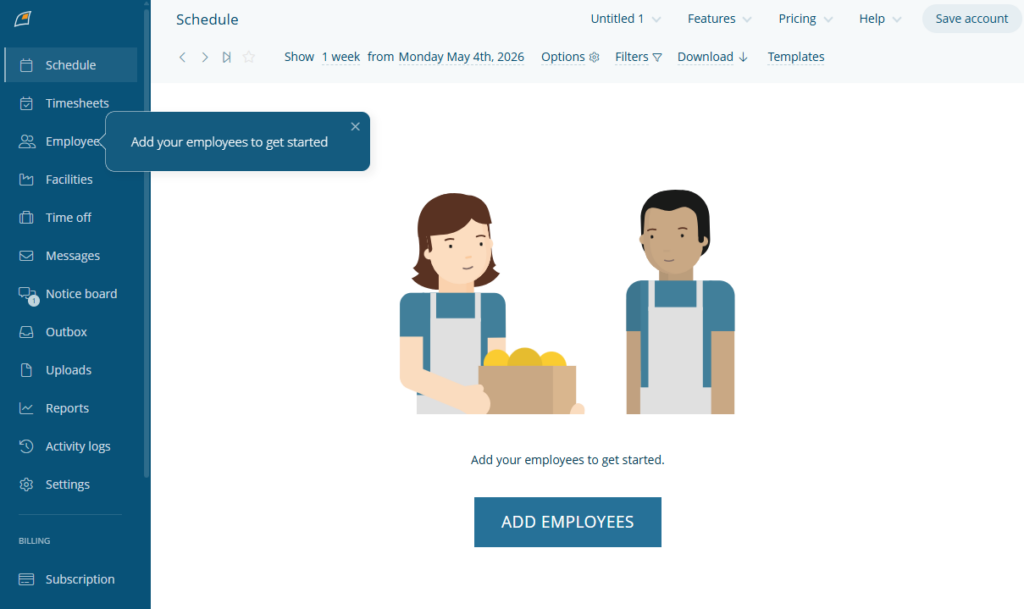
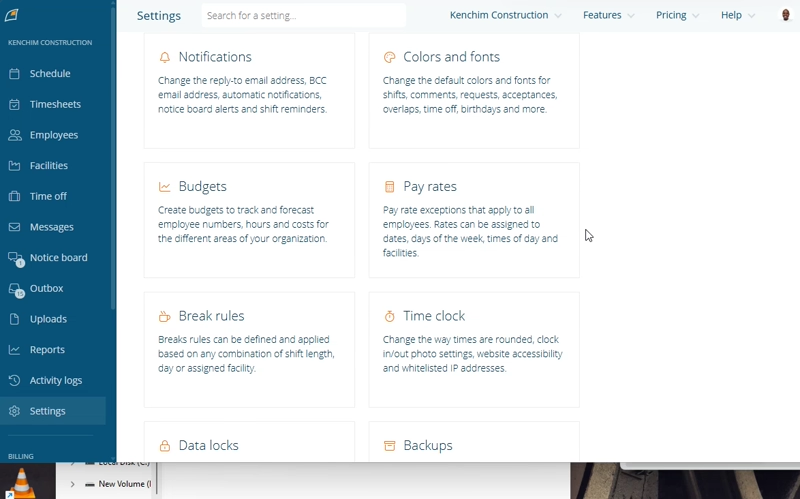
The vendor prompted me to add employees once I landed on the dashboard. I was also able to configure global settings such as time off, requests, pay rates, notifications, break rules, and the time clock. I didn’t have to hop between pages to complete the configuration process because all settings are on a single page, saving time.
The range of settings and filters can be overwhelming for first-time users. However, FindMyShift places question-mark icons beside key settings, which I found useful. Clicking the icon revealed a brief description of the settings, making it easy to configure the platform.
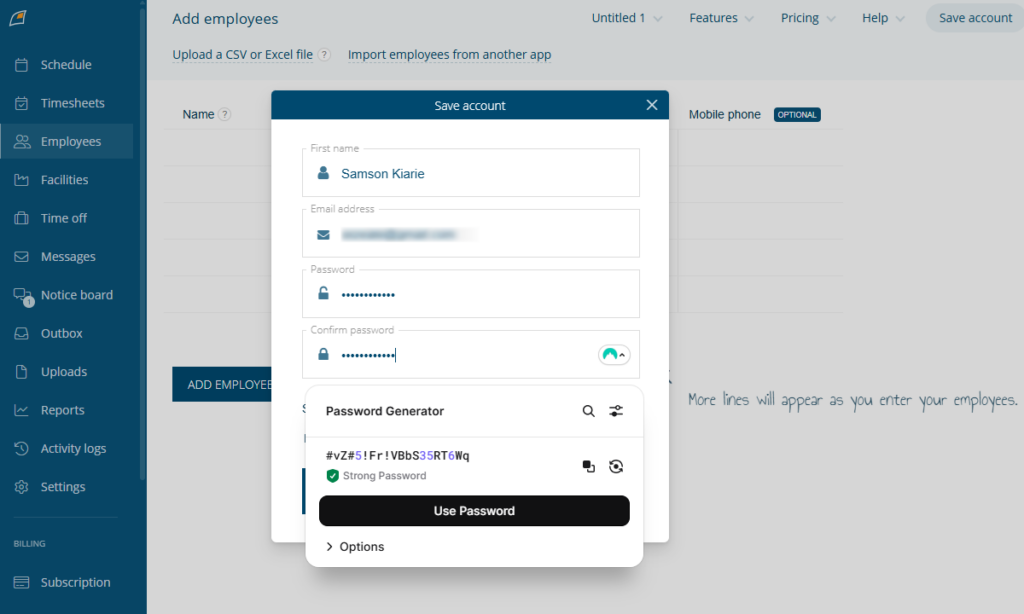
However, my account wasn’t saved at this point. If my device had turned off for any reason, I could have lost everything I had set up. I had to click “save account” in the top-right corner and add an email and password.
FindMyShift Onboarding
Unlike many platforms, FindMyShift doesn’t provide a video walkthrough to help users familiarize themselves with its features. However, some features, like “locations,” have text walkthroughs with step-by-step guides that flatten the learning curve for new users.
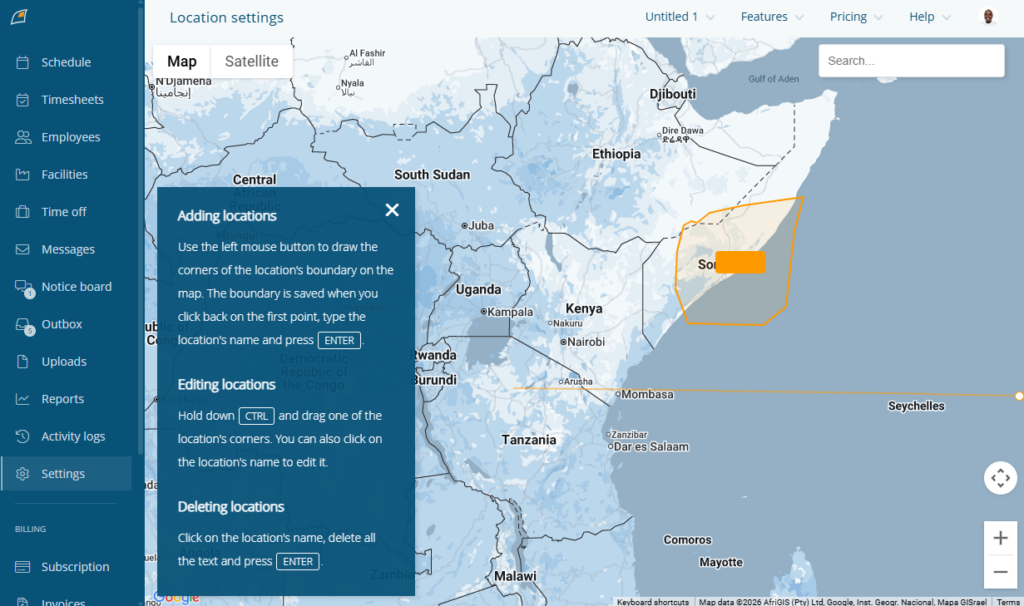
The text walkthroughs aren’t consistently available across the platform, though. As a result, some features lack onboarding or in-app guidance, so users have to figure them out on their own. The process can feel intimidating and time-consuming for beginners.
Setting Up Your Team
You can add employees through email invite, CSV or Excel upload, or direct import from third-party apps like Xero, Slack, Lightspeed, Vend, Square, BambooHR, Cake, monday.com, Google, and People. I used the email invite to add five team members for this review, and I wasn’t impressed.
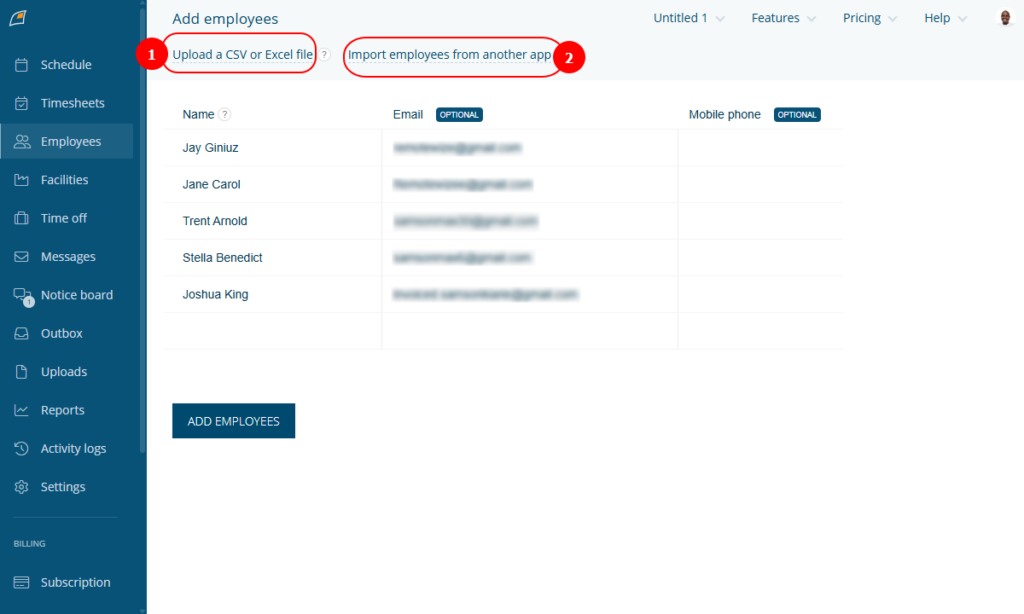
When I added an employee, FindMyShift generated a login password that I had to share with the employee manually. This made the team setup process more tedious and time-consuming than necessary, which is problematic when managing a large team. In total, I spent 20 minutes adding the five users.
Another issue is that even after adding email addresses, FindMyShift doesn’t automatically send employees invite emails. As a result, employees have no way to know they have been added to a team unless the manager manually notifies them. This adds unnecessary admin work and can slow down onboarding for larger or fast-growing teams.
FindMyShift Usability and Interface
Verdict: 7/10
Overall, FindMyShift’s web and mobile apps are functional, but not especially polished, intuitive, or impressive. While I found the mobile app easy to use, I was disappointed by the lack of an offline mode and admin features, which limits its usefulness for mobile and field teams in regions with unstable cellular connections.
Read on for the nitty-gritty details:
FindMyShift Web App
FindMyShift’s web app looks modern but doesn’t ooze the premium feel you get with top-tier apps like Connecteam or Hubstaff. Its color palette features neutral grays and whites, with subtle blue highlights. The strong contrast between blue action elements, dark text, and white and grey backgrounds helps users quickly identify buttons, improving usability.
The home UI is easy to navigate, thanks to its intuitive design and well-organized layout. The main features are neatly organized in a left-hand menu panel for easy access. Hovering the cursor over some features reveals additional options, allowing you to jump straight to what you want to accomplish.
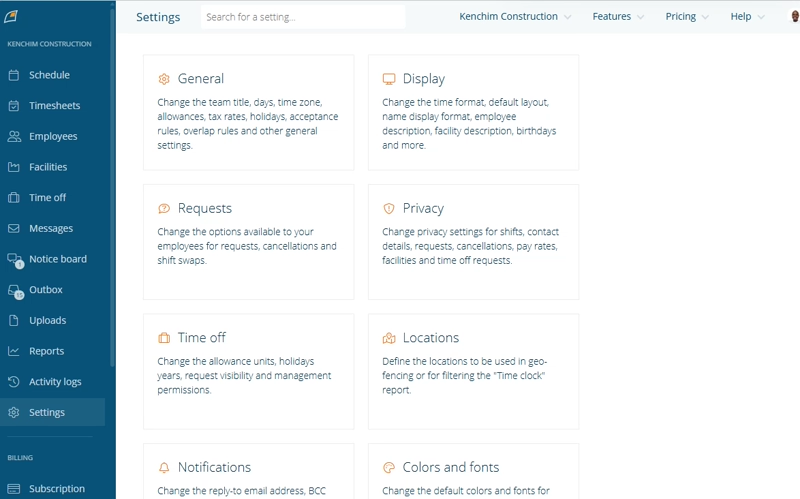
The manager version includes the full suite of administrative tools admins need to manage employees, schedules, and operations. In contrast, the employee version is slimmed down to the essential features. The simple design reduces clutter and confusion, making the app easier to use for newbies.
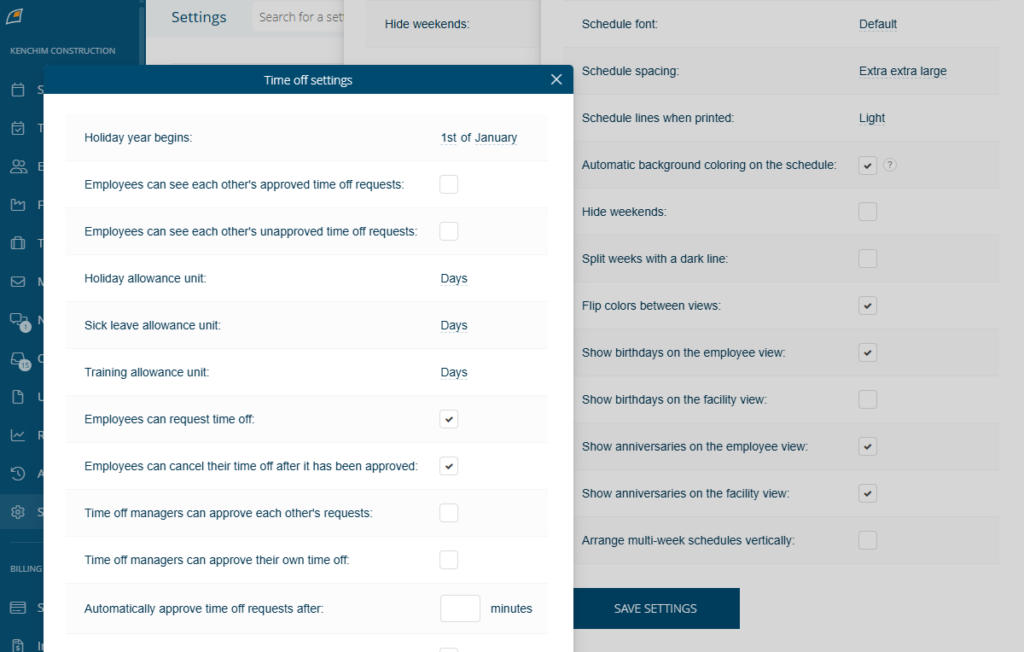
My biggest gripe is that FindMyShift doesn’t close the existing pages when you open a new settings page. Instead, it layers the new page on top of the old one, which can quickly make the interface look cluttered: The more settings pages you open, the more cluttered the app interface looks.
FindMyShift Mobile App
I used the Android app for this review, but the description below applies to the iOS app as well, which has a similar design and functionality. The mobile app adopts the web app’s color palette, delivering familiar usability benefits.
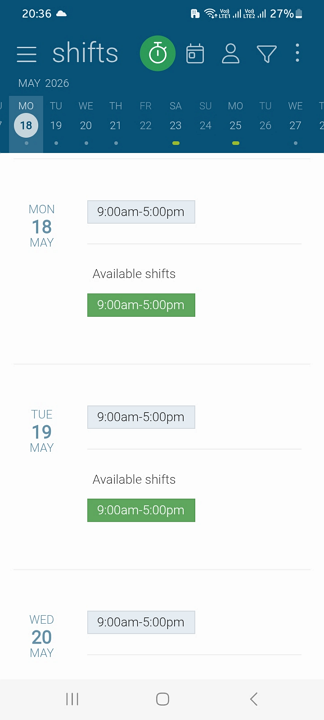
The employee and manager versions share the same unorganized design. Instead of displaying a menu at the bottom of the screen, where modern users expect it, the main features, including shifts and the time clock, are tucked away in the hamburger menu at the top left. As a result, the interface is less intuitive than many modern apps.
Interestingly, there’s a mini-menu at the top of the screen with quick-access icons, including the time tracker, calendar, and profile settings. This makes it easy for employees to track time and manage their schedules, despite the app’s peculiar design.
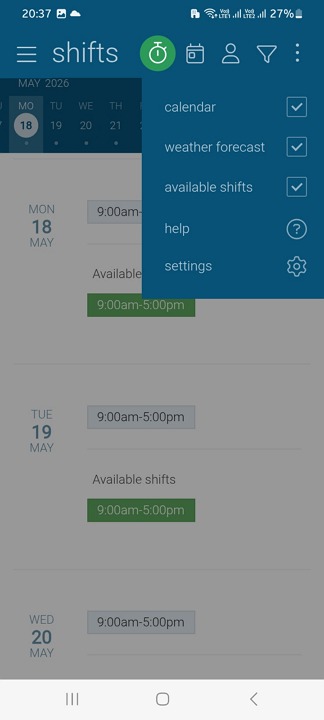
Even better, the mobile app has a weather forecast feature, which is beneficial for field workers who need to plan their day around changing conditions.
The mobile app is stripped down to the basics. Employees can view shifts, track time, communicate with colleagues, and request time off. However, the only administrative duty managers can perform is adding employees. They can’t schedule teams, approve requests, or tweak team settings while in the field.
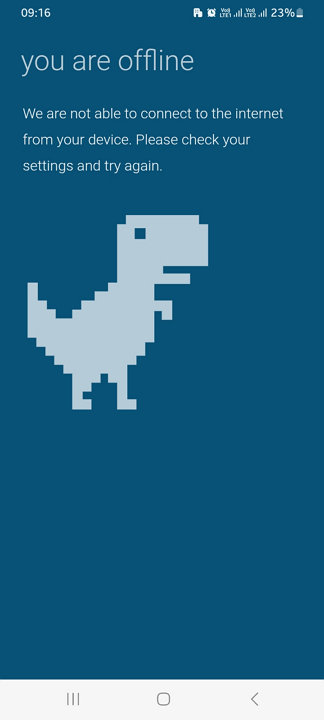
Even worse, the mobile app doesn’t work without an internet connection. When I switched off my connection, the app displayed an offline error and couldn’t load anything. This means FindMyShift isn’t ideal for field teams in low-signal areas.
| Menu Item | Admin | Employee | ||
| Website | Mobile App | Website | Mobile App | |
| Feature | ||||
| Timesheet | ✅ | ✅ | ✅ | ✅ |
| Time tracker | ✅ | ✅ | ✅ | ✅ |
| Calendar | ✅ | ✅ | ✅ | ✅ |
| Schedule | ✅ | ✅ | ✅ | ✅ |
| Expenses | ✅ | ✅ | ✅ | ✅ |
| Time off | ✅ | ✅ | ✅ | ✅ |
| Analysis | ||||
| Dashboard | ✅ | ❌ | ❌ | ❌ |
| Reports | ✅ | ❌ | ✅ | ❌ |
| Activity | ✅ | ❌ | ✅ | ❌ |
| Management | ||||
| Kiosks | ❌ | ❌ | ❌ | ❌ |
| Approvals | ✅ | ❌ | ❌ | ❌ |
| Projects | ✅ | ❌ | ✅ | ❌ |
| Team | ✅ | ❌ | ❌ | ❌ |
| Clients | ✅ | ❌ | ❌ | ❌ |
| Locations | ✅ | ❌ | ❌ | ❌ |
| Tags | ✅ | ❌ | ❌ | ❌ |
| Invoices | ❌ | ❌ | ❌ | ❌ |
FindMyShift Core Functionalities
FindMyShift’s suite of features has improved over the years. While it started as a shift-scheduling tool, it has since incorporated features such as time tracking, time-off management, and team communication. I put these features through their paces to discover their strengths and weaknesses. Read on for the full breakdown:
Employee Scheduling
Verdict: 7/10
FindMyShift works best for small, single-location businesses that prefer hands-on scheduling over automation. The multi-cell editing tools speed up bulk scheduling. Still, the unintuitive UI and lack of automation tools and shift notifications make it less suitable for large businesses with complex scheduling needs.
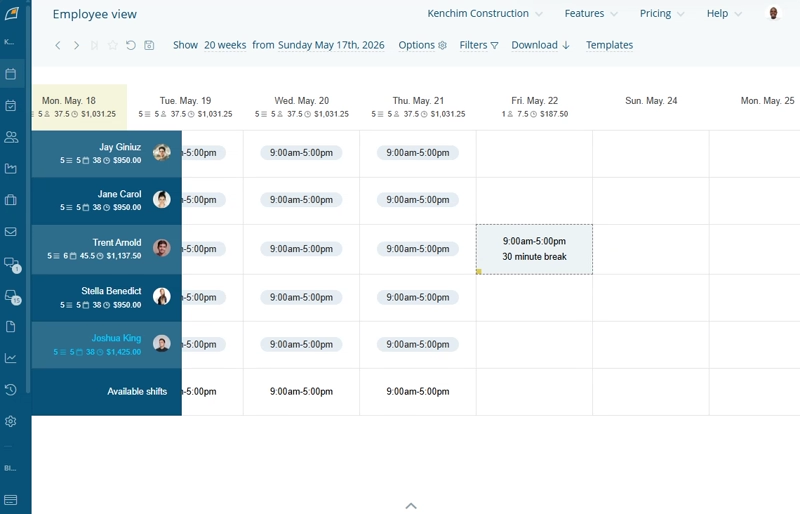
FindMyShift’s scheduling page lacks the polished, intuitive look and feel of the best employee scheduling platforms. It uses the familiar calendar layout but offers only a weekly view, with employees listed on the left and dates at the top.
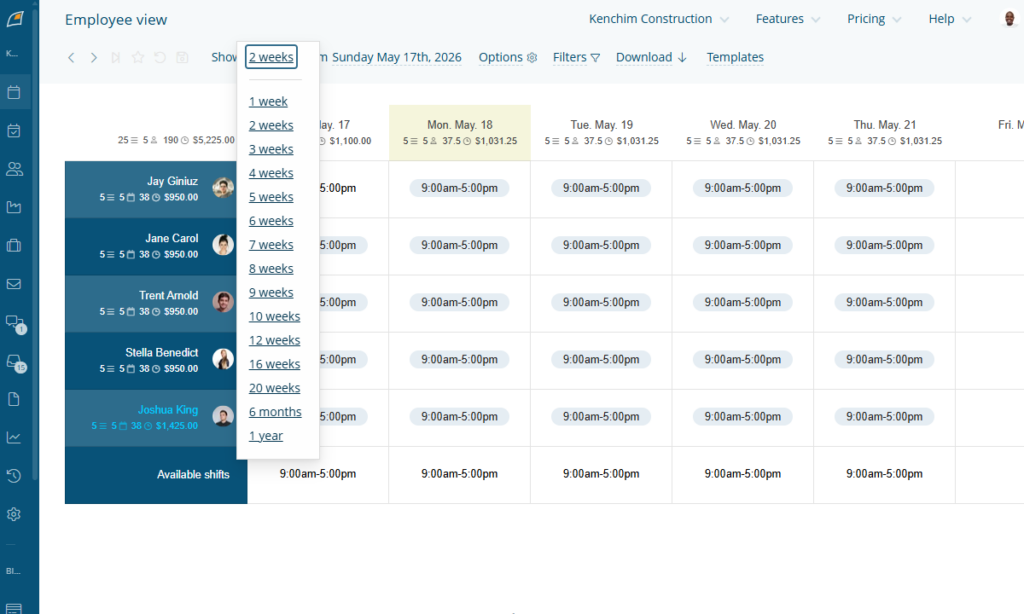
Without a monthly view, FindMyShift might not suit teams that require a broader overview of staffing trends across multiple weeks. While you can extend the weekly view to display up to 52 weeks, the full schedule doesn’t fit on a single screen. It requires horizontal scrolling, which makes navigation cumbersome.
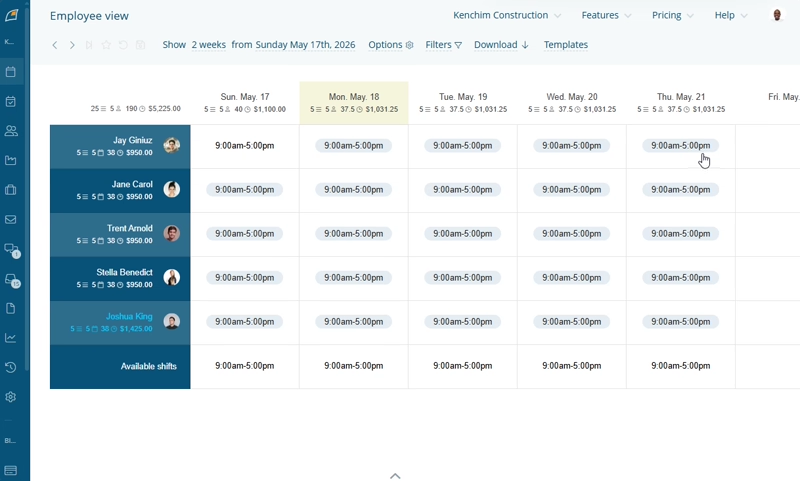
Adding a shift also felt cumbersome. I had to right-click a cell corresponding to an employee and date, hover over “add,” and select “shift.” In practice, this multi-step process adds unnecessary friction to what should be a quick task, slowing down scheduling.
Moreover, while you can set assignees and duration, you can’t add shift instructions or link tasks. This isn’t a major limitation for office teams with simple repetitive workflows. However, it’s a significant drawback for field teams with frequently changing job requirements, such as field technicians, maintenance teams, cleaning crews, and healthcare workers.
If your team relies on shift-specific instructions, location-based notes, or task details to complete work accurately and efficiently, you’re better off using a FindMyShift alternative like Connecteam scheduling.
Another issue is that while FindMyShift notifies employees about upcoming or missed shifts, it doesn’t notify them when you publish or update a schedule. Employees can instantly see the schedules when they log in to the app. However, without timely notification, some changes may slip through the cracks, leading to late arrivals, absenteeism, or understaffing.
Multi-Cell Editing Feature
If your team relies on automation to streamline scheduling across multiple locations and complex shift patterns, you’ll find FindMyShift limited. It doesn’t support recurring shifts or auto-scheduling to speed up the process, so shift assignment is largely manual.
Thankfully, it offers a multi-cell editing tool that lets managers assign hundreds of shifts in only a few clicks. All I needed to do was select the cells, right-click anywhere within the highlighted cells, select “add,” and then click “shift.”Once I had added the shift times and clicked “enter,” the app added the shift duration to all selected cells.
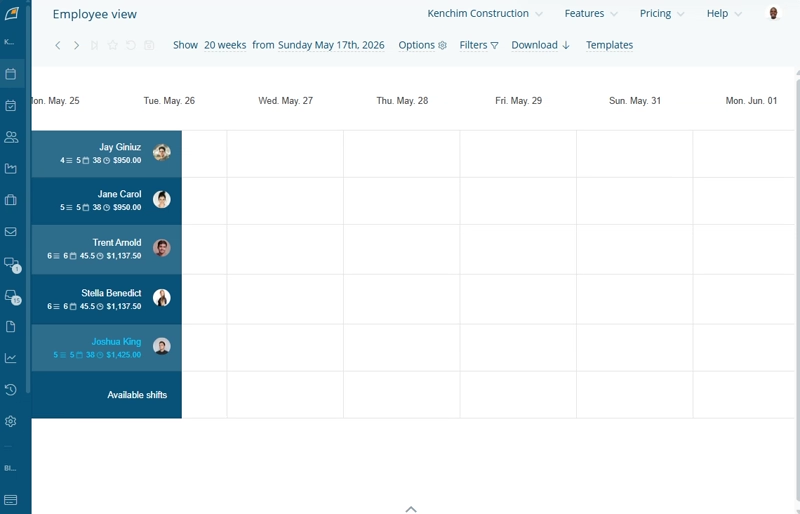
In addition, FindMyShift has a drag-and-drop tool that lets managers reassign and reschedule shifts with ease. I also like its automatic shift detector, which prevents you from publishing overlapping shifts. Unfortunately, though, you can’t set daily or weekly limits for employees, which makes FindMyShift unsuitable for businesses in tightly regulated regions.
Employee Self-Service Tools
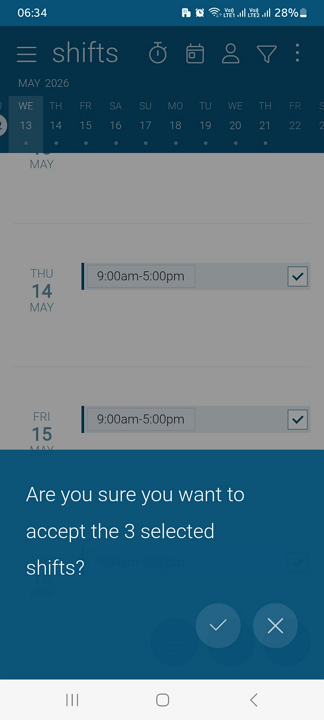
I like that FindMyShift offers self-service tools that let employees align their schedules with their availability. Employees can accept or reject shifts with just a few taps on their mobile screens. They can also trade shifts, though the process is less intuitive and available only on the web app.
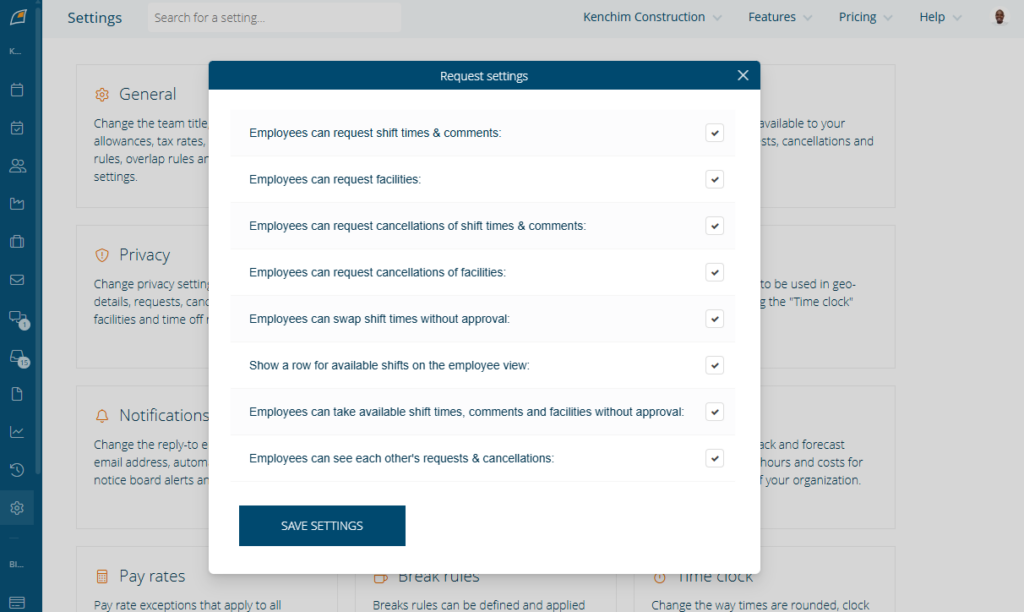
Setting up the shift trade workflow felt more complex than it needed to be. By default, FindMyShift doesn’t allow shift trades. I had to configure the following settings under “requests settings” to activate this feature:
- Employees can request shift times and comments
- Employees can request cancellations of shift times and comments
- Employees can swap shift times without approval
- Employees can see each other’s requests and cancellations
Once I had correctly configured these settings, FindMyShift automatically approved trades, provided the shifts had no comments or were linked to a facility and didn’t cause a conflict. However, trades involving shifts with comments and linked facilities required manual approval from a manager.
Time Tracking
Verdict: 7/10
Overall, FindMyShift’s time tracker offers useful tools for field and frontline teams, including geofencing, flexible clock-in methods, and photo verification. Sadly, though, the lack of advanced clock-in restrictions makes it less suitable for businesses that need tighter attendance control, labor-cost tracking, and compliance.
FindMyShift time tracker lets employees track their time on the web and in the mobile app. Given that both options require an active internet connection, it’s fair to say that FindMyShift isn’t suitable for teams in low-connectivity regions.
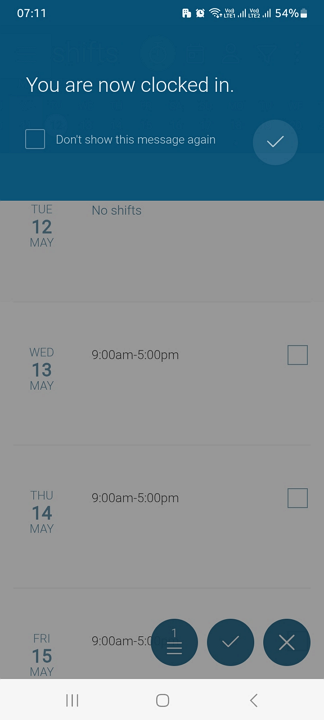
Clocking in is as easy as clicking or tapping the blue time clock icon, which turns green when you are successfully clocked in. My only gripe is that the apps don’t display an active timer, making it difficult for employees to know how long they’ve been clocked in.
FindMyShift also has a time clock station (kiosk) that allows multiple employees to clock in and out from a shared device. The kiosk is browser-based, so you can set it up on any internet-enabled device.
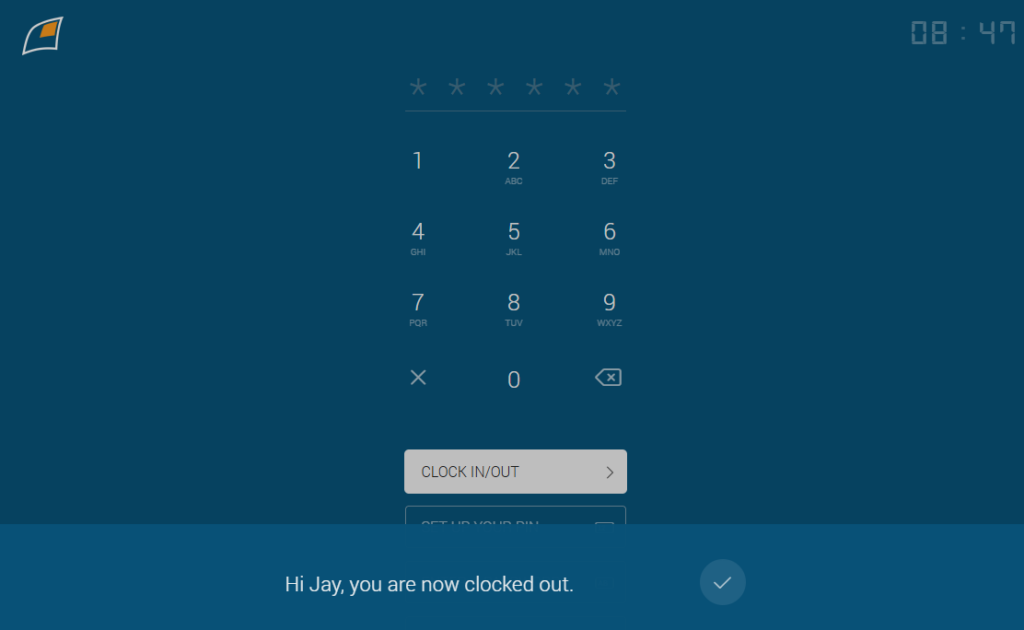
I did run into one problem, though: FindMyShift doesn’t offer a one-click option to launch the kiosk. I couldn’t figure out how to access the kiosk at first, and many new users will probably have the same issue. After reading through the guides and watching several video tutorials, I discovered that you can launch the kiosk interface only via the URL “findmyshift.com/time-clock.”
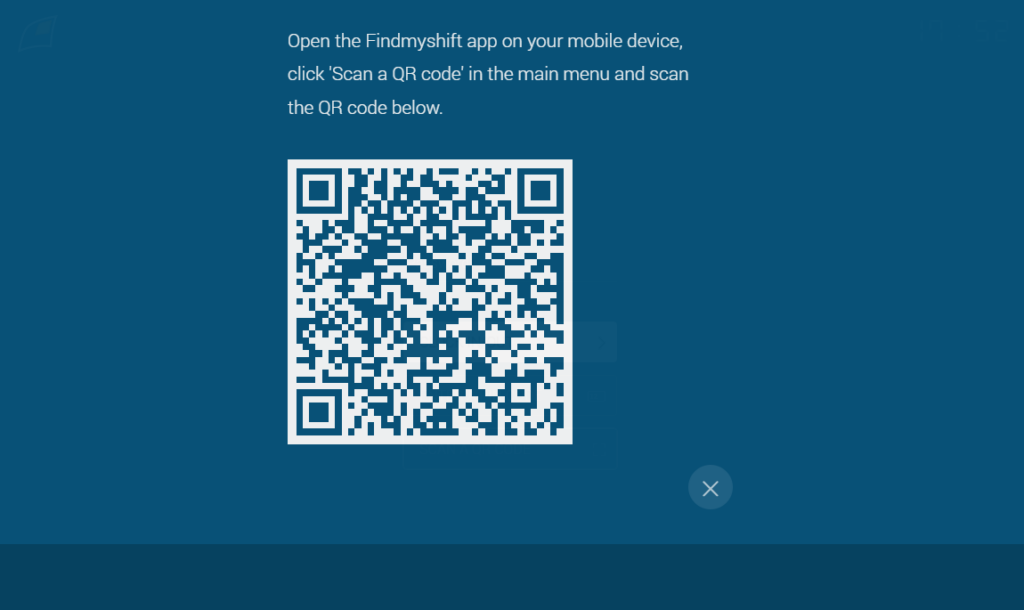
Thankfully, the kiosk app is easy to use for employees. They just need to enter their four-digit PIN or scan a QR code to clock in or clock out.
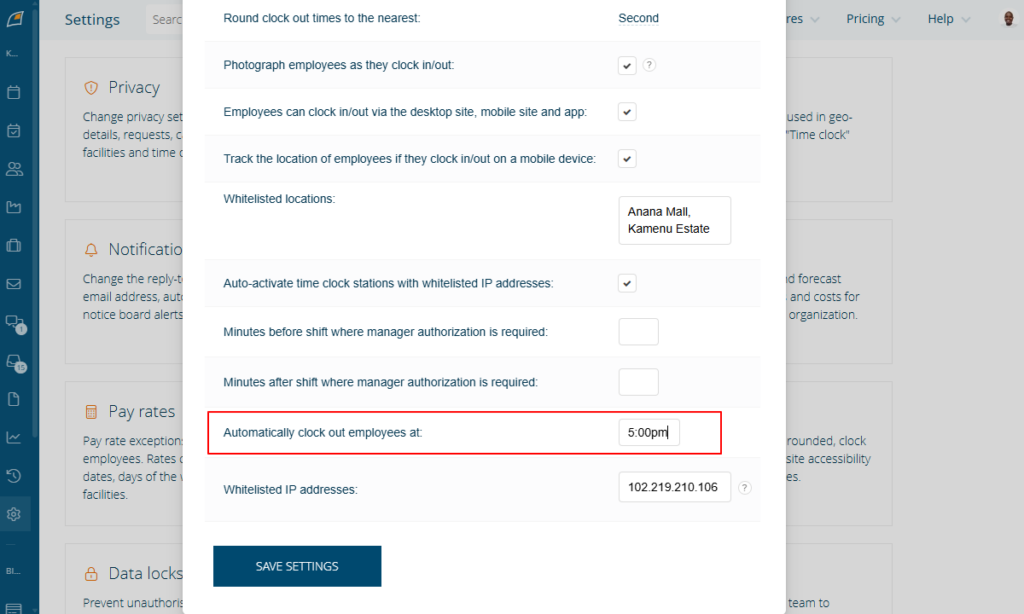
FindMyShift offers several clock-in restrictions to improve timesheet accuracy. You can configure it to prevent early clock-ins and automatically clock employees out at a set time. However, the auto clock-out feature would be more useful for shift-based teams if it worked based on scheduled work hours rather than a fixed time of day.
Location Whitelisting, IP Whitelisting, and Photo Clock-Ins
Location whitelisting is FindMyShift’s version of geofencing and is helpful for businesses grappling with off-site punching. What I like about the geofence tool is that it lets managers create polygonal geofences.
Polygonal geofences are ideal for farms, warehouses, construction sites, and large work areas with irregular boundaries that circular geofences can’t accurately cover.
Creating a geofence is a breeze. All I needed to do was enter the location in the search bar to find a facility on the map. I then clicked around the area with the left mouse button to place a polygonal boundary.
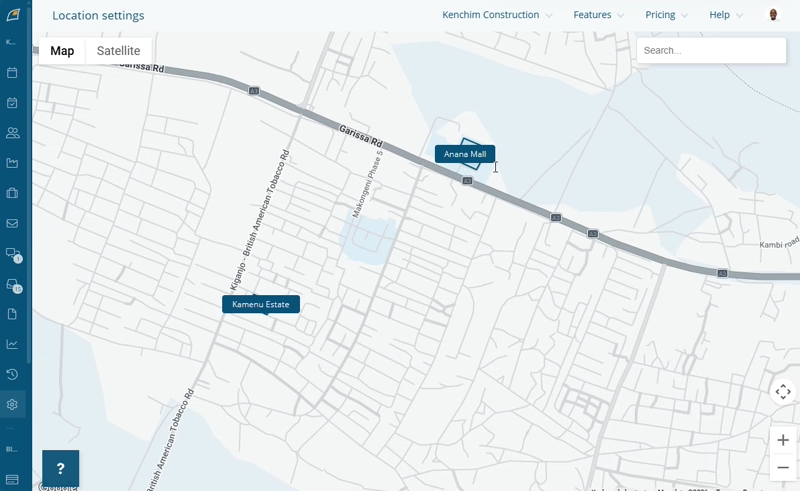
However, you have to whitelist each location in the facility and time clock settings, and link the shift to a facility to activate geofencing. Complex configuration aside, FindMyShift prevented me from clocking in when I was outside the geofence, proving its worth.
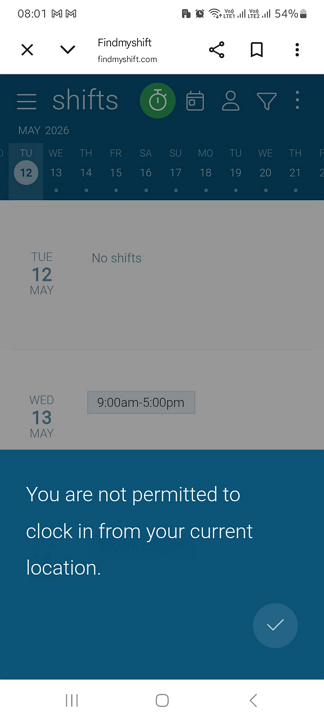
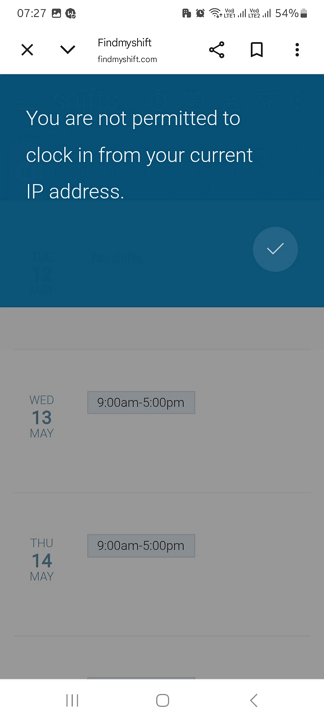
I was also able to whitelist IP addresses for employees clocking in via the web app. I whitelisted my IP address and used a VPN to simulate an employee clocking in from a different IP address. FindMyShift displayed the error message, “You’re not permitted to clock in from your current IP,” demonstrating that the feature works.
Moreover, you can activate photo ID clock-ins to curb buddy punching. When I activated this feature, FindMyShift required me to take a selfie when clocking in or out via the mobile app. It attached the photo to my timesheet, making it easy for managers to verify each clock-in and pinpoint buddy punchers.
Break and Overtime Tracking
Verdict: 5.5/10
Looking at FindMyShift from a compliance point of view, I’d say its break and overtime functions are bare bones at best. The vendor claims to help businesses track breaks and overtime, but the tracking methods are rudimentary and not robust enough for businesses in tightly regulated industries and jurisdictions.
FindMyShift’s break and overtime functions are half-baked and inefficient for businesses looking to track time in compliance with labor laws. To begin with, the break settings are all over the place, which makes configuration confusing.
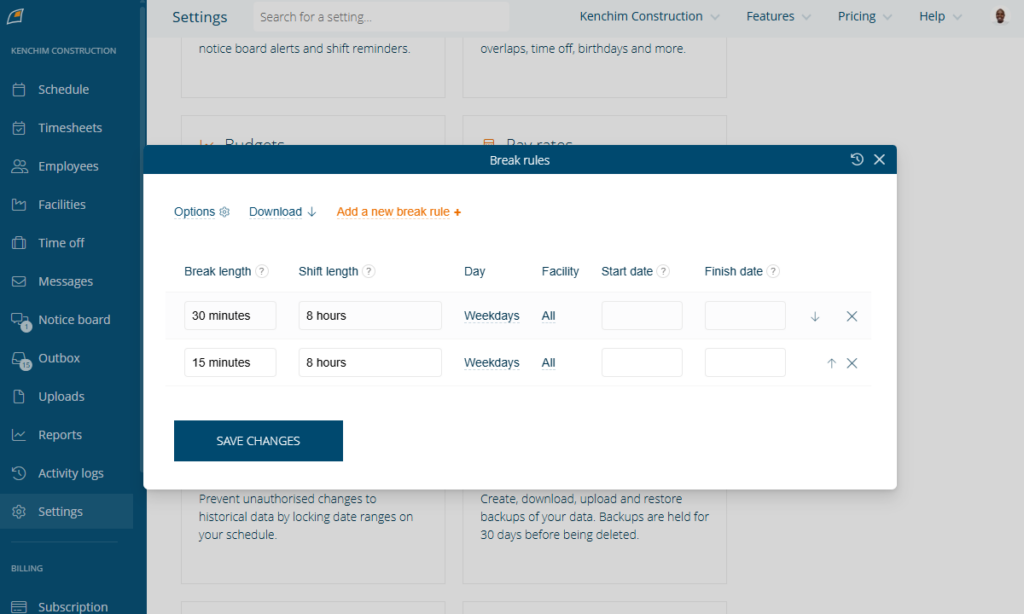
You can add breaks either by writing a comment under a shift on the schedule or by setting up a company-wide break rule in the settings. Either way, FindMyShift treats breaks as unpaid. In addition, it doesn’t allow employees to track unpaid breaks manually. Instead, it automatically deducts the preconfigured break time from employees’ work hours.
This limitation, combined with the lack of paid breaks, is a major drawback for businesses in regions with strict break-tracking laws. For example, businesses in California, where labor laws require both paid and unpaid breaks, may consider FindMyShift too limited for their compliance needs.
Pro Tip
Connecteam’s time clock helps teams manage employee hours, breaks, and overtime from one place. Managers can set break and overtime rules, review timesheets, and spot issues before payroll, which can help support cleaner records and better compliance workflows.
Overtime Tracking
FindMyShift’s overtime tracker lacks essential features for compliance. Many jurisdictions have thresholds for daily overtime, daily double time, weekly overtime, and other advanced overtime. Unfortunately, FindMyShift doesn’t let you configure overtime thresholds to enforce daily overtime and double-time rules.
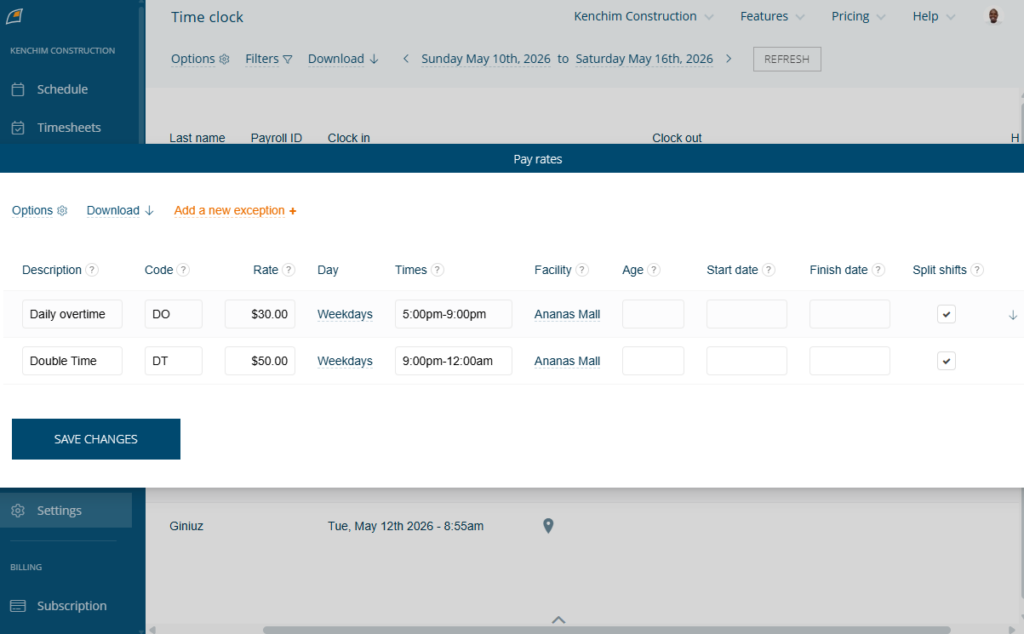
However, managers can set pay-rate exceptions and adjustments based on the time of day. For example, you can pay 1.5 times an employee’s regular pay after 5 pm. This offers an overtime workaround for teams with regular schedules, such as nine-to-five employees. Still, rate exceptions and adjustments aren’t helpful for shift-based, hourly teams looking to comply with overtime laws.
Time-Off Management
Verdict: 6/10
Overall, FindMyShift covers the essentials well, but the lack of advanced time-off controls makes it less suitable for teams with highly customizable time-off management needs. The time-off settings are scattered across the interface, which can make configuration more time-consuming and less intuitive than it should be.
Time-off management is another area in which FindMyShift delivers mediocre performance. In fact, I don’t recommend using this platform to manage time off for large workforces and businesses with complex paid time off (PTO) needs.
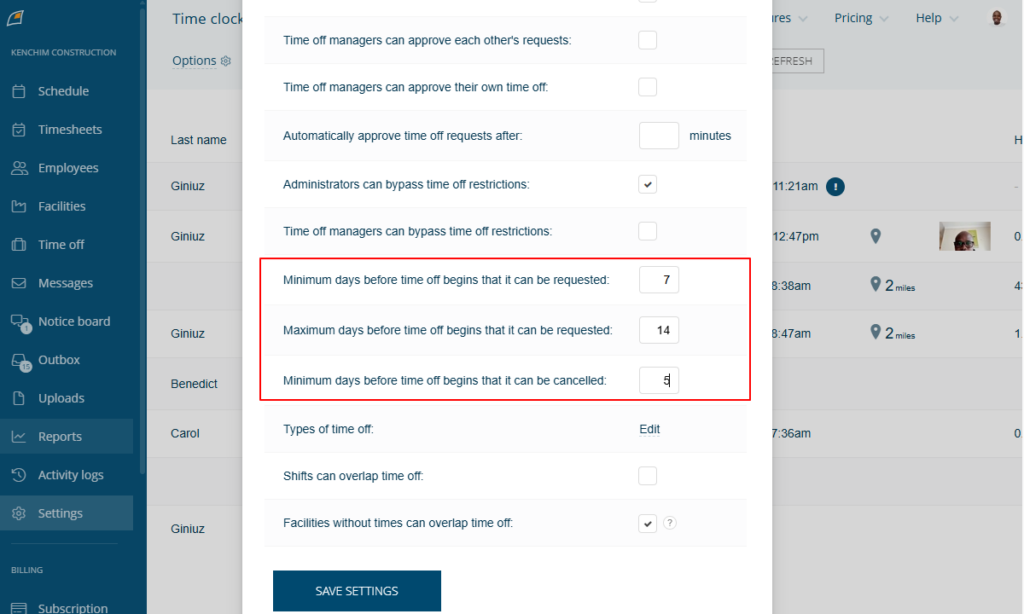
The platform supports fixed PTO, where employees get a set number of time-off days across different types of PTO. You can add new types of time off or edit the eight preconfigured options to meet your preferences. I also like that managers can set a minimum notice period to prevent last-minute leave requests.
I found it easy to request time off, even on the mobile app, which comes in clutch for field and mobile employees. I also commend FindMyShift for its powerful notification system, which ensures managers and employees remain in the loop on request status, date changes, and cancellations.
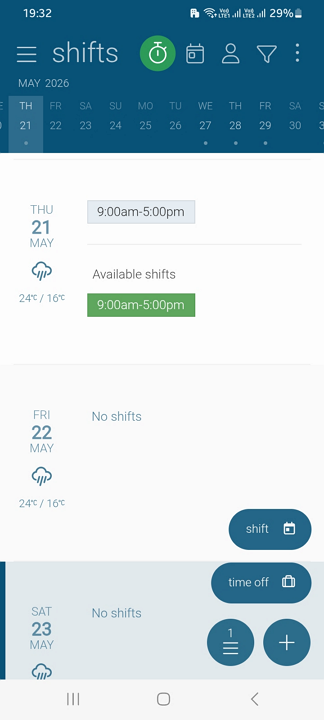
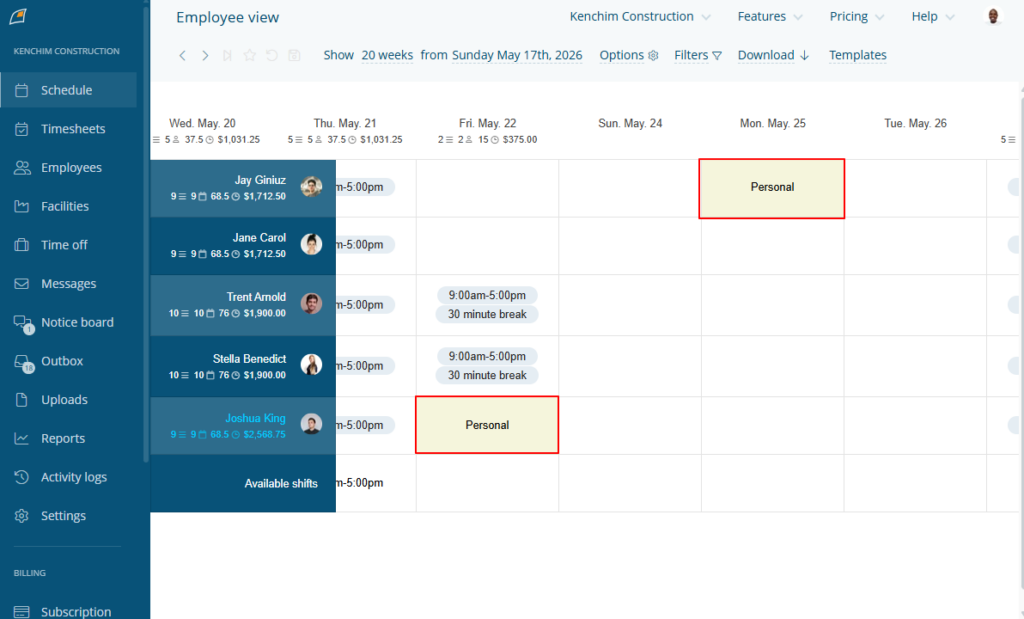
Additionally, the time-off module prevents scheduling conflicts. When a request is approved, it’s instantly displayed on the team’s schedule so managers always know who is available when assigning shifts.
Issues with FindMyShift Time Off
These features may sound great, but there’s a caveat: FindMyShift’s PTO policies aren’t customizable. There are no options to automatically reset allowances, roll over balances, or allow negative balances. Combined with the lack of hourly PTO tracking, FindMyShift may be unsuitable for companies with complex PTO policies or strict compliance requirements. For teams with more complex time off management needs, Connecteam may be worth comparing here.
In addition, I wish FindMyShift allowed employees to track their time-off balances. As it stands, only managers can see employee balances, and only by generating a time-off report. Moreover, FindMyShift would benefit from supporting blackout dates to block requests during peak periods. This would make the app more useful for industries with seasonal fluctuations in labor demand.
Team Communication
Verdict: 5.5/10
Overall, FindMyShift’s communication tools are pretty basic. Managers and admins have access to channels to share updates and announcements, but employees can only read updates and often have to rely on third-party apps to stay connected. In addition, the clunky design makes day-to-day communication more cumbersome than it should be.
While FindMyShift includes messages and notice board features, they feel outdated and lack the intuitive design and functionality modern users are looking for. I expected messages to facilitate one-to-one and group communications, but FindMyShift fell short.
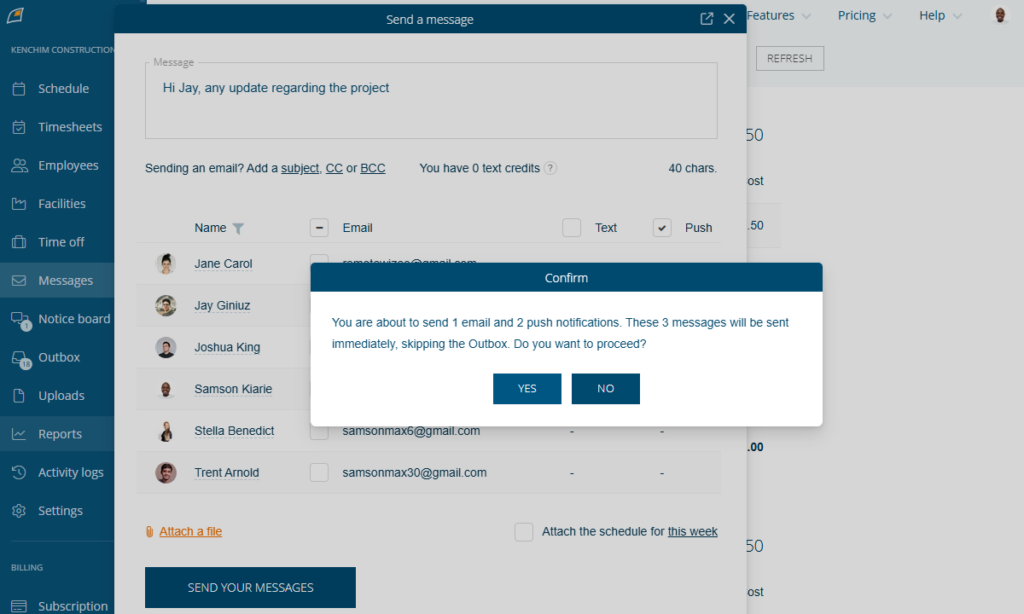
Messages in FindMyShift are direct and one-way from managers or admins to employees, meaning employees can’t reply. Managers can attach files or schedules, making messages ideal for sharing shift instructions, reminders, and other important job details.
I like that managers can send messages directly from a shift or an employee profile. Moreover, you can choose who to contact and how – via email, text, or push notifications. Keep in mind that text notifications require purchasing text credits.
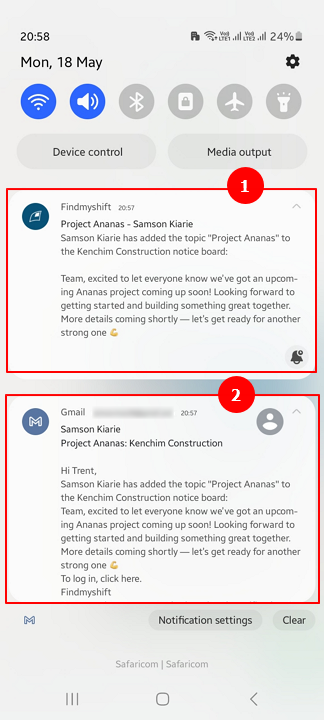
The notice board, on the other hand, is a shared company-wide bulletin board and discussion area for the team. Conversations are topic-based, making it easy for employees to follow important updates and announcements. The app notifies everyone in the company via email and push notifications when you send a message, ensuring no one misses important updates.
Pro Tip
A feature-rich employee communication app can help frontline teams keep work conversations in one place. With Connecteam’s in-app communication tools, managers and employees can send two-way messages, share updates, and stay aligned without relying on separate texts, emails, or chat apps.
FindMyShift Integrations
Verdict: 6/10
Overall, FindMyShift integrations cover most critical categories, but the selection remains fairly limited. The lack of Zapier integrations makes it even harder to connect FindMyShift with a broader ecosystem of tools beyond its native options, further amplifying its limitations.
FindMyShift supports integrations with a few popular solutions to facilitate seamless transfer of data between systems. You can set up native integration with communication, payroll, human resources, payment processing, and project management solutions, including:
- monday.com
- BambooHR
- Xero
- Square
- Slack
However, FindMyShift doesn’t support no-code integrations through Zapier or Make. This limits its ability to connect with third-party tools not on the list of native integrations. It does offer API integrations, but these require technical expertise and developer resources. As a result, they can be less accessible for non-technical teams.
Reporting and Analytics
Verdict: 7/10
FindMyShift reporting is more functional than insightful. While it packs in plenty of useful reports, most stop at raw data, forcing managers to manually analyze the information to uncover trends and meaningful insights.
FindMyShift’s reporting options look impressive on paper, as they help analyze key business aspects, including hours, shifts, time off, budget, and messages. A few reporting options in particular stood out during my testing:
- Time clock report: Beyond showing work hours, this report provides details on employees’ clock-in activities, including location, distance from the geofence, photo ID verification, and instances of buddy punching.
- Dashboard: More than 40 interactive line and pie charts give you an overview of your team’s pay, hours, and shifts.
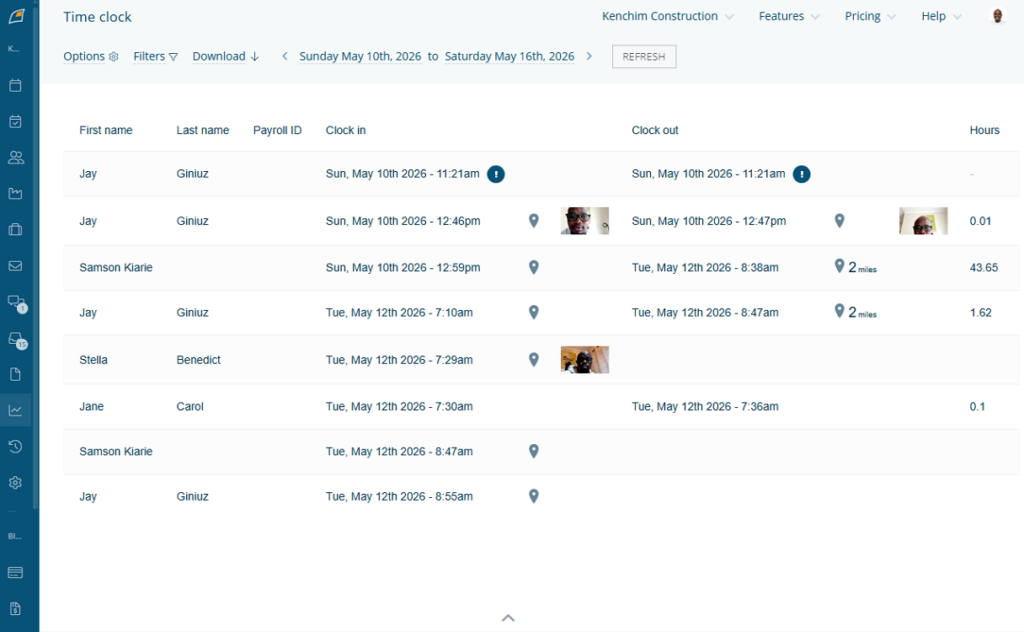
That said, the true value of a reporting module isn’t in how many reports it offers, but the depth and quality of insights users can actually derive from it. This is where FindMyShift falls short. Most of its reports present raw data, so only experienced managers can discover actionable insights.
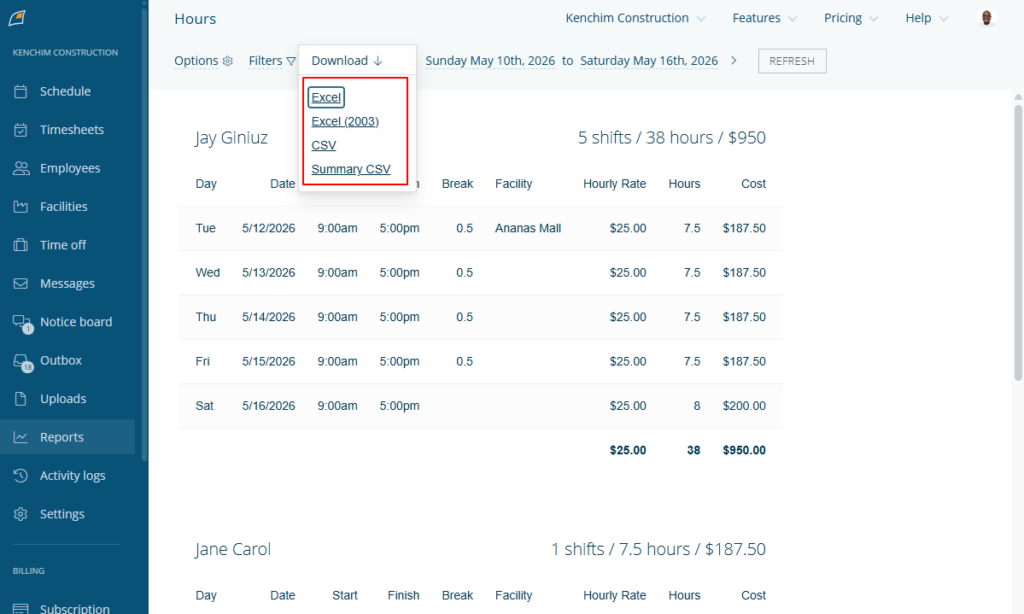
Moreover, the report-sharing options are limited to Excel and CSV downloads. You can’t schedule reports, share report links, or email reports to stakeholders directly within the platform. Without these options, sharing reports can be tedious, especially if you need to regularly share workforce data with executives, payroll teams, or supervisors.
FindMyShift Security and Privacy
Verdict: 6/10
Overall, FindMyShift’s security and privacy measures suffice for small field and frontline teams that need basic workforce protection. However, the lack of enterprise-grade security and limited compliance are dealbreakers for enterprises and businesses in tightly regulated industries.
| Feature | Availability |
|---|---|
| Data encryption | ✅ SSL on transit |
| GDPR compliant | ✅ |
| HIPAA compliant | ❌ |
| Certification | ❌ |
| MFA/2FA | 2FA |
| Admin controls | ✅ Role-based access control |
| Hosting region | Not specified |
FindMyShift gets the security and privacy basics right, with data encryption, role-based access (RBA), and data protection controls. Combined with two-factor authentication (2FA), these features help keep company information reasonably secure. It’s also GDPR compliant, which is reassuring for businesses handling EU users’ data.
That said, the platform feels “good enough” rather than enterprise-ready, as it falls short of the advanced security standards modern enterprises expect. It’s not HIPAA compliant, making it a nonstarter for healthcare businesses in the United States. Moreover, FindMyShift lacks SOC 2 Type 2 certification, a major drawback for enterprises that require independently audited security controls.
FindMyShift Customer Support
Verdict: 6.5/10
FindMyShift’s customer support is functional but fairly traditional: It’s fine for resolving basic issues, but lacks the omnichannel experience today’s users expect. Its ticket system also seems broken, as I never got a single reply during testing.
| Support Type | Availability |
|---|---|
| Live chat | ❌ |
| Phone support | ❌ |
| Email support | ✅ |
| Community forum | ❌ |
| Ticket submission | ✅ |
| Help center | ✅ |
FindMyShift customer support is mostly reliable but not outstanding. Its standard support channels — help resources, WhatsApp, email, and a ticket system — are adequate for basic troubleshooting and setup.
I submitted a question via the contact form, and at the time of writing (6 days after submitting the query), FindMyShift hadn’t resolved the ticket, despite claiming to answer all questions within 24 hours.
Since my last FindMyShift review, the vendor has added an AI assistant to the knowledge base, which significantly reduces the time users spend searching for answers. Instead of manually browsing articles, I asked questions in plain language. The assistant searched through the knowledge base to provide instant, context-specific answers.
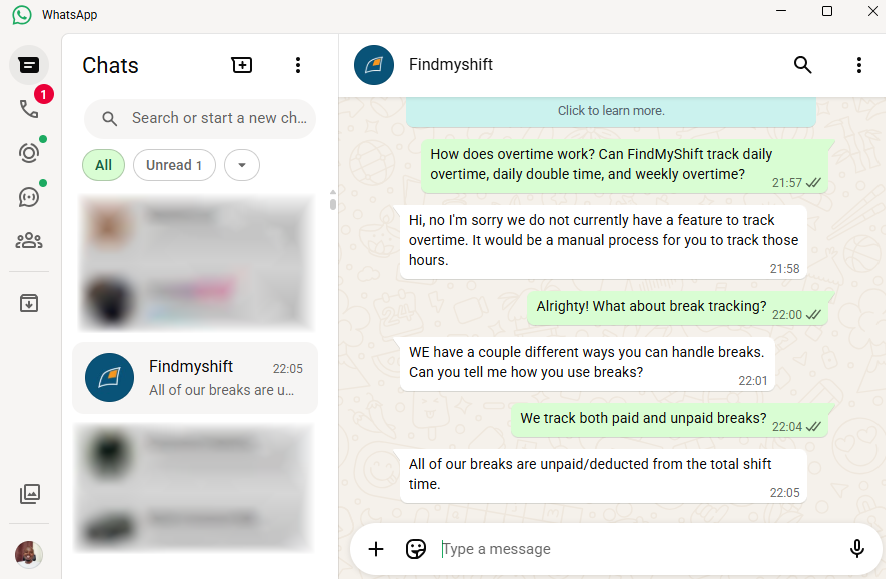
The lack of live chat and phone support stings, but the WhatsApp option lessens the blow. Agents responded to WhatsApp queries in under two minutes, making it the fastest channel for finding urgent solutions. However, using WhatsApp alongside other support channels can make the experience feel broken and solutions difficult to track.
What Are FindMyShift’s Review Ratings From Review Sites?
As of June 2026
FindMyShift App Review
FindMyShift is functional, offering the essential features that small businesses and frontline teams need to track time, schedule workforces, and manage time-off requests. While it lacks most of the advanced features you’d expect from modern workforce management solutions, it has a few standouts, such as bulk editing, selfie clock-ins, and polygonal geofences.
That said, FindMyShift’s limitations become apparent when scheduling, time-tracking, and time-off management needs become more complex. It lacks advanced and compliance-related features such as overtime, breaks, employee work limits, and enterprise-ready security. For this reason, it’s not suitable for businesses operating in tightly regulated industries and jurisdictions.
Connecteam: The Better FindMyShift Alternative
While FindMyShift nails the basics and keeps pricing affordable, it falls short in the areas where today’s field-based and frontline teams need the most support: compliance and advanced workforce automation. If you need robust scheduling, time tracking, PTO, and compliance tools that can scale with operational complexity, Connecteam is a better fit.
Check out some of the benefits of using Connecteam over FindMyShift:
Save Time with the Auto-Scheduler
While FindMyShift has solid scheduling features, it still requires significant manual effort, which can be inefficient and time-consuming in today’s fast-paced environment. Even worse, the lack of scheduling compliance tools increases the risk of burnout, overtime violations, and costly scheduling mistakes.
By contrast, Connecteam’s scheduling tools help field and frontline teams create schedules faster without compromising compliance. It lets you set scheduling rules such as employee work limits, maximum shifts per day, and rest periods between shifts. As you assign shifts, the automatic conflict detector scans the schedule to ensure compliance with applicable labor laws.
Even better, Connecteam’s auto-scheduler lets you assign hundreds of shifts in minutes. However, the real advantage over FindMyShift’s multi-cell editing tool is the ability to assign shifts based on employees’ availability and qualifications. This ensures every shift is covered by someone with the right skills, while preventing the chaos of last-minute schedule adjustments.
Accurate, Compliant Time Tracking
Connecteam’s time tracker helps field and frontline teams track regular hours, overtime, and breaks in full compliance with the law. You can set rest and meal break policies, with timely reminders and advanced restrictions. I like that you can prevent early return from breaks and implement break attestation, which ensures each employee takes breaks as mandated.
Additionally, Connecteam tracks all types of overtime, including daily overtime, daily double time, weekly overtime, holiday overtime, and seventh-consecutive-day overtime. The policies are fully customizable, so you can adjust the overtime threshold and rates to align with local labor laws. I also like that Connecteam computes overtime pay automatically, saving managers the hassle of doing this manually.
And So Much More
Beyond scheduling and time tracking, Connecteam offers additional tools that make it one of the most comprehensive workforce management platforms. These include:
- Real-time location tracking
- Employee onboarding and training
- PTO management
- Knowledge base
- Document management
- Employee recognition and rewards
- Forms and checklists
The cherry on top? All these features are available to small businesses with up to 10 employees for free. Paid pricing starts at $29 per month for 30 employees, which works out to less than $1 per employee per month. Pretty affordable, right?
FindMyShift Review FAQs:
hFindMyShift supports basic attendance control with geofencing, IP whitelisting, photo clock-ins, early clock-in prevention, and auto clock-out. However, its break and overtime tools are too limited for businesses that need strong labor compliance controls.
FindMyShift includes SSL encryption in transit, two-factor authentication, role-based access controls, and GDPR compliance. However, it is not HIPAA compliant and does not have SOC 2 Type 2 certification, making it a poor fit for many regulated businesses.
FindMyShift has a free plan for up to 5 employees, 1 manager, and 5 facilities. Paid plans are billed per team, not per user. FindMyShift also offers a 90-day free trial for paid plans with no credit card required.
Switching to FindMyShift is fairly easy, but setup takes manual work. You can add employees by email, CSV or Excel upload, or third-party import. Leaving is possible through Excel and CSV exports, but team settings, policies, and historical records require manual transfer.
FindMyShift supports payroll calculations and integrates with Xero. However, it does not offer broad payroll-provider coverage or confirmed automatic payroll sync. Teams with complex payroll workflows should confirm that FindMyShift supports their exact payroll process before choosing it.
FindMyShift integrates with tools for HR, accounting, communication, payment processing, and project management. Supported examples include Xero, Slack, Square, BambooHR, and monday.com. It does not support Zapier or Make, so custom connections require API work.
FindMyShift is easy enough for employees to view shifts, clock in, and request time off. Managers face more friction because the interface can feel cluttered, the mobile app has limited admin tools, and the platform does not work offline.
FindMyShift helps prevent time theft with polygonal geofencing, IP whitelisting, photo clock-ins, QR and PIN kiosk clock-ins, early clock-in prevention, and auto clock-out. These tools improve timesheet accuracy, but managers still need to configure them correctly.
