


If you’re still relying on whiteboards, spreadsheets, or group texts to manage your construction crew’s schedule, missed jobs and compliance violations are inevitable, and they’ll cost you client trust and profit margins.
I reviewed 6 construction employee scheduling apps and ranked them by scheduling ease, time tracking accuracy, and operational workflow features.
Use these picks to streamline your workforce planning, ensure accurate payroll, and keep your job sites running smoothly.
If you don’t have the time to read through our research, jump down to our quick comparison table.
| App | Best for | Starting Price | Key Considerations |
| Connecteam | Managing crew schedules, time tracking, and communication without switching apps | Just $29/month for the first 30 users | Combines scheduling, GPS time tracking, and team communication in a single app. |
| Workyard | Job Scheduling with Geofence Verification | $50/month + $6/user/month | Excellent offline mode and precise GPS tracking, but scheduling features are fairly basic and lack auto-scheduling. |
| Fieldwire | Managing multiple job phases with daily task tracking | $39/user/month. | Strong job site management and plan viewing, but lacks built-in time tracking and workforce management tools.<br /> |
| Humanity by TCP Software | Complex scheduling rules and federal/state compliance requirements | $2.75/user/month | Powerful AI forecasting and pre-built US compliance rules, but lacks a free plan and has unclear pricing. |
| Deputy | Flexible shift swaps and open-shift management | $5/user/month | AI auto-scheduling; no offline support on Time Clock app |
| Procore | Large firms managing projects, crews, and design drawings in one platform | Contact vendor for price. | Extremely comprehensive for enterprise-level project management, but the platform can be too complex for smaller teams. |
What’s New in This Update (June 2026)
- Added Humanity for its strong compliance-focused scheduling and pre-built state rules.
- Clarified that Fieldwire doesn’t support task dependencies.
- Changed focus from shift-based scheduling features to job-based tools to better fit the construction industry’s unique needs.
Our Top Picks
-
1

Best for managing crew schedules, time tracking, and communication without switching apps
-
2

Best for Job Scheduling with Geofence Verification
-
3

Best for managing multiple job phases with daily task tracking
Why trust us?
Our team of unbiased software reviewers follows strict editorial guidelines, and our methodology is clear and open to everyone.
See our complete methodology
How I Ranked the Best Construction Scheduling Software
To find the best construction scheduling software, I focused on the features that actually matter to contractors and site managers. Here’s how I evaluated each platform:
Core Scheduling Capabilities
- Drag-and-drop builder with conflict detection: The software must let supervisors visually create, move, and duplicate jobs while flagging double-bookings or overtime violations before publishing.
- Multi-site schedule separation: Supervisors should be able to group employees by job site so they only see their own crews, with role-based permissions preventing cross-site scheduling errors.
- Auto-scheduling engine: The software must automatically assign open jobs based on employee availability, certifications, and custom compliance rules.
Time Tracking and Location Verification
- GPS-stamped clock-ins with geofence enforcement: The software must verify that each punch happens within a defined radius of the job site, with options to block or flag out-of-bounds attempts.
- Offline clock-in and schedule access: Crews need to be able to store punches and view job data locally when cellular service drops, with automatic syncing on reconnection.
- Automated break deductions and overtime calculations: The software should apply state-specific meal/rest break rules and flag or cap hours before overtime thresholds are crossed.
Operational Workflow Integration
- Job tasks, forms, and safety checklists: Supervisors should be able to link specific deliverables or inspection forms directly to a job so crews know exactly what’s required on arrival.
- Real-time push notifications for schedule changes: The software must instantly alert affected crew members when jobs are moved, cancelled, or reassigned due to weather or project delays.
- One-click payroll export: The app should generate clean, approved timesheets that flow directly into payroll without manual re-entry or CSV formatting.
The Best Construction Scheduling Software
-
Connecteam — Best for managing crew schedules, time tracking, and communication without switching apps
Connecteam is the best choice for construction companies because it combines powerful drag-and-drop scheduling with GPS time tracking and team communication in one platform. It’s especially strong for teams that need to ensure accurate site coverage and compliance without the headache of managing multiple different apps.
Why I chose Connecteam: I ranked Connecteam #1 because it was the most complete option for construction scheduling, especially in areas like conflict detection, multi-location management, and GPS verification.
Drag-and-Drop Job Scheduling
Connecteam makes it easy to manage construction employee scheduling across multiple job sites. The drag-and-drop editor lets you quickly build and edit schedules across locations, crews, and even time zones.
If you manage multiple job sites, Connecteam keeps teams organized by grouping employees based on where they work. Employees are automatically sorted into the right location, while admin permissions make sure that supervisors only see their own team’s shifts. You can either create separate schedules for each site or manage multiple locations from one place.
On top of that, you can add notes, link tasks, and attach files to each job, so your crew knows exactly what to do when they arrive on-site. Once you publish or update a schedule, employees are notified in real-time and can access the latest version from the mobile app.
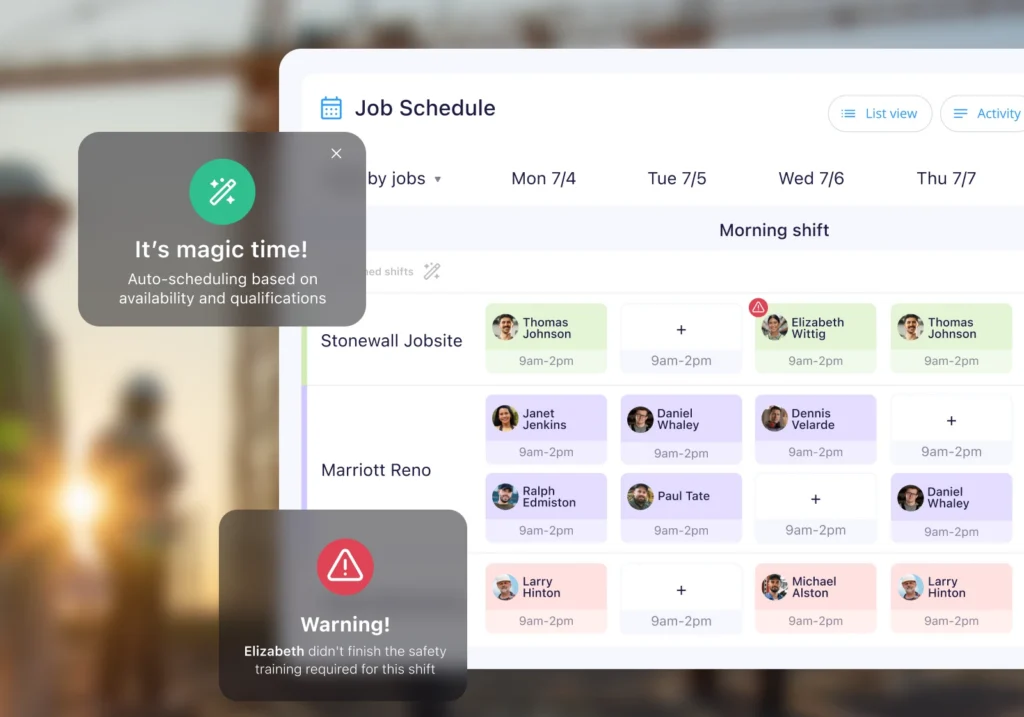
Schedule crews across multiple job sites with Connecteam. Time Off and Employee Availability
Connecteam handles availability and time off management in one place. Workers can set when they’re available, mark preferred hours, and submit PTO requests right in the app. When an employee submits a request, managers are notified instantly and can approve or decline it from the mobile or desktop app. Approved time off shows on the schedule, so you can stay properly staffed.
AI-Powered Auto-Scheduling
With Connecteam, you can set custom rules so schedules stay accurate and compliant from the start. For example, you could require certain roles, certifications, or supervisors to be present for specific jobs. Once those rules are in place, use the AI-powered auto-scheduler to instantly assign jobs based on employee availability, qualifications, and your needs. If a manager accidentally schedules overlapping jobs or double-books a crew member, Connecteam flags the conflict before the schedule goes live.
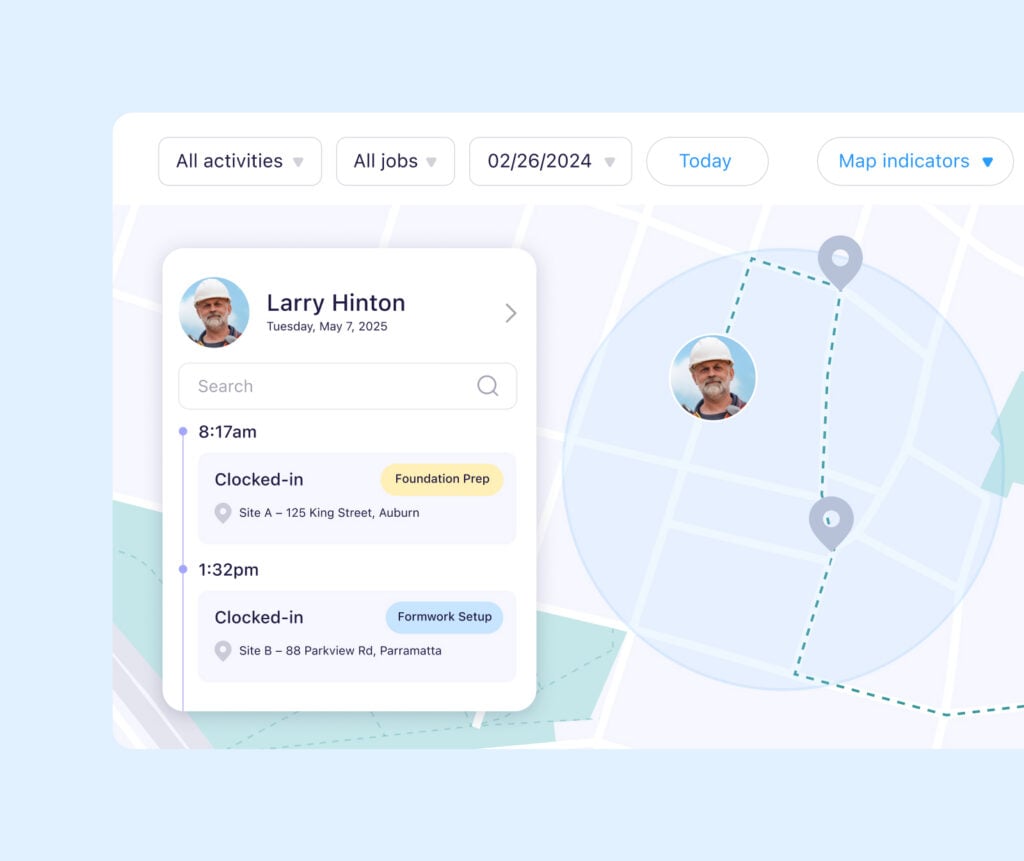
See where your crew is while they’re on the job with Connecteam’s time clock. Employee Time Clock and GPS Tracking
Connecteam’s employee time clock is built for complex operations and works well for both back office and on-site teams. Employees can clock in and out directly from the mobile app with a GPS stamp so supervisors know exactly where and when work started.
For added control, use the optional geofence time clock to automatically clock out employees when they leave a designated work zone, or prevent early clock-ins outside the approved site. If your site requires stricter attendance verification, Connecteam’s NFC time tracking lets crews clock in by tapping a physical NFC tag at a specific location.
You can also set custom pay rules, breaks, and overtime policies to comply with local labor laws. All work hours are logged into timesheets for payroll, which supervisors can review, approve, and export directly to popular payroll providers, including RUN Powered by ADP®, QuickBooks, Paychex, and Xero.
And So Much More
- In-app team chat: Message individual employees or create department-specific group chats with read receipts to confirm everyone saw the update.
- Digital forms: Create custom safety inspections, daily logs, and equipment checks that crews can complete right from their phones.
- Company update feed: Post important announcements, weather delays, and company updates to keep the entire workforce aligned.
When Connecteam Isn’t a Good Fit
If you’re looking for a dedicated project management tool that handles complex Gantt charts, heavy document control, and detailed construction blueprints, Connecteam might not be the right fit. It’s built primarily for workforce management and daily operations rather than high-level architectural project management. It also isn’t ideal for crews working in remote areas with unreliable internet, as it lacks offline mode.
0Key Features
- Drag-and-drop schedule building
- AI-powered auto-scheduler
- Time off and availability management
- GPS tracking, geofencing, and NFC clock-ins
- Automatic break and overtime tracking
- In-app team chat and updates feed
Pros
- Strong mobile access for on-site teams
- Easy to use for both crews and supervisors
- Flat-fee pricing saves money as you grow
- AI auto-scheduler with conflict detection
Cons
- Not a dedicated blueprint or CAD viewer
- Doesn’t offer offline functionality
Pricing
Free-for-life plan availablePremium plans start at $29/month for 30 users
14-day free trial, no credit card required
Start your free trial -
Workyard — Best for Job Scheduling with Geofence Verification
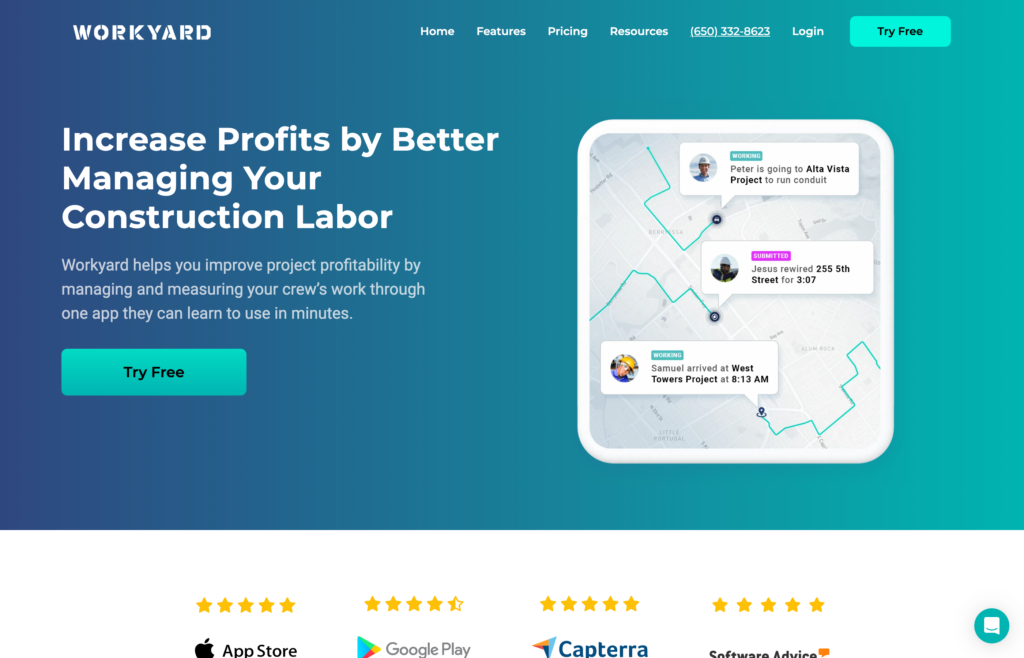
Workyard is a cloud-based workforce management software designed for construction companies.
Why I chose Workyard: I chose Workyard because its features are tailored for businesses in the construction industry. I dug into the app and found that it offers a robust scheduling system, location tracking, and time tracking features.
Scheduling and dispatching
In our full Workyard review, we didn’t find its scheduling as powerful as some of its competitors. Scheduling is baked into the Project Hub, and you can create and assign tasks to team members with set dates and times. I liked the ability to add checklists and attach documents to each task. It helps clarify deliverables, enhancing work quality.
Workyard lets you add as many tasks as you’d like to assign. You can also use the drag-and-drop function and recurring tasks to speed up scheduling. Unfortunately, Workyard doesn’t support automatic scheduling, which is off-putting for large companies. You also can’t create task templates to streamline future team scheduling.
Although Workyard supports project cost codes, I think the implementation could be improved. As it stands, cost codes are applied on the project level, not the task level. Employees can select a cost code when clocking in, which helps track labor costs. However, cost codes could be more effective if they included a rate for specific tasks.
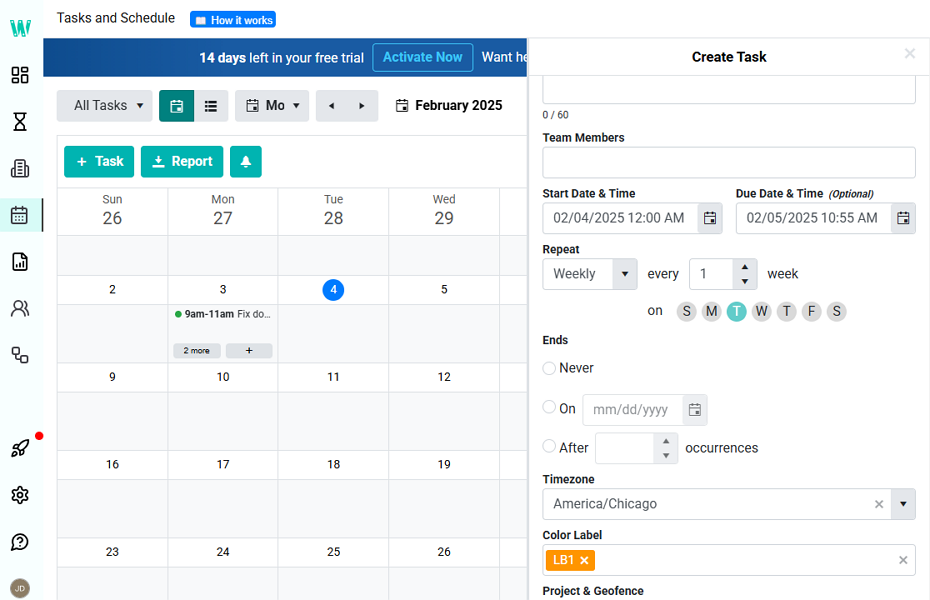
We could schedule tasks and add team members, due dates, and checklists. Time tracking
Workyard’s mobile app lets crews clock in and out manually or automatically. It supports facial recognition, but we found that the system only flags facial mismatches for review rather than blocking clock-ins. This creates extra work for managers, who need to verify flagged punches manually.
Additionally, you can set up geofences to prevent offsite punching. During testing, geofencing blocked our attempts to clock in outside the designated job site. I appreciated the option to automatically clock in crew members as they enter a geofenced area. It eliminates the chances of missed logs and prevents employees from padding their time cards to claim a higher wage.
Workyard also reminds employees to take mandated breaks for compliance. But one of the biggest advantages we found is that the platform supports offline mode, allowing crews to clock in and view schedules even without reception, with automatic syncing when connectivity is restored.
Real-time location tracking
Workyard doesn’t alert you when an employee leaves their designated job site. Still, managers can easily determine the real-time whereabouts of each crew member and the tasks they are currently working on. Supervisors can view each employee on a map when they’re clocked in located within the geofence.
What users say about Workyard
I like the tracking feature mostly. It helps me validate hours our guys are on the clock. I also like that I can tie hours to certain projects.

I don’t like that the app version of Workyard lacks some of the functionality available in the web version. It would be better if more features from the web could be mirrored in the app.

Key Features
- Task-based scheduling
- Task attachments
- Drag-and-drop planning
- Time tracking
Pros
- Effective geofence
- Strong offline mode
Cons
- No auto-scheduling or templates
- Manual verification of flagged facial recognition attempts
Pricing
$50/month + $6/user/month Trial: Yes — 14 days Free Plan: No
-
Fieldwire — Best for managing multiple job phases with daily task tracking
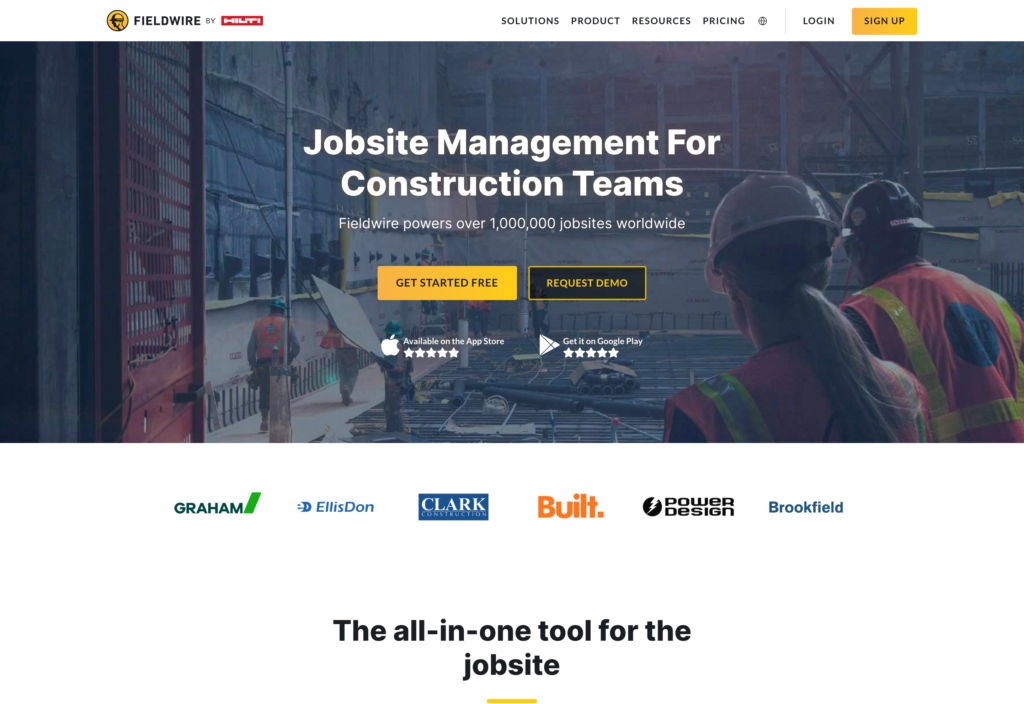
Fieldwire is a job management software for contractors, architects, designers, and specialty contractors.
Why I chose Fieldwire: I included Fieldwire because it’s strong at project-level task coordination and plan management. It’s designed for on-site task management, inspections, and change orders.
Task management and project organization
In our full Fieldwire review, we found its project-level task coordination impressive. I liked that it breaks construction projects into manageable tasks and organizes them across multiple views. You can create tasks individually or import them in bulk, then assign priorities and deadlines to keep crews focused on high-impact work.
The drag-and-drop interface makes it easy to reorganize task deadlines, and you can duplicate tasks across projects to save time. Fieldwire lets you organize tasks in Kanban, Calendar, and Gantt Chart views to fit different project management styles.
However, we found that Fieldwire doesn’t support task dependencies. You also can’t predefine the order in which crew members should complete tasks, which kind of eliminates the usefulness of its Gantt Charts for complex multi-phase projects. I can see this being a major gap when you need to create a specific sequence of work (think: foundation before framing before roofing).
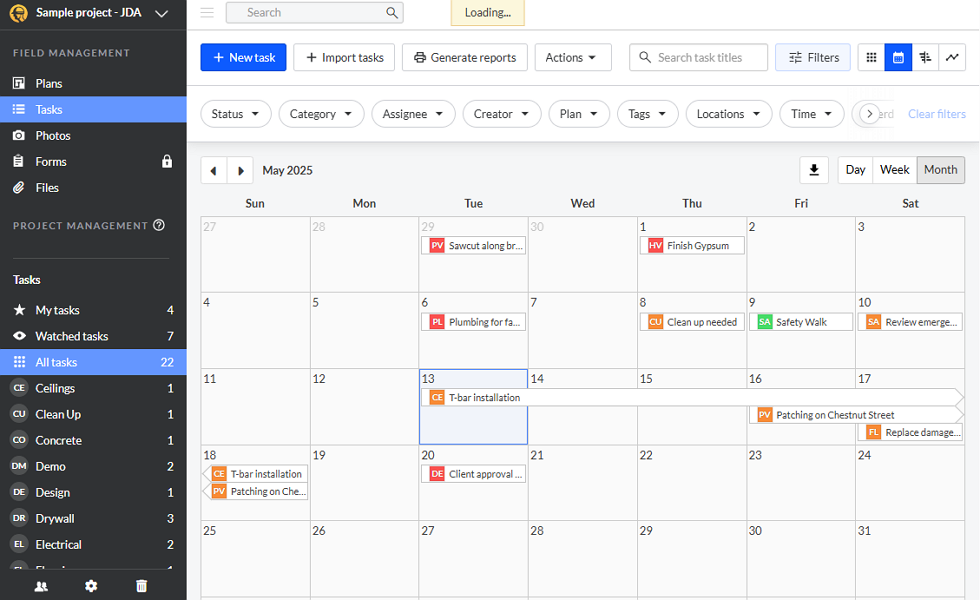
You can track task progress from the calendar view with Fieldwire. Plan viewing and markup collaboration
Fieldwire’s standout feature is its intuitive plan viewer with real-time markup and communication. The built-in optical character recognition (OCR) automatically labels page names, detail callouts, and links, eliminating manual work. Automated version control ensures all team members work from the correct drawings.
You can upload plans in PDF, PNG, and JPEG formats directly from your device or cloud storage. The 360-degree photo feature lets you capture and attach photos to tasks, providing visual context for crews. This is excellent for quality control and inspections.
Change orders, RFIs, and submittals
Fieldwire provides tools for creating and tracking change orders, requests for information (RFIs), and submittals on a centralized dashboard. This helps manage project scope and communication between teams and clients.
Where Fieldwire falls short is that there’s no built-in time tracking, no GPS verification, no offline clock-ins, and no payroll integration. These gaps make it clear that the platform is more of a project management tool than a complete workforce scheduler.
What users say about Fieldwire
Fieldwire is best at: Creating markups on Plan, document management, assigning task, linking task to the drawing and also tracking a progress. Its real-time update features allow for smooth flow of Project.
Read review here.
It could use less battery on devices in the background. Once the app is forced shutdown it tends to run in background. Sometimes when I’m finished with a job I see Fieldwire still working in the background draining phone battery.
Key Features
- Project and task management
- Plan viewing with OCR
- Change orders and RFIs
- Kanban, Calendar, and Gantt views
Pros
- Strong project and task management
- Intuitive plan viewer with real-time collaboration
Cons
- No time tracking or location tracking
- Doesn’t support task dependencies
Pricing
Starts at $39/user/month. Trial: No Free Plan: Yes — (up to 5 users)
-

Humanity by TCP Software — Best for complex scheduling rules and federal/state compliance requirements
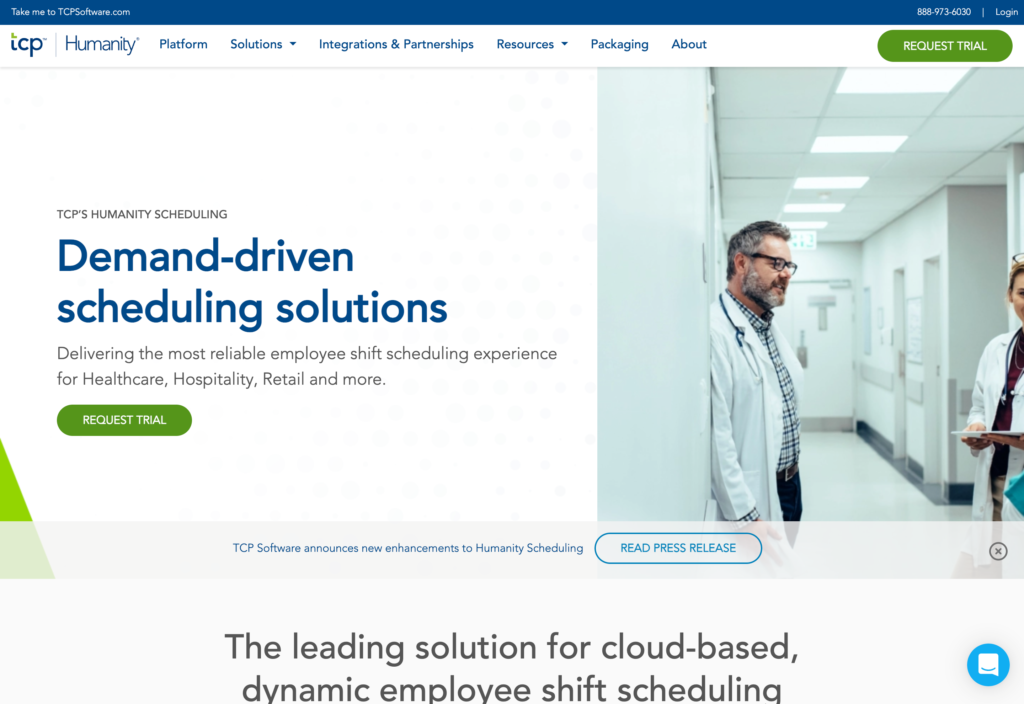
TCP Software’s Humanity is a scheduling tool designed to help businesses comply with federal and state scheduling laws.
Why I chose Humanity: I chose Humanity because its pre-built compliance rules make it incredibly easy to navigate complex labor laws across different states.
Shift scheduling and auto-scheduling
In our full Humanity review, we found its drag-and-drop scheduler easy to use. You can create schedules from scratch, use shift templates, copy shifts across schedules, or copy entire schedules. The platform allows employees to set their availability and request time off, which feeds directly into the scheduling view.
Managers can offer open shifts for employees to self-assign and allow shift swaps with manager approval. You can also assign skills and certifications to employees, so only qualified workers are placed on specific jobs. While the mobile app only offers ready-only offline mode, I appreciated that crews can at least view their schedules if the job site has weak connectivity.
There’s also the AI-powered auto-scheduling feature that creates compliant schedules in one click based on staff skills, availability, and your custom rules. It’s important to note that this feature is a paid add-on.
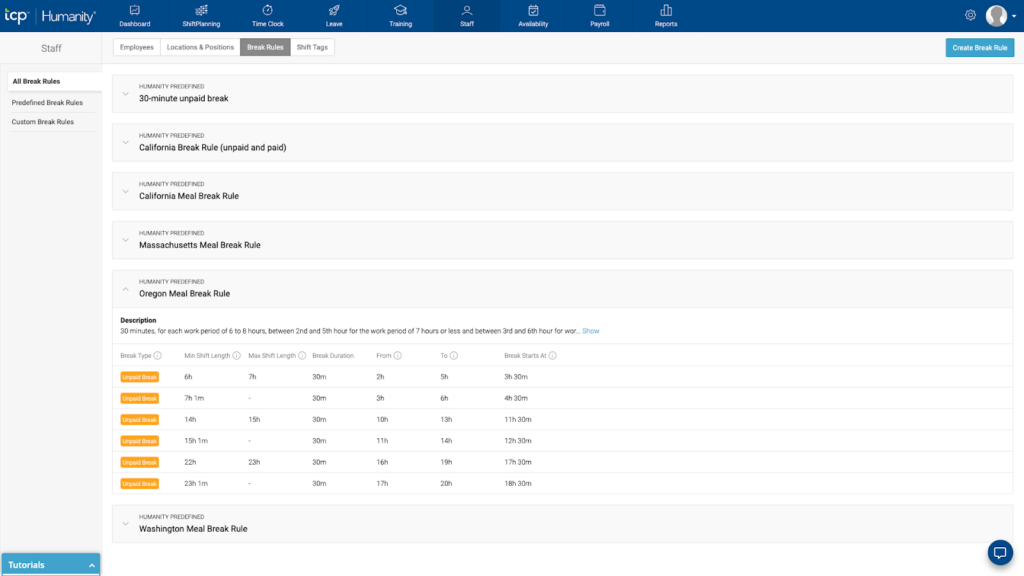
Humanity’s pre-built scheduling rules help crews stay compliant. Compliance-first scheduling
Humanity’s main strength is its ability to enforce scheduling rules before violations happen. You can apply pre-built rules for mandatory break times, maximum consecutive work hours, minimum rest periods between shifts, and overtime limits. The platform flags conflicts automatically during schedule creation, preventing costly compliance issues before you publish.
What really sets Humanity apart is that these rules are pre-configured for US federal and state laws, so you don’t have to build them from scratch. For non-US users, you can define custom rules to match local regulations. You can also set rules for different employee types and locations, ensuring union agreements and prevailing wage requirements are met across jurisdictions.
Time tracking and payroll
Employees can clock in and out using the desktop, mobile, or Apple Watch apps. The time clock tracks to the minute, and late check-ins are flagged on managers’ dashboards for immediate follow-up. However, the platform doesn’t include GPS verification or geofencing, so you can’t confirm whether employees are physically on-site when they clock in.
Managers can set up auto-approval rules for timesheets to save time reviewing individual entries. Humanity integrates with over 30 payroll providers, and you can set rules for double pay and overtime rates, then export reports as CSV or directly to your payroll software.
What users say about Humanity
The schedule is easy to view and use from the user perspective. I also like that all staff members have access to phone numbers so they can call their fellow team members if they need a shift covered.
Unable to filter locations on the Dashboard for tasks such as ‘shifts needed to republish’. Unable to build individual schedule templates to save rather than copying current templates. Unable to switch order of employees on schedule. Inability to see who is currently on when using the time clock function unless person is clocked in.
Key Features
- Compliance-focused scheduling
- Multi-state labor law support
- AI-powered auto-scheduling
- Employee availability and skills tracking
Pros
- Excellent compliance support
- Strong auto-scheduling capabilities
Cons
- Pricing isn’t publicly available
- No GPS verification or geofencing
Pricing
Starts at $2.75/user/month Trial: Yes — 30 days Free Plan: No
-

Deputy — Best for flexible shift swaps and open-shift management
Deputy is a workforce management platform that combines scheduling, time tracking, and HR tools.
Why I chose Deputy: I chose Deputy because of its AI-powered automatic scheduler. I found this feature helpful when assigning crews to jobs with varying skill requirements and availability constraints.
Smart scheduling
In our full Deputy review, we found its drag-and-drop scheduler straightforward. Managers can assign jobs to crews with ease or leave them open for team members to claim. You can also set jobs to repeat or duplicate them to speed up scheduling.
My favorite feature is the AI-powered auto-scheduling because it eliminates the manual hassle. It lets you account for crew availability, skill requirements, and project timelines to create optimal job assignments with only a few clicks. You have to predefine your specific scheduling rules in order for the auto-scheduler to work, but once your rules are in place, assigning conflict-free jobs is easy.
During testing, when we intentionally created overlapping jobs for the same team member across two different areas, Deputy didn’t flag the conflict. The scheduler also didn’t warn us when we scheduled someone with unreviewed leave requests. I wish the platform had stronger scheduling safeguards to help managers avoid these mistakes.
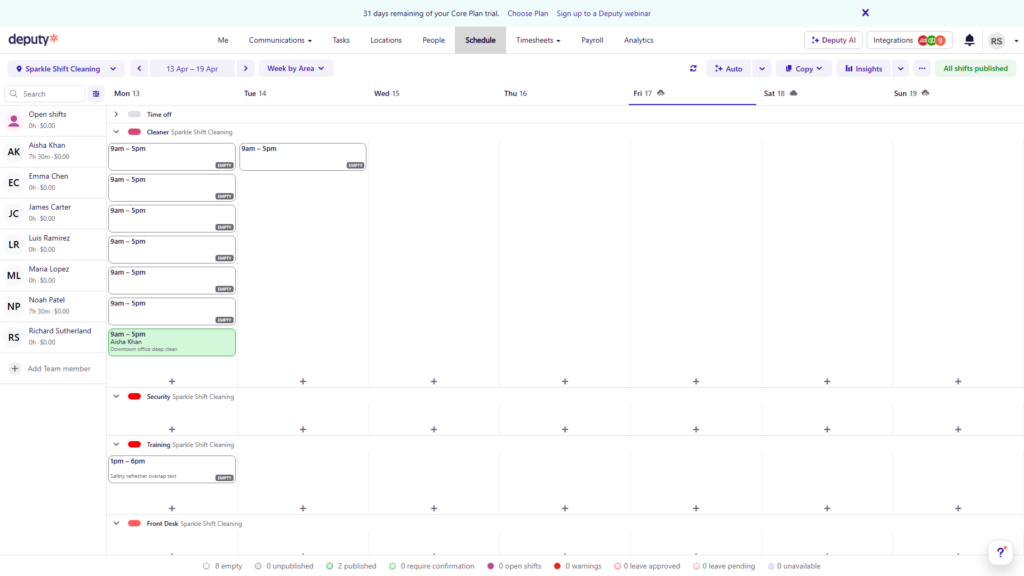
Deputy keeps work areas, assigned shifts, and publication status easy to follow. Time tracking
Deputy turns desktops, tablets, and phones into time clocks. Employees can clock in from their own devices or use shared kiosks. During testing, we started unscheduled shifts, reviewed timesheets, and ended shifts early to test Deputy’s safeguards. Clocking in was simple, and the app clearly displayed break and end-shift controls once a shift started.
Timesheets were equally easy to review. Scheduled employees who didn’t clock in were marked as absent, while hours, breaks, and approval actions appeared in the same view, making issues easy to spot.
For added accountability, Deputy captures GPS locations at clock-in and clock-out and enforces geofences around job sites. Shared kiosks can also take employee photos and support facial recognition to help prevent buddy punching.
Task management
Deputy’s task management module offers the basic tools. You can create tasks and subtasks, add due dates and start times, set recurring tasks, and monitor progress from the app. In testing, it covered the essentials well. You can clearly view each task’s title, due date, and assignee, making it easy to track basic operational work.
However, the feature seemed fairly limited. It was lacking the option to add richer instructions, such as detailed notes or image, video, and audio attachments. Recurring tasks also felt somewhat restrictive, since repeat options only include daily, weekly, or monthly schedules.
What users say about Deputy
Deputy is very user-friendly and makes scheduling and time tracking straightforward. The mobile app is convenient for clocking in and out, and schedules are clearly displayed, which helps reduce confusion.
It isn’t completely applicable to the construction business I work for. I’ve had to use features outside of what they’re intended for just to make them work for our business.
0Key Features
- Drag-and-drop scheduling
- Task management
- Auto-scheduling (Core and Pro plans)
- GPS time clock
Pros
- Helpful compliance support
- Easy-to-use mobile scheduling
Cons
- Overlap detection misses cross-area conflicts
- Mobile app is read-only when offline
Pricing
Starts at $5/user/month Trial: Yes — 30 days Free Plan: No
-

Procore — Best for large firms managing projects, crews, and design drawings in one platform

Procore is a construction management tool with dedicated cloud-based design drawing tools, project management features, and in-app communication.
Why I chose Procore: I chose Procore because of its easy-to-use scheduling and range of features for enterprise-level firms that need to connect their field crews directly with their design and finance teams.
Workforce scheduling
In our full Procore review, we found that managers can match workers to jobs based on skills, certifications, availability, and workforce capacity, reducing the risk of assigning the wrong person or overbooking employees. I liked the drag-and-drop scheduler, which comes in handy for reassigning workers or adjusting plans.
Procore also includes labor requests, allowing project teams to quickly request additional workers when staffing needs arise. That said, scheduling can feel more manual than with some competitors. For example, it doesn’t offer schedule templates or auto-scheduling tools to speed up recurring workforce planning. For companies running similar projects repeatedly, this can mean spending more time building schedules from scratch.
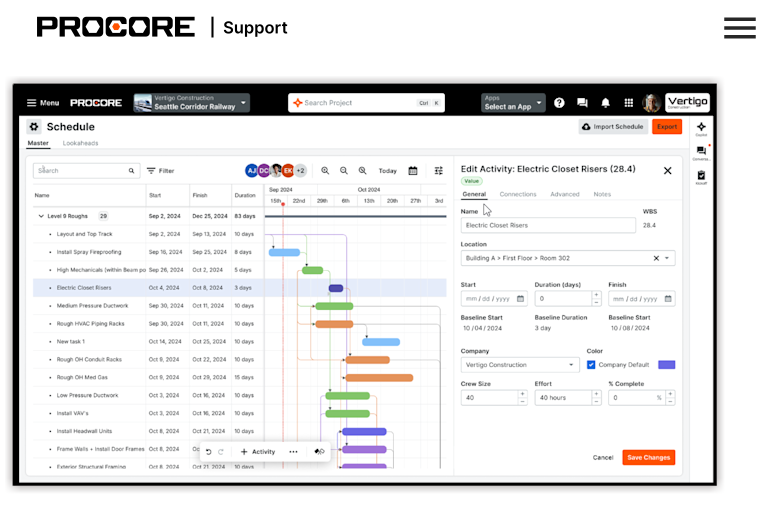
Screenshot of Procore’s workforce scheduling feature. Time tracking
Procore lets employees track time from their mobile devices, with hours tied directly to projects, cost codes, locations, and other job details. This level of detail is useful for job costing and reporting, but it also makes clocking in more time-consuming than simpler solutions.
One feature I appreciated is geofencing. Employees can receive clock-in and clock-out reminders when entering or leaving designated job sites, helping reduce missed punches and improve timekeeping accuracy.
Another area to mention is that Procore lacks built-in payroll processing, so you’ll need to integrate it with third-party providers to run payroll and manage tax reporting.
Project management tools
Procore keeps your projects ticking along with secure note-taking and timeline management tools. You can organize tasks, manage submittals, and track RFIs all in one place. I liked how the cloud-based system ensures that teams stay aligned and updated without having to wait for manual updates or email exchanges.
You can also use the health dashboard to check project timelines and spot what needs attention.
What users say about Procore
I like that I can easily navigate between variety of projects. Procore makes it easy to stay compliant with different requirements and contractors.
The price is very high, which makes it more suitable for large projects or big companies. I’ve also noticed that the mobile app consumes a lot of battery and data, which is sometimes problematic on isolated job sites.
Key Features
- Workforce scheduling
- Project management
- Mobile time tracking with cost codes
- Integrated finance tracking
Pros
- Feature-rich for large projects
- Labor requests for staffing needs
Cons
- Scheduling involves manual work
- Pricing is custom and lacks transparency
Pricing
Contact vendor for price. Trial: No Free Plan: No
Compare the Best Construction Employee Scheduling Softwares
| Topic |
 Start for free
|
|
|
|
|
|
|---|---|---|---|---|---|---|
| Reviews |
 |
|
|
|
|
|
| Pricing |
Starts at just $29/month for the first 30 users
|
$50/month + $6/user/month
|
Starts at $39/user/month.
|
Starts at $2.75/user/month
|
Starts at $5/user/month
|
Contact vendor for price.
|
| Free Trial |
yes
14-day
|
yes
14 days
|
no
|
yes
30 days
|
yes
30 days
|
no
|
| Free Plan |
yes
Free Up to 10 users
|
no
|
yes
(up to 5 users)
|
no
|
no
|
no
|
| Use cases |
Best for managing crew schedules, time tracking, and communication without switching apps
|
Best for Job Scheduling with Geofence Verification
|
Best for managing multiple job phases with daily task tracking
|
Best for complex scheduling rules and federal/state compliance requirements
|
Best for flexible shift swaps and open-shift management
|
Best for large firms managing projects, crews, and design drawings in one platform
|
| Available on |
How to Choose the Right Construction Scheduling Software
Finding the right construction scheduling tool depends on your crew size, the complexity of your projects, and your specific compliance needs. Here are the key factors to consider:
Team Size & Budget
Some platforms charge a flat monthly fee, which typically saves money for larger or growing teams. Others charge per user, which can quickly add up if you have a large seasonal workforce. Look for tools that offer free plans if you’re managing a small crew of under 10 people.
Tracking Requirements
If your crews move between multiple job sites, confirm the app supports GPS tracking and geofencing to ensure accurate clock-ins. If your sites frequently lack cellular service, you’ll need a tool with robust offline capabilities so workers can still view schedules and track time.
Key Questions to Ask Yourself
- Do I need an app that handles just scheduling, or do I also need time tracking and team communication?
- Does my team work in remote areas that require offline functionality?
- Will a per-user pricing model become too expensive as my company grows?
- Do I need pre-built compliance rules to navigate complex state labor laws?
- Can the software easily handle shift swaps and open shifts?
- Does the app integrate smoothly with my current payroll provider?
What is Construction Scheduling Software?
Construction scheduling software is a digital tool designed to help contractors, project managers, and site supervisors plan, assign, and track employee shifts across multiple job sites. It replaces manual methods like whiteboards and spreadsheets with a centralized, cloud-based platform.
These tools typically allow managers to build schedules using drag-and-drop interfaces, assign workers based on their skills and availability, and instantly notify crews of any changes. Many platforms also include features for tracking employee work hours, managing time-off requests, and ensuring compliance with labor regulations.
How Does Construction Scheduling Software Work?
Construction scheduling software works by creating a central hub where managers can build schedules and employees can view them. Managers log into the platform, create shifts, and assign them to specific employees or job sites. They can often attach notes, tasks, or safety checklists directly to the shift.
Once the schedule is published, the software sends automated notifications to the crew via a mobile app, text message, or email. Employees use the mobile app to view their upcoming shifts, request time off, or swap shifts with coworkers. When they arrive at the job site, they can use the same app to clock in, often with GPS verification to confirm their location. The software then tracks their hours, calculates overtime, and generates timesheets that can be exported for payroll.
The Benefits of Construction Scheduling Software
Here are some of the ways dedicated scheduling software can help your construction business.
Reduced administrative overhead
Automated scheduling eliminates hours of manual work each week. Features like recurring tasks, templates, and AI-powered auto-scheduling let managers create conflict-free schedules in minutes instead of hours.
Improved compliance and reduced risk
Built-in labor law rules, break enforcement, and overtime tracking help construction firms stay compliant with federal, state, and union requirements. Automatic conflict detection catches violations before they happen, reducing the risk of fines and lawsuits.
Less time theft and payroll errors
GPS verification and geofencing ensure employees are physically on-site when they clock in. Facial recognition and biometric verification prevent buddy punching. Together, these features can significantly reduce inflated payroll costs.
Enhanced communication and accountability
Real-time push notifications keep crews informed about schedule changes, new assignments, and urgent updates. Job-specific checklists and forms ensure everyone knows exactly what’s required on arrival, reducing miscommunication and rework.
How Much Does Construction Scheduling Software Cost?
The cost of construction scheduling software varies based on the pricing model and the features included. Many platforms use a per-user pricing model, typically ranging from $5 to $39 per user per month. Some of these per-user plans also require a flat monthly base fee, which can make them more expensive for smaller teams.
Enterprise-level project management tools often use custom pricing based on your company’s annual construction volume, which can run into thousands of dollars per year.
Connecteam offers a more predictable approach with its flat-fee pricing model. Instead of paying for every new hire, you pay a single monthly rate that covers your entire team. Paid plans start at $29/month for up to 30 users, and the Small Business Plan is completely free for up to 10 users.
The Bottom Line
Managing construction crews across multiple job sites requires more than just a basic calendar. The right scheduling software ensures your sites are properly staffed, your payroll is accurate, and your team stays connected.
Connecteam is the best choice because it combines powerful drag-and-drop scheduling, GPS-verified time tracking, and team communication in one easy-to-use platform. Plus, its flat-fee pricing means your costs won’t skyrocket as your crew grows.
Get started with Connecteam for free today!
References
FAQs
Yes, if you manage crews across multiple locations, GPS tracking and geofencing are highly recommended. These features verify that employees are actually on the job site when they clock in, preventing time theft and ensuring accurate billing.
Absolutely. Many scheduling platforms allow you to set custom rules for maximum work hours, mandatory breaks, and overtime limits. The software will flag conflicts if you try to schedule an employee in violation of these rules, helping you stay compliant with state and federal labor laws.
This depends on the software you choose. The best construction scheduling apps offer offline functionality, allowing workers to view their schedules, clock in, and complete forms without an internet connection. The data is stored locally on their device and automatically syncs once they regain cellular service.