

User-friendly workforce management for construction and field companies, but lacks advanced project management and communication.
Verdict: 7/10
Workyard stands out for its ease of use, offline functionality, and well-rounded workforce management features designed for construction and field services. I was especially impressed by its geofencing, GPS tracking, overtime, and smart forms features, which gave me better control of projects as an admin and helped to prevent time theft and compliance issues.
That said, Workyard’s scheduling and project management tools are fairly basic. It lacks advanced features like task dependencies, prioritization, and customizable views, which limits its utility for companies managing complex construction projects. The mobile app is also only available on the App Store or Google Play Store in the Americas, which can be limiting for businesses looking to expand to other locations.
Key Features:
- Time tracking: Track time on mobile or kiosk app, and leverage geofencing and photo ID verification to prevent time theft.
- Location and mileage tracking: Monitor employee location in near-real-time to boost their safety and track mileage for accurate reimbursement.
- Task scheduling: Create and assign tasks on the easy-to-use scheduling grid. Set recurring tasks to save the manual hassle of having to schedule common tasks every morning or week.
- Project management: Add projects with location addresses, geofences, and cost codes to streamline workforce management.
- Smart forms: Eliminate paper with the powerful AI-powered and drag-and-drop form editor to automate compliance and simplify administration.
Pros
- Easy-to-use apps
- Supports kiosk mode
- Robust offline mode
- Effective overtime tracking
Cons
- Project management lacks advanced features
- No auto-scheduling feature or in-app chat
- Limited integrations
How I Tested Workyard
I signed up for Workyard’s 14-day free trial and created a fictitious company with 1 admin, 1 manager, and a few team members. I tested each of Workyard’s core features and also put it to the test in real-world cases, like time clocks accidentally overrunning or employees ending their breaks early, which could lead to compliance problems further along the line.
Workyard Pricing
Workyard doesn’t display its pricing transparently on its website. It just says “plans start at $6/user/month/.” However, when I clicked into billing from my free trial, I could access some pricing info, though it’s unclear if this applies to all customers.
Workyard appears to adopt a per-user pricing model with 3 paid plans: Starter, Pro, and Autopilot. But you must also pay a $50 per month base fee, regardless of your plan, usage, or team size.
I could choose either the monthly or annual billing cycle, with the latter offering enticing discounts. Here are the prices I saw, in a nutshell:
| Pricing/plan | Starter | Pro | Autopilot |
|---|---|---|---|
| Monthly | $8 per user + $50 base fee | $16 per user + $50 base fee | $22 per user + $50 base fee |
| Annual | $6 per user + $50 base fee | $13 per user + $50 base fee | $18 per user + $50 base fee |
| Features |
|
|
|
As of July 2026
In my opinion, Workyard is on the pricier side thanks to its high per-user pricing and $50 base fee across all plans. This kind of expensive base fee can be off-putting for small construction companies that are just starting out or those with fluctuating workforce demands. Additionally, one of Workyard’s key features, “Smart Forms,” is only available as an add-on regardless of your plan.
Here’s how Workyard compares to similar products:
| Plan | Workyard (Pro) | Jibble (Premium) | ClockShark (Pro) | Connecteam (Advanced) |
|---|---|---|---|---|
| View pricing | View info | View pricing | View pricing | |
| 10 users | $180/month | $45/month | $170/month | Free for life—all features and dashboards |
| 20 users | $310/month | $90/month | $280/month | $49/month |
| 30 users | $440/month | $135/month | $390/month | $49/month |
| 50 users | $700/month | $225/month | $610/month | $99/month |
| Read our full Jibble review | Read our full ClockShark review | Learn more about Connecteam |
Monthly prices when billed annually. As of July 2026
Workyard is similarly priced to platforms like ClockShark. But it’s more expensive than competitors like Jibble and Connecteam, which may work better for small- to medium-sized businesses on a budget.
While Workyard doesn’t provide a free plan, its 14-day free trial gave me ample time to get a firsthand feel for its premium features.
Verdict: 5/10
Workyard Usability and Interface
In this section, I’ll walk you through the process of setting up Workyard. I’ll also divulge details regarding Workyard’s interface design and ease of use. Read on for the nitty-gritty details.
Setting up Workyard
On paper, signing up and creating an account seems like a seamless process. Workyard didn’t require credit card details for the free trial. It asked for my personal details, company information, and even asked where I’d heard about the platform. But I found the rest of the setup process quite tedious.
Annoyingly, it wouldn’t let me access the account without separately verifying both my email address and my phone number. It took me about 8-10 minutes to complete all of this, which is more than I’ve experienced on other platforms.
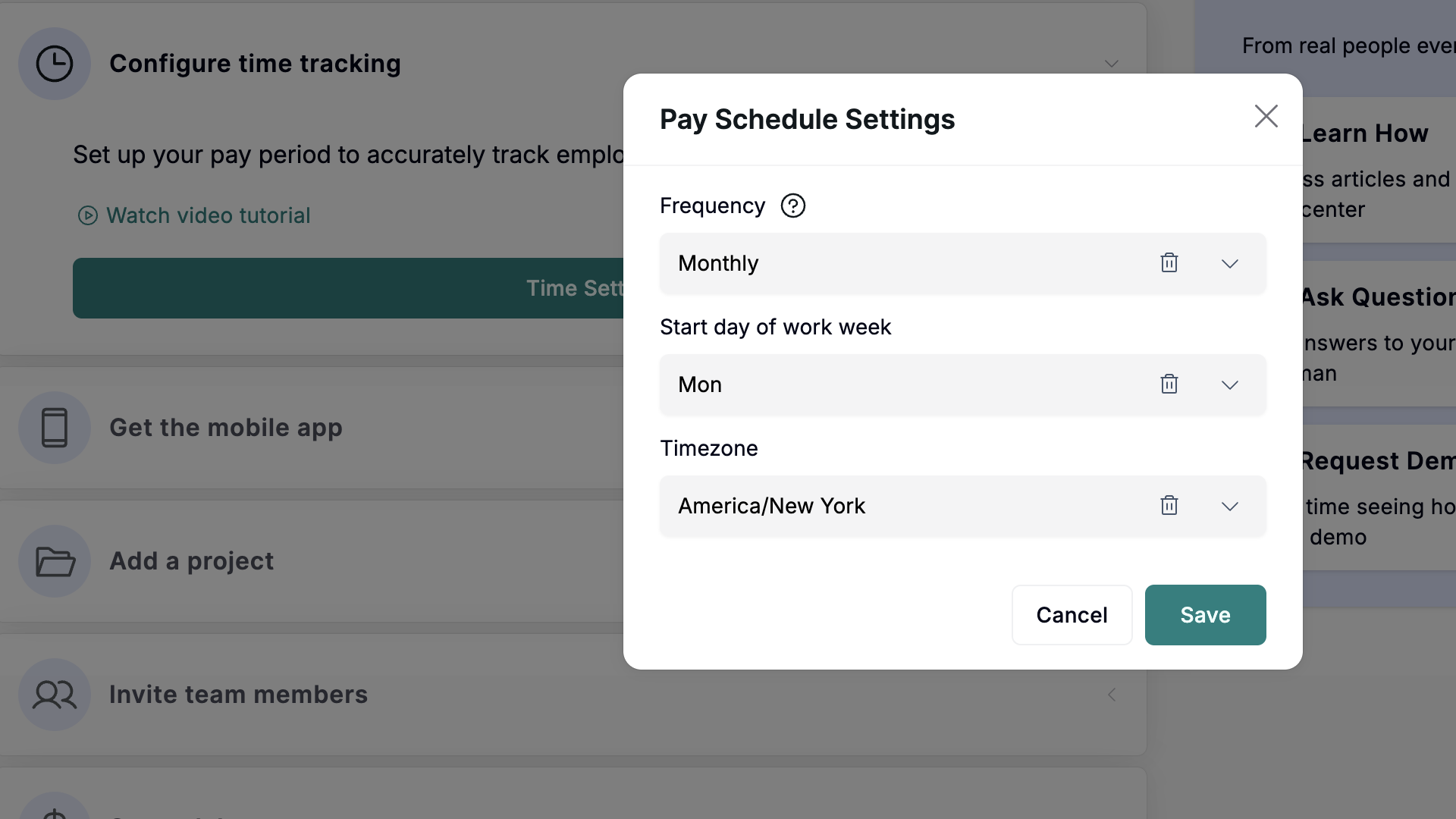
Once I was in, the onboarding process had to be done in a specific step-by-step order. For instance, I couldn’t add a project or invite team members without configuring time tracking rules first, which I found inconvenient. The web portal also kept logging me out even after a few hours of inactivity, and I found the number of sales emails I received during my trial excessive.
You can also only download the mobile app in the US or Latin American App Store or Google Play Store, and it requires a local phone number for verification.
Verdict: 4/10
Crew management
Workyard lets you invite employees, manage their roles, and set pay rates from a single dashboard. I could invite crew members one by one or in bulk, either via spreadsheet or directly from third-party software.
I also really appreciated the option to import hourly employees or 1099 contractors from payroll or accounting software directly into Workyard. It saves time and helps sidestep the manual hassle of harmonizing employee data between platforms to streamline the payroll process.
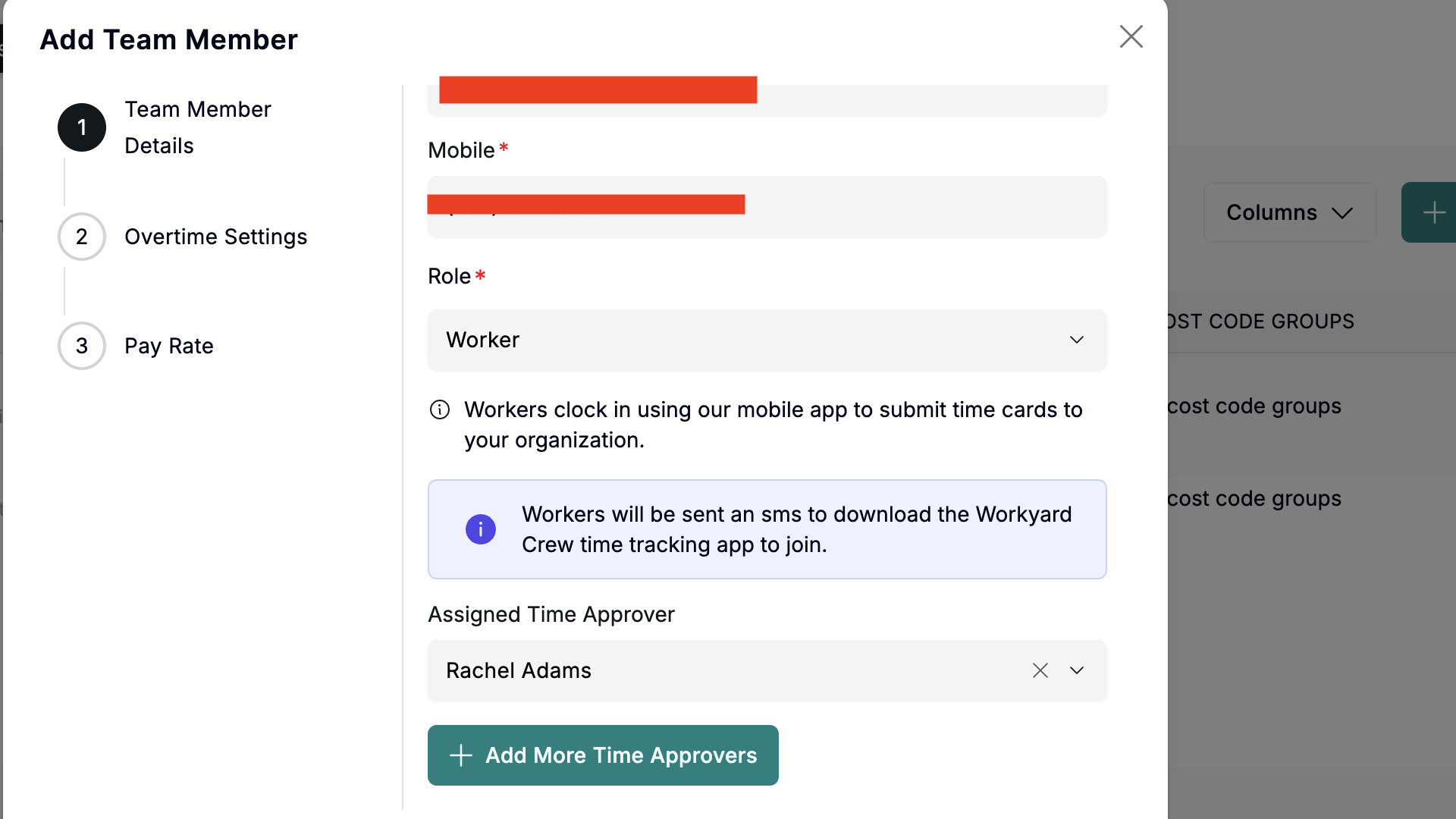
Workyard also requires you to assign roles to foster accountability and safety down the road. In addition, I could define each employee’s exemption status, break policy, and pay rate to avoid the wage determination problem. When you add a non-exempt employee, you must select the specific state or federal overtime rules to apply to them.
I appreciated being able to configure overtime settings at this point. However, I wish there was an option to apply these settings universally. This would save hours of manual work, especially for managers with large crews.
Verdict: 9/10
Workyard web app
Workyard doesn’t have a desktop app. I tested the app on my Mac device for this review.
The web app’s design strikes a balance between usability and aesthetic appeal. The interface is precisely tailored to the task-focused construction industry. It is clean and intuitive, featuring an easily accessible menu to the left.
What I really love is the use of icons, instead of feature names, on the menu to give the app a minimalistic look. When you hover the cursor over an icon, Workyard displays the feature name to simplify navigation. Moreover, the combination of white and teal colors gives the app a fresh yet professional feel.
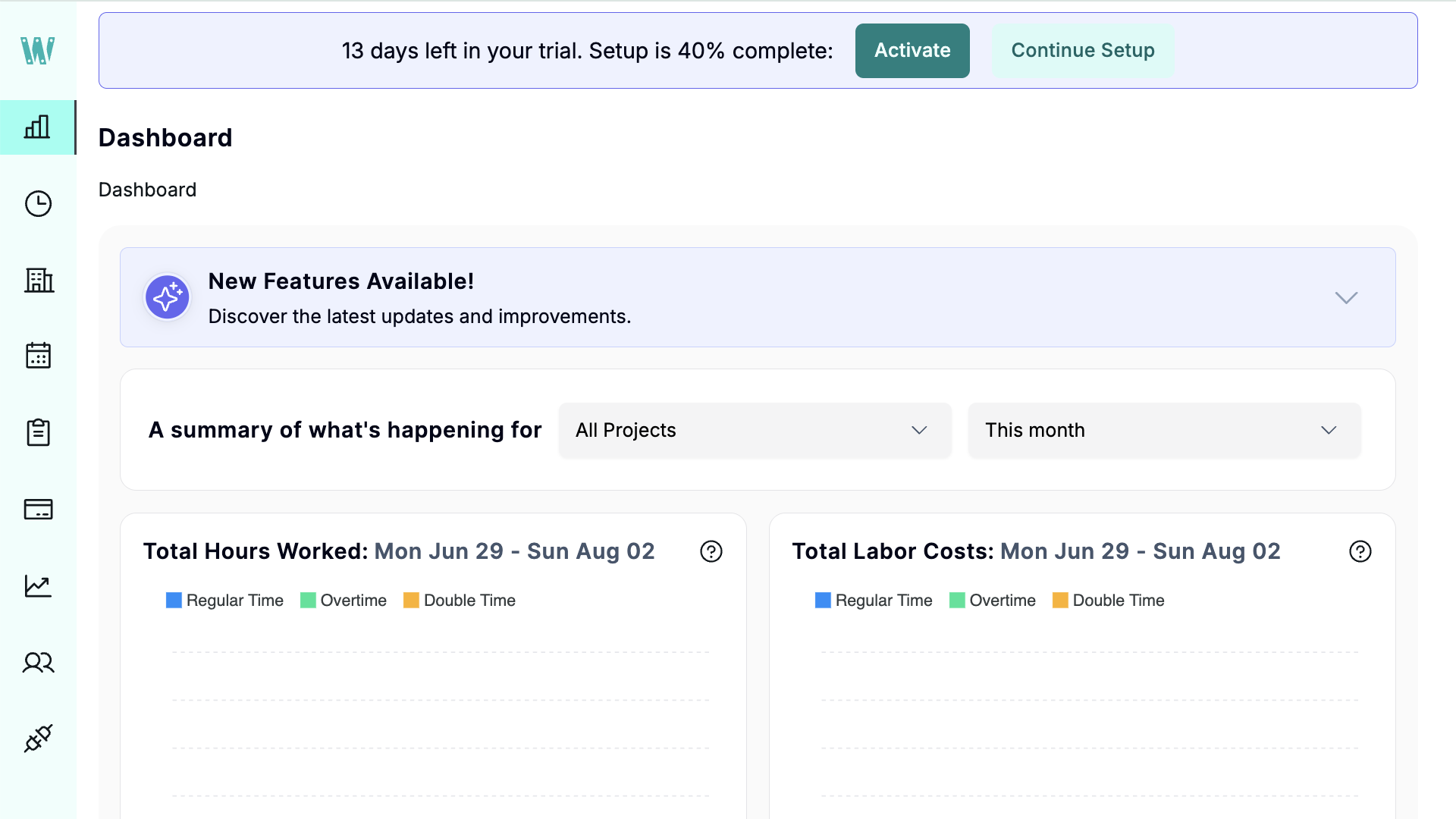
Overall, I found the app and individual features easy to navigate, which is a plus for non-tech-savvy teams. Unfortunately, I couldn’t test to see if Workyard offers screen reader compatibility or other tools for users with hearing or vision problems. But the website doesn’t mention it either, which could be off-putting for companies looking to foster an inclusive environment.
Verdict: 8/10
Workyard mobile app
I requested my mock employees to accept the invites on their smartphones. After they confirmed the details and set a password, Workyard sent them a link to download the mobile app on their device. This made installing the mobile app easier than searching for it manually in the app store.
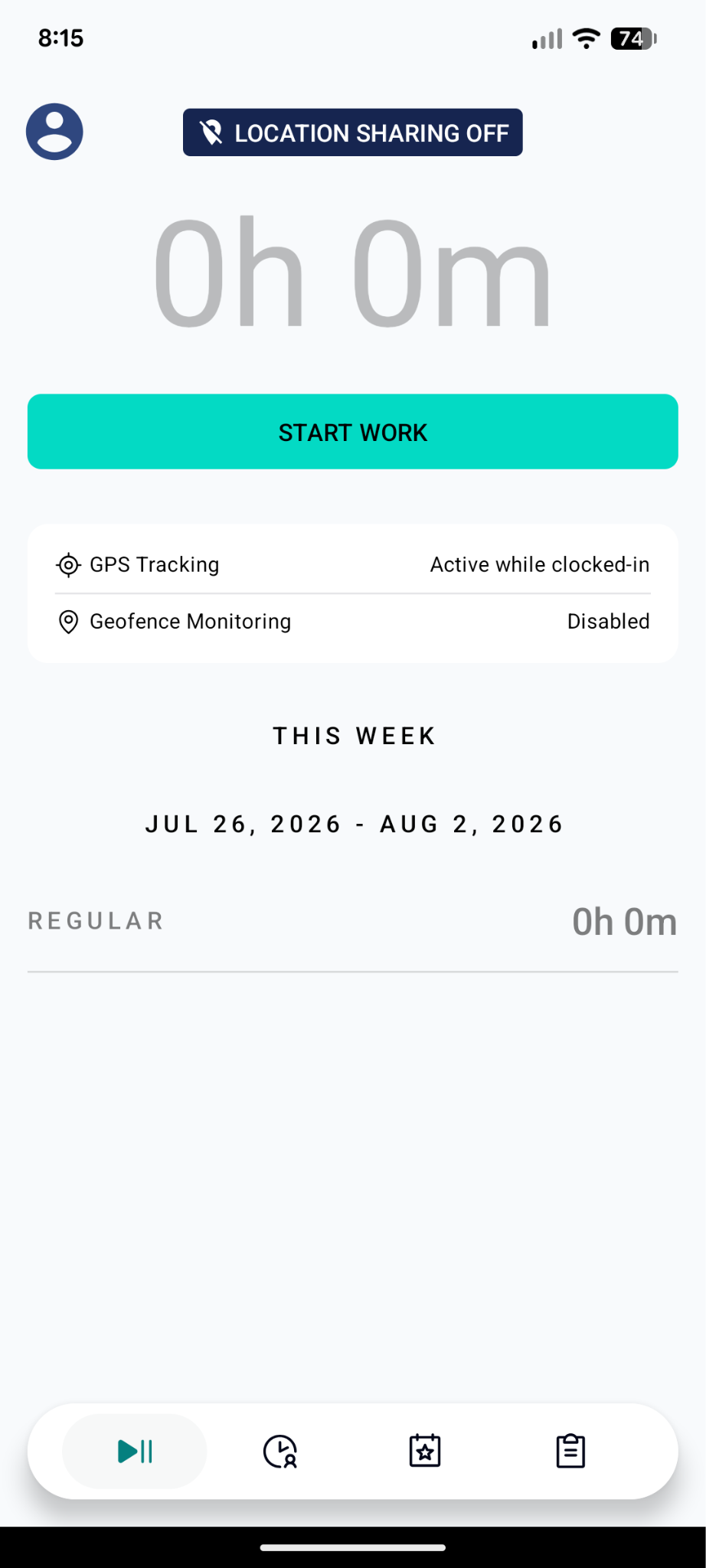
When I logged into the app, I landed on the clock page with a conspicuous timer button. While this clever design choice ensures workers clock in immediately, it feels very empty, almost too minimalist. The rest of Workyard’s menu is at the bottom of the screen where users expect it to be. But the features were simply represented as icons instead of being clearly labeled. I honestly couldn’t identify some of them at first sight.
Feature-wise, Workyard’s mobile app mirrors the core capabilities of the web version. Managers can add crew members, assign tasks, approve requests, and track project progress even when on the go. Employees, on the other hand, can perform basic functions relevant to their roles.
Most importantly, users can perform essential functions like tracking time without an internet connection, thanks to Workyard’s offline mode. It eliminates cases of forgotten entries when your construction crew is working in areas with unreliable or no internet access. I did experience a bug when I first tried it, but I was able to use it successfully later.
| Menu Item | Admin | Employee | ||
|---|---|---|---|---|
| Website | Mobile App | Website | Mobile App | |
| Feature | ||||
| Timesheet | ✅ | ✅ | ✅ | ✅ |
| Time Tracker | ❌ | ✅ | ❌ | ✅ |
| Schedule | ✅ | ✅ | ✅ | ✅ |
| Time Off | ✅ | ✅ | ✅ | ✅ |
| Analysis | ||||
| Dashboard | ✅ | ✅ | ✅ | ❌ |
| Reports | ✅ | ✅ Partial (Can generate a project time report and share via email) | ❌ | ❌ |
| Activity | ✅ | ✅ | ❌ | ❌ |
| Management | ||||
| Geofencing | ✅ | ✅ | ❌ | ❌ |
| Approvals | ✅ | ✅ | ❌ | ❌ |
| Projects | ✅ | ✅ | ❌ | ❌ |
| Team | ✅ | ✅ | ❌ | ❌ |
| Clients | ✅ | ❌ | ❌ | ❌ |
| Settings | ✅ | ✅ | ✅ | ❌ |
Verdict: 7.5/10
Workyard Core Functionalities
I put Workyard’s core features to the test to discover how they perform. Read on to learn more.
Time tracking
Workyard’s time tracker lets users track time on the mobile or kiosk app. The first is a flexible, on-the-go solution that works well even when employees are outside the cellular range. The excellent offline capability eliminates missed sessions, preventing the back-and-forth that ensues as you attempt to amend timesheets.
Workyard kiosk app enables multiple employees to clock in/out from a shared device using a 4-digit PIN. The only small problem is that the kiosk app only works on iPads and is only available with more expensive subscriptions. I also wish there was a way to track time using the web app, and the time clock was more precise. Currently, the most accurate you can round to is the nearest minute.
Time tracking restrictions
The effectiveness of Workyard’s geofencing features stood out to me. I had to set a geofence for every project, which helped ensure employees clock in only when physically at the job site. I like that this curbs time theft, boosting your profitability.
Besides curbing off-site punching, the geofence facilitates useful automation. You can set it to auto-clock-in employees when they arrive at the assigned job site, eliminating manual clock-in. Alternatively, you can configure Workyard to prompt employees to clock in when they arrive at the job site to prevent missed sessions.
Beyond geofencing, Workyard supports photo ID verification at clock-in and clock-out (which I haven’t seen in many platforms). When I activated this feature, the app prompted me to take a selfie when clocking in or out.
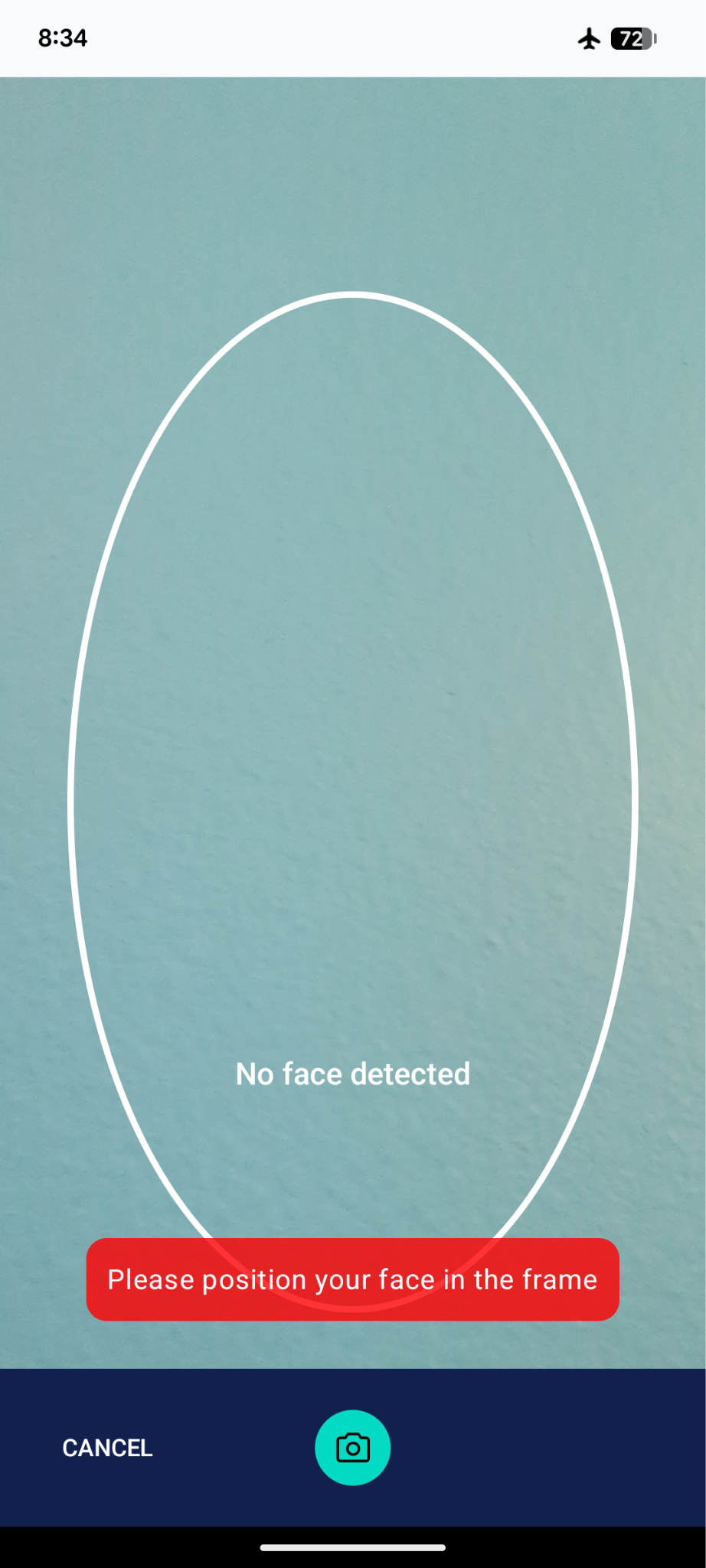
However, it did not automatically block the clock-in attempt in the case of a facial mismatch. Instead, it attached the photo to the timecard for managers to verify my identity later. Manual verification can be tedious for large workforces, but it’s useful for preventing buddy punching, one of the most common time theft tactics.
Break tracking
I thought Workyard’s break tracking feature was great. By default, the app is configured to remind employees to take a 10-minute rest break every 4 work hours. Doing so can encourage employees to take mandated rest breaks and help you manage compliance with federal and state laws.
I could also automate meal break reminders to rely on default or custom settings for break lengths and triggers. For instance, I could set a reminder for a 30-minute meal break after every 5 hours of work. And I could set different rules for different time clock groups. This makes it easier if you have employees in different states or departments.
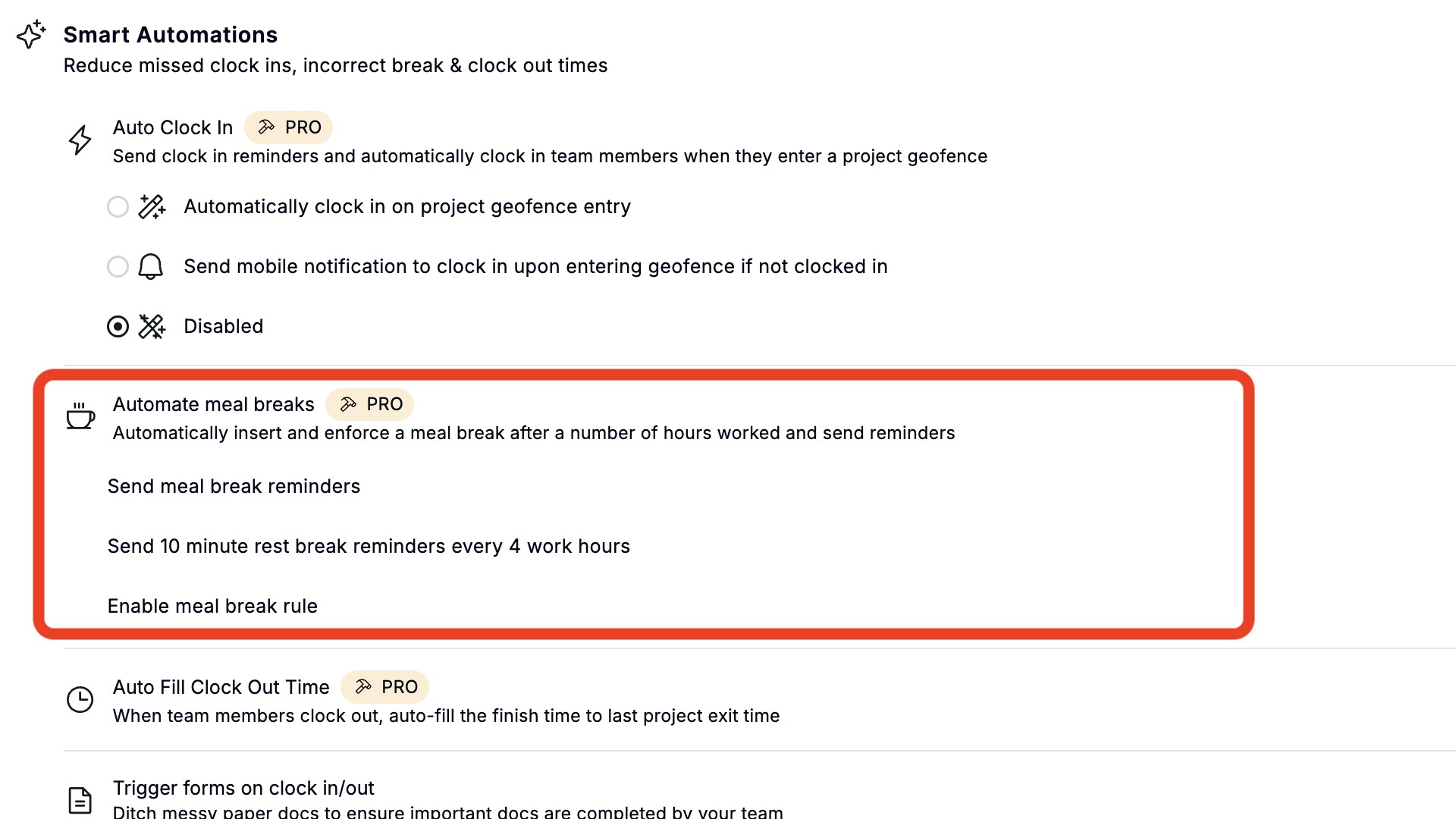
That said, I found a few frailties that make it difficult to enforce meal breaks, mainly in states with strict requirements like California. For instance, the app doesn’t prevent employees from ending their breaks early, which is a recipe for break violations.
Moreover, without reminders to end breaks, some employees might take prolonged breaks. While this doesn’t pose any compliance risk, it can complicate the remuneration process down the road.
However, if you’re in states with lenient labor laws, you can automate meal breaks to cut out these issues altogether. With this option, Workyard inserts a meal break into the employee’s time sheet once they hit the minimum work hours.
Overtime tracking and controls
When adding a crew member with non-exempt status, Workyard requires you to select an overtime policy. The good thing is that the provider has many pre-set overtime rules that match federal and state laws.
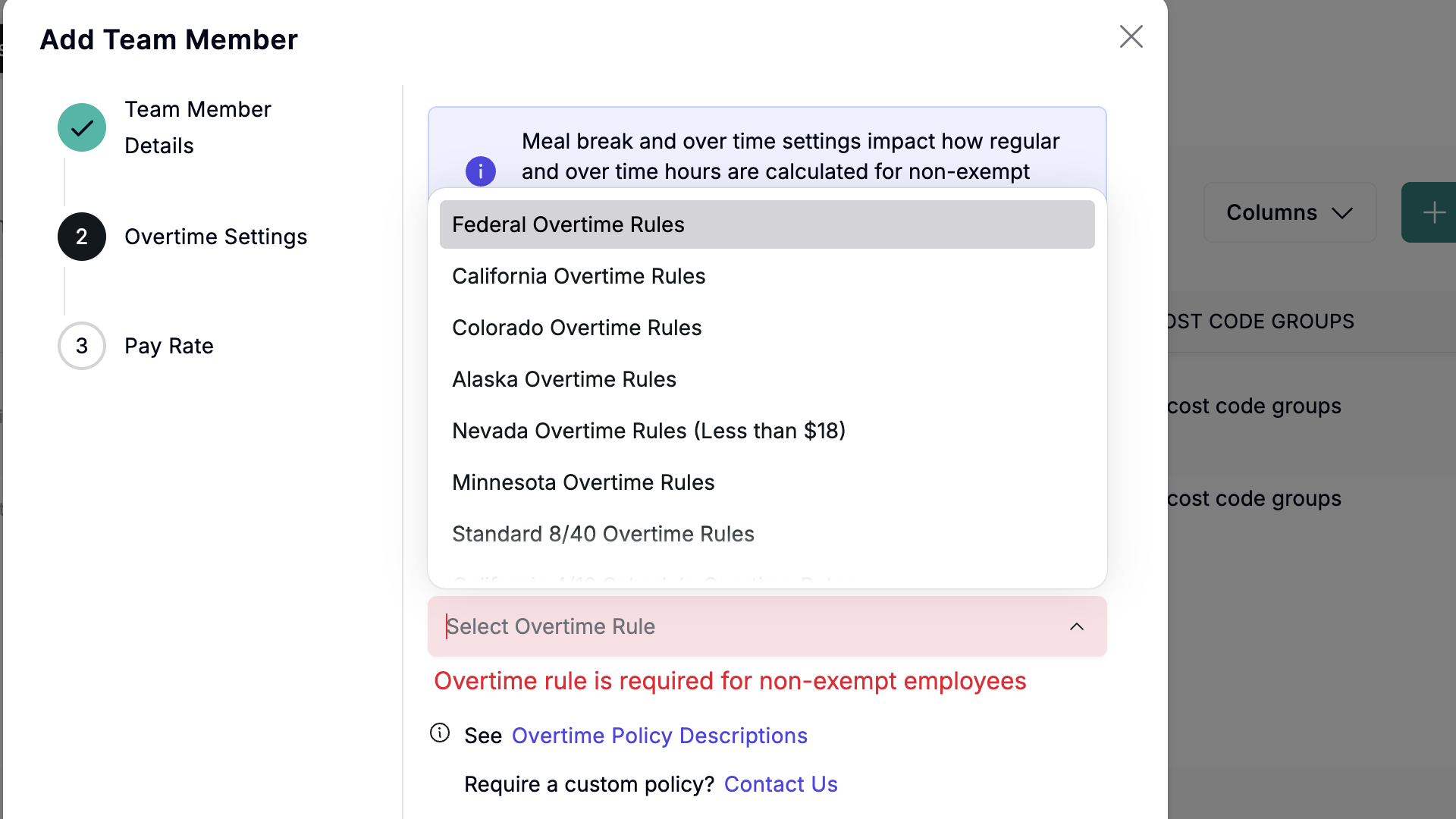
This allows you to apply an overtime policy with the click of a button. The only minor complaint is that Workyard doesn’t allow you to apply the overtime policy universally. Instead, you assign the policy to employees one by one. This lets you set overtime rules based on where the employee is, but it can be time-consuming for a large workforce.
During testing, I configured Workyard to track overtime under the California overtime rule, and the app accurately captured overtime based on the state’s labor law.
Verdict: 8/10
GPS location and mileage tracking
I have tested numerous GPS tracking apps, and I must say, Workyard GPS tracker is right up there in the top echelon. I could choose to track location live, only at clock-in and clock-out, or disable it altogether, making it easier to comply with data privacy regulations.
While Workyard doesn’t alert you when an employee leaves the work site, you can open the location map to see if each employee is where they’re supposed to be.
Besides showing you the location pin on the map, Workyard provides a detailed log of activities. You can see when and where the employee clocked in or out. You’ll also see all the locations the crew visited and the total time spent at each address. This is particularly helpful for tracking mobile workers like site inspectors, managers, and sales reps.
Workyard also accurately tracked my movement during a test trip. It generated an accurate turn-by-turn route, showing the exact road I used. I also noticed that the app took the GPS coordinates of the places the vehicle stopped, using its breadcrumb technology.
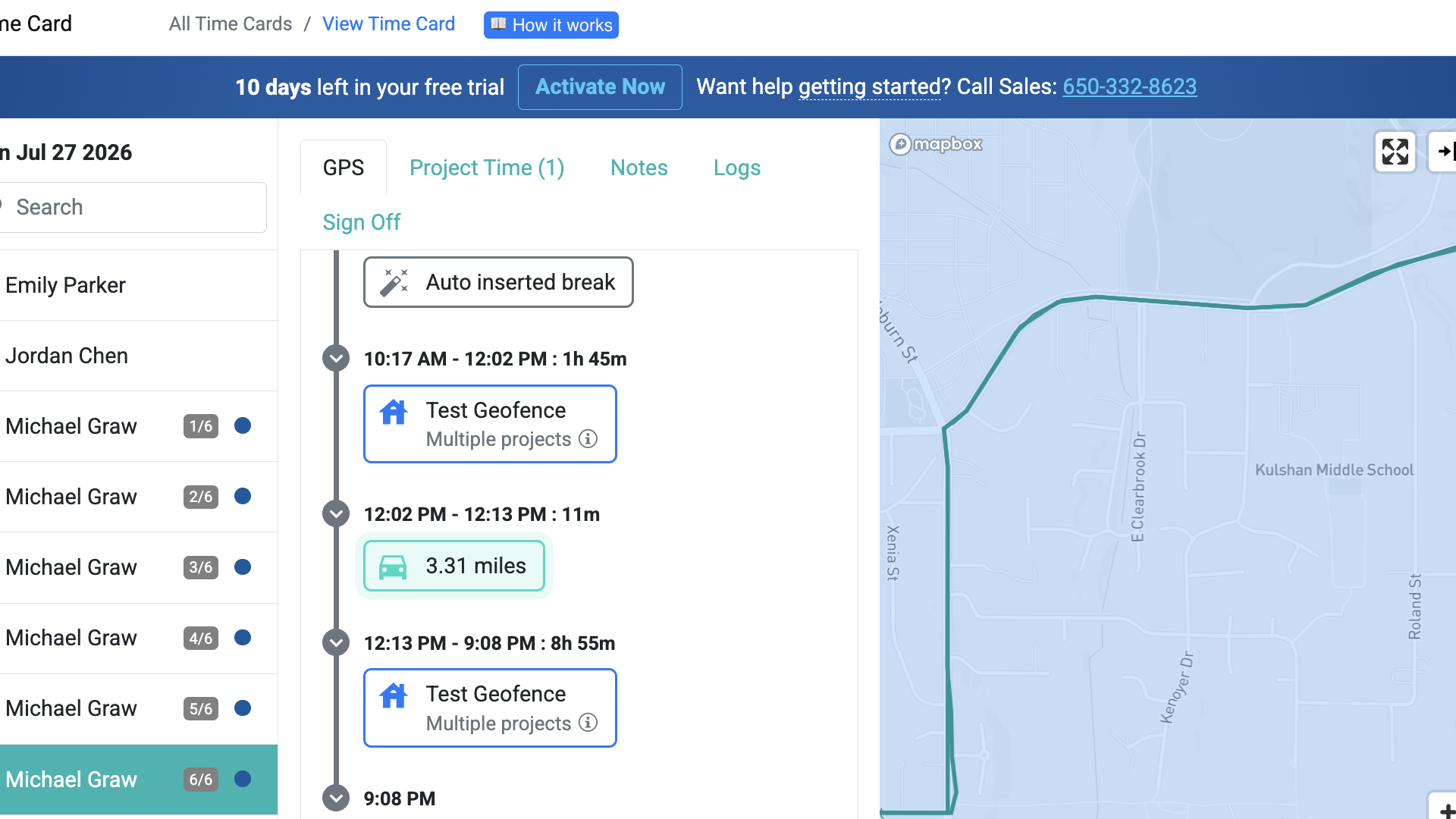
Moreover, Workyard has built-in drive detection and trip segmentation capabilities. When the employee is clocked in, it tracks mileage in the background without the employee lifting a finger. It also segments the trip to separate driving and idle time to help you verify if the employee spent time on legitimate work-related activities.
Verdict: 10/10
Time off management
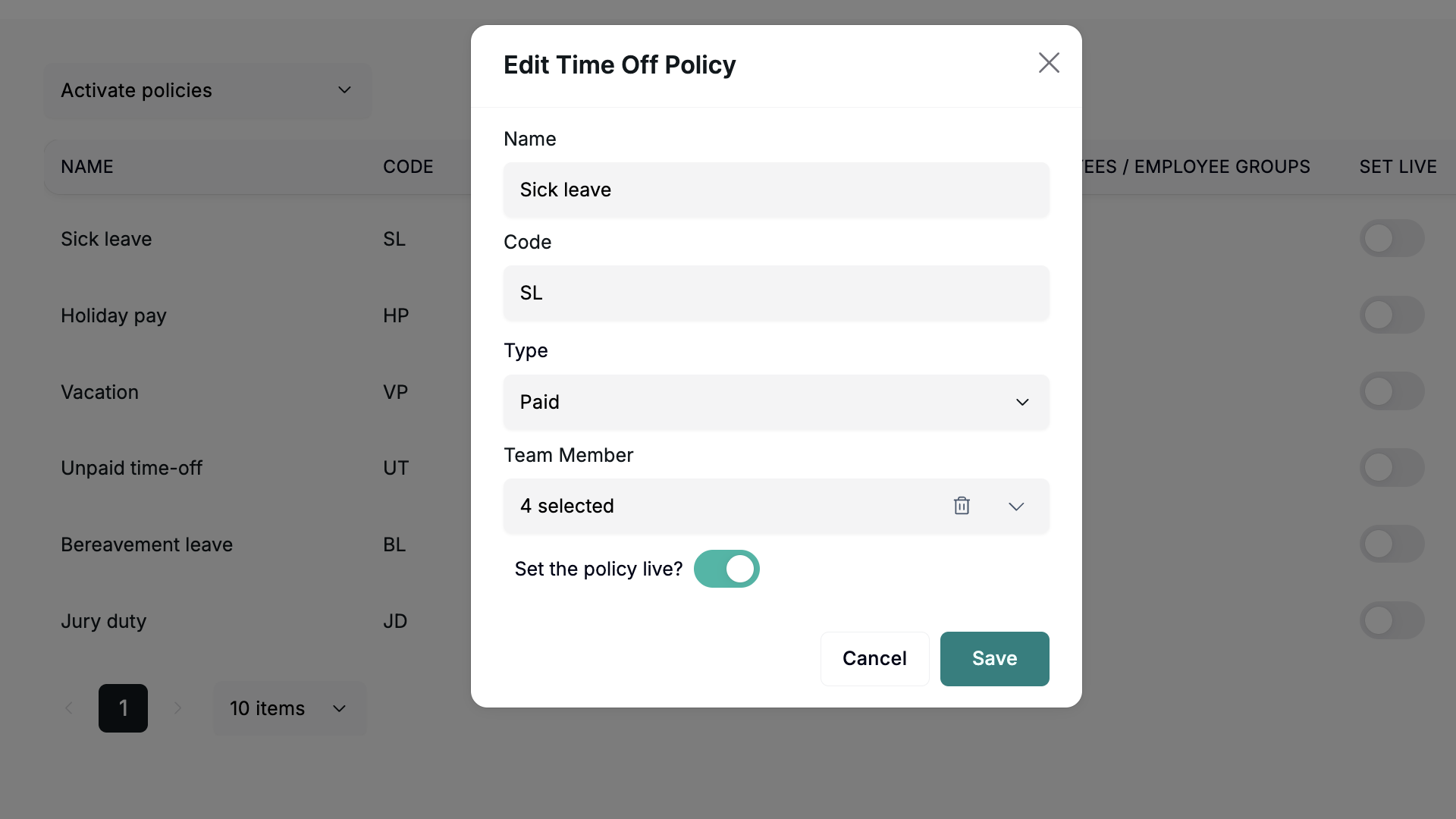
Workyard’s Pro and Autopilot plans offer a time off management feature with a few built-in ready time off policies like sick leave, jury duty leave, vacation pay, and more. But I thought the feature was pretty bare-bones.
I had to toggle “set live” on for each policy and manually edit the policies to add team members to them. Not adding team members means it applies to all users (which is helpful), and I could also assign leave to a specific group of staff members.
However, when I was editing policies, I discovered that I couldn’t add any details about the policy, like days or hours off, accrual rules, carryover rules, etc. Most other platforms let you customize leave types, whereas Workyard left it too basic for my liking.
Verdict: 6/10
Project management
I found Workyard’s Project Hub easy to use and fit for simple construction projects. To add a project, I only needed to open the project hub, click “+ projects,” and select either “add project” or “import project” from the drop-down menu.
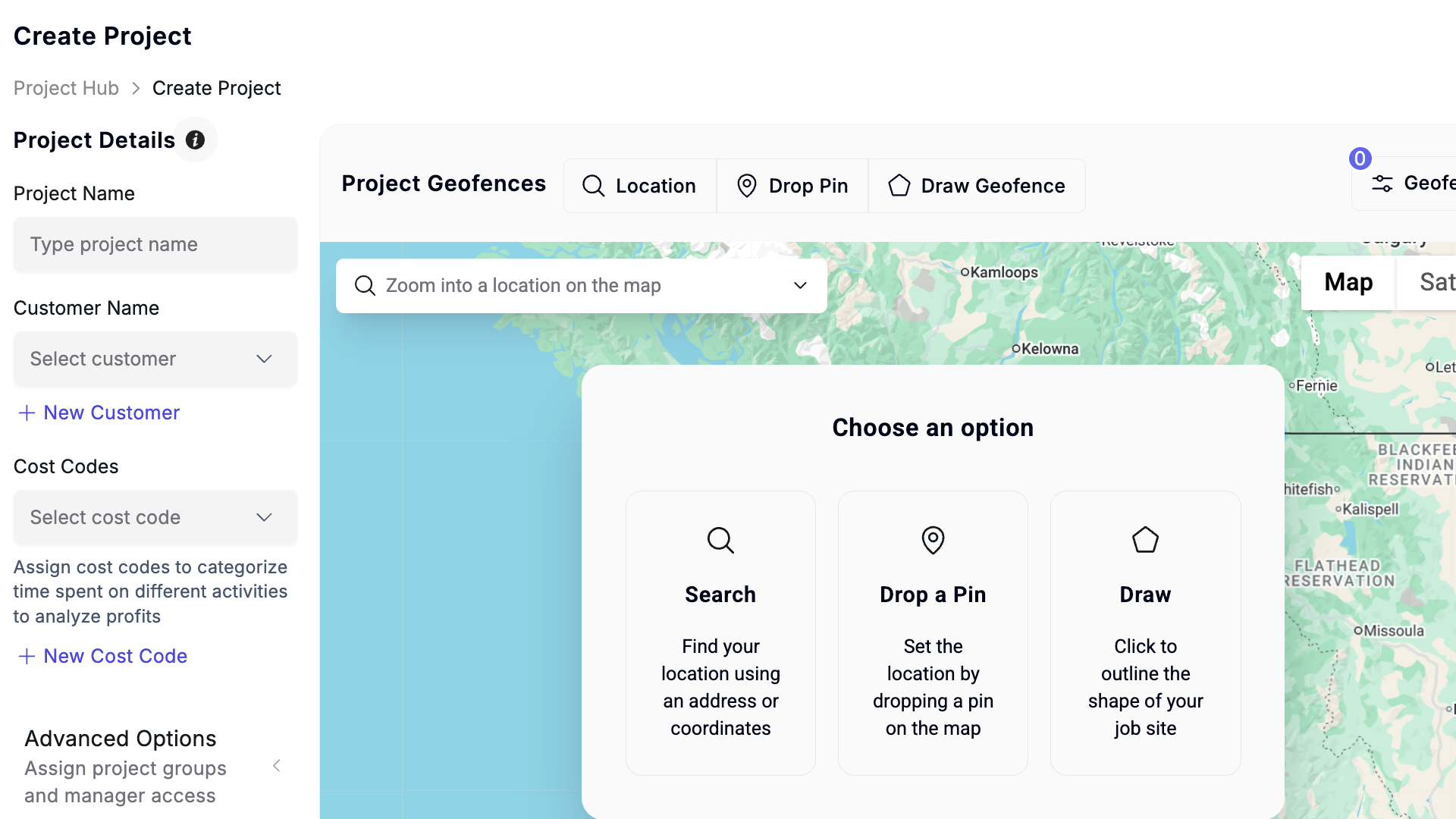
I could import projects via a CSV template or from third-party software. Importing projects makes the process faster and is best for companies that are moving many projects into Workyard.
However, small companies that are only getting started can add projects one by one. Workyard lets you link projects to a specific customer to simplify billing. You must also add the worksite’s address to define the geofence or draw a geofence on the map, which helps monitor crew attendance.
I also appreciated that Workyard lets you define project cost codes. Cost codes help you segment labor costs by specific tasks for a more detailed view of your project breakdown. They also streamline remuneration and help you track project costs in real time.
Project Hub’s shortcomings
That said, I found that Workyard’s project management suite was fairly basic compared to dedicated project management software. It lacks some essential and advanced capabilities, which make it less effective for managing complex construction or field projects.
For example, it doesn’t support Kanban or Gantt Chart project views. Even the available project view misses the mark as it doesn’t have a detailed list to help monitor priorities and deadlines. Combined, these frailties make it difficult to monitor progress and identify risks that could derail your company’s projects.
Verdict: 6/10
Task scheduling
In my view, Workyard task scheduling augments Project Hub, making it easy to assign tasks and stay on schedule.
It lets you create tasks, add start and due dates, link them to specific projects, and add “task watchers” who can monitor progress from their dashboards. You can also set different color labels for different tasks for better visual tracking.
I liked that Workyard lets you create recurring tasks. You only need to schedule the task once and set the shift to repeat for the duration of the project. This saves you the hassle of reassigning the task each day or week. I think this is especially valuable in construction, where tasks span weeks or even months.
I also liked being able to add a checklist, which I found indispensable for multi-step tasks. Checklists help standardize processes across crews to ensure the quality of work is the same regardless of who works on what.
I could also view all tasks in a list or calendar format, and change by date, week, or month as needed. And I was pleased that I could see my employees’ time off marked in the task calendar as a way to prevent scheduling errors.
My only gripe with creating tasks is that Workyard doesn’t let you save checklist templates for various tasks. As a result, you have to create a checklist from scratch every time, which is boring.
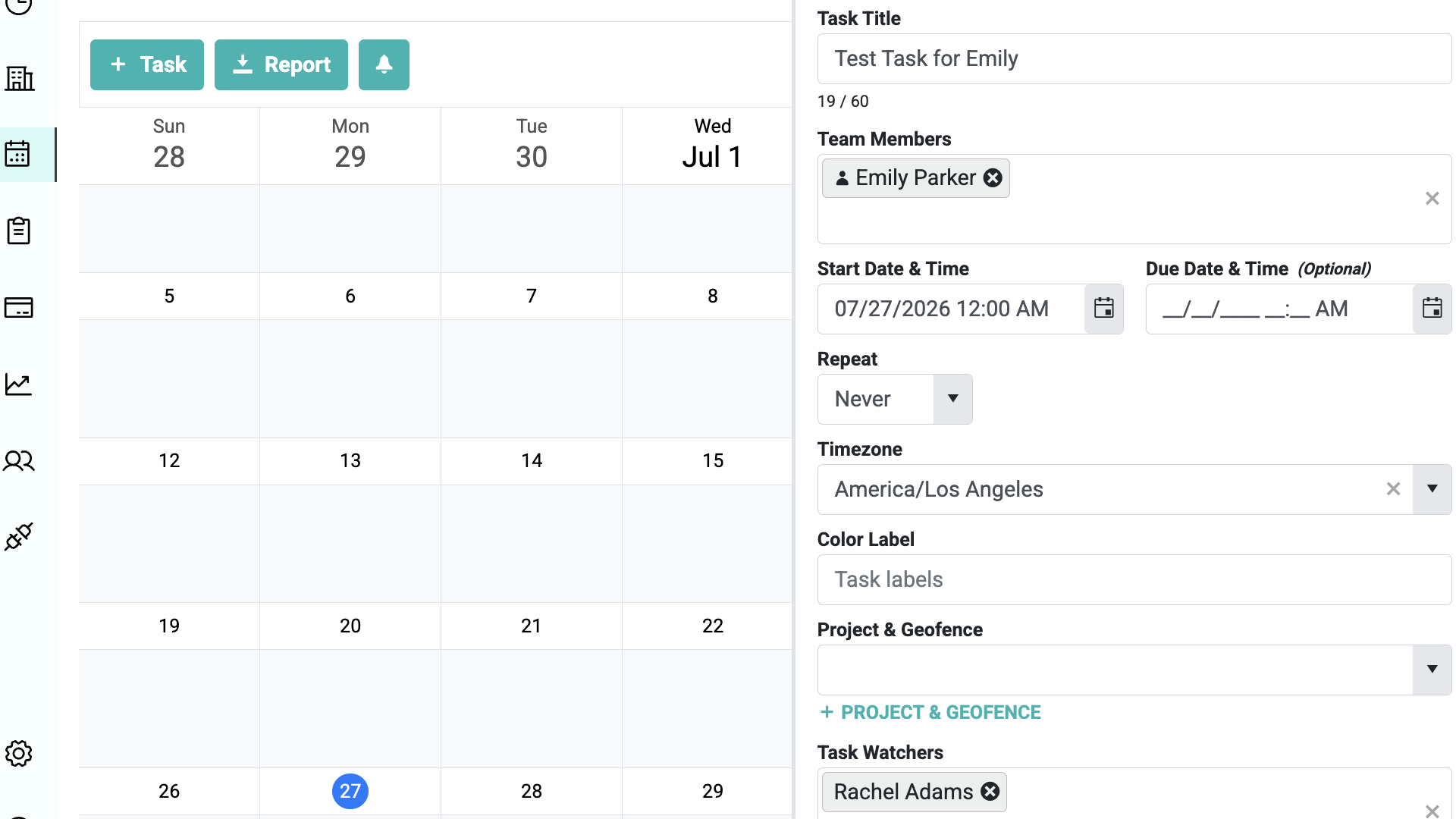
Once you assign a task, Workyard notifies crew members instantly via email. Employees can see a detailed task overview complete with start times, location, and requirements. I really liked the “navigate” button, which helps employees find the most appropriate route to the job site.
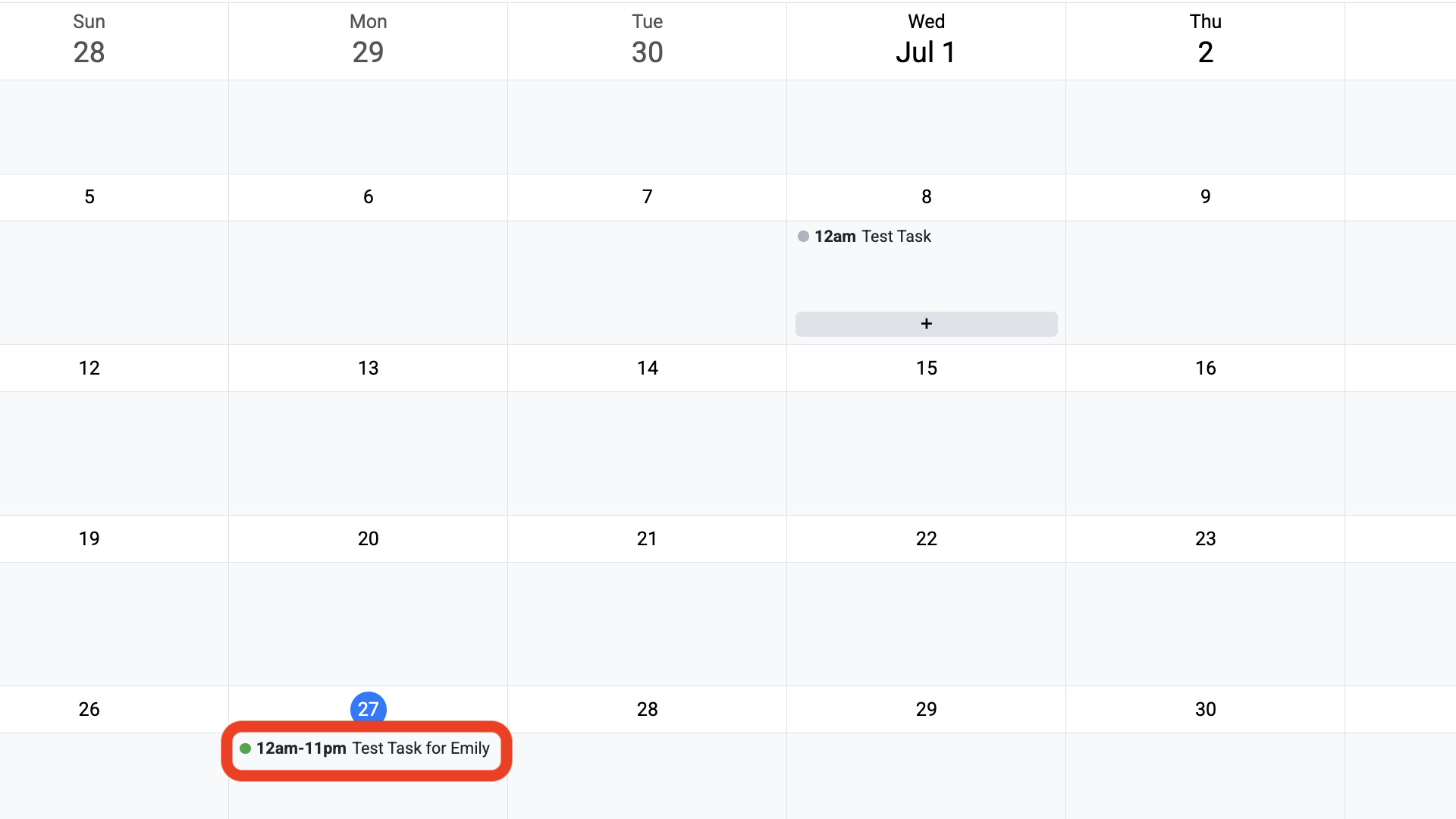
However, during my testing, I found that when an employee marked the task as complete, I didn’t receive any in-app notification to let me know. The small dot next to the task turned green on refreshing the calendar, but this was so easy to miss.
While Workyard lets you add task notes, photos, and files to tasks, I would have liked to see a broader instant messaging tool. In the real world, employees and managers often benefit from easy, real-time back-and-forth discussions.
Finally, Workyard’s task scheduling works more like a basic task manager rather than a full-fledged shift scheduler. It doesn’t offer shift creation tools, auto-assigning, open shifts, and other features I’d expect to see in software built for shift-based workforces.
Verdict: 6/10
Smart Forms
Smart Forms is another intriguing feature designed to streamline operations and automate compliance. You can create forms for just about anything, whether that be safety inspections, compliance, equipment tracking, or material request checklists. And creating forms is a breeze, thanks to Workyard’s 150+ ready templates, an AI-powered converter, and the build-from-scratch drag-and-drop editor.
Workyard’s form editor is easy to use. You only need to drag elements from the left sidebar and drop them into the respective fields.
There’s a nice variety of form fields and elements to help you create forms that fit the bill for your specific purposes. You can add dropdowns, checkboxes, signature, panel, radio button group, and other elements to customize the form to your liking.
You can also configure Workyard to serve up the form when an employee clocks in or out. The form helps employees remember to complete relevant forms. Best of all is that forms are mobile-friendly and accessible offline, meaning that employees can complete them anytime, anywhere.
I created a smart form with test fields, added a signature requirement, and set a trigger for employees to complete it on clock-out.
When I tested it as a user, I was in fact asked to complete the form before I could save my time card.
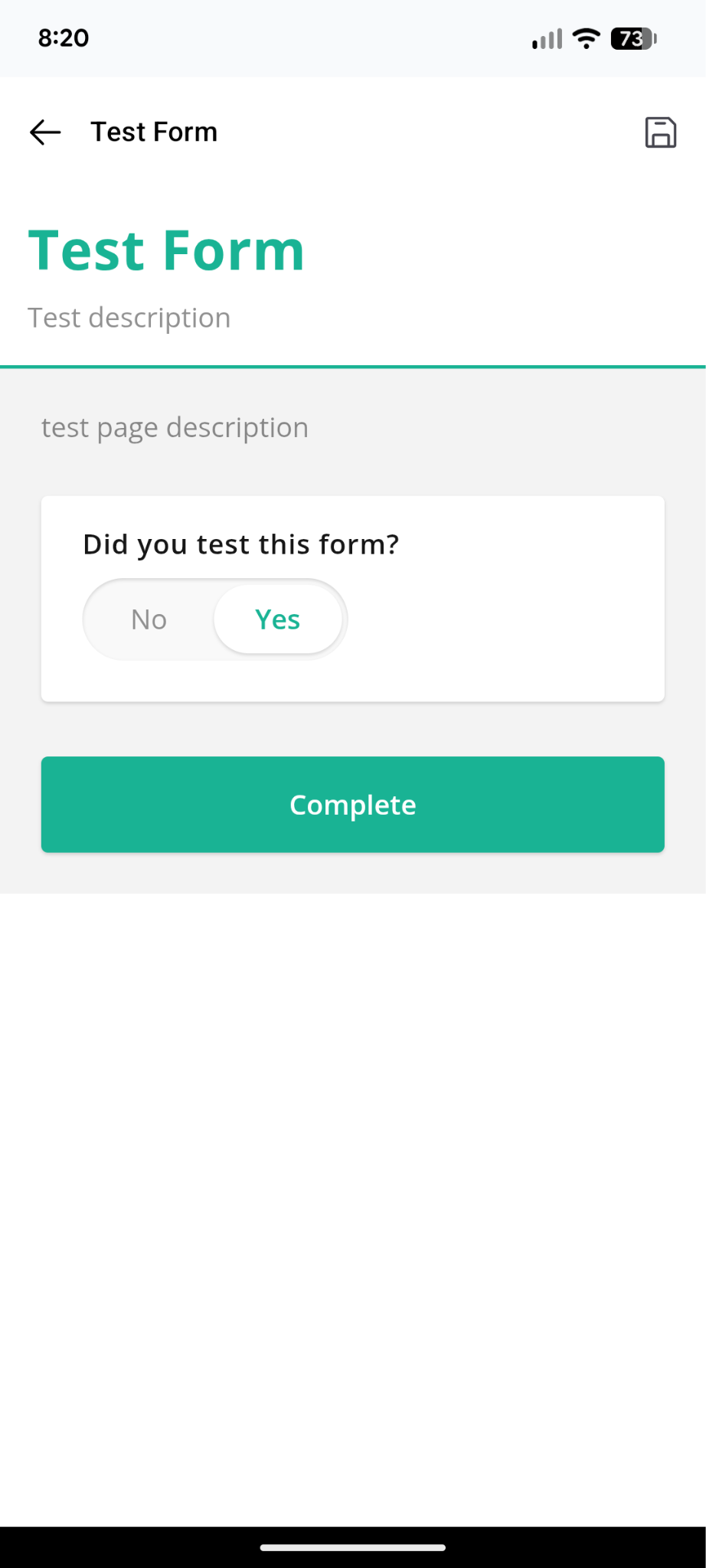
Finally, I could also enable Spanish and Portuguese as language options, allowing employees to complete the form in their native language. However, I wish Workyard supported more languages. Another issue is that Smart Forms are available as paid add-ons, charged by the number of submissions.
Verdict: 9/10
Workyard integrations
While Workyard’s array of native integrations is limited, it includes options that are meticulously selected to complete vital processes. The array includes accounting, ERP, and payroll software, plus other tools like Procore (partial, one-way integration) and Zoho CRM.
Some of the most popular options include:
- QuickBooks Online
- Gusto
- ADP
- Sage
- Oracle NetSuite
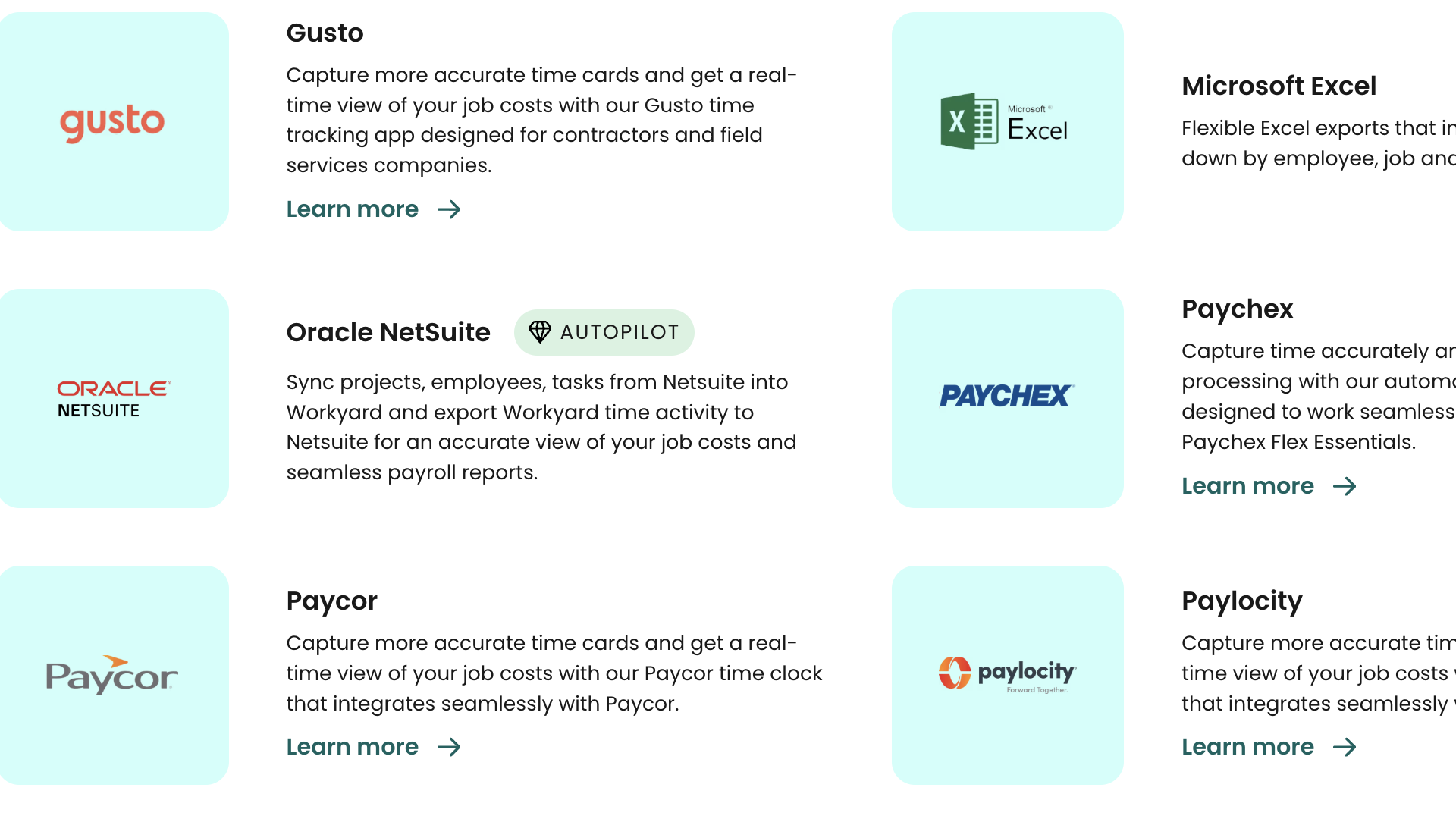
Workyard also offers an Application Programming Interface (API) integration option. With the API, you can integrate virtually any system or workflow to refine data flows. However, API integration requires technical expertise, unlike native integration.
Overall, while there are some widely used tools on Workyard’s integration list, I was disappointed by the lack of project management and team communication integrations. I’d have also liked to see no-code integration options, with Zapier, for instance, which is available on many platforms.
Verdict: 6/10
Workyard Reporting and Analytics
Workyard has a dedicated Reports page, which shows a live dashboard with pay, workers’ comp rates, and total costs for projects and customers. But for more detailed reports, I had to navigate to individual features and download reports from there.
This makes reporting a bit tedious because you have to bounce between different tabs. Additionally, report options are limited. I don’t think the options help you fully leverage the available data for better decision-making.
The available reports include:
- Timecards, which show pay period time, time card notes, time card details such as breaks, overtime, etc., time card by projects, and more.
- Project dashboard and reports, which show hours, miles and travel times, cost codes, and expenses.
- Task reports, which show assigned tasks and completion statuses by employee.
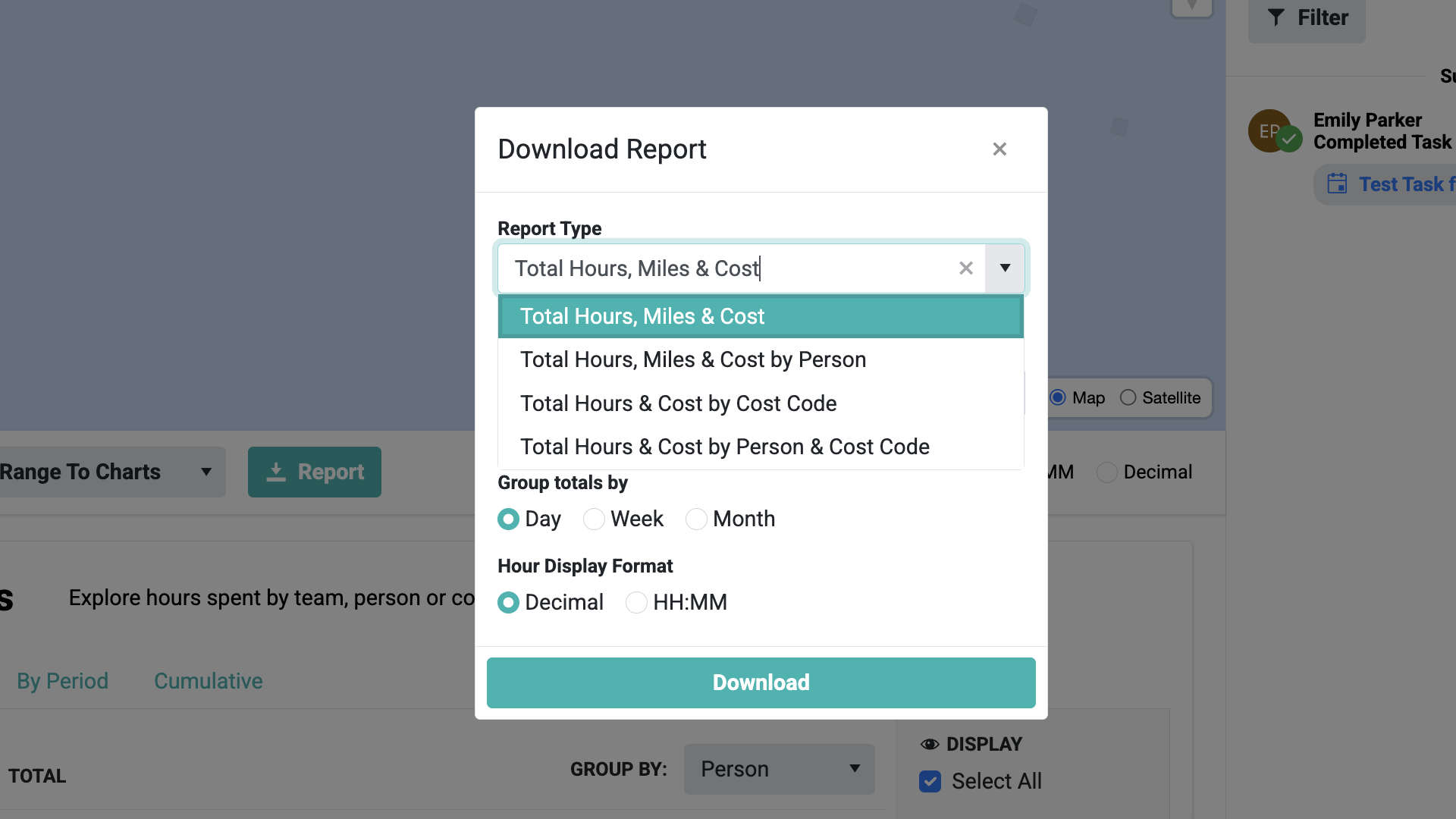
Report sharing options are limited to PDF and CSV downloads. Workyard’s web portal doesn’t let you email reports directly to stakeholders, which is disappointing. Moreover, you can’t schedule reports to be delivered to your inbox on a regular basis. That said, the mobile app lets you send project time reports as email to admins or approved requesters.
Verdict: 7.5/10
Workyard Security Features
I appreciated that Workyard supports role-based permissions, which restrict unauthorized parties from accessing confidential staff or client information.
The provider also says it uses the right tools and methods to protect personal information within its controls, for instance, using data encryption and other safeguards. However, it doesn’t readily reveal specifics, such as the encryption ciphers used to protect data in transit and at rest, which could have been more reassuring for users.
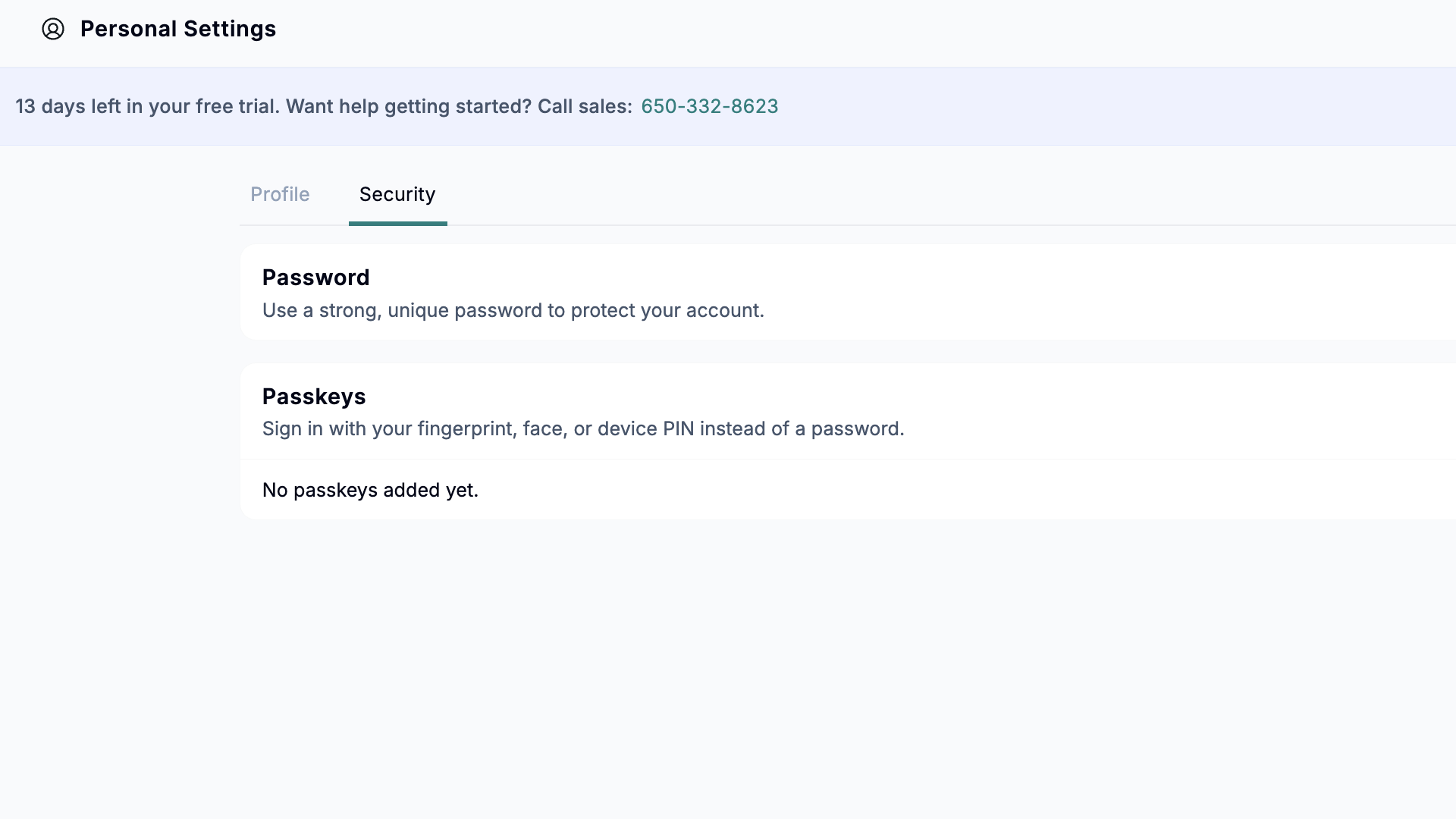
Regarding user authentication, Workyard supports the standard email and password login, as well as passkeys. As you already know, this mode of login is usually prone to security threats if not properly protected. My worry is that Workyard doesn’t appear to support 2-factor authentication (2FA) to add an extra layer of account protection. (I didn’t see the option in the internal security settings during testing.)
Lastly, Workyard doesn’t explicitly state whether it’s GDPR- or HIPAA-compliant, so businesses with complex data privacy requirements might be better off with apps like Connecteam.
However, the provider does claim to protect personal information “in accordance with industry standards.” Moreover, Workyard also claims that its procedures are reviewed regularly and updated to align with underlying legal requirements.
Verdict: 5/10
Workyard Customer Support
When you hit a roadblock, support is available through live chat, phone, and a knowledge base. Workyard has made it easy for users to access these support channels directly within the app. You only need to hover the cursor over the question mark icon and select your preferred channel.
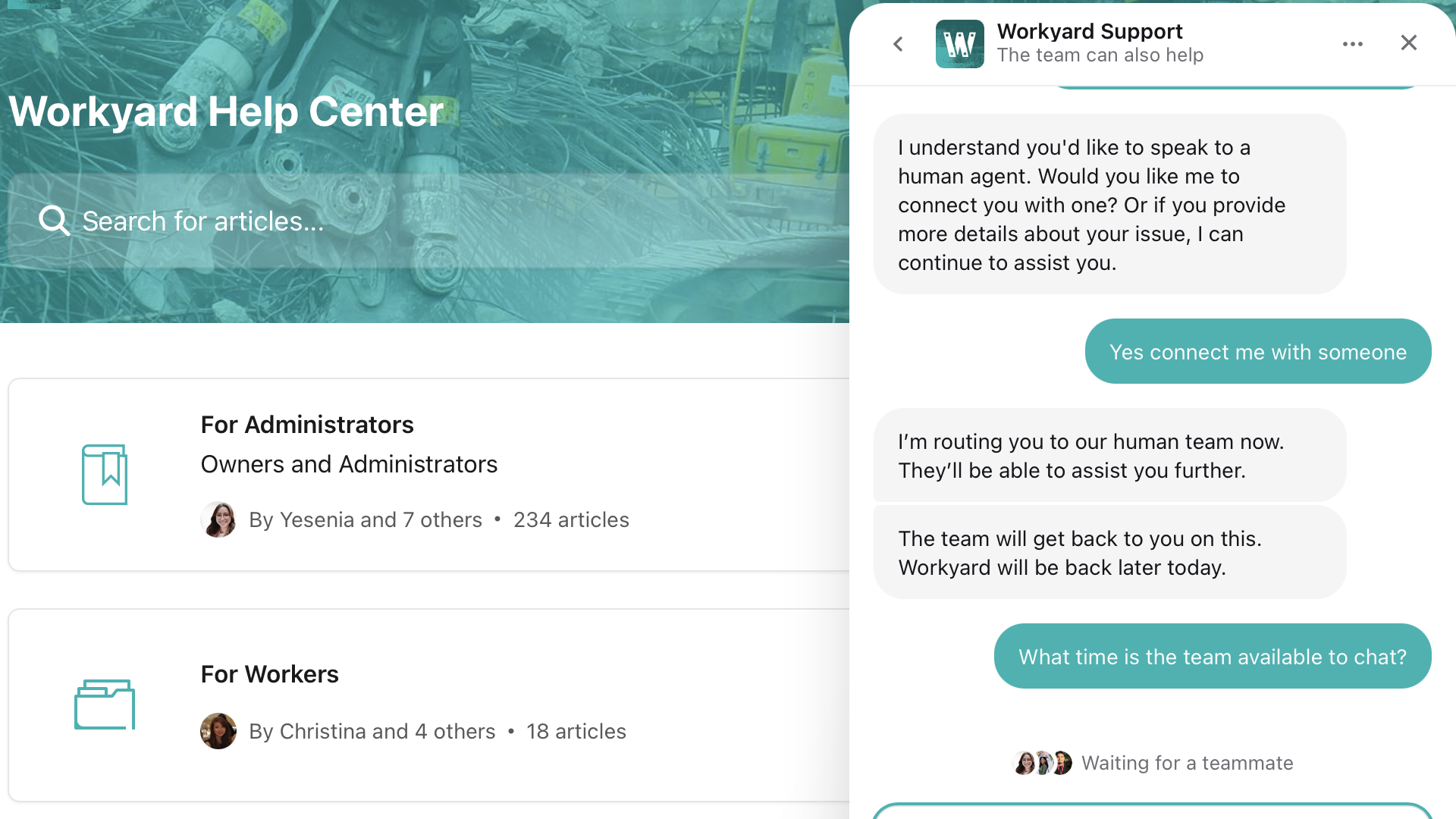
I tested the live chat option, which, like many other platforms today, gave me automated responses. I have to say, though, they felt much less scripted, and I genuinely felt like the tool was intelligent enough to respond to the nuances in my questions.
That said, live human chat agents are only online during US business hours, which is a strike against the solution. While I appreciate that Workyard primarily serves businesses in the US, missing a 24/7 live chat makes it difficult for users to get instant help during odd hours. Fortunately, I did hear back from an agent within a few hours of opening.
Workyard has also built an impressive library of help guides. To be precise, the help center has 200+ articles that cover the most common issues users face. The articles are written in plain language and sport up-to-date images, making it easy for users to remedy issues on their own.
Verdict: 8.5/10
What Are Workyard’s Review Ratings From Review Sites?
(As of July 2026)
Workyard App Review
Workyard’s suite of features checks the right boxes for small- and mid-sized construction companies looking for workforce management software. It’s particularly helpful for companies that want to streamline time tracking, job scheduling, location tracking, and operations with Smart Forms, but less so for those on a tight budget.
While I was impressed by Workyard’s offline capabilities, I encountered a bug when I first tried to use it. I also found the mobile app too minimalistic for my liking and would have liked to see advanced features like task dependencies, as well as Kanban and Gantt chart views. Without this, Workyard is also less suitable for larger construction or field businesses with more complex project management needs.
Connecteam: The Better Workyard Alternative
If you want an all-in-one solution with advanced features to manage simple and complex projects, Connecteam ticks the right boxes. Let’s explore the main benefits of using Connecteam:
Fast and efficient crew scheduling
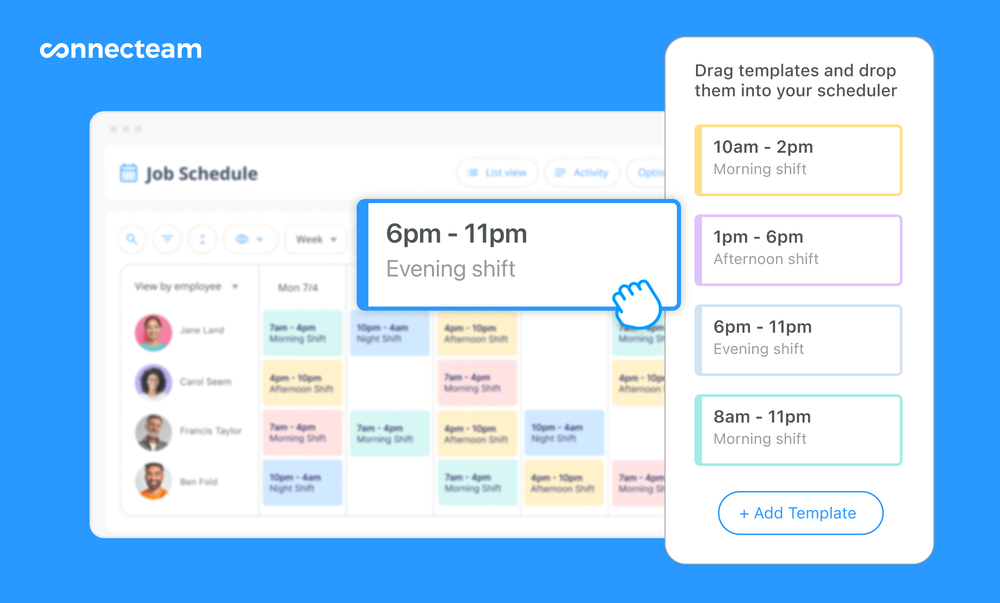
Connecteam’s employee scheduler offers all the essential features, including drag-and-drop functionality, shift templates, and shift copying tools. It’s way more advanced than Workyard’s task scheduling tool.
The pick of the bunch is Connecteam’s auto-scheduler, which lets me schedule all my team members in a single click. It considers employees’ availability and skill trades to ensure each shift is well within the worker’s wheelhouse. I also love employee self-service tools like open shifts and shift swaps, which empower employees to take charge of their schedules. Finally, the built-in conflict detector flags any scheduling issues (including with approved leave), preventing confusion and last-minute changes.
Effective time and break tracking
Connecteam’s employee time clock is packed with the tools construction and field companies need to track regular time, breaks, overtime, and live GPS locations accurately. Unlike Workyard, its geofence is more advanced, and it does more than just prevent offsite punching. You can configure it to alert you when an employee leaves the designated worksite, and auto-clock them out to enhance timesheet accuracy.
And so much more
Connecteam also offers other robust workforce management tools, including:
- Task management
- In-app chat system
- Employee training and onboarding
- Smart forms and checklists
- HR management
The icing on the cake? Connecteam is completely free for small companies with up to 10 crew members. Plus, pricing starts at $29 per month for 30 employees, which works out to less than $1 per employee.
Get started with Connecteam for free today.
FAQs
Workyard offers a free 14-day trial with no credit card details required.
Workyard doesn’t mention compliance with HIPAA regulations, so it should not be used to store protected health information without explicit discussions with the sales team.
