



Critical work updates shouldn’t get buried under memes, weekend plans, and dozens of other personal WhatsApp messages.
I compared 7 WhatsApp alternatives for business use and ranked them by admin ownership, message organization, and workplace fit.
Use these business messaging tools to separate work from personal chats, reduce missed messages, and keep workplace communication searchable.
If you don’t have the time to read through our research, jump down to our quick comparison table.
| App | Best for | Starting Price | Key Considerations |
| Connecteam | Frontline teams replacing informal WhatsApp groups | Just $29/month for the first 30 users | Puts work chat beside schedules and time tracking. Requires internet access. |
| Slack | Best overall for office team communication | $7.25/user/month, billed annually | Organizes office work in searchable channels and huddles. Free history is limited. |
| Microsoft Teams | Microsoft 365 organizations | $4/user/month | Connects communication with Microsoft 365 files. Setup involves several admin tools. |
| Google Chat | Organizations using Google Workspace | $7/user/month | Connects spaces with Drive, Meet, and Gmail. Advanced retention needs a higher tier. |
| Mattermost | Organizations that want more control and deployment flexibility | Contact vendor for price | Gives technical teams deployment choices and control. Administration needs technical ownership. |
| Pumble | Best budget-friendly Slack-style option | $2.49 per seat per month | Keeps unlimited message history on free plan. Offers less file storage and tools for frontline teams. |
| Rocket.Chat | Customizable, self-hosted workplace messaging | Contact vendor for price | Supports customizable self-managed messaging deployments. Calling capabilities depend on setup. |
What’s new in this update (September 2026)
- Replaced Jostle, Chanty, Troop Messenger, and Beekeeper with Slack, Google Chat, Mattermost, and Rocket.Chat.
- Added self-hosted choices for organizations that need more deployment and data control.
Our Top Picks
-
1

Best for frontline teams replacing informal WhatsApp groups
-
2

Best overall for office team communication
-
3

Best for Microsoft 365 organizations
Why trust us?
Our team of unbiased software reviewers follows strict editorial guidelines, and our methodology is clear and open to everyone.
See our complete methodology
What is WhatsApp?
WhatsApp is a messaging and calling app that many people already have on their phones. Teams can use direct and group chats to quickly communicate with coworkers, clients, friends, and family.
You can send messages, voice notes, photos, videos, documents, and files, as well as create polls and events. WhatsApp also supports voice and video calls, including group calls with up to 32 participants.
Your WhatsApp account is tied to your phone number, and everyone in a group can see the other members’ numbers. The standard app is free to use, but mobile data and roaming charges may still apply.
WhatsApp also offers separate business tools for communicating with customers, from a small business answering messages to larger companies managing conversations at scale. While WhatsApp is convenient and familiar, it isn’t designed as a dedicated workplace platform for managing employees and day-to-day operational communication.
Why Are People Moving Away From WhatsApp?
WhatsApp is useful for quick conversations, but it can get messy when you start using it for work. Several Capterra reviewers mention that busy group chats make important messages easy to miss, with limited ways to organize conversations or find older files. Others point to the lack of message threading and task management, which can leave important information buried in a long stream of messages.
The line between work and personal life is another common concern. WhatsApp accounts are tied to phone numbers, which can make it harder to separate professional and personal communication. One reviewer also described work notifications spilling into nights and weekends, while another found notifications overwhelming when juggling multiple groups.
These limitations may not matter much for casual chats, but they can become frustrating as your team grows and more of your day-to-day work moves into WhatsApp.
How I Ranked the Best WhatsApp Alternatives
To rank the best WhatsApp alternatives, I looked at how well each tool handles everyday communication, plus what controls it gives teams as work becomes more complex.
Here’s what I prioritized:
- Admin ownership and employee offboarding: Businesses should be able to manage employee accounts, remove access when someone leaves, and keep important conversation history with the company.
- Conversation organization and search: Teams need clear ways to organize conversations by topic, project, or group and quickly find old messages, files, and decisions.
- Phone number privacy: Employees shouldn’t have to share personal phone numbers with coworkers just to communicate. Businesses also need to be able to control who can see contact information.
- File sharing and team calls: Teams should be able to easily share and find files, control access, and jump onto voice or video calls when a chat isn’t enough.
- Retention and security: Managers must control how long work messages are kept, who can access them, and how company communication is protected or exported when needed.
The 7 Best WhatsApp Alternatives For Work Communication
-
Connecteam — Best for frontline teams replacing informal WhatsApp groups
Connecteam is a workforce management platform with a Communications Hub for work-only chat, updates, directory, knowledge base, and help desk tools.
Why I chose Connecteam: I ranked Connecteam #1 because it gives frontline teams work-only chat alongside scheduling, time tracking, forms, and tasks, while Smart Groups keep communication targeted by role, location, or department.
Chat and company directory
With Connecteam’s team instant messaging, you can use one-on-one and group chats from mobile or desktop. Managers can control who starts conversations or creates groups, restrict one-on-one chats, and use one-way channels or lock group chats when only admins should post.
Chats are also built to keep work communication organized. Read receipts, replies, pins, and starred messages make important updates easier to spot and follow up on. Smart Groups automatically update chat audiences based on details like location, department, or position.
The company employee directory keeps contacts on hand. Employees can find coworkers and start a chat or call without sharing personal details in a group, while managers can control who appears and hide fields like phone numbers or emails. You can also add vendor phone numbers for easy access.
Updates and knowledge base
The company update feed lets admins target an announcement to Smart Groups or selected employees, schedule it, attach files, and see who has read it. For critical updates, managers can require read confirmation and pin updates to the top of the feed.
Connecteam’s company knowledge base gives policies, manuals, links, folders, text, and files a structured home. Managers can limit access and track engagement, while employees can search for what they need or ask the AI agent to pull answers directly from company content.
Just know that it isn’t a collaborative document editor, so teams will need another tool to work on files together in real time.
Operations and offboarding
With Connecteam, chats are tied directly to the employee scheduler, employee time clock, and task manager. Managers can start a conversation right where the work happens, making it easier to discuss a shift, task, or attendance issue without switching apps or losing context.
That control also extends to offboarding. When seasonal or former employees leave, managers can archive their profiles to revoke access while keeping their data and activity available if they return. Deleting a user permanently removes their information fully instead.
Just know that archiving starts on the Advanced plan in any hub, while full scheduling, time tracking, forms, and task capabilities require the separately priced Operations Hub.
0Key Features
- One-on-one and group chats
- Smart Groups automate user permissions
- Targeted updates with readership tracking
- Knowledge base with AI agent
Pros
- Separates work chat from personal messaging
- Connects communication with frontline operations
Cons
- Communications and operations priced separately
- Needs internet connection to work
Pricing
Free-for-life plan availablePremium plans start at $29/month for 30 users
14-day free trial, no credit card required
Start your free trial -
Slack — Best overall for office team communication
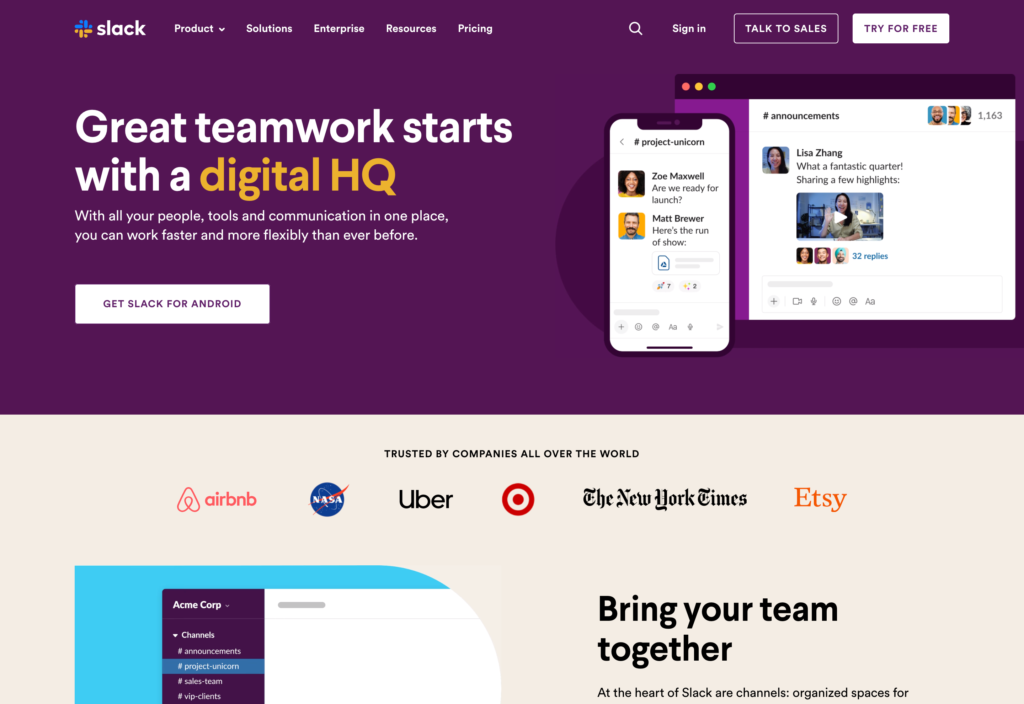
Slack is a workplace communication platform built around channels, direct messages, searchable shared content, huddles, and app connections.
Why I chose Slack: I ranked Slack #2 because it helps office teams keep project conversations and decisions organized and easy to find, rather than buried in personal messaging apps.
Channels, threads, and search
Slack separates work into public or private channels, which helps when a project needs a clear place for questions and decisions. Public-channel messages and files can appear in workspace search, while private-channel content stays visible only to members, and threads keep replies attached to the message that started them.
You can also send direct messages to individuals or groups, while Slack Connect brings external partners into the conversation.
This gives a team more useful message search across messages, files, people, channels, and canvases instead of asking everyone to scroll through a busy group chat. The trade-off is that Slack’s free plan only keeps the latest 90 days of message and file history, and content older than one year is permanently deleted from a free workspace.
Huddles and shared files
A quick discussion doesn’t always need a scheduled meeting. Slack huddles can start inside a channel or direct message, where participants can use audio or video, share screens, keep notes in a dedicated thread, and capture meeting notes in a canvas.
Huddles on the free plan are limited to two participants, and group huddles on paid plans are capped at 50 people. There’s also no way to record meetings, which could be a limitation for some teams.
Beyond huddles, you can upload files up to 1 GB, find them later from the Files view, and share them into another conversation.
Administration and governance
For managers moving work conversations out of employee-owned chats, Slack gives the business more control. Workspace owners and admins can manage invitations, channels, apps, and member access. When someone leaves, you can deactivate their account to sign them out and remove their channel access while keeping their messages and files in the workspace.
Paid plans add unlimited integrations, Workflow Builder, and more advanced retention and compliance tools. One thing to plan for is that each workspace has a single Primary Owner, so that role needs to be transferred before the person leaves.
There are a few other limitations to keep in mind. Some admin controls are only available on desktop, so managers can’t do everything from their phones. Admins also can’t override employees’ notification or do-not-disturb settings, which may be a problem when a message is urgent.
Key Features
- Public and private channels organize daily work
- Searchable messages, files, people, and canvases
- Huddles support video and shared screen work
- Workflow Builder and app integrations on paid plans
Pros
- Keeps office context organized by project
- Supports shared files and real-time huddles
Cons
- Free history limited to 90 days
- Primary ownership needs planned handover
Pricing
Starts at $7.25/user/month, billed annually Trial: Yes — 30-day Free Plan: Yes
-
Microsoft Teams — Best for Microsoft 365 organizations
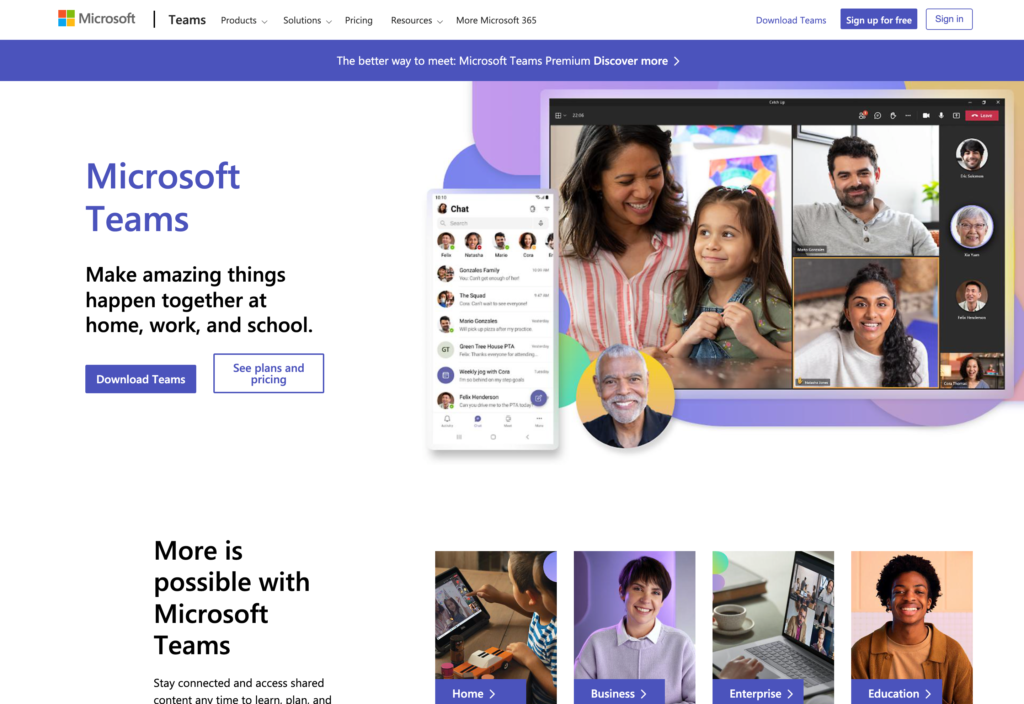
Microsoft Teams is a workplace collaboration app for chat, channels, files, meetings, and calling within the Microsoft 365 ecosystem.
Why I chose Microsoft Teams: I chose Microsoft Teams because it’s a strong WhatsApp alternative for businesses that want collaboration, SharePoint files, calling, governed apps, and controls in the same Microsoft 365 environment.
Teams and channels
You can manage Teams from the Teams admin center, including owners, members, guests, channels, privacy, sensitivity, archiving, and restoration. Staff can use standard channels for the team, private channels for invited members, and shared channels for internal or external collaboration.
That structure gives businesses more admin ownership than an employee-created group.
Administrators can also block a former employee’s sign-in, hand over OneDrive and Outlook access, remove licenses, and plan data handling before deletion. Phone number privacy also depends on your workspace setup, so admins should check who can see employees’ numbers.
Meetings and calling
You can start audio and video calls from the Teams chat, or schedule a call in advance. Teams offers one-on-one and group calls, with support for screen sharing, live captions, recordings, and recaps. AI also helps translate speech live.
With Teams, you can call regular phone numbers, but it requires extra licensing and setup.
SharePoint files and admin setup
Teams keeps file sharing tied to SharePoint access, which helps when you already work in Microsoft 365. File access depends on the channel. Standard channels use the team’s shared site, while private and shared channels have their own, with access based on channel membership and SharePoint permissions.
That Microsoft 365 connection also means there’s more to manage behind the scenes. Admins can control Microsoft, third-party, and custom apps from the Teams admin center, but other tasks involve SharePoint, Entra ID, and Microsoft 365.
Key Features
- Standard, private, and shared channels
- SharePoint and OneDrive file collaboration
- Teams audio and video calls
- Microsoft 365 apps and workflows
Pros
- Fits established Microsoft 365 work
- Centralizes admin and access controls
Cons
- Phone number visibility depends on your setup
- Workforce tools may require extra integrations
Pricing
Starts at $4/user/month Trial: Yes — 30-day Free Plan: Yes
-

Google Chat — Best for organizations using Google Workspace
Available on
- Web
- iOS
- Android
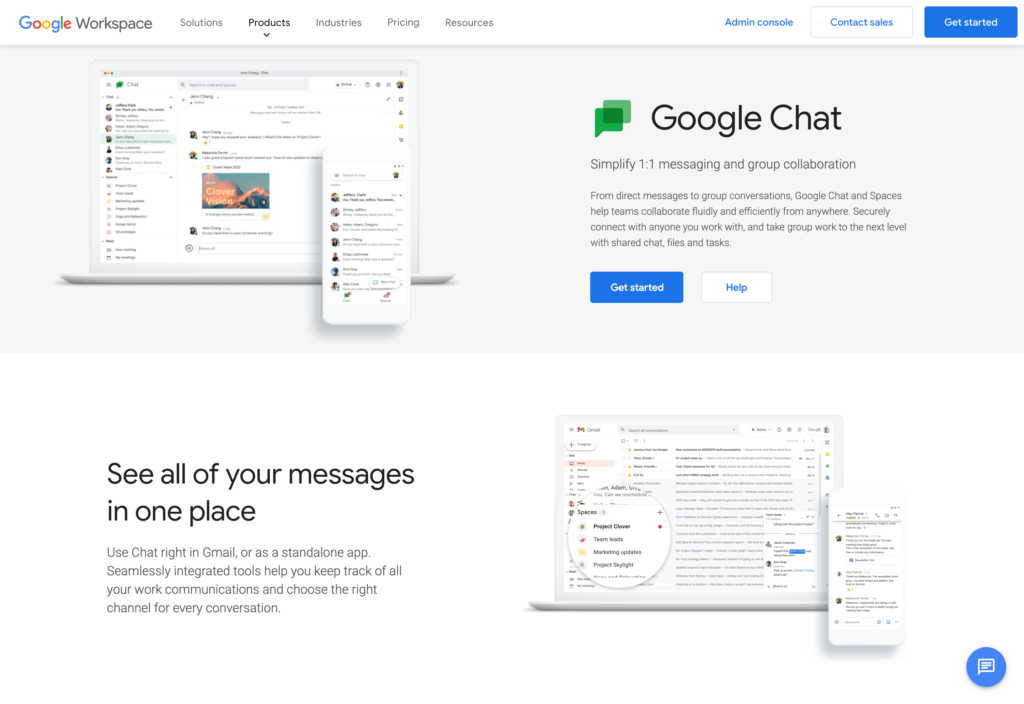
Google Chat is Google Workspace’s team-messaging app for direct messages and spaces.
Why I chose Google Chat: I included Google Chat because its spaces, Workspace sharing, search, huddles, and task assignments make it a natural fit for teams already using Gmail, Drive, Calendar, and Meet.
Direct messages, spaces, and ownership
Google Chat uses direct messages for quick conversations and Spaces for ongoing work around projects, topics, or company announcements. Spaces can include a main conversation, threads, files, tasks, reactions, and apps. They can be private, discoverable, or open to a set audience within your organization. Group conversations support up to 400 participants, while a thread in a Space can have up to 500 replies.
The person who creates a Space becomes its owner and can manage members, messages, and the Space itself. When that person leaves the company, ownership needs to be handed over first, so it’s worth including that step in your offboarding process.
Workspace sharing, search, and huddles
Google Chat lets teams attach files from a device or Drive, then browse shared material in a space. Drive access follows its own permissions, and space-granted access normally ends when someone leaves. However, individual or group Drive permissions can remain and need separate cleanup.
Search filters make it easier to find old messages by sender, date, attachment, mention, or space.
Teams can also jump from chat into screen sharing, voice or video calls, and Google Meet, though files attached directly in Chat are limited to 200 MB.
Administration, apps, and retention
Google Workspace admins can manage Spaces and memberships, which makes it easier to add or remove employees as teams change. They can also control external Chat access, although some options depend on your Workspace plan.
Chat works closely with Gmail, Calendar, Drive, Meet, and Groups, and businesses can add more workflows through apps and integrations. For companies that need to retain or export work messages for compliance, Google Vault is available with Business Plus, and Chat history must be turned on for those messages to be retained and searchable.
Key Features
- Direct messages and spaces with threads
- Gmail, Drive, Calendar, and Meet connections
- Voice and video calls with screen sharing
- Admin tools govern spaces and memberships
Pros
- Fits existing Google Workspace workflows
- Combines team chat with assigned tasks
Cons
- Space ownership needs a handoff
- Messages disappear after 24 if history is off
Pricing
$7/user/month Trial: Yes — Yes, 14-day Free Plan: No
-
Mattermost — Best for organizations that want more control and deployment flexibility
Available on
- Web
- iOS
- Android
- Windows
- Mac
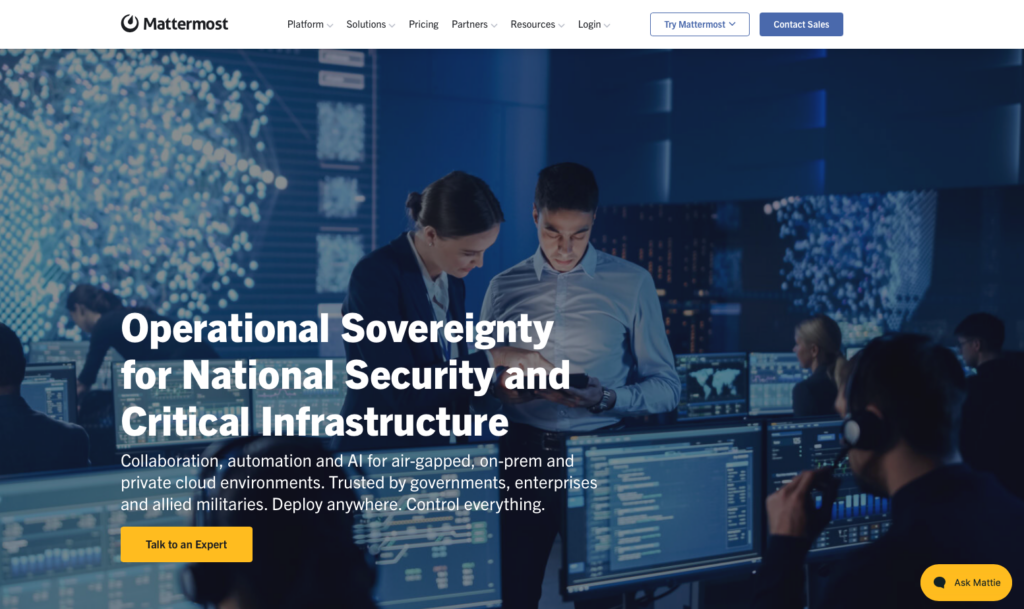
Mattermost is a workplace messaging platform for self-hosted, private-cloud, on-premises, or air-gapped teams, with channels, files, search, calls, integrations, and compliance tools.
Why I chose Mattermost: Mattermost gives technically administered organizations a meaningful choice over deployment, data operations, and platform extension.
Channels, search, and calls
Mattermost organizes topic and project work in public or private channels, direct messages, group messages, and threaded discussions. Users can attach files in messages and channels, then search messages, replies, and supported file content with filters like sender, channel, and date.
That structure makes older work easier to find. Mattermost’s standard search works for archives of up to 3 million posts and files, while larger deployments need Enterprise Search.
All plans support one-on-one audio calls and screen sharing. Group calls of up to 50 users require a paid plan, while recording, captions, and transcription are Enterprise features.
Deployment control and offboarding
Mattermost can operate on premises, in a private cloud, or in an air-gapped environment, giving businesses more control over their data and setup. Admins can use the System Console to manage users, roles, and teams.
When an employee leaves, deactivating their account blocks access while keeping their message history. The trade-off is more technical work, because self-hosted teams are responsible for setup and maintenance, including configuring features like calls.
Integrations, compliance, and Playbooks
Mattermost connects with tools like Jira, GitHub, GitLab, and Zoom, while webhooks, plugins, and APIs give technical teams more ways to build custom workflows. It also offers playbooks and checklists for repeatable processes.
Enterprise plans add retention policies, legal holds, compliance exports, and more admin controls. The free Entry plan is much more limited, with searchable channel history capped at 10,000 messages and no compliance features.
Key Features
- Direct and group messaging
- Self-hosted and private-cloud options
- Public and private channels with threads
- Searchable files and one-on-one calls
Pros
- Organization controls deployment
- Deactivation preserves user history
Cons
- Self-hosted calls need technical configuration
- Upgrade needed for retention and scale
Pricing
Contact vendor for price Trial: No Free Plan: Yes
-

Pumble — Best budget-friendly Slack-style option
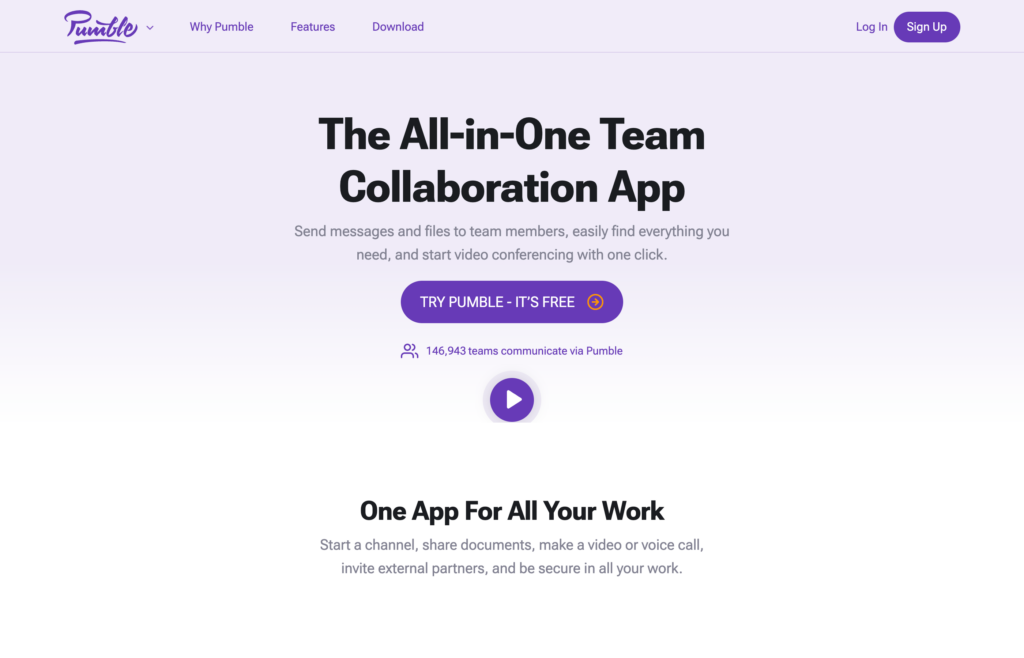
Pumble is a workplace messaging app that organizes communication in channels, direct messages, and threads.
Why I chose Pumble: Pumble made the list because its permanent free plan combines unlimited users with unlimited message history, while paid plans start at a low public price.
Channels, direct messages, and search
Pumble lets teams use public or private channels for topic, team, or project communication. Direct messages support one-on-one conversations, while group messages can include up to seven other teammates. Public channels are discoverable and joinable by company users, while private channels require an invitation.
The search bar helps employees find conversations and files by keyword. Teams can also share images, videos, documents, and links.
Pumble’s free plan keeps unlimited message history and 10 GB of storage per workspace. Teams that share lots of files may need a paid plan for more storage.
Voice and video calls
Pumble supports voice and video calls directly from DMs and channels. The free plan is limited to one-on-one calls, while paid plans add group calls and screen sharing.
Teams can also create meeting links, and Business and Enterprise users can invite external guests without requiring them to have a Pumble account. These plans also add meeting recordings.
Calls support up to 50 participants, with features like in-call messaging, background blur, and hand raising. However, Pumble lacks more advanced tools like live captions, breakout rooms, and AI meeting assistance.
Permissions and integrations
Pumble gives managers control over roles and permissions, including who can use broad mentions, edit or delete messages, manage members, and archive conversations. This gives businesses more control over employee access and communication.
Pumble connects with several productivity tools and supports Zapier, APIs, and webhooks, but its native integrations are limited. Frontline tools like scheduling, time tracking, and task management still require separate apps.
Key Features
- Direct and group conversations
- Public and private channels with threads
- Search across messages, files, people, apps
- Voice and video meetings with screen sharing
Pros
- Complete searchable message history
- Unlimited message history on the free plan
Cons
- Free storage is limited to 10 GB
- Frontline workflows require separate apps
Pricing
Starts at $2.49 per seat per month Trial: Yes Free Plan: Yes
-

Rocket.Chat — Best for customizable, self-hosted workplace messaging
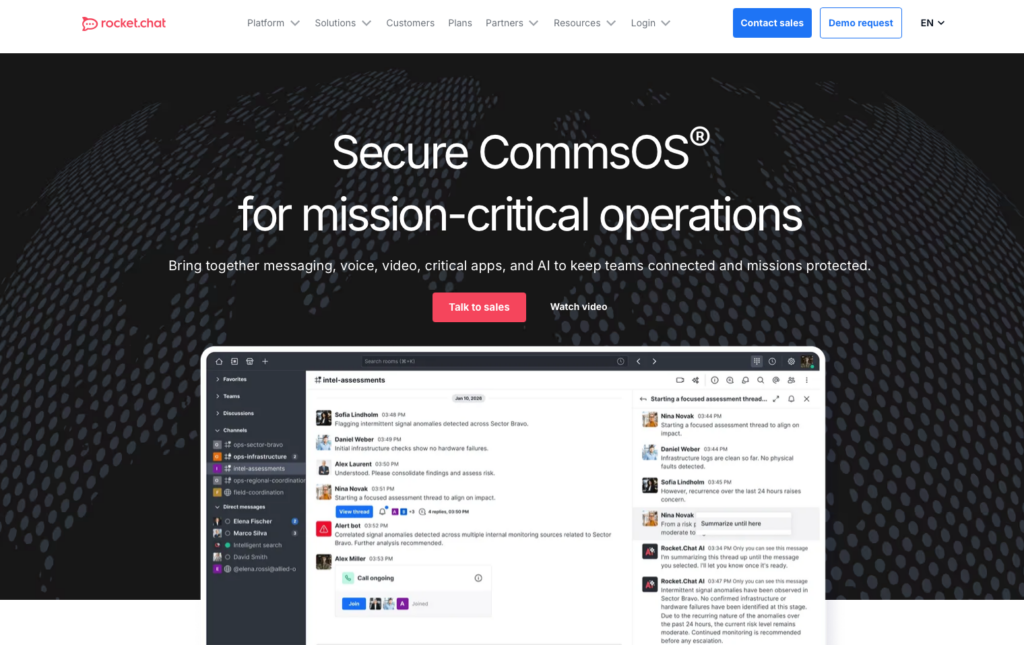
Rocket.Chat is a collaboration platform for organizations that want control over where workplace communications run and where data is stored.
Why I chose Rocket.Chat: Rocket.Chat combines self-managed deployment, configurable roles, integrations, and retention controls for organizations that can support a more technical rollout.
Rooms, search, files, and conference calls
Rocket.Chat’s workplace communication is organized into channels, teams, discussions, direct messages, threads, and rooms. Users can search individual rooms by keyword or filter, while searching across all their rooms must first be enabled by an admin.
Guests can join one channel and send direct messages, making it easy to give clients or contractors limited access. If the default guest permissions don’t work for your team, though, admins need to create a custom role.
Self-managed admins can control file sizes, media types, storage, and who can share files. Calling is less straightforward. Rocket.Chat works with providers like Google Meet and Jitsi, while its own Voice feature requires a paid add-on.
Deployment control and employee access
Rocket.Chat offers cloud-hosted, self-managed, and air-gapped setups. Admins can manage the entire workspace or assign specific roles and permissions to others.
When someone leaves, admins can deactivate their account and immediately revoke access while keeping their messages and other account data. Self-managed teams get more control, but they also take on technical work like managing security certificates, servers, and firewall settings, making Rocket.Chat less practical for businesses without IT support.
Integrations, mobile use, and retention
Rocket.Chat supports webhooks, apps, APIs, and custom integrations, giving technical teams plenty of ways to connect chat with internal tools. Its mobile apps also offer controls over push notifications, screen locks, and whether files can be saved to personal devices.
Messages are kept indefinitely by default, but admins can set retention policies that permanently delete older content. Advanced auditing is only available on premium plans.
Key Features
- Self-managed and air-gapped deployment choices
- Channels, teams, discussions, and direct messages
- Custom sharing, search, and conference providers
- Webhooks, apps, and API connections
Pros
- Organization controls infrastructure
- Supports detailed role and room permissions
Cons
- Needs technical expertise and administration
- Native calling only available as a paid add-on
Pricing
Contact vendor for price Trial: No Free Plan: Yes — (Up to 50 users)
Compare the Best WhatsApp Alternatives
| Topic |
 Start for free
|
|
|
|
|
|
|
|---|---|---|---|---|---|---|---|
| Reviews |
  |
|
|
|
|
|
|
| Pricing |
Starts at just $29/month for the first 30 users
|
Starts at $7.25/user/month, billed annually
|
Starts at $4/user/month
|
$7/user/month
|
Contact vendor for price
|
Starts at $2.49 per seat per month
|
Contact vendor for price
|
| Free Trial |
yes
14-day
|
yes
30-day
|
yes
30-day
|
yes
Yes, 14-day
|
no
|
yes
|
no
|
| Free Plan |
yes
Free Up to 10 users
|
yes
|
yes
|
no
|
yes
|
yes
|
yes
(Up to 50 users)
|
| Use cases |
Best for frontline teams replacing informal WhatsApp groups
|
Best overall for office team communication
|
Best for Microsoft 365 organizations
|
Best for organizations using Google Workspace
|
Best for organizations that want more control and deployment flexibility
|
Best budget-friendly Slack-style option
|
Best for customizable, self-hosted workplace messaging
|
| Available on |
Web, iOS, Android
|
Web, iOS, Android, Windows, Mac
|
Bottom Line on WhatsApp Alternatives
The right WhatsApp alternative depends on what your team needs beyond basic group chats. Slack and Microsoft Teams suit office collaboration, Google Chat fits naturally into Google Workspace, Mattermost and Rocket.Chat offer more control over deployment, and Pumble gives smaller teams a budget-friendly option.
For shift-based and deskless teams, Connecteam brings chat and updates together with scheduling, tasks, and time tracking. This keeps work communication separate from personal messaging while giving managers more control over access and data retention.
