


When time records are incomplete or job locations don’t match the schedule, payroll turns into a cleanup job for managers.
I reviewed 7 QuickBooks Time alternatives for mobile time tracking, location controls, scheduling, and payroll integrations.
Use this guide to find a tool that gives you cleaner records and less to fix before payday.
If you don’t have the time to read through our research, jump down to our quick comparison table.
| App | Best for | Starting Price | Key Considerations |
| Connecteam | Best overall for frontline and mobile teams | Just $29/month for the first 30 users | Connects time, schedules, and field workflows; geofence coverage starts on Advanced plan |
| Hubstaff | Time tracking plus workforce monitoring | $4.99/user/month | Detailed desktop activity monitoring; managers need the web app for several controls |
| Clockify | Best free and project-oriented time tracking | $3.99/user/month | Strong project-based time data; not built for job-site geofencing or shift rosters |
| busybusy | Construction and field crews tracking labor by job | $9.99/user/month + $40/month | Cost codes and equipment context suit construction; breaks are unpaid only |
| Jibble | Teams wanting a low-cost employee time clock | $4.49/user/month | Strong free plan and kiosk identity tools; there’s no full shift scheduler |
| Timeero | Mobile crews and mileage tracking | $5/user/month | Automatic mileage tracking for driving crews; scheduling and integrations start on Pro plan |
| ClockShark | Construction and field-service teams | $40/month + $9/user/month. | Job dispatch and clock-out forms; three-year contract commitment |
What’s new in this update (September 2026)
- Updated the ranking around frontline, mobile, construction, and field-service time tracking.
- Refreshed field-work detail on GPS, geofencing, mileage tracking, job tracking, breaks, overtime, and QuickBooks integration.
- Replaced Time Doctor, Homebase, and Deputy with BusyBusy, Jibble, and Timeero.
Our Top Picks
-
1

Best overall for frontline and mobile teams
-
2

Best for time tracking plus workforce monitoring
-
3

Best free and project-oriented time tracking
Why trust us?
Our team of unbiased software reviewers follows strict editorial guidelines, and our methodology is clear and open to everyone.
See our complete methodology
What is QuickBooks Time?
QuickBooks Time is Intuit’s employee time-tracking product, previously called TSheets. Teams use it to clock in, build timesheets, track time against projects, and review labor records before payroll.
It also includes GPS tools, scheduling, a kiosk, and mobile field access. You need a QuickBooks Online account to use QuickBooks Time, making it a useful tool for businesses already in that ecosystem. Time Premium starts at $20 per month plus $10 per user, and Time Elite at $40 per month plus $12 per user, before promotional discounts.
QuickBooks Time still isn’t a full payroll system on its own. It feeds time data into the broader QuickBooks workflow, while payroll processing and the exact setup depend on the QuickBooks products your business uses.
Why Are People Moving Away From QuickBooks Time?
QuickBooks Time still makes sense for businesses that want time tracking closely connected to QuickBooks Online. Its mobile clock, GPS tools, and offline access are especially useful for field teams.
The main reasons users look elsewhere are cost, mobile performance, and admin friction. One Capterra reviewer said the mobile app can lag when syncing larger batches, and found the desktop dashboard cluttered. Another noted that imported records and suggested categorizations can still require manual cleanup, reducing some of the time savings.
Pricing also comes up repeatedly. One reviewer described the per-user cost as high, while another said the base fee plus per-user pricing had become expensive for a small business. That same reviewer also reported battery drain from background GPS tracking and occasional sync problems in poor coverage. QuickBooks Time also reserves geofencing, mileage tracking, and project tracking for the higher Elite tier.
For teams comparing alternatives, the best fit depends on what’s causing the most friction. Some businesses may want stronger scheduling and frontline coordination, while others need better cost-code tracking, PTO controls, or simpler reporting.
How I Ranked the Best QuickBooks Time Alternatives
I evaluated QuickBooks Time alternatives based on time tracking and the needs of mobile and field teams.
Here’s what I prioritized:
- Tracking time in the field: Employees should be able to clock in from mobile or shared devices, with clear timesheets managers can review.
- Controlling clock-in locations: GPS, geofencing, and location records should help managers verify where work starts and ends.
- Reviewing hours and labor rules: Managers need practical tools for timesheet approvals, breaks, overtime, and correcting exceptions before payroll.
- Tracking jobs and costs: The platform should connect hours to jobs, projects, cost codes, and mileage so managers can see where labor time is going.
- Scheduling work: Scheduling tools should match your needs, from basic assignments to more detailed shift coordination and changes.
- Connecting payroll and QuickBooks: Integrations should move approved time into payroll cleanly and provide a clear path for businesses already using QuickBooks.
The 7 Best QuickBooks Time Alternatives
-
Connecteam — Best overall for frontline and mobile teams
Connecteam is a mobile-first employee management platform that combines time tracking, scheduling, and daily work tools for frontline and field teams.
Why I chose Connecteam: I ranked Connecteam #1 because managers can connect scheduled jobs with GPS-tracked hours, timesheet approvals, field updates, and payroll exports in one workflow.
Time clock, GPS, and geofencing
Connecteam’s employee time clock works on mobile, desktop, or through a shared kiosk using PINs and optional selfie verification. GPS stamps record where employees clock in and out, and managers can track time by job, client, or project.
Geofencing starts on Operations Advanced and can restrict punches to approved job sites. Advanced also adds Breadcrumbs, which records employees’ locations only while they’re clocked in, giving managers more visibility into mobile crews without tracking off-duty movement.
Mileage can be recorded manually through shift attachments, but it isn’t tracked automatically.
Timesheets, breaks, and overtime
Recorded hours are organized into Connecteam’s timesheets for payroll, ready for employees and managers to review and approve. You can filter records by job, task, or location and correct issues before payroll.
Breaks can run manually or automatically, and custom overtime tracking rules calculate extra hours based on your settings. Managers can also get alerts before employees reach overtime limits.
Once timesheets are approved, you can export hours and job data to QuickBooks Online and other payroll systems. Paid time off and contractor hours don’t export, and overtime isn’t transferred as a separate category, so check your payroll settings before your first run.
Scheduling and job workflows
Connecteam’s employee scheduler connects tracked time with the work employees are assigned. Basic includes open shifts, while Advanced adds repeating shifts and templates, and Expert adds auto-assignment through the AI scheduler.
Managers can attach job details, files, and tasks directly to shifts, making it easier to compare scheduled work with the hours employees actually record. Leave policies, balances, and time-off management sit in the separate HR Hub.
0Key Features
- Mobile, desktop, and kiosk time clock
- GPS time stamps and advanced geofences
- Timesheet review and in-app approvals
- Scheduling, forms, and job attachments
Pros
- Connects time tracking with daily operations
- Supports frontline managers on mobile
Cons
- Geofence coverage starts at higher tier
- Time-off management on separate HR Hub
Pricing
Free-for-life plan availablePremium plans start at $29/month for 30 users
14-day free trial, no credit card required
Start your free trial -
Hubstaff — Best for time tracking plus workforce monitoring
What’s new with Hubstaff
February 2026: Hubstaff previously offered a free plan for individual freelancers; it appears this plan has been discontinued.
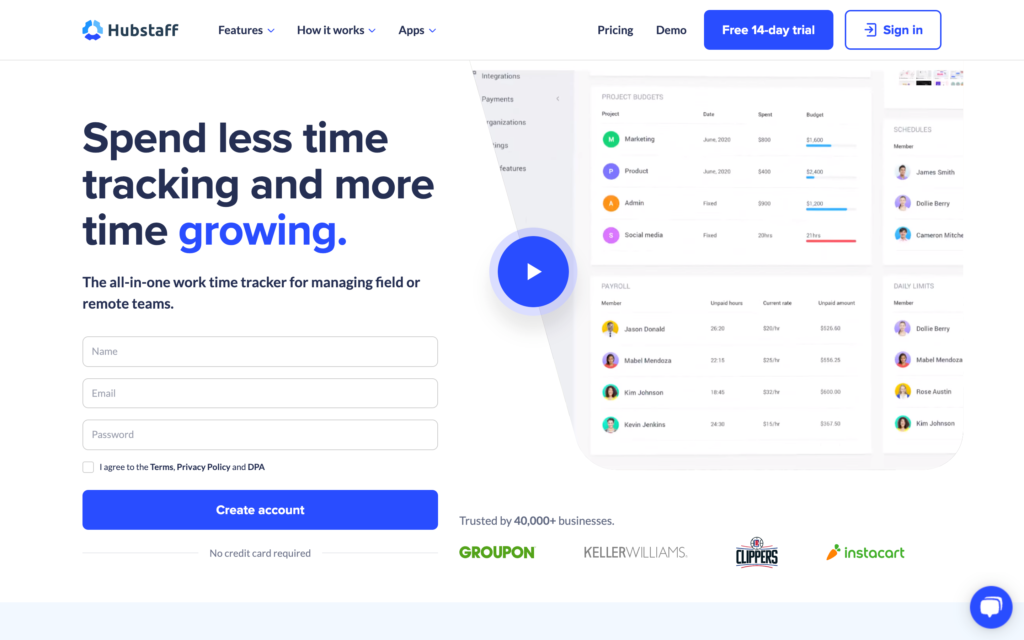
Hubstaff combines time tracking with activity monitoring for desk-based and distributed teams.
Why I chose Hubstaff: Hubstaff offers screenshots, app and URL tracking, and idle-time data to give desk-based managers a deeper view of work patterns than a standard time clock.
Time tracking and monitoring
Hubstaff lets employees track time on mobile, web, desktop, or a Chrome extension. Desktop monitoring captures screenshots, activity levels, apps, and URLs while a person is clocked in.
Geofencing can notify employees, automate clock-ins and clock-outs, and block off-site punches. GPS tracking costs extra and isn’t included with Starter.
Scheduling and approvals
Scheduling and timesheet approvals start on the Team plan, with recurring shifts and missed-shift alerts to help managers plan coverage. However, there are no templates, draft schedules, or drag-and-drop edits.
During testing, we published overlapping shifts without receiving any warning, so managers need to check conflicts manually.
QuickBooks and Gusto integrations are available. Grow includes one integration, while Team includes unlimited integrations.
Mobile and compliance limits
The mobile app supports employee clock-ins, schedules, basic reports, and offline tracking. Managers need the web app for approvals, time-off management, projects, invoices, and team administration.
Break policies are available, but Hubstaff tracks weekly overtime, not daily, double-time, holiday, or seventh-consecutive-day overtime. That limits its fit for more complex pay rules.
0Key Features
- Desktop screenshots and activity levels
- App and web-activity tracking
- Geofenced time tracking
- Project budgets and task views
Pros
- Detailed visibility for computer-based work
- Functional offline employee time tracking
Cons
- Managers need the web app for approvals
- Scheduling lacks conflict alerts
Pricing
Starts at $4.99/user/month Trial: Yes — 14 day Free Plan: No
-
Clockify — Best free and project-oriented time tracking
What’s new with Clockify
April 2026: Clockify capped its free plan at 5 users, replacing its previous unlimited-user model.
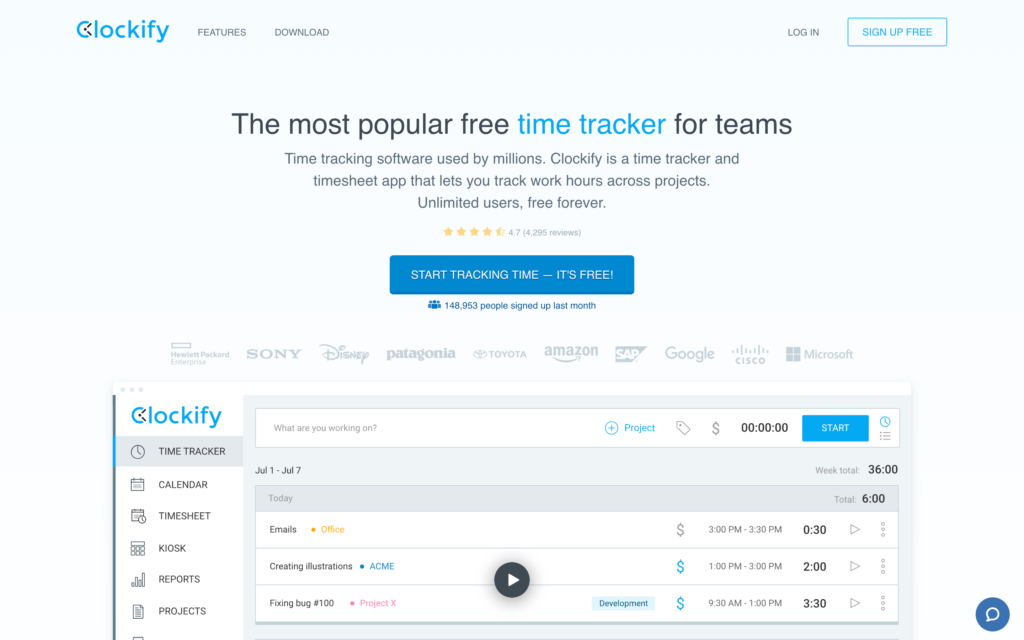
Clockify is a time tracking software that organizes time around projects, clients, tasks, and billing.
Why I chose Clockify: I chose Clockify because its project, task, client, rate, and custom-field options make it a practical fit for billable or project time.
Project time and custom fields
Employees can use Clockify’s timer or manually enter and categorize time by project, task, tag, client, and billable status. Custom fields collect text, numbers, links, choices, and checklists before you save a time entry.
This gives managers more detail for billing and project reports without forcing every entry into a simple clock-in/clock-out record.
Time tracking and approvals
Clockify offers kiosk use, selfie checks, GPS location tracking, manual-entry controls, and approvals. GPS tracking requires the Pro plan. Geofencing isn’t available, but managers can see employee locations, they just can’t restrict punches to a specific site.
During testing, Clockify didn’t flag our overlapping entry in the tracker or timesheet. In practice, that means that managers need to check for duplicate hours before approval.
Scheduling and payroll fit
The Pro scheduler assigns tasks or appointments and compares scheduled time with tracked time. It isn’t a shift roster because there are no shift templates, open shifts, or automatic assignment by availability.
However, Clockify can send billable hours and time logs to QuickBooks Online for invoicing. Clockify also integrates with payroll and accounting tools, including QuickBooks, so managers can sync tracked hours instead of relying only on manual exports.
0Key Features
- Project, client, task, and rate tracking
- Custom fields on time entries
- Kiosk, selfie, and GPS controls
- Invoicing and report filters
Pros
- Flexible ways to categorize billable work
- Strong time organization for projects
Cons
- Geofencing isn’t available
- Overlapping entries not flagged during testing
Pricing
Starts at $3.99/user/month Trial: Yes — a 7-day free trial is available. Free Plan: Yes — limited to 5 users.
-

busybusy — Best for construction and field crews tracking labor by job
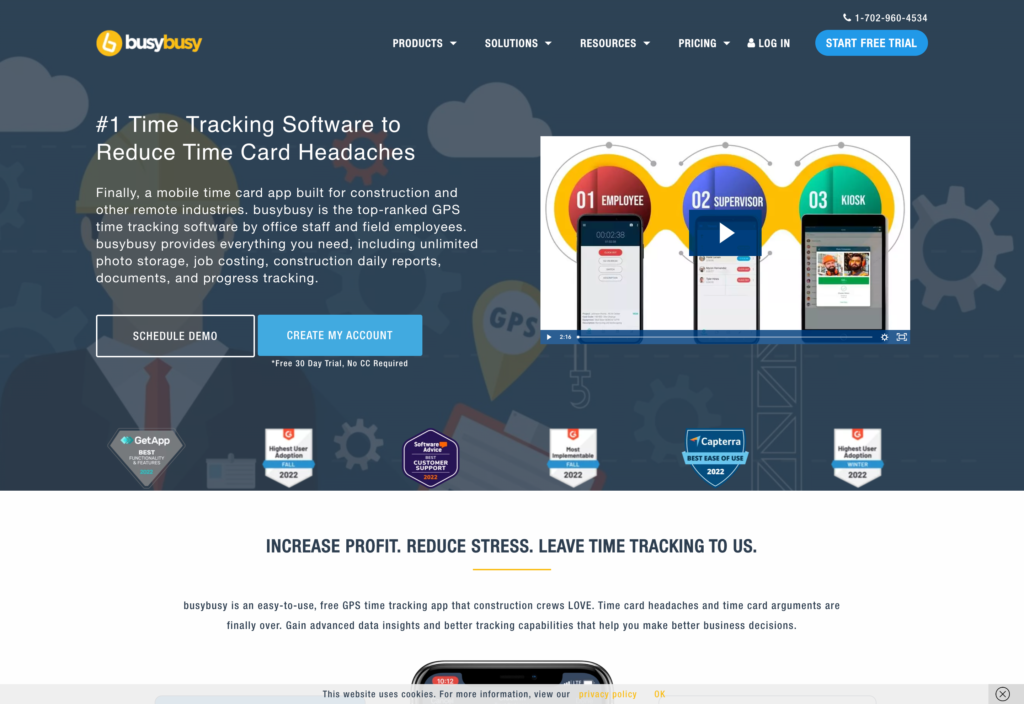
BusyBusy is construction-focused time-tracking software with cost codes, equipment records, and field location controls.
Why I chose BusyBusy: BusyBusy’s cost-code workflow connects field time to construction labor reporting without a generic project timer.
Field time and job costing
With BusyBusy, employees can clock in on mobile or a shared kiosk, choose a project and cost code, and keep records working offline. But kiosk access, photo verification, and job-site restrictions all require the Pro plan. During testing, geofencing worked well, and blocked our off-site clock-in.
Cost codes help managers see where labor time is going within a project, but each code can’t have its own pay rate. Paid plans also connect with payroll and accounting tools like QuickBooks and ADP.
Breaks and overtime
BusyBusy tracks daily, double-time, and weekly overtime, with timesheet approvals and daily sign-off records. Managers can set a minimum break length, preventing employees from ending breaks early.
BusyBusy treats all breaks as unpaid and deducts them from timesheets. This may not be the best fit for teams that need both paid rest breaks and unpaid meal breaks.
Scheduling and equipment
BusyBusy’s scheduler includes drag-and-drop changes, recurring shifts, copied schedules, projects, cost codes, and job instructions. Equipment tracking can also use the assigned employee’s location to show where equipment is being used.
Employees can share their availability, but they can’t accept, reject, trade, or swap shifts. Managers still need to handle schedule changes themselves.
Key Features
- Offline mobile and kiosk time clock
- Project and cost-code labor allocation
- Geofencing and photo verification
- Equipment location and job costing
Pros
- Built around construction labor records
- Tracks daily, weekly, and double-time overtime
Cons
- No paid breaks
- Scheduling lacks employee shift swaps
Pricing
$9.99/user/month + $40/month Trial: Yes — 14-day Free Plan: Yes
-

Jibble — Best for teams wanting a low-cost employee time clock
What’s new with Jibble
In March 2026, Jibble raised its paid plan prices, with Premium increasing from $2.49 to $4.49 per user/month on annual billing and Ultimate rising from $4.99 to $7.99. That represents an increase of about 80% for Premium and 60% for Ultimate, making Jibble significantly more expensive than before.
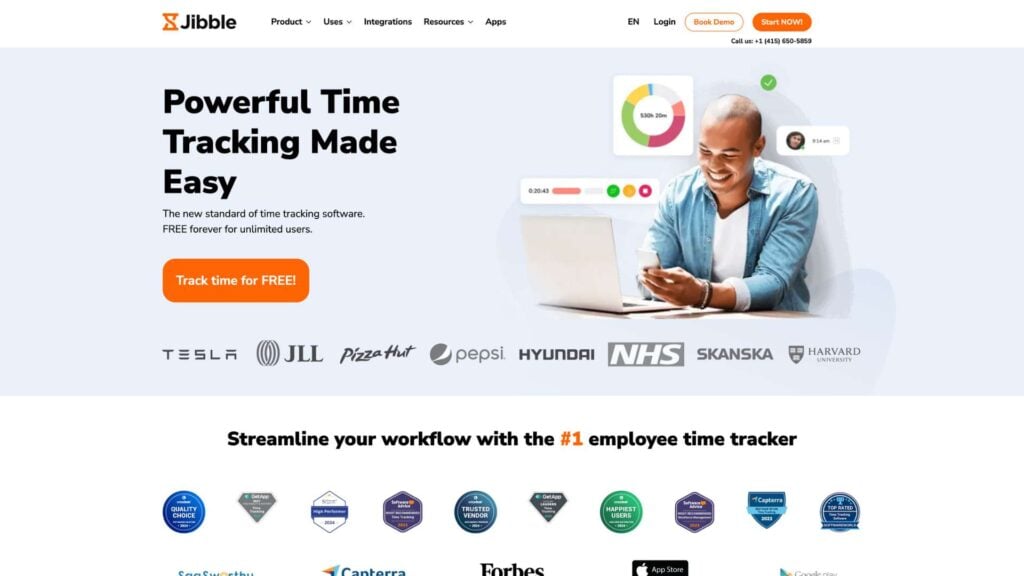
Jibble is an employee time clock with web, desktop, mobile, and shared-kiosk options.
Why I chose Jibble: I chose Jibble because it offers an unlimited-user free plan with straightforward mobile and kiosk time tracking.
Identity and field controls
Jibble offers several ways to control clock-ins, including PINs, device lock, reminders, automatic clock-out, facial recognition, and NFC kiosks. Its speed facial recognition can identify employees hands-free at a shared kiosk, which can help teams clock in faster at busy shift changes.
Identity checks were less reliable on mobile during our testing. When the wrong employee tried to clock in, Jibble accepted the punch without any warning. If preventing buddy punching is a priority, test the exact mobile and kiosk setup you plan to use.
Geofencing, breaks, and overtime
Jibble can block punches outside approved geofences and automatically clock employees in when they enter one. However, the geofence isn’t tied to a specific job, so someone at one approved site could still clock into a job assigned to another.
For labor rules, Jibble supports daily overtime, double time, rest-day, and public-holiday policies. Breaks are more limited. Each schedule can have only one break type, paid or unpaid, with no recurring breaks or rule preventing employees from ending a break early.
Scheduling and QuickBooks connection
Jibble’s work schedules set when employees are expected to work and how their time should be tracked. They don’t let managers build and manage shift rosters with open shifts, swaps, drag-and-drop changes, or conflict warnings. Premium adds multi-level timesheet approvals.
Jibble can send timesheet data directly to QuickBooks Online, but you’ll need QuickBooks Online Essentials or higher. Employee names or emails also must match between the two systems for the sync to work.
0Key Features
- Mobile, web, desktop, and kiosk clocks
- Facial recognition and device controls
- Free GPS, break, overtime, and project tracking
- Custom overtime policies and live locations
Pros
- Multiple entry-level time-clock controls
- Fast shared-kiosk facial recognition
Cons
- No shift-scheduling feature
- Geofences aren’t tied to specific jobs
Pricing
Starts at $4.49/user/month Trial: Yes — 14 days Free Plan: Yes
-

Timeero — Best for mobile crews and mileage tracking
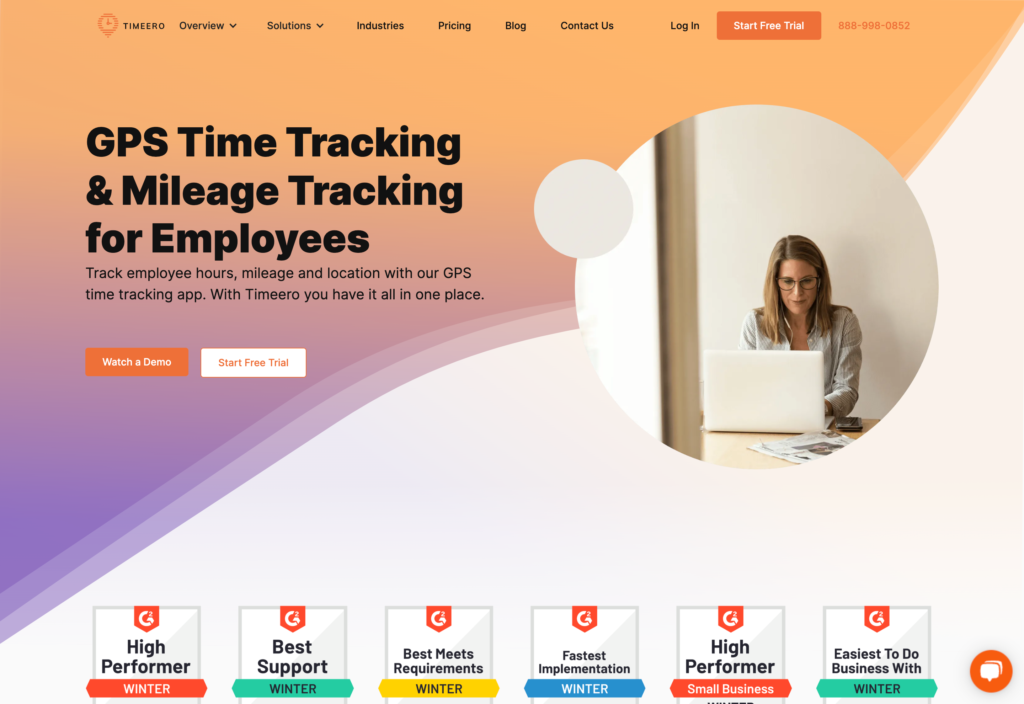
Timeero is a mobile-workforce time tracker built around GPS, mileage, jobs, schedules, and payroll connections.
Why I chose Timeero: Timeero automatically records on-the-clock mileage with route and stop timestamps for crews that reimburse driving or track travel by job.
Mileage and mobile records
Timeero tracks mileage and GPS routes while employees are clocked in. Managers can review route maps, timestamps, speed, total mileage, and reimbursement costs alongside each timesheet.
Timeero also offers Segmented Tracking as an add-on, which automatically breaks a workday into drives, stops, and job-site visits. It lets managers see how time was spent between locations.
The mobile app works offline, so employees can continue tracking time and mileage without internet access. Their records sync to the web portal once they reconnect. Make sure that GPS and background location stays enabled to ensure accurate route and mileage tracking.
Geofencing and automatic clock-ins
Geofences can block employees from clocking in outside an approved job site or automatically clock them in and out as they arrive and leave.
There are some trade-offs. Automatic punches can’t be used with Segmented Tracking, and Timeero warns that geofence punches may have some delay, particularly on Android. Mileage and GPS also stop between jobs if automatic clock-out ends the time entry.
Timeero offers an iPad kiosk with optional facial recognition. It can flag suspected mismatches and lets employees clock in offline, then syncs their punches when the device reconnects.
QuickBooks and payroll connections
Timeero integrates with QuickBooks Online Essentials and above, but QuickBooks Advanced and Payroll Core aren’t supported. Customers, sub-customers, and projects can be mapped to Timeero jobs, and tracked time can be sent to QuickBooks for payroll, billing, and job-cost workflows.
QuickBooks Desktop takes more setup. It requires a supported Windows version of QuickBooks, Manual Payroll, and Web Connector. Hosted Desktop users need Web Connector installed on the same remote computer, and changes between the two systems must be synced through it.
Key Features
- Automatic on-the-clock mileage records
- GPS time tracking and job tracking
- Geofencing and auto clock-in/out
- QuickBooks Online and desktop paths
Pros
- Strong fit for mileage reimbursement workflows
- Integrations support payroll handoff
Cons
- Some advanced tracking features cost extra
- QuickBooks compatibility depends on version and setup
Pricing
Starts at $5/user/month Trial: Yes — 14-day Free Plan: No
-

ClockShark — Best for construction and field-service teams
What’s new with ClockShark
As of mid-2026, a 3-year contract term applied to all ClockShark plans.
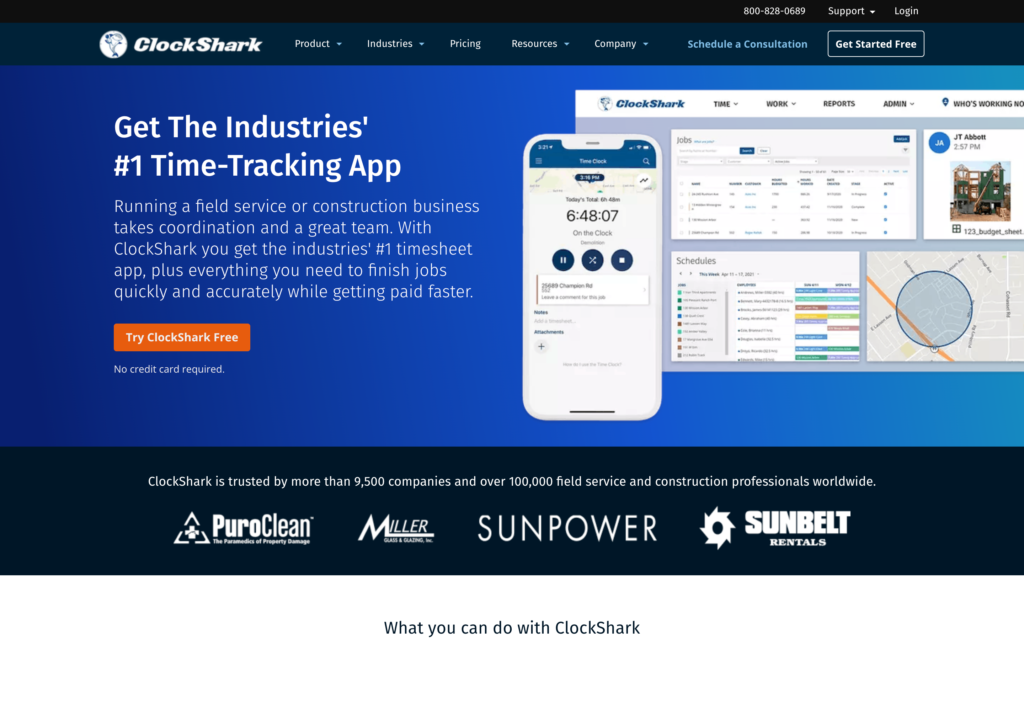
ClockShark offers time tracking, job management, and scheduling for construction and field-service teams.
Why I chose ClockShark: I included ClockShark because it combines job dispatch, crew clock-ins, field forms, and payroll-focused time records for construction and service operations.
Time clock and crew controls
Employees can clock in from ClockShark’s mobile app, web, or KioskClock, while Crew Clock lets supervisors clock in an entire crew at once. GPS and geofencing add location controls, and offline punches sync once employees reconnect.
Managers can also edit and approve timesheets, with break and overtime records alongside tracked hours. ClockShark integrates with payroll and accounting software, including QuickBooks, Xero, and ADP.
Scheduling and job dispatch
ClockShark’s scheduler lets managers drag and drop jobs, repeat shifts, add job details and documents, include directions, and notify employees of changes. It’s built more around assigning specific jobs than letting employees claim open shifts.
During testing, we could still publish overlapping shifts, and no overtime alert appeared when hours exceeded the standard threshold. Managers still need to review schedules and hours themselves.
Job details and forms
Each job can include task details and GPSFence (ClockShark’s geofence) settings. Pro adds more advanced job costing and forms. There are also shift wrap-up forms, which can collect yes/no, multiple-choice, and short-answer responses, but they don’t include conditional logic.
All of ClockShark’s plans come with a three-year contract, so use the trial to make sure the workflow fits your team before committing.
0Key Features
- Mobile, web, kiosk, and crew time clocks
- GPSFence time and location checks
- Job scheduling, costing, quotes, and invoices
- Shift wrap-up and compliance forms
Pros
- Built for job-based field dispatch
- Crew Clock supports group arrivals
Cons
- Three-year contract commitment
- Scheduling published overlapping shifts in testing
Pricing
Starts at $40/month + $9/user/month. Trial: Yes — (14-day) Free Plan: No
Compare the Best QuickBooks Time Alternatives
| Topic |
 Start for free
|
|
|
|
|
|
|
|---|---|---|---|---|---|---|---|
| Reviews |
  |
|
|
|
|
|
|
| Pricing |
Starts at just $29/month for the first 30 users
|
Starts at $4.99/user/month
|
Starts at $3.99/user/month
|
$9.99/user/month + $40/month
|
Starts at $4.49/user/month
|
Starts at $5/user/month
|
Starts at $40/month + $9/user/month.
|
| Free Trial |
yes
14-day
|
yes
14 day
|
yes
a 7-day free trial is available.
|
yes
14-day
|
yes
14 days
|
yes
14-day
|
yes
(14-day)
|
| Free Plan |
yes
Free Up to 10 users
|
no
|
yes
limited to 5 users.
|
yes
|
yes
|
no
|
no
|
| Use cases |
Best overall for frontline and mobile teams
|
Best for time tracking plus workforce monitoring
|
Best free and project-oriented time tracking
|
Best for construction and field crews tracking labor by job
|
Best for teams wanting a low-cost employee time clock
|
Best for mobile crews and mileage tracking
|
Best for construction and field-service teams
|
| Available on |
FAQs
Connecteam is an option for small frontline teams, Jibble for basic attendance, and Clockify for project time. Check the free-plan limits in each pricing block: advanced approvals, location controls, and scheduling may require an upgrade.
The right answer depends on the QuickBooks product and the workflow. Connecteam exports employee hours and job data to supported QuickBooks Online accounts; Clockify’s connection focuses on invoicing rather than payroll. Confirm your edition, payroll setup, and approval requirements before you migrate.
A GPS time clock can help verify where a person clocked in. Geofencing goes further by setting a job-site boundary for a punch. Mobile crews that move between customer locations may need both, while office or project-based teams may get more value from timesheets, task context, and approvals.
The Bottom Line
If you’re replacing QuickBooks Time, start by considering how your team actually tracks work. Project teams may care most about billable hours, field crews about mileage, and construction teams about job costing.
Before you choose, test the full workflow from clock-in to payroll. Make sure corrections, approvals, exports, and pricing all work the way you expect.
For frontline businesses that also want to cut down on separate tools, Connecteam stands out for bringing scheduling, time tracking, and daily coordination together. Managers can keep scheduled work and recorded hours connected, then add more tools as the team grows.
