



Scheduling breaks down fast when availability changes, shifts overlap, and managers are left fixing coverage gaps at the last minute.
I reviewed 6 employee scheduling apps and evaluated them on ease of use, automation capabilities, and real-world reliability.
Use this guide to choose a tool that eliminates scheduling chaos, reduces no-shows, and keeps labor costs under control.
Heads up before you read: We’re Connecteam, and we’ve included ourselves in this comparison. I evaluated Connecteam using the same scheduling criteria as the other apps and called out real limitations for every tool, including ours. If something else fits your team better, I’ll tell you. I’ve linked to our in-depth reviews throughout so you can check the testing behind the conclusions.
Employee Scheduling Apps at a Glance
| App | Good match for | Starting price | Key consideration |
| Connecteam | Frontline and field teams that want scheduling connected with time tracking, communication, and daily operations | $29/month for the first 30 users | Strong multi-location and mobile workforce workflows; more functionality than a solo user or independently working remote team may need |
| Deputy | Teams balancing shift planning with labor demand and compliance controls | $5/user/month, with a $30 monthly minimum | Demand-based auto-scheduling is strong; our testing found gaps in conflict detection |
| 7shifts | Restaurants scheduling staff around sales forecasts and labor targets | $39.99/location/month | Restaurant-specific forecasting and scheduling; time tracking runs through the separate 7punches app |
| Homebase | Hourly teams that want scheduling connected with payroll and point-of-sale systems | $24/location/month | Useful for single-location businesses; location-based pricing and paid payroll can raise costs as the business grows |
| When I Work | Small teams that want straightforward shift scheduling and time tracking | $2.50/user/month | Simple weekly scheduling; some time-off, notification, and reporting workflows required extra manual work in our testing |
| Sling | Teams focused on shift swaps, schedule communication, and a generous free plan | $2/user/month | Useful labor-cost and clopening warnings; managers can still publish a schedule after certain conflict warnings |
What Changed in This Update (August 2026)
- Replaced numbered rankings with recommendations based on team needs.
- Added clearer guidance on choosing and testing scheduling apps.
- Expanded the trade-offs and limitations we found during testing.
How We Evaluated These Employee Scheduling Apps
We considered 21 scheduling tools, reviewed 13 in greater detail, and selected the six in this guide. Here are the main features I looked at when evaluating each app.
Must-have scheduling features
A good scheduling app should make it easy to build accurate schedules, communicate changes, and manage shift coverage without creating extra admin work. I prioritized:
- Fast schedule creation: Drag-and-drop editing, shift templates, recurring shifts, and copy-last-week functionality. If rebuilding a schedule felt manual or repetitive, that counted against the tool.
- Automated scheduling: The app should be able to generate shifts based on employee availability, roles, skills, and business rules. For teams managing multiple roles or locations, manual-only assignment isn’t realistic.
- Shift swaps and coverage controls: Employees should be able to request time off, mark their availability, trade shifts, and pick up open shifts directly in the app.
- Multi-location scheduling: The app should allow centralized scheduling while giving managers clear visibility into staffing levels across all sites.
- Conflict detection: The tool should automatically flag double-bookings, overtime risks, unavailable employees, and other scheduling conflicts before they become problems.
Day-to-day performance and reliability
- Mobile access: Employees should be able to view schedules, request time off, and swap shifts from their phones.
- Real-time notifications: Managers should feel confident that employees receive last-minute changes, shift updates, and important announcements right away.
- Ease of use: Building schedules, making changes, and managing coverage should feel intuitive.
Operational control and insights
- Integration with time tracking: Scheduled hours should sync cleanly with actual time tracked and approved timesheets.
- Reporting and analytics: Managers should be able to see labor costs, staffing patterns, and overtime insights that help them make better scheduling decisions.
- Compliance controls: Relevant break, overtime, rest, and scheduling rules should be configurable, with the employer retaining responsibility for the laws that apply.
6 Employee Scheduling Apps for Different Types of Teams
Connecteam:
A Good Match for Frontline Teams Managing Schedules and Daily Operations
Available on: Web, iOS, and Android
Pricing: Free-for-life Small Business Plan for up to 10 users. Premium plans start at $29/month for the first 30 users.
Trial: 14 days
Ratings: Capterra 4.6/5; G2 4.6/5; Software Advice 4.6/5; TrustRadius 9.4/10; Google Play 4.7/5; App Store 4.9/5.
Connecteam combines employee scheduling with time tracking, communication, and day-to-day workforce tools in one platform. It’s especially strong for frontline, field, on-site, and hybrid teams that need real-time visibility and shift flexibility without spreadsheets, back-and-forth texts, or scheduling confusion.
Why I chose Connecteam: It handled the full scheduling workflow more consistently than the other tools I tested. It stood out for its auto-scheduling logic, built-in compliance controls, multi-location flexibility, and how tightly scheduling connects to time tracking, which can reduce payroll cleanup at the end of the week.
Drag-and-drop scheduling and reusable templates
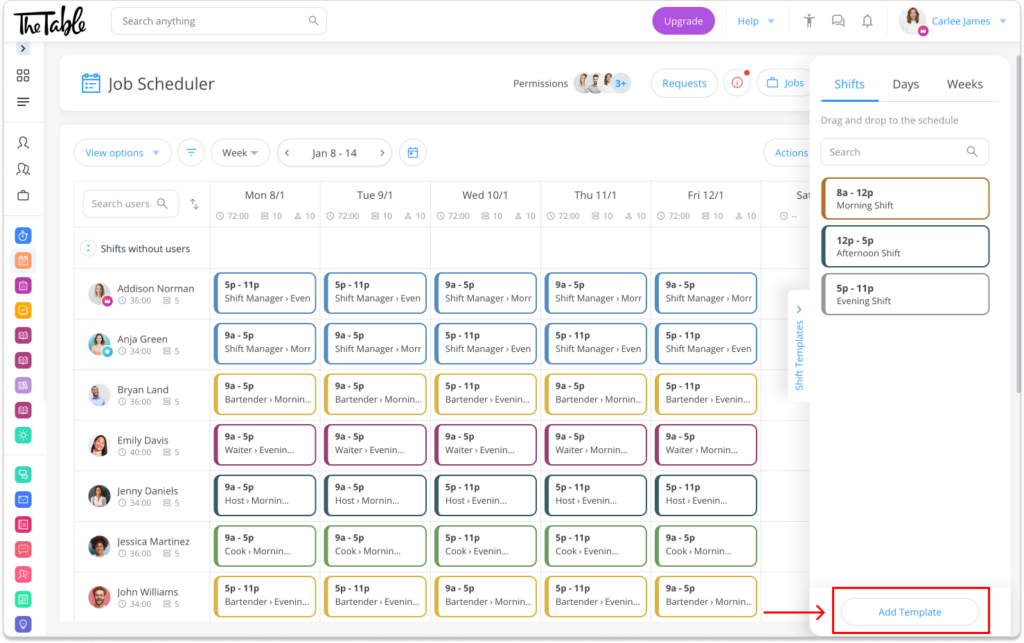
Connecteam’s drag-and-drop employee scheduler lets you create shifts and assign them to employees in seconds. I liked that the color-coded layout makes it easy to understand schedules at a glance. You can set recurring shift patterns, copy successful schedules across weeks, and save templates for specific roles, shifts, or full weeks.
Connecteam also lets you add notes, tasks, checklists, and attachments to each shift, so employees know exactly what’s expected before they clock in. Once you publish a schedule, employees are instantly notified and can view their shifts from their mobile devices. I also appreciated that you can share read-only schedules with clients or project stakeholders using a secure link.
Multi-location and rule-based scheduling
If you manage multiple locations, Connecteam makes it easy to keep teams organized by grouping employees based on where they work. Employees are sorted into the right location, while admin permissions make sure managers only see their own team’s shifts. You can create separate schedules for each site or manage multiple locations from one place.
You can set custom rules around availability, roles, qualifications, and staffing needs, then use the auto-scheduler to assign open shifts. If a manager accidentally schedules overlapping shifts or double-books an employee, Connecteam flags the conflict before the schedule goes live. I like that this helps surface problems before managers have to fix them later.
Shift swaps, availability, and time off
Connecteam gives employees a simple way to handle shift changes without overly involving managers in the back-and-forth. If someone can’t make a shift, they can request a swap or offer it to other qualified team members. Once a manager approves the change, the schedule updates automatically and everyone involved is notified. I liked that managers can also post open shifts for employees to claim.
I liked how Connecteam handles availability and time off in one place. Employees can set when they’re available, mark preferred hours, and submit PTO requests in the app. Approved time off appears on the schedule, so managers can plan coverage using current availability.
Time tracking, payroll preparation, and other operations
Connecteam’s GPS-enabled time clock connects scheduled shifts with actual work. Employees can clock in from the app, and businesses can configure geofences, pay rules, breaks, and overtime settings. Worked hours flow into timesheets for review and payroll preparation.
The platform also includes team chat, training and onboarding, task management, automatic reports, and employee documents. Its integration directory includes payroll and business systems such as RUN Powered by ADP, QuickBooks, Xero, PrismHR, and Wix Bookings.
What users report
G2 reviewers praise Connecteam’s straightforward interface and the convenience of managing schedules, time tracking, tasks, and communication in one app. Some reviewers say the range of customization can increase initial setup time and that notification settings may require adjustment.
Key features:
- Drag-and-drop scheduling
- automatic shift scheduling
- time-off management
- shift swaps and replacements
- employee availability
- GPS time clock
Pros:
- Clear multi-location scheduling
- Scheduling tied to time tracking and payroll
- Intuitive, mobile-first design
- Strong built-in compliance safeguards
Cons:
- Less suitable for solo users and independently working remote teams.
Deputy:
A Good Match for Teams Balancing Shifts, Demand, and Compliance Rules
Available on: Web, iOS, and Android
Pricing: Starts at $5/user/month, with a $30 monthly minimum.
Trial: 31 days
Free plan: No
Ratings: Capterra 4.6/5; Software Advice 4.6/5; TrustRadius 8.4/10; Google Play 4.8/5; GetApp 4.6/5; G2 4.6/5; App Store 4.7/5.
Deputy combines shift scheduling, time tracking, workplace communication, and configurable compliance controls. It’s a strong option when labor demand, budgets, qualifications, and working-hour rules shape the schedule.
Why I chose Deputy: What I liked most about Deputy is that it combines scheduling and time tracking with powerful compliance tools. Its demand-based auto-scheduler can use sales data, labor budgets, employee availability, and working-hour rules, although our testing found that some conflicts still required manual review.
Scheduling and availability
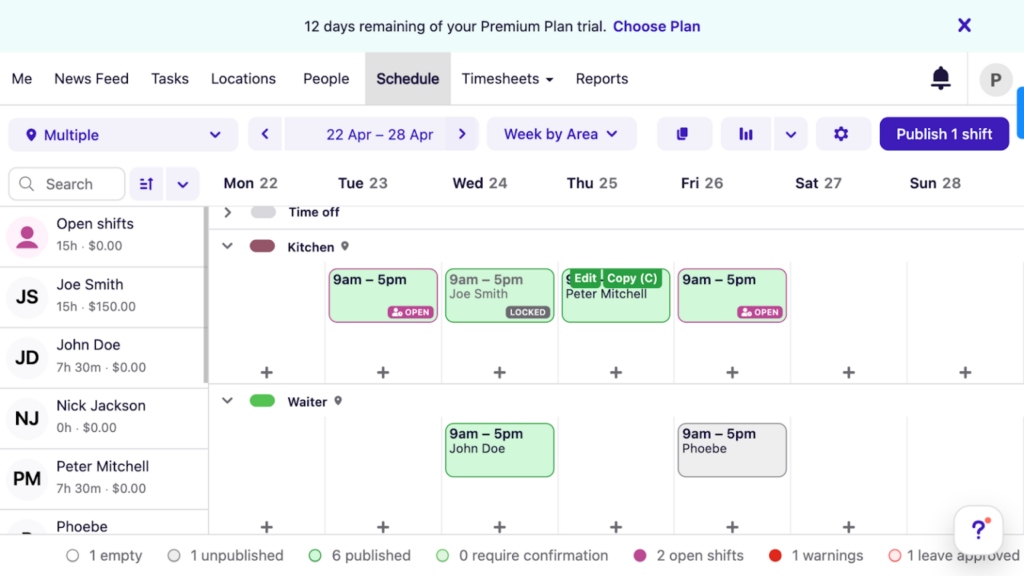
In our full Deputy review, we tested its scheduling capabilities. You can create shifts with drag-and-drop, reuse templates, or copy past schedules. You can assign shifts directly to employees or leave them open for team members to claim, with or without manager approval.
I appreciated that employees can mark unavailable times and submit leave requests directly in the app, while managers can review balances, approve requests, and see availability at a glance when they’re building schedules. We found that the mobile app lacks some desktop editing tools, including drag-and-drop, which could be an issue for managers making quick changes on the go.
The standout feature for me was definitely the auto-scheduler, which builds schedules based on demand, sales data, labor budgets, availability, and working-hour rules. You can also set guardrails, such as shift length limits or fairness rules.
During testing, we were able to assign the same employee overlapping shifts without receiving any warning. The system also didn’t flag pending time-off requests. Without reliable conflict detection, managers could schedule employees who are unavailable or already assigned elsewhere, so I’d give generated schedules an extra manual review before publishing.
Compliance and qualification controls
Deputy lets businesses configure break rules, overtime thresholds, and rest requirements. The scheduler can also check certifications or licenses before an employee is assigned to work that requires a qualification. These tools support scheduling decisions, while the employer remains responsible for configuring the rules correctly and following applicable law.
Time clock and timesheets
Employees can clock in from a phone, browser, or shared kiosk. Mobile punches can capture location and use geofences. Shared kiosks can use photo capture or facial recognition. Managers can also block early clock-ins and apply overtime rules.
Deputy did not support offline clock-ins in our review, which may matter at remote job sites. Worked hours become timesheets with wage, overtime, and premium-rate calculations. Approved records can be exported or sent to a payroll integration. Deputy’s payroll add-on is powered by Paycor and is available only in certain regions.
What users report
User reviews praise Deputy’s simple interface and straightforward shift offers and swaps. Other reviewers mention occasional slowness, glitches, and features that take time to understand.
Key features:
- Drag-and-drop scheduler
- Demand-based auto-scheduling
- Leave management
- Biometric time clock with GPS
Pros:
- Powerful compliance features
- Certification and license verification
Cons:
- Limited mobile schedule edits
- No built-in conflict detection
7shifts:
A Good Match for Restaurants Scheduling Around Sales and Labor Forecasts
Available on: Web, iOS, and Android
Pricing: Starts at $39.99/location/month.
Trial: 14 days
Free plan: Up to 15 users at one location
Ratings: Capterra 4.7/5; G2 4.5/5; Software Advice 4.7/5; GetApp 4.7/5; Google Play 4.5/5; App Store 4.8/5; TrustRadius 9.9/10.
7shifts is an employee scheduling and workforce management app designed specifically for the food and beverage industry.
Why I chose 7shifts: I liked that 7shifts uses sales forecasts and labor targets to build schedules, helping restaurants staff according to demand while keeping labor costs under control.
Scheduling and labor forecasting
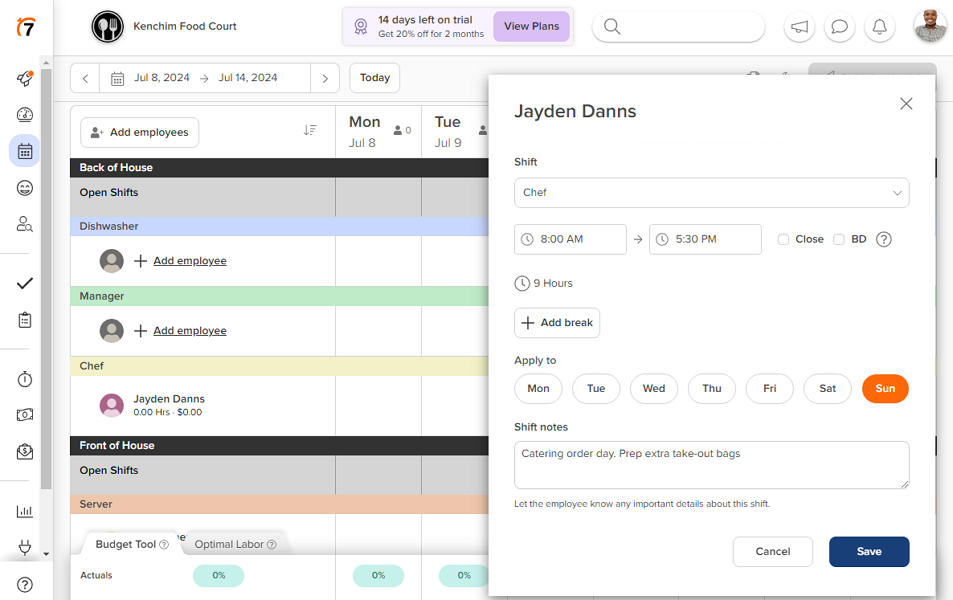
In our full 7shifts review, we found that it offers a clean drag-and-drop scheduler. You can move shifts between employees, adjust start and end times, and make changes quickly. I liked that labor targets and real-time labor costs are built into the scheduling view, so you can monitor costs as you plan.
I was also pretty impressed by the auto-scheduler, which uses historical scheduling patterns, seasonality, guest traffic, employee availability, qualifications, and preferences to build labor-optimized schedules. You can set labor targets based on projected sales, which helps keep staffing aligned with demand and budget.
Shift swaps, availability, and time off
The Shift Pool lets employees offer shifts, claim open work, and request swaps from the mobile or web app. Managers can require approval and control whether cross-location or partial-shift trades are allowed. Approved changes update the schedule automatically.
Availability and time-off requests are tightly integrated into scheduling, which helps prevent conflicts. I really liked the time-off notice feature, which limits last-minute requests and helps managers maintain coverage.
Time tracking and breaks
When it comes to time tracking, 7shifts tracks regular hours, breaks, and overtime and supports geofencing and facial recognition. However, time tracking isn’t built directly into the main app. Employees clock in using 7punches, a separate app that requires its own setup and management. Even though the data syncs and there’s no additional charge, I still wasn’t a big fan of the split experience.
It was also frustrating that the platform didn’t send employees break reminders or prevent them from ending breaks early during our testing. That can create problems in places with strict meal and rest break rules. 7shifts does document breaks and track overtime, and managers can schedule breaks and receive overtime alerts, but I’d test whether its level of active enforcement is enough for your requirements.
What users report
User reviews highlight 7shifts’ ability to schedule around labor needs and show employee availability quickly. One reviewer’s main limitation was the one-week schedule view, which made multi-week payroll review less convenient.
Key features:
- Drag-and-drop scheduling
- Labor-aware auto-scheduling
- Shift pool
- Availability and time-off management
- Time tracking through 7punches
Pros:
- Restaurant-specific forecasting
- Labor targets visible during planning
- Strong shift-change workflows
Cons:
- Separate time-tracking app
- Limited active break enforcement
- One-week schedule view noted in user feedback
Homebase:
A Good Match for Hourly Teams Connecting Schedules, Payroll, and POS Systems
Available on: Web, iOS, and Android
Pricing: Starts at $24/location/month.
Trial: 14 days
Free plan: One location and up to 10 employees
Ratings: Google Play 3.7/5; App Store 4.8/5; Capterra 4.6/5; G2 4.5/5; Software Advice 4.6/5; GetApp 4.6/5; TrustRadius 7.1/10.
Homebase is an employee scheduling app that helps businesses manage shifts, track hours, communicate, and connect scheduling with payroll and POS workflows.
Why I chose Homebase: I chose Homebase because it links scheduling to payroll and POS systems, making it a good fit for hourly teams in retail, food service, and hospitality.
Employee scheduling
In our full Homebase review, we were able to build schedules from scratch, copy previous schedules, create templates for recurring shifts, and drag and drop shifts around a weekly calendar. You can also create open shifts for employees to claim or let team members swap shifts with each other.
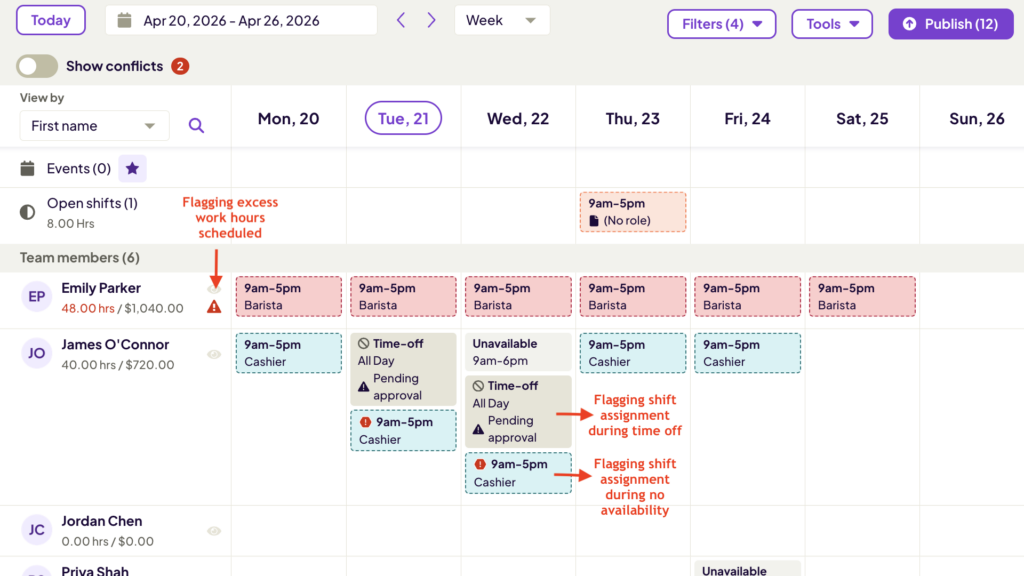
Homebase flags scheduling errors before you publish, like assigning shifts to employees on leave, using employees outside their availability, or scheduling someone for too many consecutive days. The auto-scheduler can assign shifts based on employee availability, sales forecasts, and labor budgets. I also liked that estimated hours and labor costs appear right in the scheduler, so you can make adjustments before publishing.
Availability and leave
Homebase lets managers set policies for time off, blackout periods, breaks, and overtime, although some of these tools are limited to higher-tier plans. Employees can mark unavailable times and submit leave requests directly in the app, while managers can review requests and see availability as they build schedules.
During testing, we ran into a small issue with availability preferences. When we changed an employee’s Monday availability, the update didn’t apply right away, and even after saving, the interface still showed all-day availability. I’d include availability changes in your trial testing.
Time tracking and payroll
Homebase’s time clock works on smartphones, tablets, desktops, and supported POS systems, giving employees several ways to clock in and out. It includes GPS and geofencing, plus options for live timers or manual entries. Homebase also stands out for its built-in payroll system, which can use approved time data to calculate pay and taxes, file forms, and notify employees.
However, there are a few clear drawbacks. Time is tracked to the nearest minute instead of the second, and photo verification is limited to tablets and POS devices. Payroll can also get expensive for larger teams at $39/month plus $6 per employee. Homebase integrates with providers such as Gusto and Paychex, so there are other payroll routes.
What users report
User reviews praise Homebase’s navigation, scheduling, and employee alerts. Another reviewer reported periodic notification problems, while also noting that the issue had become less frequent.
Key features:
- Automated and drag-and-drop scheduling
- Time-off management
- Open shifts and swaps
- Availability
- POS and mobile time clocks
Pros:
- Labor budgets and forecasts in the scheduler
- Multiple clock-in options
- Built-in payroll available
Cons:
- Per-location pricing
- Payroll is a paid add-on
- Some leave and labor controls require higher tiers
When I Work:
A Good Match for Small Teams Wanting Straightforward Shift Scheduling
Available on: Web, iOS, and Android
Pricing: Starts at $2.50/user/month.
Trial: 14 days
Free plan: No
Ratings: Google Play 2.9/5; App Store 4.8/5; Capterra 4.5/5; GetApp 4.5/5; SourceForge 4.5/5; G2 4.4/5; Software Advice 4.5/5; TrustRadius 7.2/10.
When I Work is an employee scheduling app that offers shift scheduling, time tracking, employee availability, and payroll integrations.
Why I chose When I Work: I chose When I Work because of its clean, minimalist interface and straightforward pricing. It’s a good option for small teams that need basic scheduling and time tracking, although some employee-change and time-off workflows needed more manual attention in our testing.
Shift scheduling
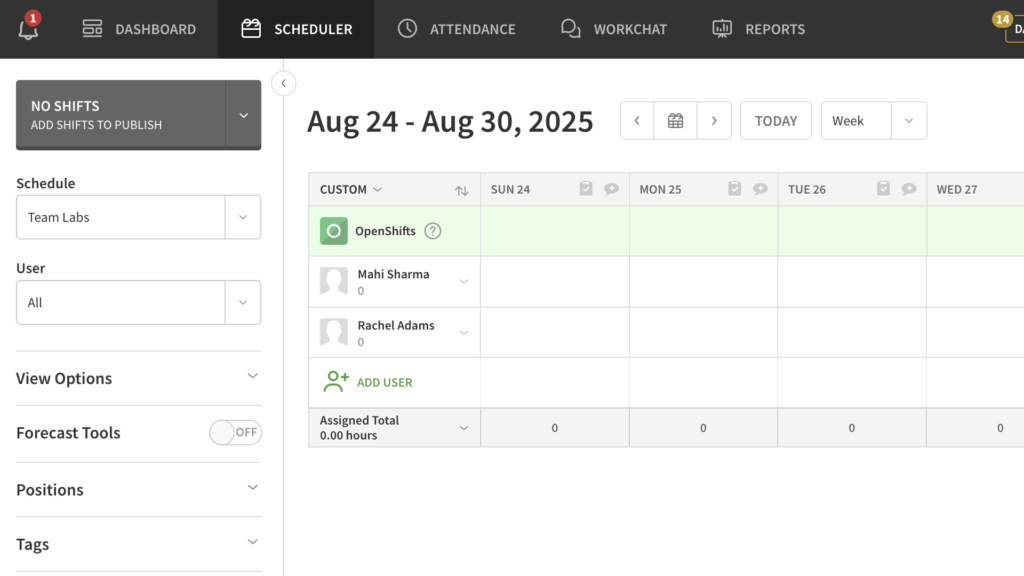
In our full When I Work review, we found it pretty easy to create schedules. The scheduler is formatted like a weekly calendar, with dates at the top and team members on the left. You can use templates, copy previous schedules, or add shifts from scratch. I liked the level of detail you can add to a shift, including employees, open availability, colors, scheduled breaks, notes, and prepared task lists.
When labor forecasting is enabled, you can see projected labor costs based on scheduled hours and employee pay rates. You can also use auto-scheduling based on employee roles, availability, and preferences. One thing I found frustrating is that custom task lists have to be created separately before you attach them to shifts.
Shift changes and time off
When I Work lets employees pick up open shifts, swap shifts, and drop shifts they can’t work where managers allow it. I liked that managers control how much flexibility employees have and whether changes require approval.
That said, we found a few limitations during testing. When we published an open shift, team members received an email but no in-app notification through the web portal. We also enabled both shift dropping and swapping, but the employee view showed only the option to swap shifts. Employees had to enter the number of paid hours manually when requesting time off, and the workflow we tested didn’t include carryover rules or legal-leave warnings.
Time tracking
When I Work lets workers clock in and out from supported devices and includes geofencing and photo verification. However, there’s no live GPS tracking, which could be a major drawback for field or mobile teams that need real-time location visibility. I appreciated that overtime alerts notify managers before employees exceed scheduled hours, and approved timesheets can sync with payroll partners.
I was surprised that labor costs didn’t appear in timesheets even after we added custom pay rates. We also didn’t find an option to separate billable from non-billable hours, so businesses that need job-cost or client-billing detail should test those workflows carefully.
What users report
User reviews describe When I Work’s scheduling view as practical and clear for small teams. Another reviewer reported occasional freezing and missed notifications for shift changes.
Key features:
- Weekly shift scheduling
- Open shifts and swaps
- Mobile clock-ins
- Availability and time-off tracking
Pros:
- Familiar scheduling interface
- Labor forecasting and budgeting
- Overtime alerts
Cons:
- Manual steps in some time-off and shift-change workflows
- No live GPS tracking
- Limited labor-cost detail in timesheets during our test
Sling:
A Good Match for Teams Focused on Shift Swaps and Schedule Communication
Available on: Web, iOS, and Android
Pricing: Starts at $2/user/month.
Trial: 15 days
Free plan: Up to 30 users
Ratings: Google Play 4.4/5; App Store 4.6/5; Capterra 4.6/5; GetApp 4.6/5; G2 4.4/5; Software Advice 4.6/5; TrustRadius 9.2/10.
Sling is an employee scheduling app that offers shift management, availability, time-off requests, communication, time tracking, and labor costing.
Why I chose Sling: Sling offers strong shift swaps and schedule communication with a generous free plan, making it a good option for teams that need flexible coverage on a limited budget. Managers can also monitor wages and overtime while planning, although conflict warnings don’t always prevent publication.
Scheduling and labor costs
In our full Sling review, we tested the drag-and-drop scheduler, which made creating and adjusting shifts quick and manageable. I liked how easy it was to spot and fix clopening shifts, when an employee closes late and is scheduled to open early the next day. Sling flags short turnaround times and includes templates for recurring shifts.
It was helpful that the schedule view shows estimated wages, overtime hours, overtime costs, and absences at a glance, so you can see how scheduling decisions affect labor costs without digging through separate reports. One drawback is that Sling didn’t include a day-rate option alongside hourly pay in our test, which may matter for crews or event teams paid by the shift or day.
During testing, we also found that Sling detects scheduling conflicts but doesn’t strictly block them. After showing a warning, it still lets the manager publish the conflicting schedule, so I’d pay extra attention if your process depends on hard conflict blocks.
Shift swaps and time off
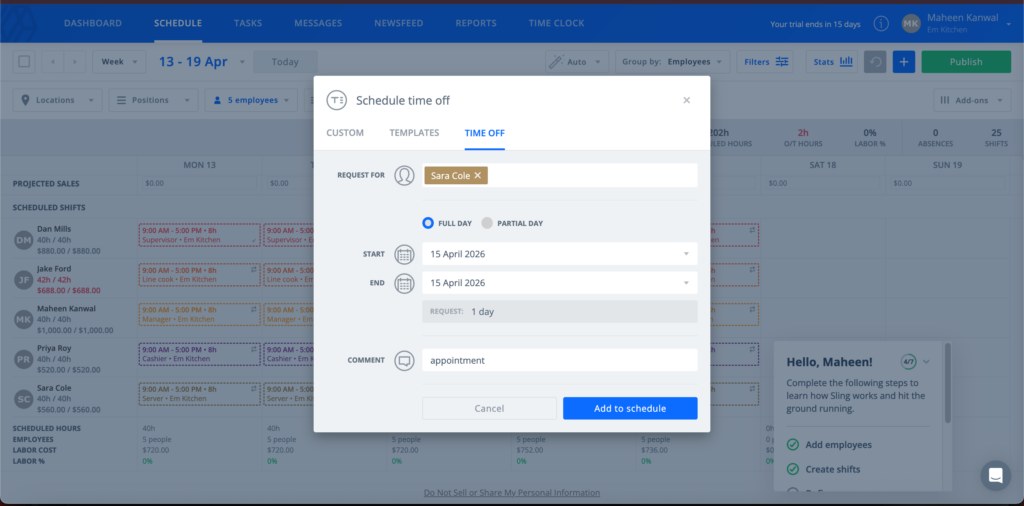
Sling gives employees several ways to manage coverage and time off, including open shifts, swaps, and availability settings. During testing, when we requested time off for an already assigned shift, Sling flagged the conflict and gave us the option to turn the shift into an open shift for another employee to claim. That workflow worked smoothly.
Time clock and geofencing
Employees can use Sling’s mobile app to clock in and out, while fixed locations can use a shared-device kiosk. I liked that Sling offers GPS-based geofencing to keep clock-ins within approved locations. You can also prevent early clock-ins and automatically end shifts before overtime starts.
One limitation I noticed is that managers can’t view total employee hours in the mobile app, so you have to switch to the desktop version. That isn’t ideal for busy managers who need to check hours on the go.
What users report
User reviews praise Sling’s clean interface and easy access to schedules and clock-ins. Another reviewer described a learning curve for new employees and occasional notification failures.
Key features:
- Drag-and-drop scheduling
- Employee shift swaps; time-off requests
- Time clock with geofencing
Pros:
- Free plan for up to 30 users
- Short-turnaround warnings
- Labor-cost visibility
Cons:
- No day-rate pay option in our test
- Some conflicts can still be published
- Total hours unavailable in the mobile manager view
How to Choose the Right Employee Scheduling App
When I began evaluating employee scheduling apps, I realized that what works for a restaurant might not work for a construction company. The right choice depends on how your team works and what scheduling challenges you face day to day. Here’s how to narrow down your options.
Consider Your Team Structure
- For hourly shift workers: If you manage restaurants, retail stores, or cafes, look for tools with fast schedule building, employee availability, shift swaps, open shifts, and timely notifications.
- For field and mobile teams: If employees work across multiple job sites, look for location-specific assignments, clear shift details, mobile access, and time tracking that works across sites.
- For restaurants: Pay close attention to sales forecasting, labor targets, POS integrations, role coverage, and restaurant-specific scheduling workflows.
- For multi-location businesses: Look for centralized scheduling, location-specific permissions, cross-location visibility, and clear staffing information across sites.
- For salaried or project-based teams: First confirm that shift scheduling is actually the right software category. If employees control their own hours, a project-management or workload-planning tool may fit better.
Think About What Matters Most
- If scheduling conflicts are your main headache: Test double-booking warnings, employee availability, time-off visibility, overtime alerts, and whether the app actually blocks serious conflicts or only warns you.
- If labor forecasting is your biggest challenge: Look for demand-based scheduling, sales or traffic inputs, staffing forecasts, and clear labor-cost information.
- If employee adoption is your struggle: Have employees test the mobile schedule, notifications, availability, time off, swaps, and open shifts. If the everyday workflow feels confusing, that matters more than a long feature list.
- If you struggle with last-minute changes: Compare how quickly you can open a shift, find qualified coverage, approve a change, and notify everyone affected.
- If payroll cleanup takes too long: Follow scheduled hours through clock-in, timesheet review, approvals, edits, and the payroll handoff.
Test the Apps Before You Decide
A feature list won’t tell you how a scheduling app behaves when something goes wrong. Before choosing a tool, use a free trial or free plan where available and run the same basic test in every app you’re considering:
- Build a normal week. Add a small group of employees with realistic roles, locations, availability, and working hours, then create the schedule using the quickest method available.
- Create a scheduling conflict. Try overlapping shifts, an unavailable employee, a pending time-off request, or a potential overtime issue. Check whether the app blocks the problem, warns you, or lets you publish it anyway.
- Test an employee change. Have someone request time off, swap or drop a shift, and claim an open shift. Check what requires manager approval and how the schedule updates afterward.
- Make a last-minute change. Change a published shift and check what the affected employees receive in the mobile app, web app, email, or push notifications.
- Follow the hours through payroll. If time tracking matters to your team, record a clock-in, review the timesheet, make an edit, approve the hours, and check how the data reaches payroll.
These tests matter because small workflow problems are easy to miss during a product demo. In our own testing, we found differences in conflict detection, notifications, availability changes, time-off calculations, and mobile functionality that would be difficult to spot from feature lists alone.
What is an Employee Scheduling App?
Employee scheduling apps are tools that help businesses create, manage, and share work schedules in one centralized place. They replace manual scheduling methods like spreadsheets, emails, or paper schedules, making shift planning faster and more reliable.
With an employee scheduling app, managers can build schedules based on roles, availability, and staffing needs, while employees can view their assigned shifts directly from their phones.
Most apps also support features like shift swaps, time-off requests, and instant schedule updates, helping teams stay aligned and reducing scheduling errors. Employee scheduling apps aim to help businesses save time, improve coverage, and keep teams informed.
How Do Employee Scheduling Apps Work?
Employee scheduling apps work by giving managers a digital platform to plan shifts and manage availability in real-time. Managers enter employee details, set availability rules, and assign shifts using drag-and-drop tools or automated scheduling features.
Once schedules are published, employees can access them through a mobile or web app. They can receive notifications when changes are made, request time off, submit availability, or swap shifts based on manager approval. Many apps also connect scheduling with time tracking, allowing employees to clock in and out directly from their schedules.
Most apps generate reports on hours worked, coverage gaps, and labor trends, helping managers optimize schedules and control labor costs.
Benefits of Using an Employee Scheduling App
Employee scheduling apps can support your business operations in multiple ways. Here’s how they can help:
Fewer issues
Employee scheduling apps reduce the stress caused by last-minute changes and coverage gaps. With clear visibility into availability and staffing needs, managers can build schedules that hold up. As a result, fewer shifts go unfilled and fewer emergencies derail the week.
Higher productivity
When schedules are clear and reliable, employees know exactly when and where they’re expected to work. That consistency decreases absenteeism, limits confusion, and helps teams stay focused on their actual jobs instead of dealing with scheduling problems.
Better control
Employee scheduling apps help you staff the right number of people at the right times. By avoiding overstaffing, unnecessary overtime, and reactive scheduling decisions, managers can keep labor costs predictable and aligned with demand.
Clearer communication
Instead of missed messages and outdated schedules, employee scheduling apps let everyone work off of the same source of truth. Schedule changes, shift coverage, and updates are shared instantly, reducing miscommunication and frustration across your teams.
Improved accuracy
Accurate schedules improve operations and reduce risk. Employee scheduling apps help ensure shifts align with availability, role requirements, and labor rules, lowering the chance of errors that lead to compliance issues or employee burnout.
How Much Do Employee Scheduling Apps Cost?
The cost of employee scheduling apps really depends on the pricing model used. Many platforms charge either per user or per location, with per-user pricing starting around $1.70 to $5 per user per month, depending on features and plan. Per-location pricing usually starts between $24 and $40 per location per month, offering more predictable costs as teams grow.
Connecteam offers a Small Business Plan that is completely free for up to 10 users. Paid plans start at just $29 per month for up to 30 users, and go up to $49/month for Advanced and $99/month for Expert, both also covering up to 30 users.
The Bottom Line on Employee Scheduling Apps
If you manage a team and struggle with constant changes, missed shifts, or hours spent fixing avoidable mistakes, the right employee scheduling app can make a real difference. What matters most is choosing one that fits the way your team actually works.
Use the comparison table to build a shortlist, then test the workflows your managers and employees use most. Connecteam is especially strong for frontline and field teams that want scheduling closely connected with time tracking and daily operations, while the other options in this guide may fit better when restaurant forecasting, a simpler scheduler, payroll workflows, or shift swapping is the bigger priority.
FAQs
What is employee scheduling?
Employee scheduling is the process of assigning employees to shifts, roles, locations, and working hours while accounting for business demand, availability, qualifications, labor costs, and applicable work rules.
How can I tell whether employees will find an app easy to use?
Ask several employees to complete the tasks they will perform most often: view a schedule, acknowledge a change, submit availability, request time off, offer a shift, and claim open work. Test the mobile app on the devices your team actually uses.
What customer support should I check before choosing?
Support channels and hours vary by vendor and plan. Confirm when live help is available, which channels are included, whether onboarding costs extra, and how the vendor handles urgent payroll or scheduling issues outside normal business hours.
What security and privacy information should I review?
Review the vendor’s documentation for encryption, access controls, audit logs, backups, security certifications, privacy terms, subprocessors, data location, and incident response. Match those controls to the employee and location data you plan to store. For example, Connecteam publishes information about its SOC 2 program, ISO certifications, and privacy practices in its Trust Center.
What does implementation usually involve?
Implementation usually includes importing employees, assigning roles and locations, entering availability, configuring permissions and rules, connecting payroll or POS systems, building schedule templates, and training managers and employees. Run a pilot with one team or location before rolling the app out more widely.
