

Simple job management platform, but with no advanced scheduling and compliance features.
What’s New in This Update:
- Retested ServiceM8 to discover what has changed since my last review and verify whether the vendor has resolved the issues identified in my previous round of testing.
- Rewrote sections to reflect the results of my latest round of testing.
- Added a “Location and Route Mapping” section to properly cover all of ServiceM8’s key features.
- Combined the “Quoting” and “Invoicing” sections to consolidate finance-related features.
Verdict: 6.94/10
ServiceM8 is job management software built specifically for trade contractors and home service businesses. Its biggest strength is the ability to turn online bookings into scheduled jobs with minimal admin involvement. This eliminates repetitive scheduling when managing incoming bookings, making ServiceM8 a strong fit for businesses that rely on online bookings.
However, ServiceM8 can feel unnecessarily cumbersome for companies that manually receive customer calls and then assign jobs to employees. Key scheduling controls are scattered across different tabs on the Dispatch Board, so managers have to jump between screens to coordinate assignments, making the process feel more tedious.
Even worse, ServiceM8 lacks the essential tools needed to manage larger or more dynamic field teams. For example, it doesn’t provide an automatic scheduler, employee availability tracking, an automatic conflict detector, employee self-service, or labor-law compliance tools. If you need to optimize scheduling while staying within the limits of workforce rules, look elsewhere.
I do like its offline mode, which enables field teams to track time without an internet connection. However, by forcing employees to choose between tracking job time or shift time, ServiceM8 creates unnecessary complexity for businesses that simply want to record working hours and separate billable from non-billable time.
To add to the confusion, ServiceM8 uses “clock-on” and “clock-off” instead of the standard “clock-in” and “clock-out” terminology. These flaws, combined with its weaker Android app, limited break controls, and missing overtime tracker, make ServiceM8 unsuitable for businesses operating under strict labor regulations.
ServiceM8 Key Features
- Job scheduling: Create job quotes that automatically convert into work orders once clients approve them. Schedule recurring jobs and assign jobs using the drag-and-drop function in the “Staff Schedule” tab. There are no employee self-service tools, schedule notifications, or labor-law compliance tools, though.
- Time tracking: Track job or shift time on the Android or iOS app. The iOS app offers a more complete experience, with automatic clock-0ns, GPS time tracking, off-site trip tracking, and clock-off reminders.
- Quoting and invoicing: Send quotes to clients directly via the job card and let them approve them even without a ServiceM8 account. Invoicing is equally straightforward, although having filters to group a client’s billable items would speed up the invoicing process.
- Online booking: Let clients book services directly from your website or Facebook page. Online bookings are automatically assigned to the next available employee.
Pros
- Functional offline mode
- Budget-friendly pricing
- Easy-to-implement online booking page
- Recurring job features
- Easy-to-use quoting and invoicing tools
- Real-time location tracking
Cons
- No auto-scheduler
- Cluttered Dispatch Board
- Android app lacks key functionalities
- No compliance features like overtime tracking and work limits
ServiceM8 Pricing
Verdict: 7.5/10
| Plan — Per Month (Billed Annually) | Features |
|---|---|
| Free – Free forever |
|
| Starter – $29 | Everything in Free, Plus:
|
| Growing – $79 | Everything in Starter, plus:
|
| Premium– $149 | Everything in Growing, plus:
|
| Premium Plus – $349 | Everything in Premium, plus:
|
ServiceM8’s pricing model allows all users to access essential field service management features, regardless of their plan. Even free plan users can schedule jobs, create quotes and invoices, manage customers, and streamline day-to-day field service operations.
However, the vendor imposes usage limits, which can dictate the plan that works for your business. The free plan, for example, lets you add one user and manage 30 jobs per month, making it ideal only for solopreneurs or testing purposes. Paid plans, on the other hand, allow unlimited users and include more jobs the higher up the plan hierarchy you go.
That aside, ServiceM8 adopts a flat-rate pricing model. As a result, recurring costs remain predictable as business grows, making it a good choice for fast-growing companies. Moreover, since there are no setup charges, the initial cost is relatively low.
ServiceM8 vs. Top Competitors
ServiceM8 can be more affordable than many competitors that charge per user. However, compared with other platforms with flat-rate pricing, it delivers slightly less value because it lacks advanced workforce management features, as you can see in the table below:
| Plan | ServiceM8 (Growing) | Jobber (Grow) | Hubstaff (Team) | Connecteam (Advanced) |
|---|---|---|---|---|
| View pricing | View pricing | View pricing | View pricing | |
| 10 users | $79 | $210 | $100 | Free for life—all features and dashboards |
| 20 users | $79 | $280 + ($29*5) = $425 | $200 | $49 |
| 30 users | $79 | $280 + ($29*15) = $715 | $300 | $49 |
| 50 users | $79 | $280 + ($29*35) = $1,295 | $500 | $99 |
| Read our in-depth Jobber review | Read our in-depth Hubstaff review | Learn more about Connecteam |
Free Trial, Money-Back Guarantee, and Add-Ons
ServiceM8 offers a 14-day free trial that gives you unfettered access to most of ServiceM8’s features, allowing you to test the software thoroughly. I used the trial for this review, and I was able to tinker with all of ServiceM8’s features.
While there are no setup or onboarding charges, businesses on the free plan pay $0.10 per SMS message. If you’re on a paid plan, you’ll pay an SMS overage fee for each message you send over your plan’s monthly SMS cap.
Moreover, you’ll pay an extra $19 per month for the ServiceM8 phone system. The phone system allows you to manage all client calls from a centralized dashboard, and may be helpful if your business relies on incoming bookings.
ServiceM8 Sign-Up and Onboarding
Verdict: 6.5/10
Overall, ServiceM8’s signup process is straightforward, but onboarding and setting up teams could be smoother. The guided setup offers some direction, but it covers limited configuration options. Managers still have to handle most of the setup on their own. Without bulk employee imports, businesses with large workforces could spend hours adding users one by one.
Signing up with ServiceM8 is straightforward. All I needed to do was click “get started” or “get a 14-day free trial.” I chose the latter and filled out the signup form. If you already use Xero, you can also sign up with your Xero account for faster setup.
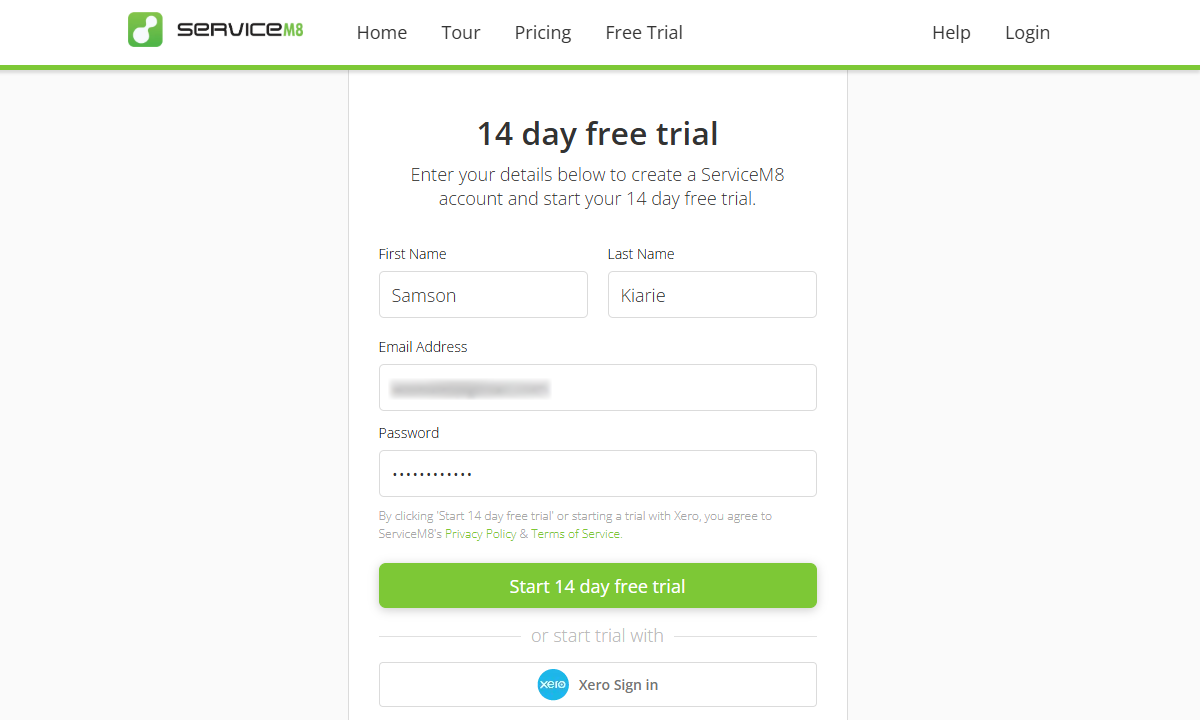
Once I confirmed my email address, ServiceM8 took me through a four-step pre-configuration process. It’s a simple process that involves adding your business information such as the industry, workforce size, name, logo, website, email address, ABN, and phone number. The vendor also let me connect my go-to accounting software at this stage to simplify financial workflows down the road.
ServiceM8 Onboarding
Once I had completed the initial setup process, ServiceM8 served up a short introductory video that walked me through the platform. It’s not the most comprehensive welcome video I have seen, but it gives beginners a helpful starting point as they explore the platform on their own.
After the video, ServiceM8 took me to my account. My first impression? The interface looked okay, with multiple widgets, including an eight-step guided setup wizard. Unfortunately, though, many of the steps cover tasks that do little to actually streamline setup, such as installing the iOS app.
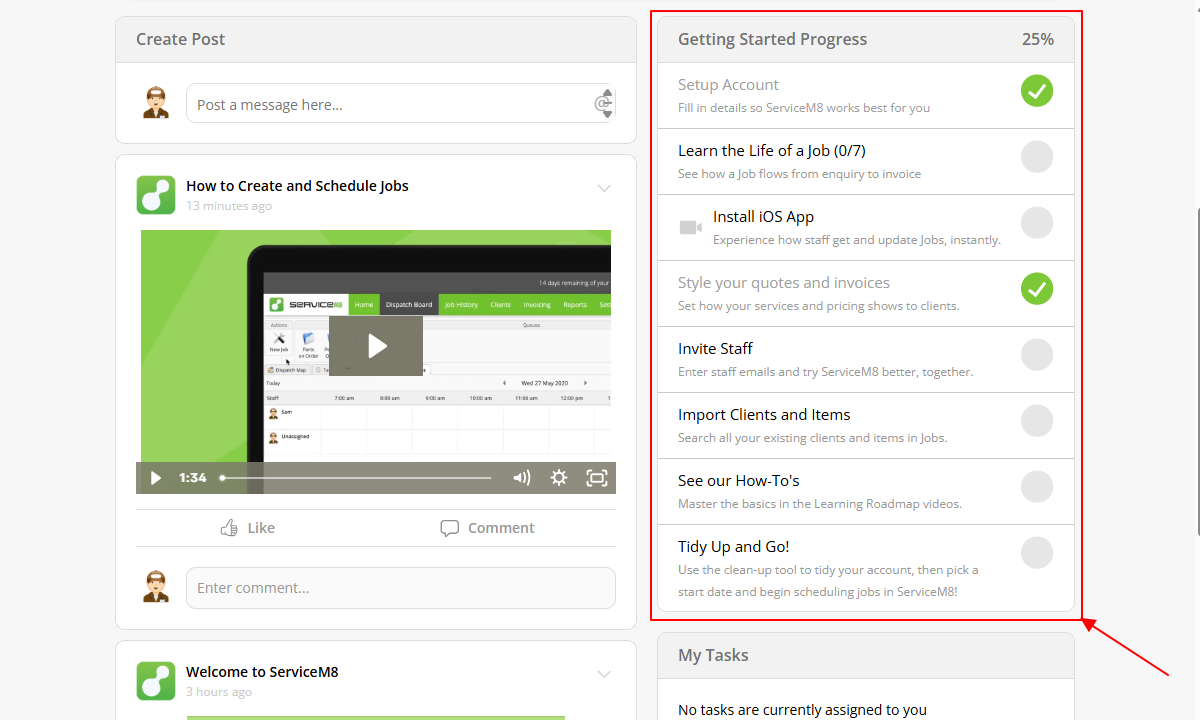
In fact, the setup wizard let me invite employees and import clients and items without having to find those pages in the menu. While this saved time, the setup process could’ve been even faster if ServiceM8 had included more configuration options in the setup wizard, such as job categories, materials, and services.
That aside, ServiceM8 includes other onboarding resources to help users get up to speed, including a seven-step job flow wizard. Accessible from the Dispatch Board or the Get Started progress tracker, this wizard helps users learn key job management steps, from creating a job to invoicing clients. Each step has a video demo that helps users see how the feature works in practice.
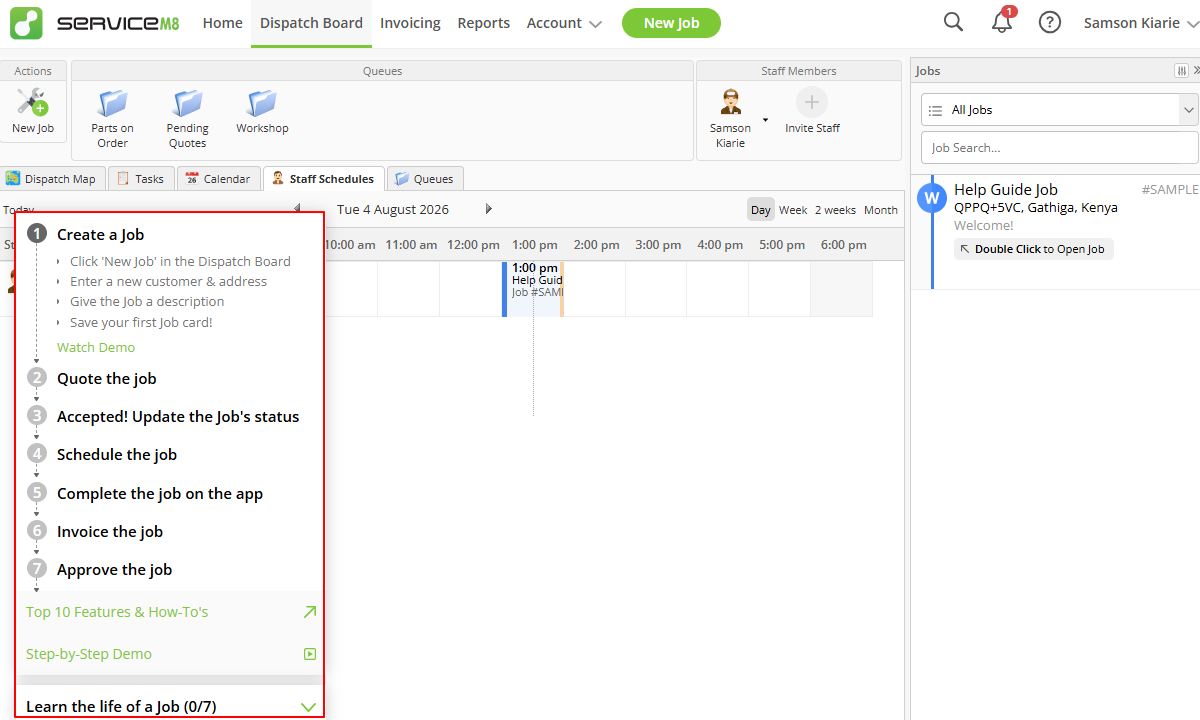
The job flow wizard also links to ServiceM8’s learning roadmap, a collection of help videos for users organized by feature. The videos cover both basic and advanced functionality, helping staff, managers, and business owners quickly learn the platform.
Setting Up Your Team
You can add employees directly to your account or invite them by email. Adding users directly takes longer because it requires entering more information up front. The invitation workflow, on the other hand, requires only basic contact details, allowing you to add multiple users faster and let them complete their accounts themselves.
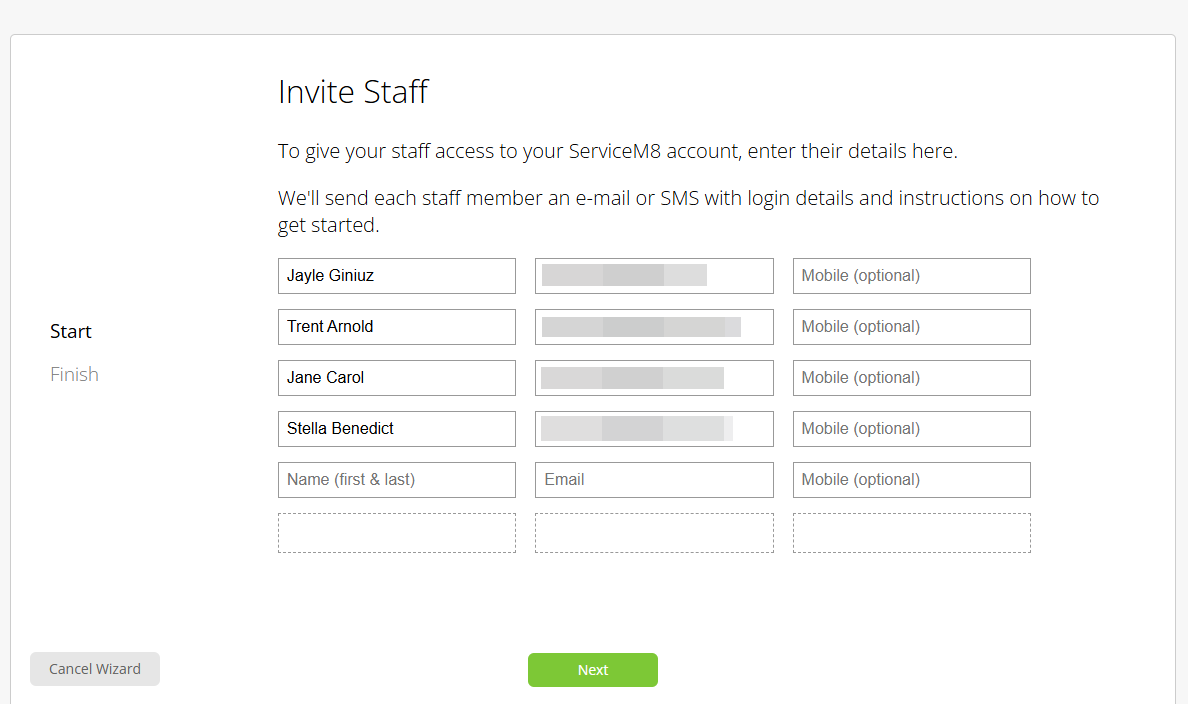
Unfortunately, ServiceM8 doesn’t support bulk user imports or link invitations. As a result, businesses with large workforces will need several hours just to add employees. Thankfully, managers can upload specially formatted CSV files to bulk-import client data, making it easier to migrate large customer lists.
Keep in mind that ServiceM8 doesn’t let you create employee groups, which is a dealbreaker, especially in field service businesses where employees work across different trades. This makes it harder to apply trade-specific work rules, deliver targeted communication, and assign group work.
ServiceM8 Usability and Interface
Verdict: 7/10
Overall, ServiceM8 uses its signature color palette on both web and mobile, creating a consistent visual experience across platforms. Both apps are relatively easy to use, but there’s room for improvement. The web interface could benefit from a more modern look and cleaner layouts, while greater feature parity between Android and iOS would make the mobile experience more consistent and valuable.
ServiceM8 Web App
ServiceM8’s web app feels functional rather than modern. Its user interface (UI) lacks the polished visuals, subtle aesthetics, and centralized navigational panel you’ll find with many newer competitors.
Still, I found the platform relatively easy to navigate, thanks to its grid-based layout. I like that the menu is fixed at the top, making it accessible from anywhere on the platform. Moreover, it displays the core features—Home, Dispatch Board, Invoicing, Reports, and Account.
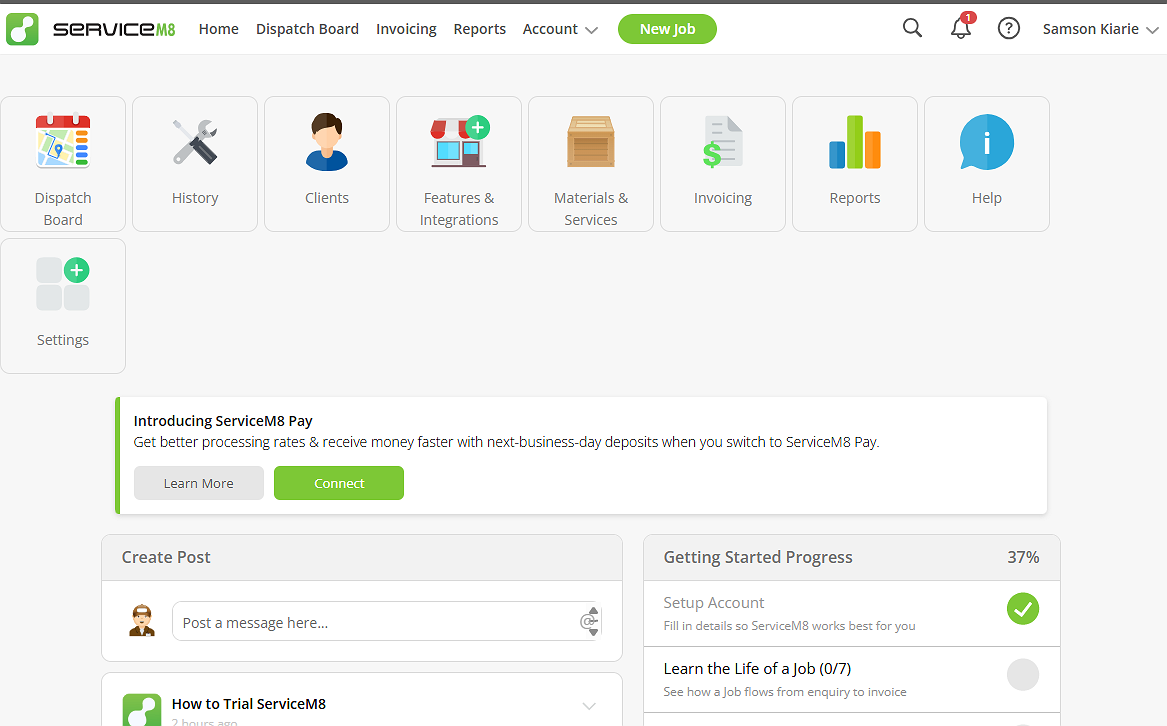
The home screen also features large icon-based cards below the navigation bar, giving users quick access to key features. While the visual shortcuts make features easy to find, they feel somewhat redundant because most of the same options are already available in the navigation bar at the top.
The details area on the home page feels manageable at first, but it can end up looking cluttered with time as you accumulate task assignments and posts. In addition, I can’t fathom why ServiceM8 permanently displays the onboarding widgets. While these widgets help new users get started, they become distractions once you’re familiar with the platform.
These issues aside, ServiceM8 gives users easy access to the features relevant to their role. Managers have access to all features and can perform all administrative functions. Employees, on the other hand, have access to the Dispatch Board, History, Home, Clients, and Help features.
When it comes to the color palette, ServiceM8 uses a predominantly white and light gray background, creating a clean, light, and neutral feel. The signature bright lime green is reserved for buttons and icons, making them easily noticeable. This goes a long way towards simplifying usability.
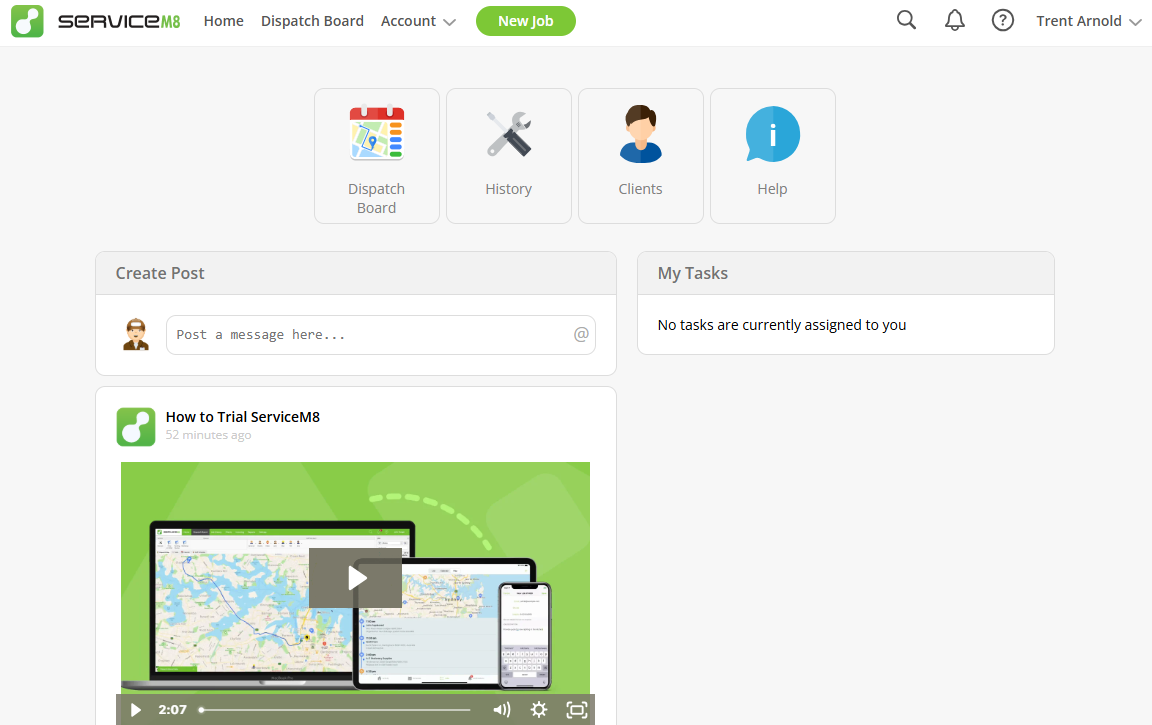
Issues With the Web App
My biggest concern with the web app is the frequent lag. The app took longer to load than I anticipated on my first login. I thought this may have been an isolated case, but the problem cropped up again during subsequent logins. Moreover, the web app took a while to load when I switched tabs or pages, which was disappointing.
The app doesn’t include any unique design features for users with visual or hearing disabilities. This isn’t a major concern, though, given that most competitors have similar gaps. Still, it can be a deal breaker for businesses committed to promoting inclusivity within the workplace.
ServiceM8 Mobile App
ServiceM8 offers Android and iOS apps for iPhone and iPad. The UI is largely consistent across platforms, although there are a few design and functional differences. I used the Android app for this review, and relied on ServiceM8’s support agents for details regarding the iOS app.
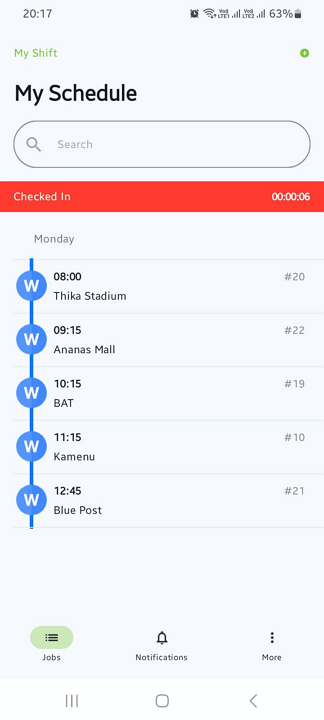
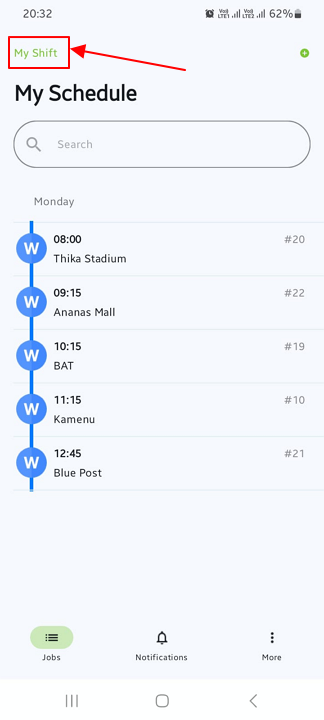
The mobile UI is clean and well organized, with a navigation menu at the bottom of the screen where today’s users expect it. On iOS, the menu displays “Activity,” “Jobs,” “Notifications,” and “More” options. The Android app takes a slightly different design approach, dropping “Activity” and instead placing “My Shift” at the top of the screen.
Android vs. iOS App Features
During my last round of testing, I discovered numerous functional differences between the iOS and Android apps. Thankfully, ServiceM8 has improved the Lite app for Android to narrow that gap. One notable improvement is shift time tracking, which is now available on Android after previously being limited to iOS.
Still, the Android app lacks many management and advanced productivity features. The table below shows how the Android and iOS apps compare:
| Feature | iOS | Android |
|---|---|---|
| Jobs | ✅ | ✅ |
| My Schedule | ✅ | ✅ |
| Job check-in/check-out | ✅ | ✅ |
| SMS messaging | ✅ | ✅ |
| Clock-on/clock-off | ✅ | ✅ |
| Navigation-time tracking | ✅ | ✅ |
| GPS time tracking | ✅ | ❌ |
| Clock-off and time rollback | ✅ | ❌ |
| Clock-off reminder | ✅ | ❌ |
| Off-site trip tracking | ✅ | ❌ |
| Location tracking | ✅ | ❌ |
| Automated clock-On/Off | ✅ | ❌ |
| Automatic job check-in/out | ✅ | ❌ |
| Shift GPS reporting | ✅ | ❌ |
| Barcode and document scanning | ✅ | ❌ |
| AR measurements | ✅ | ❌ |
| Field payments | ✅ | ❌ |
Differences aside, both the Android and the iOS app have a functional offline mode. When I turned off my internet connection, the Android app let me add jobs, send SMS messages, add job notes, and start and complete jobs. This suggests ServiceM8 can work without an internet connection, a valuable capability for field teams in regions with poor cellular coverage.
| Menu Item | Admin | Employee | ||
|---|---|---|---|---|
| Website | Mobile App | Website | Mobile App | |
| Feature | ||||
| Timesheet | ✅ | ✅ | ✅ | ✅ |
| Time tracker | ✅ | ✅ | ✅ | ✅ |
| Calendar | ✅ | ✅ | ✅ | ✅ |
| Schedule | ✅ | ✅ | ✅ | ✅ |
| Expenses | ✅ | ✅ | ✅ | ✅ |
| Time off | ✅ | ❌ | ✅ | ❌ |
| Analysis | ||||
| Dashboard | ✅ | ❌ | ❌ | ❌ |
| Reports | ✅ | ❌ | ✅ | ❌ |
| Activity | ✅ | ❌ | ✅ | ❌ |
| Management | ||||
| Kiosks | ❌ | ❌ | ❌ | ❌ |
| Approvals | ✅ | ❌ | ❌ | ❌ |
| Projects | ✅ | ❌ | ✅ | ❌ |
| Team | ✅ | ❌ | ❌ | ❌ |
| Clients | ✅ | ❌ | ❌ | ❌ |
| Locations | ✅ | ❌ | ❌ | ❌ |
| Tags | ✅ | ❌ | ❌ | ❌ |
| Invoices | ❌ | ❌ | ❌ | ❌ |
ServiceM8 Core Functionalities
ServiceM8 promises to streamline operations for contractors and service businesses. To that end, it offers scheduling, job management, quoting, invoicing, and location-tracking features. I tested these features and compiled my unbiased findings below. Keep reading for the inside scoop.
Job Scheduling
Verdict: 6.5/10
Overall, ServiceM8 is a good fit for field service businesses that rely heavily on online bookings. However, companies that manually schedule jobs will find its workflow unnecessarily complex and time-consuming. Moreover, while ServiceM8 offers many job management and scheduling tools, it lacks advanced scheduling and labor compliance features that growing businesses need.
ServiceM8’s job-scheduling functionality can be complicated at first, primarily because everything related to work management, from quoting and staff scheduling to dispatching and location monitoring, is handled on the Dispatch Board.
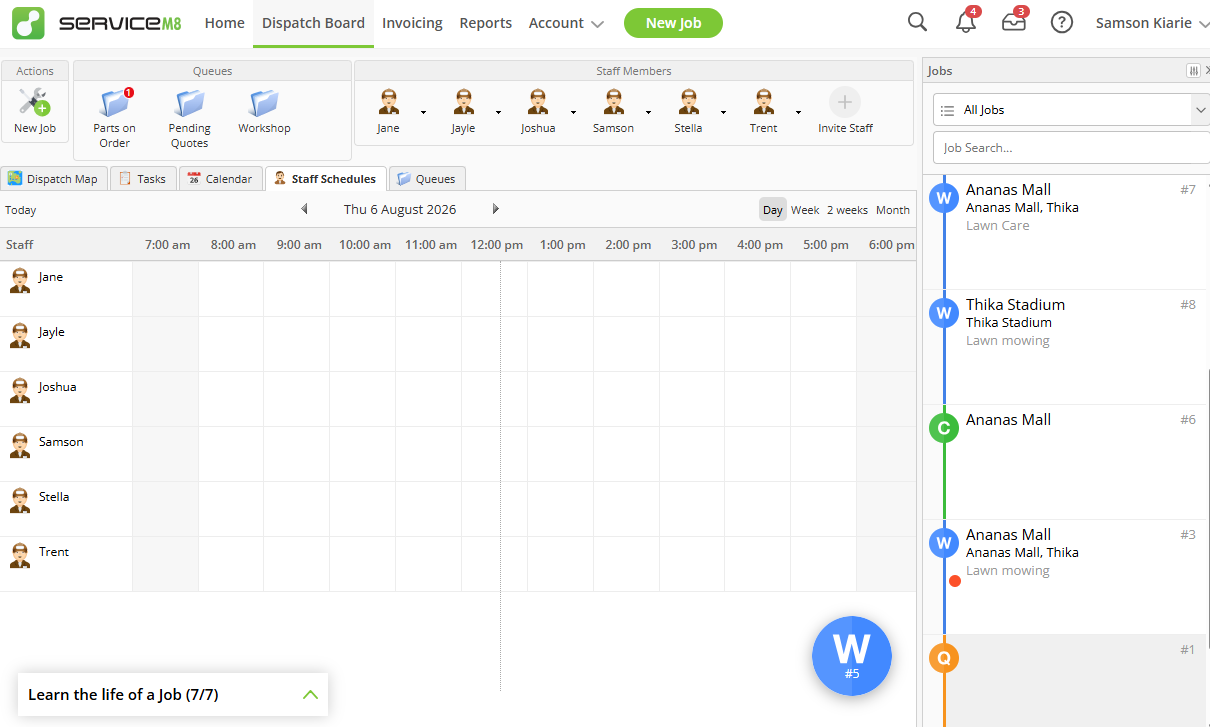
As you’d imagine, the Dispatch Board packs numerous tools, filters, and menus into a single screen. It displays a menu with quick action buttons, queues, and staff members’ cards. It also includes different tabs for the dispatch map, tasks, calendar, and staff schedule, alongside a list of color-coded jobs on the right.
Given the wide range of options, learning how different components work together can take time. I spent about 20 minutes just trying to figure out how things work. First-time users may face an even steeper learning curve.
Job Management
Jobs form the foundation of everything you do in ServiceM8. In other words, you must first create a job before you can send a quote, schedule staff, or dispatch crew. However, if you’ve set up an online booking page, ServiceM8 automatically converts incoming bookings into jobs and assigns them to available staff, eliminating the need to create jobs manually.
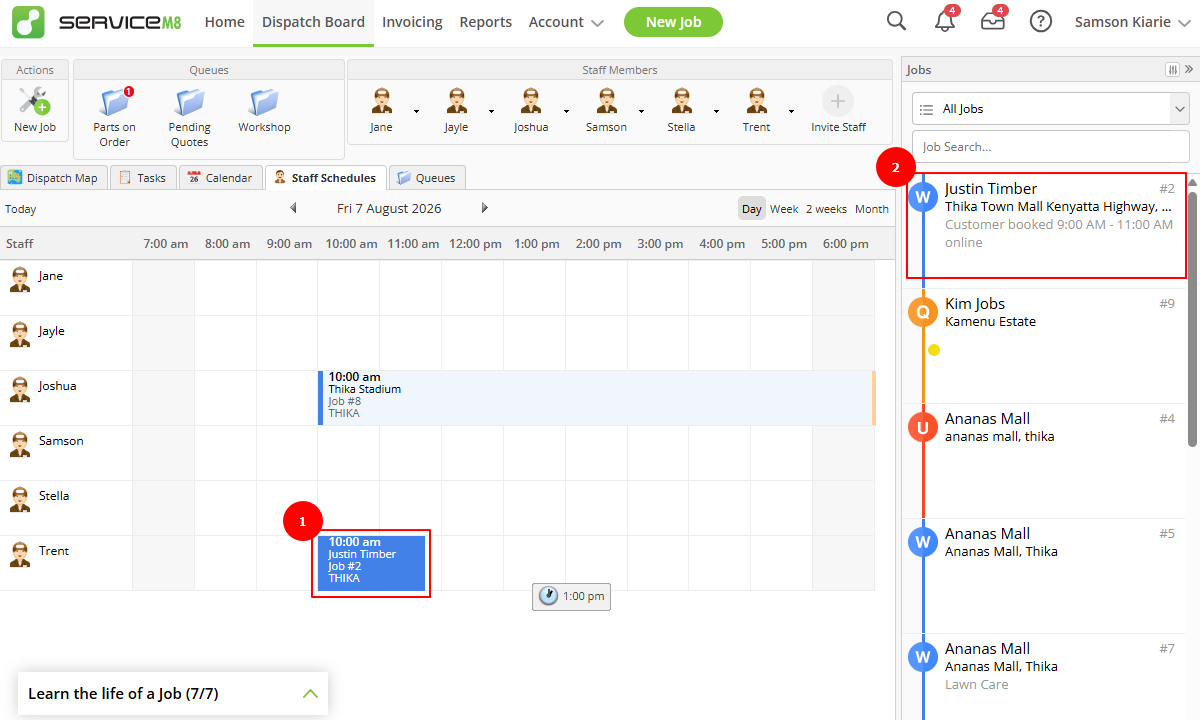
The “new job” button is displayed on the Dispatch Board and more prominently on the main menu, making it easy to access regardless of where you’re working from. This allows office administrators to quickly create jobs and capture customer details while they’re still on the phone.
Adding a job is straightforward—simply click “new job” and add the details, such as client, address, description, checklist, and contact person. All jobs start out in the “quote” phase by default. However, for jobs that do not need a quote, you can change the status to “work order” and adjust the category accordingly.
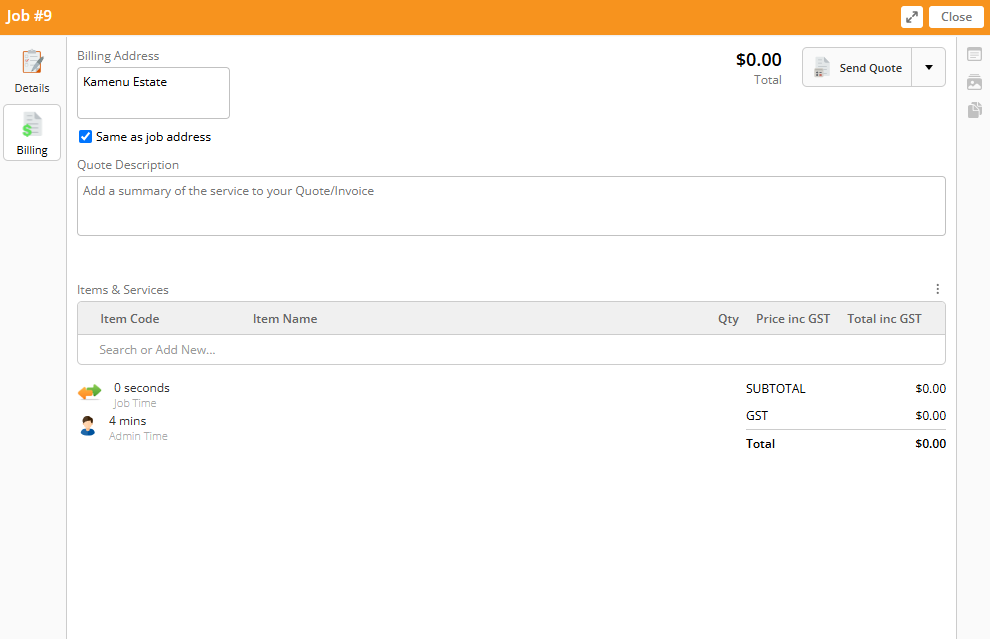
Each job card has two main tabs—“Details” and “Billing”—each with its own set of functions. The “Details” tab includes “Email,” “SMS,” “Schedule,” “Queue,” “Service,” “Recurrence,” and “More.” The “Billing” tab, on the other hand, is where you send quotes and invoices.
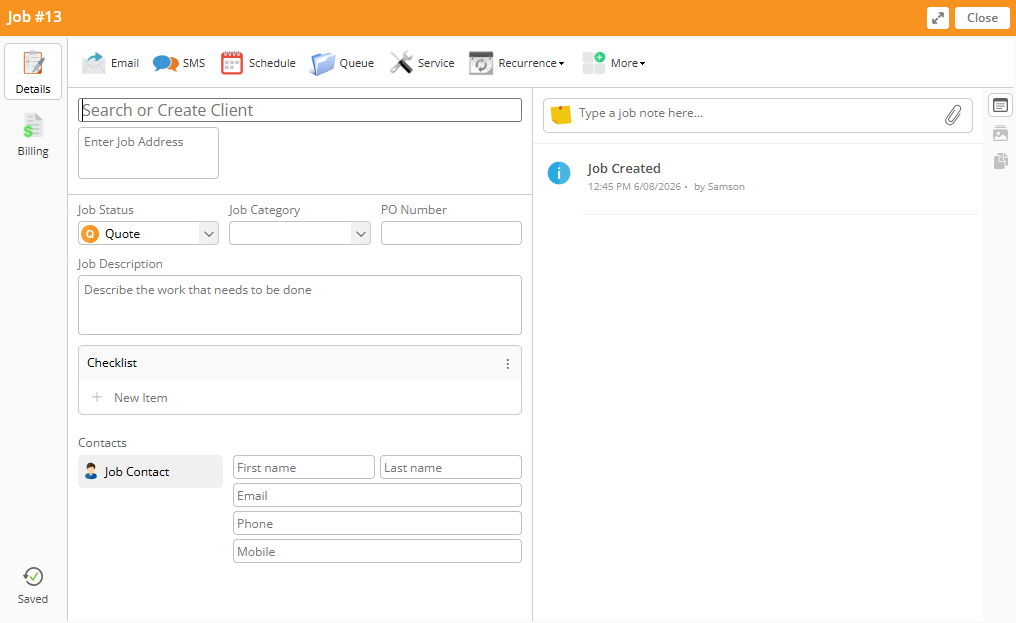
The centralized job card design helps keep all job information and communication in one place. However, having so many tabs on a single card can make it difficult for beginners to know where to go to perform a specific action.
Scheduling on the Job Card
One aspect I don’t like is that essential scheduling tools are split across the “Schedule” and “Recurrence” tabs within the job card. This fragmented design makes job scheduling less intuitive, forcing you to jump between tabs to complete what should be a straightforward task.
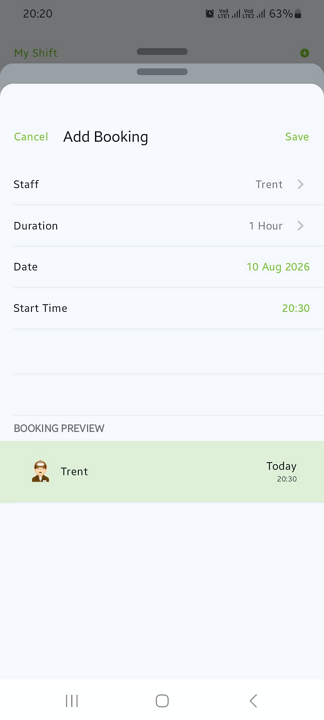
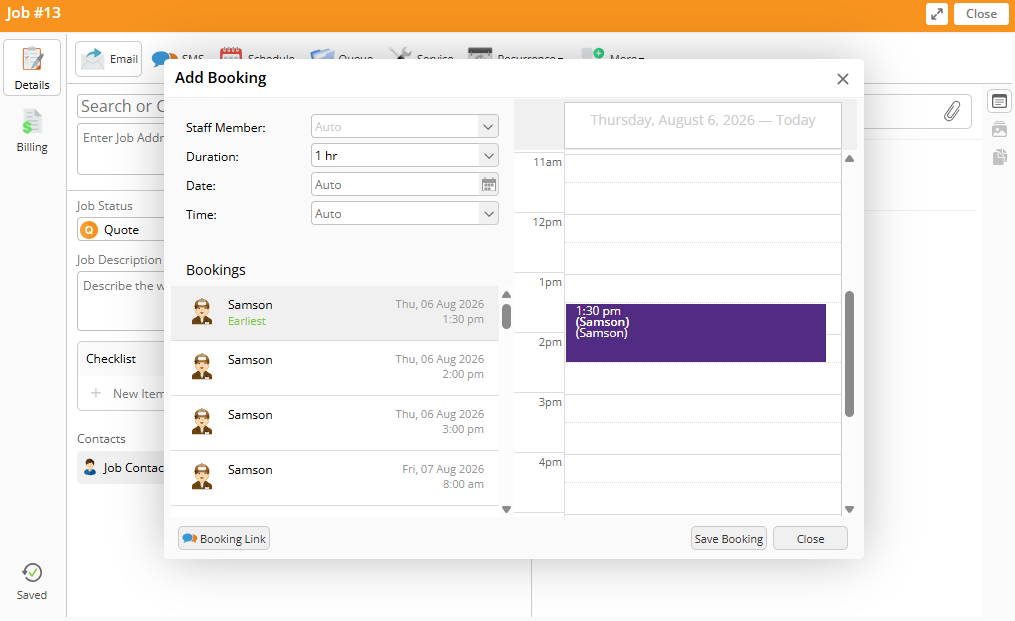
Nonetheless, once you’re in the “Schedule” tab (within the job card), scheduling a job is pretty easy. All you need to do is pick an assignee, duration, date, and time. I appreciate that the system suggests the earliest available employee. In a fast-paced environment, the suggestions help dispatchers quickly assign jobs to the next available technicians to minimize customer wait time.
For jobs that follow a regular pattern, you’ll need to switch to the “Recurrence” tab to set the repeating interval. While the available options—weekly, biweekly, triweekly, and monthly—cover most recurring field service work, the lack of daily and custom intervals is a notable limitation. Businesses with unique maintenance schedules may have to create and assign these recurring jobs manually.
Scheduling Jobs From the Staff Schedule
You can also schedule jobs in the “Staff Schedule” tab on the Dispatch Board. I like that you can switch between daily, weekly, biweekly, or monthly calendar views, depending on whether you want to plan short-term or long-term assignments.
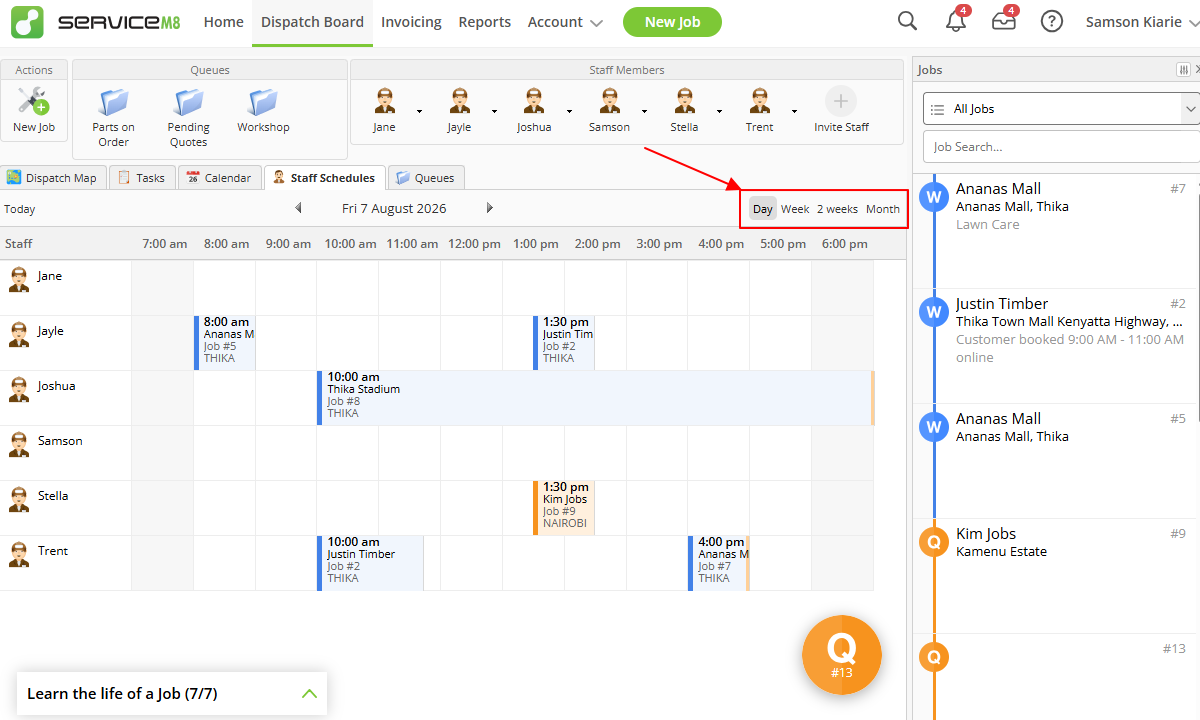
I also appreciate that jobs on the list are color-coded by status—“unsuccessful,” “work order,” “quote,” and “complete”—making it easy for dispatchers to know when a job is ready for assignment.
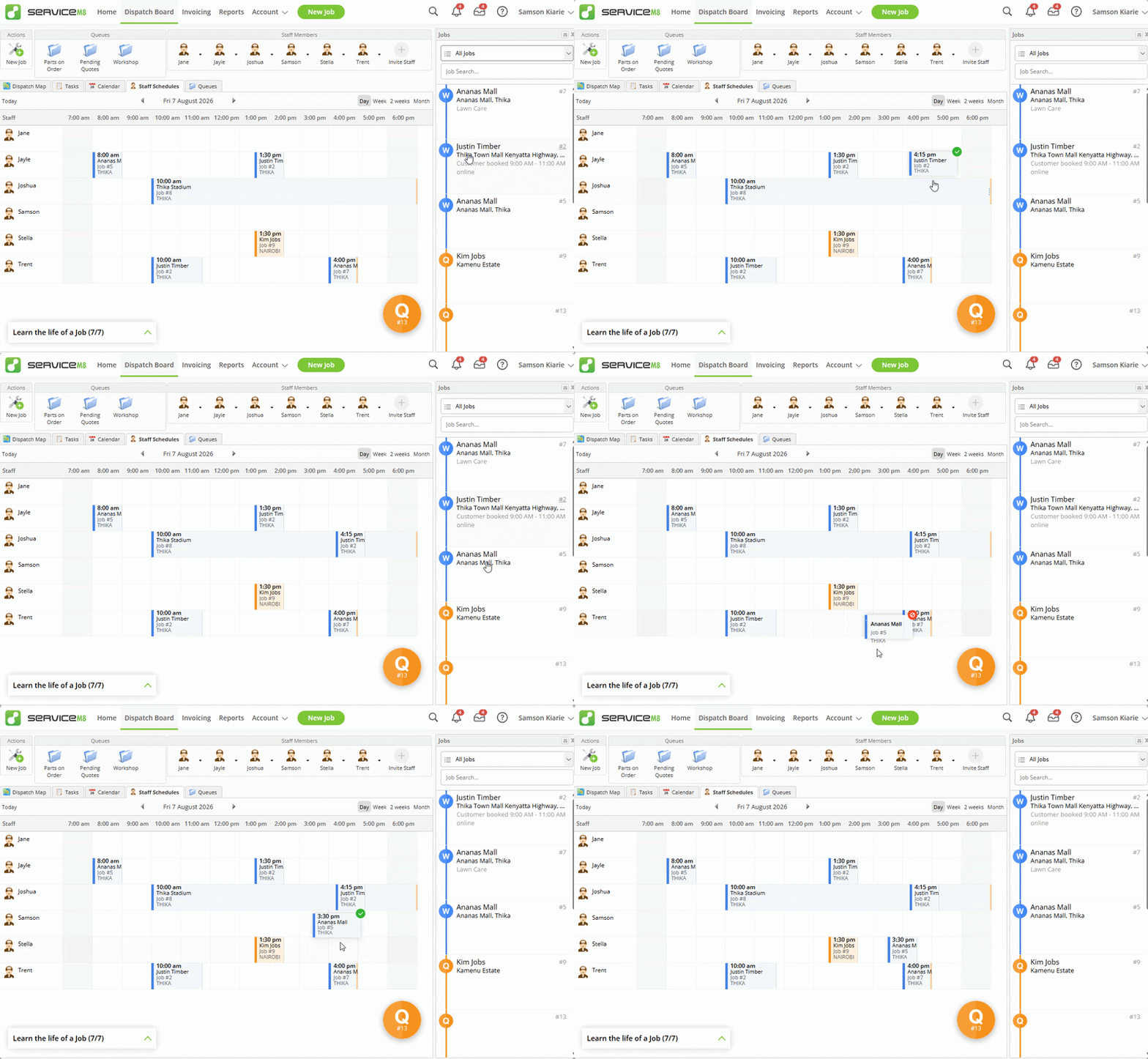
ServiceM8 supports drag-and-drop scheduling, but not in the traditional sense. You can drag jobs from the list on the right onto the calendar, but you can’t drag jobs from one cell to another within the calendar. I was also disappointed that I couldn’t create a new job by clicking an empty calendar slot, a shortcut many competitors offer.
Issues with ServiceM8 Scheduling
ServiceM8 falls short on compliance and advanced scheduling. While it prevents overlapping shifts by default, it doesn’t detect other schedule conflict issues, such as excess working hours or shifts. As a result, I wouldn’t recommend this software for businesses in industries with strict labor laws and compliance requirements.
Moreover, since ServiceM8 lacks an automatic scheduler, managers have to assign shifts manually, which can be time-consuming in fast-paced environments. I also noticed the app doesn’t let employees accept, decline, or swap shifts, so managers have to manually coordinate schedule changes whenever an employee is unavailable.
Time Tracking
Verdict: 5/10
Overall, ServiceM8’s time tracking is confusing and overly complex for a solution of its caliber. Instead of a unified time tracker, it separates jobs and shifts, forcing employees to juggle two different workflows.
Unfamiliar labels add to the learning curve, and the weaker Android app limits the software’s appeal for some teams. Most importantly, the lack of compliance controls makes it a poor fit for businesses operating under strict labor regulations.
Many top-tier time-tracking apps are built with both field and back-office teams in mind. As such, they let field employees track time from mobile devices while office workers log hours through web or desktop apps. ServiceM8 doesn’t offer this flexibility; instead, it requires all employees to track time exclusively through the mobile app.
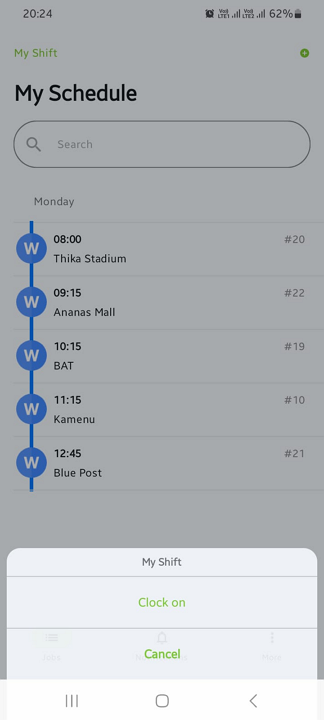
There’s another problem as well. As I mentioned earlier, the Android app is a trimmed-down version of the iOS app. As such, it lacks some vital time-tracking tools, such as GPS time tracking and clock-on/off automation, making ServiceM8 unsuitable for Android-heavy workforces.
Employees can track “job” time or “shift” time, which initially I found confusing. A ServiceM8 support agent explained that job time measures the hours an employee spends on a client job, and is used for tracking billable labor. Shift time, by contrast, represents an employee’s total working hours, making it suitable for payroll.
This means if you want to track billable and payroll hours, you must ask employees to use both features. I would love to see ServiceM8 incorporate a unified time tracker that captures total hours, while letting managers categorize them as billable or non-billable. This would simplify time tracking for users and give managers cleaner, more reliable timesheets to work with.
Tracking Time With ServiceM8
I used the Android app during testing and consulted ServiceM8’s support team to clarify how certain features work on iOS. To track job time, all I needed to do was open the assigned job card and tap “start job.”
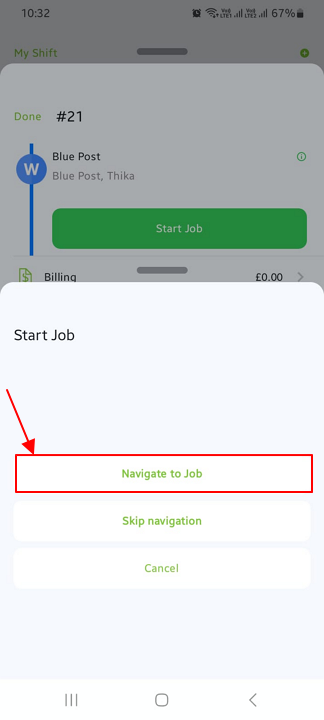
The app served up two options: “navigate to job” or “skip navigation.” Choose the former if you need to track driving time or the latter to start the job time tracker. I tested both options, and they worked exactly as I expected.
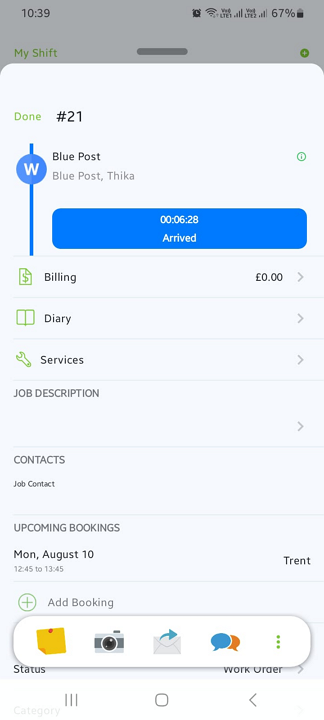
Keep in mind that the iOS app offers advanced time-tracking capabilities. An agent told me that the app can automatically record when an employee arrives or leaves an assigned client location. If this feature works as described, it could be particularly useful for field workers who visit multiple job sites throughout the day.
The shift time-tracking experience differs slightly between the iOS and Android apps, although the core workflow is the same. On both platforms, employees clock on and off in “My Shift.” On iOS, “My Shift” is accessible from the “Activity” tab, while Android puts it directly on the home screen.
Issues with ServiceM8 Time Tracker
ServiceM8 uses “clock-on” and “clock-off” terminology instead of the standard “clock-in” and “clock-out.” It may seem minor, but inconsistent feature labeling can create unnecessary confusion, especially for users who are accustomed to standard time-tracking terminology.
Additionally, while the automatic tools simplify time tracking, it’s not as accurate as the geofencing features you’ll find with top-tier time trackers. ServiceM8 uses the client’s address or worksite as the reference point without accounting for the size or boundaries of the property. As a result, there’s no guarantee that it will accurately determine when an employee arrives at or leaves a job site.
In fact, automatic clock-in/out doesn’t happen immediately when an employee enters or exits the job site. ServiceM8 takes some time to detect arrival or departure. However, a support agent told me that the app rolls back the hours to the time you actually arrived or left to account for the lost time.
Lastly, ServiceM8 doesn’t have labor compliance features. The break tracker is pretty basic and ineffective for businesses in regions with strict compliance requirements. A support agent told me that ServiceM8 has no features or add-ons for overtime tracking. If you must track employee overtime, either for remuneration or compliance purposes, consider an alternative like Connecteam.
Quoting and Invoicing
Verdict: 6.5/10
Overall, ServiceM8 provides the essential quoting and invoicing tools, but its workflow feels restrictive. Without a standalone estimate tool, businesses must first add a job to send a quote, which can leave your job list cluttered with abandoned quotes. Moreover, the invoicing page lacks filters and the bulk actions needed to quickly consolidate a client’s billable items.
ServiceM8’s job estimates and invoices are accessible from the job card. The tool you see when you open the “Billing” tab depends on the job’s status. Jobs in the “quote” stage open the quoting tool, while completed jobs redirect you to the invoicing tool.
I liked this workflow because it naturally guided me through the job lifecycle, eliminating the need to manually switch between separate modules. In the real world, this ensures managers can easily generate quotes before work begins and create invoices only after a job is complete, keeping the billing aligned with each job’s progress.
Managing Quotes
Generating an estimate was a breeze. All I needed to do was open the “Billing” tab and add a quote description and line items (services and materials). I was able to search through my services and materials catalog to find relevant items.
I also liked that I could share the quote with the client via email or SMS. Clients can open the link, review the quote, and approve it without having to create a ServiceM8 account. Unlike my previous round of testing, when some quote links failed to open, every link worked reliably this time around.
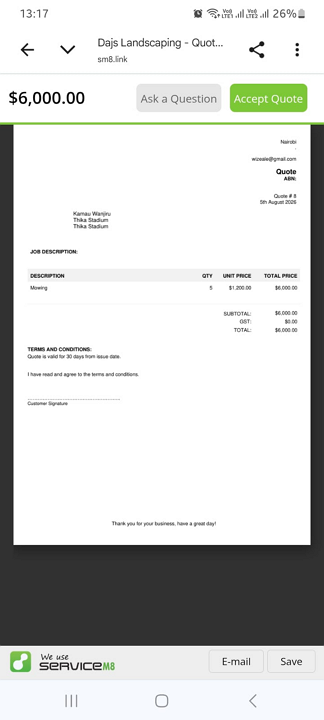
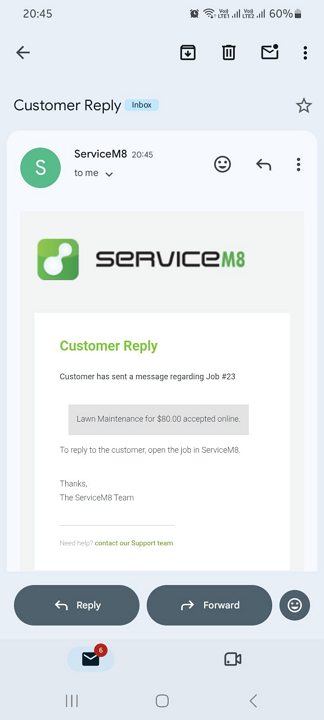
If the client needs clarification, they can use the “ask a question” feature. When a mock client sent a question, the app immediately notified me (the manager) via email. It also pinned the message at the top of the job’s activity bar, ensuring I never missed an important update. Once the client accepted the quote, the job status automatically changed to “work order.”
Invoicing with ServiceM8
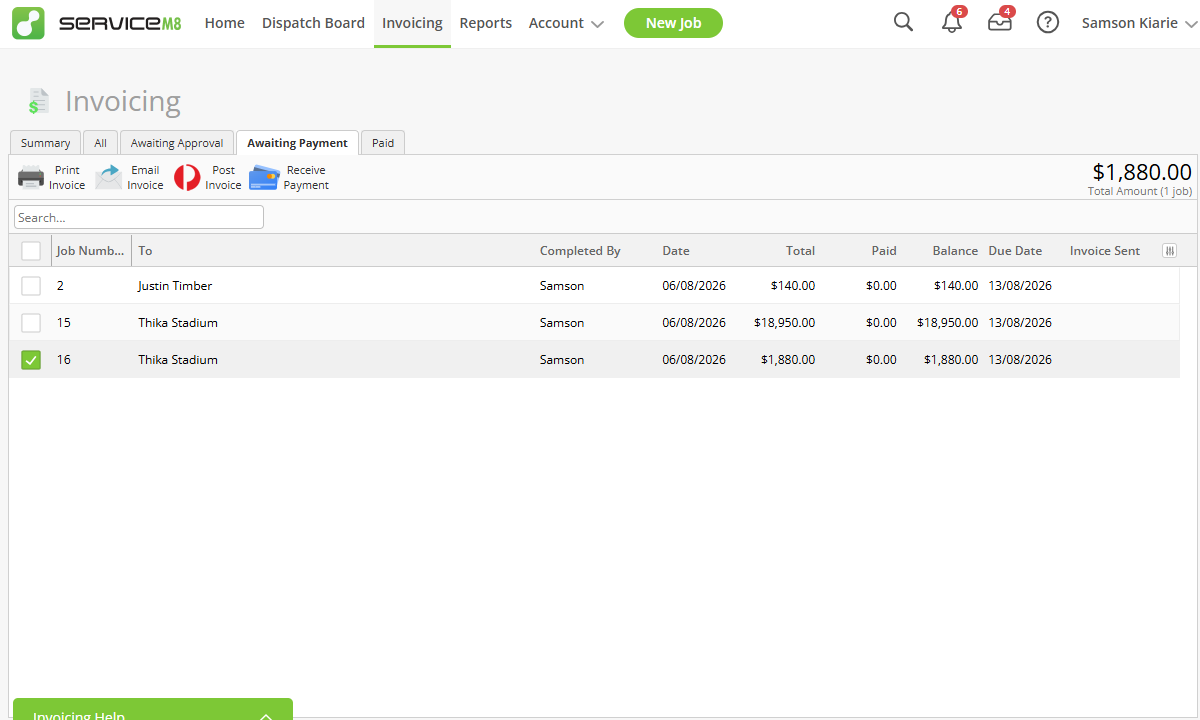
You can invoice for a single job within a job card or combine multiple billable items into a single invoice on the invoicing page. I prefer the latter because it lets you invoice for complete jobs and saves the hassle of creating separate invoices for each client’s job.
I also like that jobs become available for invoicing only after the manager’s approval. This extra step helps managers verify that the work is complete and that the recorded billable items are accurate before the invoice reaches the client. This prevents disputes and the resultant back-and-forth, which can hurt your cash flow.
Creating an invoice was straightforward. All I needed to do was open the “Awaiting Payment” tab and select the items I needed to invoice for. I like that ServiceM8 gave me the option to email the invoice to the client directly from the invoicing page.
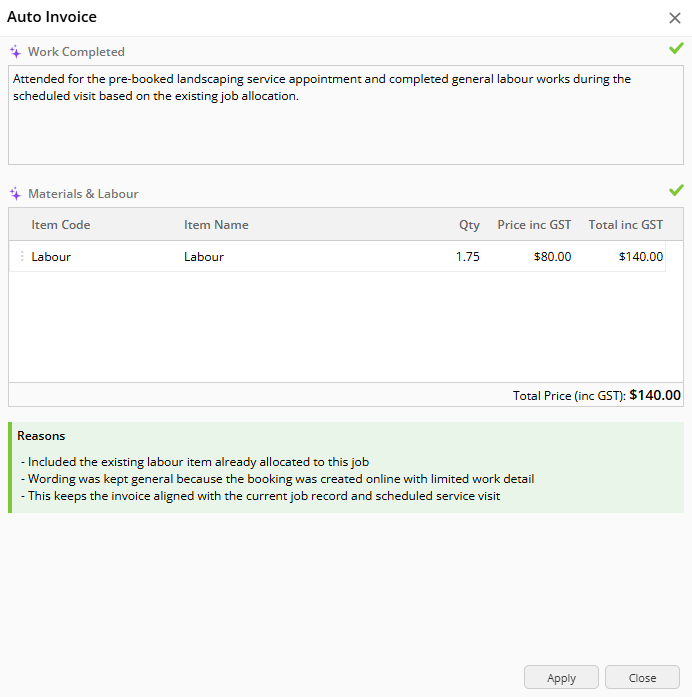
Alternatively, you can invoice clients from the job card, which works for single-job clients. Invoicing from the job card lets you make the most of the AI-powered auto-invoice tool. With a single click, the tool generates an invoice complete with line items (materials and labor) and a description of the work done.
Issues with ServiceM8’s Quoting and Invoicing
While ServiceM8 allows you to automatically apply a tax rate, it doesn’t have a discount feature. As a result, users have to calculate discounts manually and add them as a negative line item in the job’s quote. For example, if you want to add a discount of $180, you have set the quantity to -1 and enter the discount value as the price.
Moreover, generating quotes from inside a job card can be problematic. For example, to generate a quote, you must first create a job. Over time, this can clutter your job list with abandoned and inactive opportunities.
Additionally, ServiceM8 doesn’t provide filters — such as a client filter—on the invoicing page to quickly group a client’s billable items into a single invoice. As a result, managers have to manually sort related items, which can be cumbersome for businesses that handle hundreds of jobs.
Online Bookings
Verdict: 8.5/10
Online booking is arguably ServiceM8’s standout feature, saving home service businesses the manual hassle of assigning and scheduling jobs. The feature is easy to embed on a website and intuitive enough that clients can book services without ever having to contact the business directly.
ServiceM8 enables you to embed a booking form on your website or Facebook page that allows customers to book your services online. The form allows customers to book a job that subsequently appears right on your schedule, without ever interacting with your office administrators directly. This helps remove all the admin work involved in quoting, confirming a booking, and scheduling a job.
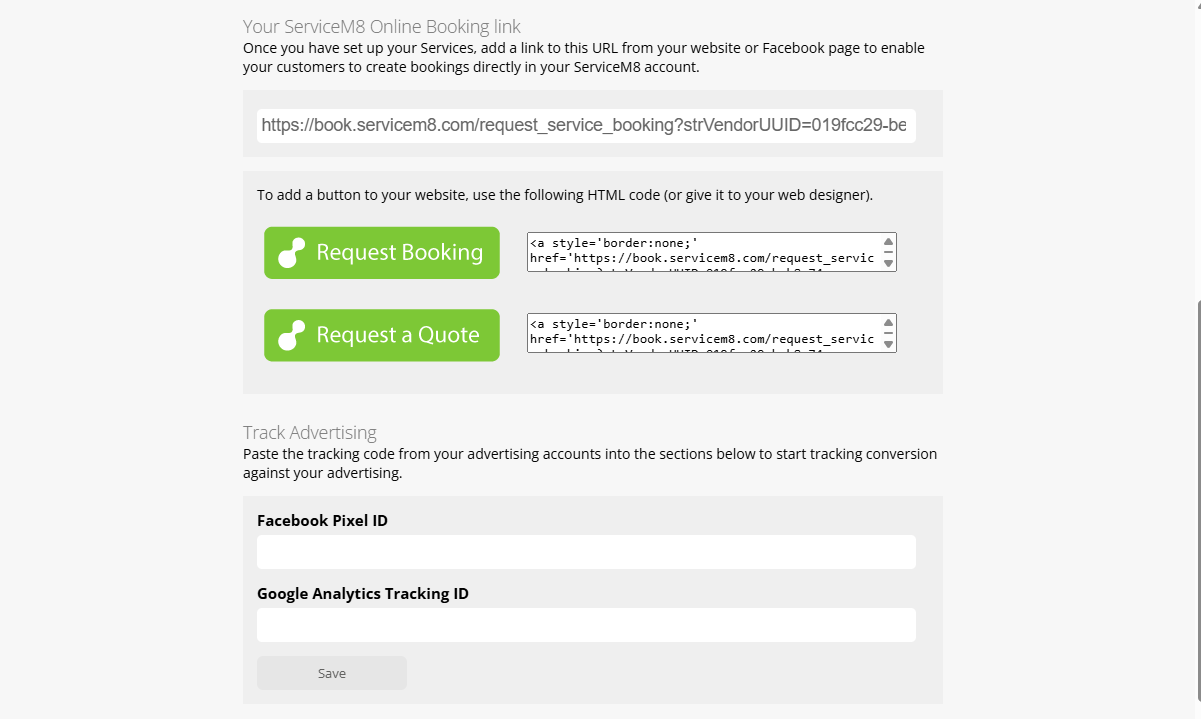
Setting up a booking form requires little to no manual work. Once you publish a service, ServiceM8 automatically adds it to your online booking page, so there’s no need to build the form from scratch. You can also import services via CSV to streamline setup. The import feature worked smoothly during testing, and I’d recommend it for businesses with a large service catalog.
Adding the form to a Facebook page requires no technical expertise. Simply add the URL provided on the self-service online booking page. Adding the form button to a website may require a web designer’s help, though, especially for beginners. However, anyone familiar with basic website builders should be able to add it with minimal fuss.
Booking Services Online
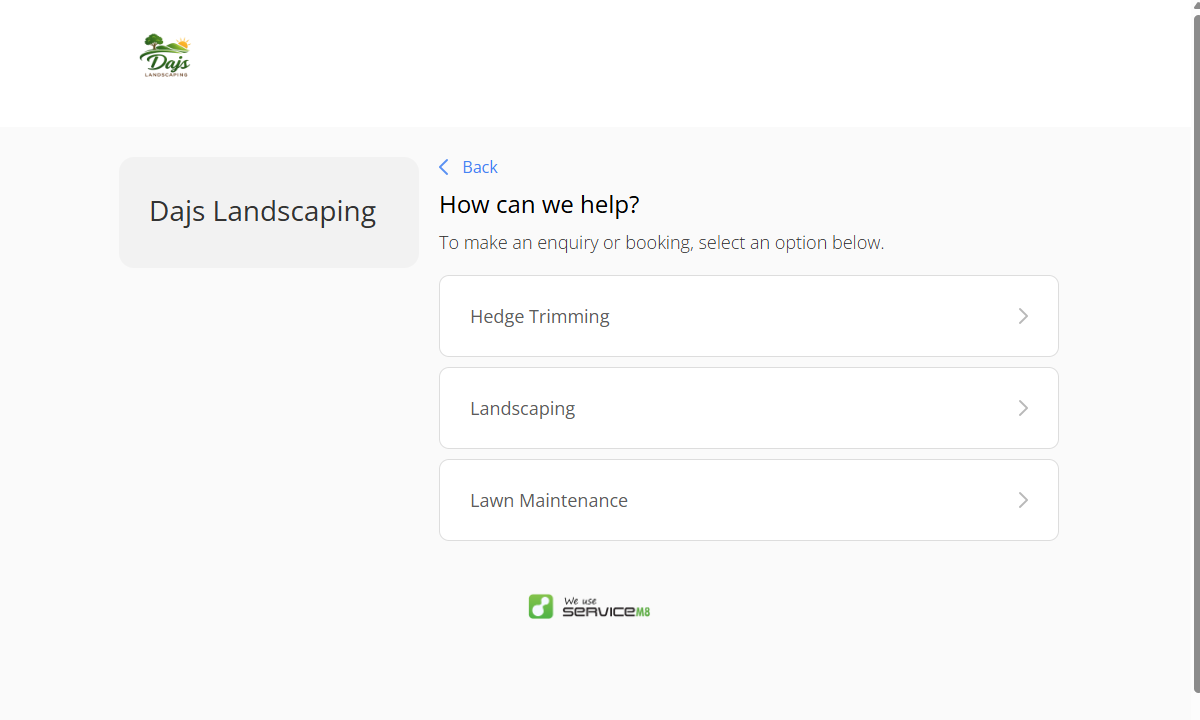
When a client lands on the booking page, all they need to do is:
- Select the service they need.
- Add their contact information.
- Describe the job scope. For example, if the job is lawn mowing, they should describe the lawn size, grass length, and any other relevant details.
- Select the time they need the job done.
Keep in mind that ServiceM8 requires you to specify which employees are qualified to perform each service before it can automate scheduling. Once a client submits a booking, ServiceM8 checks those employees’ schedules, automatically assigns the job to the earliest available person, and loops in the manager, reducing the need for manual scheduling.
My only gripe is that ServiceM8 doesn’t notify the employee, which can lead to missed assignments in a fast-paced environment.
Location Tracking and Route Mapping
Verdict: 7/10
Overall, ServiceM8’s location tracker covers the basics well, but doesn’t track employees clocked in through the Android app. It optimizes routes to reduce travel time and fuel costs, but it would be more useful if it provided turn-by-turn directions. As it stands, employees have to rely on third-party navigation apps to get from one job to the next.
Like many location-tracking apps, ServiceM8 tracks employees’ locations only when they’re clocked in through the iOS app. This helps limit location monitoring to working hours, ensuring businesses can track field workers without intruding on their privacy.
I didn’t test the location tracker myself, so the details below are based on ServiceM8’s resources and conversations with support agents. One agent told me that the app provides live location data rather than periodic updates every few minutes.
If the live location data is accurate, it would make ServiceM8 a good option for businesses that need near-real-time visibility into where field workers are throughout the workday.
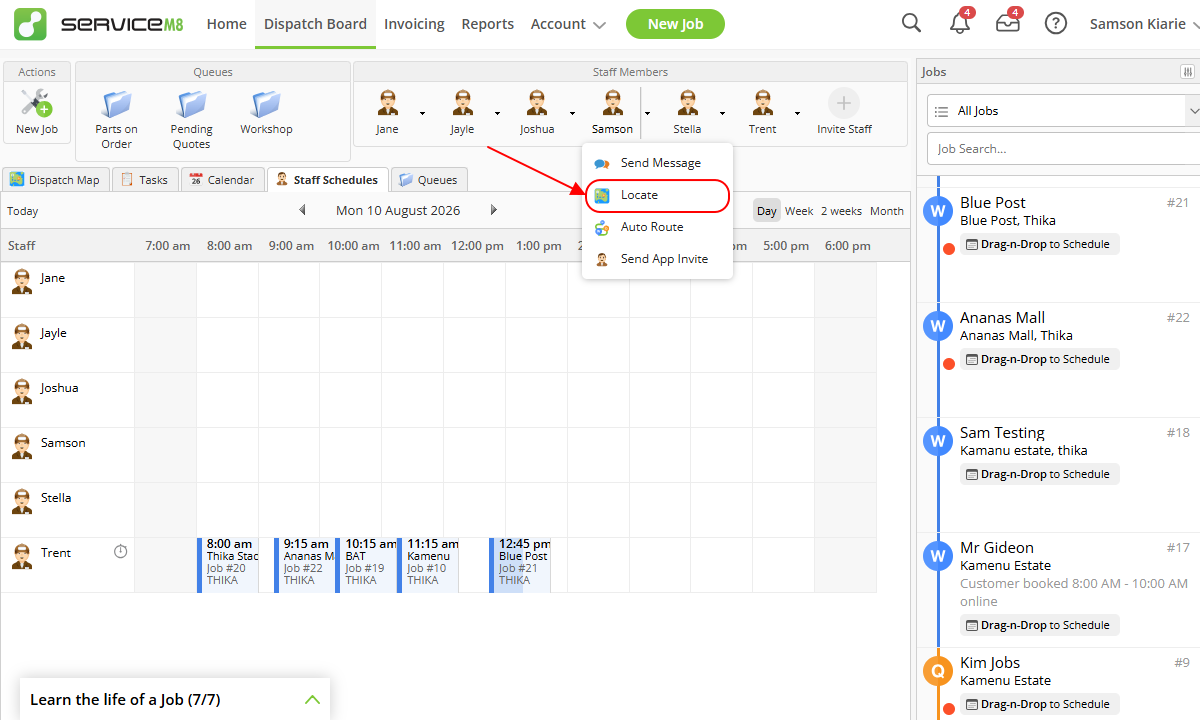
That said, ServiceM8’s lack of location tracking on Android makes it a poor fit for businesses with Android-heavy workforces. I also found the lack of a centralized map showing all clocked-in employees limiting. Managers have to check employees individually rather than having access to a quick, at-a-glance view of where the entire field team is working.
Route Mapping
ServiceM8’s Auto Route feature is helpful for workers who tackle multiple jobs across different locations during the day. I found the routing tool easy to use. All I needed to do was open the Dispatch Board, click the down arrow beside the employee, and select “Auto Route” from the drop-down menu.
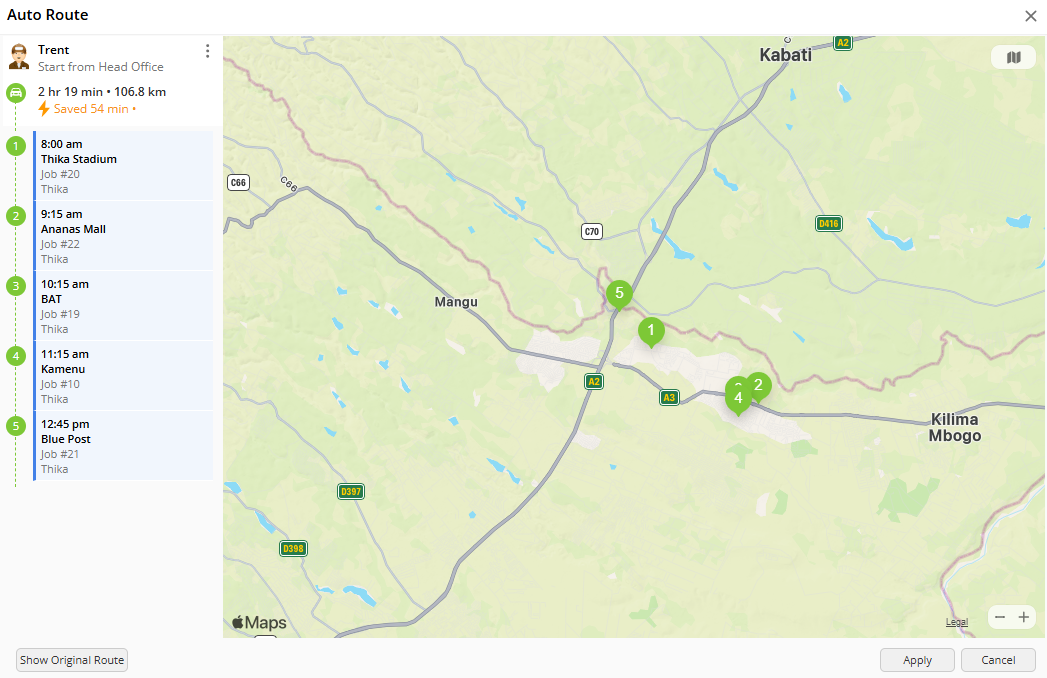
ServiceM8 generated an optimal route that could help technicians cut down on travel time and fuel costs. However, rather than displaying a turn-by-turn route on the map, it simply numbered the jobs in the order technicians should tackle them.
As a result, field employees have to rely on a separate navigation app for directions. The good news is that ServiceM8 makes this easy: Employees can tap “navigate to job” in the mobile app to open the route directly in Google Maps.
Reporting and Analytics
Verdict: 6.5/10
Overall, ServiceM8’s reporting covers the basics well, with a useful dashboard, a handful of ready-made reports, and an option to create custom reports. However, the lack of detailed analytics, limited visualizations, and lack of built-in report sharing make it better suited for basic performance visibility than data-driven decision-making.
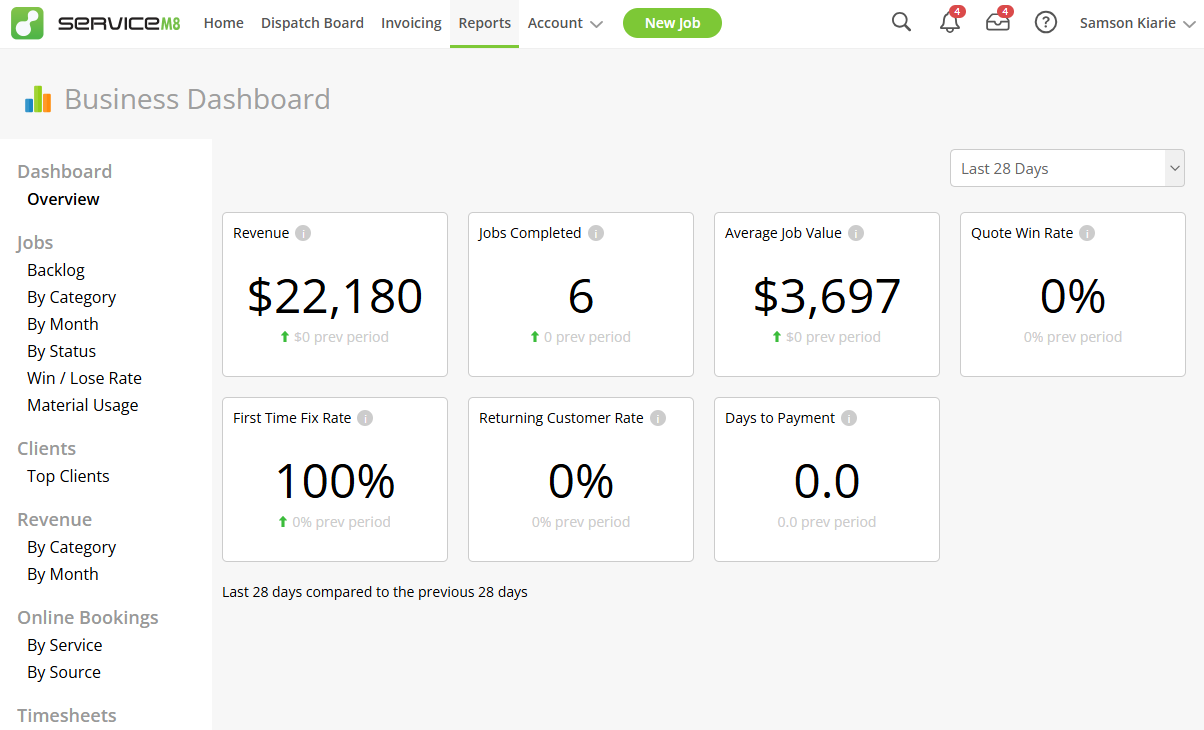
ServiceM8 offers a useful selection of reports that provide visibility into important business metrics. For example, the Business Dashboard, which isn’t a report per se, displays metrics to help you gauge your business’ health, including revenue, quote win rate, average job value, first-time fix rate, returning customer rate, and days to payment.
Beyond the dashboard, there are 16 reports organized into categories such as job, clients, revenue, online bookings, and timesheet. Notable reports include revenue by category or month, which helps you monitor cash flow and spot opportunities to boost profitability. I also like the custom report feature, which lets you tailor the data and metrics to your specific reporting needs.
I appreciate the use of colorful bar charts in some reports. These visualizations make it easy for managers to scan performance, spot trends, and compare results at a glance. However, I’d like to see ServiceM8 extend these visualization elements across all reports and add options such as pie charts and line graphs for a more flexible reporting experience.
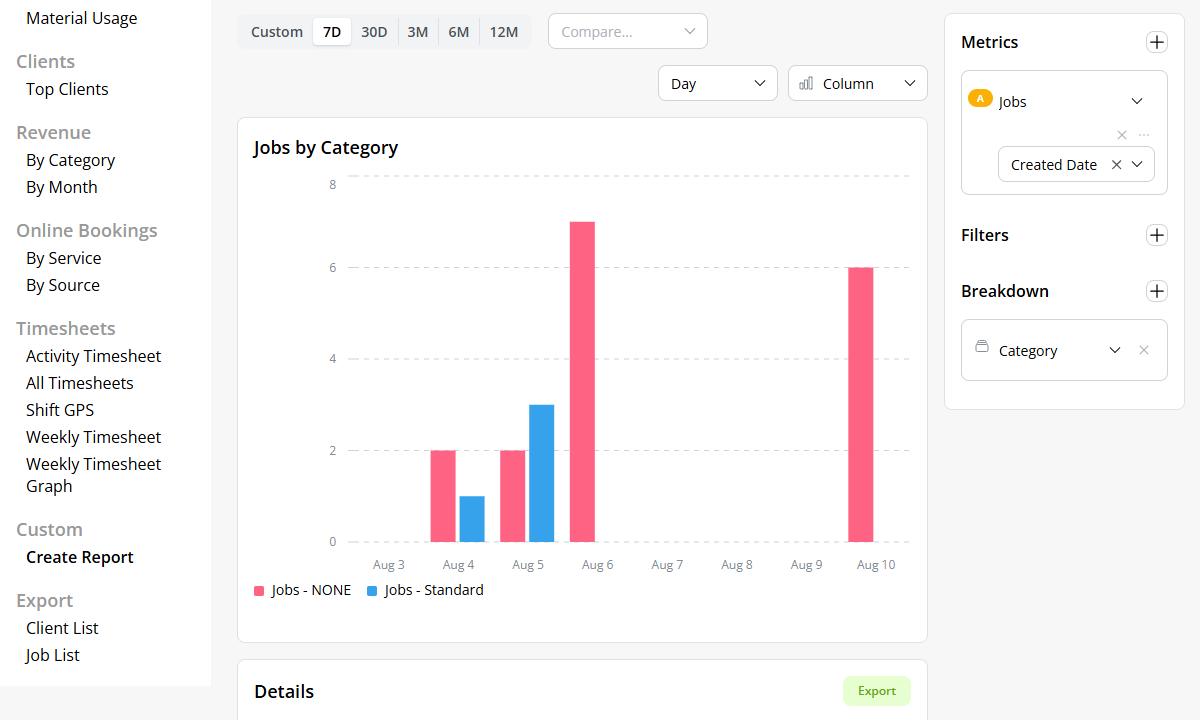
ServiceM8 doesn’t use AI or advanced analytics to surface actionable insights. As a result, managers need a good understanding of their business data to interpret the reports and turn raw numbers into meaningful insights.
Another issue is that ServiceM8 doesn’t provide built-in report-sharing tools. In fact, you have to enable the Advanced Reporting Pack to export reports in CSV spreadsheets or create on-screen custom reports. Unfortunately, there are no features for scheduling reports or sharing reports via email directly on the platform.
ServiceM8 Security and Privacy
Verdict: 7/10
Overall, ServiceM8 is secure but not enterprise-ready. While it provides essential security and privacy tools, it lacks the advanced controls enterprises need.
| Feature | Availability |
|---|---|
| Data encryption | ✅ (SSL issued by Amazon Cloud) |
| GDPR compliant | ✅ |
| HIPAA compliant | ❌ |
| Certification | ❌ No ISO 27001 or SOC 2 Type II certification |
| 2FA | ✅ |
| Admin controls | ✅ Role-based access control |
| Hosting region | United States, Australia, Ireland, Singapore, Tokyo |
ServiceM8 has never experienced any public data breaches or major security incidents, which means it provides solid security and privacy. Even so, while its security and privacy measures may suffice for small and mid-sized businesses, they fall short of the advanced security controls, certification, and data governance capabilities that enterprise-level businesses typically require.
ServiceM8 Customer Support
Verdict: 8.5/10
Overall, ServiceM8’s customer support is impressive. With its wide variety of support channels and fast response time, it ensures users get help quickly when they encounter issues or need assistance within the platform.
| Support Type | Availability |
|---|---|
| Live chat | ✅ |
| Phone support | ❌ |
| Email support | ✅ |
| Community forum | ✅ |
| Ticket submission | ✅ |
| Help center | ✅ |
I like the diversity of ServiceM8’s support channels, as it ensures users can quickly find help in the channel of their choice—knowledge base, live chat, ticket system, email, or community forum.
ServiceM8’s support agents responded to questions on live chat within seconds during weekdays. I did not test the live chat over the weekend, so I couldn’t authenticate the vendor’s claim of 24/7 support. All in all, though, the support agents seemed well versed on all ServiceM8 issues and always gave satisfactory answers.
The ticket system was also impressive—I’d argue it’s one of the fastest I’ve used. In one instance, ServiceM8 resolved my ticket within minutes, which is fast by ticket system standards. On other occasions, I had to wait for a response, but never for more than an hour.
I appreciate the redesigned help center, which significantly simplifies finding relevant articles. One notable improvement is the left-hand navigation panel, which organizes guides by feature and platform. Each article also includes a video and step-by-step instructions with screenshots, making it easy for users to follow along and resolve issues.
What Are ServiceM8’s Review Ratings From Review Sites?
(As of August 2026)
ServiceM8 App Review
ServiceM8 is a decent job management platform that works for solopreneurs and small businesses. It covers the essentials, including job scheduling, time tracking, quoting, invoicing, location tracking, routing, and online booking. However, it falls short for growing businesses that need more sophisticated workforce management tools, such as auto-scheduling, shift limits, overtime tracking, and availability tracking.
Its standout feature—online booking—eliminates manual scheduling work by automatically assigning each booking to the next available employee. However, manually scheduling jobs is less intuitive. ServiceM8 spreads its key scheduling tools across the Dispatch Board, making it harder for new users to coordinate assignments.
Additionally, ServiceM8 lets businesses track job time for accurate client billing and shift time for fair employee pay. However, having separate tracking modes can be confusing when all you want is simply to log hours and determine billable time. Moreover, the stripped-down Android app makes ServiceM8 a poor fit for businesses with Android-heavy workforces.
Connecteam: The Better ServiceM8 Alternative
While ServiceM8 is good enough for basic field service operations, its lack of advanced scheduling and compliance tools makes it unsuitable for businesses with complex scheduling needs.
If you need a more powerful yet affordable alternative, Connecteam is the better choice. Connecteam combines compliance-focused time tracking, advanced scheduling, a feature-rich mobile app, and intuitive workflows, making it much easier to manage a growing workforce.
Some of Connecteam’s notable benefits include:
Automatic, Labor-Optimal Scheduling
Picture this: You have hundreds of service requests requiring employees in different trades and with varying levels of expertise. With ServiceM8, you have to manually figure out who gets which jobs, and that’s where things can get messy. Schedule conflicts become inevitable, and workers may be assigned jobs outside their skill set, leading to costly rework and customer complaints that damage your reputation.
Moreover, Connecteam’s auto-scheduler lets you assign hundreds of shifts with a single click. For example, a landscaping company with 50 technicians could automatically schedule an entire week of maintenance and lawn-mowing jobs in minutes based on employees’ availability and skills. This saves you hours of tedious scheduling work—a major advantage over ServiceM8’s manual approach.
Even better, Connecteam comes with built-in compliance tools. You can set employee work hours and shift limits to align with labor laws in your region. Once you define the rules, Connecteam checks each schedule in real time and flags potential conflicts before you publish it.
Accurate, Compliant Time Tracking
Connecteam’s time tracker is built with field workforces in mind. Unlike ServiceM8, it offers an intuitive UI that makes tracking time simple, even for first-time users. Employees can simply tap “start shift” on the Android or iOS app to log work hours. There are no confusing tracking modes, and managers can still designate hours as billable for accurate client billing.
One Connecteam feature I particularly like is geofencing, which helps verify attendance and improve timesheet accuracy. For example, a cleaning company can set geofences around multiple client locations, ensuring cleaners clock in only once they’ve arrived at the assigned property. This prevents time theft and helps verify that cleaners are at the correct properties.
What’s more, Connecteam’s break tracker helps businesses track paid and unpaid breaks in compliance with labor laws. It reminds employees when it’s time to take a break and prevents them from clocking back in early, ensuring they take breaks as mandated.
Connecteam also supports multiple overtime rules, including daily, daily double-time, weekly, holiday, and seventh-consecutive-day overtime. I appreciate the flexibility of the overtime rules, which allow managers to configure and enforce rules to match applicable labor requirements.
And So Much More
Beyond scheduling and time tracking, Connecteam offers other powerful workforce management features, including:
- Real-time location tracking
- Task management
- Team communication
- Internal knowledge base
- Employee onboarding and training
