


Affordable, easy-to-use shift-scheduling and time-tracking platform, but lacking in advanced compliance features.
What’s New in This Update:
- Retested Zoho Shifts to discover what has changed since my previous review and verify whether the vendor has resolved the issues uncovered in my last round of testing.
- Rewrote sections to reflect the results of my latest round of testing.
- Added a “Sign-Up and Onboarding” section to describe how easy (or difficult) it is to create an account and set up teams in Zoho Shifts.
- Added concise verdicts at the beginning of each section to quickly summarize Zoho Shifts’ performance across key areas.
Verdict: 7.3/10
Zoho Shifts is an affordable employee scheduling software solution for small and mid-sized businesses in the healthcare and nursing industries. It provides the essential tools teams need to maintain adequate staffing, including scheduling, availability, and time-off management.
I like that Zoho Shifts now offers an auto-scheduler to speed up shift assignments. Although the tool is still in beta testing, it lets me assign hundreds of shifts in minutes. Combined with recurring shifts and drag-and-drop tools, the auto-scheduler could be a massive help for managers handling large, shift-based teams.
Additionally, the scheduling constraints help managers stipulate rules, such as maximum hours and rest between shifts, to ensure schedules comply with labor laws. However, I don’t like the configuration flow because managers can assign rules only to each worker individually. Without employee groups, it can be tedious to assign and enforce rules in a large workforce.
Zoho Shifts also lets employees take control of their schedules, with options to set their availability and swap shifts. By letting workers find shift covers on their own, Zoho Shifts helps keep operations running smoothly and team productivity on track. The time-off management feature also works well, with advanced options to control accruals, set a minimum leave notice period, and restrict requests during busy periods.
While these features sound promising, Zoho Shifts has a limited feature set, so businesses looking to track field employees’ location, tasks, onboarding, and training have to pair it with third-party tools. Moreover, it falls short on the compliance front and therefore may not be suitable for businesses in regions with strict regulatory and compliance requirements.
Zoho Shifts Key Features
- Employee scheduling: Create and assign employee schedules using the auto-scheduler, drag-and-drop tool, shift templates, recurring shifts, or copying functionality. Zoho Shifts notifies employees when you publish or update schedules to keep everyone in the loop. Additionally, employees can drop, swap, or offer shifts from any device.
- Time tracking: Accurately track employees’ regular hours, overtime, and break time to pay them fairly. However, Zoho Shifts doesn’t track breaks automatically, and it lacks a proper break notification system for strict enforcement.
- Time-off management: Create fixed or hourly accrual policies to match your team’s needs. Let employees request time off on mobile, set a minimum leave request notice period, and restrict requests during busy periods.
- Team messaging: Send direct messages or create private channels to help teams connect and collaborate, with modern features like emoji reactions.
Pros
- Affordable pricing
- Easy-to-use web and mobile apps
- Effective auto-scheduler
- Accurate time tracking
- Compliant overtime tracking
- Efficient time-off management
Cons
- Limited break-tracking options
- Basic reporting
- No advanced compliance features
- No offline mode
Zoho Shifts Pricing
Verdict: 8/10
Zoho Shifts’ pricing stands out for its affordability. The vendor offers a generous free plan, a 30-day free trial, and a low entry cost for teams ready to upgrade. It’s cheap per-user pricing scales well for growing businesses, although the 10-user minimum requirement may be limiting for freelancers and small businesses.
| Plan — Per Month | Features |
|---|---|
| Free Free forever |
|
| Basic $1 per user per month | Everything in Free, Plus:
|
| Standard $2 per user per month | Everything in Basic, plus:
|
| As of June 2026 All prices are listed on an annual basis | |
Zoho Shifts offers a generous free plan for up to 25 employees, ideal for freelancers and small businesses with simple scheduling needs.
That said, Zoho Shifts’ pricing is a classic case of “you get what you pay for.” While the platform looks cheap on paper, it doesn’t offer much bang for your buck due to its limited feature set, basic reporting, and missing advanced compliance tools.
For comparison, platforms such as Connecteam offer a more comprehensive suite of features, including advanced scheduling, time-tracking, and compliance tools, yet cost much less than Zoho Shifts for a similar feature set, and the difference grows the more users you need to add.
In fairness, if all you need is a simple tool for employee scheduling and time tracking, ZohoShifts is a solid choice. I also appreciate Zoho Shifts’ transparency. There are no hidden fees, so what’s listed on the pricing page is essentially the total cost you can expect to pay.
My only gripe is that Zoho Shifts’ paid plans require a minimum of 10 users per subscription. While this may not be a problem for large organizations, it can be a dealbreaker for freelancers and small businesses, as they may end up paying for seats they don’t need.
Zoho Shifts Free Trial
Zoho Shifts offers a 30-day free trial, giving you ample time to try out all its premium features without paying a dime. As a bonus, the free trial doesn’t require a credit card, so you can test the features without worrying about an automatic charge to your card. I started a free trial of the Standard plan for this review.
Here’s how Zoho Shifts’ pricing compares to other scheduling platforms:
| Plan | Zoho Shifts (Standard) | ZoomShift (Premium) | When I Work (Multiple Locations) | Connecteam (Advanced) |
|---|---|---|---|---|
| View pricing | View pricing | View pricing | View pricing | |
| 10 users | $20 | $40 | $50 | Free for life — all features and dashboards |
| 20 users | $40 | $80 | $100 | $49 |
| 30 users | $60 | $120 | $150 | $49 |
| 50 users | $100 | $200 | $250 | $99 |
| Read our in-depth ZoomShift review | Read our in-depth When I Work review | Learn more about Connecteam |
Zoho Shifts Sign-Up and Onboarding
Verdict: 6/10
While Zoho Shifts’ sign-up process is fast and frictionless, its onboarding process could be better. One area Zoho Shifts can improve is introducing a guided setup and walkthroughs to flatten the learning curve for beginners. The team management options work well for small teams, but are less efficient for large, fast-growing organizations.
Signing up and creating a team account is pretty straightforward. All I needed to do was click “start free trial” to initiate the sign-up process. Once I had added personal details and clicked “sign up now,” Zoho Shifts took me straight to my dashboard.
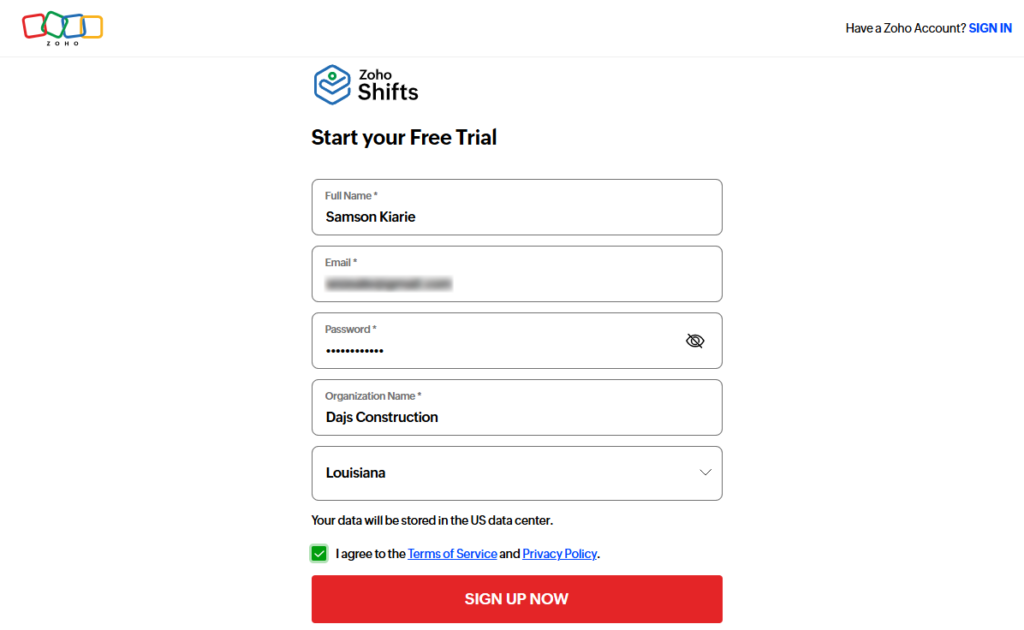
Many of the platforms I’ve reviewed provide a guided pre-sign-up flow, allowing you to set up your organization before accessing the dashboard. By cutting out the extra sign-up steps, Zoho Shifts speeds up account creation. However, the trade-off is that users have to set up their organization later without any upfront guidance.
Zoho Shifts Onboarding
Zoho Shifts doesn’t offer welcome videos, text walkthroughs, or guided setup. I had to set up my team and explore the app on my own. While the lack of onboarding aids may not be a big issue for experienced users, it can make configuration feel less intuitive and onboarding more confusing for non-tech-savvy users.
Luckily, Zoho Shifts gathers all settings on a single page, with a well-organized menu to simplify navigation. While the settings don’t include descriptions, the layout is so intuitive that configuration is relatively easy for total beginners.
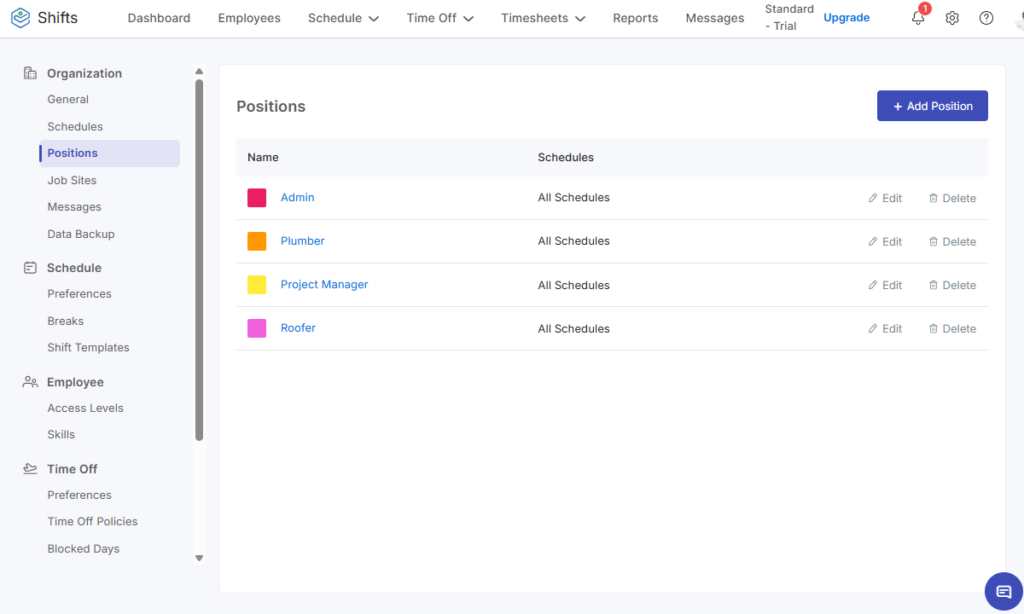
I also like that many prerequisites, such as breaks, pay rules, and time-off policies, are preconfigured by default. As a result, they require only minor tweaks to align with your company’s scheduling, time-tracking, payroll, and attendance policies.
Team Management
You can add team members via email invitation or by uploading CSV or XLSX files. Unfortunately, Zoho Shifts doesn’t support link invites or imports from third-party solutions — two options that could expedite team setup in large companies.
I used the email invite option to set up a team of five members for this review. However, without a bulk email entry option, I had to invite employees individually. This, combined with the lack of global settings for pay rates and scheduling rules, significantly slowed down the team setup process.
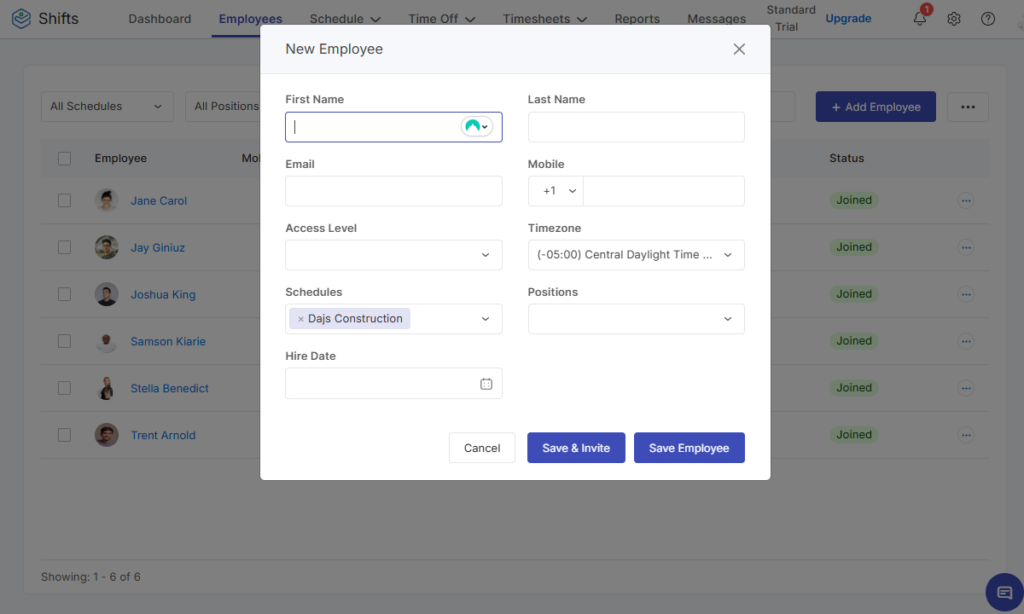
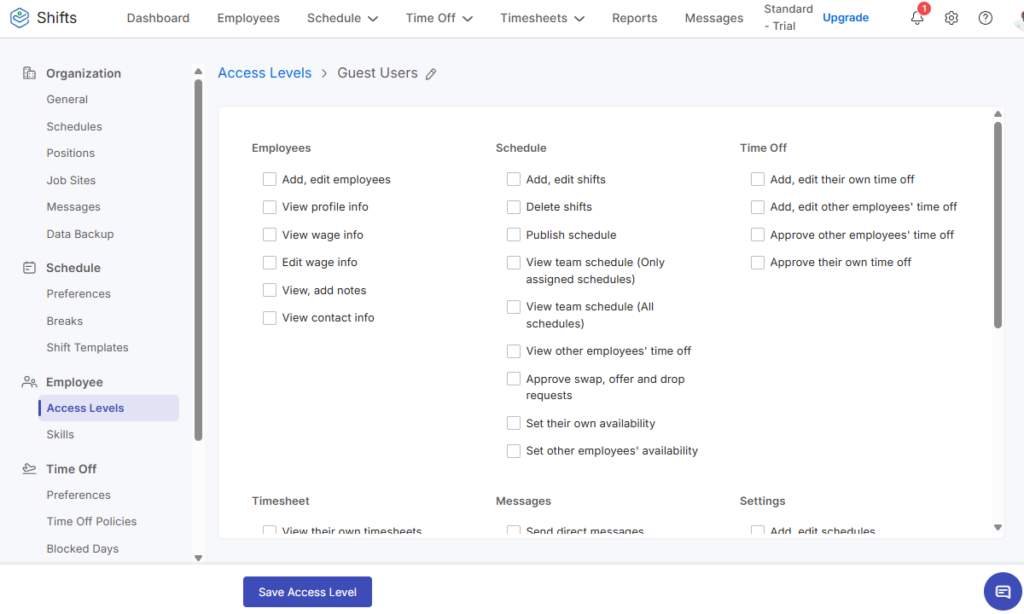
Another issue is that Zoho Shifts doesn’t let managers create user groups. This makes it harder to organize employees by location, department, team, or role. Moreover, there’s no option to directly add guest users. However, you can set up custom access levels to limit what certain users can access.
For example, you can set custom access levels to restrict what external collaborators can view, edit, or add. However, you have to pay for external collaborators even if you grant them custom access permissions.
Zoho Shifts Usability and Interface
Verdict: 8.5/10
Overall, Zoho Shifts is user-friendly, thanks to its clean, intuitive interface and relatively limited feature set. However, while its mobile apps are designed for on-the-go workforce management, they require an internet connection to function, which is a huge drawback for teams operating in areas with unstable network coverage.
Zoho Shifts Web App
Looking at Zoho Shifts’ simple design and restrained color palette, it’s clear that the web app prioritizes clarity and functionality over modern UI polish. Instead of situating the menu to the left, where modern users expect it, Zoho Shifts places it at the top. Menu items are clearly labeled and accessible from anywhere in the app, though, which simplifies navigation.
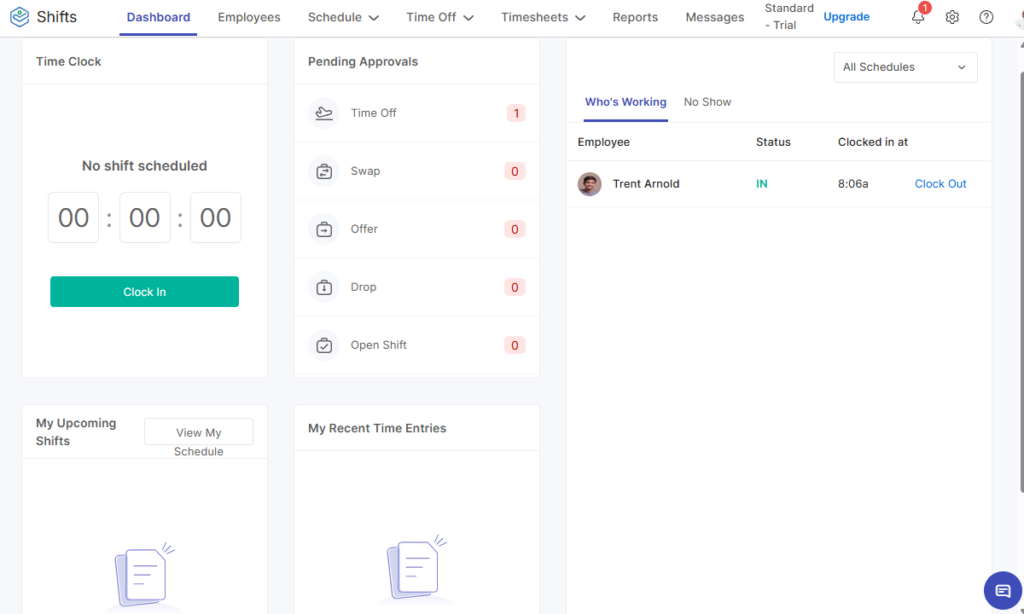
I like that the web app design is optimized for user roles. The employee version is simple, including only the features they need to get work done, such as the dashboard, schedule, time off, and timesheets features. The manager version, on the other hand, is packed with admin functionality.
Users land on the schedule page regardless of their role. This works well for some managers, as it allows them to jump straight into team scheduling. However, it would be more useful for decision-makers to land on the dashboard instead, where they can view key team metrics to make faster, more informed decisions at a glance.
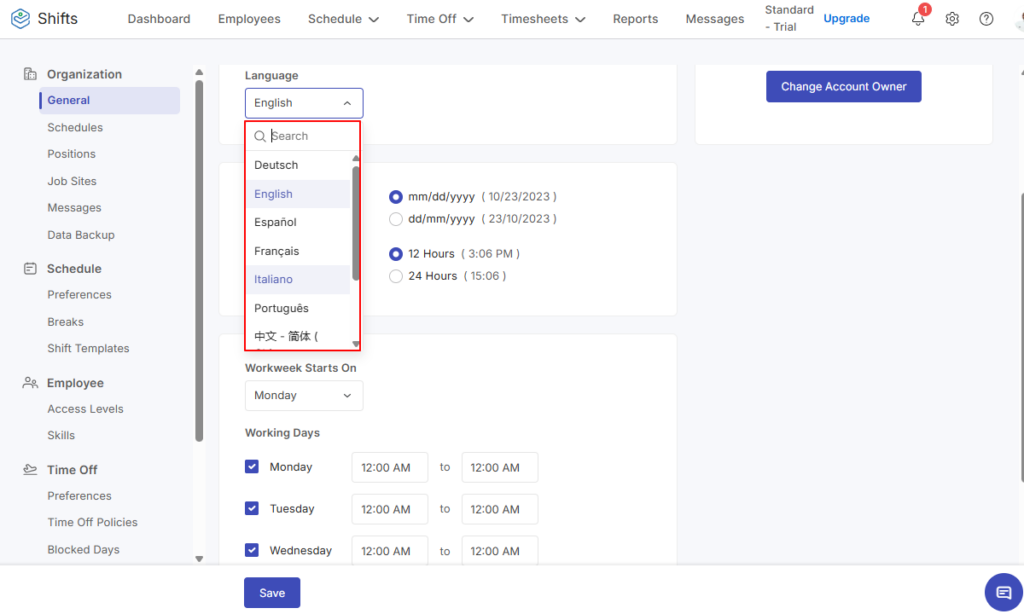
English is the app’s default language. However, users can translate it into Chinese, French, Spanish, German, Portuguese, or Italian, which is helpful in multinational companies or organizations with a diverse workforce. My only complaint is that Zoho Shifts doesn’t include usability features for users with hearing or visual impairments.
Zoho Shifts Mobile App
Zoho Shifts’ Android and iOS apps offer nearly identical experiences, with a similar design and layout. While I used the Android version for this review, the descriptions below apply to the iOS app too.
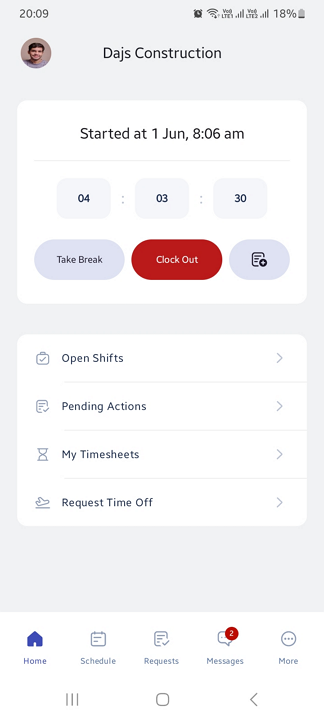
The mobile app follows the minimal, utility-first UI design of the web app, but it feels more modern. The interface is clean and clutter-free, with a menu located at the bottom – exactly where modern users expect it. Moreover, key buttons and the active menu item use Zoho’s signature blue accents, making them instantly noticeable and simplifying navigation further.
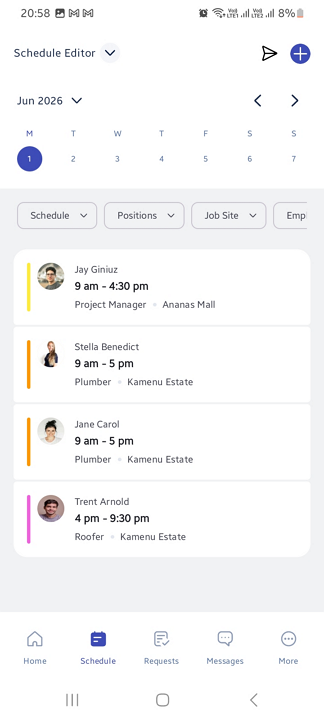
The employee version enables users to track time, swap shifts, claim open shifts, request time off, and manage availability. The manager app, on the other hand, is well equipped to streamline administrative tasks on the go. It enables managers to add employees, approve requests, assign shifts, monitor attendance, and track time anywhere, anytime.
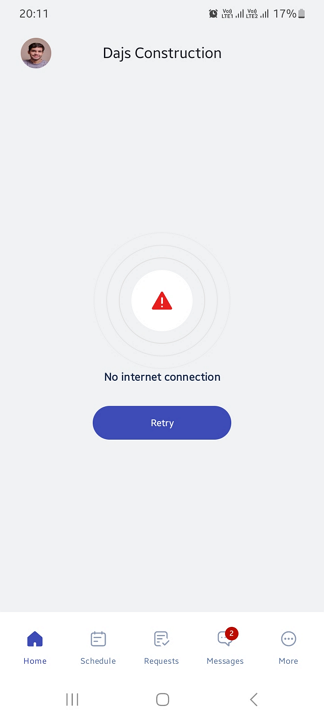
That said, Zoho Shifts’ mobile app doesn’t have an offline mode. When I turned off my internet connection, I couldn’t access any of the app’s features. This means that without an active internet connection, employees can’t track time, view schedules, or manage time off. For this reason, I wouldn’t recommend Zoho Shifts for teams in low-connectivity regions.
| Menu Item | Admin | Employee | ||
| Website | Mobile App | Website | Mobile App | |
| Feature | ||||
| Timesheet | ✅ | ✅ | ✅ | ✅ |
| Time tracker | ✅ | ✅ | ✅ | ✅ |
| Calendar | ✅ | ✅ | ✅ | ✅ |
| Schedule | ✅ | ✅ | ✅ | ✅ |
| Expenses | ❌ | ❌ | ❌ | ❌ |
| Time off | ✅ | ✅ | ✅ | ✅ |
| Analysis | ||||
| Dashboard | ✅ | ❌ | ❌ | ❌ |
| Reports | ✅ | ❌ | ✅ | ❌ |
| Activity | ✅ | ❌ | ✅ | ❌ |
| Management | ||||
| Kiosks | ❌ | ❌ | ❌ | ✅ |
| Approvals | ✅ | ✅ | ❌ | ❌ |
| Projects | ✅ | ❌ | ✅ | ❌ |
| Team | ✅ | ✅ | ❌ | ❌ |
| Clients | ✅ | ❌ | ❌ | ❌ |
| Locations | ✅ | ❌ | ❌ | ❌ |
| Tags | ✅ | ❌ | ❌ | ❌ |
| Invoices | ❌ | ❌ | ❌ | ❌ |
Zoho Shifts Core Functionalities
Instead of spreading itself too thin, Zoho Shifts zeros in on a handful of core features — scheduling, time tracking, time-off management, and messaging — and focuses on perfecting them. How does it perform on these fronts compared to top-tier platforms, though? I tested the features over several days, exploring their strengths and weaknesses. Read on for the nitty-gritty details:
- Minimum hours per week
- Maximum days per week
- Maximum hours per day
- Maximum shifts per day
- Minimum hours of rest between shifts on the same day
- Minimum hours of rest between shifts on consecutive days
Employee Scheduling
Verdict: 8.5/10
Overall, Zoho Shifts handles scheduling well. The addition of the auto-scheduler and compliance-focused scheduling rules has made the platform far more capable, although enforcement of those rules could be stricter. However, without built-in task management tools, managers can’t delegate work properly, which increases the risk of confusion, poor accountability, and missed tasks.
As the name suggests, employee scheduling is Zoho Shifts’ foremost feature, and it packs quite a punch. By default, managers build schedules on the weekly calendar grid, which has employee names listed to the left and dates at the top.
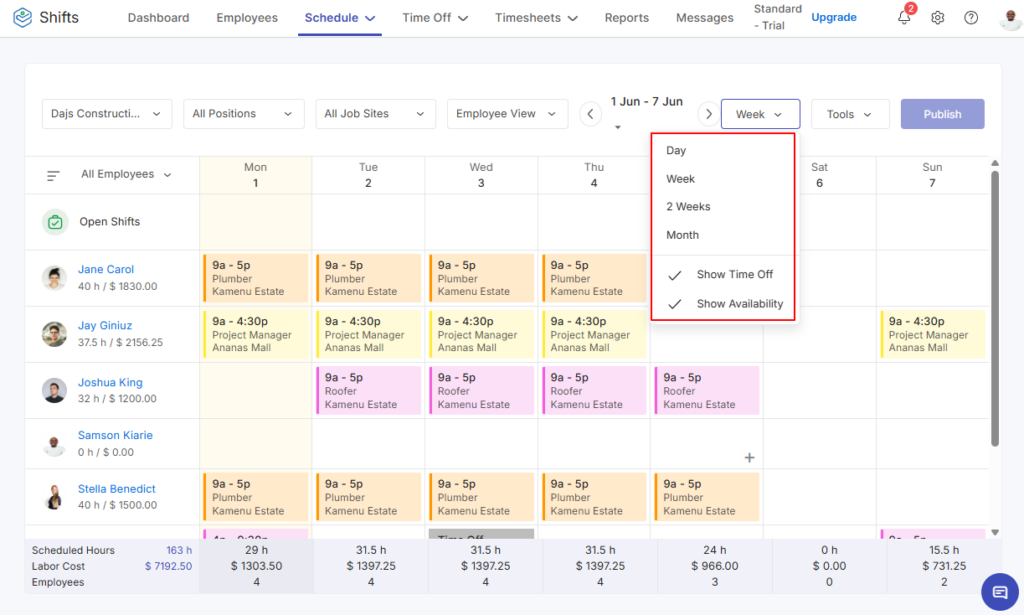
The weekly layout gives managers a clear, at-a-glance view of who’s working on what each day, making it easy to manage operational coverage in real time. However, if you have a high-level overview of workforce planning, you can switch to a monthly layout.
Creating a schedule was effortless, regardless of the layout I used. I could assign shifts from scratch, copy previous schedules, or use saved shift templates. I built a schedule from the ground up for this review.
All I needed to do was click a date tile and fill in the shift details in the pop-up window. In addition to basic details like assignee and shift duration, Zoho Shifts let me specify the employee position to ensure shifts were assigned to employees with the right roles.
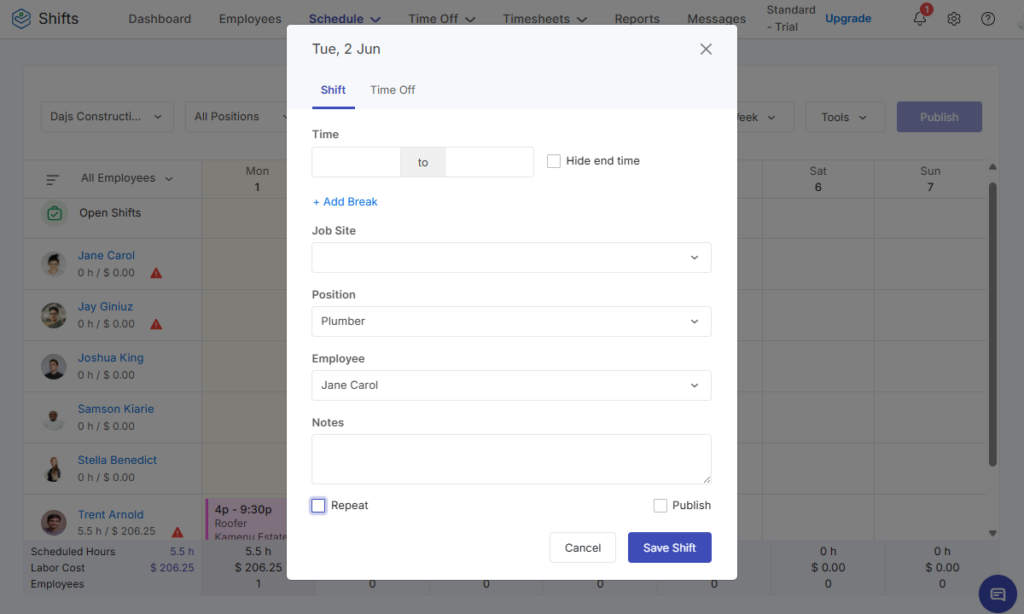
Zoho Shifts saves assigned shifts in a draft schedule, giving managers another opportunity to flag coverage gaps and schedule conflicts. You can use the drag-and-drop feature to reassign shifts, close gaps, and balance workload. If everything checks out, you can publish all shifts with the click of a button.
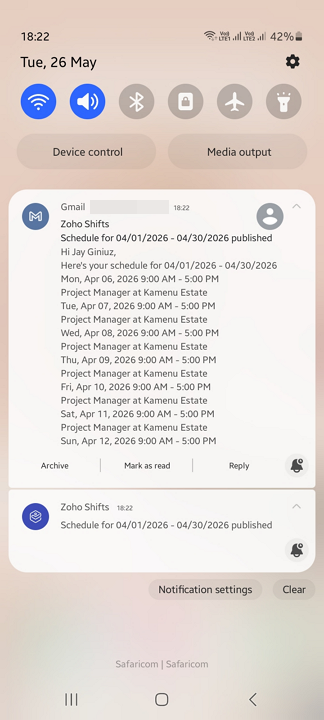
I like that Zoho Shifts notifies employees via push and email notification when you publish a schedule. Timely notifications ensure employees see schedule updates promptly, reducing missed shifts, late arrivals, or frantic last-minute changes.
Automatic Scheduling
During my last round of testing, the recurring shifts tool was the only automation tool Zoho Shifts offered. This tool is still available, and it lets managers create a shift once and set it to repeat daily or on a specific day of the week. While its recurring frequency is limited, it’s useful for businesses with predictable schedules.
My favorite tool this time around was the auto-scheduler. Despite being in the beta-testing phase, the auto-scheduler demonstrated promising potential in speeding up scheduling. All I needed to do was create hundreds of open shifts with defined employee positions.
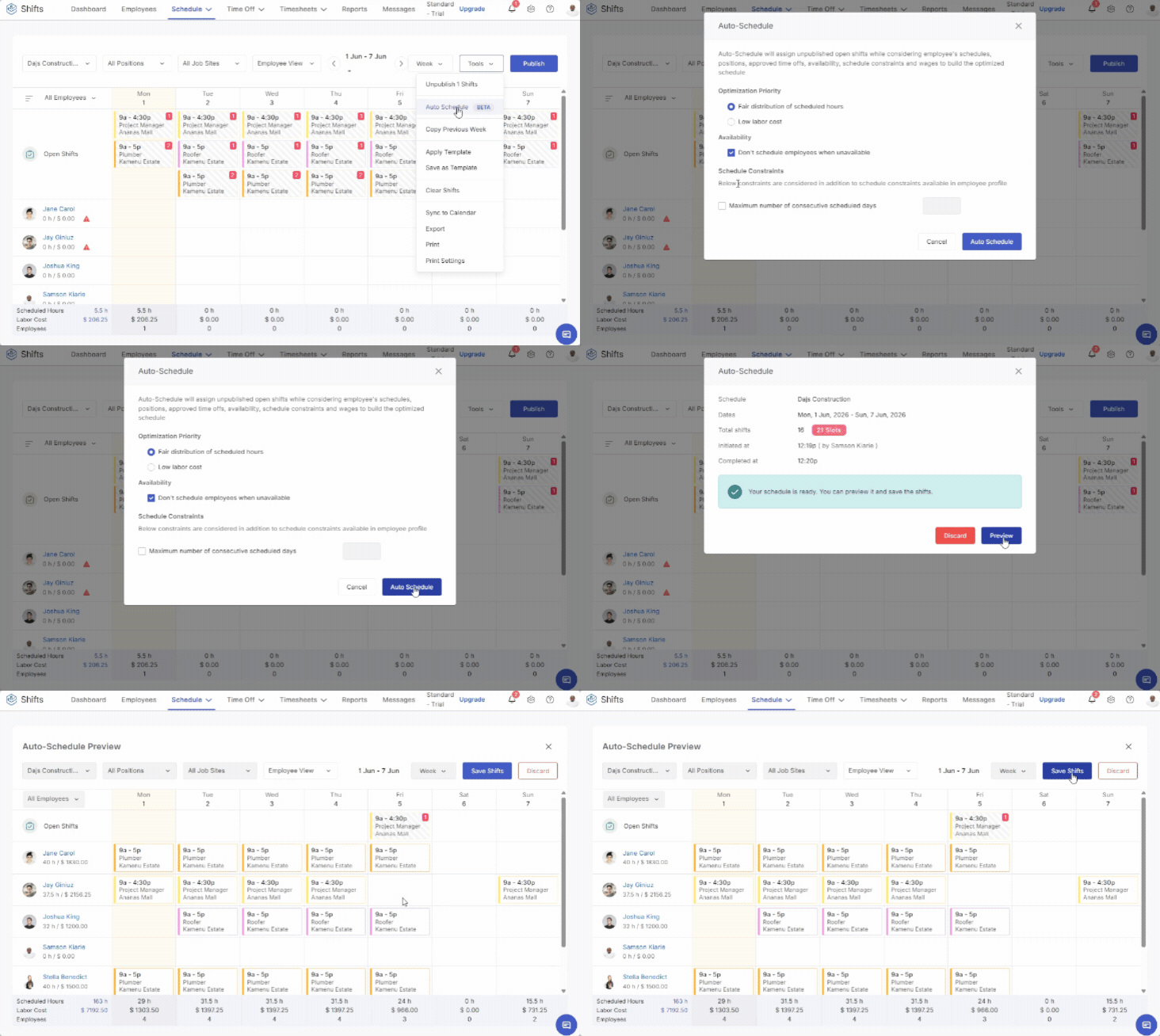
I was then able to automatically assign the open shifts with only a few clicks. I didn’t have to scratch my head trying to figure out who was available or qualified for a shift. The auto-scheduler assigned shifts based on employees’ availability, approved time off, wages, and schedule constraints to build error-free, labor-optimal schedules. I was impressed with its functionality.
Compliance with Labor Laws
Another area where Zoho Shifts fell short during my last round of testing was ensuring schedules complied with labor laws. I’m glad to report that Zoho Shifts has since introduced essential compliance features like schedule constraints, which help managers set employee work limits, including:
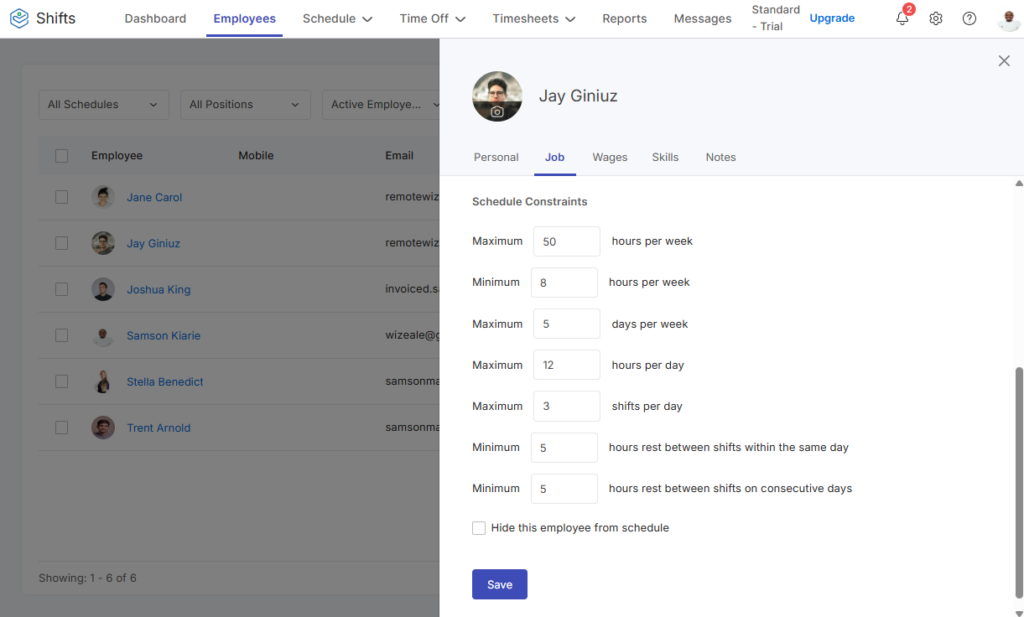
Enforcing these rules helps prevent unsafe clopening combinations and reduces the risk of violating fair workweek and rest period regulations. However, a major drawback is that managers must configure scheduling constraints per employee, which can be time-consuming in large companies.
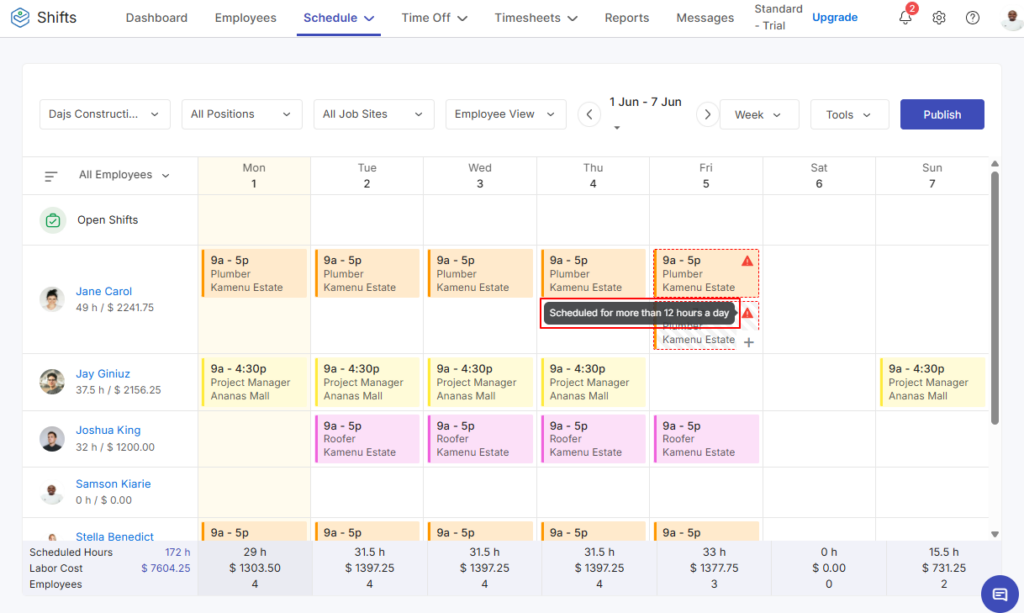
On the plus side, Zoho Shifts’ automatic conflict detector worked well during testing, flagging shifts and schedules that violated any scheduling constraint. That said, the system still allowed me to publish schedules with known conflicts, which can be a dealbreaker for companies that must adhere to strict industry or local labor laws.
Employee Self-Service Tools
Zoho Shifts helps keep employees accountable for their shifts. For example, you can require employees to confirm assigned shifts. Confirmation helps verify that workers are aware of their shifts, helping prevent no-shows down the road.
It’s also easy to drop, swap, or offer up shifts on mobile, which is particularly helpful for field employees. I appreciate that an employee can claim shifts only if they match their role and don’t violate scheduling constraints. This automatically prevents scheduling conflicts, which is particularly helpful if shift requests don’t require the manager’s approval.
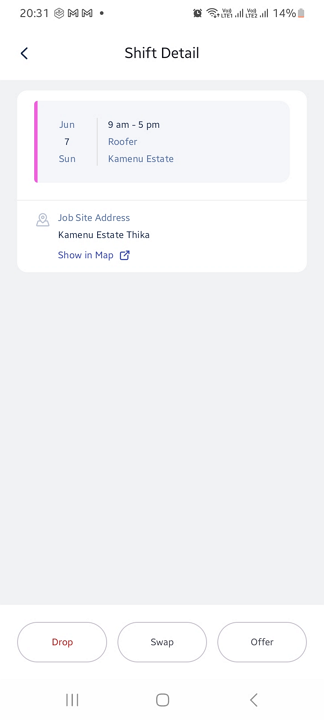
You can configure Zoho Shifts so that the manager must review each shift request. This adds an extra layer of control, which goes a long way towards ensuring employees don’t drop or swap shifts willy-nilly and that shift changes don’t disrupt coverage.
Time Tracking
Verdict: 7/10
Zoho Shifts suits small and mid-sized businesses that need reliable time tracking for accurate billing and payroll. While its geofencing feature performs well, its rigid setup limits precision for businesses that need pinpoint location-based tracking. It also lacks facial recognition and isn’t suitable for organizations that need strong anti-buddy-punching controls.
Zoho Shifts time tracker lets organizations track regular hours, break time, and overtime. While it improves timesheet accuracy and ensures fair pay, it falls a little short on the compliance front. I’ll cover compliance in more detail later; first, let’s look at how time tracking works.
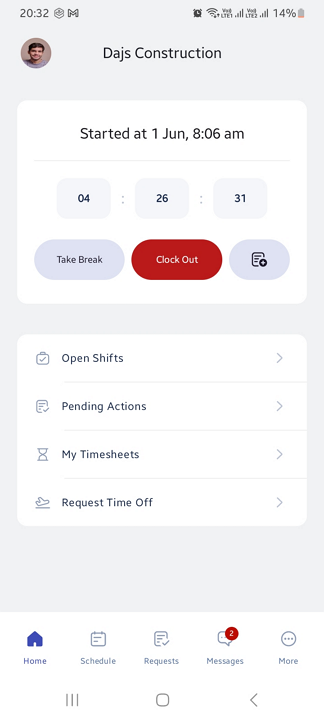
Employees can track time on the web, mobile, or kiosk app, all of which were easy to use during testing. Zoho Shifts’ web and mobile apps prevent unscheduled clock-ins and early clock-ins. The app can also automatically clock out employees once a shift ends or after they reach a set number of hours, making it suitable for both fixed and flexible scheduling setups.
The terminal time clock requires a separate mobile app — Zoho Shifts Kiosk — which is available for both Android and iOS users. The kiosk app is a modern replacement for traditional punch clocks or physical attendance systems. It works best for businesses that want on-site workers to clock in and out from a centralized device.
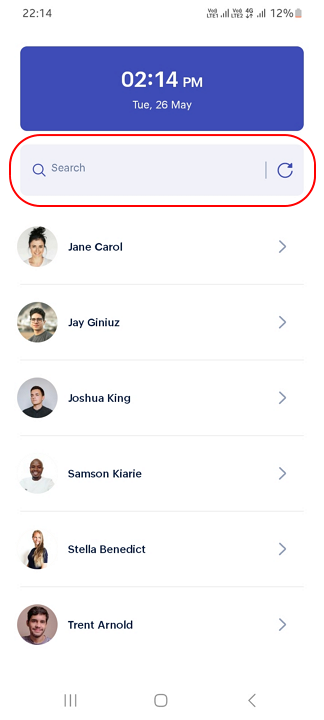
I used the kiosk app on an Android smartphone for this review and found it to be easy to use. All an employee has to do is tap their name on the kiosk interface and enter the four-digit PIN to clock in or out. I appreciate the name-search function, which helps employees quickly find their profile, preventing a line from building up at the punch station.
Geofencing
Zoho Shifts’ geofencing works, but its unconventional configuration flow can be confusing for first-time users. To set up the geofence, I enabled “track GPS location” in the time clock settings and set a 100-meter radius. I then added jobsites under the organization settings and made sure to assign each shift to a specific jobsite.
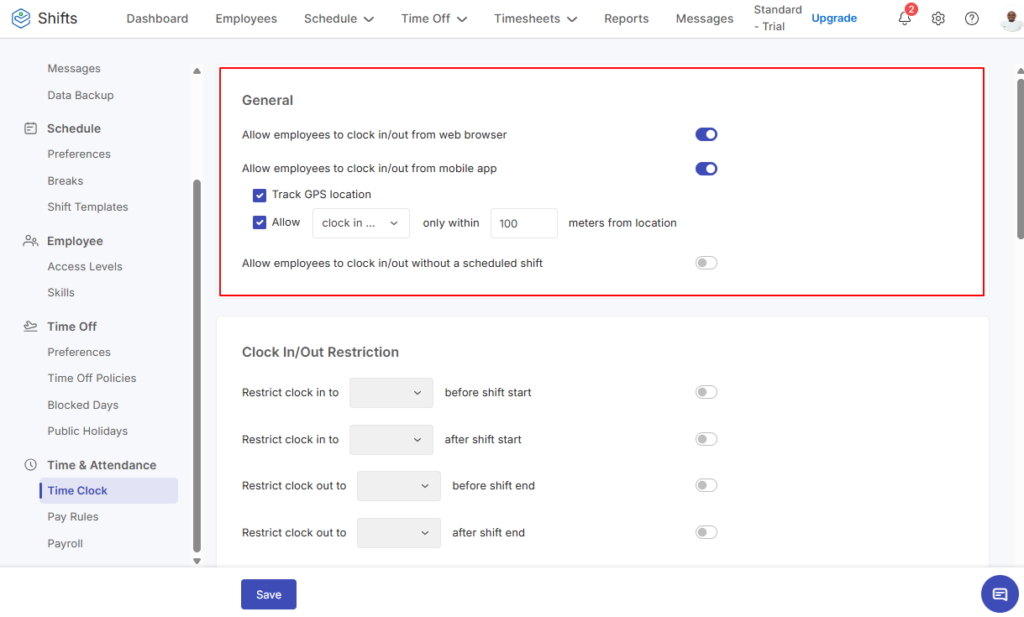
Bear in mind that the geofence radius is universal, meaning it applies to all job sites. This limits flexibility for field teams that need to use different geofence radii for various job sites to ensure accurate location-based time tracking.
When I attempted to clock in, the app automatically calculated how far I was from the assigned jobsite. If I were outside the predefined radius, it blocked the clock-in attempt. Once I had moved within range, it allowed me to clock in without a hitch.
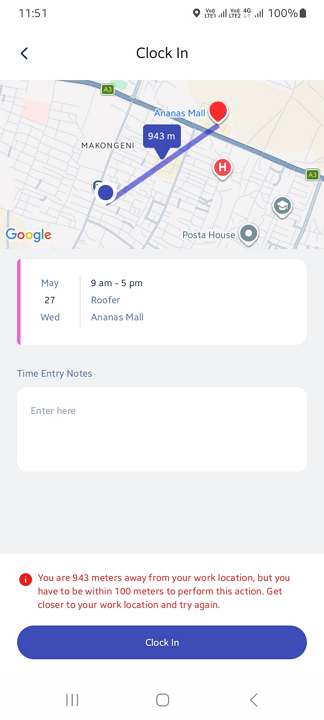
These results suggest the geofence feature can reliably curb off-site punching, improving timecard accuracy and streamlining payroll. That said, Zoho Shifts doesn’t support facial recognition, so it may not be suitable for businesses looking to prevent buddy punching.
For teams that need advanced GPS-enabled time tracking, Connecteam gives managers more precise location controls with advanced geofencing, location-verified clock-ins, and GPS breadcrumbs while employees are on the clock.
[/box2]
Break and Overtime Tracking
Verdict: 6/10
Zoho Shifts supports several major overtime rules, including daily overtime, double time, weekly overtime, holiday overtime, and seventh-consecutive-day overtime. However, its break-tracking tools are basic, and the lack of midnight split can create overtime issues for overnight shifts, so it may not be enough for teams with strict compliance needs.
Zoho Shifts’ break-tracking tools are pretty basic, which can be both a positive and a negative. On the plus side, setting up breaks is straightforward. All I needed to do was add the break name, duration, and type — either paid or unpaid. Moreover, Zoho Shifts makes it easy for employees to track breaks.
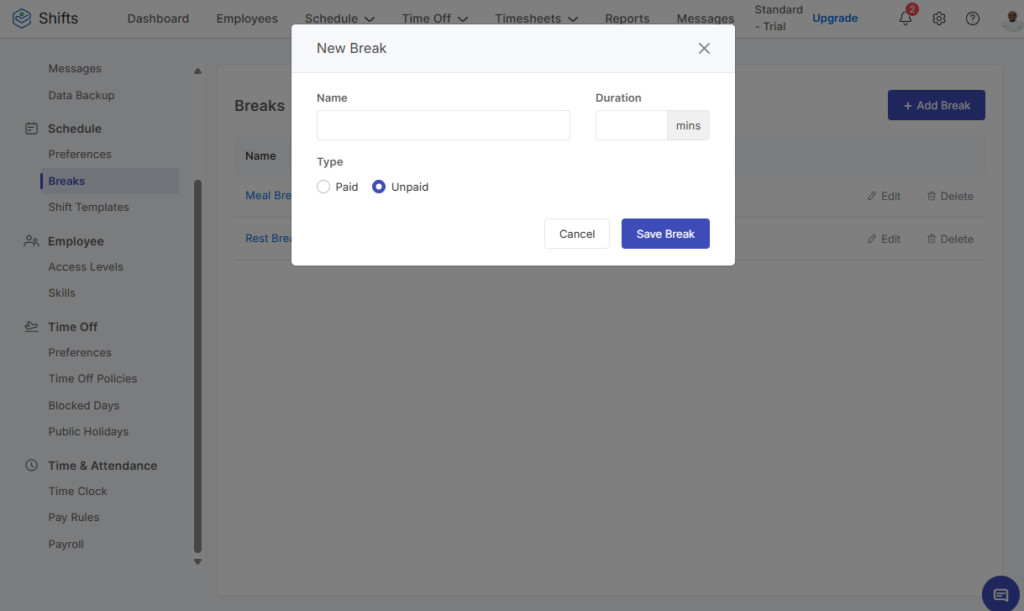
Unfortunately, the limited break settings make it difficult to enforce break rules to conform to underlying labor laws. For example, breaks are manual by default. However, Zoho Shifts doesn’t send any reminders to take or log breaks on time, which leaves room for missed or extended breaks.
Moreover, Zoho Shifts offers no advanced break compliance features. It doesn’t prevent early return from break or require break attestation at the end of a shift. Without these vital features, businesses in regions with strict break laws like California may struggle to ensure employees track breaks in full compliance.
Connecteam offers advanced break and overtime controls, including pay rules, automatic calculations, and alerts that help managers catch issues before they affect compliance or payroll.
Overtime Tracking
Zoho Shifts’ overtime tracking includes most of the tools businesses need to enforce strict overtime laws. Businesses can track daily overtime, daily double time, and weekly, holiday, and seventh-consecutive-day overtime. You can set a unique multiplier for each type of overtime, which makes it easy to align overtime policies with local labor laws.
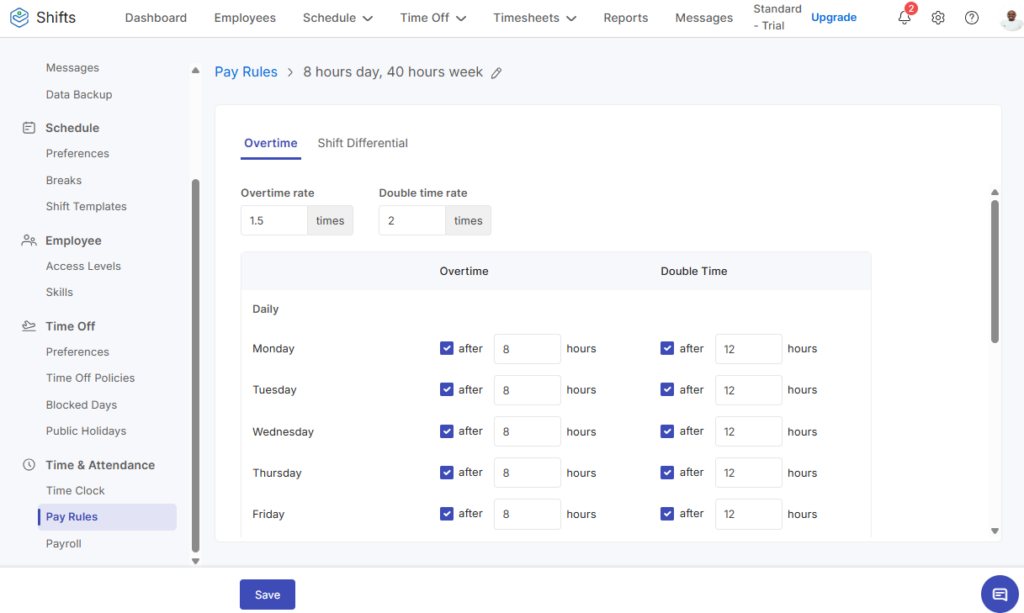
During testing, I liked having the option to set weighted averages to accurately calculate overtime for employees working two or more jobs with different pay rates. You can also set shift differentials to compensate employees working less desirable hours outside their regular schedule, such as holidays, weekends, or night shifts.
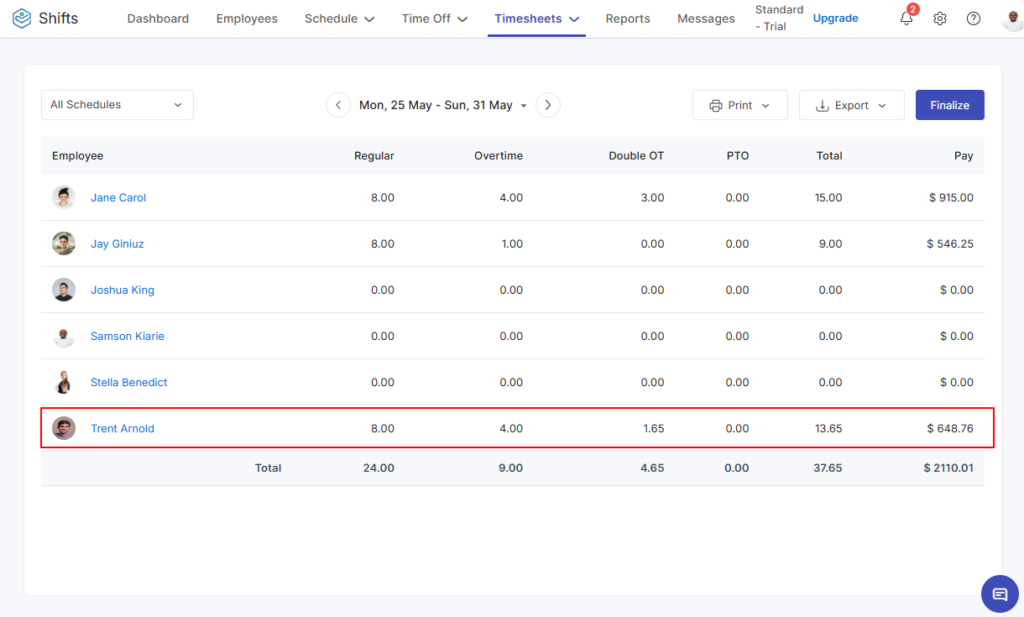
To test the overtime feature, I created daily overtime and daily double time to align with California overtime laws. I tracked 13.65 hours, and the system accurately recorded 8 regular hours, 4 overtime hours, and 1.65 double-time hours. The results suggest that Zoho Shifts’ overtime tracker is effective.
That said, Zoho Shifts doesn’t split time at midnight, which can prevent accurate calculation of employee daily overtime and double time. For example, if an employee starts a shift at 10 p.m. on Monday and ends it at 8 a.m. on Tuesday, the system will log all the hours for Monday.
This makes it look like the employee worked eight regular hours and two overtime hours on Monday, which can be problematic in some cases. If the employee works another shift between 2 p.m. and 7 p.m. on Tuesday, Zoho Shifts will miscalculate overtime and double time.
Time-Off Management
Verdict: 8/10
With flexible accruals, advanced leave notice settings, blackout dates, and seamless request approvals, Zoho Shifts provides nearly everything businesses need to manage time off efficiently without disrupting staffing levels. The configuration flow has a few rough edges, but they do little to take away from the overall user experience.
Zoho Shifts’ time-off module takes its cue from the most powerful time-off management systems. As such, it provides features businesses need to structure leave and standardized approval for greater control over employee absences. You can set up paid and unpaid time-off policies to align with internal policies, labor laws, or industry regulations.
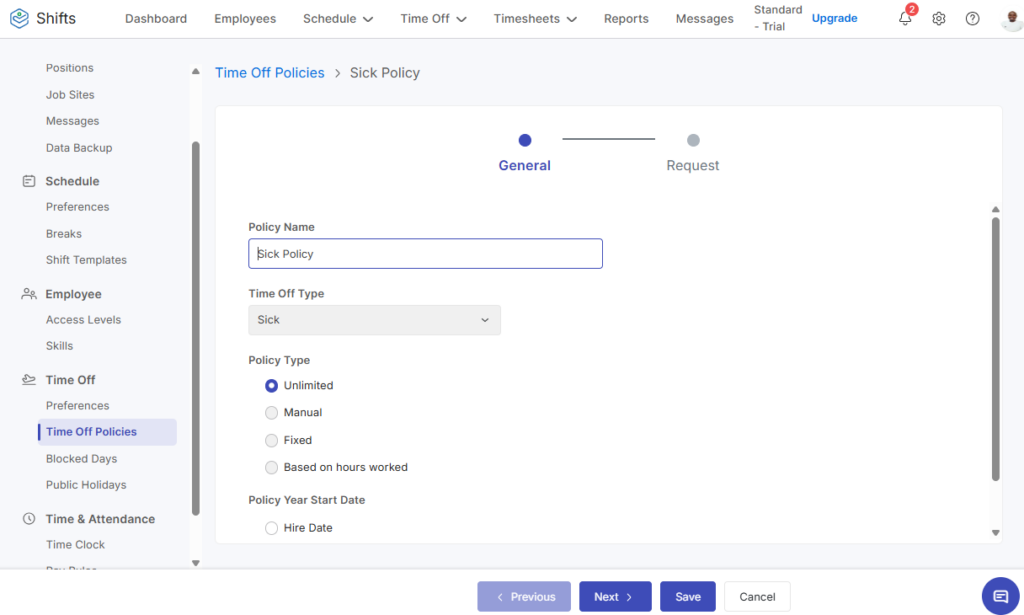
My only gripe is that time-off policy assignment can be complex, primarily because Zoho Shifts doesn’t support employee groups by role, department, or location. Businesses with a diverse workforce may have to adjust policies repeatedly instead of setting a single rule that cascades across all relevant employee segments.
That minor issue aside, I appreciate how flexible paid time off (PTO) accruals are. Zoho Shifts supports both fixed and hourly accruals, making it a great fit for businesses with both salaried and hourly workforces. It also lets you fine-tune the policies by setting balance caps, automating resets, allowing negative balances, and configuring carryover rules for unused leave.
I like how easy it is to set a minimum request notice period, which helps prevent last-minute requests. Additionally, you can add blocked days when employees can’t request time off, such as during peak season. This helps maintain adequate staffing during busy periods and is especially useful in industries where a sudden staff shortage can hurt daily operations.
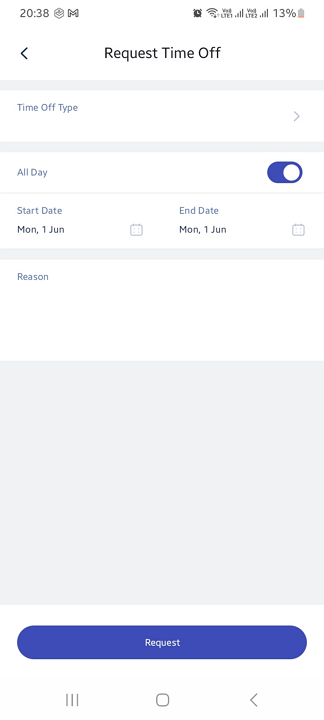
I found it easy to request time off on mobile, which means employees can submit requests anytime, anywhere. The system notifies the manager via email and push notification, ensuring they never miss a request. Even better, managers can approve requests on mobile, which speeds up the approval process.
Team Messaging
Verdict: 6/10
Zoho Shifts’ messaging features a clean and clutter-free UI that makes it easy for employees to communicate. However, while it offers essential messaging tools like 1:1, group chat, emojis, and file attachment, it lacks advanced collaboration features like threaded replies and scheduled messages. These limitations make it best suited for basic team communication rather than complex, fast-moving workplace discussions.
Zoho Shifts’ messaging tool is simple but functional, giving employees a quick way to connect and collaborate without leaving the platform. I like that employees can start 1:1 conversations with colleagues to clarify shift details, coordinate shift swaps, or resolve job-related issues.
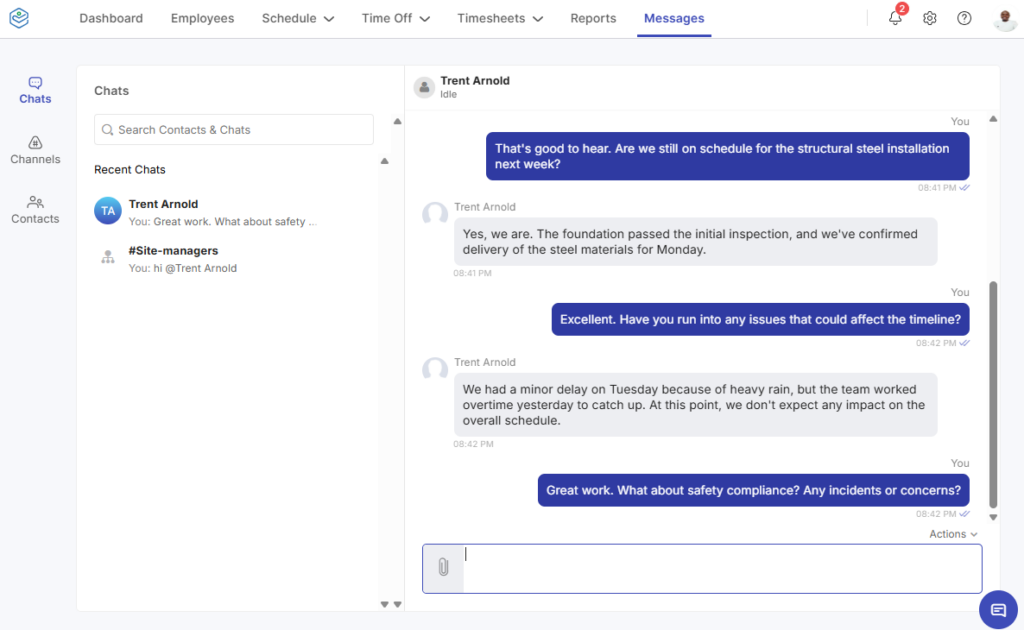
However, the messaging tools are quite basic, which really stood out to me. For example, you can send text messages only — no voice or video messages. In addition, there are no rich text-editing tools like italics, boldface, or hyperlinks to help enrich communications. Moreover, without threaded conversations, it becomes difficult to keep discussions organized.
For teams that need more than quick text updates, Connecteam lets employees share files, images, videos, and in-app resources directly in their conversations. Plus, its AI translation feature helps teams work together across language barriers.
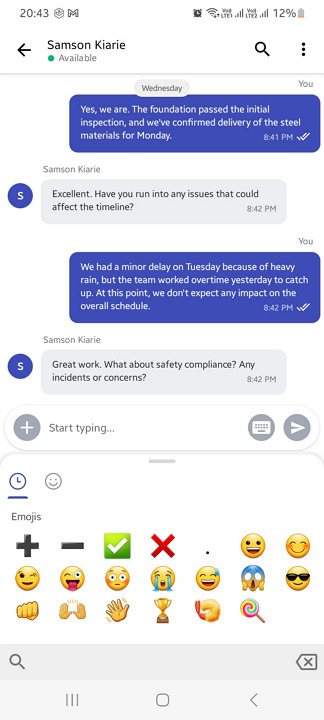
On the plus side, Zoho Shift lets employees use emojis on the mobile app to give each message a unique tone and personality.
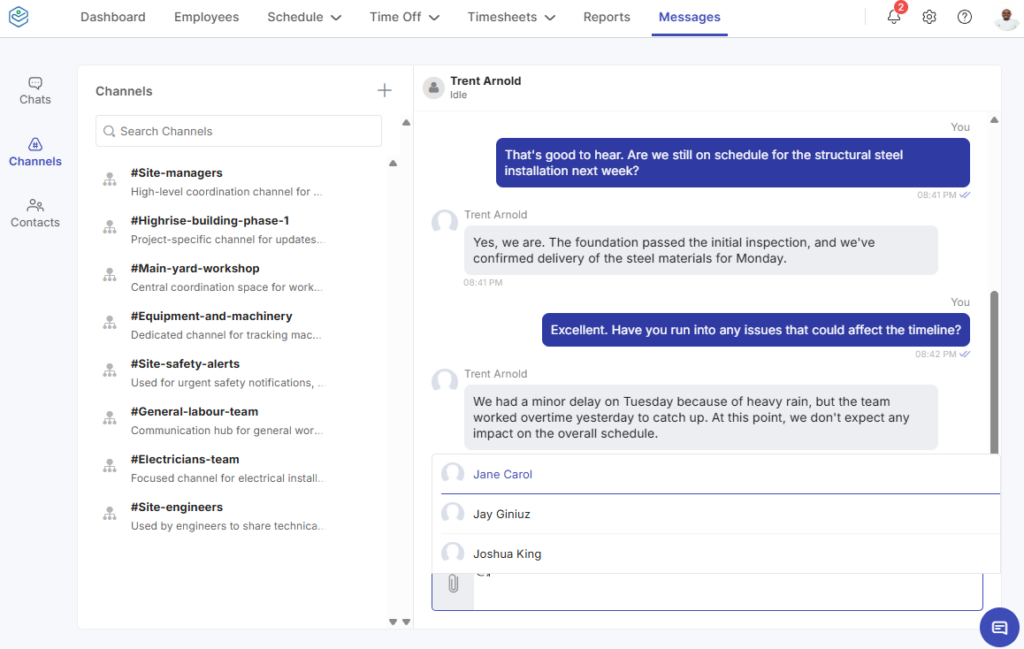
I also like the @mention feature, which is now available on chat and channels. It’s especially useful for tagging specific members in a crowded channel, ensuring important messages reach the intended people quickly and don’t get buried in ongoing conversations. The @mention feature works only on the web app.
In addition, managers and admins can create channels for specific groups, roles, jobsites, or departments. Channels are invite-only spaces perfect for sensitive topics that require the input of multiple members, such as leadership discussions, project planning, and more. However, I’d like to see Zoho Shifts offer public channels for broader, company-wide communication.
Reporting and Analytics
Verdict: 6/10
Zoho Shifts’ reporting module is functional, but it lacks advanced analytics, essential report sharing, and rich data visualizations found in top-tier workforce management solutions. The reports suffice for businesses looking for simple operational insights, but they fall short for enterprises that need deep workforce analytics for strategic decision-making.
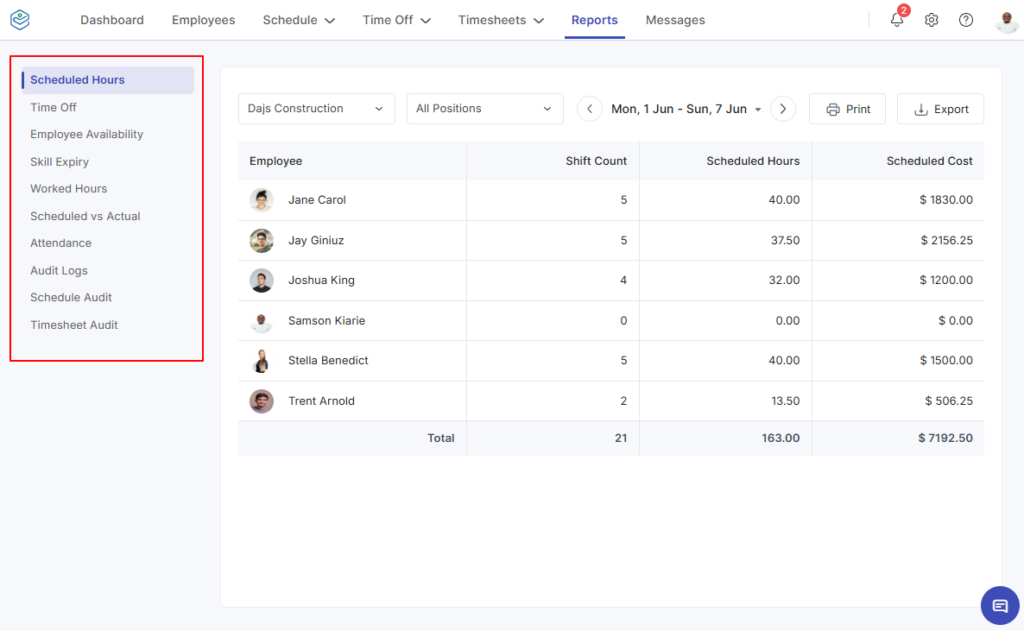
Zoho Shifts’ reporting and analytics module offers 10 standard reports, such as scheduled hours, availability, attendance, scheduled vs actual, and time off. Standouts include the skills expiry report, which helps managers quickly identify employees with certifications that are about to expire.
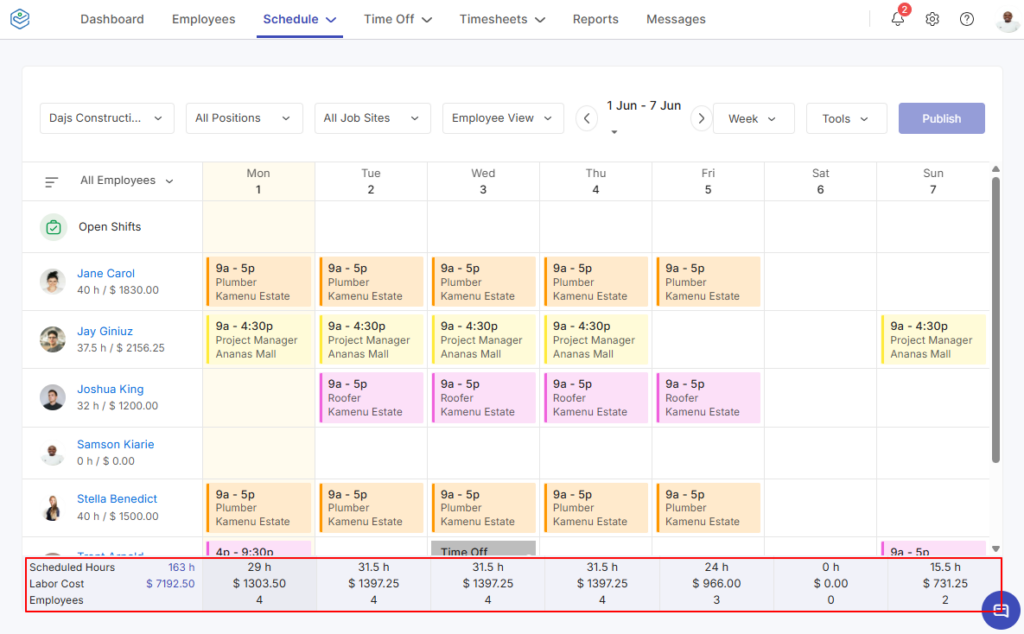
Beyond providing standard reports, Zoho Shifts facilitates labor cost tracking. As you create team schedules, the app computes total labor costs based on assigned shifts and employee rates. You can easily pinpoint overspending and adjust schedules to ensure projects stay within budget for optimal profitability.
That said, Zoho Shifts lacks in-depth analysis and advanced report presentations. As a result, the reports display raw data in tables only — no line graphs, bar graphs, or pie charts. Managers have to analyze the data manually to spot trends and insights, making Zoho Shifts less suited for environments requiring extensive data analysis.
Another issue is that report-sharing options are limited to Excel and CSV exports. You can’t schedule important reports to be delivered to your email automatically or import payroll reports directly to your payroll or accounting software. The manual exports work, but are prone to human errors and can become time-consuming, especially when dealing with large data sets or frequent reporting.
Zoho Shifts Security and Privacy
Verdict: 8.5/10
Overall, Zoho Shifts leaves nothing to chance when it comes to security and privacy. Its robust data encryption, support for key regulatory compliance standards, and strict access control help organizations safeguard sensitive data and maintain trust at scale.
| Feature | Availability |
|---|---|
| Data encryption | ✅ TLS 1.2/1.3 in transit and AES 256-bit at rest |
| GDPR compliant | ✅ |
| HIPAA compliant | ❌ |
| Certification | ✅ SOC2, ISO/IEC 27001, ISO/IEC 27017, ISO/IEC 27018 |
| MFA/2FA | MFA |
| Admin controls | ✅ Role-based access control |
| Hosting region | North America, Middle East, Europe, Australia, Asia |
Zoho, Zoho Shifts’ parent company, claims to be “fervent about keeping user data safe and secure,” and its robust security measures certainly back up that claim. It complies with the key data security and privacy standards and has been audited by various reputable third-party security firms. This makes it enterprise-ready and a great fit for organizations handling sensitive data.
Zoho Shifts Customer Support
Verdict: 7.5/10
Zoho Shifts has one of the most reliable support systems, prioritizing speed and real human assistance. Its diverse support channels enable users to find help with ease. Unfortunately, the help guides lack visual cues and can be less helpful for first-time users. Additionally, the live chat is available only when you’re logged in and is less useful during the pre-signup process.
| Support Type | Availability |
|---|---|
| Live chat | ✅ |
| Phone support | ✅ |
| Email support | ✅ |
| Community forum | ✅ |
| Ticket submission | ✅ |
| Help center | ✅ |
Zoho Shifts offers support across multiple channels, including live chat, phone, ticket, email, community, and knowledge base. I like the multi-channel approach, as it ensures users can get help quickly through self-service resources or real-time human assistance. I used the live chat and knowledge base during testing, and both impressed me.
My experience with the live chat channel was excellent, thanks to the quick and efficient support. There’s no chatbot, so a human agent handles all queries. When I asked a question, the agents responded in under 30 seconds, which is fast by live chat standards.
The live chat agents seemed highly knowledgeable and well-versed in the product. Whether I was seeking to understand a feature or troubleshoot a technical issue, they provided quick and effective responses, which was impressive. My only minor quibble is that live chat is accessible only when logged into your account.
Unlike in my last round of testing, I was satisfied with the growing library of help guides in Zoho Shifts’ help center this time around. The articles are organized by feature name and category, making it easy to find relevant guides. The issue I experienced last time, with the search turning up results that didn’t match the query, seems to have been resolved.
That said, while help guides provide step-by-step instructions, some don’t include images. The lack of visual cues can make it harder for newbies to follow along or confirm each step. This makes the guides less effective, increasing the likelihood of misconfiguration or confusion.
What Are Zoho Shifts’ Review Ratings From Review Sites?
(As of June 2026)
Zoho Shifts App Review
Zoho Shifts fits the bill for small and mid-sized businesses that need an affordable yet effective scheduling and time-tracking solution. It has the essential tools you need to create labor-optimal schedules and track time accurately.
Since my last round of testing, the vendor has added a nice suite of advanced features, including the auto-scheduler and scheduling constraint tools. The upgrades make Zoho Shifts a good fit for growing businesses that need both scheduling efficiency and basic compliance support.
That said, Zoho Shifts still falls short on the compliance front. Although its overtime tracker works as expected, ensuring employees are paid fairly and in compliance with labor laws, the break tracker remains simplistic, lacking advanced features like reminders and prevention of early returns. These gaps make it less ideal for businesses in industries or regions with strict compliance requirements.
Connecteam: The Better Zoho Shifts Alternative
Zoho Shifts is steadily morphing into a top-tier scheduling platform for shift-based teams, but it’s not fully there yet. Limitations in geofencing precision, break tracking, reporting depth, and compliance make it less suitable for fast-growing teams and highly regulated industries like healthcare, construction, manufacturing, and hospitality.
For businesses that want a reliable yet affordable all-in-one workforce management solution, Connecteam stands out as the best alternative. Connecteam combines scheduling, time tracking, location tracking, team communication, employee onboarding and training, and HR tools in one platform, making it easier to manage your workforce without juggling multiple systems.
It also scales smoothly with growing needs, sidestepping the disruption and cost of switching platforms later on. Some of the benefits of using Connecteam over Zoho Shifts include:
Fast, Efficient Shift Scheduling
There’s no denying that Zoho Shifts’ scheduling is powerful, thanks to its auto-scheduler, automatic conflict detector, shift notes, and array of employee self-service tools. However, Connecteam scheduling offers a better version of these tools, with a few additional advantages.
First, while Zoho Shifts focuses on shift assignment, Connecteam focuses on work delegation. It lets you link jobs (tasks) to shifts, ensuring you’re not just scheduling employees but clearly delegating tasks during each shift. It may sound simple, but assigning specific duties improves accountability and reduces confusion on the jobsite, helping employees stay aligned on deliverables throughout the day.
Additionally, Connecteam lets you set scheduling rules to ensure each schedule complies with underlying labor laws, just like Zoho Shifts. What gives it an edge is the simple yet effective configuration flow that lets managers apply scheduling rules via smart groups like departments, roles, locations, or teams, which Zoho Shifts doesn’t support.
Accurate, Compliant Time Tracking
Connecteam’s time tracker is built for field and frontline teams that need accurate clock-ins with location verification. Beyond basic clock-in verification, Connecteam lets you set up geofences to ensure employees clock in only once they’ve arrived at the jobsite. It also takes a GPS timestamp of every clock-in and clock-out, in case you want to verify when employees punched in or out.
Connecteam’s overtime tracker logs virtually any type of overtime, including daily overtime, daily double time, weekly overtime, holiday, and seventh-consecutive-day overtime, similar to Zoho Shifts. The advantage with Connecteam, however, is that you can split time at midnight to accurately calculate overtime when an employee’s time spans multiple days.
What’s more, Connecteam’s break tracker offers advanced features for compliance. You can set up manual or automatic breaks, set thresholds aligned with strict labor laws, and add reminders to ensure employees take breaks on time. The system also prevents early return from breaks, ensuring employees complete the required rest and meal periods.
And So Much More
In addition to scheduling and time tracking, Connecteam offers other useful workforce management features, including:
- PTO management
- Real-time location tracking
- Employee recognition and rewards
- Document management
- Forms and checklists
- Knowledge base
- Employee onboarding and training
Zoho Shifts Review FAQs:
Zoho Shifts supports labor compliance with scheduling constraints, time-off controls, and several overtime rules. However, its break tracking is basic. It doesn’t send break reminders, prevent early returns from breaks, require break attestation, or split overnight shifts at midnight for daily overtime.
Zoho Shifts has a free plan for up to 25 users and a 30-day free trial with no credit card required. Paid plans use per-user pricing with a 10-user minimum. Basic starts at $1 per user per month, while Standard starts at $2 per user per month.
Switching to Zoho Shifts is fairly easy for small teams. Sign-up is fast, and admins can upload employees by CSV or XLSX. Leaving is possible but manual. You can export reports to Excel or CSV, but settings, policies, and team structure must be rebuilt elsewhere.
Zoho Shifts supports payroll export on the Standard plan, but payroll handling is still limited. The review found manual report exports and no direct payroll or accounting import from reports, so teams that need automatic payroll sync may find it too basic.
Zoho Shifts has limited integration support in this review. It supports CSV and XLSX employee uploads and payroll exports, but it doesn’t support third-party employee imports or direct payroll and accounting report imports. Teams that rely on connected tools may need extra workarounds.
Zoho Shifts protects business and employee data through Zoho’s wider security controls, including encryption, MFA, role-based access controls, GDPR support, SOC 2, and ISO certifications. These controls make it a stronger fit for businesses that handle sensitive scheduling and workforce data.
Zoho Shifts is easy to use day to day, especially for scheduling, time tracking, time off, and basic messaging. The web and mobile apps are clean and simple. However, the mobile app doesn’t work offline, and the platform lacks guided onboarding for new admins.
Zoho Shifts helps prevent time theft with geofencing, location checks, early clock-in controls, unscheduled clock-in prevention, auto clock-outs, and PIN-based kiosk clock-ins. However, it doesn’t support facial recognition, and its universal geofence radius limits precision for field teams with different jobsite needs.
