


Affordable time tracking and scheduling, but limited reporting and timesheet tools.
Verdict: 7/10
Planday is an intuitive, competitively priced workforce management app offering a punch clock, scheduling, leave management, team communication, and payroll preparation.
I think its biggest strength is how it fits on-site, shift-based teams. Employees can clock in via the mobile app or at a kiosk, and managers can quickly identify and address attendance gaps. Planday’s POS and tipping integrations are also particularly handy for hospitality and retail businesses.
However, it’s not all rosy. The platform’s reporting tool largely expects you to export data to Excel and perform your own analysis. The timesheets feature (important for many companies) is still being rolled out. And the web-based interface often takes seconds to load each page, making it feel cumbersome to use at times.
Overall, with its competitive price, Planday is worth a try for small site-based teams. But it may not be right for growing teams wanting reduced admin tasks or detailed reports.
Key Features:
- Time tracking: Let employees clock in and out of shifts on a mobile or kiosk app. You can limit clock-ins to specific geo-locations and approve time entries with 1 click.
- Team scheduling: Create and assign shifts, use open shifts, copy shifts, and reuse templates for repeat schedules.
- Time off management: Set custom leave policies, view balances, and manage leave requests.
- Employee messaging: Send email-like messages to individuals or groups, and highlight urgent notes.
- Reporting: View and export reports around schedules, shifts, leave, payroll, and revenue.
- Integrations: Connect with third-party payroll, POS, HR, analytics, tipping, and earned-wage tools.
Pros
- Free trial available
- Intuitive interface
- Large integration library
- Geofencing controls
- Payroll-to-revenue analysis
Cons
- No automated timesheets
- Clunky shift management
- Most admin tasks available through web interface only
- Limited reporting
How I Tested Planday
I signed up for Planday’s free trial, created a cleaning company with 8 demo employees across different roles and groups, and tested every feature on both the web and the Android app.
I built a realistic weekly schedule, submitted and approved leave requests, sent messages, and used the Punch Clock on mobile and through the kiosk app. I also adjusted various settings and deliberately made common user mistakes to evaluate how Planday works in real-world settings.
Planday Pricing
Planday offers 3 pricing plans on a monthly subscription basis.
| Plan name | Starter | Plus | Pro |
|---|---|---|---|
| Price | $2.99/user/month | $15/month flat fee + $4.49/user/month | Custom quote |
| Best for | Small teams | Small to medium-sized teams | Medium to large-sized teams |
| Number of users | 1+ | Minimum 10 | Minimum 10 |
| Number of locations or departments | 1 | 10 | Unlimited |
| Punch clock (including mobile) | ✅ | ✅ | ✅ |
| Basic scheduling | ✅ | ✅ | ✅ |
| Team messaging | ✅ | ✅ | ✅ |
| Kiosk-based punch clock | ✅ | ✅ | ✅ |
| Qualification-based scheduling | ❌ | ✅ | ✅ |
| Time off management | ❌ | ✅ | ✅ |
| Document sharing (including payslips) | ❌ | ✅ | ✅ |
| Integrations (including payroll) | ❌ | ✅ | ✅ |
| Auto-scheduling | ❌ | ❌ | ✅ |
On Planday, you’re billed in bundles of 5 users. For example, if you have 8 users, you still need to pay for 10.
Having explored Planday’s features, I find its plans reasonably priced.
Granted, Starter at $2.99/user/month wouldn’t suit multi-location businesses that want to use kiosk-based clock-ins, time off tracking, payroll integrations, or in-app payslip sharing. But at $4.49/user/month, Plus is still affordable and offers features comparable to competitors at a lower cost.
| Team size | Planday (Starter) | Clockify (Standard) | Clockshark (Standard) | Connecteam (Basic) |
|---|---|---|---|---|
| View pricing | View pricing | View pricing | View pricing | |
| 10 Users | $29.90 | $54.90 | $130 | Free for life — All features and dashboards |
| 20 Users | $59.80 | $109.80 | $220 | $29 |
| 30 Users | $89.70 | $164.70 | $310 | $29 |
| 50 Users | $149.50 | $274.50 | $490 | $45 |
| Read our full Clockify review | Read our full ClockShark review | Learn more about Connecteam | ||
| All listed prices are per month, billed annually as of May 2026 (except Planday, which only offers monthly or quarterly billing). | ||||
Unlike many competitors, Planday doesn’t offer an annual plan. You can pay monthly or quarterly, but there’s no discount for paying quarterly.
Depending on the number of employees and business locations, you can find better deals. The Homebase Plus plan, for example, includes scheduling, time tracking, and more for $56/month per location, regardless of how many employees are at each site.
Finally, while it does offer a 30-day free trial (more than most peers), Planday doesn’t offer a forever-free plan, while competitors like Connecteam and Clockify do.
Verdict: 8/10
Planday Usability and Interface
Signing up for Planday’s free trial was relatively straightforward, took just 3 steps, and didn’t require any credit card details. First, I was asked to enter my name, email, and phone number, and to set a password. Then, I was asked about the name, size, country, and type of business I had.
Finally, I had the opportunity to add employees and set up initial roles for my team. I liked that Planday suggested employee roles based on my answers, speeding up this process.
I also liked that once I clicked “Finish Setup”, the homepage immediately greeted me with a checklist of to-do items, like creating my first schedule.
As prompted, I created my first shift. It took under a minute to add start and end times, an “open shift” status, and a default hourly wage. I like that there aren’t too many required fields, so you can get going with just the basic info.
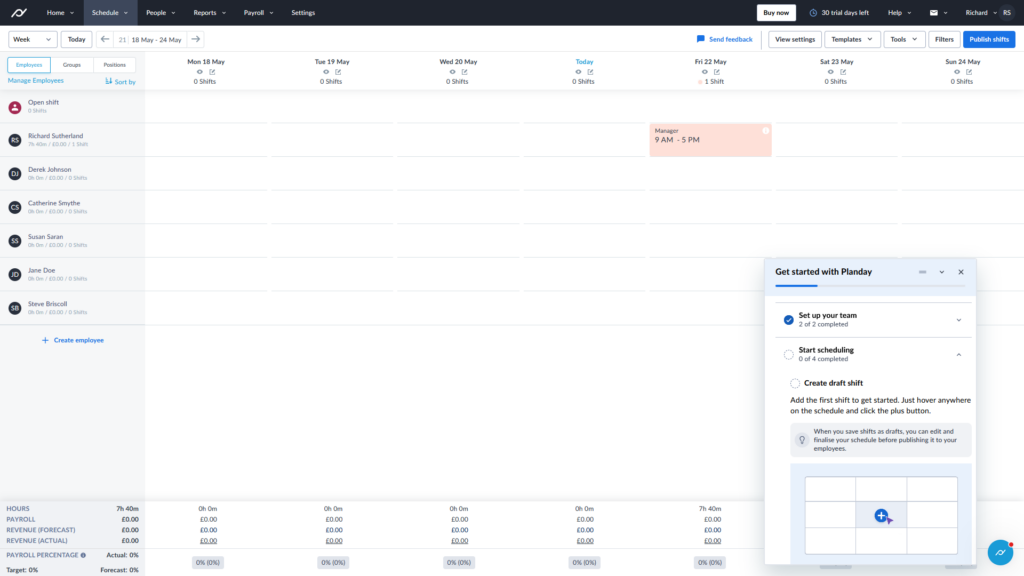
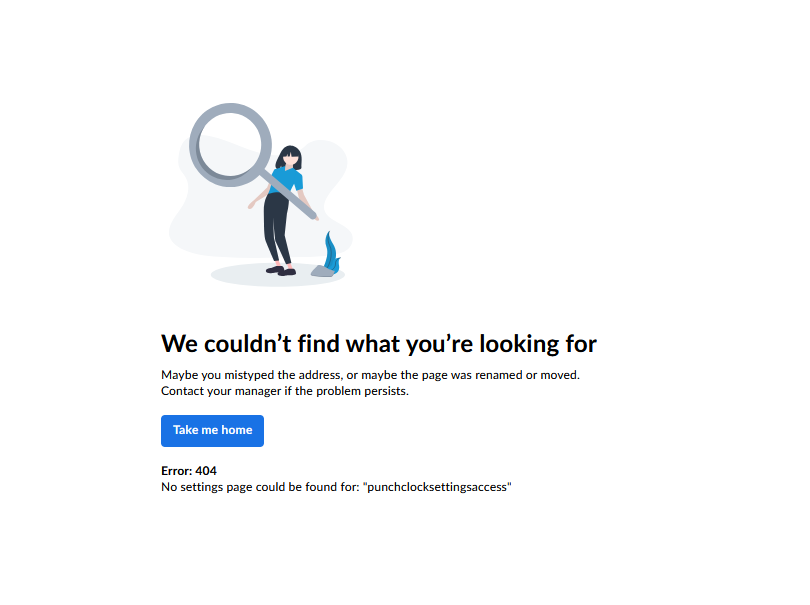
Sadly, this onboarding checklist started to trip up after a few steps. I was directed to an error page in 2 instances: first, when I clicked the button to set my business location, and then when it was time to set staff wages (I later managed to do these by searching through the settings myself). This left me with a pretty poor first impression, and will likely cause many managers to give up at this point.
Also, some of the terms Planday uses are a little cryptic, which not only slowed down initial setup but also made the platform harder to use.
For example, during the signup process, I assigned employees to different “roles”, but once I was in my Planday web portal, these are actually called “employee groups.” It’s a slightly vague term that could be misconstrued as a way to split staff into groups by seniority, qualifications, or other attributes, whereas it’s simply used to separate job roles.
Employees could then be split into “departments.” After checking the help documentation, I realized each department has its own schedule and employees, so in effect, companies could use “departments” for different branches and locations.
In my opinion, this was all more complicated than I’d have liked, and should have been explained in the onboarding process.
From a design POV, Planday’s browser interface felt clean and sleek, and could work well for employees who aren’t very techy. But I did find that pages took several seconds to load each time, with some settings pages feeling painfully slow.
In terms of accessibility, there’s a fairly high text-to-background contrast. However, I found that the screen reader wasn’t very useful on the Planday website, and it’s not possible to change the relatively small text size unless you zoom in on your browser.
That said, I liked that I could add my organization’s logo on the home dashboard, which I think is a nice touch for both aesthetics and team spirit.
Verdict: 6/10
Mobile app
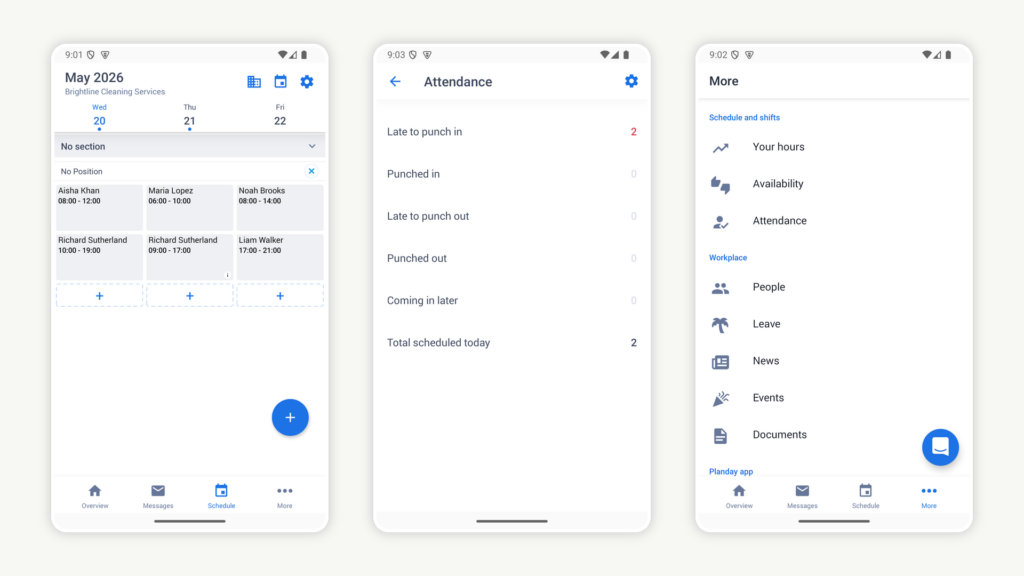
I appreciated the mobile app’s clear feature labeling, speed, and decluttered view, and that it includes Planday’s core features (time tracking, scheduling, time off management, and communication). However, the functionality is much thinner than the desktop, especially for admins.
For instance, you can’t drag and drop shifts across schedules (though you can create and use shift templates). Also, as an admin, you can’t view reports, integrate with payroll, change settings, or activate geofencing.
That said, the limited customizations keep basic tasks clear and quick. For example, I could easily check late punch-ins or punch-outs, monitor availability, create new shifts, and search and view saved docs.
Luckily, the app has most of the features employees need, but it doesn’t support offline time tracking, unlike some apps like Time Doctor.
| Menu Item | Admin | Employee | ||
| Web App | Mobile App | Web App | Mobile App | |
| Time and attendance tracking | ||||
| GPS punch clock | ❌ | ✅ | ❌ | ✅ |
| Time off policies | ✅ | ❌ | ❌ | ❌ |
| Time off request/approval | ✅ | ✅ | ✅ | ✅ |
| Break tracking | ❌ | ✅ | ❌ | ✅ |
| Punch in/out notifications | ❌ | ✅ | ❌ | ✅ |
| Scheduling | ||||
| Create shifts | ✅ | ✅ | ❌ | ❌ |
| Request/swap shifts | ✅ | ✅ | ✅ | ✅ |
| Team communication | ||||
| Send/reply to messages | ✅ | ✅ | ✅ | ✅ |
| Mark as “must reply” | ✅ | ❌ | ❌ | ❌ |
| Attach files | ✅ | ✅ | ✅ | ✅ |
| Post news | ✅ | ❌ | ❌ | ❌ |
| Reporting and analysis | ||||
| Custom dashboard | ✅ | ❌ | ❌ | ❌ |
| Reports | ✅ | ❌ | ❌ | ❌ |
| Activity | ❌ | ❌ | ❌ | ❌ |
| Management features | ||||
| Employee groups and departments | ✅ | ✅ | ✅ | ✅ |
| Customize employee data fields | ✅ | ❌ | ❌ | ❌ |
| Set locations | ✅ | ❌ | ❌ | ❌ |
| Set wages | ✅ | ❌ | ❌ | ❌ |
| Integrations | ✅ | ❌ | ❌ | ❌ |
| General settings | ✅ | ❌ | ❌ | ❌ |
Verdict: 6/10
Planday Core Functionalities
Punch clock
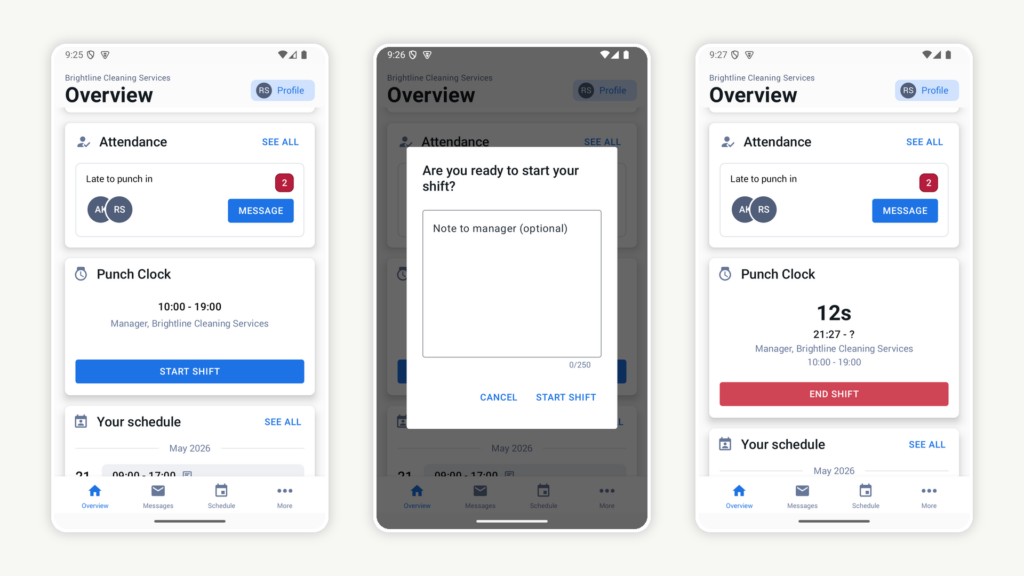
Employees can punch in with 1 click on the mobile app or on any shared device you’re using as a central kiosk through the kiosk app. Strangely, desktop clock-in is missing, so employees who are normally or occasionally desk-based can’t use their desktops for time tracking.
I like that you can restrict punch-ins to a specific radius around locations (like your shop floor or client sites) or to specific WiFi networks. This decreases time theft while ensuring employees work from the correct sites.
In my tests, the app’s location pins were accurate, and geofences worked as intended. In Planday, I set up scheduling to only allow employees to punch in if they were within 80 meters of an office location. When I tried to punch into a shift from outside this location, I was warned that I could only use the Punch Clock from my workplace.
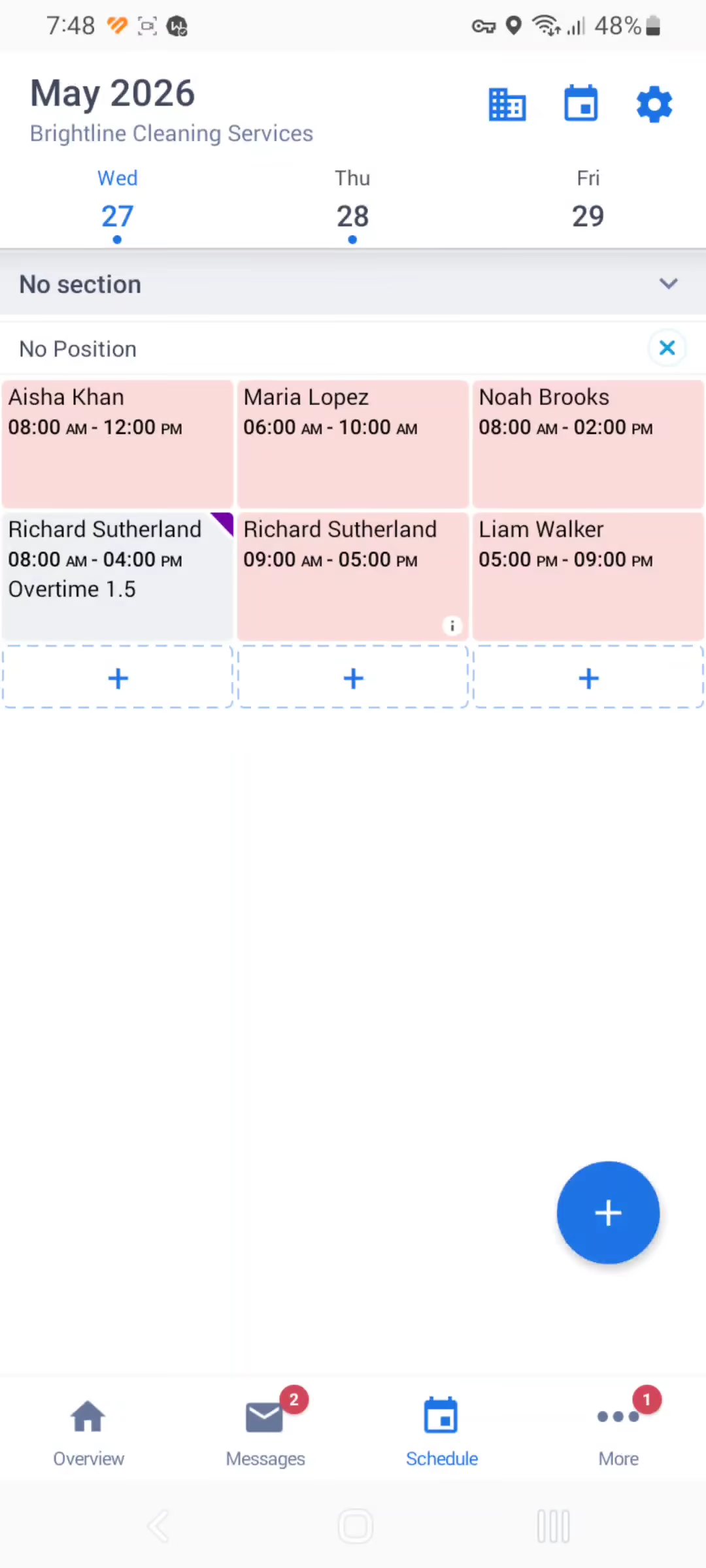
Alternatively, you can set punch clock access to “Anywhere”, but Planday doesn’t keep track of where employees punch in from, and it’s not possible to see their location in real-time. For companies with teams that work across constantly changing locations, such as cleaning routes, plumbing calls, or other field-service jobs, this may be less practical. Setting up a separate geofence for every temporary job site can quickly become cumbersome.
Meanwhile, with the kiosk app, I could create multiple kiosk profiles, give each a name (such as “back office”), and set up my kiosk in any web browser, effectively making it a punch-in location for staff members, who can log in with their username and password.
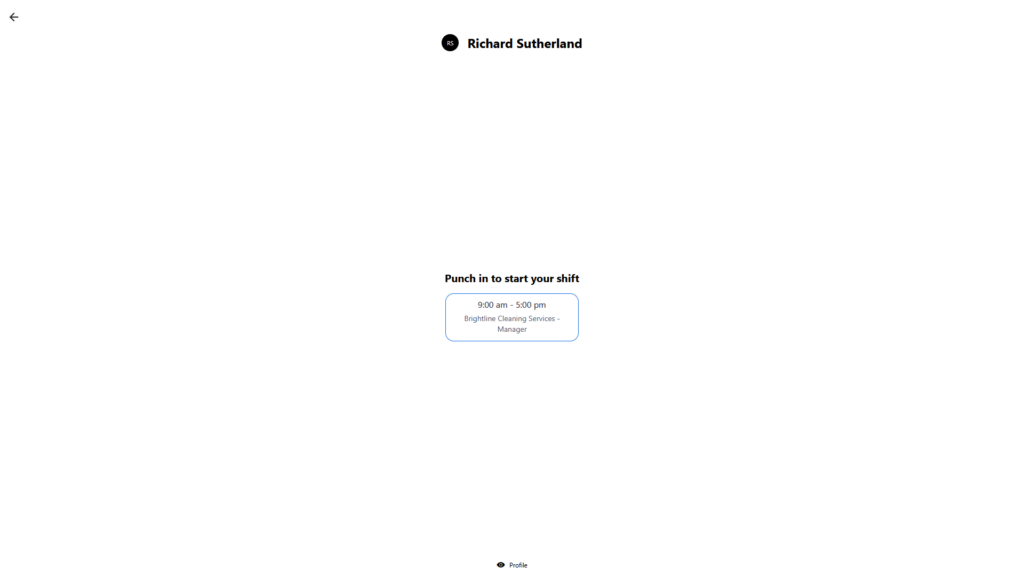
I also liked that I could customize which shifts employees could clock in to, control whether unscheduled workers can punch into shifts, and choose how to display (or notify about) shifts that end sooner or later than planned.
Overall, though, Planday felt more rigid than project-based time trackers such as Toggl Track, which let employees assign time to projects or tasks and mark entries as billable. This makes it less useful for businesses that need to record and analyze time by customer, job, or billable status.
On top of that, Planday doesn’t generate timesheets from clocked time. As a workaround, I could configure individual working hours reports, but this took some time, and it’s not in a traditional timesheet format. Planday told me that a new timesheet feature is in the works and that the current punch-in system will be phased out when this new timesheet format is introduced.
Verdict: 6/10
Shift planner
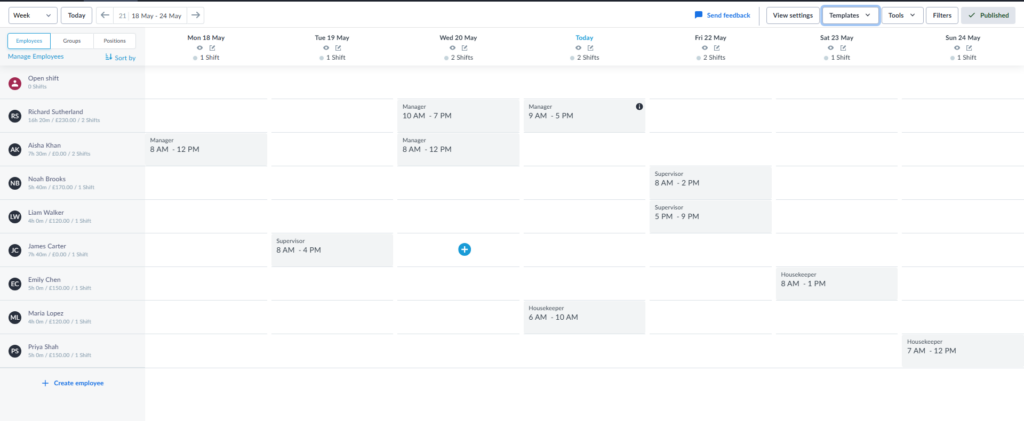
Planday offers a drag-and-drop schedule builder, which I found very easy and quick to use. I just needed to click the “+” symbol on a certain day, add the start and end times, either make it open or assign employees, and restrict it to a group or position. I could also add breaks, set a default wage, and leave notes for my team members (including required tasks or instructions).
I like the “number of copies” tool at the bottom of the shift builder. If I created 5 copies, for instance, and clicked save, I could drag and drop the 5 identical shifts to my other weekdays. It felt a bit like copy-pasting Excel cells, but it was very easy to use. A more modern approach, perhaps, would be to have a “recurring” shift tool in the builder so I could choose when and how often a shift recurs.
I also found it odd that you can set contracted availability hours for employees, but these hours are ignored in the scheduling app.
I designated an employee to be available only on weekends, but could then assign them to a shift on a Wednesday. Planday support says this is intended behavior, as the contracted availability is “only a guideline, not a restriction”. But, at the very least, I’d expect to see a warning when I tried to assign staff to dates they have no contracted availability to cover.
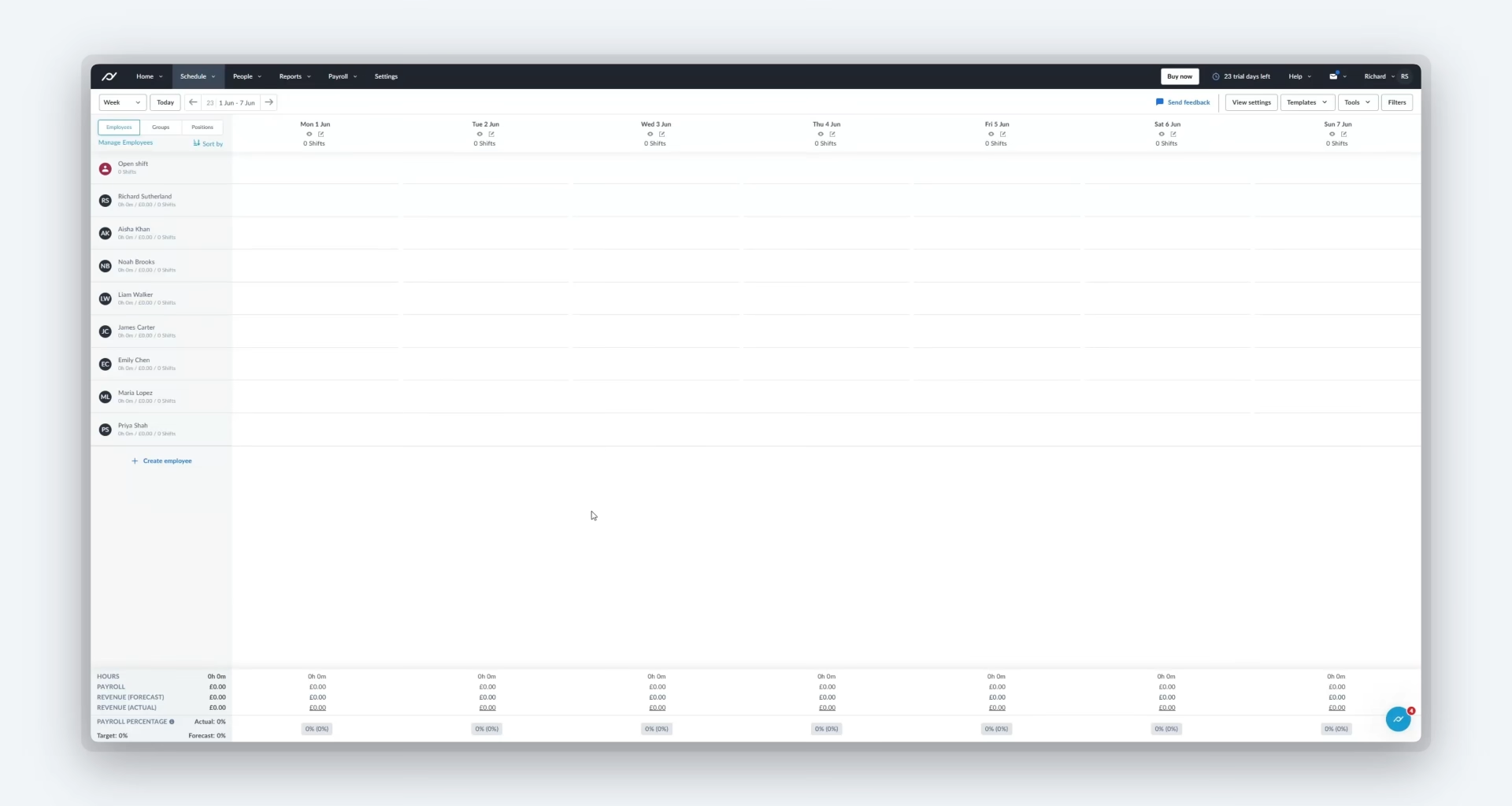
After you publish the schedule, employees can immediately see assigned shifts in the mobile app, request open shifts, and punch into assigned shifts from their home dashboards.
Planday’s auto-scheduling is available only on the Pro plan, so businesses on a budget can’t take advantage, and I couldn’t test it.
From my research, it appears to be more of an open-shift assignment tool than a full schedule builder. After you create the open shifts you need, Planday can suggest which employees should fill them based on contracted hours, availability, absences, working time rules, employee groups, and conflicts with existing shifts.
Verdict: 7/10
Team communication
Planday does have a team communication tool, but it’s closer to a workplace inbox than a modern chat app. Managers can send direct or group messages from the web or mobile, choosing recipients by employee, department, and employee group. They can add attachments, track who has read a message, and optionally require a reply.
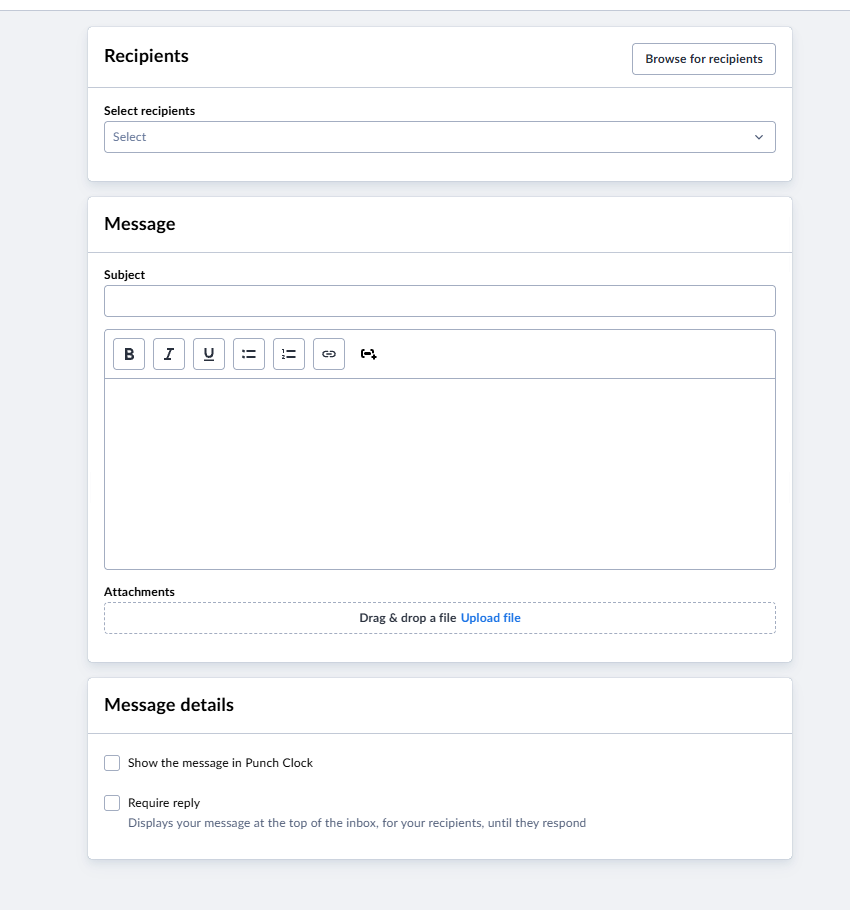
The interface is somewhat old-fashioned, with a subject line, a message box, and basic formatting like bold, italic, bullet points, and number lists. You can also opt to show selected messages within Punch Clock, which is useful for urgent pre-shift updates.
For fast team chatter, Planday feels limited. Employees can send and reply to messages in the app, including group messages, but it’s missing channel-based chats, reactions, comments, and task-linked conversations. The mandatory subject field also makes quick messages feel a touch too formal.
Planday also has separate News and Events tools. News works well enough for one-way updates, while Events can collect attendance responses, but there’s little else employees can do with these messages.
Verdict: 6/10
Time off management
Setting leave policies in Planday is straightforward. I created a new policy from scratch in about 3 minutes. I was also impressed that Planday suggests appropriate annual leave allowances and rules based on your country, making it easier to comply with local regulations.
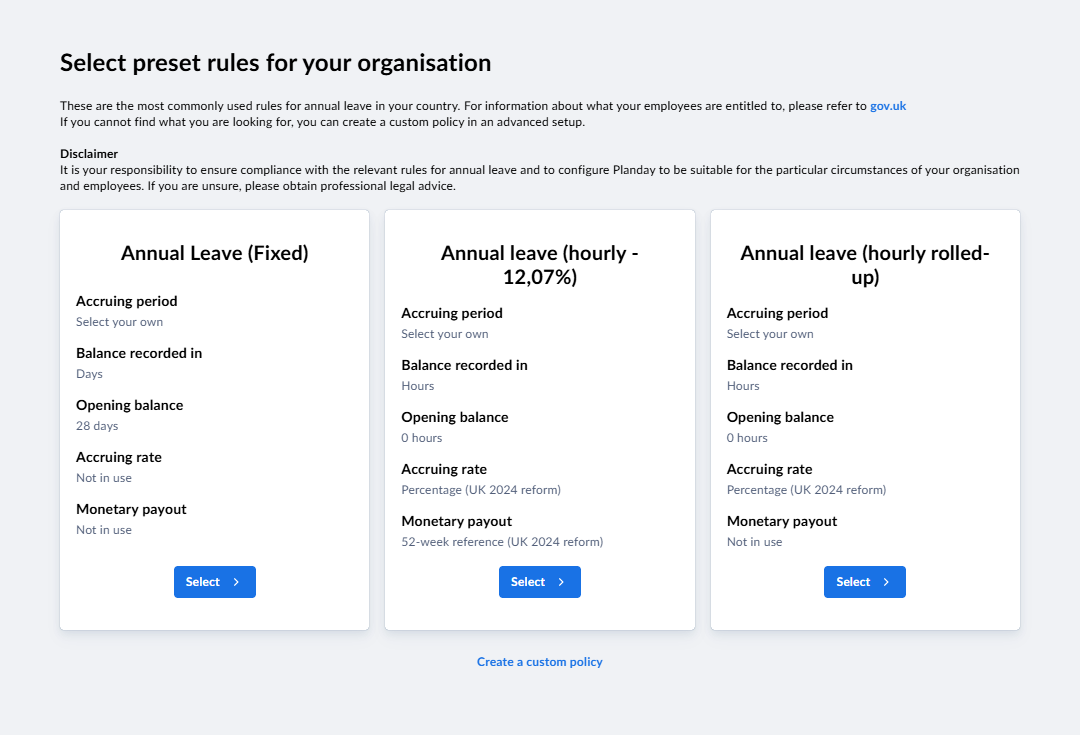
I could also edit or delete policies with just 1 click. While I could export individual absence policies and employee absence records, there was no quick way to share these with other users, such as line managers or employees, through the app.
I also tested the employee-side time off request, which was fast and easy. Employees simply add their absence dates and optional messages to their managers. Approving time off requests is as quick. Just click “Deny” or “Approve,” and you’re done.
You can easily see who’s unavailable in real time and for upcoming shifts from the scheduling view.
Verdict: 8/10
Integrations
Planday has a healthy number of third-party integrations. First, there are the must-have payroll apps, including Sage 50, ADP, QuickBooks Online, and Planday’s parent company, Xero. However, in the US, the only HRIS integration available is Personio.
There are a fair few employee engagement integrations, including learning management systems, such as Flow and Expert LMS, and flexible wage apps like FlexEarn and Hastee.
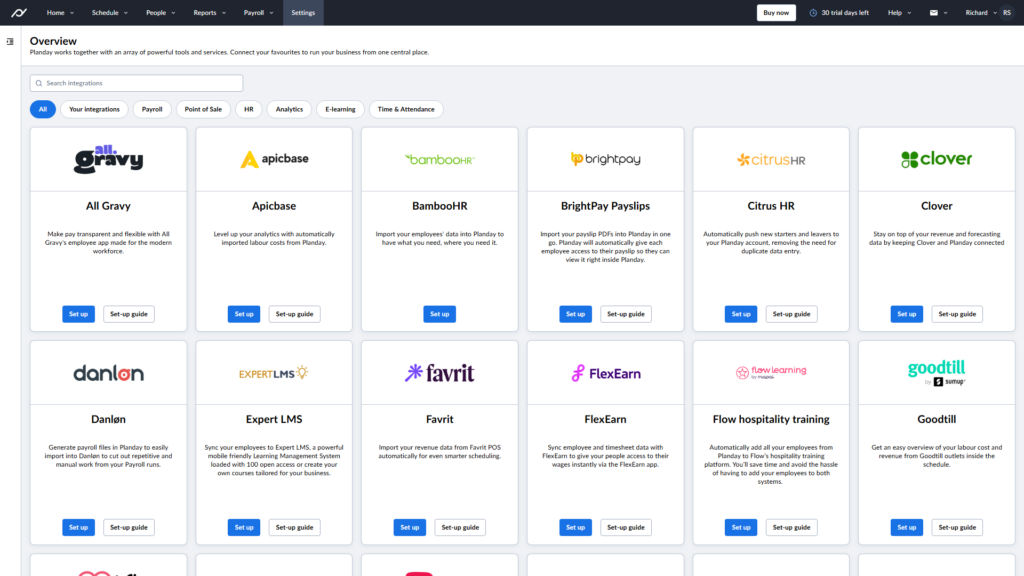
Planday also has an open API with strong documentation, so if you already have custom software that’s not on the integration list, you can develop a bridge between the applications so they can work together.
Finally, I appreciate that Planday integrates with point-of-sale (POS) and tipping software, which lets you track labor costs against actual revenues. It lists 10 POS integrations, including Square, Zettle, and Favrit. Plus, TipJar adds in tipping revenue for hospitality businesses.
Verdict: 9/10
Planday Security Features
First, Planday encrypts user data and lets you enable multi-factor authentication, so your team must log in with additional methods, including SMS and an authenticator app. However, there are no biometric verification methods, such as fingerprint or face scanning.
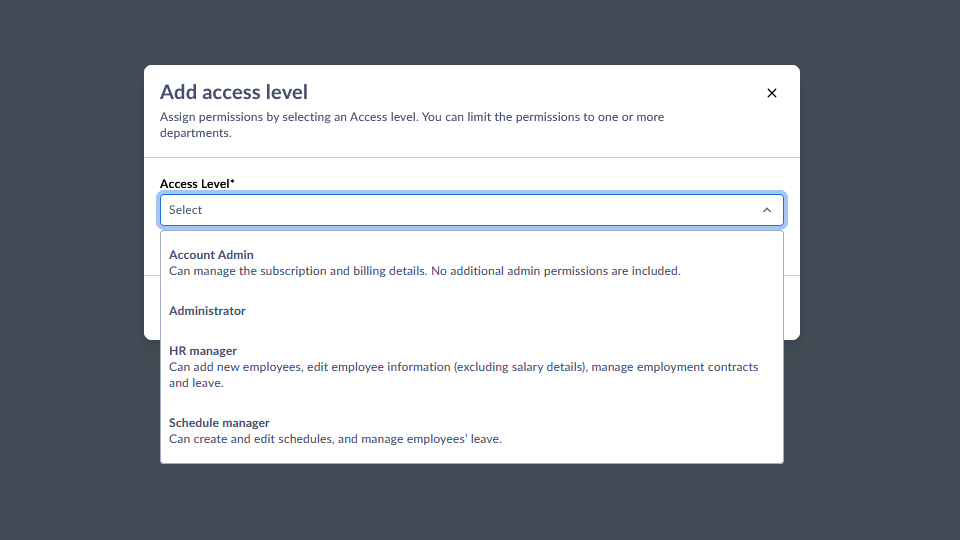
Second, you can customize user permissions to ensure only relevant employees have access to sensitive data. You can give department-specific access to tasks like scheduling and managing HR data.
Finally, Planday complies with industry-standard certifications and regulations. For example, it holds ISO 27001 and SOC2 Type II certifications in customer data protection.
It also complies with the General Data Protection Regulation (GDPR) in the EU and the UK. However, unlike apps like Connecteam, it’s not HIPAA compliant, meaning healthcare companies shouldn’t use Planday to share or store protected health information (PHI).
I appreciate that Planday neatly explains its privacy and security features across multiple pages and documents.
Verdict: 9/10
Planday Reporting & Analytics
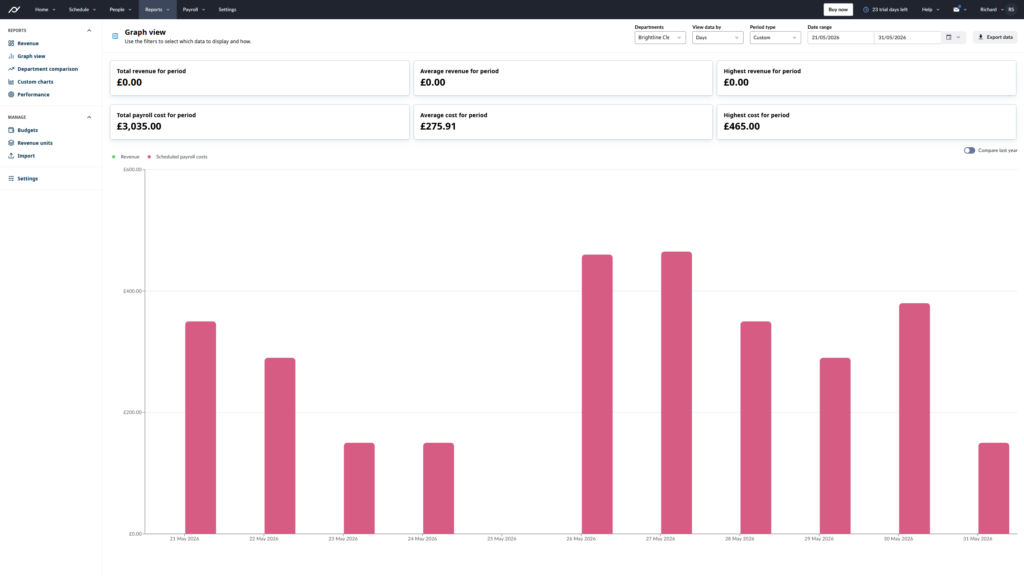
The reporting in Planday initially looks bare, but this is because it hides reports in a few menus.
You’ll find reports on:
- Hours per employee: How many hours an employee or group worked.
- Shifts per employee: How many shifts individual employees worked, split by approved and not approved.
- Shift type statistics: What types of shifts are most common, and the percentage of time these take up.
You can customize these reports by date ranges, working days, shift types, approved status, and shift duration. You can also use the Tools menu to “Export Data” or “Export This View”.
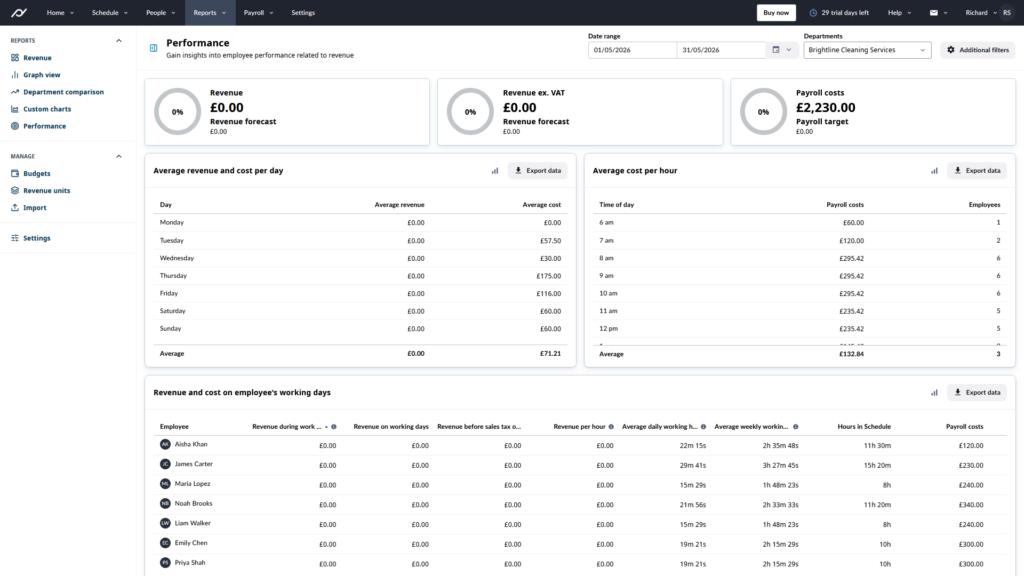
Planday is also strong in its revenue reporting. You see real-time revenue (if you integrate your POS software), how much payroll costs as a percentage of revenue, plus a table breakdown by year, month, week, or day. You also get options for graph views, custom charts, and department-level comparisons.
Unfortunately, Planday falls short in analytics. While you can download a report and stick it into Excel, analyzing the data is left up to you.
In comparison, competitors like RescueTime offer a broad range of customizable reports and chart-filled dashboards. Some platforms even offer AI-powered insights. I’d like to see more of this on Planday.
Verdict: 6/10
Planday Customer Support
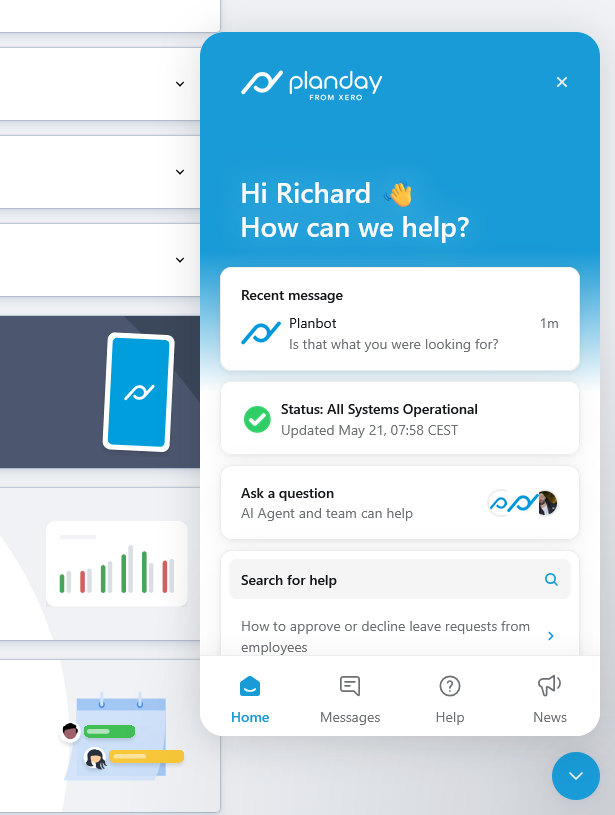
Like many other platforms, Planday now has an AI agent, “Planbot,” as a first-line customer support option. It’s trained on Planday’s features and can offer you advice from the help center, but it’s not a context-aware AI assistant. For example, if you ask “How many employees do I have?” it’ll tell you how to see all your employees rather than provide a straight answer. Overall, it works well in offering the guidance you need.
When I actually needed to speak to a human, Planbot said the usual reply time is “a few hours.” Indeed, I received an answer in my chatbox and to my email after about 4 hours. But I consider this to be on the slow side compared to the quicker replies on platforms like When I Work.
It’s a nice touch that the Planday chatbox includes a live operational status. It showed me a breakdown of features and whether they’re working, plus past incidents and their resolution statuses. Assuming this feature updates in real time, you can check if and when technical issues are resolved without spending time on support.
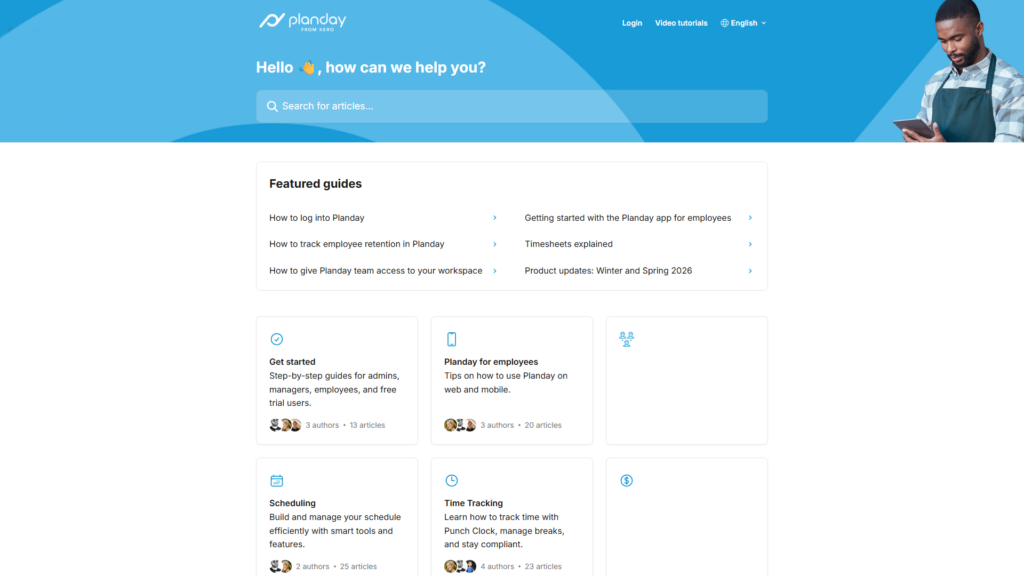
Finally, I was impressed with Planday’s solid collection of help articles and video tutorials on a range of topics from scheduling and time tracking to reporting and product updates.
Verdict: 6/10
Planday App Review
I think Planday is a good fit for small and mid-sized shift teams that prioritize scheduling, mobile clock-in, attendance visibility, leave management, and integrations. It works especially well for those tracking attendance across common work sites. Its interface is clean and intuitive, and vital tasks like clocking in, requesting leave, and sending messages take just a couple of taps.
That said, its mobile app isn’t fully functional from an admin or manager perspective. It’s also not the best solution for companies that need payroll-ready timesheets, strong insights and analytics, and time tracking by job or project.
What are Planday’s Review Ratings from Review Sites?
(As of June 2026)
Connecteam: The Better Planday Alternative
Connecteam is an all-in-one employee scheduling and management app, offering more advanced functionality for a lower price than Planday.
Here are its highlights.
GPS time clock
You can punch in and out with the one-tap employee time clock through the web, mobile app, or a shared kiosk. You can also add and edit time manually. Time entries, accurate to the second, automatically populate timesheets for payroll.
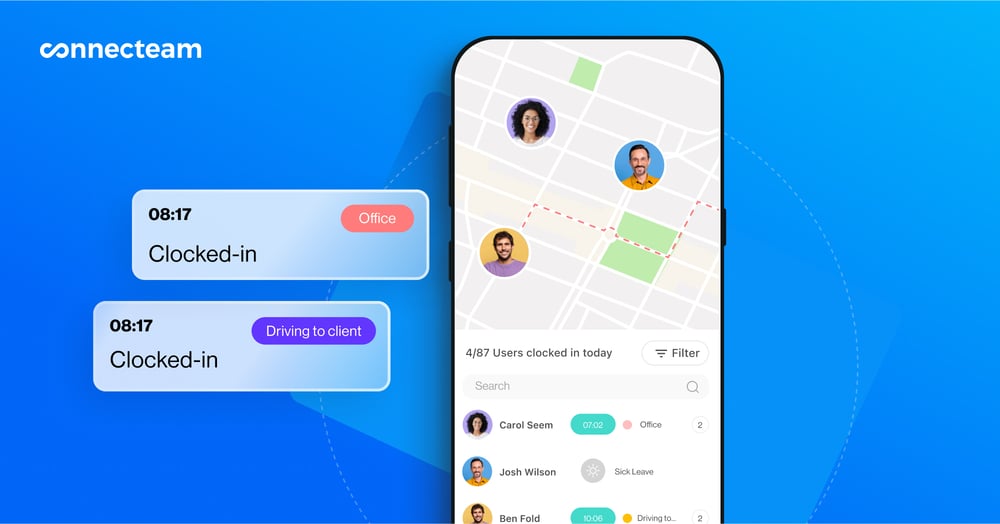
I like that you can check real-time employee geolocation while on the clock—and choose to allow clock-ins within a specified site using geofencing. You can also track time against projects, tasks, and clients.
Recurring and automated scheduling
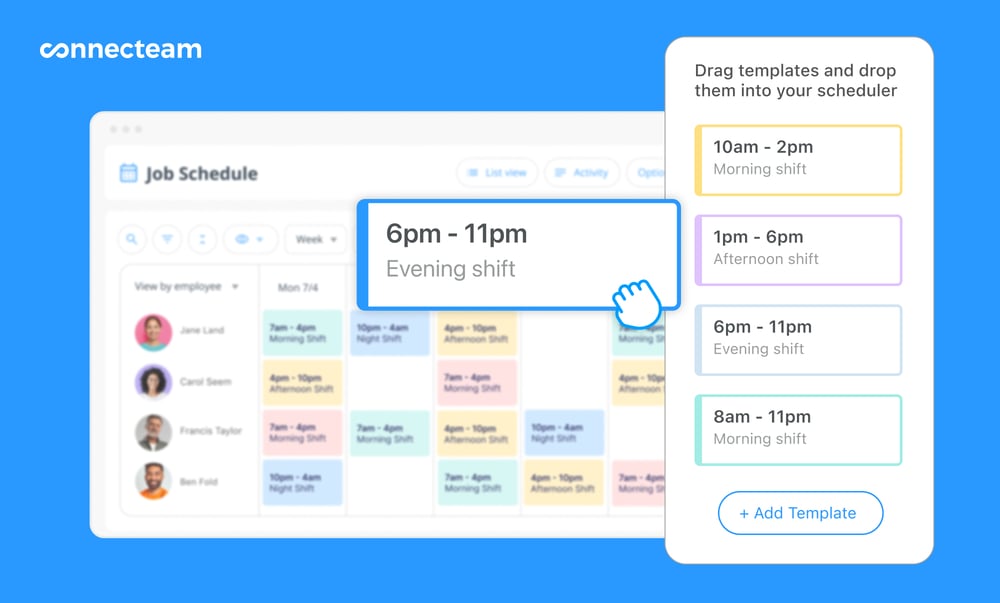
You can create new shifts with easy staff scheduling—and even use pre-saved templates. Plus, unlike Planday, Connecteam lets you recur shifts. You can also build schedules with 1 click with the auto-scheduler (which factors in availability, qualifications, and more).
I especially like that workers can view and tick off tasks directly from their shifts.
Time off requests and approvals
You can create multiple policies for time off management and assign them to customizable employee groups. Workers add their dates and leave types, and managers see real-time pending requests. I like that you can easily filter time off requests by date, type, employee group, and more.
Real-time team chat
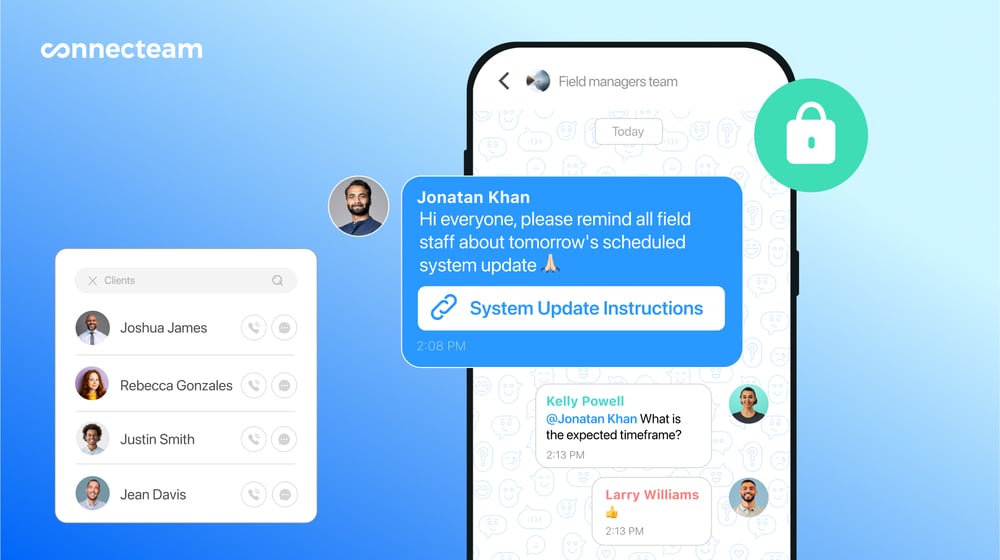
Connecteam’s online team chat lets you easily group team members by project, location, and other characteristics. I appreciate that you can send voice notes, emoji reactions, images, and videos—plus attach files and Connecteam tasks.
End-to-end workforce management
Connecteam offers loads more features to help you manage a productive, fulfilled workforce. Unlike Planday, the app includes employee task tracking, user-friendly forms and checklists, in-app recognition and rewards, and an internal help desk.
FAQs
Yes, Planday offers a 30-day free trial of its Plus plan, with no credit card required. You can schedule shifts, track time, request and approve time off, and communicate with employees.
Planday isn’t HIPAA compliant, so healthcare organizations shouldn’t use it to store protected health information (PHI). As an alternative, you could consider HIPAA-compliant apps like Connecteam.
Planday’s Starter plan requires you to pay for at least 5 users, while the Plus plan requires at least 10 users. Pricing is per user, in increments of 5 users.
