


Simple yet effective time-tracking app built primarily for construction businesses in the U.S.
What’s New in This Update
- Retested busybusy to discover what has changed since my last review and verify whether the vendor has resolved the issues identified in my previous round of testing.
- Rewrote sections to reflect the results of my latest round of testing.
- Added “Sign-Up and Onboarding” and “PTO Management” sections to comprehensively cover all areas that matter to construction businesses.
- Expanded the break and overtime sections to provide deeper, more detailed insights into how these tools work.
Verdict: 7.3/10
busybusy is a time-tracking app built primarily for construction companies. By focusing on the construction industry, busybusy includes features that address common challenges in the field workforce. For example, its geofencing and photo-verification tools help prevent offsite and buddy punching — two forms of timesheet fraud that are particularly common in construction.
busybusy accurately tracks standard overtime, but lacks advanced capabilities for handling holiday and seventh-consecutive-day overtime. This limitation makes it unsuitable for businesses that regularly schedule employees for long weeks or on weekends and holidays. Moreover, while it works for most break-tracking use cases, it can’t track paid breaks.
Additionally, busybusy’s shift scheduling is pared down to the essential features — a drag-and-drop scheduler, shift copying, and recurring shifts — and suffices only for light scheduling tasks. However, multi-location construction companies with a large workforce may find busybusy limited, primarily due to its lack of scheduling automation and compliance features.
Beyond time tracking and scheduling, busybusy offers additional tools such as GPS location tracking, equipment tracking, job costing, and time-off management. As with its core features, these tools cover the essentials but lack the advanced capabilities large construction companies need for large-scale workforce management.
busybusy Key Features
- Time tracking: Employees can track time via the busybusy mobile app or clock in/out from a shared kiosk. You can apply geofencing restrictions and photo verification to improve timesheet accuracy.
- Break and overtime tracking: Track daily overtime, daily doubletime, and weekly overtime in accordance with labor laws. However, while busybusy can track unpaid breaks, it lacks tools for tracking paid breaks.
- Shift scheduling: Managers can build employees’ schedules on a daily, weekly, or monthly calendar grid. However, busybusy doesn’t provide scheduling automation or compliance features.
- Location tracking: Track employees’ location in real time to enhance their safety and improve team accountability.
- Equipment tracking: Know where each piece of equipment is and which employee is using it. You can also track machine-hour metrics to determine which equipment is being overused or underused.
Pros
- Accurate time tracking
- Geofencing to prevent off-site punching
- Photo verification to prevent buddy punching
- Functional offline mode
- Excellent customer service
Cons
- Limited customization options
- Limited integrations
- Weak compliance features
- No scheduling automation
busybusy Pricing
Verdict: 6/10
busybusy’s pricing is designed for flexibility, with standard plans, add-ons, and modules that let businesses pay only for the features they need. However, the platform’s per-user pricing is comparatively high. And when you factor in the monthly $40 license fee and the cost of add-ons, busybusy can be much more expensive than many competitors.
| Plan — Per Month (Billed Annually) | Features |
|---|---|
| Free Free forever |
|
| Pro $9.99 per user + $40 Admin license fee | Everything in Free, Plus:
|
| Premium $14.99 per user + $40 Admin license fee | Everything in Pro, plus:
|
busybusy uses a simple per-user pricing model that suits construction companies with varying crew sizes. The scalable pricing lets you start with essential tools on the free-forever plan and scale up to the Premium plan as your business needs evolve.
The free plan provides essential time- and location-tracking features and allows companies to add unlimited users. This makes it a good fit for budget-conscious companies seeking a long-term, free solution to streamline time tracking and field crew monitoring.
Pricing starts at $9.99 per user, which is on the higher end of the pricing spectrum. In addition to the per-user cost, busybusy requires an additional $40/month admin license with each subscription.
busybusy vs. Top Competitors
| Plan | busybusy (Pro) | Buddy Punch (Pro) | Hubstaff (Team) | Connecteam (Advanced) |
|---|---|---|---|---|
| View pricing | View pricing | View pricing | View pricing | |
| 10 users | $99.90 + $40 = $139.90 | $69.90 | $100 | Free for life – all features and dashboards |
| 20 users | $199.80 + $40 = $239.80 | $139.80 | $200 | $49 |
| 30 users | $299.70 + $40 = 339.70 | $209.70 | $300 | $49 |
| 50 users | $499.50 + $40 = $539.50 | $349.50 | $500 | $99 |
| Read our in-depth Buddy Punch review | Read our in-depth Hubstaff review | Learn more about Connecteam |
busybusy Free Trial, Money-Back Guarantee, and Add-Ons
You can start a 14-day free trial to take the app for a whirl before committing. If the trial expires before you’re done testing, busybusy’s 90-day money-back guarantee gives you additional time to thoroughly evaluate the features. However, the money-back guarantee requires an upfront subscription payment, but you can claim a refund within 90 days if the software isn’t the right fit.
Various modules, such as payroll and resource scheduling, are optional paid add-ons available to Pro and Premium users. The add-ons make busybusy’s pricing flexible, allowing business owners to purchase only the specific tools they need. However, they come at an extra cost and make the platform pretty expensive for businesses that need all its firepower.
busybusy Sign-Up and Onboarding
Verdict: 7/10
Even though busybusy doesn’t guide you through the setup process, its straightforward sign-up approach makes getting started relatively easy. However, while creating an account and setting up the platform takes less than an hour, adding employees can stretch the onboarding process to several hours for large teams due to the lack of bulk employee import.
Signing up was straightforward. I just needed to select “create my account” on the pricing page and add my credentials. busybusy then guided me through an owner onboarding process, which involved creating my profile and adding the company details, pay period, business needs, and preferred time-tracking methods to create my account.
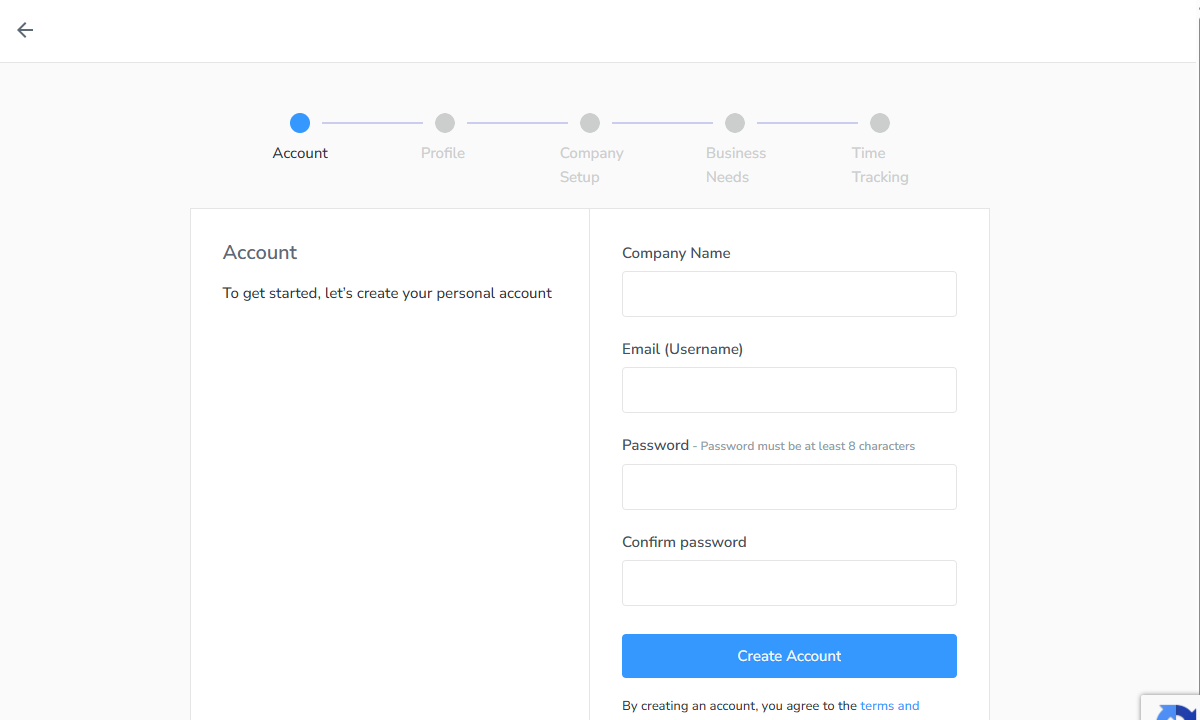
Once I finished the owner onboarding, busybusy gave me the option to start a 14-day free trial. This is optional; you can skip it to continue with the free plan. I used the trial for this review because it meant I could test all Premium features at no cost.
busybusy Onboarding
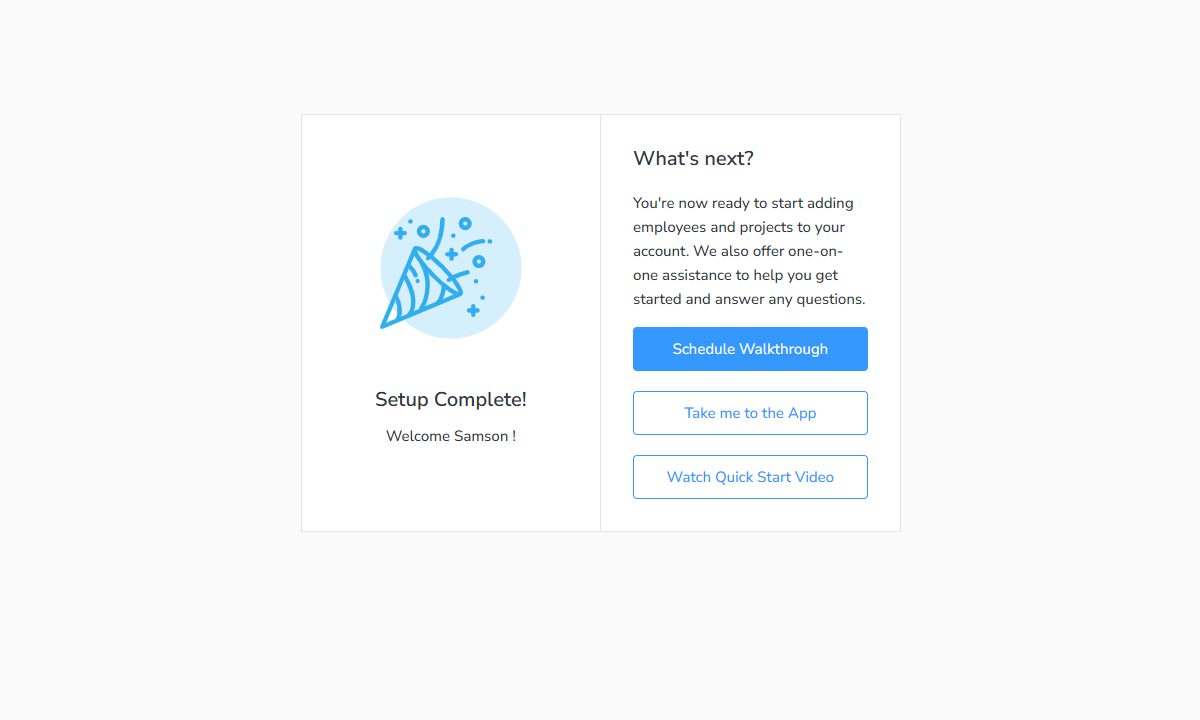
busybusy gives you three options when you sign up: “schedule a walkthrough,” “take me to the app,” and “watch the quickstart video.” I didn’t test the schedule walkthrough option, but it offers a one-on-one guided walkthrough with a busybusy agent, making it a good fit for beginners who need to quickly understand how each feature works.
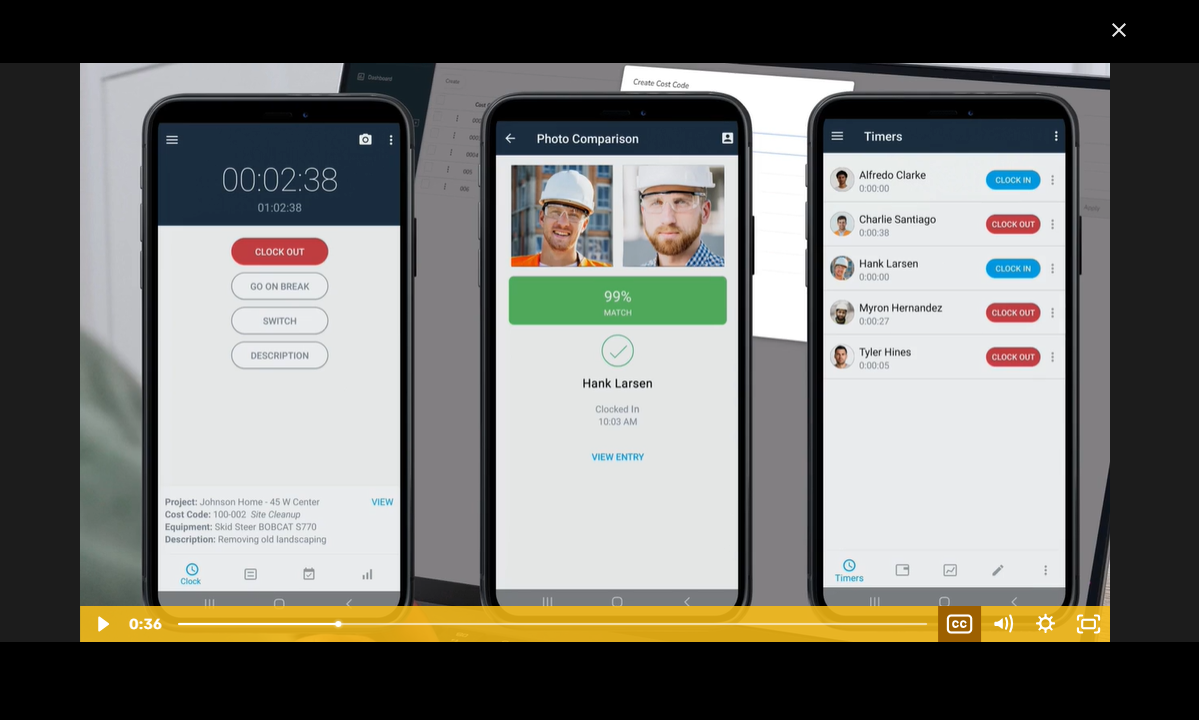
The quickstart video lasts 19 minutes and is designed to help familiarize you with busybusy’s features. The video is useful for newbies, especially since busybusy doesn’t offer a guided setup. I’d recommend watching it to help streamline the platform configuration process.
If you’re familiar with how time-tracking apps work, you can use the “take me to the app” option to explore busybusy on your own. I chose this option, and busybusy offered to play a two-minute video.
Rather than focus on how the key features work, the intro video emphasizes the app’s ease of use and benefits to pique your interest. What stood out to me was that it avoids the usual marketing hype, opting instead for a straightforward product walkthrough that helps users understand how various tools benefit their day-to-day operations.
I appreciate that busybusy groups all settings on one page, with a navigational panel to the left to simplify configuration. The layout, combined with the clean and intuitive interface, made it easy for me to configure essential settings, from timekeeping and timecard approval to budgeting and integrations. I needed roughly 30 minutes to get my mock team up and running.
Setting Up Your Team
I was disappointed to find that busybusy still lacks options to add employees in bulk — a limitation I highlighted in my last round of testing. You have to add employee emails one by one, as Busybusy doesn’t let you paste multiple emails at once, import users from third-party software, or use a link invitation. While manually adding employees one by one may be manageable for small teams, it becomes a major bottleneck for large organizations.
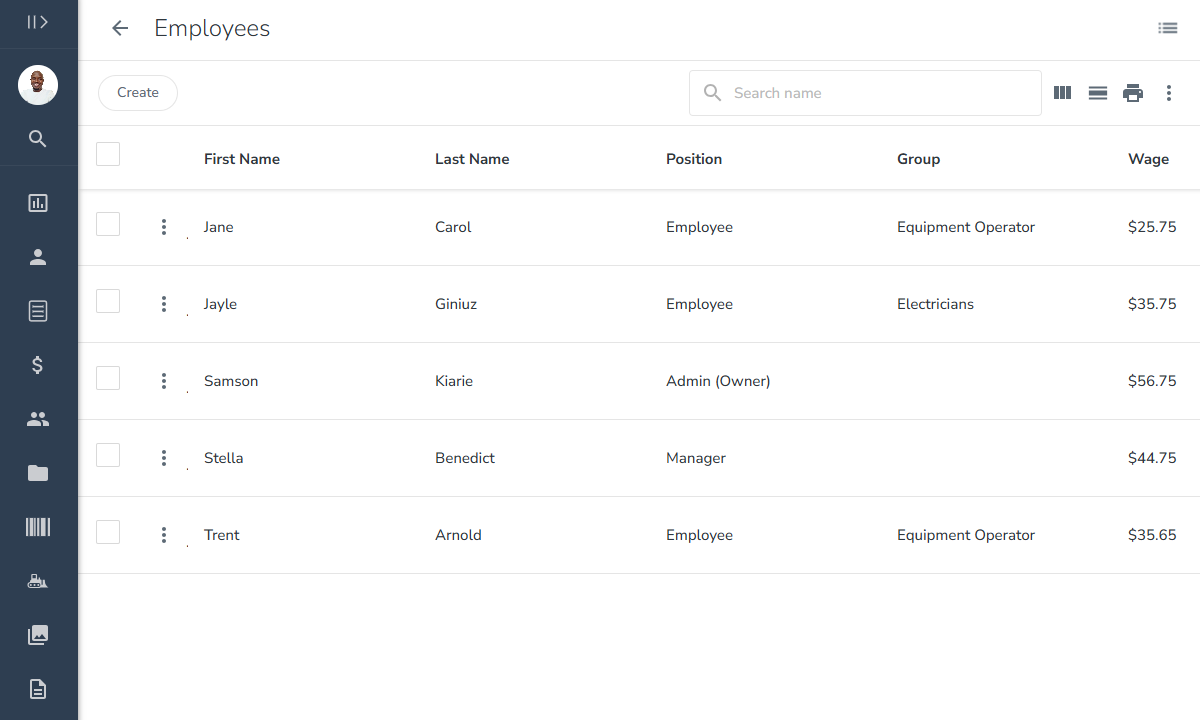
Companies with hundreds of employees could spend hours setting up their workforce, making the onboarding process more time-consuming than necessary. I’d like to see the vendor introduce faster onboarding methods, such as bulk email invitations, QR code invitations, CSV imports, or direct imports from third-party systems.
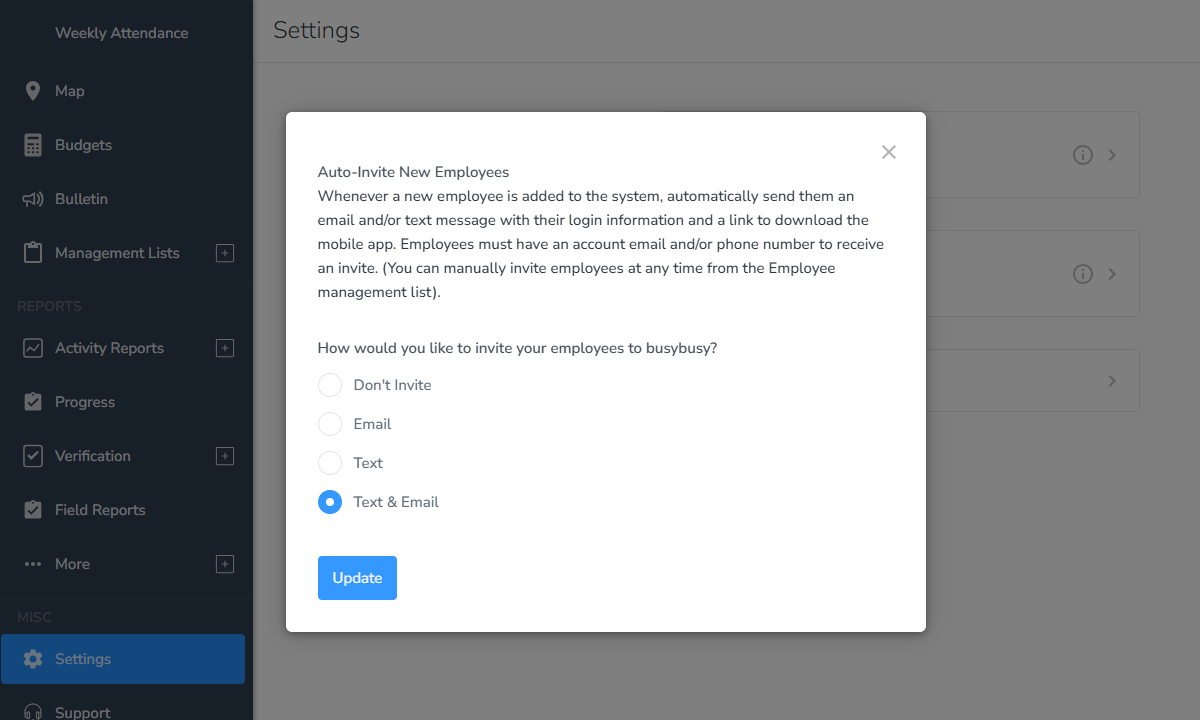
Another issue is that, even though I enabled auto-invite, busybusy did not automatically send email invites, suggesting the feature may be faulty. This means managers have to manually share employees’ login credentials. This adds extra administrative work and can significantly slow down onboarding for large teams.
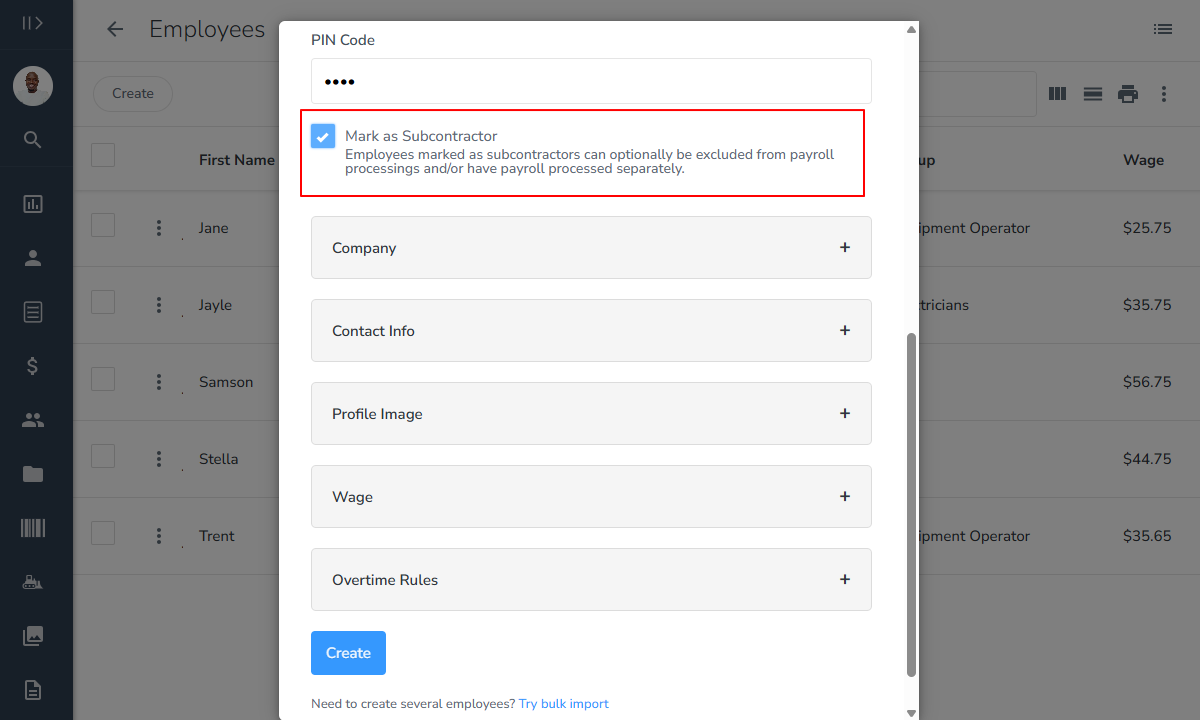
That issue aside, busybusy lets you add subcontractors, which is especially useful for construction companies that regularly work with external crews. This helps track subcontractor-related labor costs for accurate job costing without needing a separate platform.
Moreover, managers can add custom team positions, each with unique access permissions. I also like the employee group tool, which helps managers categorize workers by trade or specialty.
busybusy Usability and Interface
Verdict: 8.5/10
Overall, busybusy’s web and mobile apps are easy to use for managers and non-tech-savvy crew members. The clean and intuitive interface makes everyday tasks feel effortless, while the mobile app’s offline mode ensures workers can track time even on remote construction sites with no internet connection.
busybusy Web App
busybusy’s web app has a clean and intuitive user interface (UI) with two main areas: the menu to the left and the rest of the screen, which serves as the details area.
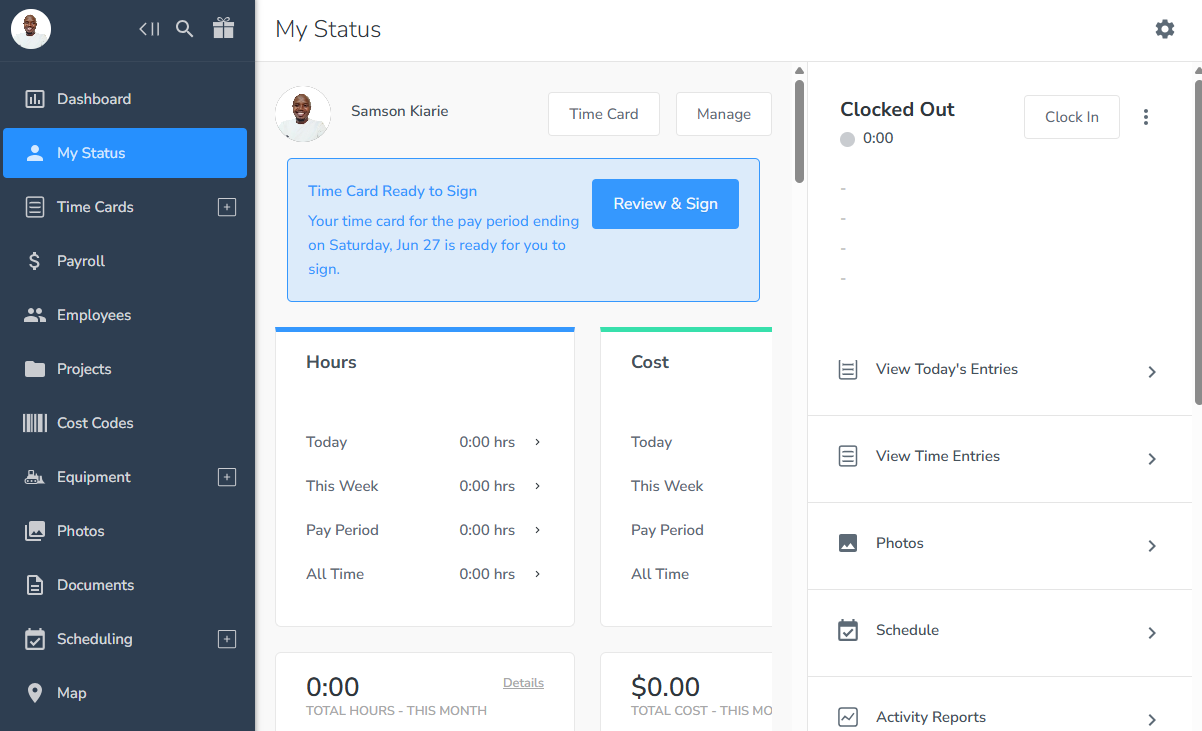
The menu items are neatly organized and clearly labeled to simplify navigation. Some, such as scheduling, time cards, verification, activity reports, and the management list, have nested sub-menus that open when clicked. I love this design because it keeps the main menu neat while allowing users to jump straight to what they want to accomplish.
busybusy uses gray and blue accents against a white background, largely omitting its signature yellow from the interface. This combination gives the UI a clean, professional look that’s easy on the eyes even during extended use. My only gripe is that some action buttons, like clock-in, don’t use solid colors, which makes them blend into the white interface and harder to spot at a glance.
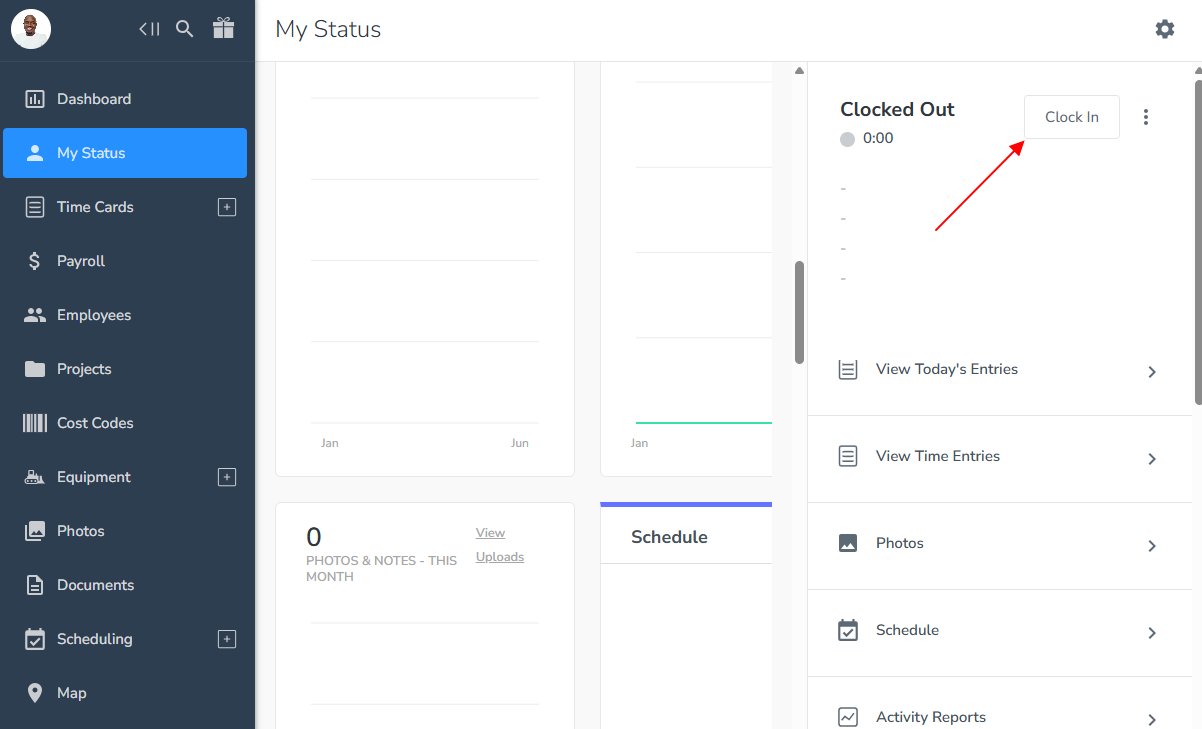
Rather than overwhelming employees with every available feature, busybusy tailors the UI to each user’s role. The employee version is lightweight, providing the features employees need to accomplish daily tasks such as clocking in and out, managing time cards, sharing documents, and viewing schedules.
On the other hand, the manager version packs in all the bells and whistles that help managers perform admin functions. It offers advanced features such as job costing, payroll data, and workforce management settings.
Unfortunately, busybusy’s web app is available only in English, making it less effective for non-English speakers. Moreover, it has no design tweaks for users with hearing impairments. On the plus side, the app’s muted color palette makes it more comfortable for users with photophobia and sensitivity to bright light.
busybusy Mobile App
busybusy is primarily geared towards the construction industry, where the workforce is predominantly in the field. To determine whether the mobile app suits this user group as intended, I placed extra emphasis on the ease of use and offline capability during my testing. I used the Android app for this review, but the description below applies to iOS, too.
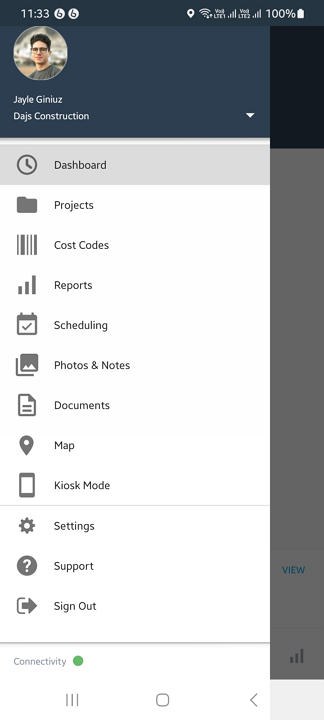
The mobile app’s UI is clutter-free and neatly organized to simplify usability. The features employees use frequently, such as the time clock, time cards, schedule, and reports, are situated at the bottom of the screen for easy access. However, the menu is available only from the dashboard, making navigation difficult when you move to other pages.
Additional options, like projects, cost codes, the map, and kiosk mode, are tucked under the hamburger icon at the top left.
While both the employee and manager versions are feature-rich, they differ slightly in capability. The employee version has all the features a field crew needs to complete daily tasks, such as tracking time, uploading documents, taking and uploading photos, requesting time off, and updating their profiles.
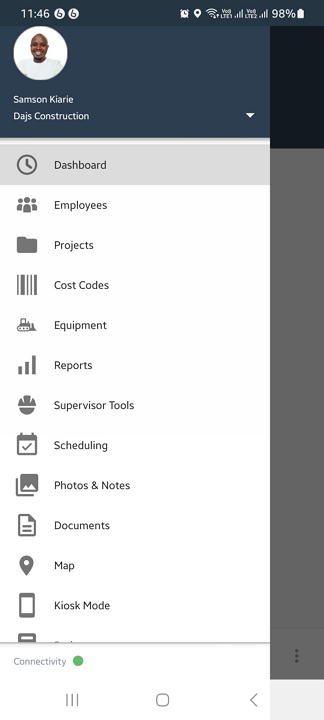
Managers can perform nearly all administrative tasks on the mobile app. In addition to tracking time, location, and equipment, they can add employees, projects, cost codes, schedules, and equipment, as well as handle approvals. The extensive range of admin tools is particularly helpful for site managers who need to perform certain admin duties while on the move or in the field.
busybusy Offline Mode
I came across several user reviews online claiming busybusy’s offline mode is inconsistent. To determine whether the vendor had revamped its offline mode, I turned off my mobile data multiple times during testing.
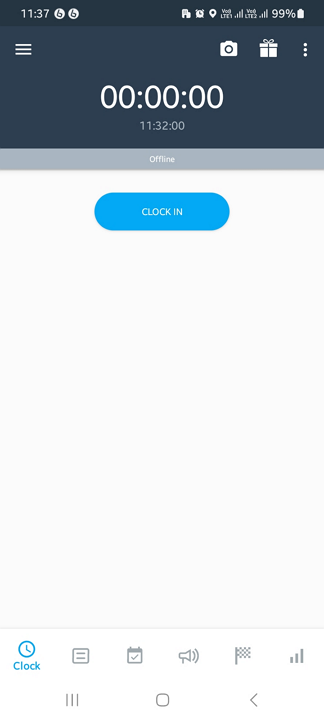
Luckily, the offline functionality worked without a hitch. The app tracked time accurately and allowed me to perform essential functions like switching tasks and starting breaks, which was impressive. My test result indicates that the busybusy mobile app’s offline mode is reliable.
| Menu Item | Admin | Employee | ||
|---|---|---|---|---|
| Website | Mobile App | Website | Mobile App | |
| Feature | ||||
| Timesheet | ✅ | ✅ | ✅ | ✅ |
| Time tracker | ✅ | ✅ | ✅ | ✅ |
| Calendar | ✅ | ✅ | ✅ | ✅ |
| Schedule | ✅ | ✅ | ✅ | ✅ |
| Expenses | ✅ | ✅ | ✅ | ✅ |
| Time off | ✅ | ❌ | ✅ | ❌ |
| Analysis | ||||
| Dashboard | ✅ | ❌ | ❌ | ❌ |
| Reports | ✅ | ❌ | ✅ | ✅ |
| Activity | ✅ | ❌ | ✅ | ❌ |
| Management | ||||
| Kiosks | ❌ | ❌ | ❌ | ❌ |
| Approvals | ✅ | ❌ | ❌ | ❌ |
| Projects | ✅ | ❌ | ✅ | ✅ |
| Team | ✅ | ❌ | ❌ | ❌ |
| Clients | ✅ | ❌ | ❌ | ❌ |
| Locations | ✅ | ❌ | ❌ | ❌ |
| Tags | ✅ | ❌ | ❌ | ❌ |
| Invoices | ❌ | ❌ | ❌ | ❌ |
busybusy Core Functionalities
busybusy packs a punch, making it ideal for construction business owners looking to streamline tracking time, location, and equipment. Here are the software’s main features:
-
Time Tracking
-
Break and Overtime Tracking
-
Shift Scheduling
-
GPS Location and Equipment Tracking
-
Paid Time Off Management
-
Job Costing
Verdict: 8.5/10
Overall, busybusy is a reliable time-tracking solution for construction and field service businesses. Employees can punch in and out using the mobile or kiosk app even without an internet connection, making it ideal for remote jobsites. Plus, with robust clock-in restrictions, busybusy helps curb time theft, improve timesheet accuracy, and protect your bottom line.
Since busybusy’s time tracker is built primarily for construction businesses, I was happy to see that it provides multiple ways for employees to track time. Employees in the back office can track time on any internet-enabled device, whereas the field crew can use the mobile and kiosk apps to log hours.
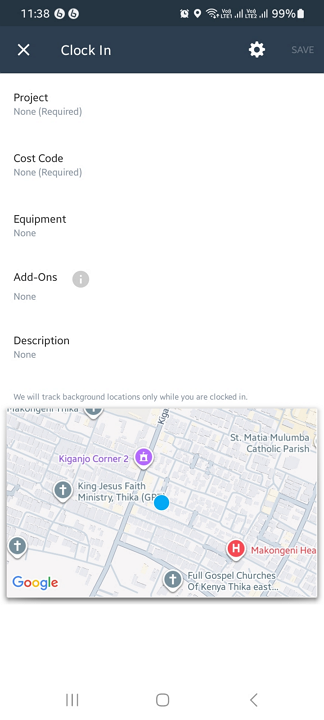
I was particularly impressed by the mobile app’s timer, which is intuitive and fully functional offline. I turned off my internet connection during one of my test runs, and I was able to clock in and out seamlessly. This makes it a perfect fit for field crews working in regions with low cellular connectivity.
I also like that the busybusy kiosk app works on any device, including smartphones, which eliminates the need to invest in expensive gadgets. I set up the kiosk punch clock on an Android smartphone and found it easy to use. It’s an effective tool for businesses that want multiple employees to punch in/out from a central device.

Launching the kiosk mode is straightforward. The supervisor just needs to select “kiosk mode” from the mobile app menu and enter a unique PIN. Moreover, I found it easy to punch in and out on the kiosk app. All I needed to do was select my profile from the list, enter my unique PIN, select the project and cost code, and take a selfie.
Clock-In Restrictions
I appreciate that busybusy applies various clock-in restrictions to ensure timesheets are accurate. For example, managers can require employees to select a project and cost codes when they clock in or switch tasks, ensuring time is attributed to the right project and activity.
Additionally, busybusy’s geofencing tool prevented me from clocking in outside the mock jobsite. Once I had entered the designated jobsite, the app sent a clock-in reminder within five minutes of my arrival, which I appreciated.
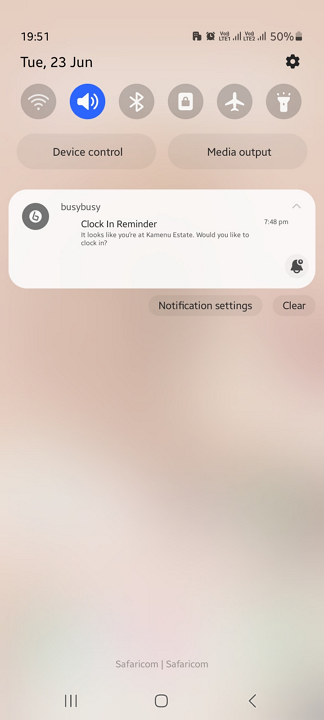
The geofence prevents off-site punching, ensuring crew members don’t milk the clock to claim a higher wage, while the reminder ensures employees never forget to clock in or out, enhancing timecard accuracy. Bear in mind that geofences are linked to projects, so you’ll have to make it mandatory for employees to select a project when clocking in to ensure strict enforcement.
In addition to the geofence, I found busybusy’s facial verification system to be effective. While the most advanced facial verification apps prevent employees from clocking in if a facial mismatch is detected, busybusy takes a manual approach.
busybusy requires employees to take a selfie when clocking in via the mobile or kiosk app, which the app attaches to the employee timesheet. Managers can then scan through photo verification reports to pinpoint buddy punchers. This manual approach works well for companies with small teams, but it can be tedious and ineffective for large teams.

Verdict: 7.5/10
busybusy handles the basics of break and overtime tracking well, but falls short on compliance with strict labor laws. While it tracks standard breaks and overtime, it doesn’t support paid breaks or advanced overtime rules such as holiday and seventh-consecutive-day overtime, making it less suitable for businesses operating in jurisdictions with complex labor laws.
While busybusy supports both manual and automatic breaks, it lacks a dedicated break settings page. Managers can either set automatic breaks on the position page or schedule manual breaks when assigning shifts. The lack of a centralized break management page means managers must configure rules individually or by position, making setup more time-consuming.
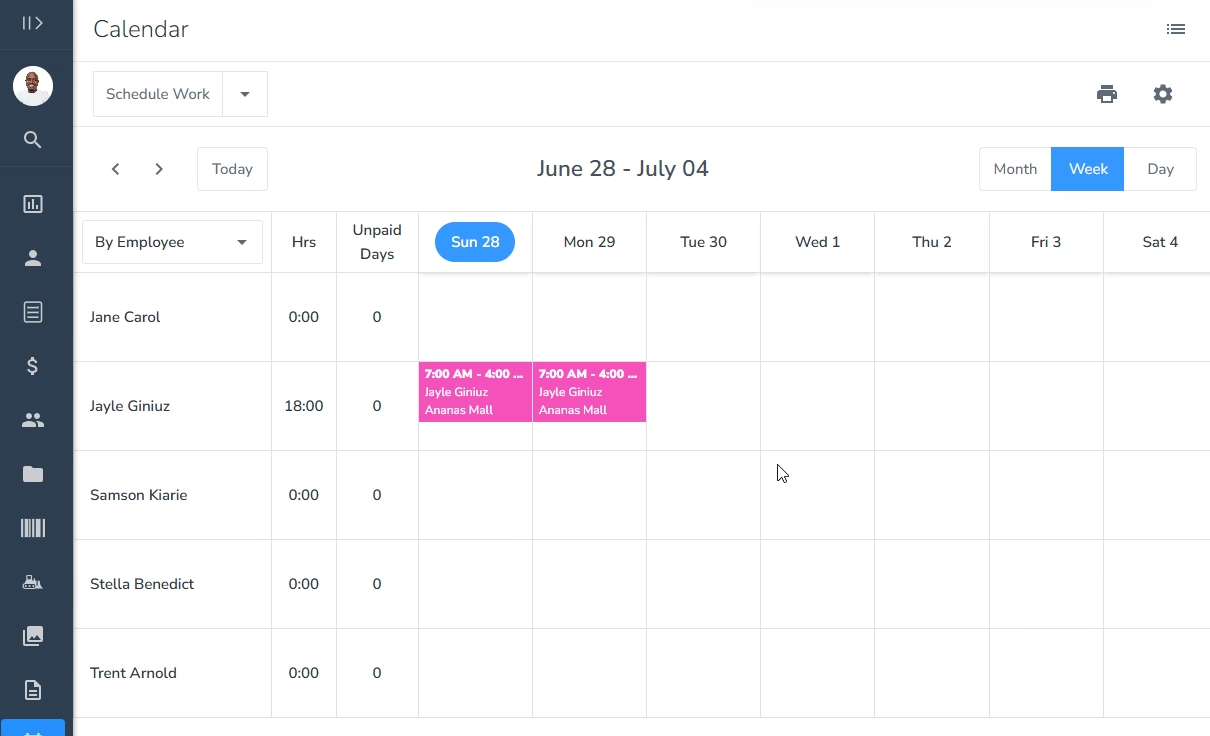
The main benefit is that managers can schedule breaks across multiple days, eliminating the need to recreate them every time they assign a shift. Moreover, you can set breaks to recur – say, every five hours – so that workers are assigned multiple breaks during longer shifts.
Bear in mind that busybusy treats all breaks as unpaid and automatically deducts them from employees’ timesheets. The inability to track paid breaks makes busybusy a poor fit for businesses in jurisdictions such as California, where employers are generally required to provide both paid and unpaid breaks.
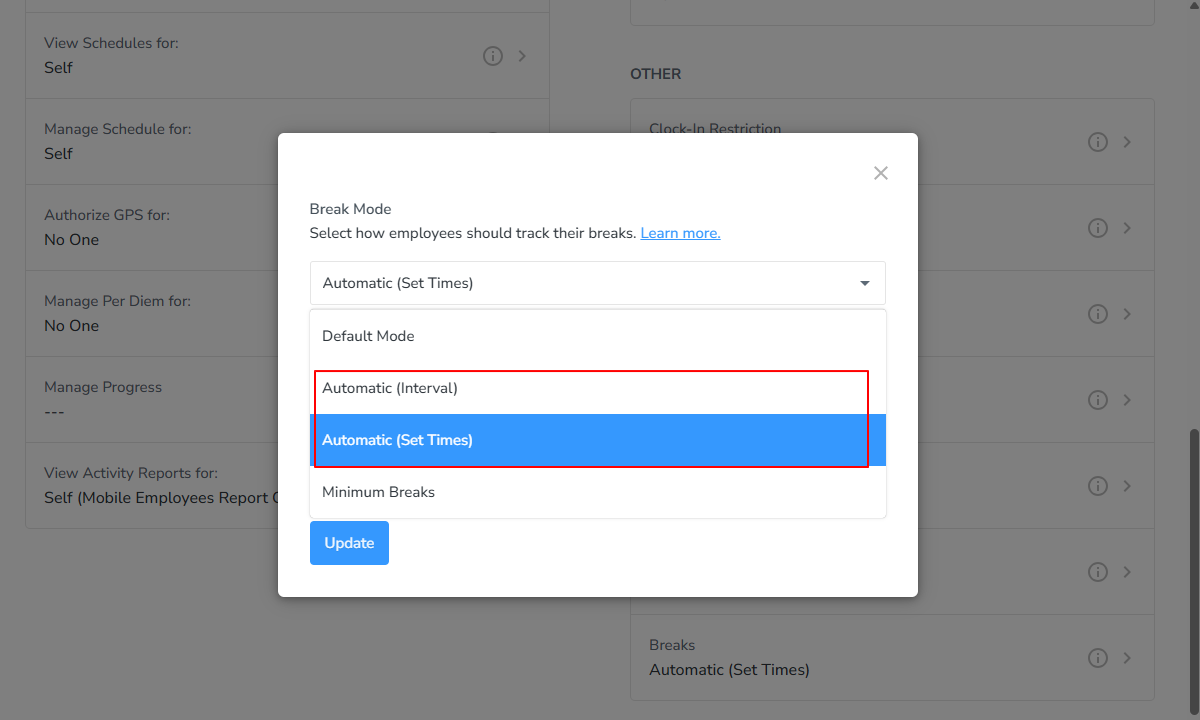
Busybusy claims to send employees reminders to start and end breaks in time. According to the vendor, the reminders are preconfigured and work only when you use the automatic break “set times” or “interval” options. I tested out both options, and never received any reminder to start or end break, which suggests the functionality is ineffective.
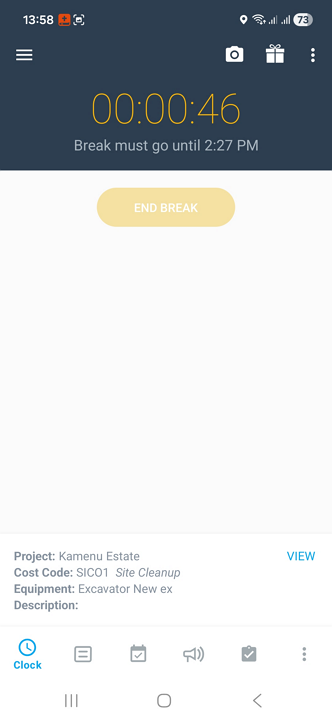
Managers can also enable the “minimum break duration” feature to ensure employees can’t end their break early. Once enabled, busybusy disables the “end break” button when a worker manually starts a break. During testing, the button only became active after the 30 minutes of break had elapsed, effectively preventing me from ending the break early.
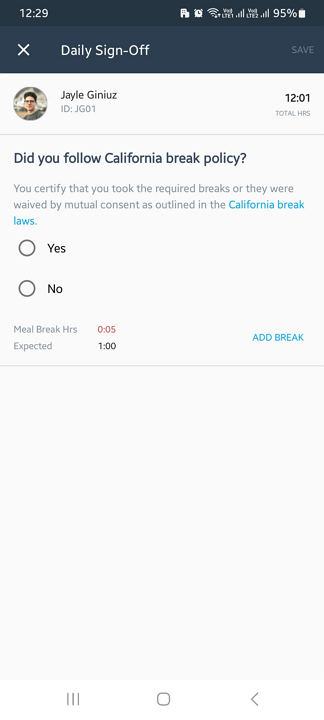
busybusy also offers a break attestation tool to help safeguard your company from potential lawsuits and hefty penalties. When I attempted to clock out, the app displayed a daily sign-off form, requiring me to indicate whether I had taken the legally mandated break. Clicking “no” led busybusy to alert the manager, prompting them to look into the reported violation.
Overtime Tracking
Unlike break tracking, overtime settings have their own dedicated page, making it easy to configure rules. I liked that busybusy lets you apply preconfigured overtime settings, such as California overtime, or set custom rules to align with local labor laws.
I used the California overtime settings for this review. With these settings enabled, I expected busybusy to record daily overtime after eight regular hours, daily double time after 12 hours, and weekly overtime after 40 hours of work.
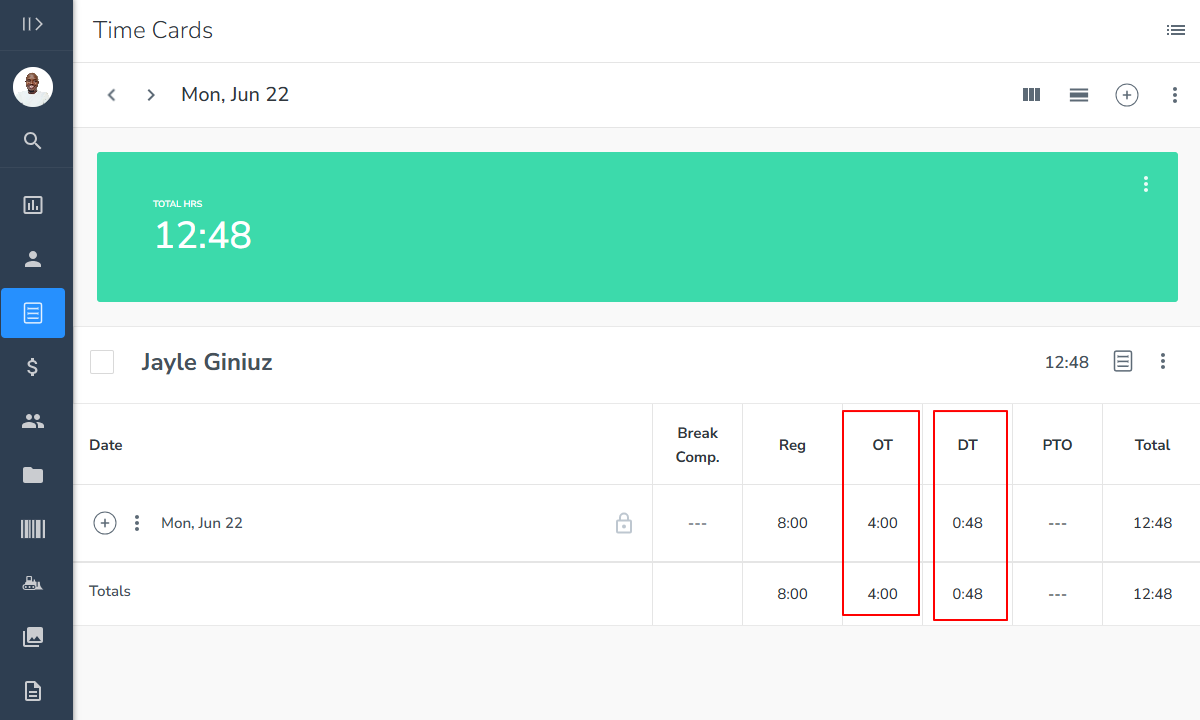
I clocked in at 8:01 AM and clocked out at 9:19 PM, and the app accurately logged eight regular hours, four overtime hours, and 48 minutes of double time. busybusy demonstrated pinpoint accuracy, factoring in the 30-minute manual break in its calculation. These results indicate that busybusy is reliable in calculating employee overtime.
Verdict: 7/10
Overall, busybusy suffices for small businesses with simple scheduling needs. However, the lack of automation and compliance features makes it less suitable for large companies, where manual scheduling increases admin workload, reduces efficiency, and increases the risk of compliance violations.
Like the best employee scheduling platforms, busybusy lets managers build schedules on a page with a calendar layout. You can switch between the daily, weekly, and monthly views depending on what works best for your needs.
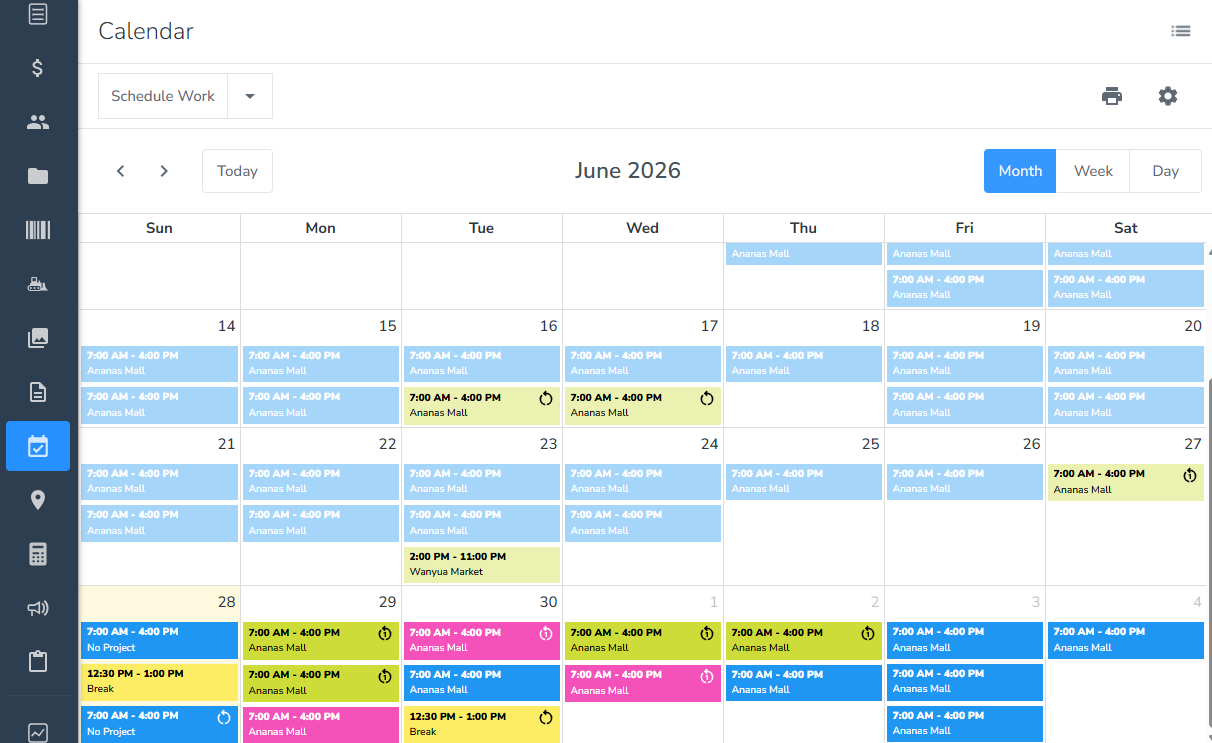
I did notice that there’s no default view. Instead, busybusy automatically returns you to the last view used. This makes it easy to pick up where you left off without having to reselect your preferred layout each time. I used the weekly and monthly views during testing and found them easy to work with.
Creating a shift is as easy as clicking a tile on the calendar and adding the shift parameters, such as assignee, time, project, cost code, and instructions. I like the color-coding option, which helps quickly distinguish among crews, projects, or shift types at a glance.
Feature-wise, busybusy’s scheduling app has all the essential tools, but it lacks advanced features and automations. The drag-and-drop scheduler helps speed up scheduling and is particularly useful for reassigning shifts to balance the workload and cover gaps. You can also copy and paste shifts to quickly replicate recurring schedules without having to build them from scratch, saving time.
busybusy Scheduling Issues
While busybusy worked well during testing, I noticed a few minor weak spots. One is that the platform doesn’t include built-in tools to enforce employee work-hour limits – tools I find useful for strict compliance with labor laws and internal policies. However, busybusy implements a unique approach to prevent certain scheduling errors.
For example, when I assigned an employee to a shift, busybusy automatically removed them from the list of available workers for that day. This effectively prevented me from accidentally assigning overlapping shifts. This approach works, but it can be restrictive for businesses whose employees can work multiple shifts on the same day.
Another issue is that busybusy has limited employee self-service capabilities. Aside from setting their availability, employees can’t accept, reject, trade, or swap shifts. As a result, workers have little control over their schedules and have to rely on managers to handle all changes.
What’s more, busybusy lacks advanced scheduling automation features beyond recurring shifts. Unlike the leading employee scheduling platforms, which let managers assign hundreds of shifts in minutes, busybusy requires managers to assign most shifts manually. For this reason, it may not be suitable for larger teams that need to build schedules quickly.
Verdict: 8/10
Overall, busybusy’s GPS tracking is reliable, giving managers real-time visibility into crew locations, active jobs, and equipment usage. These insights help construction companies dispatch crews and equipment more efficiently while improving field oversight.
busybusy’s GPS location tracker is a useful tool for managers who want to stay on top of employees’ whereabouts to improve safety and accountability. Managers can open the map to see the locations of clocked-in employees (green), projects (purple), and equipment (orange).
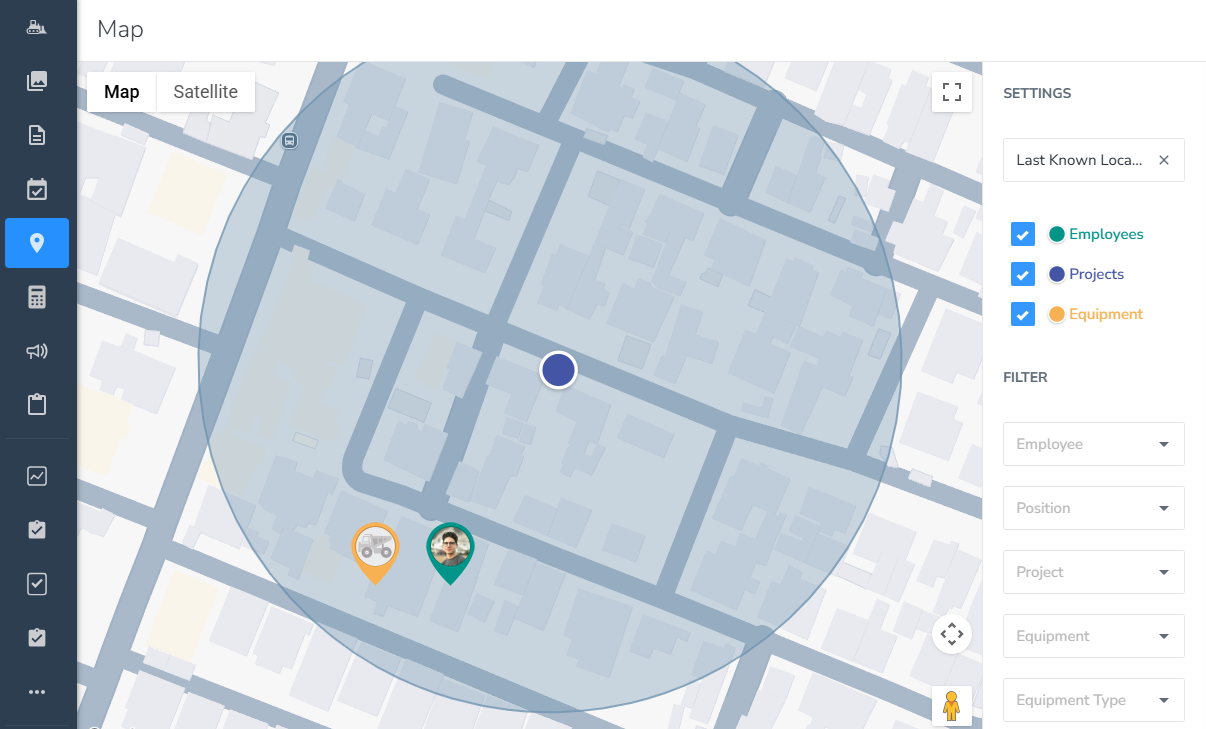
Color coding helps distinguish between employees, projects, and equipment at a glance, which is helpful in the construction industry. Managers can easily coordinate field operations, quickly allocate resources, and effectively respond to changing jobsite needs.
You can click the green pin to see additional details such as the project an employee is working on, when they started the job, and the equipment they’re using. Moreover, managers can click the target icon to view the routes taken by engineers, site managers, delivery drivers, and other mobile workers traveling between sites during the day.
I appreciate that busybusy’s routes use breadcrumbs to depict when and where a field activity took place. You can see when an employee clocked in (green pin), clocked out (red pin), or started/ended a break (orange pin).
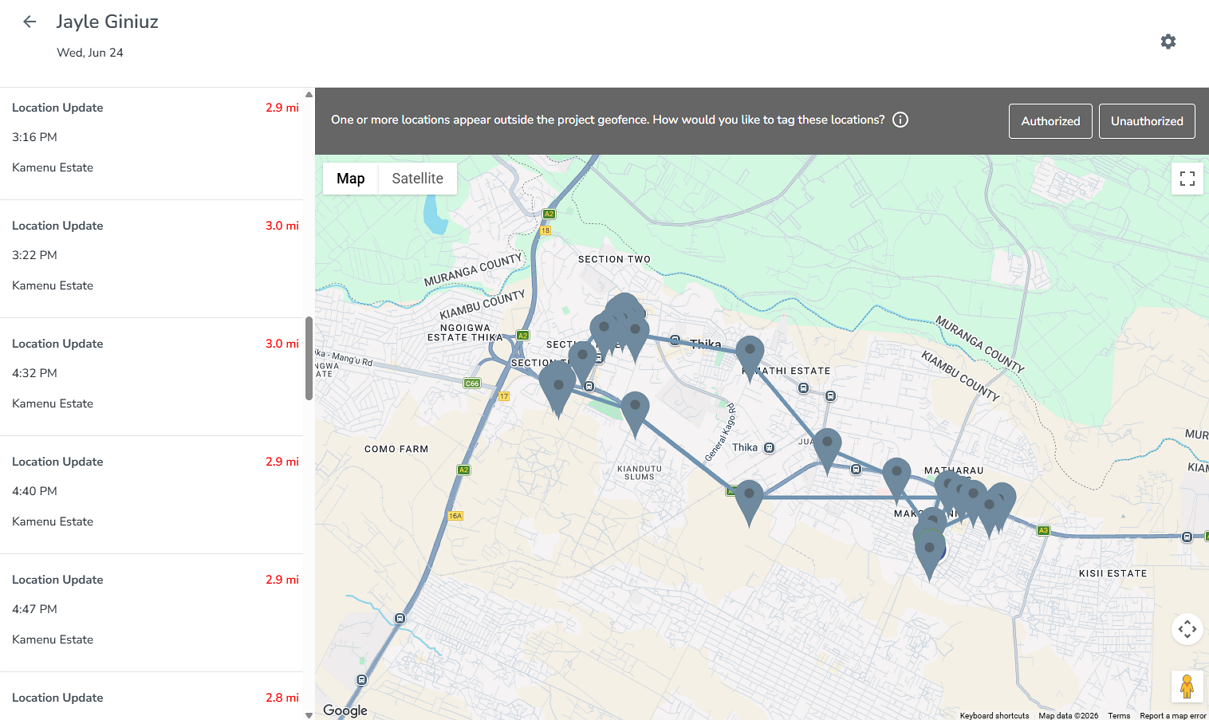
However, busybusy connects these breadcrumbs with straight lines, so the route doesn’t accurately reflect the path the employee actually took. This limits its usefulness for teams that require turn-by-turn route maps to verify and analyze employee movement throughout the day.
Equipment Tracking
You don’t need to invest in additional gadgets to track equipment. Instead, the employee just needs to select the equipment they will use for the day when clocking in. The app tracks the location of each piece of equipment based on the location of the employee assigned to it. Managers get a bird’s-eye view of the equipment at each construction site.
In addition, the app logs vital hour meter readings, enabling you to monitor the working versus idle time for each piece of equipment. These insights allow you to determine which machines are being overused or underutilized. With these insights, you can optimize machine usage and sidestep the hefty maintenance costs that nibble away at your profits.
Verdict: 6/10
busybusy’s PTO management module is trimmed down to the basics, making it ideal for small construction companies with straightforward leave policies. However, the lack of PTO accrual options limits its usefulness for companies that need automated leave tracking and have multiple crews and locations.
busybusy’s built-in paid time off (PTO) management feature is limited compared to some competitors. For example, it doesn’t support fixed or hourly PTO accruals. Therefore, you can’t automate how employees earn time off, which makes it unsuitable for large construction companies with multiple crews, locations, and types of workforce.
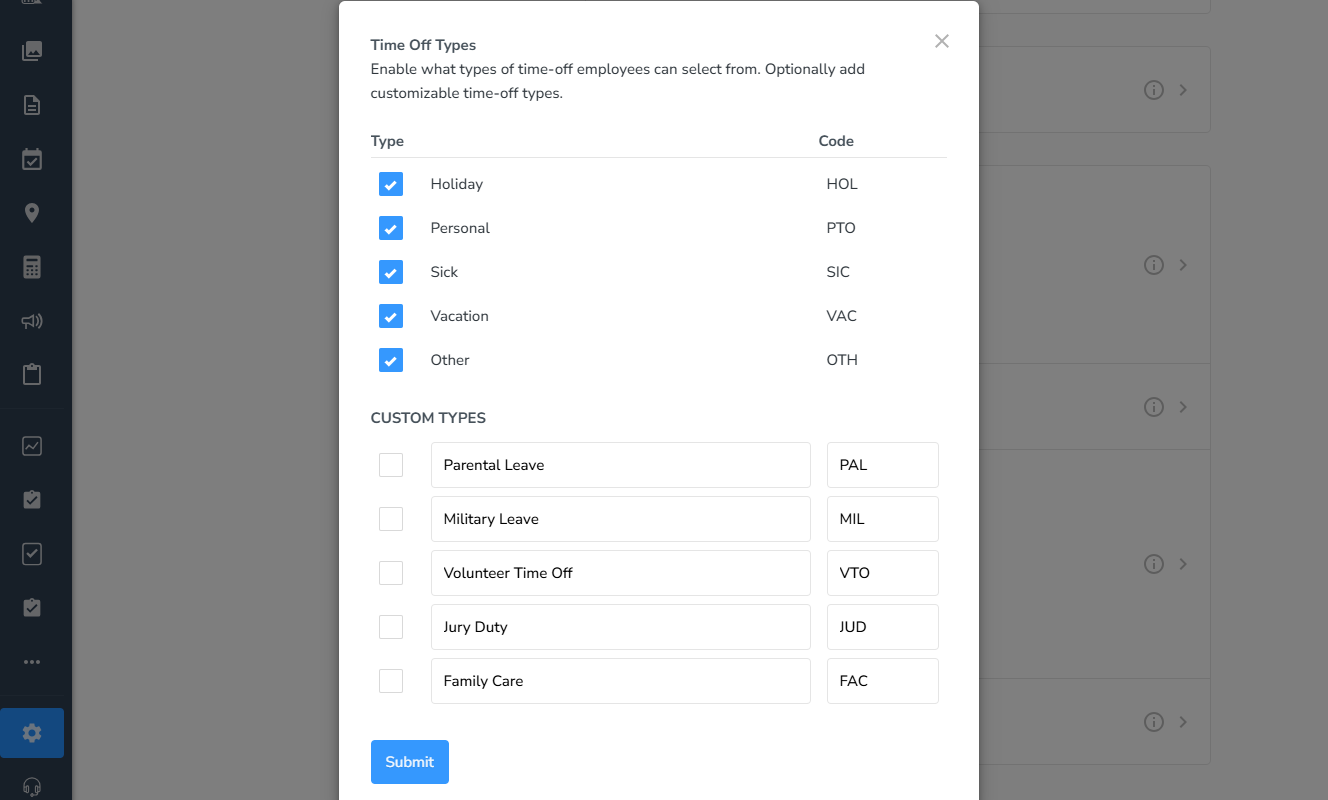
However, small companies with relatively simple leave policies will find busybusy useful, as it lets managers set PTO types to align with their internal policies. I appreciate that employees can request time off directly from the mobile app, which is especially useful in the construction industry, where crew members are predominantly in the field.
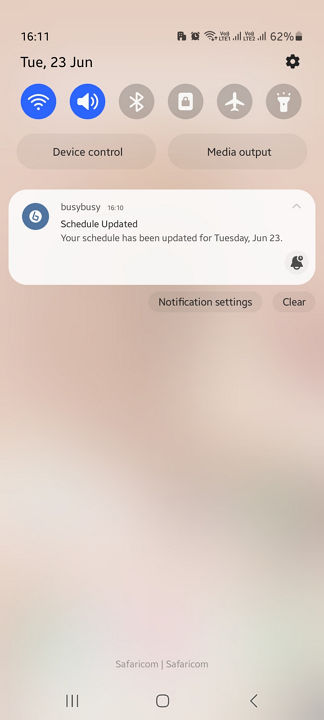
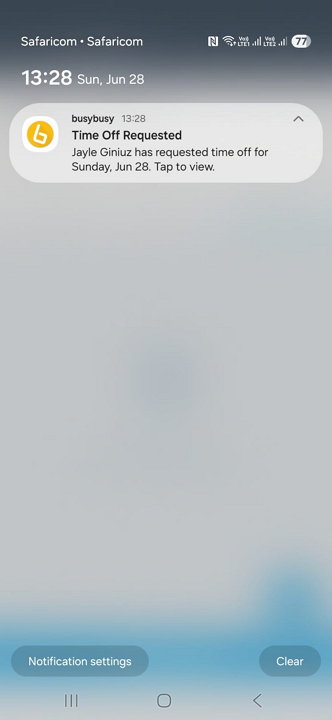
busybusy notified me (the manager) immediately when an employee submitted a time-off request. In a real workplace, timely notifications enable managers to review and approve leave promptly. This helps ensure no request is overlooked and enables employees to plan ahead with confidence.
Verdict: 8.5/10
busybusy’s job cost codes are invaluable for construction companies that need detailed labor tracking and accurate job costing. They help track labor costs by task, improving budgeting, estimating, and profitability analysis. However, the inability to assign different pay rates to individual cost codes limits payroll accuracy for employees engaged in multiple trades.
Job cost coding is one of my favorite busybusy tools because it helps businesses track exactly the type of work crew members are performing on a project. The feature is simple and allows managers to create a cost code and specify the unit of measurement.
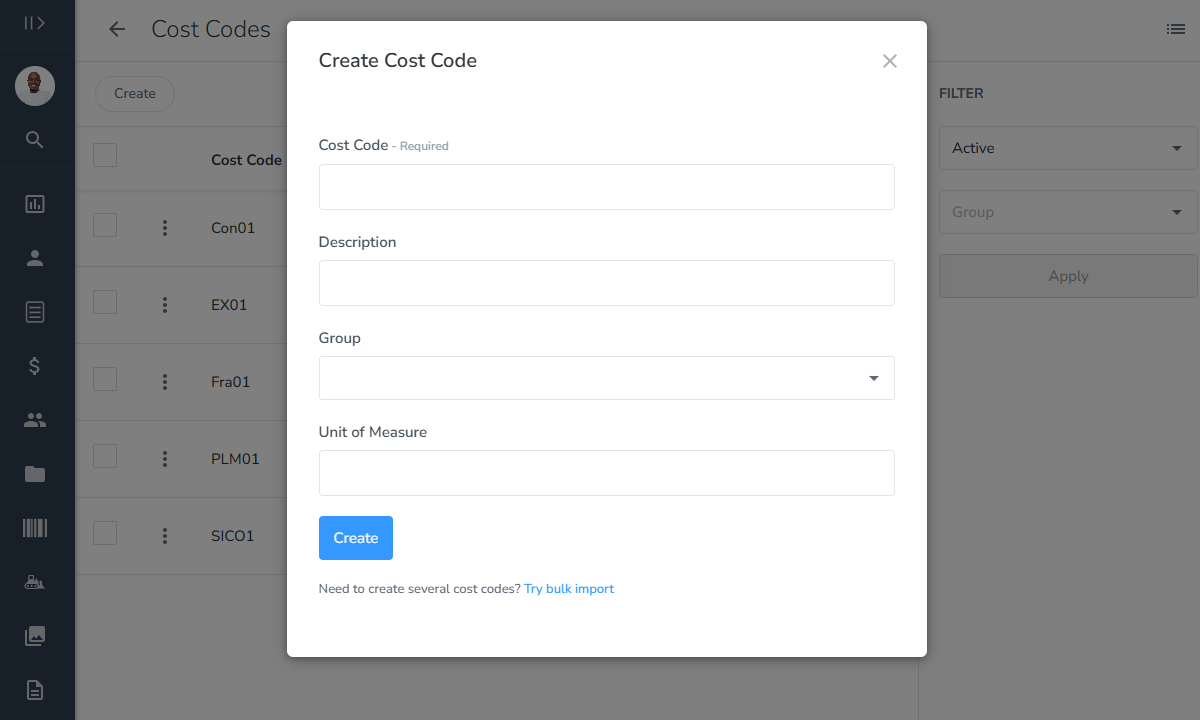
During testing, I made it mandatory for employees to pick a project and cost code when clocking in. For example, an employee working on plumbing tasks can select a project – say, Ananas Mall – and the cost code PLUM01. If the same employee later switches to fixture installation, they can pick a different cost code accordingly without clocking out of the Ananas Mall project.
Switching cost codes enables busybusy to allocate labor hours to a specific project activity rather than lumping them together under a single project total. For example, instead of seeing that a project consumed 300 hours, the manager sees exactly how many hours were spent on each activity for that project.
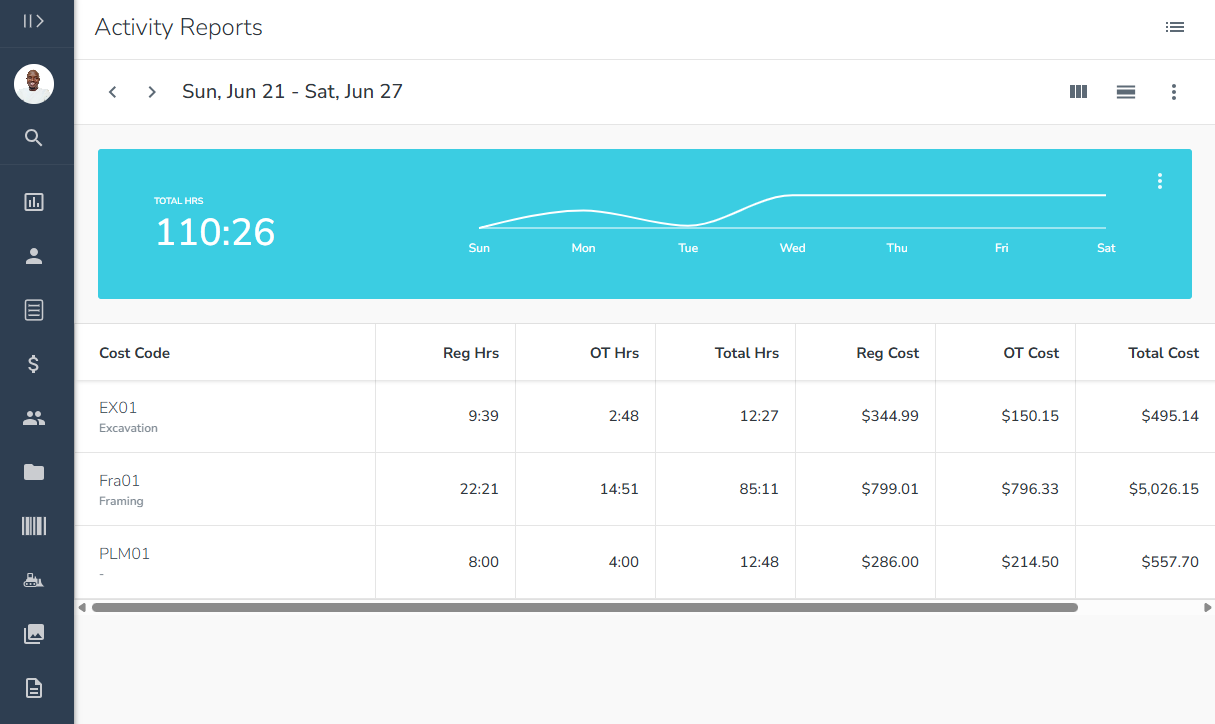
This detailed labor cost breakdown provides much more granular job costing, enabling managers to see which trades are over or under budget, which tasks consume the highest proportion of the labor budget, where profitability is being lost, and more. This level of detail improves job costing and enables managers to make better operational and estimating decisions.
That said, I wish busybusy allowed managers to set different pay rates for each trade. This would greatly improve wage determination for employees working various trades. Different tasks in the construction industry fetch different rates: employees laying a sewer pipe won’t earn the same as those digging a trench.
busybusy Reporting and Analytics
Verdict: 6/10
busybusy’s reporting is best suited for experienced managers who need detailed operations and compliance insights rather than flashy analytics. However, the lack of visual analytics, scheduled reports, and easy sharing makes reporting less effective for collaborative, data-driven organizations.
busybusy provides 17 reports, excluding the dashboard summaries. While it isn’t the most extensive library of reports I’ve encountered, I appreciate the depth of some of them. Notable reports include:
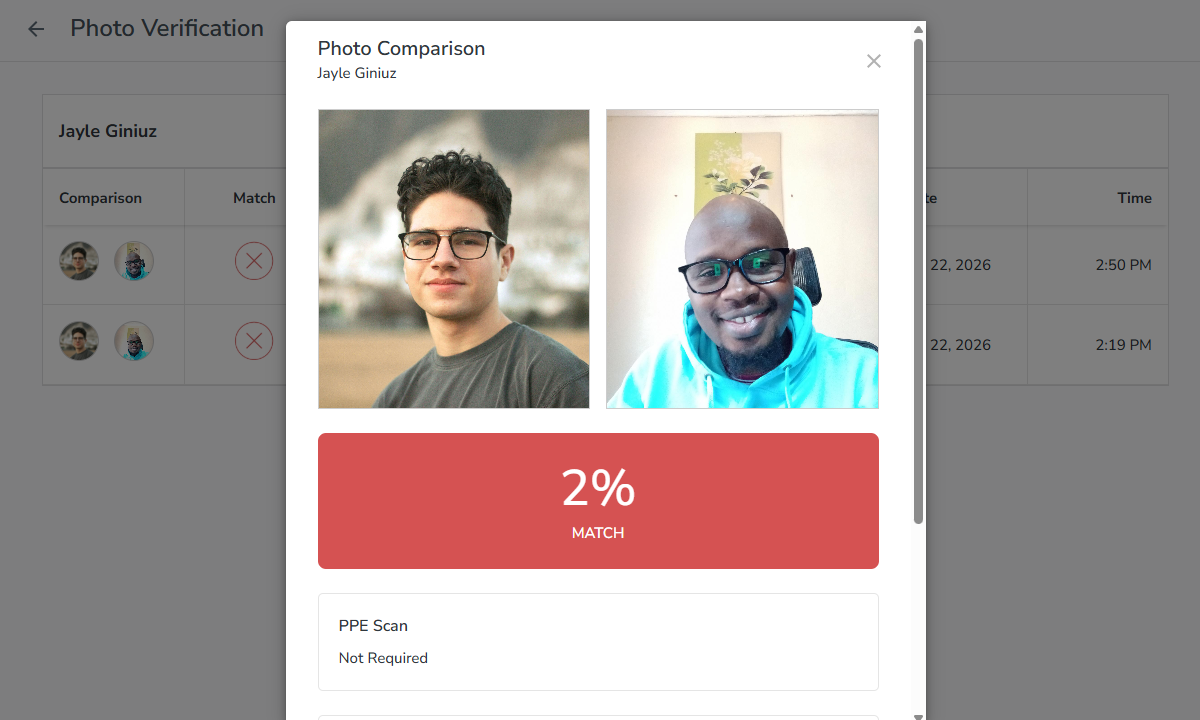
- Photo verification report: This report compiles all photo verification instances on a single dashboard, making it easy to catch buddy punchers. You can quickly pinpoint failed photo matches and determine when the buddy punch occurred – during clock-in and out or at break start and end.
- Daily sign-off report: This report is indispensable for businesses that value compliance. It compiles incidents reported on the daily sign-off form, flagging any issues related to timecard accuracy and break compliance.
- Real-time dashboard: This is not an actual report but provides an at-a-glance view of the most crucial team performance metrics. The charts and graphs enable you to monitor attendance, labor costs, compliance issues, and field activities in real time for better decision-making.
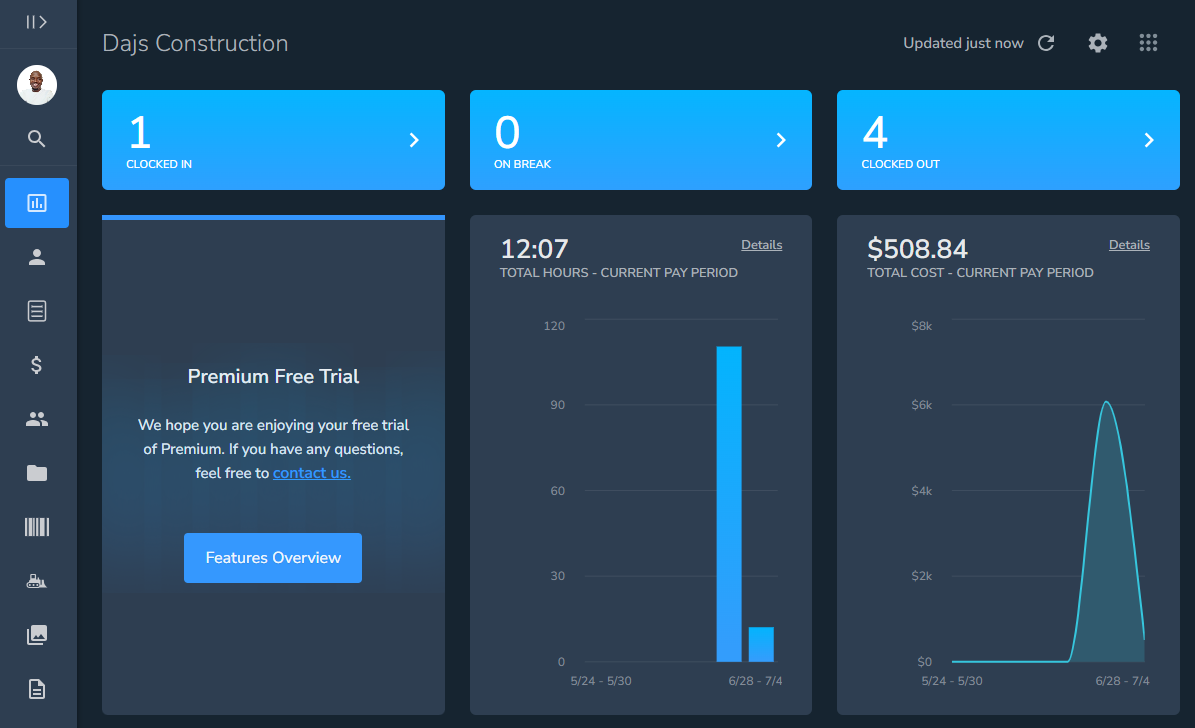
With the exception of the dashboard, most other reports present data in table form rather than in charts and graphs. As a result, managers have to manually sift through the reports to identify trends and spot anomalies. This makes the reports more valuable to experienced managers than those looking for quick, visual analytics.
When it comes to report sharing, busybusy lets you download only CSV reports. You can’t schedule reports to be delivered to your email or share important reports via links, which is disappointing. This makes busybusy’s reporting capabilities unsuitable for managers who need to frequently share reports to keep stakeholders up to date.
busybusy Security and Privacy
Verdict: 7.5/10
Overall, busybusy provides essential security features, including robust encryption and role-based access controls. It lacks GDPR and HIPAA compliance, but this isn’t an issue considering it’s geared towards construction businesses in the United States. However, the lack of industry-standard certification makes it less suitable for large construction companies and government contractors.
| Feature | Availability |
|---|---|
| Data encryption | ✅ TLS in transit and AES 256-bit at rest |
| GDPR compliant | ❌ |
| HIPAA compliant | ❌ |
| Certification | ❌ |
| MFA/2FA | ❌ |
| Admin controls | ✅ Role-based access control |
| Hosting region | Not specified |
When it comes to security and privacy, busybusy covers the basics well for construction and field service businesses. It encrypts data in transit and at rest, and offers role-based access controls to ensure employees can access only the data relevant to their roles.
The vendor isn’t GDPR or HIPAA compliant, but this isn’t a downside per se. busybusy is highly tailored for construction and field service businesses in the United States, so GDPR compliance isn’t a must-have unless those businesses also employ workers in the European Union. Moreover, the vendor is not geared toward healthcare entities, which makes HIPAA compliance largely irrelevant.
My only gripe is that busybusy lacks some industry-standard certification, such as ISO 27001, though its parent company, AlignOps does have a SOC2 certification. This omission is unlikely to be a concern for small and mid-sized construction companies that typically prioritize practical security features over formal compliance frameworks. However, it can be a dealbreaker for large construction firms and government contractors with strict security requirements.
busybusy Customer Support
Verdict: 7.5/10
Overall, busybusy delivers excellent customer support through various channels. However, the limited accessibility of its help center and the fact that live chat is restricted to business hours can be frustrating for users who need instant support outside the predefined business hours.
| Support Type | Availability |
|---|---|
| Live chat | ✅ |
| Phone support | ✅ |
| Email support | ✅ |
| Community forum | ❌ |
| Ticket submission | ❌ |
| Help center | ✅ |
BusyBusy’s commitment to customer support is evident from the moment you create an account.
During my testing, a member of the support team reached out via phone and email within minutes of sign-up to learn more about my business needs and offer guidance on configuring the platform. This thoughtful onboarding touch ensures users get up and running quickly and make the most of every feature from day one.
I had an excellent experience with the live chat and help center. I was able to quickly find guides in the help center, and the steps included product screenshots that made the instructions easy to follow. Moreover, the AI chatbot provided satisfactory answers, and the human agents were fast and knowledgeable when available.
However, I was unimpressed by the availability of both channels. For example, busybusy’s help center is available only when users are logged in. When I logged out, I could access help only through AlignOps (busybusy’s parent company), which has just three guides.
In addition, live chat agents are available during business hours only. Outside business hours, it will take longer to get a response.
What Are busybusy’s Review Ratings From Review Sites?
(As of June 2026)
busybusy App Review
Busybusy streamlines time tracking and shift scheduling for small and mid-sized construction companies. While its feature set isn’t as extensive as some of the leading time-tracking solutions, standout capabilities such as offline mode make it particularly well suited for field crews. This, combined with geofencing and facial recognition, reduces the risk of missing or inaccurate timesheets.
Moreover, busybusy provides essential scheduling tools, including a drag-and-drop scheduler, recurring shifts, and shift copying. These features enable managers to schedule shifts so each crew member always knows where they should be and what they should be working on. However, the lack of automation features makes it a poor fit for large construction companies.
While busybusy works for companies with basic scheduling and time-tracking needs, it may be unsuitable for companies with compliance needs. It tracks overtime accurately, but lacks proper tools to enforce paid break rules. I was also disappointed by the lack of employee limits and scheduling rules, which makes it difficult to create compliant schedules.
What’s more, busybusy is more expensive than other products in its category. Its limited feature set and lack of automation and compliance features diminish its value for money. If you want an affordable platform with advanced automation tools, there are many options, such as Connecteam.
Connecteam: The Better busybusy Alternative
Truth be told, I didn’t find any significant flaws with busybusy: its features worked exactly as expected throughout my testing. However, I did find a few automation and compliance gaps that limit busybusy’s usefulness for companies looking to automate workforce management, meet stringent regulatory requirements, and enforce complex labor policies.
If your priority is enforcing labor policies, preventing timesheet errors, automating workforce controls, and reducing compliance risk, Connecteam provides a more comprehensive and proactive suite. Some of the benefits of using Connecteam over busybusy include:
Accurate, Compliant Time Tracking
Both Connecteam and busybusy allow employees to track regular hours, overtime, and breaks on web, mobile, and kiosk apps. They also support geofencing and facial recognition, helping companies eliminate time theft and streamline payroll. However, Connecteam is better at enforcing internal policies, industry regulations, and labor laws.
For example, Connecteam’s time-tracking app helps prevent schedule-related time theft that inflates labor costs. It prevents clocking in without an assigned shift, ensuring that crew members log hours only when they are scheduled to work. This goes a long way towards reducing unauthorized work hours and accidental overtime, benefits that busybusy doesn’t provide.
Moreover, while both platforms accurately track daily overtime, double time, and weekly overtime, Connecteam’s overtime tracker is more advanced. It helps track holiday and seventh-consecutive-day overtime, making it a great fit for companies that schedule employees across weekends, holidays, and extended workweeks.
What’s more, Connecteam offers more robust break compliance. The flexible, centralized administration of break policies means managers can create comprehensive policies that align with labor laws. I’ve found Connecteam particularly helpful for businesses operating in regions that require strict compliance with both rest and meal laws, like California.
Faster, Compliant Scheduling
Compared to busybusy, which requires managers to handle much of the scheduling manually, Connecteam offers a more efficient, automated experience. My favorite tool is Connecteam’s auto-scheduler, which lets managers assign hundreds of shifts in minutes. I like that it takes into account employee qualification and availability, ensuring each shift is handled by qualified personnel.
Another tool I like is scheduling rules, which allows managers to set minimum and maximum shifts and hours, and gaps between shifts. In addition to ensuring compliance with labor policies, these controls help prevent worker fatigue. This is particularly useful for reducing the risk of safety incidents on the jobsite.
Connecteam has an impressive set of self-service tools that help make employees feel involved in the scheduling process, rather than simply being passive recipients of schedules. Employees can claim open shifts as their availability allows, reducing the time managers spend filling coverage gaps.
Employees can also accept, reject, swap, and trade shifts depending on their availability. This flexibility, which busybusy doesn’t provide, can significantly improve employee satisfaction, minimize last-minute absenteeism, and reduce the admin burden on managers.
And So Much More
Beyond shift scheduling and time tracking, Connecteam offers a wide range of workforce management tools, including:
- PTO management
- Real-time location tracking
- Employee onboarding and training
- Task management
- Knowledge base
- Team chat
busybusy Review FAQs:
busybusy tracks break times, overtime hours, and daily sign-offs so construction teams stay compliant with labor laws. Employees sign off on safety and timecards from their phones, giving admins clear records if there’s ever a break, injury, or wage dispute. But busybusy doesn’t have advanced compliance features.
busybusy offers a free plan with basic time tracking. Paid plans start around $9.99 per user per month when billed annually, unlocking features like GPS, equipment tracking, and job costing. You’ll also get a free trial to test the platform before buying.
Switching to busybusy is easy because setup takes minutes and field crews can download the app on their phones. Leaving busybusy is also simple since you can export project data, job costs, and timecard records directly to CSV or Excel files.
busybusy offers integrations for accounting, payroll, project management, and field management tools. Popular options include QuickBooks, Sage, ADP, Foundation, and Zapier. Access to integrations is included on paid plans.
busybusy protects your business and employee data using cloud encryption, role-based access, and secure cloud backups. Mobile signatures and time stamps are stored securely, so it’s easy to pull accurate records during audit or compliance checks.
busybusy is very easy to use for field workers and admins. Crew members can clock in, switch jobs, and sign off on shifts in a few taps on mobile, even offline. Admins can manage schedules and monitor daily job costs from the web app.
busybusy prevents time theft using GPS tracking, geofence boundaries, photo time clocks, and digital signatures. It doesn’t allow employees to clock in outside assigned job sites, and photo verification stops crew members from clocking in for each other.
