

Affordable team communication with unlimited chat history but limited integrations.
What’s New in This Update
- Refined the testing methodology to focus specifically on how well Pumble supports field, mobile, and frontline teams.
- Retested Pumble to discover changes since my previous review and verify whether the vendor has resolved the issues uncovered during my last round of testing.
- Rewrote sections to reflect the results of my latest round of testing.
- Added a “Sign-Up and Onboarding” section to assess how easy (or difficult) it is to create an account and set up teams in Pumble.
Verdict: 7.64/10
Pumble is an easy-to-use communication app for small businesses looking for an affordable way to streamline collaboration through messaging, voice calls, and video meetings.
Its standout feature is the generous free plan, which lets businesses access unlimited message history and manage unlimited users. The former is indispensable, especially when you need to retain collective knowledge and access past conversations to improve workflows.
Pumble also provides handy features teams need to collaborate effectively, including threads, @mentions, pinned messages, scheduled messages, and file sharing. The voice and video call features aren’t the most robust I have seen, but they worked just fine during my testing. Video calls were interruption-free, even when my internet connection was slow, making Pumble a good choice for distributed teams.
I was also able to share my screen, record meetings, and send in-call messages during live calls, which suggests that Pumble is ideal for teams that rely on virtual calls, real-time knowledge sharing, and remote collaboration to streamline operations. That said, Pumble’s 50-participant limit in voice and video calls may not be suitable for mid-sized or large businesses looking to host large meetings.
Pumble Key Features
- Team messaging: Send text, voice, and video messages to an individual, a department, or an entire organization. You can use emoji reactions, @mentions, and threaded replies in messages. You can also schedule messages and pin messages to keep important information within reach.
- Video conferencing: Hold voice and video calls with up to 50 participants, and use handy collaboration tools such as screen sharing and in-call messages. You can also record and share meetings to update members who didn’t attend.
- File and document sharing: Attach photos, videos, documents, and GIFs from your device or cloud storage. You can use the drag-and-drop functionality to upload multiple files at once.
Pros
- Unlimited message history on the free plan
- Unlimited users on the free plan
- Budget-friendly paid plans
- Interruption-free calls even on slower networks
Cons
- Limited native integrations
- Doesn’t support 4k video or audio
- Pro plan limits to 50 participants in group calls
Pumble Pricing
Verdict: 7.5/10
Pumble’s generous free trial and affordable paid tiers appeal to freelancers and small teams on shoestring budgets. Cake.com offers a bundle for $12.99 per user that combines time tracking, communication, and task management tools. However, the bundle pricing is more expensive than workforce management platforms like Connecteam, which offer a broader feature set (including team communication) at a fraction of the price.
Pumble uses a per-user pricing model with four plans: Free, Pro, Business, and Enterprise. The free plan offers unlimited message history and users. This is rare among industry leaders such as Slack, making Pumble particularly impressive. With the free plan, teams working on projects spanning months can retain and access past conversations for as long as necessary.
However, essential collaboration tools such as audio calls, video conferencing, screen sharing, and meeting recording are available only on Pumble’s paid plans. On the plus side, paid plans are more affordable than popular chat apps like Slack and Microsoft Teams. Here’s a sneak peek into Pumble’s pricing:
| Plan — Per Month (Billed Annually) | Features |
|---|---|
| Free – Free forever |
|
| Pro – $2.49 per user |
|
| Business – $3.99 per user |
|
| Enterprise – $6.99 |
|
Pumble vs. Top Competitors
Pumble is competitively priced compared to other team communication apps. However, as the table below shows, Connecteam is much more affordable than Pumble and offers a broader set of features:
| Plan | Pumble (Pro) | Chanty (Team) | Slack (Pro) | Connecteam (Advanced) |
|---|---|---|---|---|
| View pricing | View pricing | View pricing | View pricing | |
| 10 users | $24.90 | $30 | $87.50 | Free for life—all features and dashboards |
| 20 users | $49.80 | $60 | $175 | $49 |
| 30 users | $74.70 | $90 | $262.50 | $49 |
| 50 users | $124.50 | $150 | $437.50 | $99 |
| Read our in-depth Chanty review | Read our in-depth Slack review | Learn more about Connecteam |
Free Trial and Cake Bundle
Pumble doesn’t automatically put you on the free trial when you sign up. You have to manually activate the free trial to get unrestricted access to premium features typically available only to Enterprise plan subscribers.
I did notice that Pumble’s free trial now lasts seven days instead of 14 days. Be sure to start testing the features right away to make the most of the limited trial period.
In addition to the standard pricing, Cake.com, Pumble’s parent company, offers a bundle that gives users access to all of its products — Pumble (team communication), Clockify (time tracking), and Plaky (project management). The bundle costs $12.99 per user per month, making it an affordable option for teams that need all these tools.
Pumble Sign-Up and Onboarding
Verdict: 8/10
In my experience, managers can sign up and configure Pumble in less than 30 minutes. I like the range of bulk employee import options, which enable managers to set up large teams in minutes, not hours. That said, I was disappointed that email invitations didn’t work automatically on the free plan – instead, they worked only after I had activated the free trial.
Signing up and creating a Pumble account is a breeze, even for managers using a team chat app for the first time. During testing, all I needed to do was click “sign up,” verify my email, and add a company name.
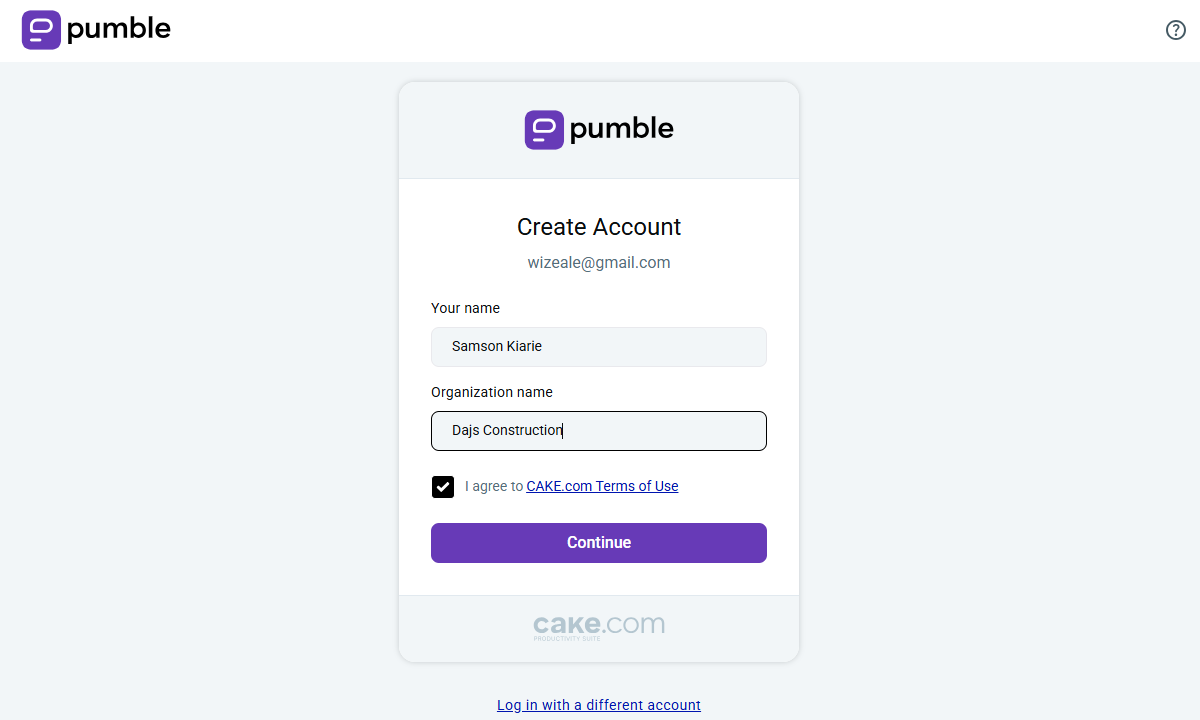
I then entered the six-digit verification code sent via email to verify my email address and create the account. Lastly, I added my name and my organization’s name in the pop-up window to complete the sign-up process and create a workspace for the organization. All in all, it took less than 20 minutes to complete the process.
Pumble Onboarding
Once I had created my account, Pumble redirected me to the team workspace, which looked overwhelming at first. The litany of options on the home dashboard can make it difficult for users to find their way around.
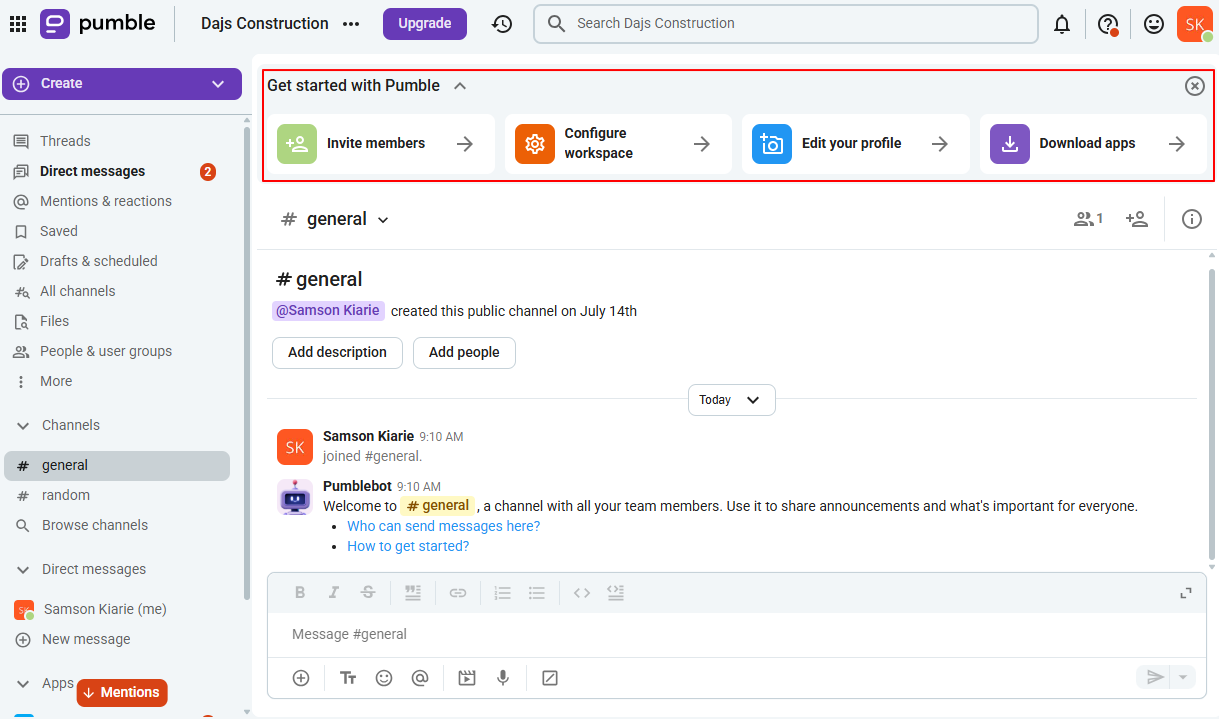
Another issue is that Pumble doesn’t offer an onboarding wizard. Instead, it displays a “get started” widget at the top of the chat area, with quick buttons for prerequisite setup tasks such as inviting members, configuring the workspace, editing your profile, and downloading the apps.
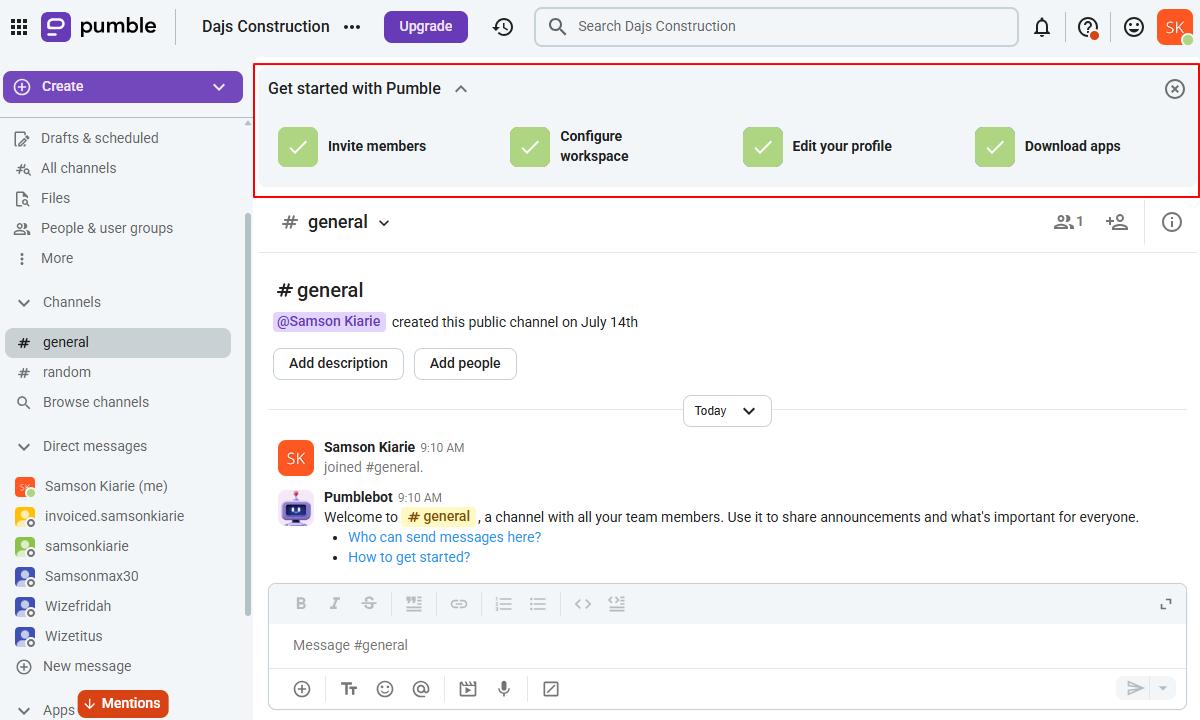
Clicking any of these buttons opens a pop-up window, allowing you to complete the configuration without digging through the cluttered menu, saving both time and effort. Pumble marks each completed task with a green check mark, making it easy for managers to identify which actions still require attention.
Setting Up Your Team
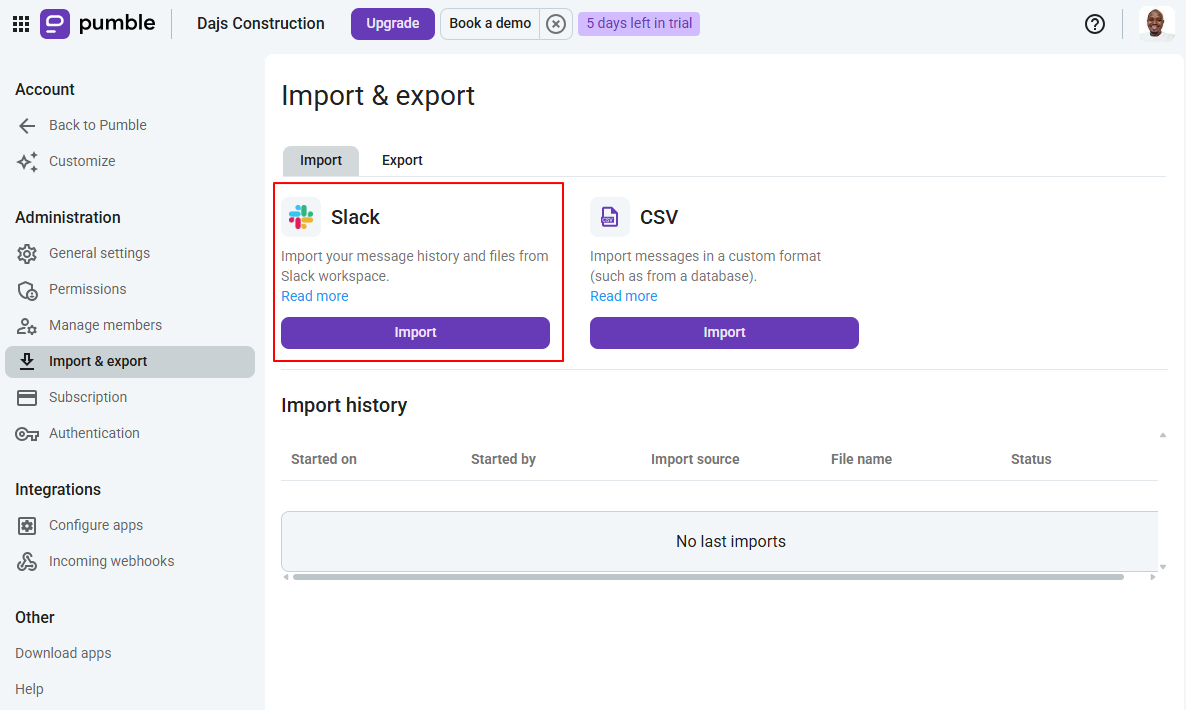
When it comes to setting up your team, Pumble gives you three options to add employees in bulk: sending email invitations, sharing an invitation link, or importing users from Slack. I tried out all three options and found them particularly useful for large teams looking to speed up the onboarding process.
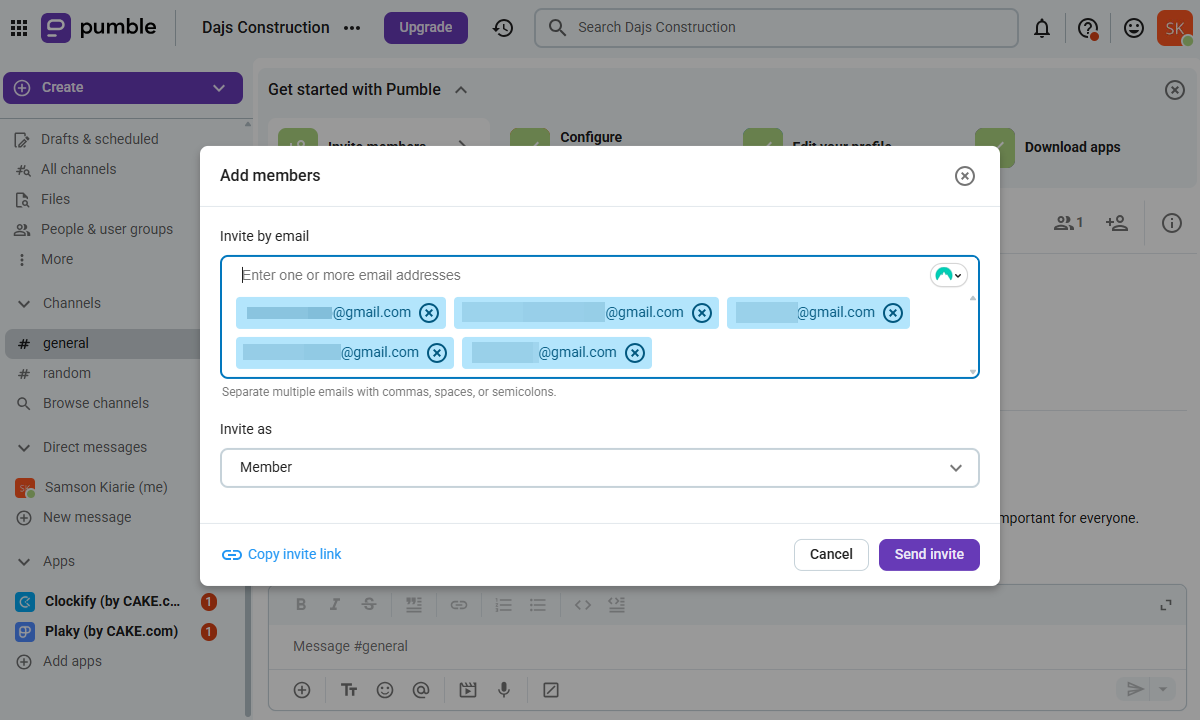
The email invitation option allows you to copy multiple email addresses to invite dozens of employees at once instead of sending invitations individually. Employees just need to click “join now” in the invitation email to join your workspace. However, the email invitation option worked only when the trial was activated, so it may not be a viable option on the free plan.
That aside, if an employee clicks “join now” on a smartphone, Pumble automatically redirects them to either the Google Play Store or the Apple App Store depending on their device’s operating system (OS). This eliminates the need to manually search for Pumble’s mobile app, helping employees complete the onboarding process faster.
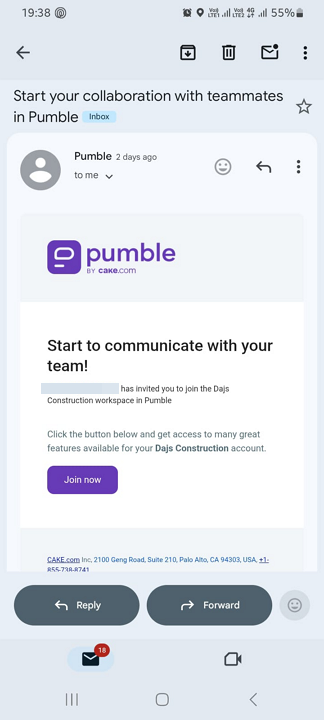
Pumble allows teams to import up to 2,000 users and 250,000 messages (and channels) from Slack. The process isn’t fully automated, so workspace admins have to manually download the Slack archive file and upload it to Pumble. Nonetheless, it saves managers many hours they could have spent adding employees manually.
If an imported team member already exists on Pumble, the system automatically merges their Slack messages to their existing account. This prevents double entry of employees’ names, saving managers tons of hours. However, if an employee doesn’t have a Pumble account, they’ll receive a new account invitation via email.
Pumble Usability and Interface
Verdict: 7/10
I noticed right from the jump that Pumble closely mirrors Slack in both layout and functionality, making it especially easy to use for teams migrating from Slack. However, it doesn’t match Slack’s modern design, which makes it feel less intuitive and visually appealing. Moreover, its dense menu can make it difficult for beginners to find their way around.
Pumble Web App and Desktop App
Pumble’s web and desktop app user interface (UI) have an identical design, so the description below applies to both. The UI has three action areas: the navigation panel to the left, the chat area, and the top panel with additional features. While the UI is well organized, it feels less intuitive and visually appealing compared to modern apps.
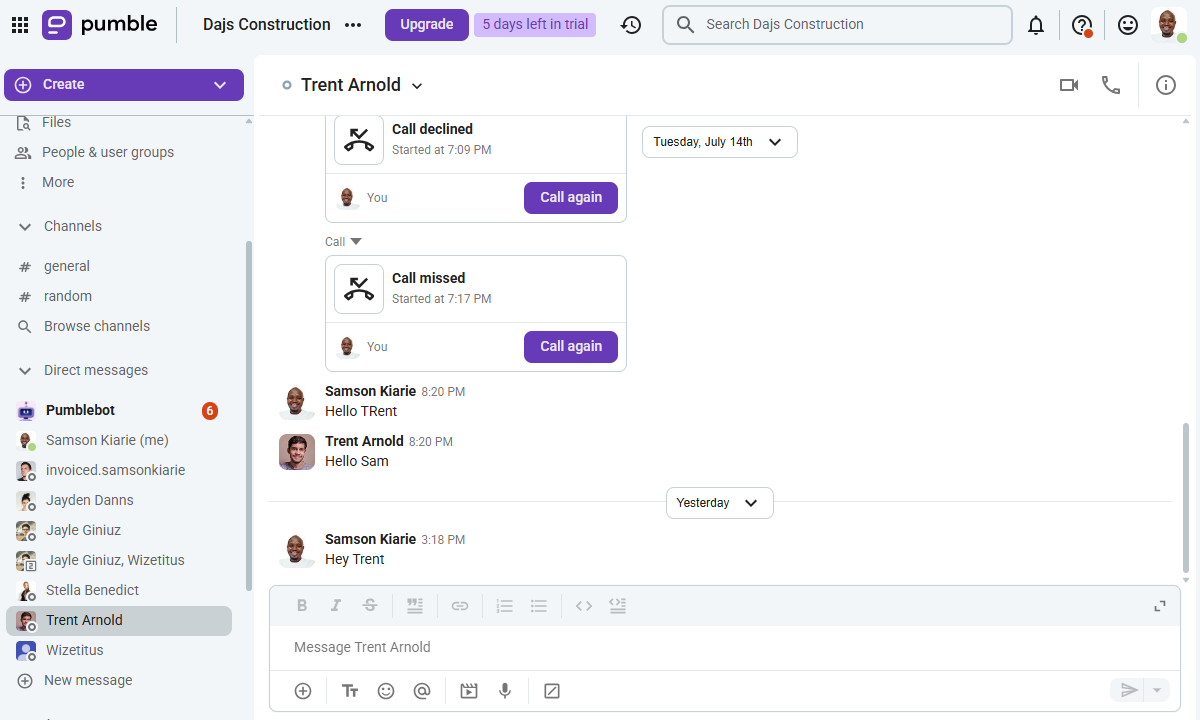
The left sidebar neatly organizes the essential features users need to keep the conversation going, such as channels, direct messages (DMs), and saved messages. Like Slack, the sidebar provides quick access to threads and mentions, allowing users to respond to pending messages without having to sift through an endless stream of messages.
The top panel features a search bar, which enables employees to quickly find files and conversations by keyword. In addition, the chat area displays the conversation in an easy-to-read chat-style layout. However, the chat area can be overwhelming at first, especially on busy channels, so conversations can be difficult to follow.
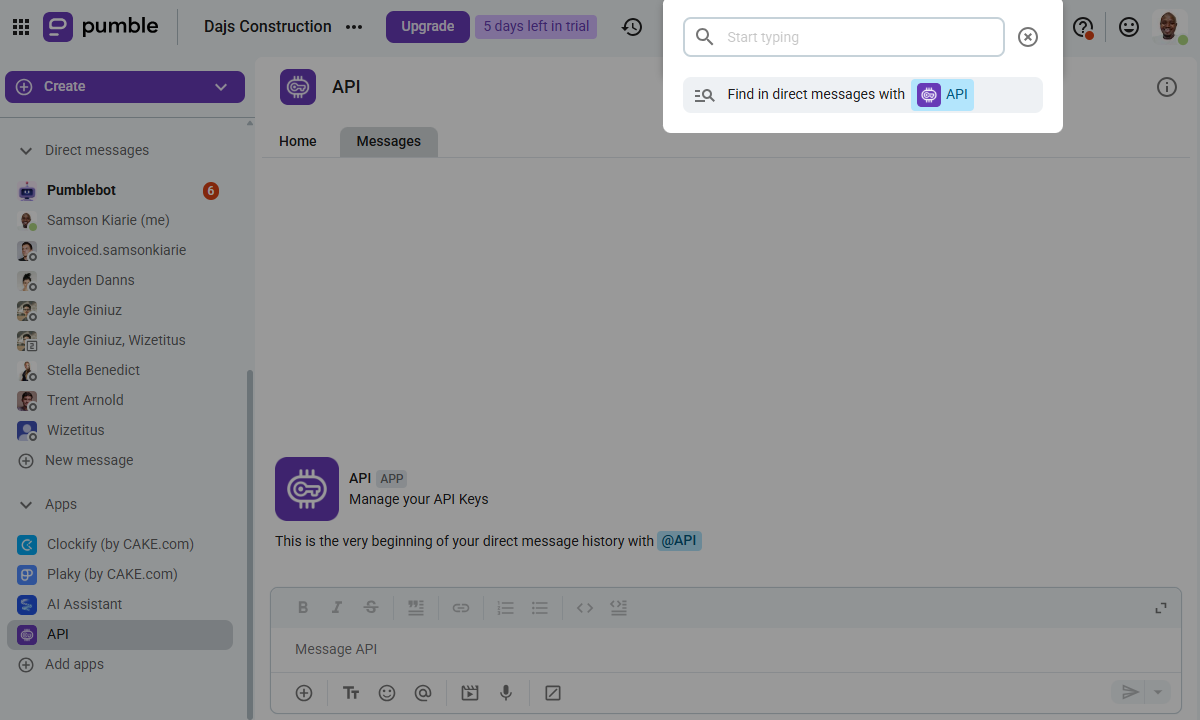
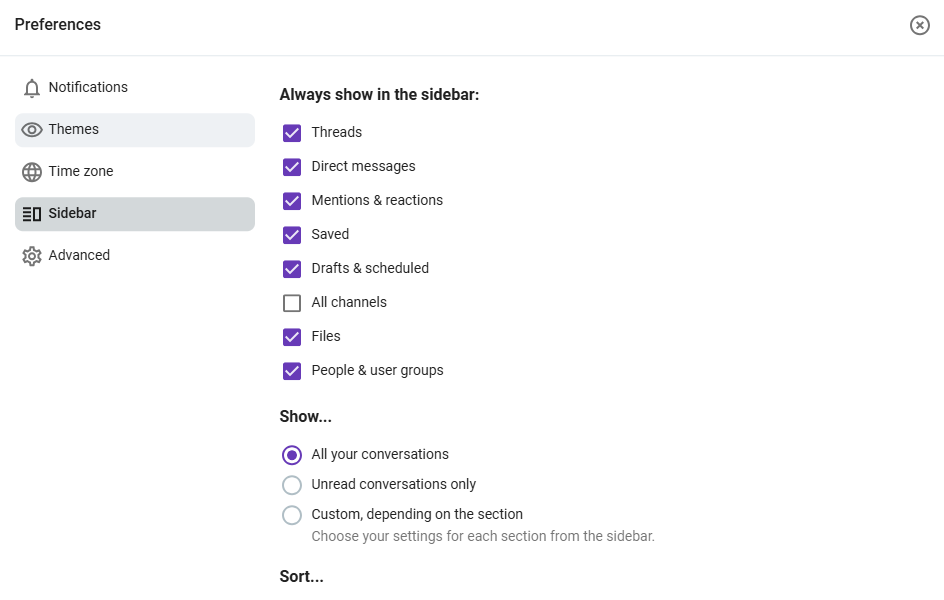
That issue aside, I appreciate having the ability to deselect items I don’t need to declutter the sidebar and simplify navigation. Moreover, Pumble provides 10 color themes, allowing you to make the UI look exactly the way you want. You can choose between light and dark mode, or set the mode to sync with your device’s operating system (OS).
Dark mode is particularly helpful to users with sensitivity to bright light. Moreover, users can change the app’s default language from English to Spanish, German, Portuguese, or French. Unfortunately, there are no usability features for users with hearing impairment.
Pumble Mobile App
I used Pumble’s Android app for this review. However, since the Android and iOS apps have an identical design, the description below applies to both.
The mobile app has a clean and well-organized UI, with the menu at the bottom of the screen where today’s users expect it. Unlike the desktop app, the mobile app menu is lean, displaying only three items: home, DMs, and mentions.
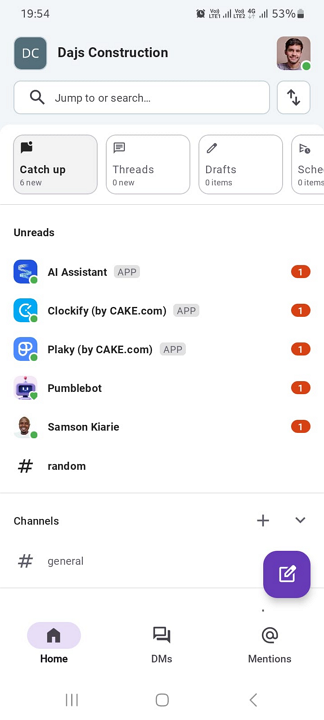
Users land on the home tab by default, which is designed to help you quickly catch up on conversations. It has a search function at the top and a sub-menu ribbon below it displaying catch-up, threads, drafts, scheduled, and saved messages cards.
Moreover, channels and DMs with unopened messages appear at the top under “unreads” and have red counters, making it easy to spot pending conversations and prioritize what needs attention. Starting a conversation is as easy as clicking the purple “new message” icon or selecting a channel or employee from the list under “DMs.”
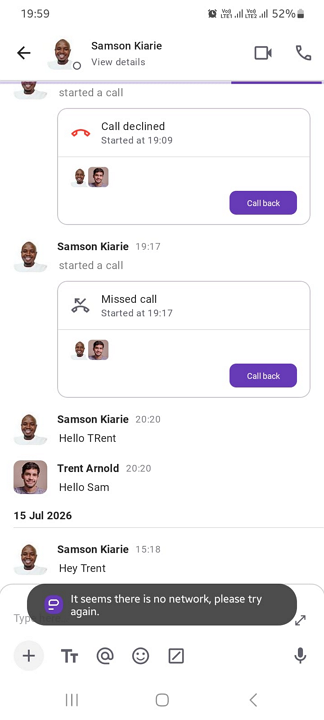
That said, the mobile app provides limited customization options. For example, while you can choose between light, dark, and system default mode, you can’t rearrange tabs or customize the layout to make the UI your own. Moreover, while you can see past conversations without an internet connection, you can’t start new conversations, video conferences, or voice calls.
Pumble Core Functionalities
Pumble claims to be a chat solution “for all kinds of companies,” and its features make it an especially good fit for remote and office-based teams. How does it perform for mobile, field, and shift-based workforces, though? I put its features through rigorous testing to find out. Read on for the full breakdown.
Team Messaging
Verdict: 8/10
Pumble is undoubtedly a reliable messaging app that combines private chat, voice and video messages, and offers channels with thoughtful tools like threaded replies and @mentions to streamline collaboration. I like its robust privacy controls, which make it suitable for teams handling sensitive information, but the lack of built-in AI features makes it less suitable for fast-paced environments.
Team messaging is Pumble’s forte, and it’s not surprising that it packs in a wide range of powerful chat features that keep teams connected and collaborating effectively. Employees can use the direct messaging (DM) feature on mobile, web, or desktop apps when they need a private space for sensitive discussions.
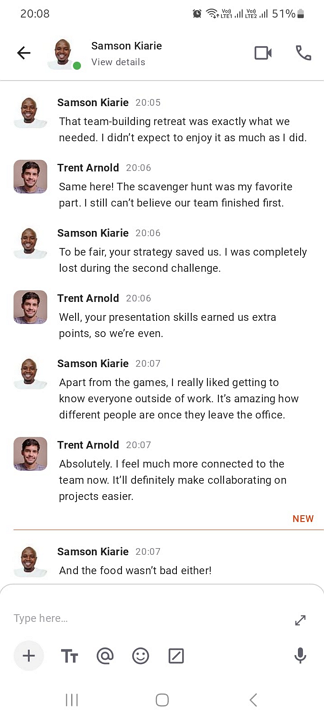
I appreciate that Pumble restricts conversations in DMs to only the two employees involved. A Cake.com agent told me that Pumble is currently designed to bar even admins from peeping into conversations between workspace members. This level of privacy makes Pumble suitable for industries where protecting sensitive information is critical.
Beyond holding 1:1 conversations, you can create private and public channels. Public channels are open for all employees to join, making them perfect for broadcasting company-wide updates, news, and more. Private channels, on the other hand, are invitation-only groups, perfect for sensitive or confidential topics.
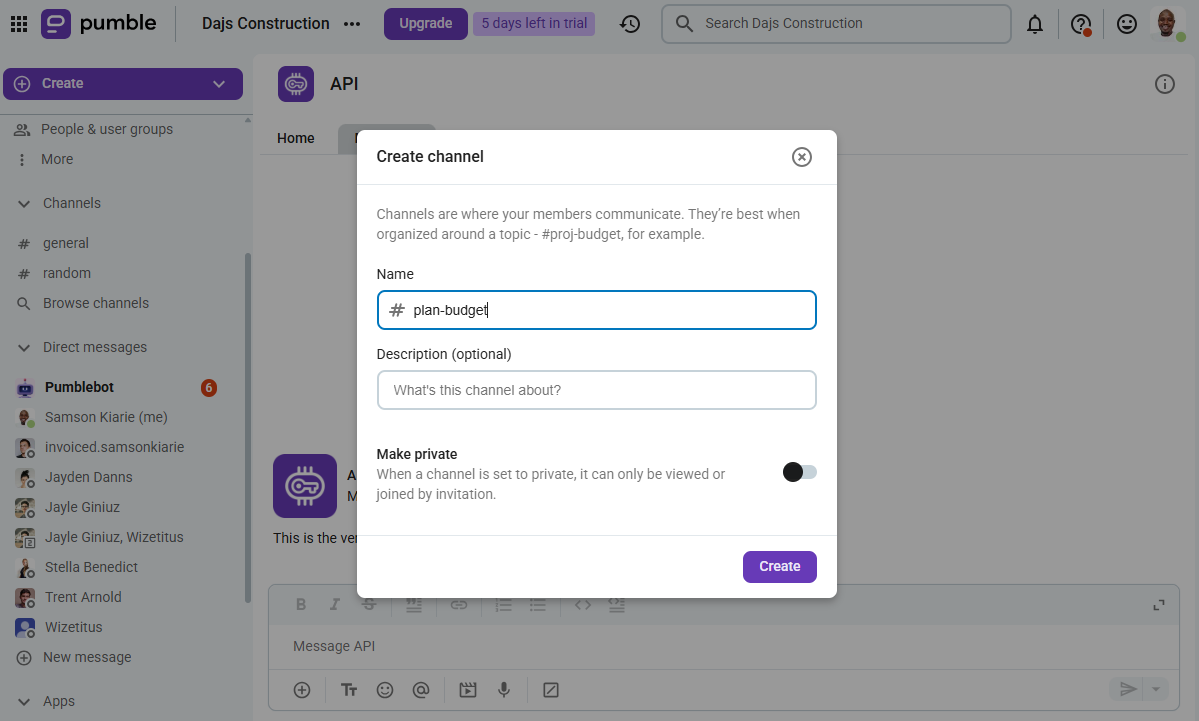
Pumble comes with two pre-created channels by default — “general” and “random.” Thankfully, creating additional channels is quick and straightforward. All you need to do is click the plus (+) button in the channels section and select “create a new channel.”
Add the channel name and description in the pop-up window, and hit “create.” New channels are public by default, but you can toggle the “make private” button as needed.
Even better, Pumble lets you send group messages without having to create a channel. Simply click “create new,” select “new message,” and add up to seven recipients. I find this option useful for quick, ad hoc conversations. It enables employees to collaborate without cluttering the workspace with channels that the team may use only once.
Pumble Conversation Features
DMs, group messages, and channels form the backbone of Pumble’s team messaging. However, to keep conversations smooth and focused, the app provides a wide array of chat features, including:
- Voice messages: In high-pressure situations, such as responding to an emergency in a hospital, text messages may not be practical. This is where Pumble’s voice messages can make all the difference. Instead of typing out long text messages, you can simply tap the record icon and send a voice note containing all the details and context that might otherwise be lost in a text message.
- Video messages: When you need to share instructions, updates, or news, you can easily record and share a video message on the mobile, web, and desktop apps. Video messages add visual context that voice and text messages cannot provide, making them especially useful for training, demonstration, and sharing nuanced information.
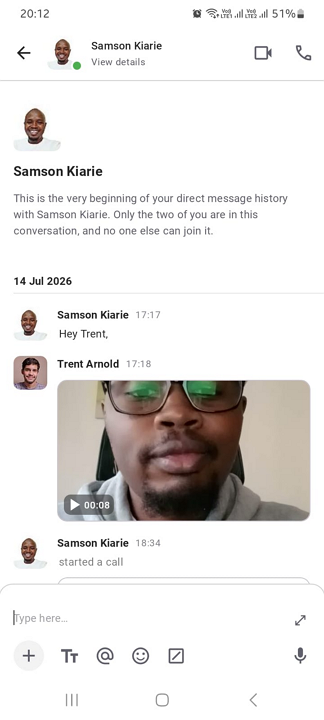
- Scheduled messages: Scheduling messages helps prevent you from forgetting about important issues and topics, such as daily checkups, shift instructions, and company announcements. You can type the messages when you have time and configure Pumble to deliver them at a later time.
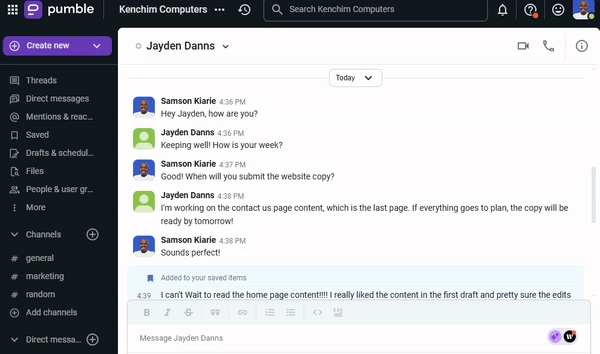
- Saved messages: Pumble also lets you save important messages for quick access to key information, such as links, files, deadlines, or shift instructions, without scrolling through the entire message history. Saving a message is straightforward: Just hover the cursor over the message and click the “saved items” icon. You can click the bookmark icon in the main menu to see all saved messages.
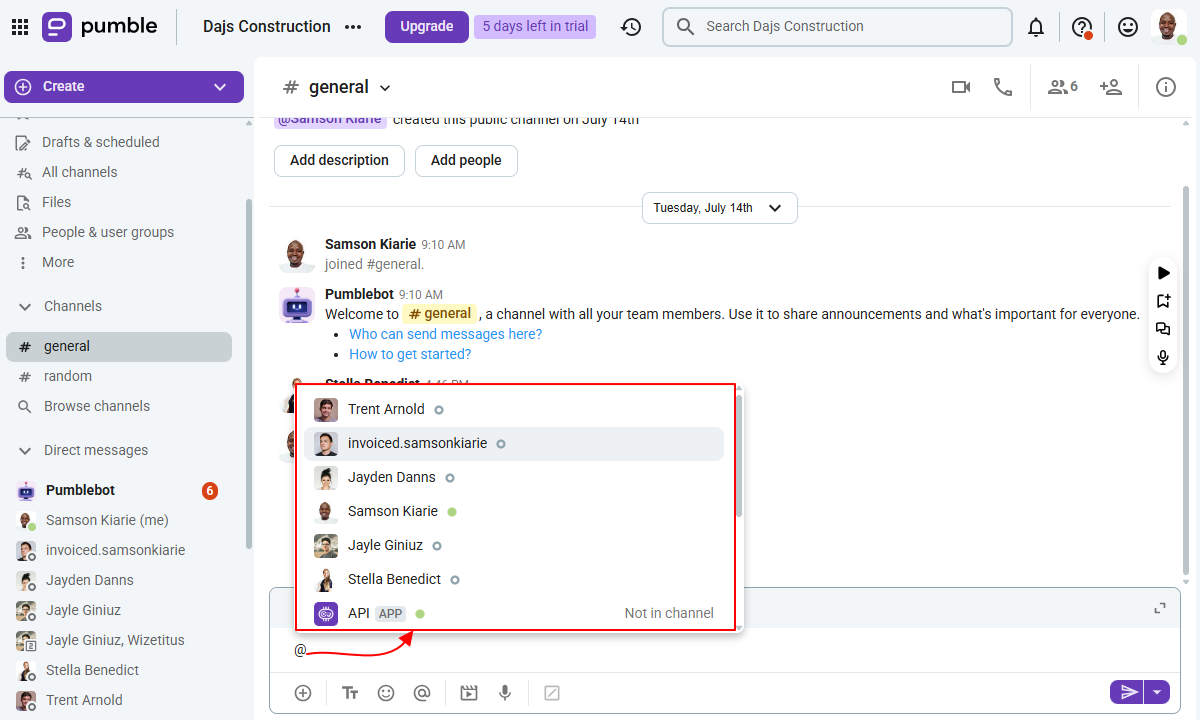
- @mentions: Employees can use @mentions to draw the attention of specific users and notify them directly without disturbing other channel members. They are also useful when you need instant responses to an urgent matter.
- Emoji reactions: Pumble lets employees react to messages in DMs, group chats, and channels with emojis instead of sending text responses. Emojis add personality to conversations and help express tone and emotions in a way that text alone can’t achieve.
- Mark messages as unread: If you have an important message that you’d like to relook at and address at a future date, you can mark it as unread. Once you mark a message as unread, Pumble highlights the DM or channel in bold and adds a red unread counter, making it easy to spot and return to pending conversations.
- Threaded replies: Pumble consolidates replies within the main message to create organized and topic-focused discussions in busy channels. The thread structure reduces clutter and enables users to follow conversations of interest without sifting through an unending list of unrelated messages.
- Reminders: You can also set the app to remind you about important messages at a later date or time. Once you set a reminder, the Pumble bot notifies you and serves up the message so you can address it directly without having to scroll back through the channel.
Pumble’s AI Features
Pumble doesn’t provide built-in AI tools like conversation summaries, search, meeting assistance, an assistant, or an agent. The lack of AI tools is a drawback, especially for teams that generate high volumes of communication. Employees will need more time to catch up on important messages and manually search for files and information in busy channels.
On a positive note, you can integrate Pumble with various AI models like ChatGPT, Claude, and Gemini using the AI assistant add-on. I integrated the AI assistant, and I was able to use ChatGPT 5.5 inside Pumble to draft replies and summarize long conversations.
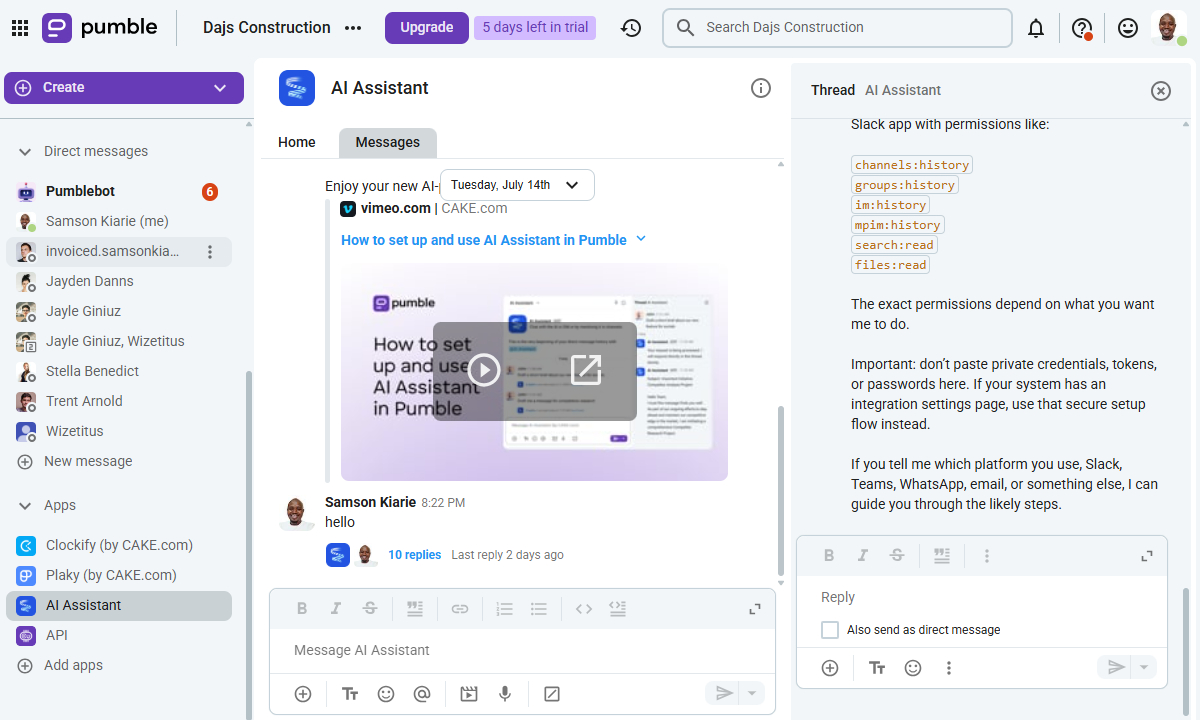
However, the AI assistant doesn’t directly access DMs or channels. As a result, I had to paste conversations into the AI assistant’s channel to generate a summary. While the summaries help employees follow up on long conversations, the process of generating them is largely manual, which limits the tool’s effectiveness in fast-paced environments.
Video and Voice Calls
Verdict: 7.5/10
Pumble’s voice- and video-calling features were reliable even on slow networks during testing, making the app suitable for teams distributed across regions. Handy features such as screen sharing worked as expected, but I found the 50-participant limit restrictive, especially for businesses that usually host larger meetings.
Pumble also enables teams to collaborate via voice and video meetings. Just bear in mind that free-plan users can hold only 1:1 voice and video meetings and don’t have access to screen sharing. You’ll need a paid subscription to access essential call features and host video conferencing and group voice meetings.
Gatekeeping aside, the call features are intuitive and reliable, making Pumble particularly useful for teams that rely on voice and video conversations to coordinate work across locations.

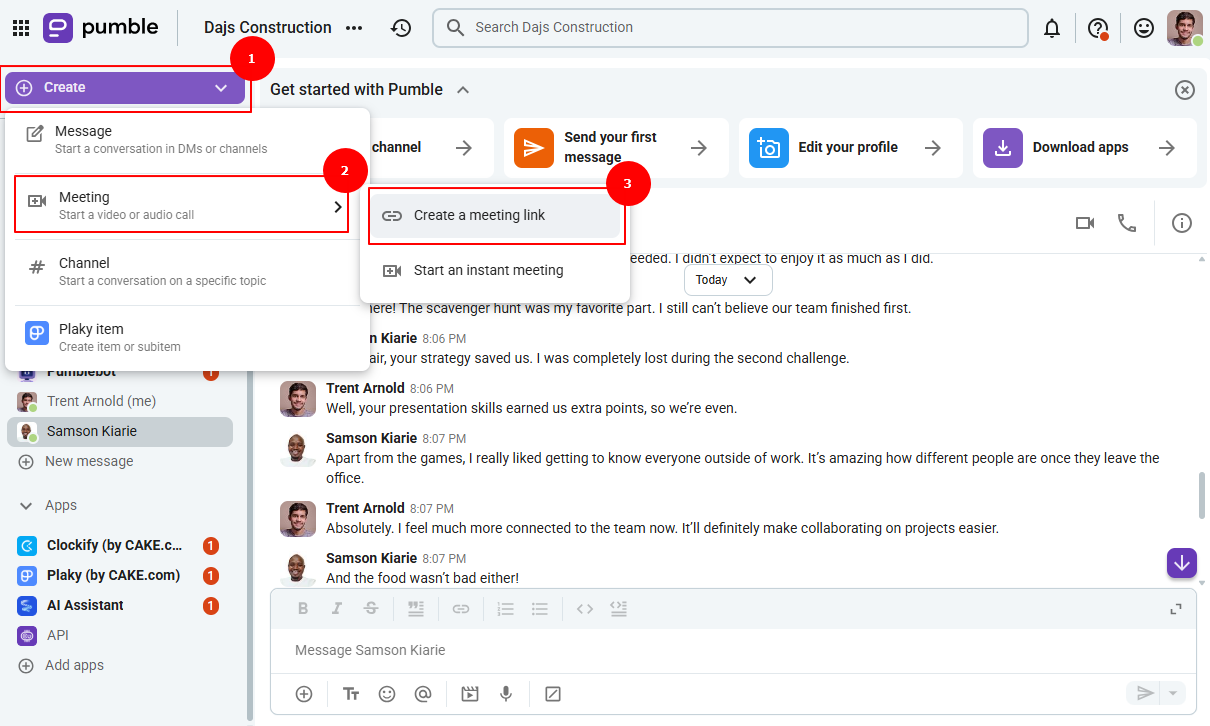
I found it easy to start a 1:1 or group call. All I needed to do was open a DM or channel and click the video or voice call icon on the top right. When I started a call in a DM or channel, Pumble notified all channel members to join. I could also invite employees or external guests to join the meeting via a link.
I like that external guests don’t need a Pumble account to join a voice or video call. This frictionless guest access makes it easy for employees to collaborate with clients, partners, and contractors who need to join occasional meetings. However, you’ll need a Business or Enterprise subscription to invite external guests.
Pumble Call Features
Pumble is built primarily as a lightweight, message-based tool (similar to Slack), so video calling isn’t a main feature. As a result, it lacks the advanced capabilities you’ll usually find with top-tier platforms, such as 4K video calling, live captioning, breakout rooms, and AI meeting assistance.
However, since Pumble can support standard-definition (SD) and high-definition (HD) video only, it’s less bandwidth-intensive. For this reason, it delivers a smooth call experience even when the internet connection is slow. I tested the 1:1 video-calling tool, and I didn’t encounter any lag or interruptions that break down virtual communication.
All in all, it’s difficult to draw any meaningful conclusions from this performance because I had only two employees join the test meeting. Remember that call quality depends on factors such as the number of participants, so the limited participant count during testing may have contributed to the smooth and interruption-free performance I enjoyed while testing Pumble.
Performance aside, Pumble provides commonplace call features such as:
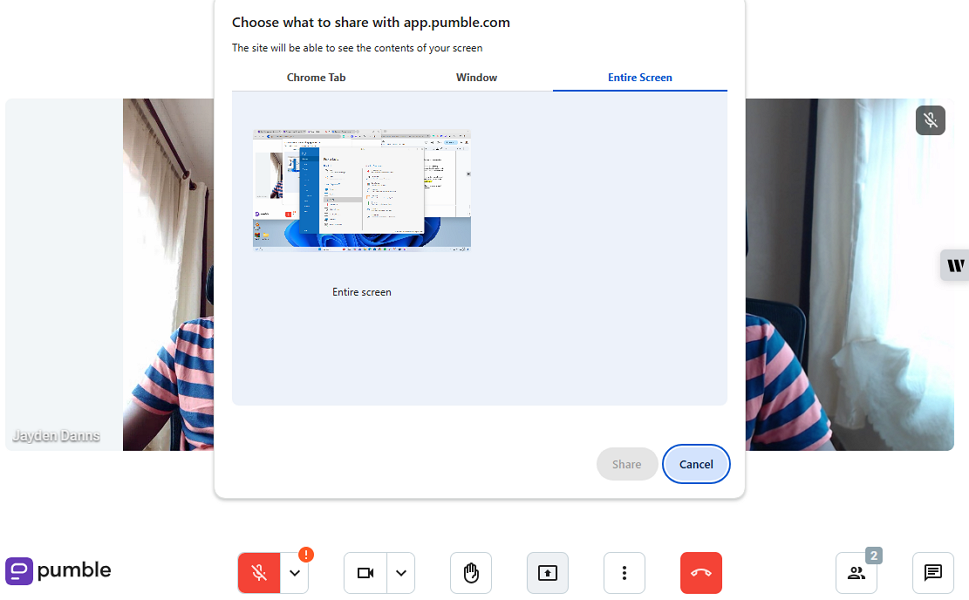
- Screen sharing: This has become a standard feature for video-conferencing solutions, and I’m glad Pumble offers it. Like Microsoft Teams and Zoom, Pumble allows you to share a tab, window, or entire screen to visually demonstrate complex processes, data, and concepts so they are easy to understand. Bear in mind that screen sharing isn’t available on the free plan.
- Meeting recording: Business and Enterprise plan subscribers can record meetings and share them with people who couldn’t attend. This helps keep the whole team on the same page without having to repeat the discussion.
- In-call messages: Employees can send messages, documents, and links during an active meeting to maintain the flow of conversation without interrupting the speaker.
- Privacy features: Top-tier platforms like Google Meet allow meeting participants to use virtual backgrounds to keep personal space out of view. This is a nice-to-have privacy feature that helps employees maintain professionalism and enhance their privacy. Unfortunately, Pumble doesn’t provide virtual backgrounds, but it does let users blur their background.
- Hand raising: If you need to interject during a conversation, tap or click the raise-hand icon to signal that you’d like to speak without interrupting the current speaker.

Voice Calls and Video-Conferencing Shortcomings
To be honest, I didn’t find any major flaws with Pumble’s voice- and video-calling features. Its lightweight approach makes it suitable for teams distributed across different regions and network conditions.
My only gripe is that Pumble allows a maximum of 50 participants per virtual meeting. For comparison, Chanty allows up to 1,000 participants per meeting. While Pumble’s participant cap will suffice for most small businesses, it may be restrictive for medium-sized and large organizations that intend to host larger meetings.
Pumble Integrations
Verdict: 6/10
Pumble’s list of native integrations is limited, and it consists primarily of productivity tools. You can connect it to almost any app in your tech stack through Zapier, but there’s a catch. While Zapier integrations help automate workflows, they don’t bring chat into your workforce management systems, which means shift-based and field teams have to juggle apps.
Pumble is a standalone messaging app, unlike apps such as Connecteam Chat, which is built into a larger workforce management platform. This means that shift-based or field-based teams must integrate Pumble with their go-to workforce management solution to bring chat capabilities to task management, employee scheduling, and other day-to-day operations.
The problem is that Pumble primarily integrates natively with productivity tools, not workforce management platforms. Popular integrations include:
- Google Calendar
- Calendly
- Polls
- Google Drive
- Jira
Thankfully, Pumble supports no-code integrations through Zapier, allowing you to integrate virtually every platform in your tech stack. You can use the prebuilt Zapier connectors (zaps) or create custom ones, which don’t require technical expertise.
Nonetheless, integrating Pumble with your go-to apps doesn’t bring chat functionality to your workforce management solution; it just helps streamline operations and keep everyone in the loop. For example, you can configure Pumble to send a message when an employee misses a shift.
Alternatively, you can use Pumble’s API and webhooks to build custom integrations. Unlike Zapier integrations, API connections require technical expertise and can be cost-prohibitive for small teams without large technology budgets or dedicated developers.
Pumble Security and Privacy
Verdict: 8/10
Overall, Pumble handles the basics well, combining password-free login, granular permissions, GDPR compliance, and SOC 2 Type II certification to help teams protect team communication. While its robust features make it a good choice for regulated industries, its limited transparency around its encryption methods can be off-putting for large, security-conscious organizations.
| Feature | Availability |
|---|---|
| Data encryption | ✅ Not specified |
| GDPR compliant | ✅ |
| HIPAA compliant | ❌ |
| Certification | ✅ SOC 2 Type II |
| MFA/2FA | ✅ |
| Admin controls | ✅ Role-based access control |
| Hosting region | Not specified |
Pumble has implemented various measures to secure team communication. The app lets you define users’ roles right from the get-go, with unique permissions and access levels. You can define who can use @here and @channel mentions, or edit and delete messages. You can also determine which users can add, archive, and remove members.
Regarding user authentication and verification, Pumble uses email verification codes instead of the standard password login. This adds an extra layer of account security, minimizing breaches that are synonymous with password verification. Enterprise plan subscribers can use single sign-on (SSO) to eliminate the need for password login and enhance security at scale.
When it comes to data encryption, a Cake.com agent told me that Pumble messages aren’t end-to-end encrypted. However, the provider encrypts data at rest and in transmission to thwart breaches and unauthorized access. Unfortunately, Cake.com doesn’t publicly reveal the specific encryption ciphers it uses, which is disappointing.
That issue aside, Pumble is compliant with the General Data Protection Regulation (GDPR), making it a good fit for companies operating within the European Union’s jurisdiction. The company has also earned SOC 2 Type II certification, meaning it follows the highest standards of security and compliance.
Pumble Customer Support
Verdict: 8/10
I have to give it to Pumble for its excellent customer support. The intuitive self-service help center and fast response time on tickets and live chat make it a solid choice for teams that value reliable assistance. My only gripe is that live chat is not accessible from within the app, which can be frustrating when you need immediate help.
| Support Type | Availability |
|---|---|
| Live chat | ✅ |
| Phone support | ✅ |
| Email support | ✅ |
| Community forum | ❌ |
| Ticket submission | ✅ |
| Help center | ✅ |
I had an excellent experience on live chat. I was impressed that the agents responded to my questions in less than a minute, regardless of the time of day. However, while live chat is available 24/7, I couldn’t access it when logged into the Pumble app. Whenever I needed help, I had to leave the app and visit the website, which was disappointing.
If you value self-service support, Pumble’s knowledge base is a great place to begin your search for a solution. The help center organizes support articles by categories such as “get started,” “administration,” “integrations,” and “tutorials.” Each category then groups related articles by topic, which makes it easy to find relevant articles.
The ticket system is easy to use: Simply fill out the web form on the contact page and click “submit.” The vendor doesn’t take long to resolve tickets — in one instance, the support agents responded in a record-breaking seven minutes. I find the channel particularly useful for complex issues that may require you to upload files.
What Are Pumble’s Review Ratings From Review Sites?
(As of August 2026)
Pumble App Review
Pumble is an affordable, lightweight communication app for small and medium-sized organizations. Its direct messaging, channel-based communication, threaded conversations, file sharing, and Slack-like interface enable teams to stay aligned without a steep learning curve.
I like Pumble’s generous free plan, which allows small businesses to access unlimited message history and manage unlimited users. The app also offers advanced call features such as screen sharing and meeting recording, although these are restricted to higher tiers. While it delivered a smooth video-conferencing experience during my tests, the 50-participant limit may be a deal-breaker for larger organizations.
Overall, Pumble offers good value for money, but it comes into its own when used as a standalone messaging app. Although it integrates with various workforce management apps through Zapier, these connections don’t embed chat functionality directly into the employee management application.
For field and frontline teams, this means employees may have to juggle separate apps for scheduling, communication, time tracking, and task management throughout the day, which can slow down workflows. If keeping your shift-based employees in the loop is a top priority, a workforce management solution with built-in chat functionality, such as Connecteam, is a more practical solution.
Connecteam: The Better Pumble Alternative
Connecteam combines team communication features with scheduling, task management, time tracking, and other essential workforce management features in a single hub. This allows teams to coordinate work without jumping between disparate platforms.
Some of the notable benefits of using Connecteam include:
Powerful Chat Features
Connecteam’s free version lets small teams communicate via 1:1 DMs and group channels, and broadcast company-wide updates and news via Connecteam Updates. Plus, unlike Pumble, Connecteam has built-in AI tools that help employees write clearer messages and auto-translate chats into their preferred language. These capabilities reduce communication barriers for multilingual teams, fostering effective collaboration.
Compared to Pumble, Connecteam Chat has an intuitive, clutter-free UI that makes it easy to use for total beginners. Additionally, despite being part of a broader workforce management platform, it provides all the essential chat features, including:
- Voice and video messages
- Scheduled messages
- Emoji replies and reactions
- File sharing
- Threaded replies
However, Connecteam doesn’t support voice and video calls like Pumble does. As a result, it’s less suitable for remote and hybrid teams that rely on virtual brainstorming sessions, real-time meetings, and face-to-face collaboration.
All-in-One Workforce Management Hub
Connecteam’s real advantage over Pumble is that it helps businesses streamline end-to-end workforce management processes without forcing employees to switch between multiple apps.
Notable features include:
- AI-powered auto-scheduling: With Connecteam’s auto-scheduler, managers can assign hundreds of shifts in minutes, not hours. I like that the auto-scheduler assigns shifts based on employees’ skills and availability, preventing conflicts that slow down operations.
- Compliant time-tracking: The Connecteam time tracker lets businesses accurately log regular time, breaks, and virtually any type of overtime. It’s particularly useful for businesses that want to track field and frontline employees’ time in compliance with strict labor laws.
- Real-time location tracking: The Connecteam GPS location tracker helps ensure that employees are always where they should be, tending to their assigned tasks. For example, you can tell when a field service agent reaches the customer’s location or how far a delivery driver is from the customer’s pickup location. These insights help optimize processes to improve service delivery and boost customer satisfaction.
- And so much more: Connecteam provides other helpful tools, such as task management, employee onboarding and training, forms and checklists, a knowledge base, time-off management, and employee recognition and rewards.
Affordable Pricing
There’s no doubt that Pumble’s pricing is unbeatable, especially compared to popular team messaging apps like Slack. However, in the workforce management space, $2.49 per user can seem expensive, considering it provides only chat and call features.
For comparison, Connecteam’s most affordable plan costs $29 per month for up to 30 users, which works out to less than $1 per employee. The plan bundles chat, scheduling, time-tracking, GPS location tracking, employee onboarding and training, and other workforce management features.
