

Simple project management and team collaboration app, with limited advanced options.
What’s New in This Update
- Refined the testing methodology to evaluate how well Basecamp supports field, mobile, and frontline teams.
- Tested Basecamp 5 to identify what has changed since my review of Basecamp 4 and verify whether the vendor has resolved the issues uncovered during my previous round of testing.
- Rewrote sections and updated the scores to reflect the findings from my latest round of testing.
Verdict: 6.70/10
Basecamp is a simple project management and collaboration platform for small and mid-sized businesses. Rather than follow the standard workspace-department (or space)-project workflow, Basecamp skips the middle layer, making each project a self-contained space with its own tasks, conversations, schedules, and files.
This unique approach, combined with an intuitive interface, makes Basecamp easy to use for small teams. Moreover, housing a project’s resources and tools in one place can help teams stay organized and collaborate efficiently. However, Basecamp’s simplified structure, which includes no project portfolios or customizable views, can cause chaos for teams managing numerous projects across departments.
Overall, I found Basecamp to be a good fit for freelancers and small office-based or remote teams. However, it offers little for businesses with shift-based, field, mobile, or frontline workforces.
At first glance, Basecamp’s Calendar (formerly Schedule) appears capable of handling shift scheduling. In practice, though, it’s built only for project milestones and events, not employee scheduling. For example, managers can’t assign tasks to scheduled events (shifts) or set work limits for compliance with labor laws.
Moreover, employees can only log hours manually through Basecamp’s Timesheet add-on. However, without an automatic timer, clock-in rules, and labor compliance features, the add-on falls short of meeting the intricate needs of field and frontline teams.
Basecamp Key Features
- Project management: Create to-do lists, add tasks with deadlines, and monitor project progress with the hill chart and progress needle. However, Basecamp doesn’t offer the traditional project board, and it lacks advanced views like Gantt.
- Team communication: Chats and message boards reside within each project, which helps keep all conversations project-specific. Users can use emojis and attach files in conversations. I also like Basecamp’s robust notification system, which ensures employees never miss important information.
- File management: Users can organize files and documents related to each project in one place. The centralized repository enables users to access project resources with ease.
- Event scheduling: Schedule important events such as meetings, and notify assignees without lifting a finger. You can also use the repeat feature to create a recurring sequence for events that follow a regular pattern.
Pros
- Simple and user-friendly
- Efficient collaboration features
- Budget-friendly for large teams
- Responsive and fast customer support
Cons
- No advanced project views
- No automatic time tracker
- No task dependencies and priorities
Basecamp Pricing
Verdict: 7/10
Overall, Basecamp offers good value, especially since every plan—including the free plan—includes all essential features. However, I found its pricing to be somewhat confusing because the paid plans implement different pricing models and trial periods. Moreover, there’s little to differentiate Pro and Pro Unlimited aside from storage limits and optional add-ons, which makes it difficult to justify upgrading.
| Plan — Per Month | Features |
|---|---|
| Free – Free forever |
|
| Pro $15 per user – billed monthly | Everything in Free, plus:
|
| Pro Unlimited $299/mo – billed annually, or $349/mo – billed monthly | Everything in Pro, plus:
|
I’m glad that Basecamp brought back its free plan, which wasn’t available during my last round of testing. The vendor now offers three plans: Free, Pro, and Pro Unlimited. All three plans offer the same essential features, with the main differences coming down to usage limits and optional add-ons.
Interestingly, Basecamp uses different pricing models for its two paid plans. The Pro plan uses per-user pricing, making it cost-effective–users pay only for the seats they need. However, it’s available with monthly billing only, so businesses miss out on the discounts that often come with long-term commitments.
The Pro Unlimited plan, on the other hand, uses fixed flat-rate pricing regardless of team size. As a result, the subscription costs stay predictable even as the business grows, making this plan suitable for fast-growing teams. Unlike Pro, Pro Unlimited offers both monthly and annual billing, with the latter offering discounts for long-term commitments.
Basecamp vs. Top Competitors
Basecamp sits in the middle of the pricing spectrum—it’s neither the most expensive option nor the cheapest compared to similar products. From a value-for-money perspective, however, several Basecamp alternatives deliver more for the price, as you can see in the table below:
| Plan | Basecamp (Pro) | Chanty (Business) | Hubstaff (Team) | Connecteam (Advanced) |
|---|---|---|---|---|
| View pricing | View pricing | View pricing | View pricing | |
| 10 users | $150 | $30 | $100 | Free for life—all features and dashboards |
| 20 users | $300 | $60 | $200 | $49 |
| 30 users | $450 | $90 | $300 | $49 |
| 50 users | $750 | $150 | $500 | $99 |
| Read our in-depth Chanty review | Read our in-depth Hubstaff review | Learn more about Connecteam |
Free Trial and Add-Ons
Basecamp increased the free trial of the Pro Unlimited plan to a more generous 60 days. This gives businesses more time to thoroughly evaluate the platform’s features before committing. The free trial on the Pro plan, on the other hand, lasts only 30 days. This is still impressive by industry standards, though.
In addition to the standard plans, Basecamp offers timesheet and admin pro pack add-ons. Each add-on costs $50 per month, regardless of team size. While the flat-rate pricing benefits larger organizations, the added cost is hard to justify when many similar apps include comparable capabilities in their standard plans for no additional fee. These add-ons are included at no extra charge in the Pro Unlimited plan.
Basecamp Sign-Up and Onboarding
Verdict: 8/10
Overall, Basecamp is easy to set up and use. Every step, from sign-up and onboarding to adding users and creating user groups, is straightforward. Its unconventional yet intuitive user interface (UI) further simplifies the experience, allowing managers and employees to get up and running quickly.
Signing up and creating an account is straightforward. Since I wanted to test every feature, I chose the 60-day free trial of the Pro Unlimited plan. I clicked “try it free for 60 days” and followed the signup wizard. The signup process is so simple that even newbies should have no trouble creating an account.
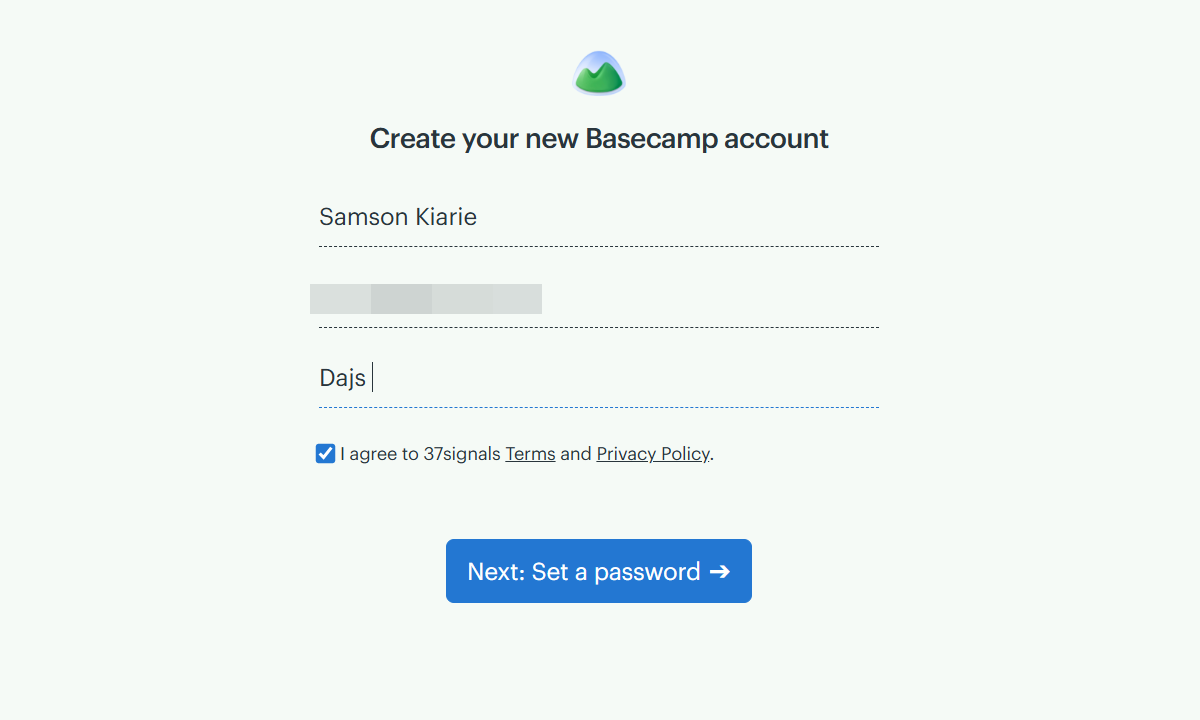
Basecamp Onboarding
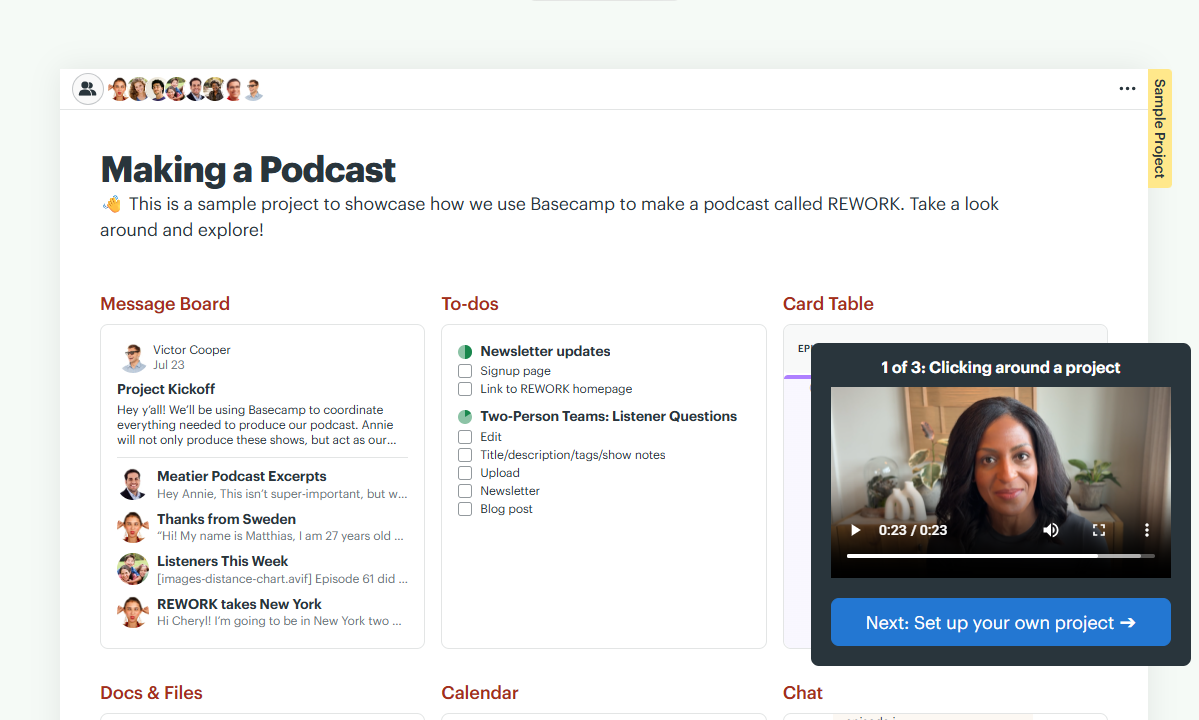
Basecamp doesn’t provide guided setup. Thankfully, it’s hardly a challenge for users to set it up on their own because nearly all features, from Chat and Message Board to Card Table and Calendar, work well right out of the box.
In fact, these tools don’t even include any settings, which eliminates much of the setup effort but leaves little room for customization. During my testing, the only settings I adjusted were the color scheme and notification preferences, and both took just a few minutes to configure.
Moreover, since Basecamp doesn’t require users to create spaces or portfolios, adding projects takes just a few minutes. I also appreciate the fully fleshed-out sample project that gives users a ready-made template they can copy, helping them learn the project interface faster. This, combined with the quick three-minute onboarding video, makes onboarding much easier.
Setting Up Your Team
Basecamp allows admins and managers to invite employees, clients, or external collaborators by email or through an invitation link. I found both methods to be straightforward, but they’re best suited for different use cases.
I’d recommend the email invitation for small teams whose managers already have the users’ email addresses. The invitation link, on the other hand, allows managers to invite users without first requesting their email address and is a good fit for onboarding large workforces.
Either way, Basecamp requires users to complete account creation on their end, saving managers the manual hassle. However, the manager does have to set access permissions before sending the invitation email or sharing the invitation link. This way, users get instant access to relevant projects once they create their accounts.
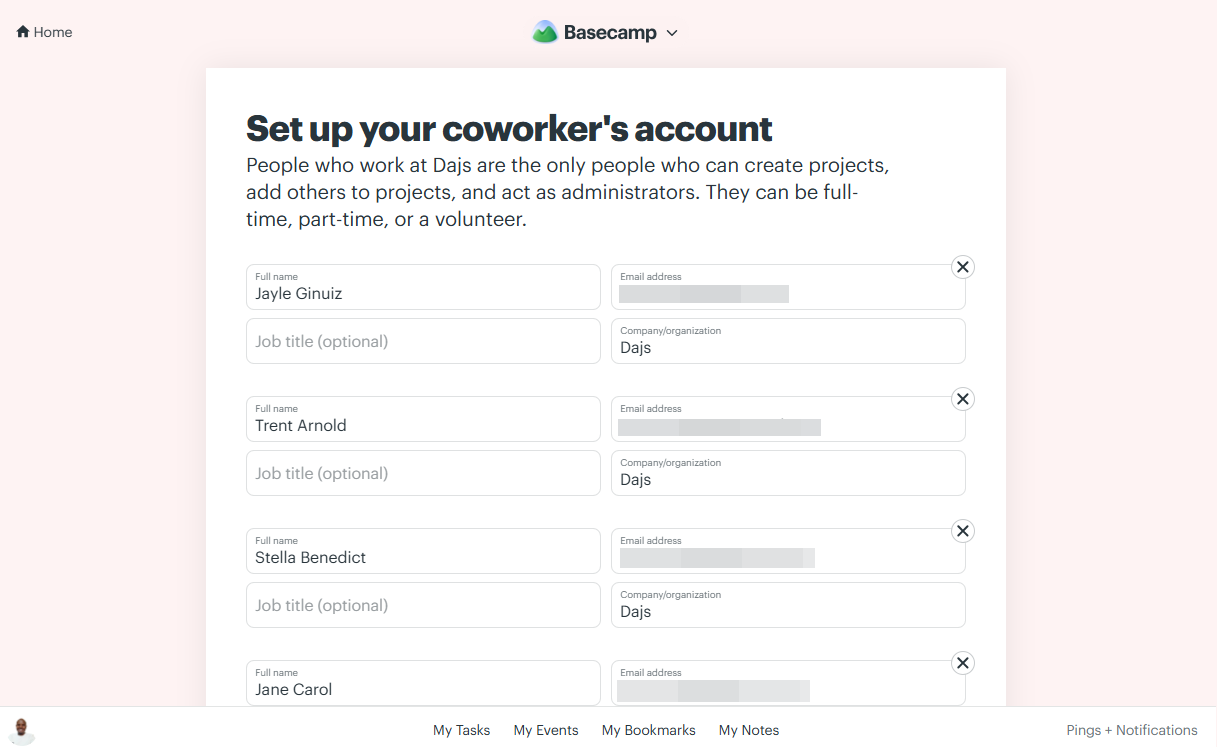
Additionally, Basecamp allows you to create groups to organize users by role, department, location, or other organizational units. User groups make it easier to assign work, manage permissions, and communicate with multiple employees at once, which is especially useful for large teams.
Basecamp Usability and Interface
Verdict: 8/10
Overall, Basecamp deviates from the traditional project management norms with its unique UI design and layout. Despite the unconventional design, both its mobile and web apps are sleek and intuitive, making them feel familiar and easy to use. As a result, first-time users won’t need a helping hand to find their way around.
Basecamp Web App
Basecamp’s web, macOS, and Windows apps have nearly identical design, layouts, and functionality. I used the Web version for this review, but the descriptions below apply to the Windows and macOS apps, too.
The web app’s interface is intuitive and well organized, albeit with a unique design quirk. When you log in, you land on the home page instead of a project grid like on other popular platforms. The home page displays three columns: quick access buttons (left), projects (middle), and team activity (right).
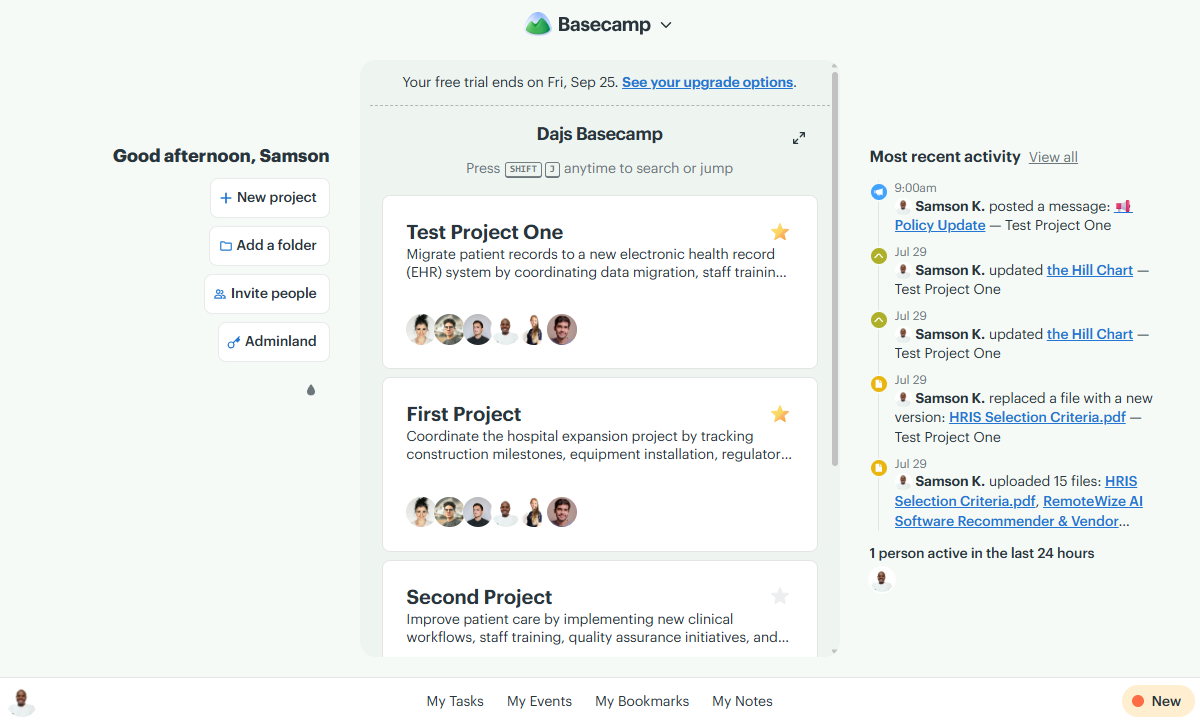
One major change is that Basecamp no longer displays a top menu with features like “lineup,” “pings,” “hey,” “activity,” “timesheet,” and “my stuff.” Instead, the vendor has introduced a menu at the bottom of the screen displaying tasks, events, notes, and bookmarks. More navigation options are available when you click the down-arrow icon beside the Basecamp logo.
The unconventional layout keeps the interface clean by stripping away much of the visual clutter found in modern project management apps. The result is an organized and visually appealing interface where frequently used tools are always within reach. Whether you’re a beginner or a seasoned user, navigating the platform will feel effortless.
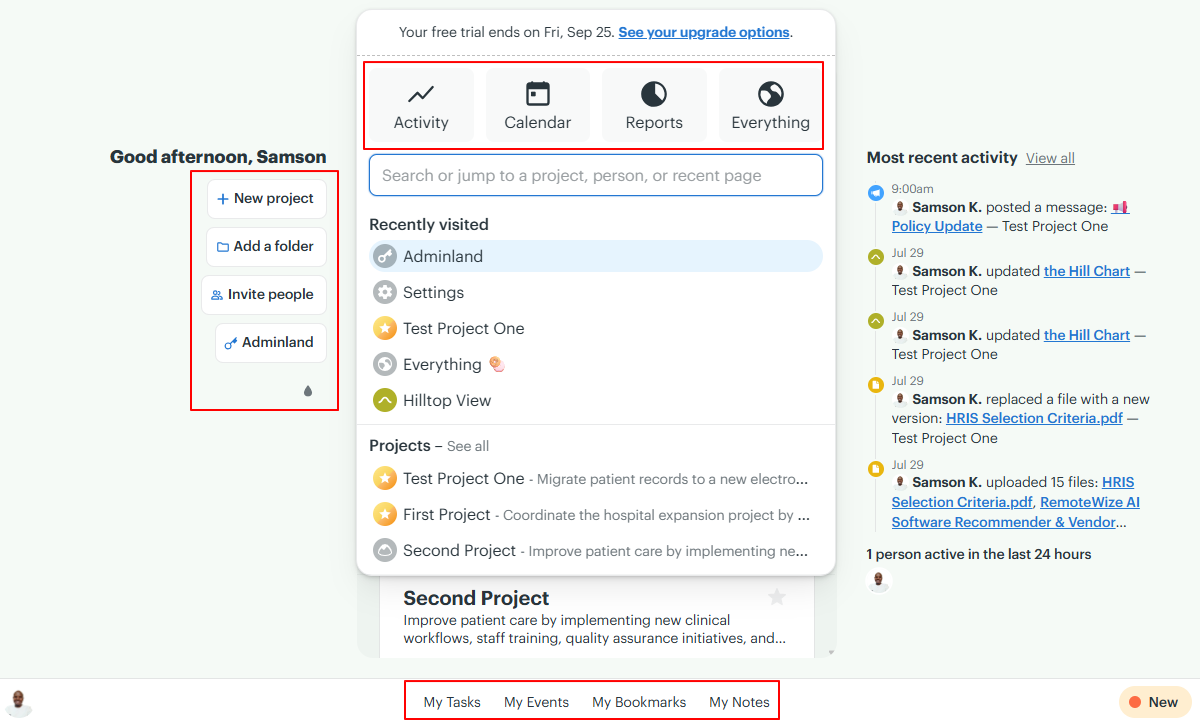
Feature-wise, both employees and managers can create new projects, add folders, and invite people. The only difference is that managers have access to administrative functionality, such as adjusting user permissions and managing user groups. Bear in mind that some of the admin tools require a paid add-on, though.
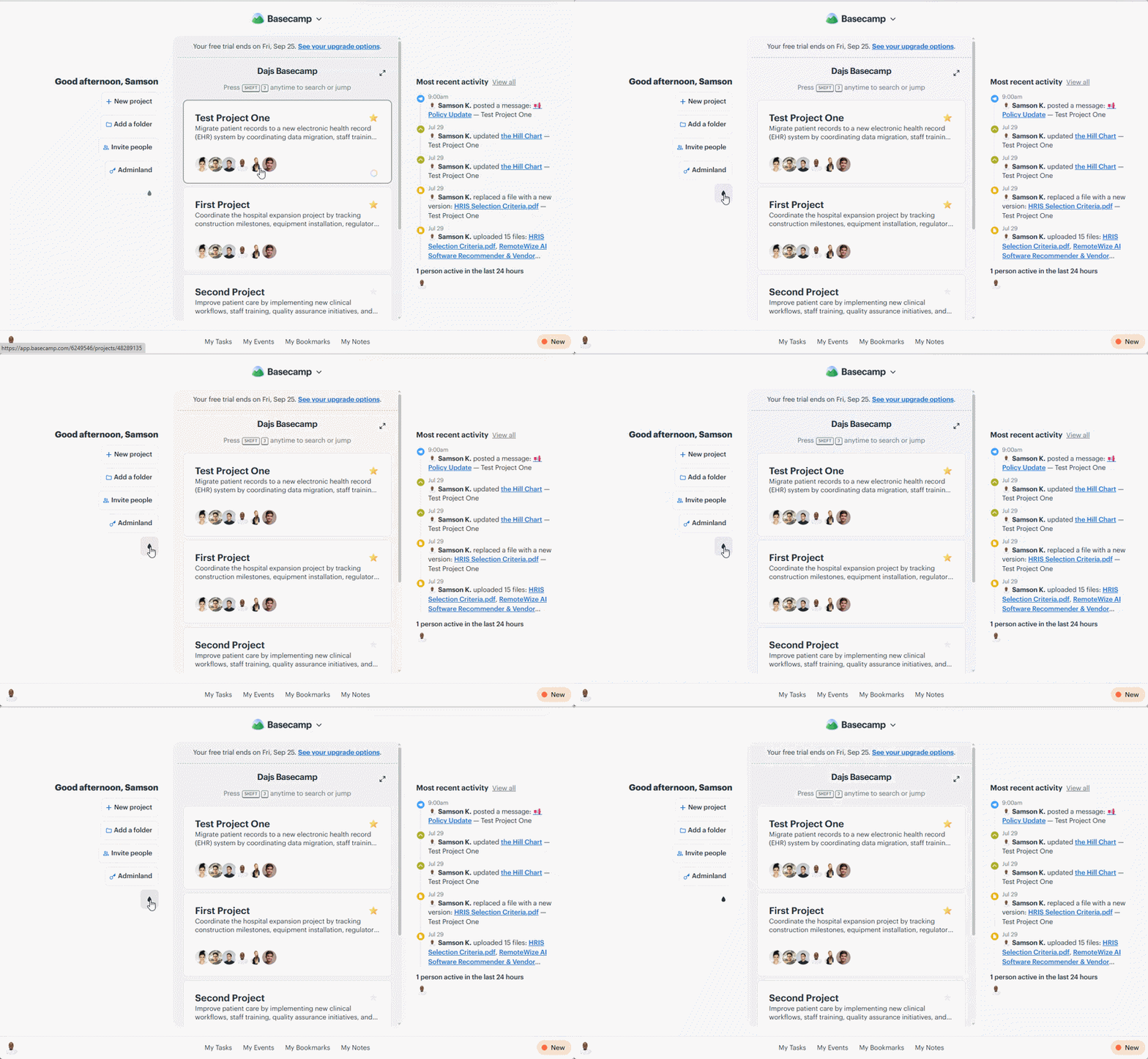
I like that Basecamp offers various color themes, which you can change by clicking the ink-drop icon just below the quick access buttons. It also provides a dark mode, which can make the UI more comfortable for users who prefer low-light viewing. Unfortunately, I didn’t find any additional accessibility features built specifically for users with hearing impairments.
Basecamp Mobile App
Basecamp’s Android and iOS mobile apps are nearly identical, with the same features, design, and layout. Therefore, while I used the Android app for this review, the descriptions below apply equally to the iOS version.
Like the web app, Basecamp’s mobile app has a clean and clutter-free interface. The menu is situated at the bottom of the screen, exactly where today’s users expect it.
Basecamp 5’s mobile app has a simplified menu compared to the previous version. Instead of showing separate tabs for home, hey, activity, the search bar, and my stuff, the menu now displays three icons: home, ping, and more.
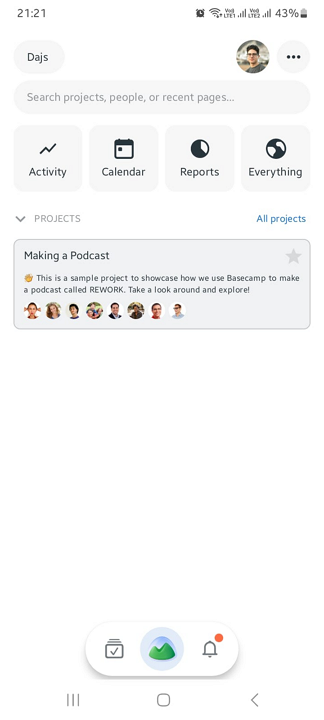
Employees and managers can invite users, create projects, view schedules, manage tasks, track activity, log project time, communicate, and access reports. The key difference is that managers also have access to administrative tools for managing users, permissions, account settings, and other workspace-wide configurations.
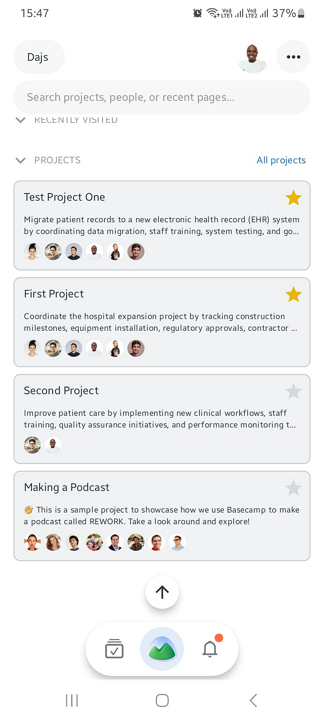
That said, Basecamp doesn’t have an offline mode. During my testing, I couldn’t perform key tasks such as adding projects, generating reports, or viewing schedules without an internet connection. This limitation makes Basecamp less suitable for field and mobile teams that need uninterrupted access to tasks and schedules while working in regions with limited or no cellular coverage.
| Menu Item | Admin Website | Admin Mobile App | Employee Website | Employee Mobile App |
|---|---|---|---|---|
| Feature | ||||
| Timesheet | ✅ | ✅ | ✅ | ✅ |
| Time tracker | ❌ | ❌ | ❌ | ❌ |
| Calendar | ✅ | ✅ | ✅ | ✅ |
| Schedule | ✅ | ✅ | ✅ | ✅ |
| Expenses | ❌ | ❌ | ❌ | ❌ |
| Time off | ❌ | ❌ | ❌ | ❌ |
| Analysis | ||||
| Dashboard | ❌ | ❌ | ❌ | ❌ |
| Reports | ✅ | ✅ | ✅ | ✅ |
| Activity | ✅ | ✅ | ✅ | ✅ |
| Management | ||||
| Kiosks | ❌ | ❌ | ❌ | ❌ |
| Approvals | ❌ | ❌ | ❌ | ❌ |
| Projects | ✅ | ✅ | ✅ | ✅ |
| Team | ✅ | ✅ | ✅ | ✅ |
| Clients | ✅ | ✅ | ✅ | ✅ |
| Locations | ❌ | ❌ | ❌ | ❌ |
| Tags | ❌ | ❌ | ❌ | ❌ |
| Invoices | ❌ | ❌ | ❌ | ❌ |
Basecamp Core Functionalities
Basecamp suffices for small and mid-sized businesses that want a simple communication-based project management platform, and its minimalist design certainly reflects that philosophy. Does it support shift-based operations, though? If you manage field, mobile, or frontline teams, keep reading to find out whether Basecamp fits your workflow.
-
Project Management
-
To-Dos
-
Event Scheduling
-
Time Tracking
-
Team Communication
-
Document Management
Verdict: 6/10
Overall, Basecamp suffices for small office-based and remote teams that need a simple, communication-first project management tool, but shift-based teams will find it lacking. Plus, while it’s easy to use, the lack of advanced project views and detailed reports makes task management and progress tracking more cumbersome than they should be.
Basecamp takes a unique approach to project management. Unlike top-tier project management platforms, which use a workspace-space (department)-project hierarchy, Basecamp eliminates the middle layer and stores all projects directly at the workspace level. When you launch the app, you see all projects on the home page.
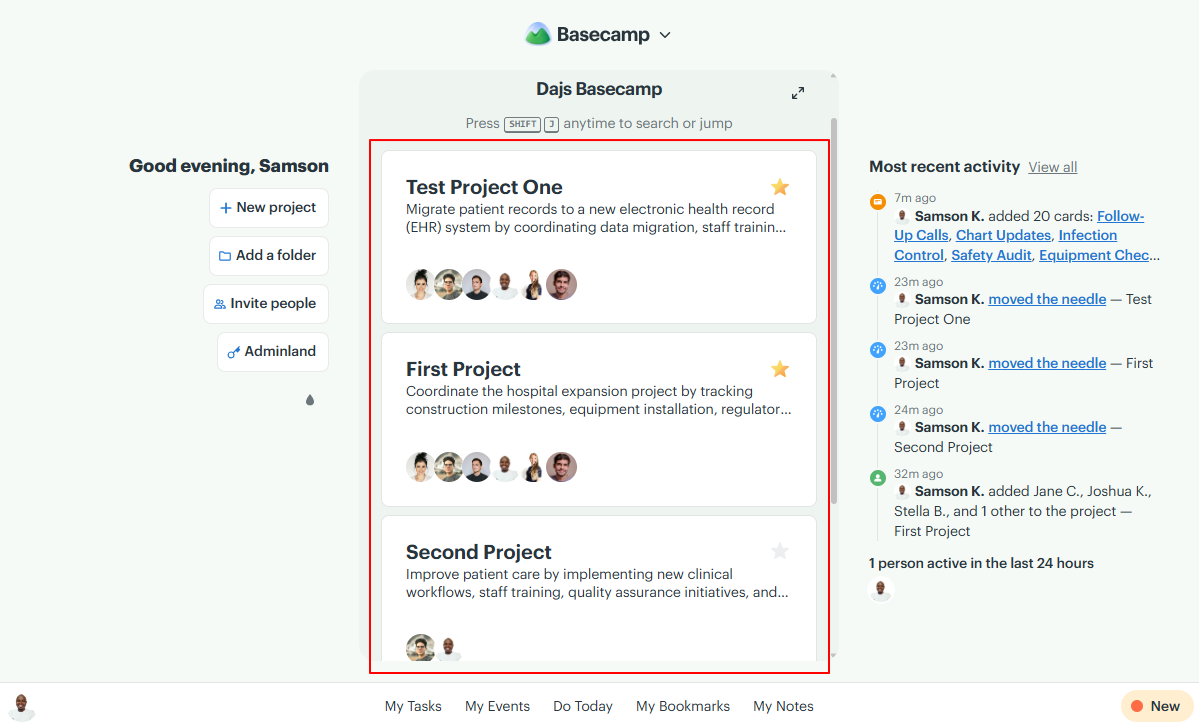
This structure works for small teams with only a handful of projects because it keeps everything easily accessible. However, it makes it harder to organize work in large organizations managing hundreds of projects across multiple departments.
Basecamp implements folders as a workaround for the lack of spaces, but the folders are poor substitutes because they do little more than group projects together. During my testing, I was unable to apply department-level settings, manage permissions, or centralize reporting — features you’ll usually find with dedicated spaces in other project management platforms.
Managing Projects in Basecamp
Think of a project as a self-contained workspace with its own tools. I appreciate that managers can choose which tools to enable for each project. I created a test project and turned on every available tool – Message Board, To-Dos, Docs & Files, Chat, Calendar, Card Table, automatic check-ins, and email forwards – to evaluate how they work together in real-world use.
Ordinarily, the best project management tools display each project in a default view such as timeline, list, Kanban, Gantt, or calendar. By contrast, Basecamp doesn’t adopt these standard project views. When you open a project, you land on a static page displaying tools preselected by the manager.
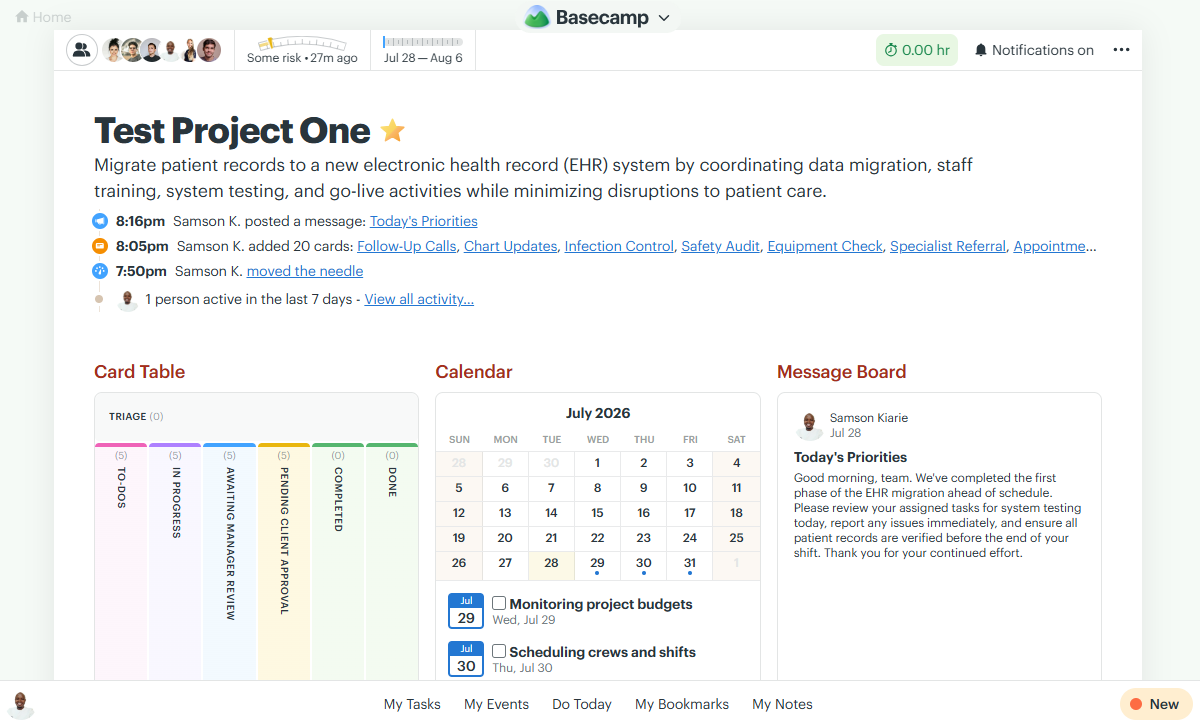
The unique design keeps the project tasks, documents, files, and chats centralized, making information easy to find without hopping between multiple pages. I found this setup to be efficient, especially for teams that value simplicity and quick access to project resources.
The trade-off, however, is flexibility. Because every project follows the same structure, managers have little room to tailor workflows to different team requirements and project types.
That issue aside, Basecamp lets you break projects down into tasks and track progress on the Card Table, the built-in Kanban board. You can create columns to represent different stages and assign each one a color for quick visual tracking. Employees can drag task cards between columns as work progresses, just as they would on any modern Kanban board.
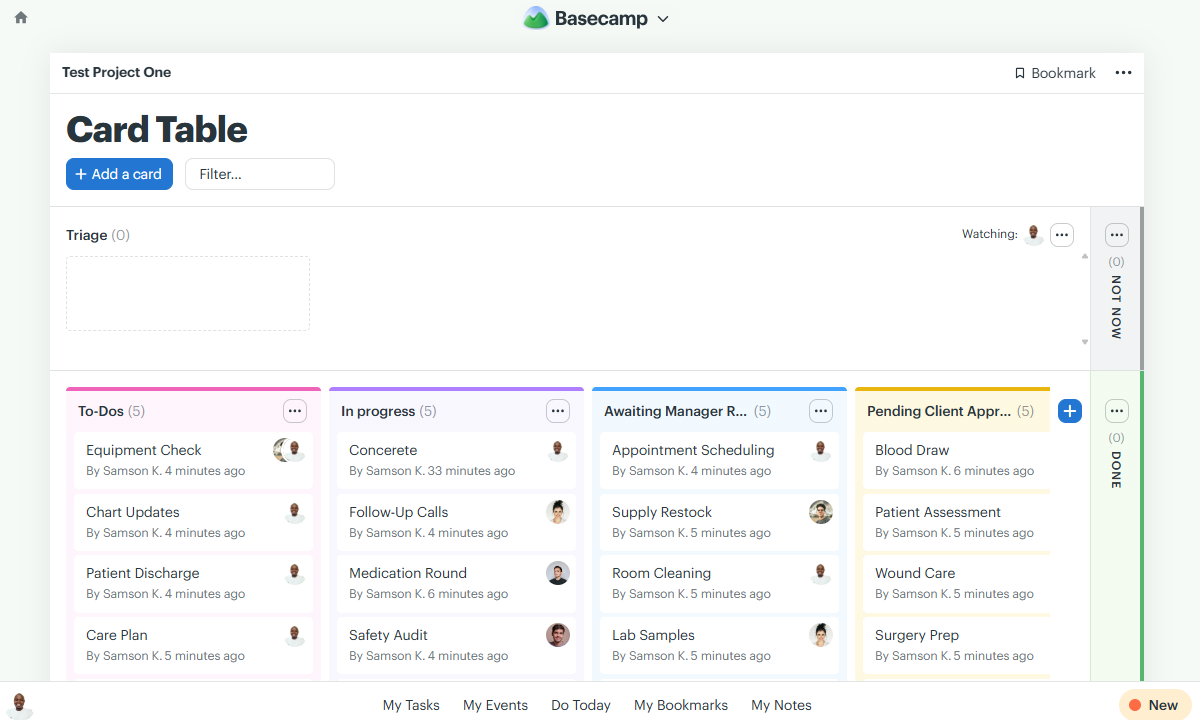
Each task in Card Table can have sub-tasks, a feature Basecamp didn’t offer during my last round of testing. I appreciate that each subtask can have its own assignee and due date. This makes subtasks ideal for breaking complex tasks into smaller steps that different employees can complete independently.
Beyond Card Table, Basecamp offers none of the standard project views found in most modern project management apps. It does include a timeline report called Lineup, but it displays only projects, not individual tasks. Without task-level visibility or dependencies, I found Lineup to have limited practical value for planning and tracking projects with dependent tasks.
Verdict: 7.5/10
Overall, Basecamp’s To-Dos does its job well — organizing work and streamlining task management. Its ease of use and straightforward approach make it a good fit for many small teams across industries. However, the lack of task priorities limits its effectiveness for large teams managing complex, fast-moving projects.
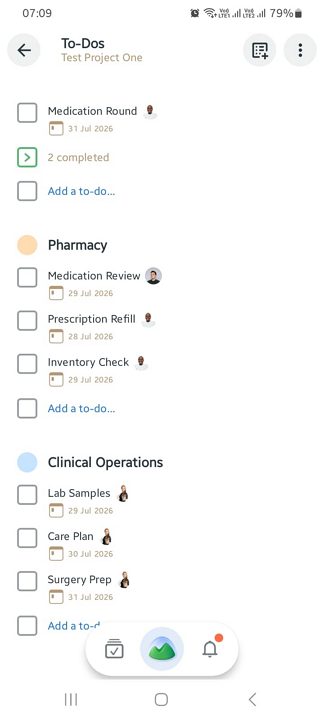
Basecamp’s To-Dos feature lets managers create, assign, and track to-dos. Unlike project tasks in Card Table, to-dos are designed for small, discrete action items or granular steps that don’t need to move through multiple workflow stages. Think cleaning, inventory restocking, equipment checks, and other routine operational tasks.
For this reason, the To-Dos feature doesn’t provide a visual workflow or Kanban-style board. Instead, it allows you to organize work in simple lists. You can create as many lists as needed to group to-dos by project team, department, or any other workflow that suits your team.
Assigning and Managing To-Dos
Creating a task within each list is a breeze. All I needed to do was open a list, click “add a to-do,” and fill out the task parameters. Basecamp lets you add task due dates, assignees, descriptions, and comments to provide detailed instructions.
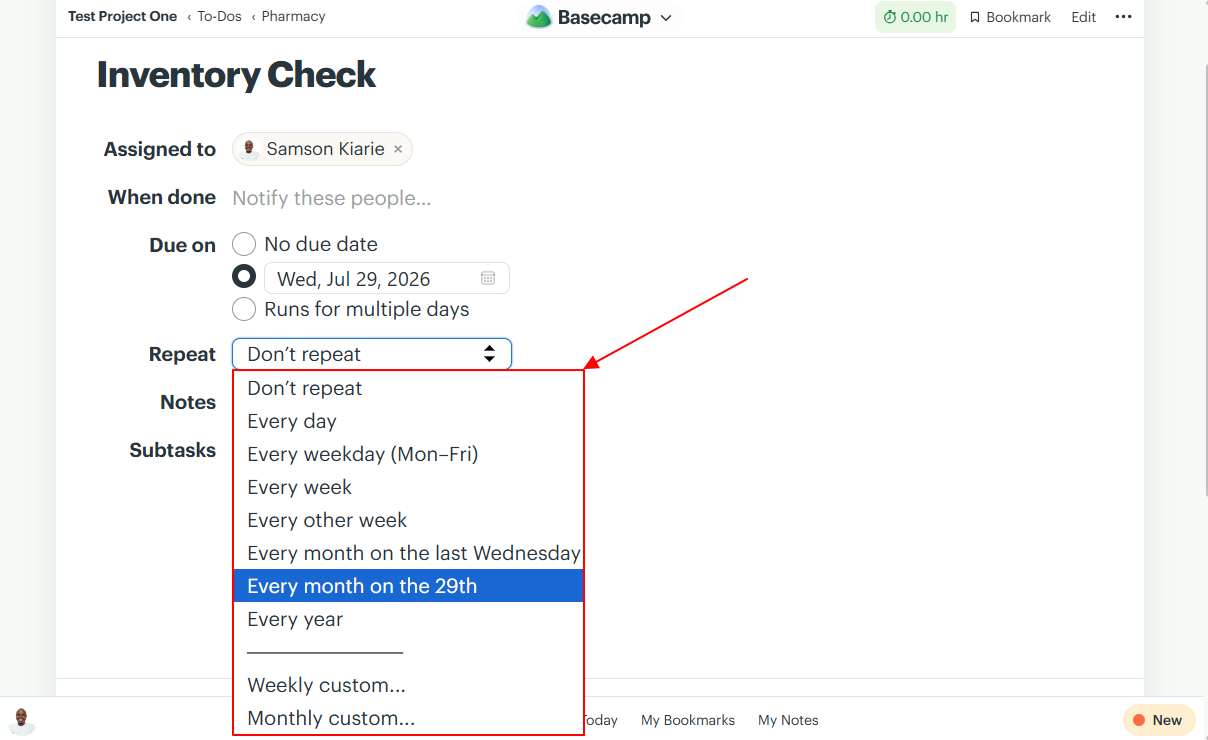
Like project tasks, to-dos can also be broken down into subtasks with assignments and due dates. What sets To-Dos apart from Card Table is the built-in recurring assignment features. I was able to schedule to-dos to repeat daily, weekly, monthly, yearly, or on a custom schedule.
In the real world, such as in a hospital, the recurring assignment feature helps automate recurring tasks like equipment inspections, cleaning, and supply restocking. This reduces repetitive admin work while ensuring routine work doesn’t slip through the cracks.
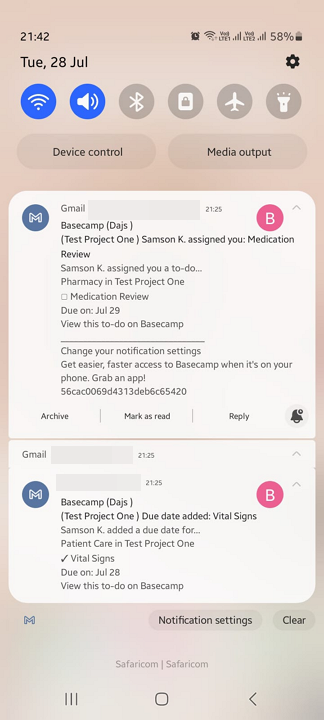
I also liked Basecamp’s solid task notification system. The app notified project members when I assigned, updated, or completed a task, keeping everyone on the same page. It also sent timely deadline reminders, minimizing the risk of overlooked responsibilities or missed deadlines.
Employees can drag and drop tasks to rearrange the order on the to-do list and check off completed tasks to simplify progress tracking. Additionally, each to-do list comes with a hill chart, which helps project managers understand where the lists stand at a glance.
Issues With To-Dos
While to-dos emphasize clarity and ease of use, they don’t let you set priority levels. Priority labels help team members distinguish urgent work from less critical tasks, ensuring they tackle the most important items first. Without them, employees may struggle to identify what needs immediate attention, making it harder to stay aligned on deadlines and time-sensitive goals.
Verdict: 8/10
Overall, Basecamp provides all the tools businesses need to schedule events and manage task deadlines from a centralized dashboard. I particularly like its recurring event tool, which helps schedule routine events without the manual hassle. However, Basecamp isn’t a full-fledged shift-scheduling solution, as it lacks availability management, shift swaps, time-off management, and labor compliance controls.
Basecamp has expanded the old schedule tool into a full-fledged calendar feature called Calendar. I like the new tool because it offers a more intuitive interface and expanded functionality. Better yet, it integrates seamlessly with Google Calendar, HEY Calendar, Apple Calendar, and Outlook, allowing employees to manage schedules from the calendar app they already use.
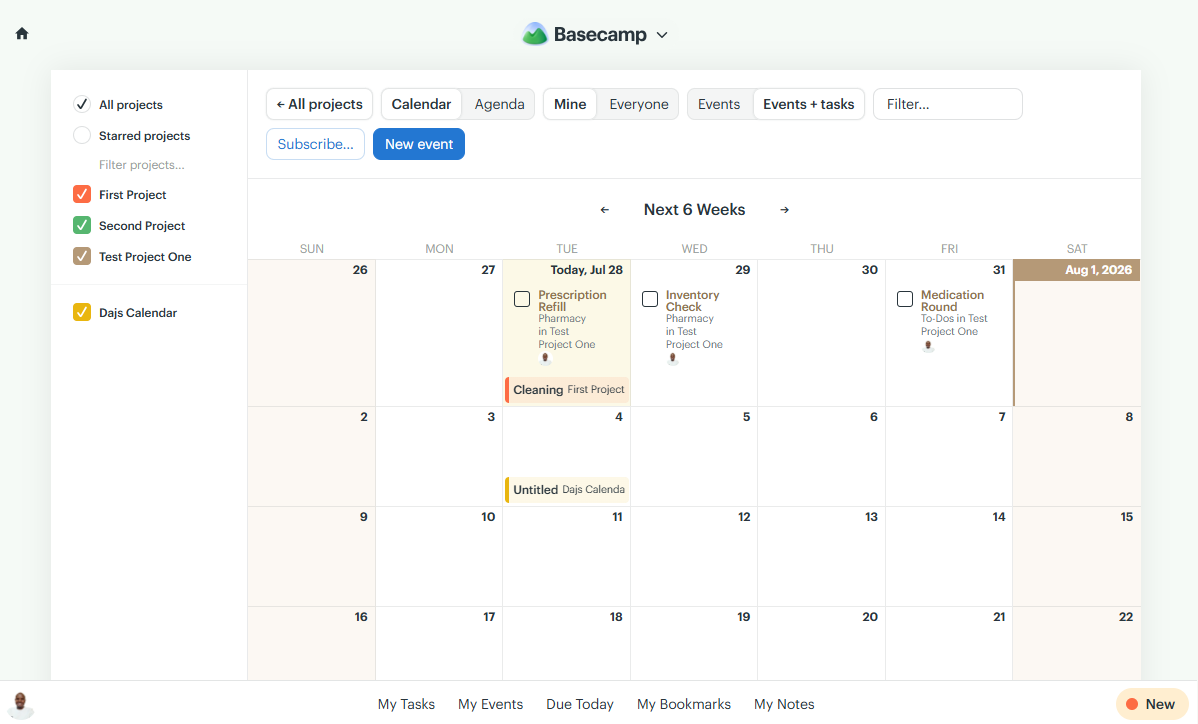
Unlike most project tools, Basecamp’s Calendar is available at both the workspace and project levels. The workspace calendar gives managers a bird’s-eye view of upcoming to-dos and events across all projects. In contrast, each project’s calendar helps employees focus on project-specific events and tasks, without the distraction of unrelated workspace activity.
Scheduling Events
The Calendar is synced with To-Dos, so every to-do with a due date appears in both the workspace and on the respective project calendar. I did notice, however, that you can create new to-dos directly from the Calendar.
While this approach helps eliminate duplicate data entry, it reduces the flexibility to reschedule to-dos while viewing the calendar. Managers have to constantly switch back and forth between the Calendar and To-Dos feature whenever they need to add to-dos or adjust due dates.
That issue aside, I found it easy to schedule events directly on the calendar. All I needed to do was click a date tile and add the event’s date, time, assignee, and notes. An event can be any project activity that occurs at a specific date and time. Think team meetings, client presentations, site inspections, product launches, or safety briefings.
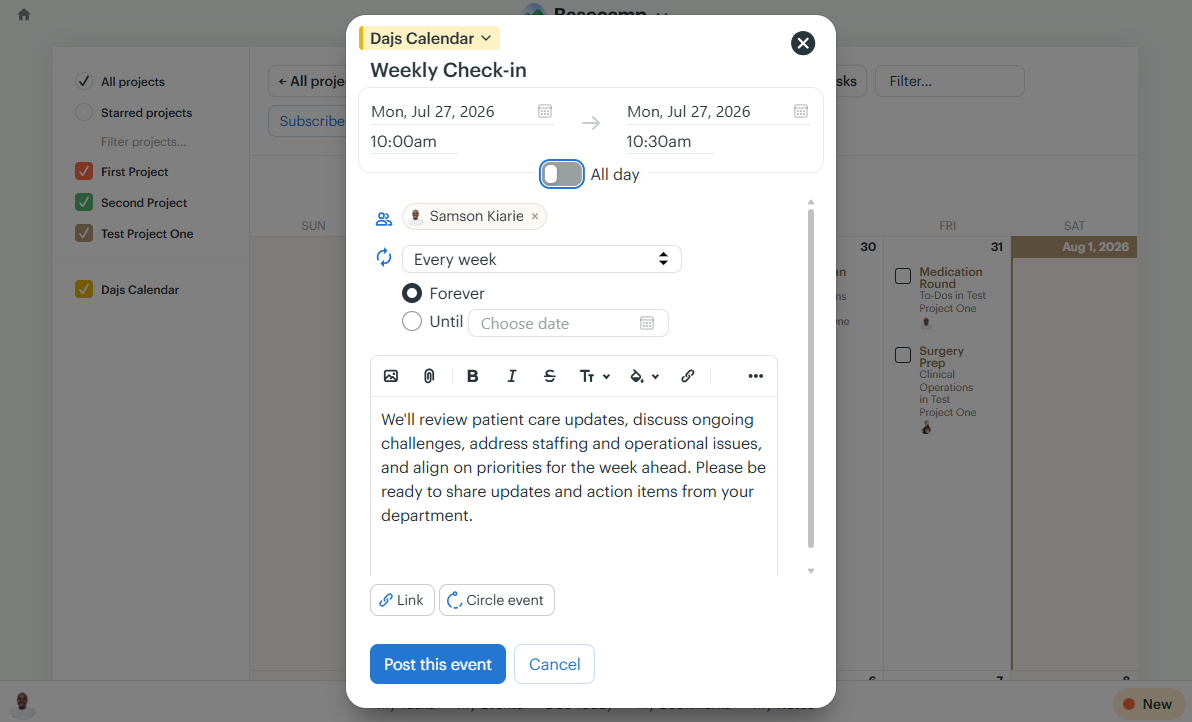
The recurring event feature eliminates repetitive scheduling and saves time. For example, if your team holds a weekly status meeting every Monday at 10:00 AM, you need to create the event only once and set it to repeat automatically, instead of having to add it to the calendar every week.
While all that sounds promising, Basecamp’s Calendar isn’t designed for employee shift scheduling. It doesn’t assign tasks to events, track employee availability, or manage shift coverage. The limitations make it a poor fit for shift-based teams that need to coordinate people and responsibilities across multiple locations. If you’re looking for a platform built specifically for shift scheduling, try Connecteam scheduling.
Verdict: 3/10
While the vendor positions its timesheet tool as the ideal workaround for businesses looking to log work hours, its glaring shortcomings make it difficult to justify the hefty price tag. It doesn’t include an automatic timer or approval workflow, increasing the risk of inaccurate or inflated time records. These weaknesses make Basecamp unsuitable for businesses that rely on accurate project time tracking for payroll and client billing.
Basecamp’s Timesheet tool feels like an expensive afterthought, for good reason. At $50 per month on the Pro plan, it’s difficult to justify the cost, especially considering the tool doesn’t include a built-in timer.
Tracking time is an entirely manual process. I could log work hours from the project’s main page or directly within a task or to-do. The process was straightforward, and I was glad to see that Basecamp attributed each entry to the corresponding project, task, or to-do, making it easy to see where I spent time.
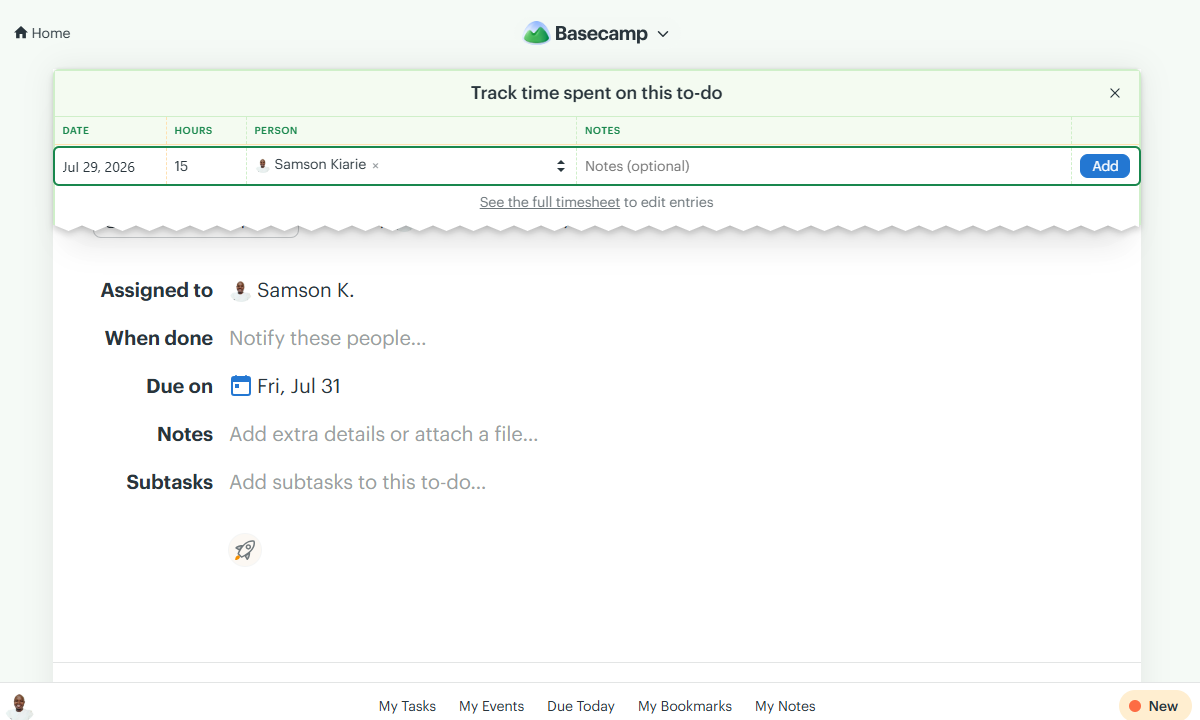
However, relying solely on manual time entry without timesheet approval is a recipe for inaccurate records. Basecamp treated my time entry as valid and immediately added it to the workspace’s timesheet report. It would be useful for managers to be able to review submitted hours to improve the accuracy of the manual time-tracking process.
Still, even with a proper approval workflow, Basecamp’s Timesheet would fall short for teams that require accurate, compliant time tracking. Without a built-in timer, geofencing, clock-in restrictions, and labor compliance tools, it simply isn’t a practical solution for managing field and frontline workforces.
Verdict: 8.5/10
Overall, Basecamp excels at project communication, providing the tools teams need to collaborate effectively. Its feature set has improved since my last round of testing to include message scheduling and voice messages. However, because discussions are tied to individual projects, Basecamp may not be useful for teams that need company-wide communication channels.
Basecamp has a range of communication tools, including message board, chat, and automatic check-ins, that make it a strong choice for fostering team collaboration. I like that these tools are tied directly to individual projects, so discussions are context-specific and centralized. This helps reduce the clutter and confusion that can emanate from scattered and off-topic messages.
Keep reading to discover how each of these tools performed during my testing.
Basecamp Chat
Chat has become Basecamp’s primary communication and collaboration hub following the retirement of its flagship messaging tool, Campfire. The tool supported only text messaging during my last round of testing. I was happy to see that Basecamp has since added voice messaging, making it much easier to share updates that are better communicated verbally than through text.
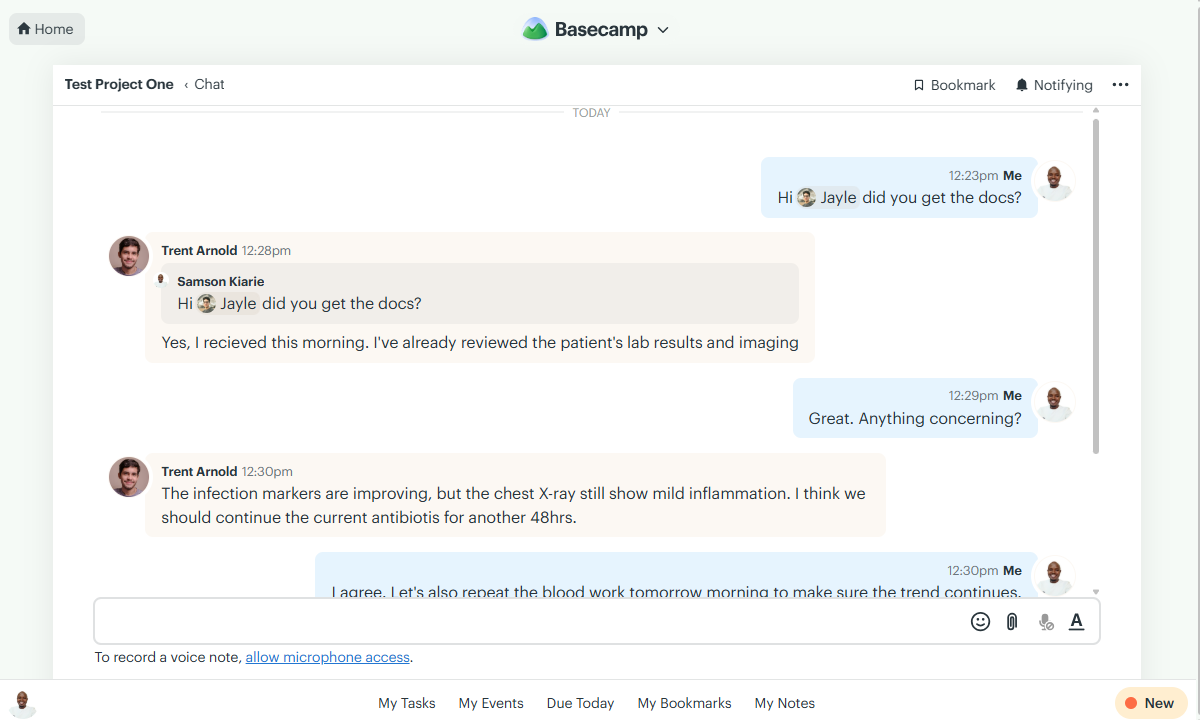
However, the voice messaging feature still feels like a work in progress. At the time of testing, it was available only on the web app, which is disappointing, especially for teams that rely on the mobile app to communicate on the go.
I also found that, while emoji reactions, mentions, and attachments work well, replies are quoted rather than grouped into threaded conversations, making long discussions difficult to follow.
Chat is confined to individual projects and is not available at the workspace level. As a result, there’s no way for employees working across multiple projects to communicate in a shared channel, making organization-wide collaboration more difficult.
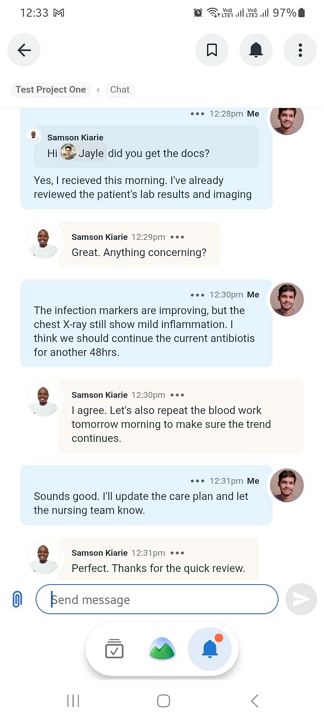
Since Basecamp notifies all project members, some users receive notifications for messages that aren’t relevant to them. This can lead to notification fatigue in busy channels. Thankfully, users can snooze notifications with the Bubble Up tool to avoid unnecessary interruptions.
Message Board
The Message Board is a project-wide communication tool for posting announcements, celebrating team members’ milestones, and gathering feedback. What sets it apart from Chat is that it organizes discussions by categories such as Announcement, Pitch, FYI, and Question.
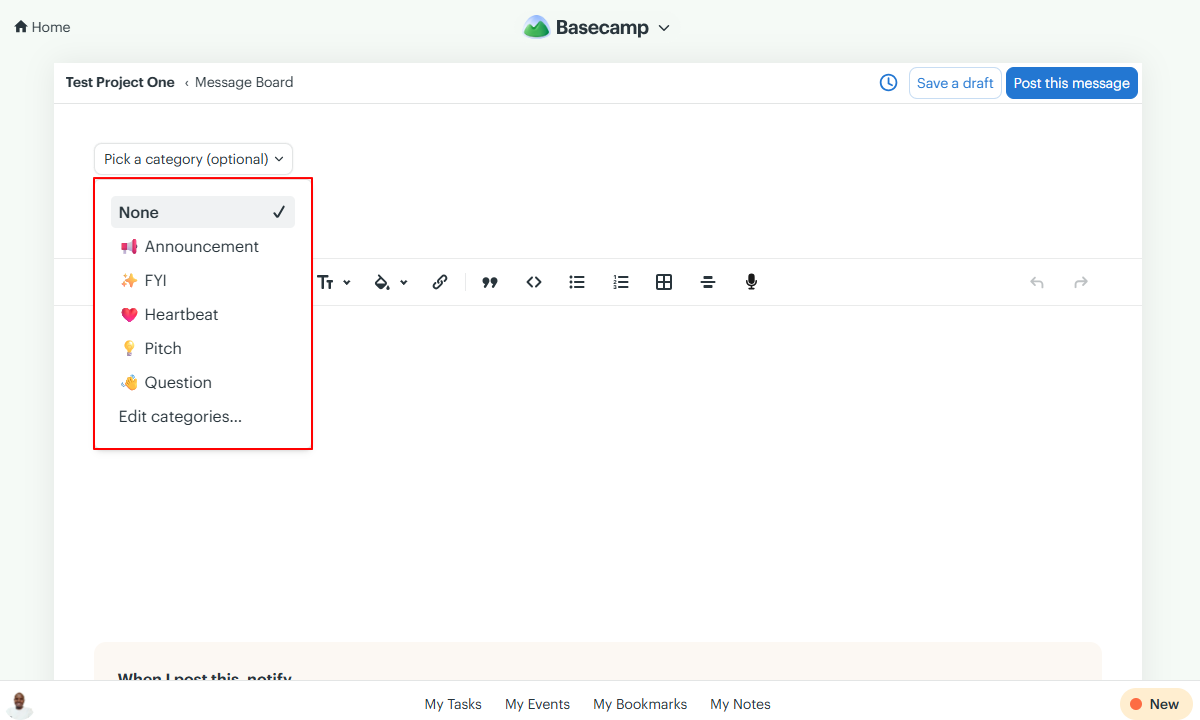
Additionally, messages within the board are organized around specific topics. Replies (comments) are organized under each message—like threaded conversations—reducing clutter and allowing team members to follow discussions with ease.
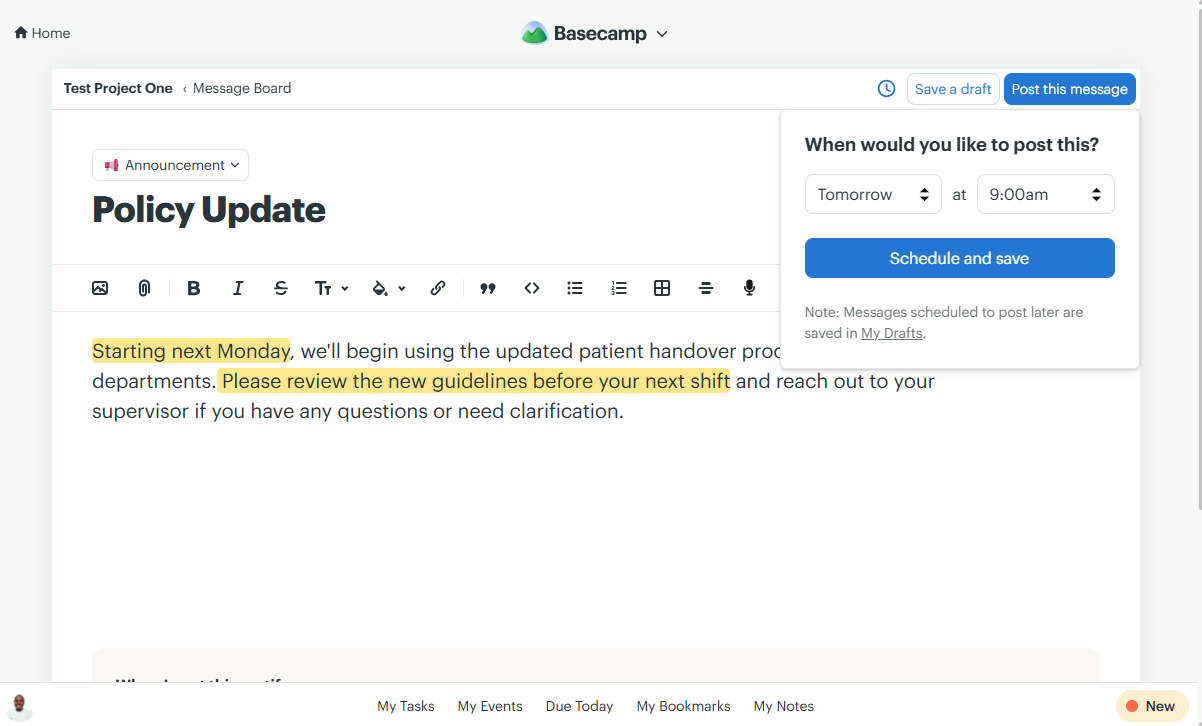
Like Chat, the Message Board lets you send text or voice messages, attach files, and use Bubble Up to manage notifications. However, it also includes several tools you won’t find in Chat, such as a rich-text editor, media and link attachment, message scheduling, and undo.
Automatic Check-Ins
Automatic check-ins help strengthen team collaboration and engagement by letting managers ask recurring questions and gather feedback on an ongoing basis. This gives managers better visibility into various aspects of the team, making it easier to uncover blockers and monitor progress across projects without the need for constant stand-ups.
Setting up a recurring check-in was a breeze. All I needed to do was open the automatic check-in tab, click “new question,” and configure the recurring intervals: daily, weekly, every other week, or monthly. You can set a specific time of day for employees to see and answer the questions.
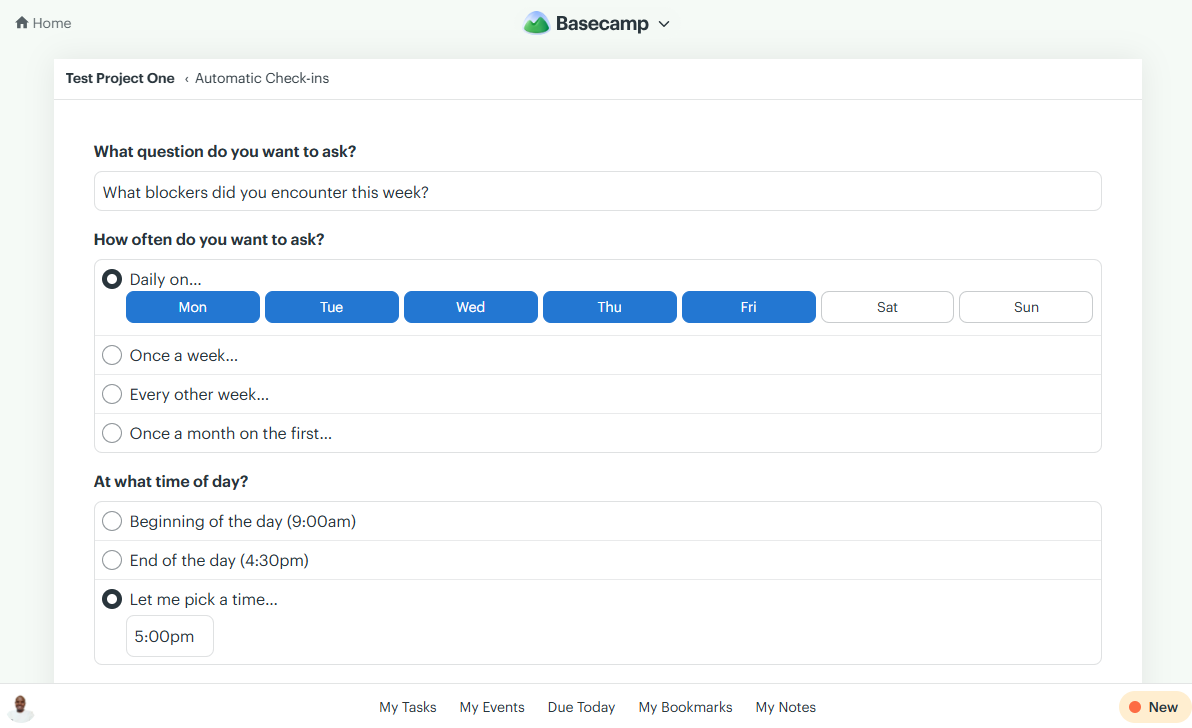
While check-ins are a project-wide tool, you can choose who exactly answers each question. This makes it easy to ask different employees different questions based on their role, responsibilities, or department. This keeps check-ins focused on the right people, leading to more relevant and actionable feedback.
Verdict: 7/10
Overall, Basecamp’s document manager checks the right boxes for businesses looking to centralize important project files. Its folder hierarchy and version control help ensure employees can easily access the latest version of the files they need. However, the lack of expiration tracking and advanced security controls limits its usefulness for industries that require strict document governance.
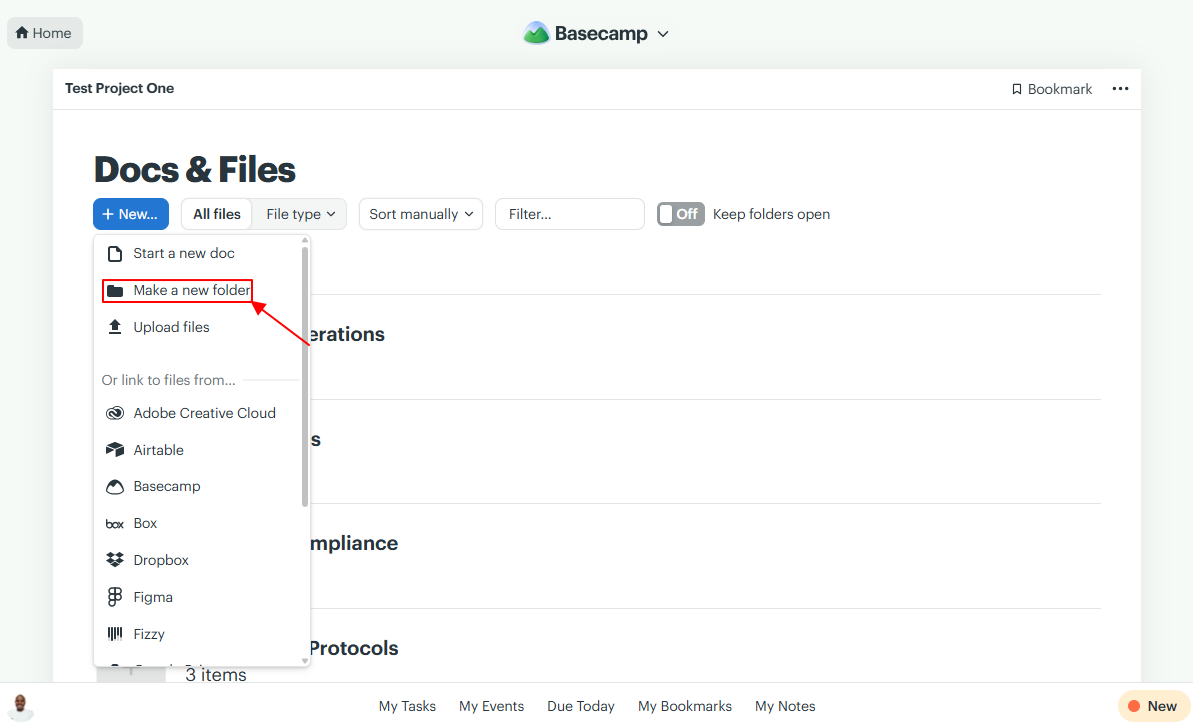
Docs & Files is a folder-style document repository confined to individual projects. Users can create folders within the hub to organize related documents and files into a logical structure that’s easier to manage and navigate.
I found it easy to create folders and upload documents during testing. Folder names are customizable, which makes it easier to label them by task or any other structure that suits your needs and preferences. I also appreciated having the option to link files from cloud storage and third-party apps like Box, Google Drive, OneDrive, Dropbox, Figma, iCloud, and Adobe Creative Cloud.
Basecamp also supports version control, which helps maintain clarity on file changes over time. Basecamp displays the file’s latest version by default, ensuring users always have access to up-to-date information. Managers, on the other hand, can review previous iterations to understand how the file evolved.
Issues With Basecamp File Manager
My main gripe is that there’s no centralized document repository for the entire workspace. As a result, employees working across multiple projects have to jump between repositories to find relevant files. This makes company-wide knowledge sharing less efficient and can inhibit collaboration between cross-functional teams.
Another issue is that while everyone can upload files, Basecamp doesn’t provide an approval workflow. As a result, once a file is uploaded—erroneously or not—employees can instantly access it. Moreover, without expiration tracking, Basecamp’s file manager isn’t a good fit for managing time-sensitive documents such as compliance policies, employee certifications, licenses, and contracts.
Reporting and Analytics
Verdict: 4/10
Overall, Basecamp’s reports are just colorful visuals with limited practical value for performance analysis. By over-relying on manual inputs and omitting numerical metrics, the reports lack the depth and accuracy managers need to make informed decisions.
Basecamp promises to provide a high-level view across all your projects through reports like Lineup, Mission Control, and Hilltop View. The biggest issue is that these reports rely solely on manual inputs from employees. Employees must manually update project status, task progress, and completion percentage, and reports reflect whatever data they’ve entered–accurate or not.
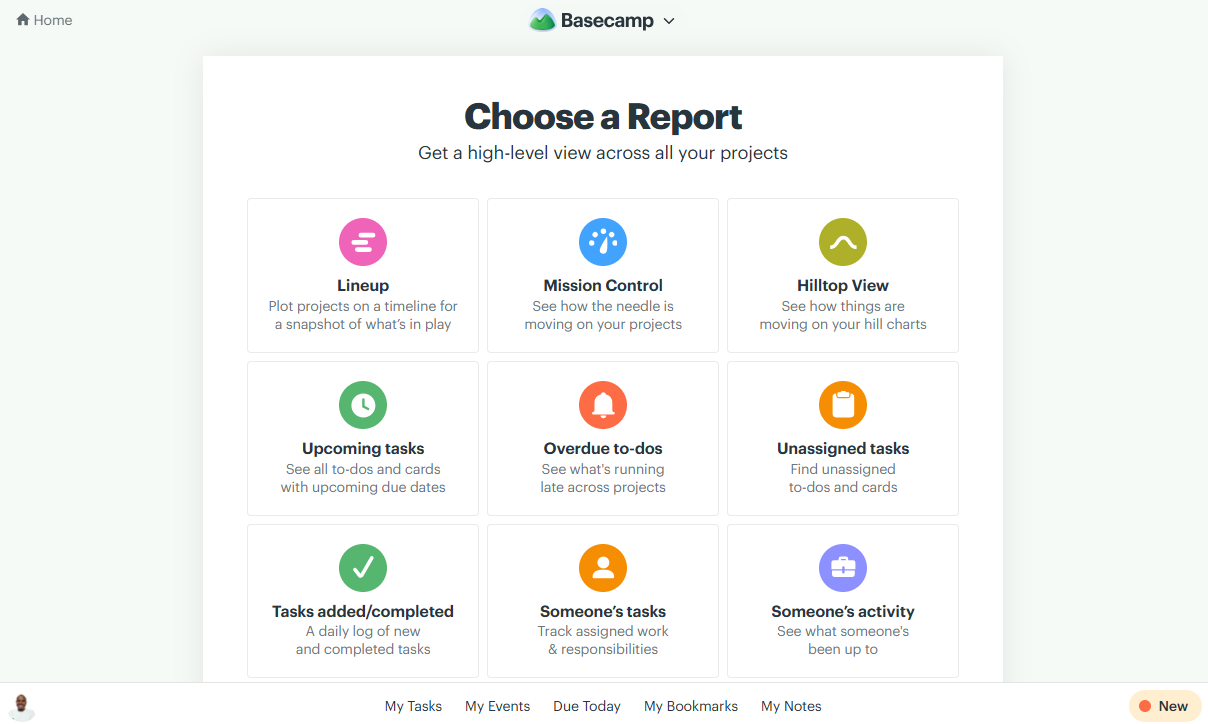
Relying on manual updates increases the risk of inaccurate reports. If a project member forgets to update task progress, the manager will make decisions based on inaccurate information. On top of that, the reports are largely visual, with little to no supporting data or metrics, making it difficult for managers to derive meaningful insights for data-driven decision-making.
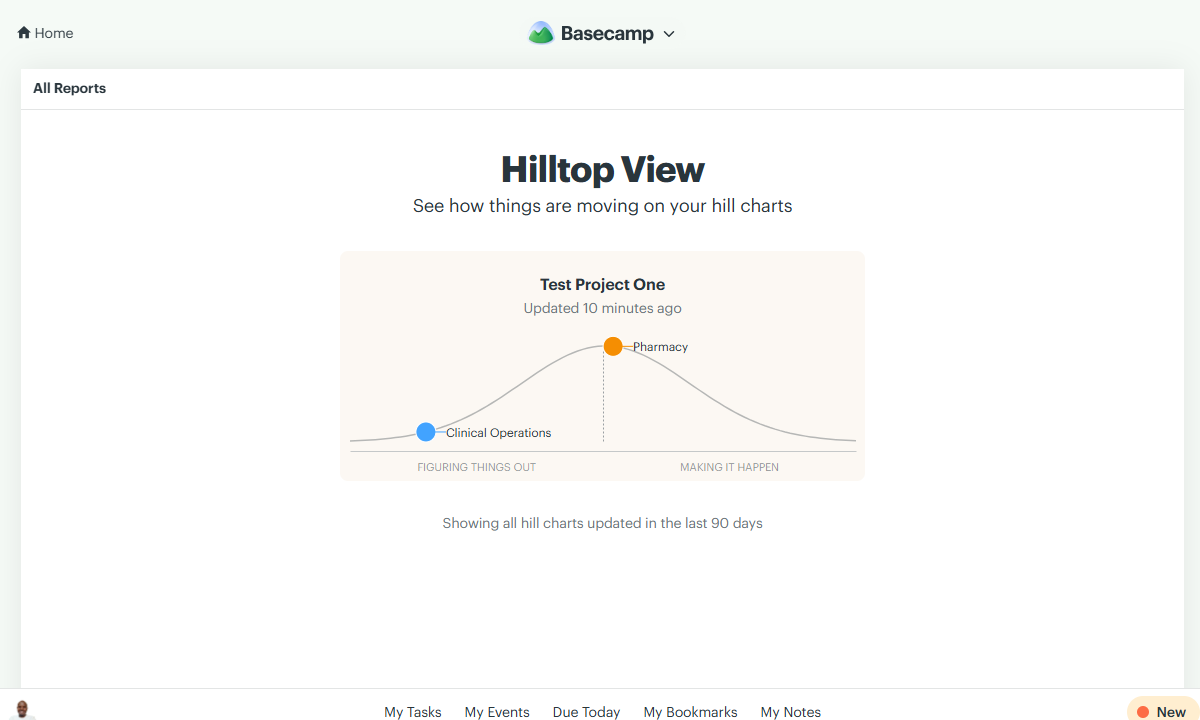
Basecamp also lets you monitor team activity, overdue to-dos, assignments, unassigned work, and upcoming dates. While these reports use automatically generated data, they’re fairly basic. These metrics can easily be monitored through other Basecamp features.
Basecamp Security and Privacy
Verdict: 7.5/10
Overall, Basecamp provides basic security and privacy that meet the needs of most small businesses. However, the lack of advanced security and compliance controls makes it a poor fit for organizations in regulated industries or those with stringent data governance requirements.
| Feature | Availability |
|---|---|
| Data encryption | ✅ TLS (in transit) Encryption at rest not specified |
| GDPR | ✅ |
| HIPAA | ❌ |
| Certification | ❌ |
| 2FA | ✅ |
| Admin controls | ✅ Role-based access control |
| Hosting region | United States |
Basecamp is secure, but not enterprise-ready. It uses industry-standard Transport Layer Security (TLS) to encrypt data in transit and provide role-based access. During my last round of testing, the vendor claimed that “application databases are generally not encrypted at rest,” which was worrying.
I was glad to see that Basecamp has since addressed this issue. The vendor now claims to “go to great lengths to secure your data at rest,” which is reassuring. Unfortunately, it doesn’t disclose the encryption standards it uses, making it difficult to assess the strength of its protection.
That issue aside, Basecamp provides two-factor authentication (2FA), adding a layer of security beyond standard password logins. In addition, 37Signals’ (Basecamp’s parent company) privacy policy states that it “may collect, use, process, and disclose your personal information in accordance with the General Data Protection and Regulation (GDPR),” which is encouraging for businesses operating in or serving customers in the European Union.
That said, Basecamp lacks widely recognized certifications such as SOC 2 Type 2 or ISO 27001. Without these independent audits, it’s difficult for enterprises and organizations with strict data governance requirements to verify the effectiveness of Basecamp’s security controls and compliance practices.
Basecamp Customer Support
Verdict: 7.5/10
Basecamp’s live chat has added new dimensions to its already fast and reliable email support. Users now have a faster way to find solutions for urgent issues that require human intervention. However, live chat and the help center aren’t easily accessible, which takes away from the overall support experience.
| Support Type | Availability |
|---|---|
| Live chat | ✅ (24/7) |
| Phone support | ❌ |
| Email support | ✅ |
| Community forum | ✅ |
| Ticket submission | ❌ |
| Help center | ✅ |
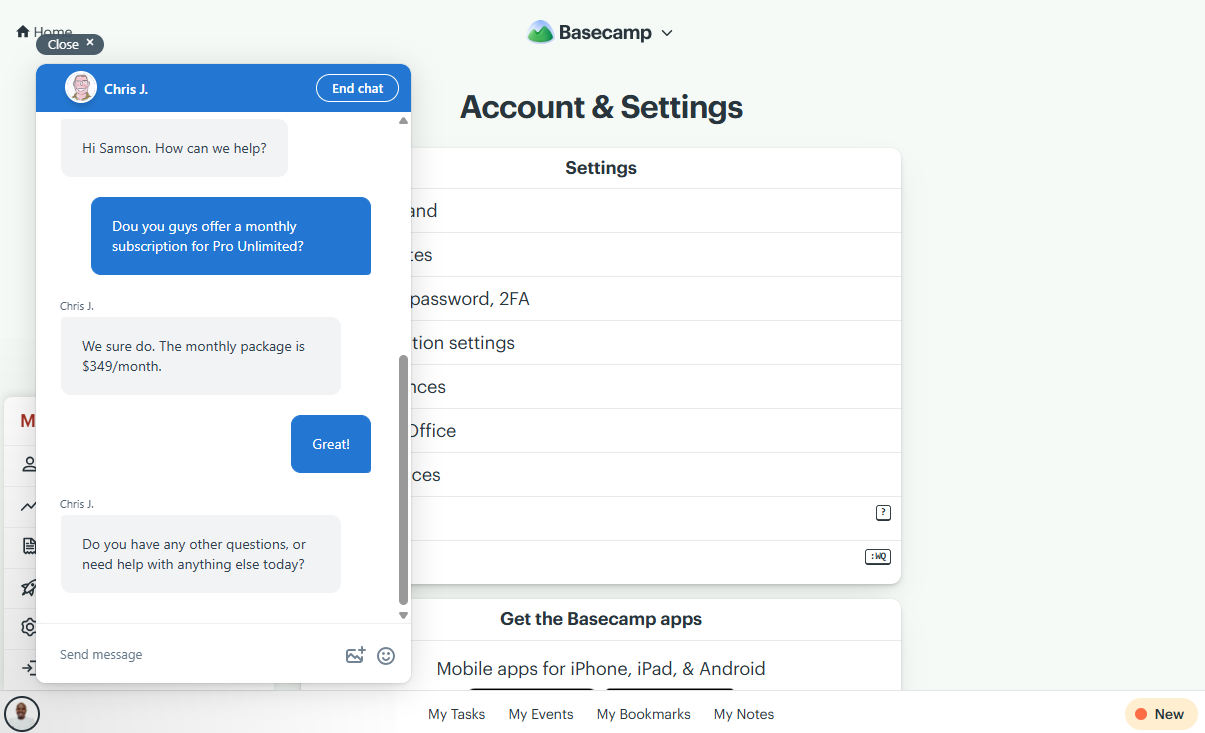
Basecamp’s customer support has improved significantly since I last reviewed the platform. I appreciate the addition of 24/7 live chat, which gives users a convenient way to get instant help when they need it.
I was pleased to see that Basecamp has added live chat support, a feature that was missing during my last round of testing. The support agents responded to my questions within seconds, regardless of the time of day, which was impressive. My only complaint is that live chat is buried deep within the settings menu under “help,” making it harder to find.
I also tested the web form. As in my previous round of testing, the agents responded to my queries via email in less than 30 minutes. Better yet, the agents seemed well versed and always gave satisfactory answers.
The help center now provides help guides for three Basecamp versions: Classic, Basecamp 2, and Basecamp 5. Help articles are grouped into seven broad categories in the Basecamp 5 section. It also includes a quick search tool that helps you quickly find specific articles by keyword.
I also appreciate the depth of the help guides and the use of screenshots, which make instructions easy to follow. My only gripe is that the official Basecamp 5 website doesn’t include a link to the help center. As a result, users may struggle to find product documentation or troubleshoot issues.
What Are Basecamp’s Review Ratings From Review Sites?
(As of August 2025)
Basecamp App Review
Basecamp is a simple, no-frills project management platform that takes a unique approach to work management. Instead of using the standard workspace-space-project hierarchy, it skips the middle space level, so all projects are available on the workspace level.
I’d recommend Basecamp to small teams that need a communication-centric project management platform. Essential tools, including Chat, Message Board, the document manager, Card Table, and To-Dos, are all organized within their respective projects. This helps keep project communication, resources, and knowledge in one place rather than being scattered across the workspace.
This simplicity comes with trade-offs. Basecamp lacks advanced tools you’ll usually get with top-tier apps, such as customizable project views, task dependencies, and a built-in time tracker. These limitations make it a poor fit for managing complex projects. Likewise, while its scheduling tools work well for events and simple tasks, they lack the depth and automation for managing complex job scheduling.
Connecteam: The Better Basecamp Alternative
Basecamp works well for remote and office teams. However, I wouldn’t recommend the software for organizations with field and frontline teams because it lacks the time-tracking, scheduling, and workforce management features needed to verify attendance, coordinate employees, and manage shifts.
Luckily, there are many tools that are better suited for managing shift-based teams, like Connecteam. Some of the benefits of using Connecteam to manage field and frontline teams include:
Efficient Job and Schedule Management
Unlike Basecamp, Connecteam lets managers schedule shifts alongside assigned tasks. Managers can create jobs, break them down into bite-sized tasks, and link them to shifts, something Basecamp can’t do. This gives employees clear responsibilities, improving accountability and team productivity.
Additionally, Connecteam is built to speed up scheduling without compromising compliance with labor laws. Managers can build schedules either manually or using the AI-powered automatic scheduler. With the former, you get tools like recurring shifts, templates, and drag-and-drop functionality to create shifts in minutes.
Connecteam’s auto-scheduling, on the other hand, eliminates the manual hassle, freeing up managers for other admin tasks. It lets managers assign hundreds of shifts with only a few clicks based on employee availability, preferences, and skills. Assigning employees tasks based on qualifications reduces costly rework and workplace accidents.
Connecteam also provides advanced tools, including:
- Scheduling rules: Set employees’ work and shift limits for compliance with labor laws.
- Employee self-service tools: Allow employees to accept/reject shifts, claim open shifts, and swap shifts when life happens.
- Automatic conflict detector: Pinpoint and rectify overlapping shifts and other schedule conflicts to eliminate scheduling errors before they cripple operations.
Automatic Time Tracking
Unlike Basecamp, Connecteam’s time-tracking app uses an automatic timer. Employees just need to clock in at the start of their shift, and the timer will log their work hours automatically. However, the app imposes strict restrictions to prevent early clock-ins, late clock-outs, or off-site punching, helping you ensure that timesheets are always accurate.
My favorite restriction is Connecteam’s geofencing, which ensures employees clock in and out only when they’re physically at the assigned job site. This prevents cases of employees clocking in when they’re still a few blocks away from the job site to avoid losing attendance points.
Connecteam also notifies the manager when an employee leaves an assigned job site, enabling them to verify job completion and monitor field activities with precision. You can also enable automatic clock-outs to prevent shift workers from accidentally staying clocked in after their shift ends.
Better yet, Connecteam tracks time in full compliance with underlying labor laws. I like the flexibility of its break and overtime policies. Businesses can configure break rules that align with the strictest labor laws and track daily, doubletime, weekly, holiday, and seventh-consecutive-day overtime.
Streamlined Team Communication and Collaboration
Despite offering more features than Basecamp, Connecteam executes each one well so nothing feels like an afterthought — not even the communication hub. If anything, Connecteam’s team communication features provide better organization of discussions than Basecamp.
Why? To begin with, Connecteam has two communication features—Chat and Updates. Connecteam’s Chat is the equivalent of Basecamp’s Chat, but with better functionality. I like that managers can create private channels when a discussion calls for confidentiality or public channels when they need to reach everyone. Basecamp, on the other hand, supports project-wide (public) channels only.
Connecteam’s Updates is a company-wide communication channel that enables managers to share company news and updates. Unlike Basecamp’s Message Board, which reaches only project members, Updates can broadcast messages across the entire organization. Alternatively, managers can target specific teams, departments, or locations, ensuring the message reaches the right people without interrupting everyone.
I also like Updates’ engagement statistics, which help managers determine who viewed and didn’t view an announcement. These insights come in handy for time-sensitive communications that require immediate action. For example, a manager can quickly identify frontline employees who haven’t seen an urgent safety notice and follow up directly, ensuring everyone receives critical information on time.
FAQs
Basecamp doesn’t support labor law compliance. Its Calendar and Timesheet tools lack automatic timers, clock-in rules, geofencing, break policies, and overtime tracking. Managers can’t set work limits or manage shift compliance, making Basecamp a poor fit for managing shift-based, field, or frontline teams.
Basecamp offers a free-forever plan for up to 20 users and 1 project. Paid plans include Pro at $15 per user per month with a 30-day free trial, and Pro Unlimited at $299 per month billed annually with a 60-day free trial. Timesheet and admin add-ons cost $50 monthly each.
Basecamp doesn’t integrate with payroll software. While you can add a paid Timesheet add-on for $50 per month, employees must enter hours manually. The app doesn’t automatically sync hours, track overtime, or export timesheets directly to external payroll providers.
Basecamp offers limited native integrations focused on calendars and cloud storage. It syncs with Google Calendar, Outlook, Apple Calendar, and HEY Calendar. You can also link project files from cloud tools like Google Drive, Dropbox, Box, and Figma. It lacks native integrations for CRM, accounting, and payroll systems.
