

A simple scheduling software that offers essential features but delivers mediocre performance.
Verdict: 6.5/10
Workfeed is a workforce management software solution designed for shift-based businesses, primarily those in the hospitality, retail, and healthcare industries. The platform claims to streamline scheduling, time tracking, team communication, and leave management, but my testing showed that it only partially delivers on those promises.
Its scheduling module works well, and I was particularly impressed by the auto-scheduler, which lets you assign hundreds of shifts in minutes. Moreover, I love the automatic conflict detector, which ensures each schedule is free of errors and compliant with labor laws. However, I found some glaring shortcomings, including missing recurring shifts and a limited drag-and-drop feature.
Workfeed’s time tracker has tools for logging regular hours, overtime, and breaks. Standouts include the incremental break feature, which lets you assign multiple meal breaks depending on the shift length. However, these tools are limited, which significantly hampers their ability to track time accurately and comply with labor laws.
Workfeed Key Features
- Employee scheduling: Assign shifts manually, or use the auto-assign feature to save time and comply with labor laws.
- Time tracking: Track time on the web, mobile, or kiosk app. Activate geofencing for time tracking on the mobile app to ensure employees clock in only once they’ve arrived at the jobsite.
- Leave and availability management: Workfeed allows employees to request leave from any device and enables managers to approve requests even while on the move. However, Workfeed doesn’t support PTO accruals.
- Team communication: Streamline internal communication with one-on-one and group chats. Emoji replies add emotional content to each conversation.
Pros
- Robust shift auto-assign feature.
- Effective incremental break-tracking tools.
- Time tracking with an internet connection.
Cons
- Identity verification not required with the terminal time clock.
- Small range of features.
Workfeed Pricing
| Pricing/Plan | Basic | Pro | Pro + |
|---|---|---|---|
| Monthly | $0 | $4 per user per month | $5 per user per month |
| Annual | $0 | $5 per user per month | $6 per user per month |
| Features |
| Everything in Basic, plus:
| Everything in Pro, plus:
|
| Pricing as of January 2026 | |||
I love Workfeed’s user-based pricing model, which lets you pay only for the seats you need. Most importantly, there is no lock-in period or longer-term contracts — you’re bound only for the period you’ve paid for. Plus, since there are no hidden fees, it’s easier to calculate your initial and recurring software costs.
Workfeed offers a free plan that gives small businesses access to basic workforce management features. However, its per-user cost is higher than that of other software I’ve seen, as you can see in the following table.
| Plan | Workfeed (Pro) | 7Shifts (The Works) | RotaCloud (Standard) | Connecteam (Advanced) |
|---|---|---|---|---|
| View pricing | View pricing | View pricing | View pricing | |
| 10 users | $40 | $79.99 | $22.51 | Free for life – all features and dashboards |
| 20 users | $80 | $79.99 | $45.02 | $49 |
| 30 users | $120 | $79.99 | $67.53 | $49 |
| 50 users | $200 | $79.99 | $112.55 | $99 |
| Read our full 7Shifts review | Read our full Rotacloud review | Learn more about Connecteam |
Workfeed Discounts
In a bid to win over new businesses, Workfeed offers a 50% discount on all plans for businesses that are less than 12 months old. Moreover, the provider also offers a 50% discount for non-profit organizations.
Verdict: 6.5/10
Workfeed Usability and Interface
Workfeed has a modern interface and a limited set of features – a combination that usually makes most software easy to use. Is Workfeed really user-friendly, though? I put its usability and interface to the test and recorded my hands-on experience. Read on for all the details:
Setting Up Workfeed
Creating an account and setting up your team on Workfeed is fast and straightforward. During my testing, I needed less than 15 minutes to get my team up and running. My only gripe is that Workfeed doesn’t offer walkthroughs or guides to help users learn the platform.
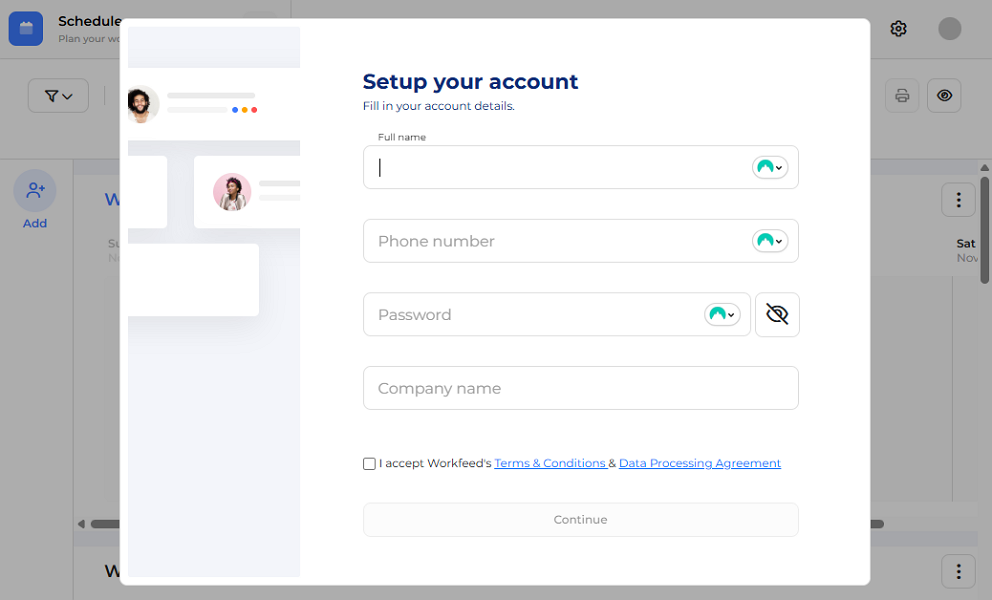
That aside, I really liked having the settings on one page, which saved time by eliminating the need to jump between multiple tabs. Moreover, considering Workfeed’s lightweight nature, there are no complex settings that would require technical expertise. In fact, most of the options are toggle buttons that are pretty easy to activate, even for newbies.
Adding employees to your team is also a breeze. You can invite employees one by one via email or use an invitation link to add them in bulk. Workfeed requires employees to complete basic profile settings themselves, freeing the manager up to set up their roles and permissions.
Moreover, Workfeed lets you import employees directly from your go-to solutions, such as Datalon, Danlon, and more. This option saves time, especially if you use one of these apps. However, it would be better for the platform to support PDF, Excel, or CSV files to simplify employee imports for companies that do not use these third-party apps.

That said, Workfeed has some oddly named features that can slow down users. For instance, its availability management feature is labeled “wishes,” while the overtime tool is labeled “supplements.” These terms do not clearly communicate the features’ purposes and can be confusing for first-time users.
Verdict: 7.5/10
Workfeed Web App
Workfeed’s web app looks modern and intuitive, except for a few odd design choices. Instead of placing features in a traditional sidebar, Workfeed uses workspace-based navigation. It organizes the main features — scheduling, time tracking, and leave management — into separate workspaces, accessible via the dropdown menu in the top-left corner.

When you select a feature, the interface adapts to show only the options relevant to that feature. The focused, clutter-free interface simplifies navigation for non-technical users, as they don’t have to dig through long menus to find what they need.
However, some users might find the workspace-based navigation less intuitive than the standard menu layout. Remember that switching between workspaces takes a few extra clicks, which can slow down seasoned users looking to jump quickly between features.
Workfeed is available in Danish, German, English, Spanish, Dutch, Norwegian, and Finnish. These options enable employees to use the platform in their native language, simplifying navigation. Unfortunately, there are no design tweaks for users with visual or hearing impairments.
Verdict: 7/10
Workfeed Mobile App
I used the Workfeed Android mobile app for this review. However, the Android and iOS apps are identical, so the descriptions below apply to both.
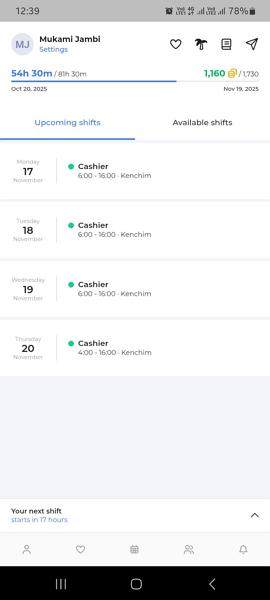
The mobile app looks modern and intuitive, but unlike the web version, it features the standard layout for mobile apps. The menu is at the bottom of the screen for easier accessibility.
Regarding functionalities, the mobile app has most of the features you’ll find on the web app. Managers can assign shifts, add employees, manage leave, and perform other admin tasks, all while on the move. Employees, on the other hand, can track time, view schedules, set availability, and request leave.
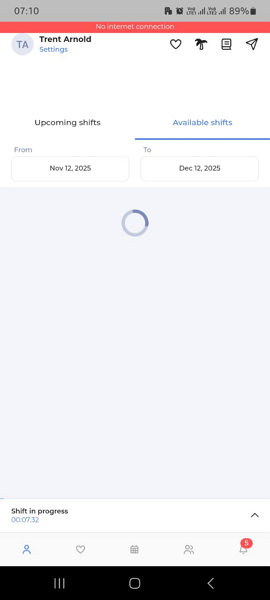
That said, the Workfeed mobile app became unusable when I turned off my internet connection. I couldn’t access any features on either the employee or the admin version, which was disappointing. The lack of offline functionality reduces Workfeed’s efficiency for field teams, especially those working in environments with poor connectivity.
| Menu Item | Admin | Employee | ||
| Website | Mobile App | Website | Mobile App | |
| Timesheet | ✅ | ✅ | ✅ | ✅ |
| Time tracker | ✅ | ✅ | ✅ | ✅ |
| Calendar | ✅ | ✅ | ✅ | ✅ |
| Schedule | ✅ | ✅ | ✅ | ✅ |
| Expenses | ❌ | ❌ | ❌ | ❌ |
| Leave | ✅ | ✅ | ✅ | ✅ |
| Analysis | ||||
| Dashboard | ❌ | ❌ | ❌ | ❌ |
| Reports | ✅ | ❌ | ❌ | ❌ |
| Activity | ❌ | ❌ | ❌ | ❌ |
| Management | ||||
| Kiosks | ✅ | ✅ | ❌ | ❌ |
| Approvals | ✅ | ✅ | ❌ | ❌ |
| Projects | ❌ | ❌ | ❌ | ❌ |
| Team | ✅ | ✅ | ❌ | ❌ |
| Clients | ❌ | ❌ | ❌ | ❌ |
| Locations | ✅ | ❌ | ✅ | ❌ |
| Tags | ❌ | ❌ | ❌ | ❌ |
| Invoices | ❌ | ❌ | ❌ | ❌ |
| Settings | ✅ | ✅ | ✅ | ✅ |
Verdict: 7/10
Workfeed Core Functionalities
I tested Workfeed for a week and documented my findings. In this section, I highlight how each feature performed and any issues I encountered. Below, I give a full breakdown of my hands-on experience with this workforce management solution:
Employee Scheduling

By default, Workfeed’s scheduling tool lets you build rosters on a weekly grid that features employees’ names on the left and dates at the top. However, Workfeed doesn’t align employee names with dates to create a spreadsheet-like grid with rows. Instead, the grid displays only the date column, so shifts aren’t aligned with assignees.
Still, creating shifts on Workfeed was pretty simple. I just needed to click anywhere in the date column and select “create new shift” from the dropdown menu. You can assign the shift or leave it open. Either way, Workfeed instantly notifies employees, keeping them in the loop and reducing the risk of no-shows or late arrivals.
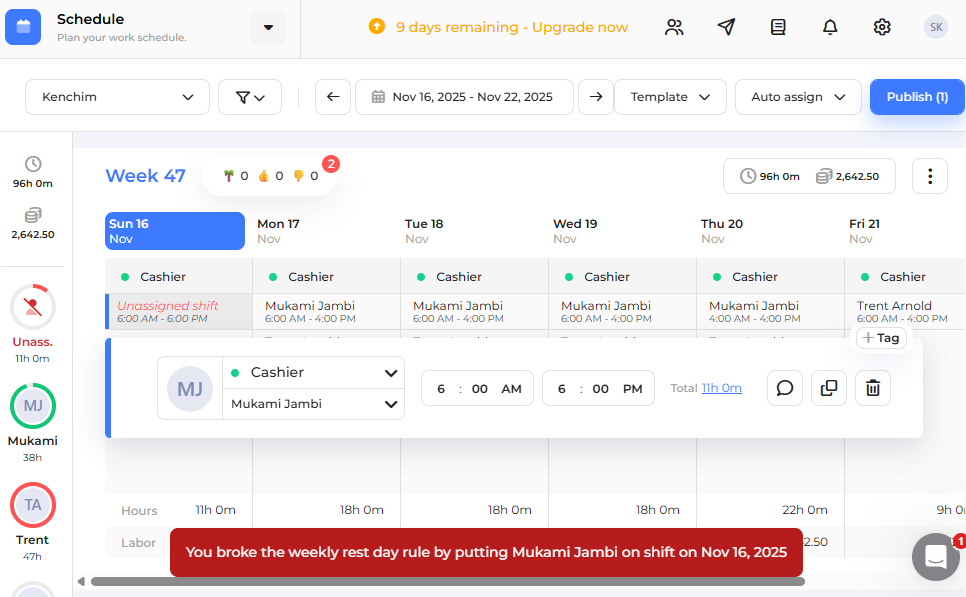
As I added shifts, the automatic conflict detector continually scanned the schedule, flagging overlapping shifts and other issues. Workfeed also marked employees’ profiles in red if I exceeded their weekly limits, which helps ensure no one is overworked.
However, Workfeed does not prevent managers from publishing schedules that have conflicts. I’d like to see the provider implement this functionality in the future. In the meantime, if you’re in a fast-paced environment and constantly need to edit or reassign already-published shifts, I recommend checking out a Workfeed alternative like Connecteam.
Workfeed has a nice set of easy-to-use employee self-service tools. Employees can claim open shifts, provided the new shift doesn’t lead to conflicts. Moreover, the platform allowed me to drop, transfer, or swap shifts with ease, pending the manager’s approval.
Workfeed Auto-Scheduler
My favorite scheduling feature was Workfeed’s auto-scheduler, which leverages AI to bypass manual shift assignment. Like with most auto-scheduling features, you’ll first need to create unassigned shifts, which is easier with tools like shift copying. You can then use the auto-assign tool to assign hundreds of open shifts in minutes.
What sets Workfeed’s auto-scheduler apart is its flexibility in defining scheduling rules. For example, you can set the minimum break between shifts, the maximum number of days in a row, and the maximum number of shifts an employee can take per day to comply with labor laws.
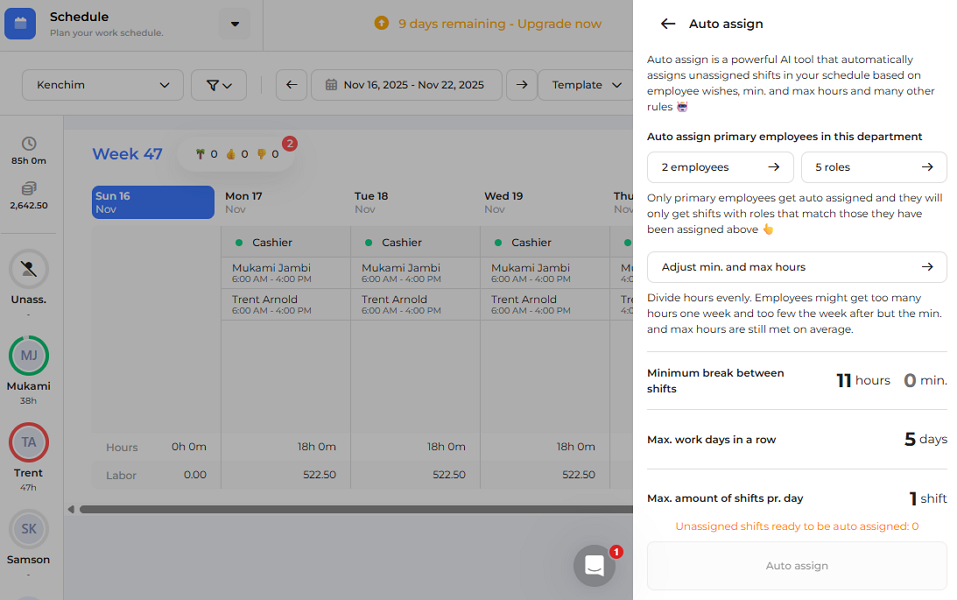
That said, I didn’t like Workfeed’s limited shift customization. The platform lets you define only the role, assignee, and start/end times for a shift. However, you can’t assign a shift to multiple workers, which makes Workfeed unsuitable for companies seeking to foster collaboration via shared responsibilities.
Workfeed also doesn’t have a job or task management module. As a result, you can’t link tasks to shifts to define what employees should actually do during those shifts. Another issue is that Workfeed’s drag-and-drop feature allows you to reschedule unpublished shifts only.
Verdict: 6/10
Time Tracking
With Workfeed, employees can log hours with either the in-app timer or the terminal time clock. The in-app timer lets employees track time in the Workfeed web and mobile apps. Workfeed claims that the terminal time clock works only on a tablet or a computer, but I was able to set it up on my Android smartphone.
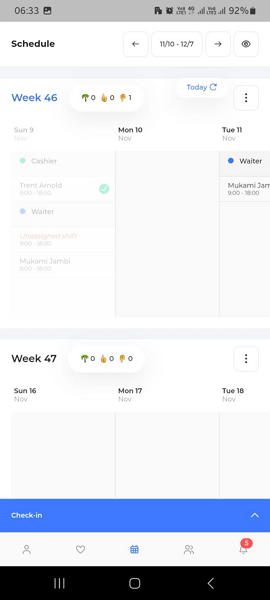
When I opened the Workfeed Android app, I couldn’t find the option to track time. At first, I thought I had misconfigured an essential time-tracking setting. However, it turns out that Workfeed doesn’t display a time tracker on its web and mobile apps, unlike many competitors.
Instead, the check-in button becomes available only within the shift window. In other words, if a shift starts at 9:00 am, the option to clock in will not be visible at 8:59 am. However, you can configure Workfeed to display the check-in button a certain amount of time in advance and permit early clock-ins.
To clock in, click or tap “check-in” and select “go to time clock.” These extra steps make time tracking more complicated than it needs to be. I also discovered that the timer is tied to the shift, which can cause a couple of problems.
First, if you inadvertently clock out, Workfeed marks the shift as complete, and you can’t clock back in. Second, if you forget to clock out at the end of the shift, Workfeed clocks you out automatically. However, the system doesn’t record the clock-out time, and the hours for that shift won’t appear on the timesheet.
A Workfeed support agent told me that, in this case, the manager must manually enter the clock-out time to credit the hours to the employee. I find that this makes time tracking messy and error-prone.
Workfeed Terminal Kiosk
Workfeed’s terminal time clock (kiosk) also takes an unconventional approach. The best time clock kiosk apps require employees to enter a unique PIN and capture a photo to verify their identity at clock-in/-out. This authentication ensures that employees clock in only for themselves, preventing buddy punching.
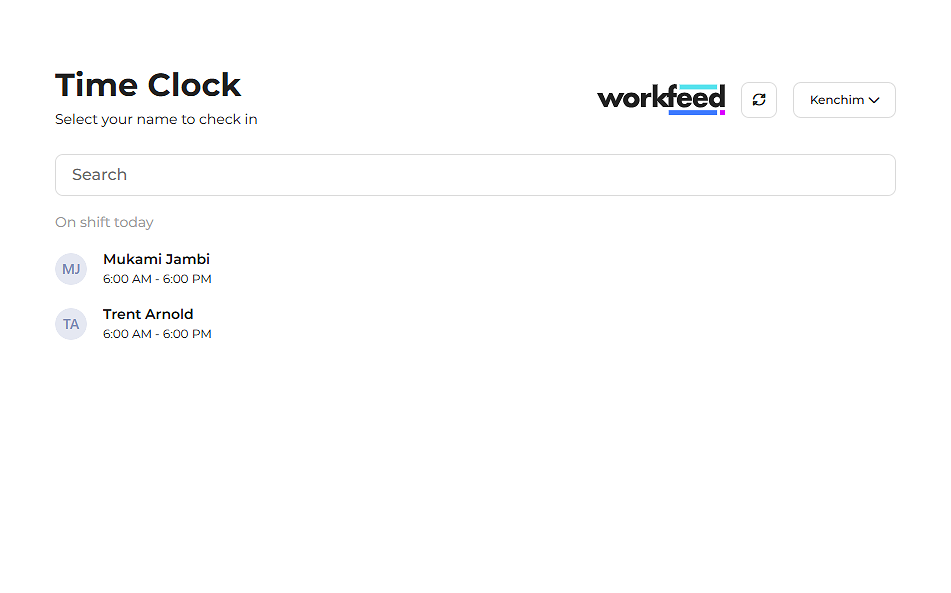
With Workfeed’s kiosk app, employees don’t need to use a PIN or take a photo at clock-in/-out. They simply select a name from the list and clock in or out, with no verification required. During testing, I was able to pick a random name from the list and clock in for that person, which proves how ineffective the system is.
Workfeed Clock-In Restrictions
Despite the aforementioned oversights in Workfeed’s clock-in system, it does implement a few restrictions. For example, Workfeed supports geofencing, which ensures that employees can clock in only once they’ve arrived at the jobsite. It also lets you block early clock-ins entirely or allow employees to clock in only a few minutes early to prepare for their shift.

Verdict: 5.5/10
Workfeed Break and Overtime Tracking
Accurate overtime and break tracking is essential, especially for businesses operating in regions with strict labor laws, such as California. While Workfeed supports both overtime and break tracking, the execution left something to be desired.
Configuring overtime policies is more complicated than with many competing platforms because Workfeed does not offer a dedicated overtime feature. Instead, overtime rules are created using “supplements,” which define when overtime begins and how it is paid. While this approach is flexible, it makes setup more complex and increases the risk of misconfiguration.
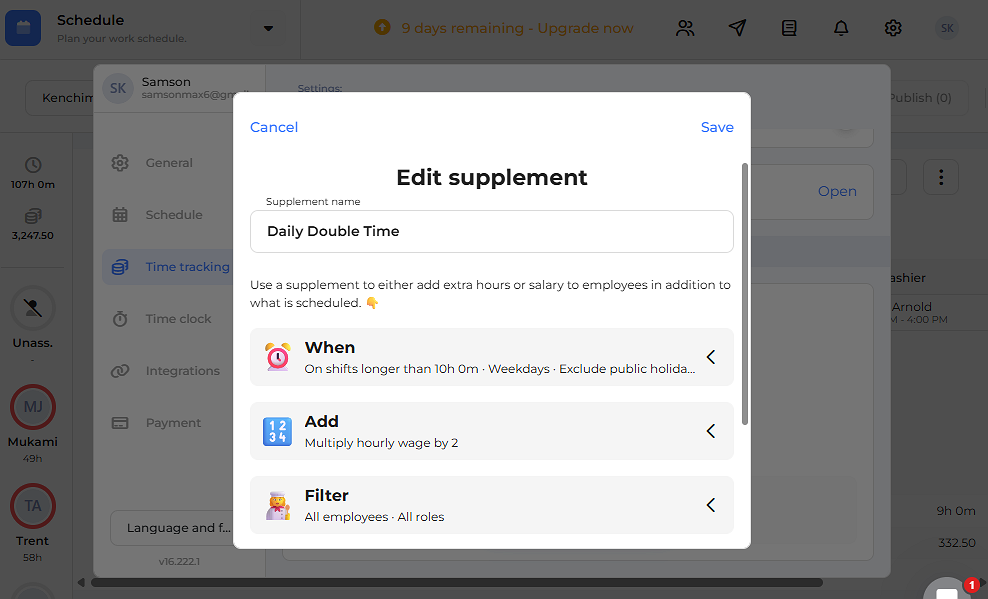
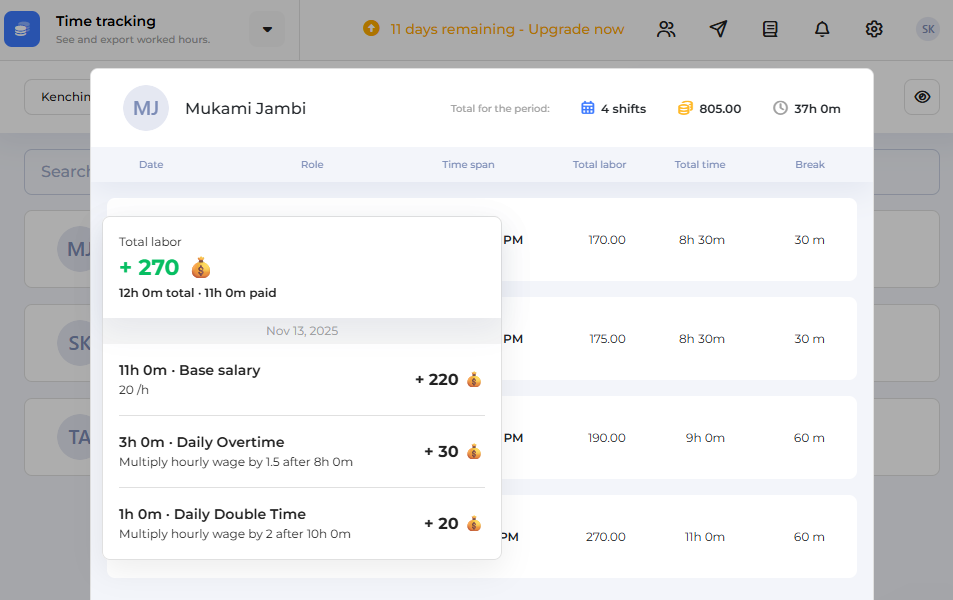
To test how well this system works in practice, I created two supplements based on California’s daily overtime rules: one for overtime pay after eight hours at 1.5x, and another for double time after ten hours at 2x. I then ran the timer for a 12-hour shift to see whether Workfeed could correctly distinguish between regular hours, overtime, and double time.
Workfeed logged the total hours correctly, but calculated wages incorrectly. After accounting for unpaid meal breaks, the shift resulted in 11 paid hours. Under California law, an employee earning $20 per hour should have been paid as follows:
- Base pay: 8*$20 = $160
- Overtime: 2*1.5*$20 = $60
- Double time: 1*2*$20 = $40
- Total: $260
Workfeed calculated a total of $270 instead. This discrepancy occurs because Workfeed applies overtime and double time as premium add-ons on top of all regular hours, rather than reclassifying hours into the correct pay categories. As a result, all 11 hours were paid at the base rate, with overtime and double time applied as stacked premiums, leading to an incorrect breakdown and an inflated total.
Break Tracking
To test break compliance, I also set up a 30-minute unpaid meal break to simulate California’s meal break requirements. I used Workfeed’s incremental break feature to assign one 30-minute break every five hours, which is a thoughtful and flexible option.
During the overtime test, Workfeed correctly deducted two 30-minute breaks from the total work hours, confirming that the incremental break feature works as expected. However, the platform does not remind employees to start manual breaks or prevent them from ending a break early. This lack of enforcement can create compliance risks for employers operating in states with strict break regulations.
Verdict: 5.5/10
Leave and Availability Management
By default, Workfeed’s time-off feature supports three leave types: holiday, sickness, and compensatory time. Adding new leave types requires an unusual workflow because Workfeed doesn’t offer a dedicated page to configure leave settings.
To add a new leave type, head over to the “leave workspace” and click on a calendar cell just like you would when adding a leave request. In the leave request pop-up, click the dropdown arrow in the leave type box, then select “add new leave type.” From this point on, the new leave type will be available to employees.
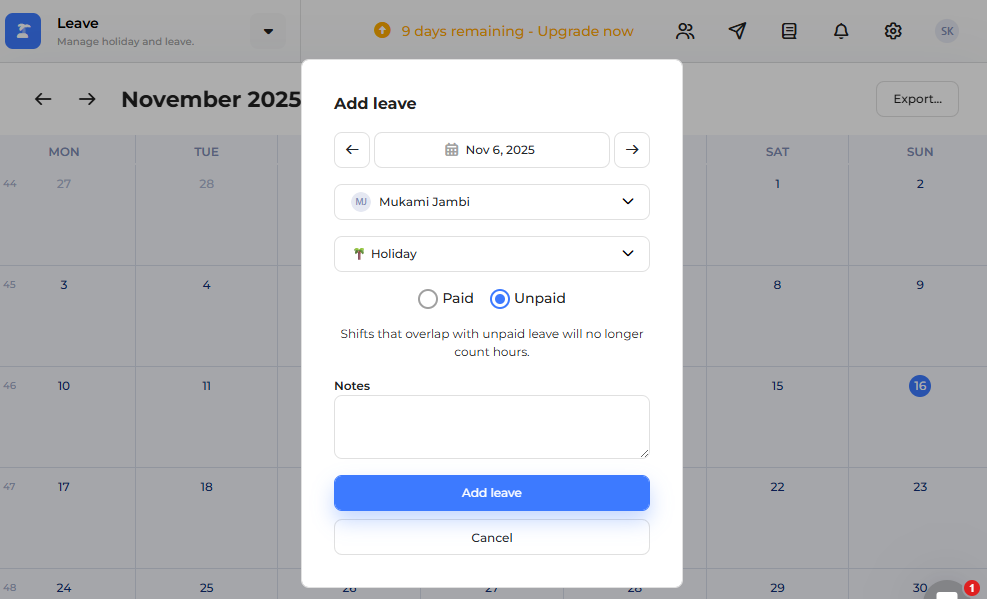
Thankfully, requesting time off is pretty simple, whether you’re on the web or the mobile app. Moreover, managers can approve (or reject) requests, even while on the move. That said, Workfeed should consider offering email notifications to streamline the approval workflow.
While Workfeed centralizes leave requests and approval, it does not track PTO accruals. For this reason, it’s not useful for businesses with complex PTO structures or regulatory compliance requirements.
Availability Management (Wishes)
Life happens, and when it does, Workfeed gives employees the flexibility to easily mark and adjust their availability (full or partial) from any device.
On the mobile app, simply tap the heart icon in the top-right corner to open the wishes page, then tap a date once to mark unavailability or twice to show availability. For partial availability, tap the clock icon and specify exact time slots.
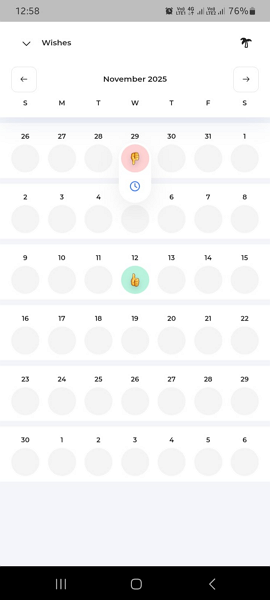
Workfeed displays employees’ availability preferences directly on the schedule grid. This transparency helps managers build conflict-free schedules faster and with greater accuracy. Even better, Workfeed alerts managers when they’re about to assign a shift to an employee on a day that the employee is unavailable, reducing scheduling errors.
Verdict: 7/10
Workfeed Communication Tools
A built-in chat tool has become a standard component of modern workforce management solutions, and Workfeed follows suit. However, Workfeed Chat is a more lightweight version – it lacks essential tools such as @mentions, scheduled messages, threaded conversations, and audio messages. Nonetheless, it fits the bill for teams with relatively simple communication needs.
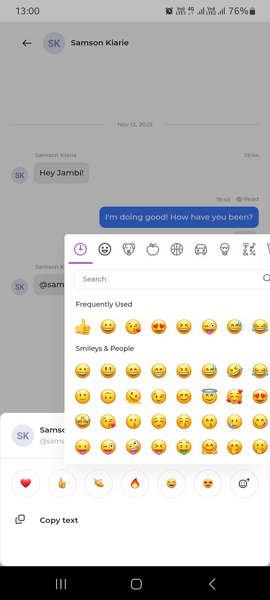
Its direct message features keep teams connected while giving managers a channel for personalized feedback. Managers can also create group channels to centralize communication by role, department, or location. Group channels keep relevant discussions in one place, making it easy for team members to find information and consult past decisions.
Users can attach files and react to messages with emojis, adding clarity and emotional context to each discussion. However, Workfeed doesn’t have a company-wide communication channel. Therefore, if you want to share announcements or company-wide updates, you have to create a group channel and add all members, which can be tedious for large companies.
Verdict: 7.5/10
Reporting and Analytics
Workfeed has placed reporting and analytics on the back burner, and the absence of a dedicated reporting page is the first clear sign. It’s not surprising, therefore, that its report options feel limited and somewhat underwhelming.
As of writing, you can export only work hours, salary data, and leave summaries. This is quite a narrow selection compared to what more robust workforce platforms provide. Even worse, you can’t generate and view reports directly in Workfeed. You first need to export them to an Excel file in order to derive insights for decision-making.
Verdict: 5/10
Workfeed Security Features
I found no reports online of security incidents or data breaches linked to Workfeed, suggesting that its safeguards hold up well. I dug deeper into Workfeed’s data protection measures and found that it uses SSL/TLS encryption for data in transit. However, I couldn’t find any credible records detailing how Workfeed protects data at rest.
Workfeed is GDPR compliant, which is reassuring for companies operating in regions with strict data protection requirements. It’s not HIPAA compliant, though, which is important to keep in mind if you want to use it to streamline operations in a healthcare business in the United States.
Regarding account-side protection, Workfeed uses email password log-ins. As of writing, it doesn’t seem to support single sign-on (SSO) or any form of multi-factor authentication (MFA). This can be off-putting for companies that want to streamline logins and strengthen account-side security.
Verdict: 7/10
Workfeed Customer Support
If you need help, Workfeed offers support through live chat, a knowledge base, and a phone number. However, the provider doesn’t publicly list the phone number. An agent told me that users have to request a phone call through the live chat.
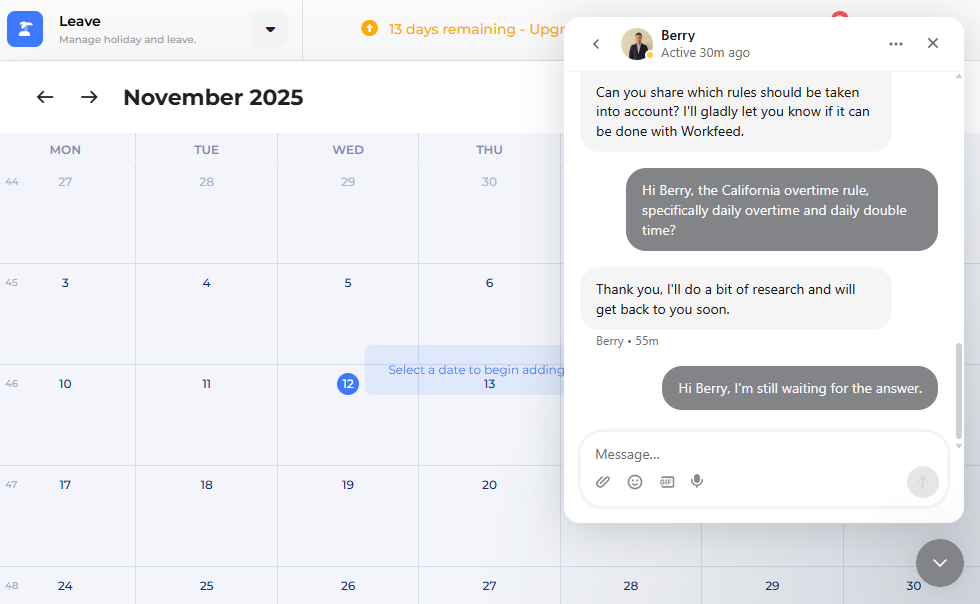
The fastest way to access help is via the live chat, which is very responsive. In my experience, the agents always responded to my questions within a minute. I also really liked being able to attach screenshots to chats. This helps agents quickly get to the root of your issue so they can deliver accurate, effective solutions.
My only gripe is that the live chat is available only during office hours in Central European time. However, Workfeed has an AI assistant that attempts to resolve the most common issues 24/7. I put the assistant through its paces with non-technical questions, and it provided accurate answers every time.
Verdict: 7.5/10
What Are Workfeed’s Review Ratings From Review Sites?
(As of March 2026)
Workfeed App Review
When a platform offers a limited feature set, it can either focus on refining those core tools or risk falling short of expectations. Unfortunately, Workfeed leans toward the latter. While it offers scheduling, time-tracking, leave management, and communication tools, some are half-baked and lack the polish of the best workforce management platforms.
From the drag-and-drop tool that works only for unpublished shifts, to the unreliable time tracker, to the leave management system that doesn’t support PTO accruals, Workfeed has several notable shortcomings. These limitations make it less effective at addressing the workforce management challenges that today’s businesses face.
It’s not all doom and gloom, though. Workfeed has some notable advantages, such as the incremental break tool that lets you assign multiple breaks depending on shift length. Moreover, its auto-scheduler features speed up scheduling while ensuring compliance with labor laws.
Connecteam: The Better Workfeed Alternative
While Workfeed has some helpful features, such as shift auto-assign and incremental break functions, its shortcomings are hard to overlook. If you need a more dependable workforce management solution at a better price, consider Connecteam. Some of Connecteam’s advantages over Workfeed include:
Efficient and Compliant Scheduling
Connecteam speeds up scheduling and keeps you effortlessly aligned with labor laws. With its scheduling rules, you can set parameters such as the rest period between shifts and the maximum number of shifts.
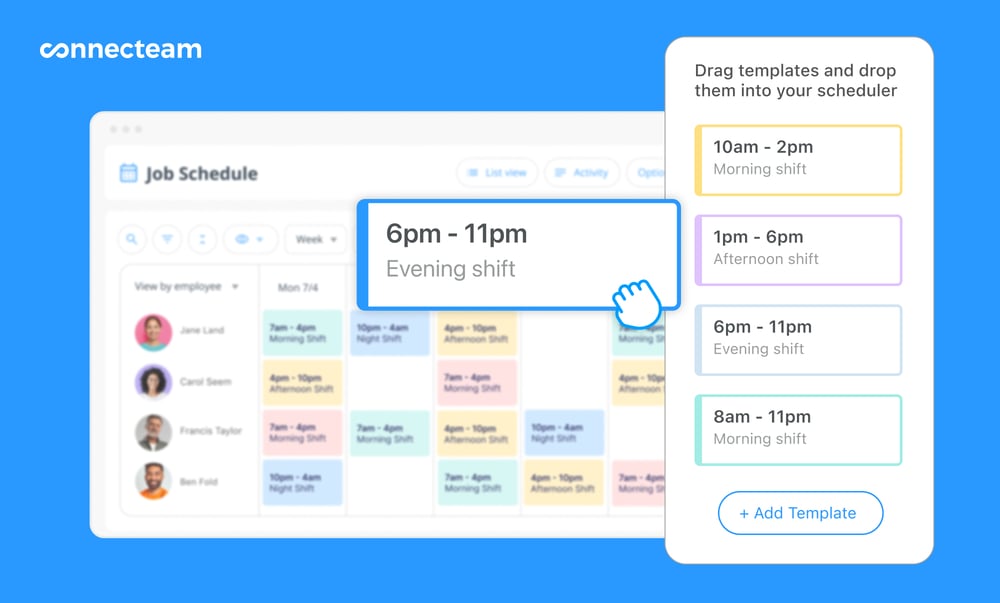
These, combined with controls such as employee limits, ensure that each schedule complies with labor laws and internal policies. To further enhance compliance, you can allow employees to accept or decline shifts. It may sound minor, but this simple feature can go a long way in helping you stay on the right side of predictive scheduling laws.
Connecteam’s templates, drag-and-drop tools, shift copying, and recurring shift tools take the hassle out of manual scheduling, ensuring you achieve optimal coverage faster. For large enterprises with complex scheduling requirements, Connecteam’s AI auto-scheduler can assign hundreds of shifts in minutes based on employee qualifications, locations, and availability.
Accurate Time Tracking
Like Workfeed, Connecteam’s time tracker works seamlessly on any device, but that’s where the similarities end. Connecteam has a leg up because it prioritizes unwavering compliance with labor laws. Employees can clock in and out, switch between different tasks during a shift, and log breaks with ease.
Plus, with the powerful geofence, you can rest easy knowing that all workers can clock in only after arriving at the jobsite, similar to Workfeed. However, Connecteam’s geofence takes a step further with the ability to notify managers when an employee leaves a jobsite. This helps make sure that employees, such as field caregivers, remain with the assigned patient for compliance with care standards.
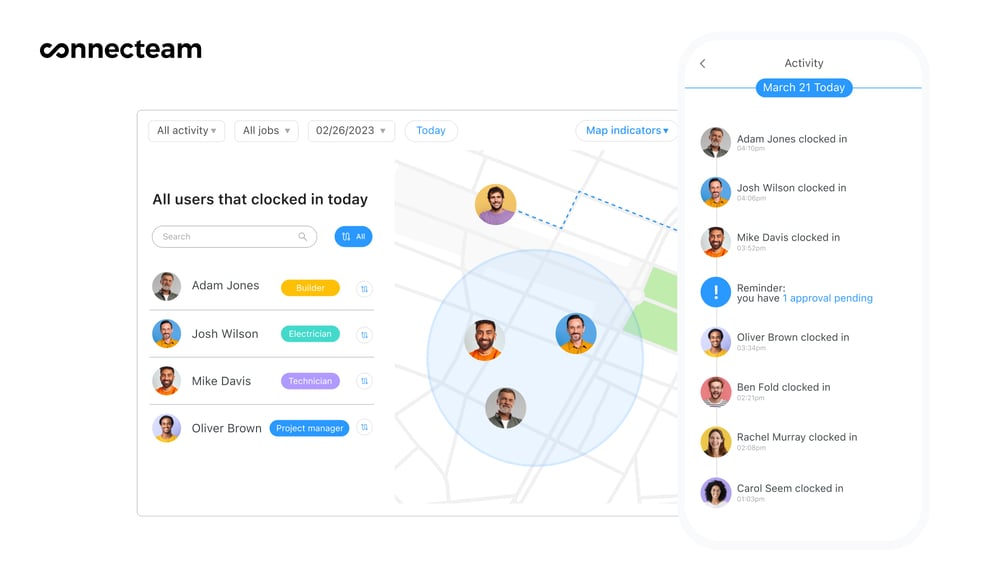
Connecteam’s break tracker tracks paid and unpaid breaks, sends reminders, and prevents employees from ending breaks early, ensuring everyone takes breaks as the law mandates. Moreover, Connecteam accurately tracks overtime and calculates pay according to the set rates, saving you hours of tedious manual calculations.
And So Much More
Connecteam offers additional workforce management features, including:
- Real-time location tracking
- Team communication
- Employee onboarding and training
- PTO management
- Payroll integrations
The cherry on top is that Connecteam offers its broad range of features at an affordable price, giving you a huge bang for your buck. Small businesses with up to 10 employees can get started for $0, and paid plans start at just $29 per month for 30 employees. That’s less than $1 per employee for robust workforce management software.
Get started with Connecteam for free today.
Workfeed uses a user-based pricing model with three tiers: Basic ($0), Pro ($4–$5/user), and Pro+ ($5–$6/user). Prices vary slightly depending on monthly or annual billing. There are no contracts or hidden fees, making it easier to budget.
Yes, Workfeed offers a free Basic plan that includes time tracking, availability, employee scheduling, shift swapping, and notifications. It is designed for small teams with simple scheduling needs.
Workfeed offers a 50% discount to businesses less than 12 months old and nonprofit organizations. These discounts apply to all plans and are aimed at helping new and mission-driven teams get started affordably.
Yes, Workfeed is easy to set up. You can onboard a team in under 15 minutes. Its interface is modern and lightweight, though some poorly labeled features and lack of onboarding guides can slow new users.
Workfeed lacks PTO tracking, task management, and robust reporting. Its time tracking has usability issues, and it doesn’t support offline access or employee authentication at clock-in. These flaws limit its effectiveness for larger or complex teams.Workfeed lacks PTO tracking, task management, and robust reporting. Its time tracking has usability issues, and it doesn’t support offline access or employee authentication at clock-in. These flaws limit its effectiveness for larger or complex teams.