


Field service management software with strong customer management, but significant shortcomings for team management
Verdict: 6.7/10
Housecall Pro is an all-in-one platform for field services that tries to do everything but ends up delivering an underwhelming experience. It has a feature-rich suite for managing jobs, sales, and cash flow, but tools for scheduling employees and tracking time spent on jobs fall well short of expectations.
On top of that, I found that Housecall Pro’s mobile app lacked core features, including offline functionality. For many mobile-first field service businesses, especially those that operate in rural areas, this alone is a potential dealbreaker.
Overall, I think Housecall Pro can work well for small cleaning, plumbing, and landscaping businesses that need a way to manage customers and streamline payments for field services. But construction or logistics businesses that need a robust solution for managing employees and staying compliant should look to alternatives.
Key Features
- Scheduling and dispatching: Schedule and dispatch jobs with a drag-and-drop scheduler.
- Field technician tracking: View your technician and job locations on a single map.
- Online booking: Create an online booking page and embed it on your website or share a booking link with customers.
- Invoicing and billing: Create invoices and accept customer payments directly through Housecall Pro.
Pros
- Job templates to simplify scheduling
- Effective GPS location tracking
- Customer-friendly online booking page
Cons
- Manual invoicing can be tedious
- Very limited time tracking functionality
How I Tested Housecall Pro
I signed up for Housecall Pro’s free trial and added 5 employees to my company. I used the software to build employee schedules, track time spent on jobs, send invoices, and communicate with staff members.
I also threw Housecall Pro some curveballs, like scheduling conflicting jobs and creating overlapping time entries, to see how it would handle errors. In addition, I reached out to Housecall Pro’s support team before and during my trial to see how responsive the company is when customers need help.
Housecall Pro Pricing
Verdict: 4/10
Good core functionality, but pricing rises quickly as you add users or need higher-tier features.
Housecall Pro requires you to enter information about your business’s industry and number of employees in order to view pricing information. You can use the website’s pricing page for a customized quote for your business and size.
I requested pricing for a landscaping business with 2-5 employees and received 3 plan options:
| Pricing/plan | Basic | Essentials | Max |
|---|---|---|---|
| Monthly | $79/month | $189/month | From $329/month |
| Annual | $59/month | $149/month | From $299/month |
| Users | Up to 1 user | Up to 5 users | Includes 8 users. Each additional user costs $35+/month. |
| Features |
| Everything in Basic plus:
| Everything in Essentials plus:
|
One thing I like is that the Basic plan offers access to all the essential tools, from drag-and-drop scheduling and real-time dispatching to invoicing and estimates. However, you’ll need a higher plan to access advanced features like QuickBooks integration, advanced reporting, and employee GPS tracking.
The platform can also get more expensive if you need add-ons to operate effectively. For instance, the Sales Proposal tool costs $40/month, and Payroll also costs $40/month + $6 per employee per month.
The good thing, though, is you can get a 14-day free trial of the Max plan with just an email address and no credit card required, making it easier to test the platform out before committing.
Here’s how Housecall Pro’s pricing compares to similar field service management systems:
| Plan | Housecall Pro (Essentials) | Jobber (Grow) | Kickserv | Connecteam (Advanced) |
|---|---|---|---|---|
| View pricing | View pricing | View pricing | View pricing | |
| 5 users | $149/month | $229/month | $60/mo (Start) | Free for life — All features and dashboards |
| 15 users | $544/month | $399/month | $199/mo (Scale) | $49 |
| 30 users | $1,069/month | By quote only | Not available | $49 |
| 50 users | $1,769/month | By quote only | Not available | $99 |
| Read our full Jobber review | Read our full Kickserv review | Learn more about Connecteam |
Monthly prices when billed annually. As of September 2026
Housecall Pro charges more per user than competing platforms, so it gets significantly more expensive as your team scales. Also, keep in mind that this is the cost before any add-ons, which a lot of growing businesses may eventually need.
Housecall Pro Usability and Interface
Verdict: 7/10
Clean and easy to learn, though the dashboard and team setup could be more flexible.
Getting started with Housecall Pro was impressively simple. I was able to sign up with just an email address, then provide a few details about my company like what industry it’s in and how many employees I have. It took less than 30 seconds to arrive at the main Housecall Pro dashboard.
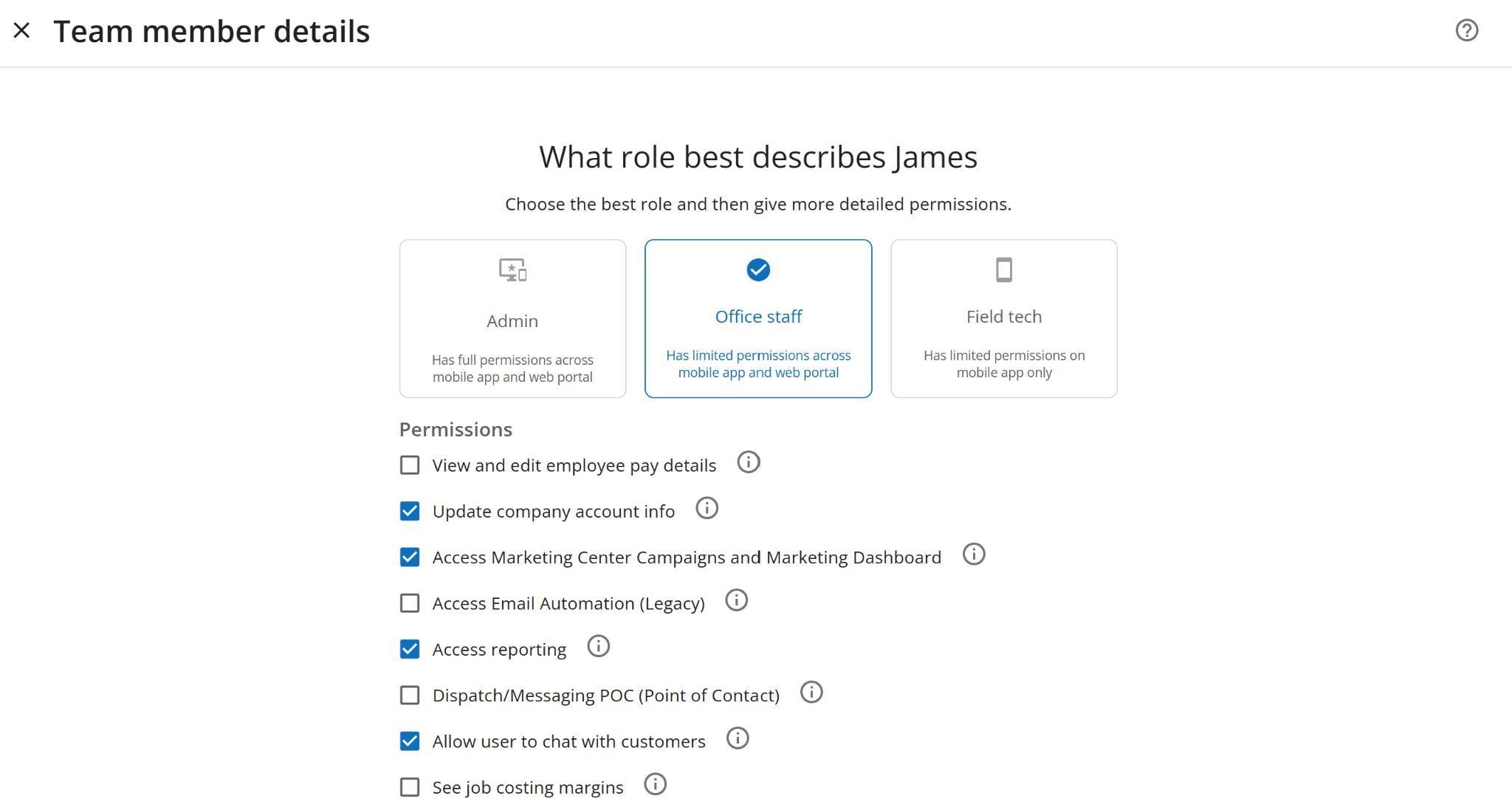
I jumped into exploring the software on my own, but I appreciate that Housecall Pro has a guided setup checklist for users who prefer more guidance. The first thing I did was add employees, which was straightforward. One thing I liked about this process is that you can designate each employee as an admin, office staff, or field tech and tailor their permissions without navigating to a separate settings page.
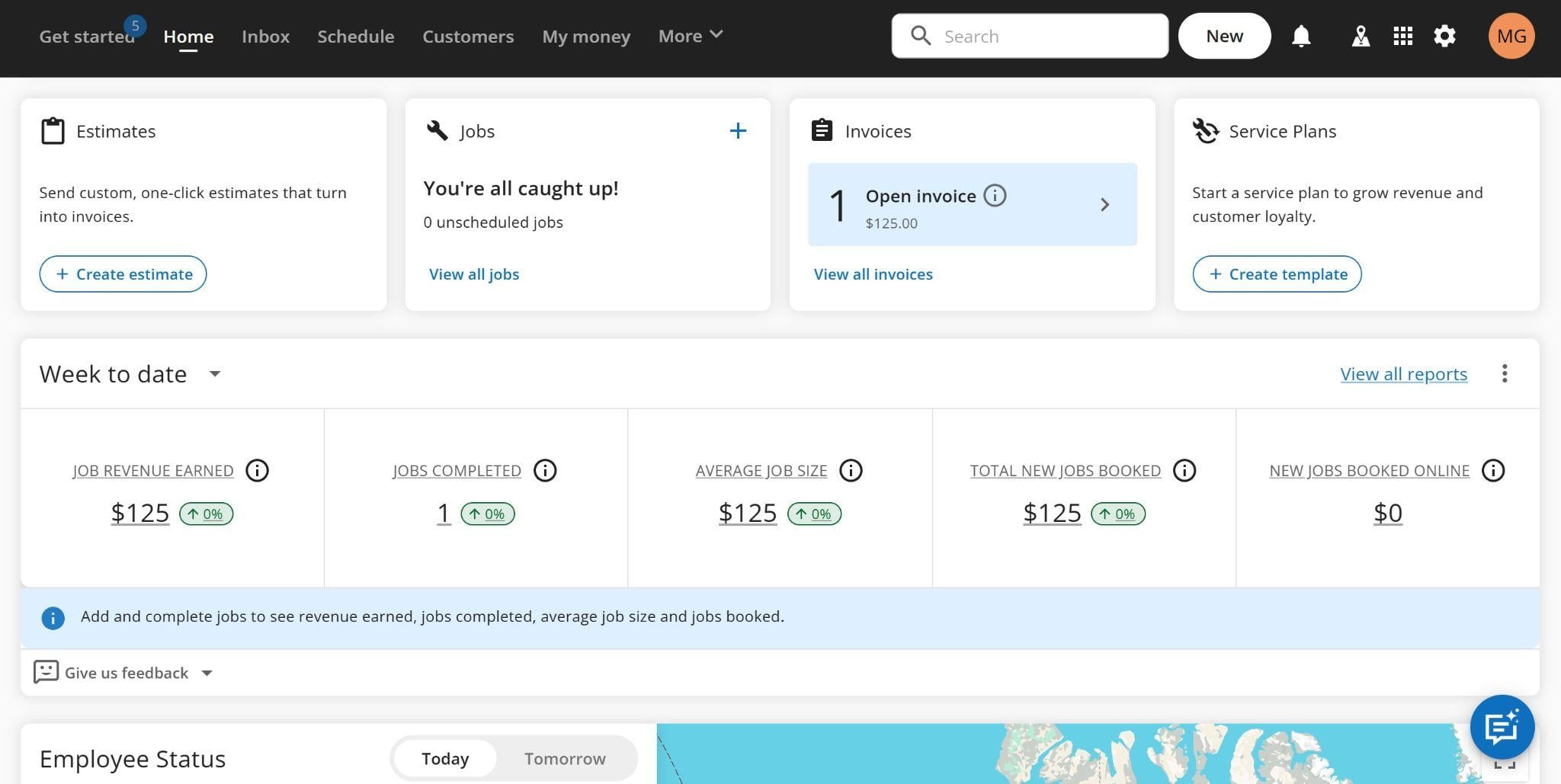
The Housecall Pro dashboard itself was clean and uncluttered. I could quickly access tools like Estimates, Jobs, and Invoices from shortcuts at the top of the page, while Housecall Pro’s other tools were organized into a simple app menu. The rest of the dashboard offered a quick summary of my business’s schedule, my employees’ locations, and my revenue from active jobs.
Helpfully, the site is accessible to screen readers and supports keyboard navigation for users with disabilities.
The main thing I’d like to see Housecall Pro do better here is offer more customization. It would be nice to customize what widgets I see in my dashboard and which tools have shortcuts.
Housecall Pro Mobile App
Verdict: 5/10
Easy for everyday field tasks, but some management tools and offline editing are limited.
Housecall Pro offers an easy-to-use Android and iOS mobile app, which is paramount given the software is geared toward field service teams. I tested the Android app and found it to be pretty easy to use. Importantly, it also gives you access to all of Housecall Pro’s core management features, including scheduling, communications, your customer list, and more.
The app’s home dashboard does a great job of providing the information you need right away, like what work you have scheduled and what invoices are awaiting payment. You can create new jobs, invoices, estimates, leads, and referrals with just 2 taps.
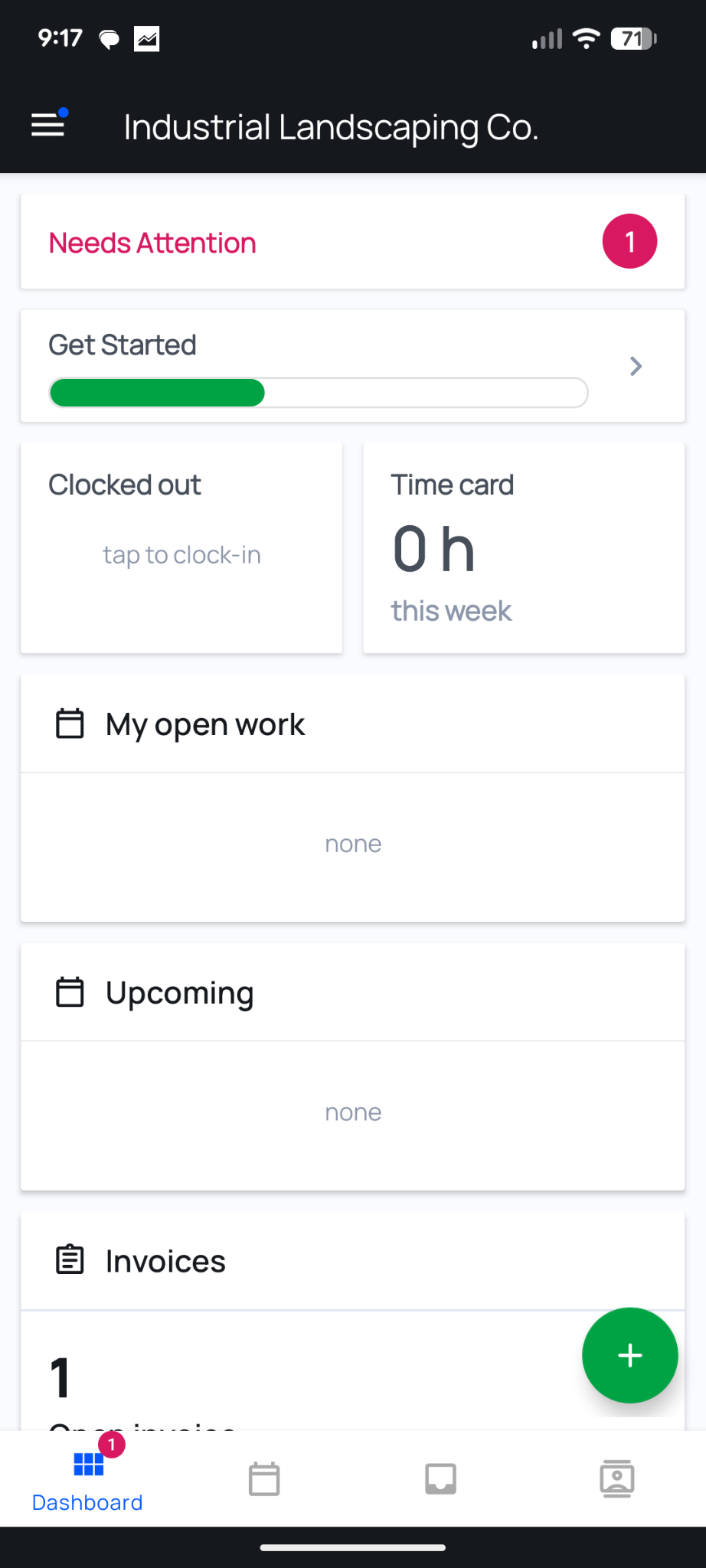
That said, there were some key features missing on mobile. You can’t see a map of your employees’ locations, for example, which makes it challenging to dispatch employees when a last-minute job arises.
You also can’t create service plans, edit checklists, or manage online reviews on mobile. Not having access to all of Housecall Pro’s features on mobile meant that I’d need to bring a computer and a WiFi hotspot into the field with me in order to manage my business effectively.
I also ran into several issues when using the time clock on mobile. I could clock in and out with a tap, but the time clock lagged behind my tap, so I ended up tapping it multiple times and creating multiple entries. I also found that while I could see my timesheet on mobile, I couldn’t make any edits to it.
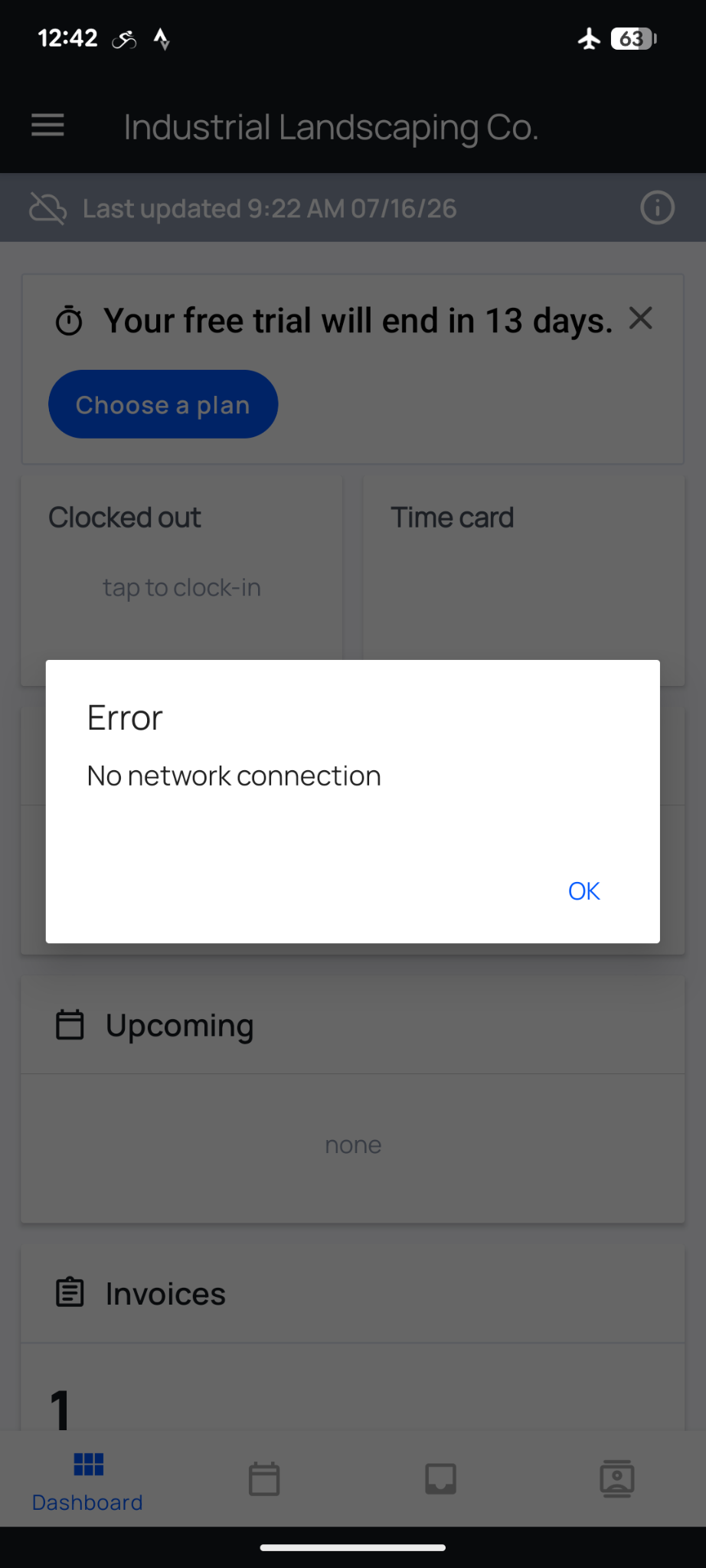
Another big issue I had with the mobile app is that it doesn’t work offline. The app will open, but you won’t be able to see or edit any of your data. This is a huge miss for field teams that work in remote locations, since your employees could be left flying blind if they lose cell service.
Overall, I was disappointed with the Housecall Pro app. It looks good and functions extremely well for basic tasks like creating jobs and scheduling employees to them. But it lacks access to the more complex management features you need to actually run your business effectively.
| Menu Item | Admin | Employee | ||
|---|---|---|---|---|
| Website | Mobile App | Website | Mobile App | |
| Time tracking | ✅ | ✅ | ✅ | ✅ |
| Scheduling | ✅ | ✅ | ✅ | ✅ |
| Customer management | ✅ | ✅ | ✅ | ✅ |
| Invoicing and payments | ✅ | ✅ | ✅ | ✅ |
| Job costing | ✅ | ✅ | ✅ | ✅ |
| Inbox | ✅ | ✅ | ✅ | ✅ |
| Online booking | ✅ | ❌ | ❌ | ❌ |
| Review management | ✅ | ❌ | ❌ | ❌ |
| Checklists | ✅ | ❌ | ✅ | ✅ |
| Price book | ✅ | ❌ | ❌ | ❌ |
Housecall Pro Core Functionalities
Job and customer management
Verdict: 8/10
Excellent customer records and job management, with useful templates and service history.
Housecall Pro excels at helping you manage jobs and customers. You can enter a wide range of details about each of your customers, including their name, address, contact information, payment information, and private notes. It only takes a few clicks to create a new customer, and you can also bulk import customers from a CSV file. The software isn’t fussy about what information you add, so you can enter as many or as few details as you want.
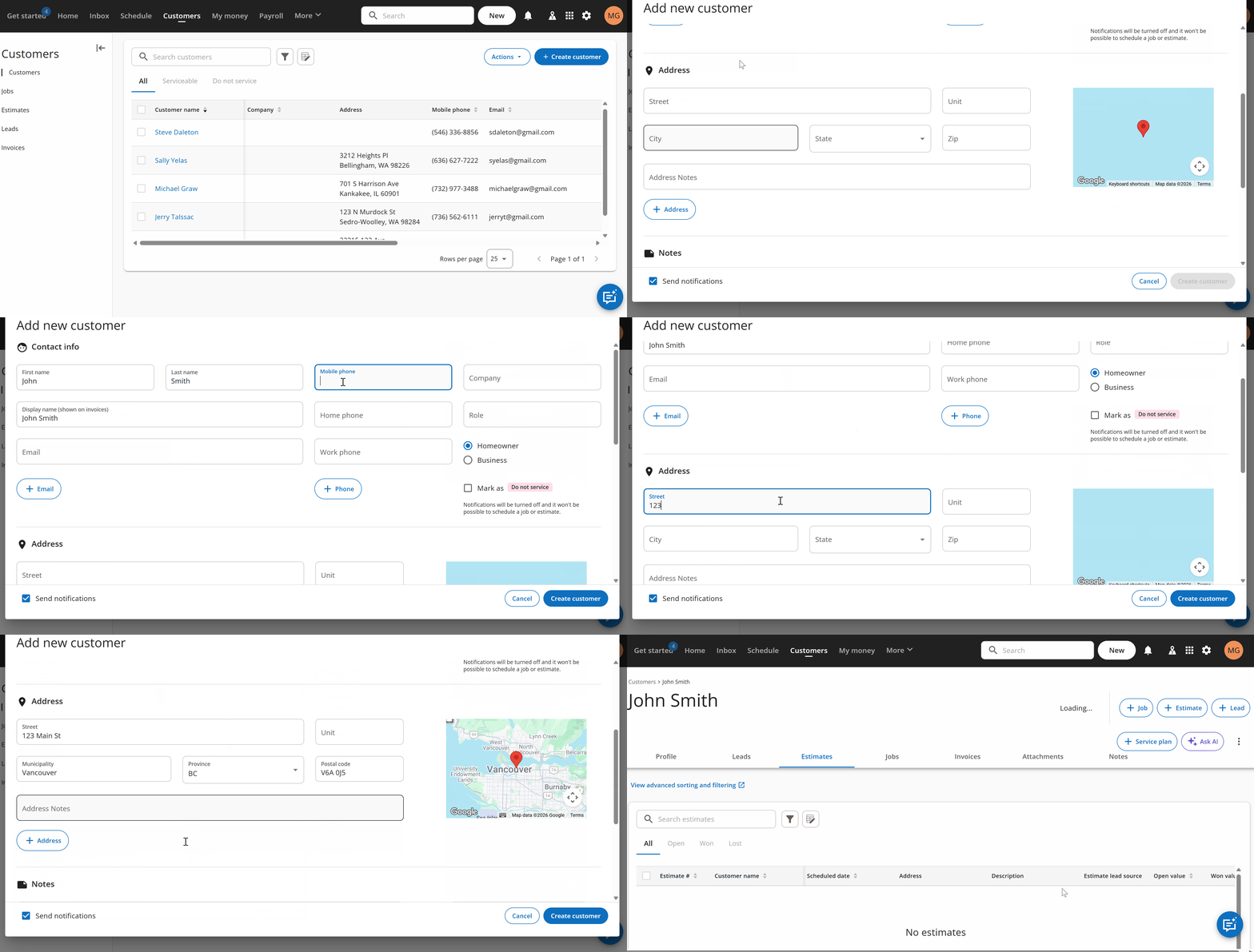
Jobs are assigned to customers and provide critical information for both the customer and your field technicians. You can schedule jobs for a particular time and add checklists, attachments, and notes. Jobs also support built-in estimates with line-by-line details for labor and materials, which can be sourced from your price books.
I also liked that Housecall Pro supports job templates. If your business does the same kind of scheduled work repeatedly (like mowing lawns or cleaning porta potties), you can set up a template for that and quickly reuse it for future jobs.
Finally, I appreciated that all past jobs, estimates, and invoices for a customer also appear on their profile page, so it’s easy to track your business’s entire history with a customer. If you no longer want to work with a customer, you can mark them as “do not service,” and you won’t be able to create new jobs for them.
Employee scheduling and dispatching
Verdict: 6/10
Fast and intuitive for assigning jobs, but weaker for workforce planning, availability, and conflict management.
I had a mixed experience with Housecall Pro’s scheduler.
Let’s start with what’s good. It’s extremely easy to add jobs and estimates to your calendar and assign them to employees. You can drag and drop jobs to make changes to your schedule in seconds or set up recurring jobs. If you don’t already have a job or customer registered in Housecall Pro, you can add them right from the scheduler, which saves time. Both customers and assigned employees will automatically get a notification when a job has been scheduled.
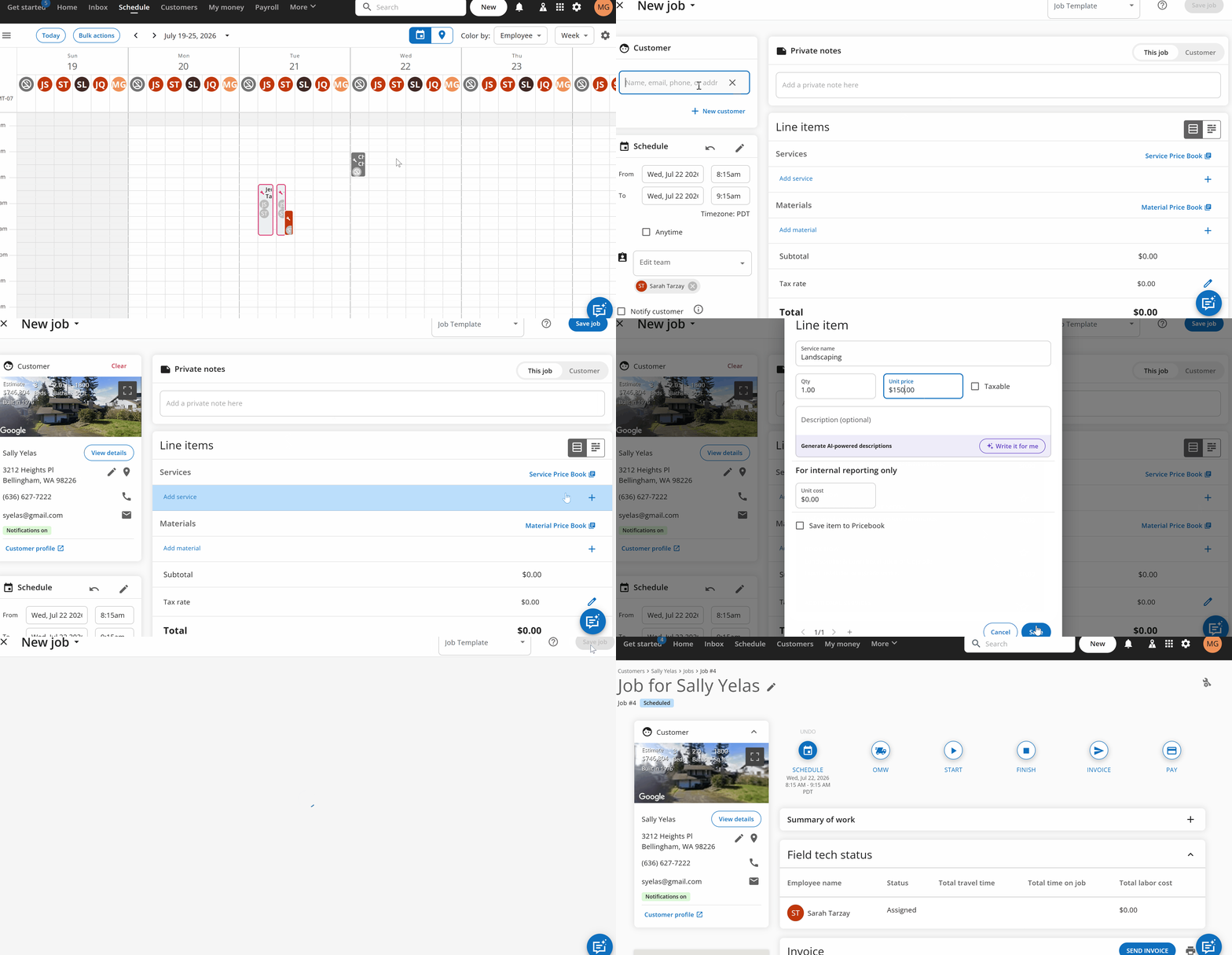
I especially appreciated Housecall Pro’s touches to make it easier to decide who to assign work to and how to dispatch employees to last-minute jobs. For example, you can color-code jobs in the calendar by assigned employee or zip code, view your schedule broken down by employee, and see all your jobs for a selected time period on a map. Housecall Pro also lets you schedule jobs for any time on a particular day, which adds flexibility.
The problem is that Housecall Pro doesn’t provide much information about the employees you’re scheduling to work. For example, you can’t limit certain jobs to certain employees based on their qualifications. You also can’t see how many hours each employee has assigned to them in a given week, so it’s easy to send employees into overtime without realizing it. This can ramp up your labor costs and can also create a serious compliance issue.
I also found that Housecall Pro doesn’t notify you if you schedule an employee for conflicting jobs. It’s easy to spot if you switch to the per-employee schedule view, but this isn’t the default. Unlike several other platforms, there’s no alert or notification to prevent the conflict in the first place.
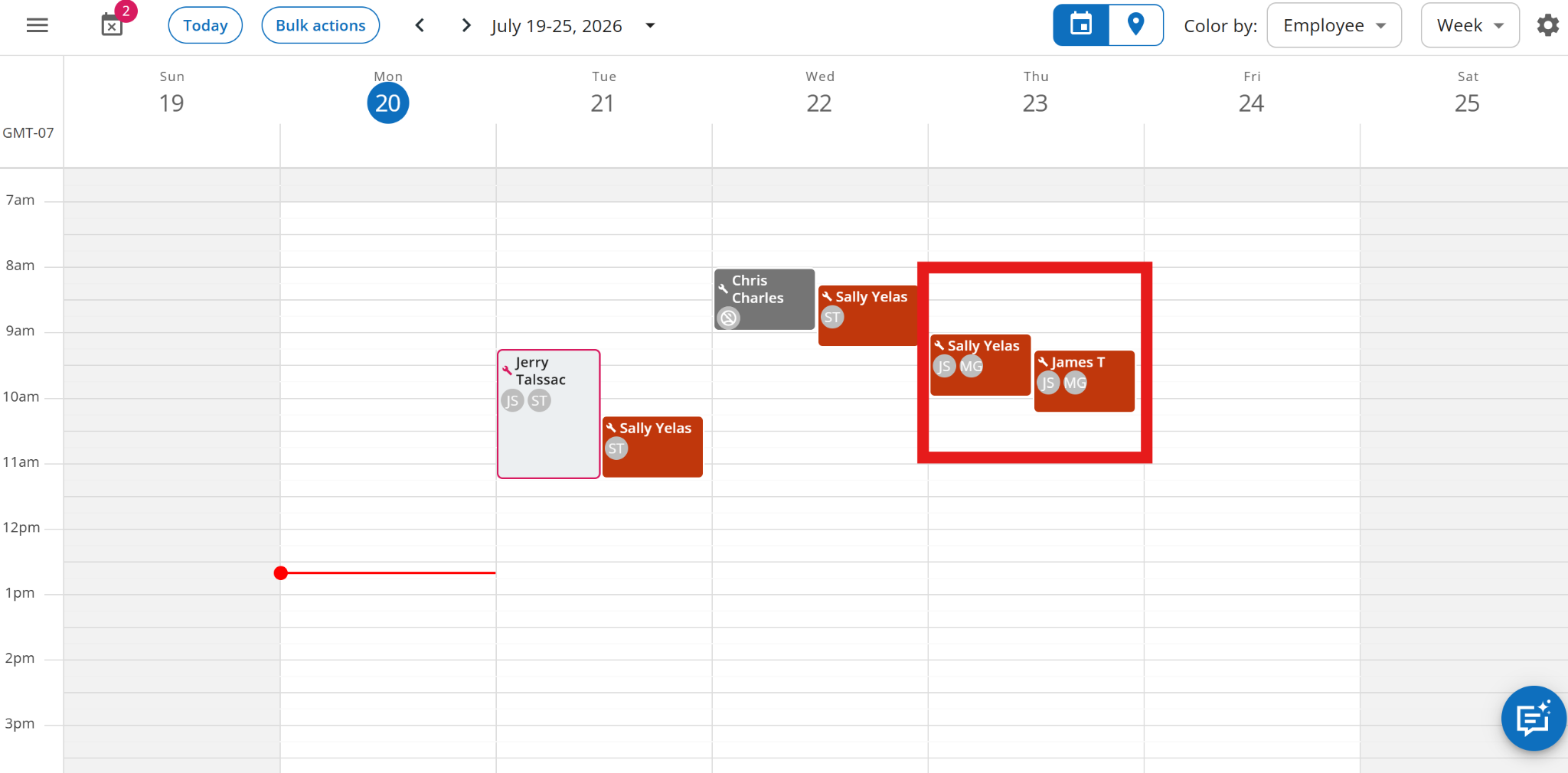
These limitations might be okay if you have a very small team and you know your employees’ schedules beyond what’s recorded in Housecall Pro. But as your team grows, it becomes very difficult to manage schedules effectively using Housecall Pro.
Time tracking
Verdict: 4/10
Basic job time tracking is straightforward, but advanced workforce controls are less developed.
Housecall Pro’s time tracker lets field employees track the hours they spend on jobs. However, it has a lot of shortcomings that make it challenging to use for all your operations.
Field technicians assigned to jobs can start the time tracker with a single tap on their mobile. But this won’t assign the time entry to a specific job. To do that, they have to go to the job and start the tracker from there. There are different buttons to indicate whether an employee is traveling to the job or actively working on it, which makes the time tracker confusing to use. One nice thing about this setup is that Housecall Pro automatically sends customers a notification when an employee starts the “on my way” timer.
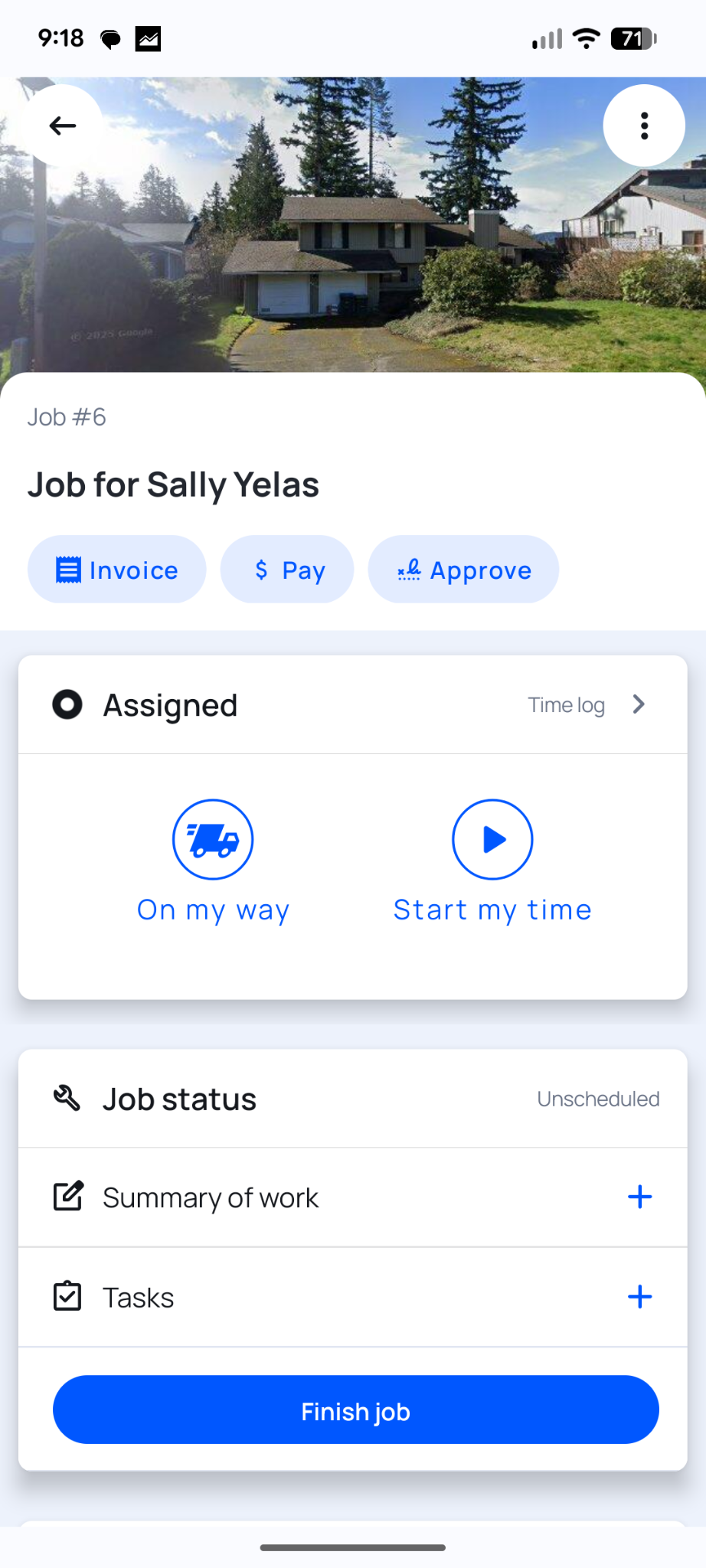
I also found that Housecall Pro doesn’t do enough to prevent time theft. For example, you can’t create a geofence around a customer’s address to limit clock-ins.
Housecall Pro does create timesheets for each employee automatically, which is helpful for running payroll. But you can’t explicitly approve timesheets and the software won’t flag unusual time entries. Housecall Pro integrates Gusto for easy payroll sync, but doesn’t integrate with any other payroll providers, so you have to manually export timesheets in XLSX format unless you pay for the payroll add-on.
Invoicing and payments
Verdict: 7/10
Strong payment options and price books, but creating and customizing invoices involves more manual work than I’d like.
Housecall Pro lets you create invoices for any job and send them to customers for payment. However, there’s a decent amount of manual work involved.
To create an invoice, I had to add line items for the labor and materials provided for a job. I was disappointed that Housecall Pro didn’t automatically calculate labor rates, even though I’d added hourly rates for each employee in the platform’s settings.
The upside, I found, is that Housecall Pro supports multiple price books, so you can quickly pull relevant services and materials from them.
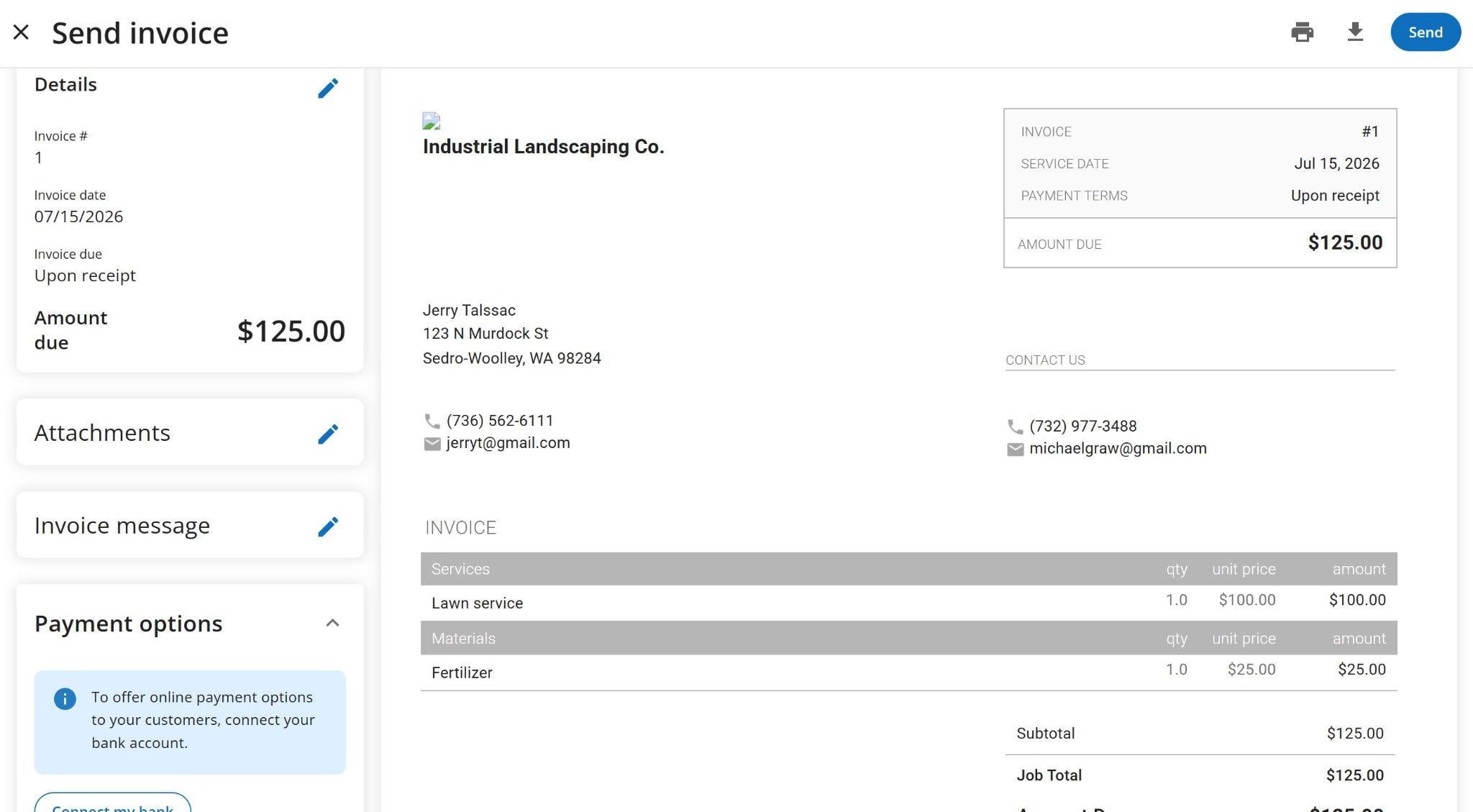
It’s also worth noting that there are no invoice templates. But Housecall Pro have added invoice customization options, which is a nice change. You can now show/hide job details, business/customer info, service and material fields, change invoice format, payment options, dates, terms, and invoice messages, globally or per invoice. Unfortunately, you can’t add custom fields or change details like the color scheme and fonts, although you can now add a footer with a thank-you note.
Once you send an invoice to a customer, they can pay by credit or debit card directly through Housecall Pro if you have a linked business bank account. The mobile app even supports tap-to-pay, which is a convenient option for many customers. If you have long-term customers, you can also store their card information and charge them automatically when a job is complete.
Online booking
Verdict: 8/10
Simple to set up and easy for customers to use, with useful controls over services and availability.
Housecall Pro’s online booking feature is designed to let your customers book appointments on any device. The feature isn’t activated by default, but setting it up is simple. You only need to open the online booking settings tab, click “get it now,” and follow along with the setup wizard.
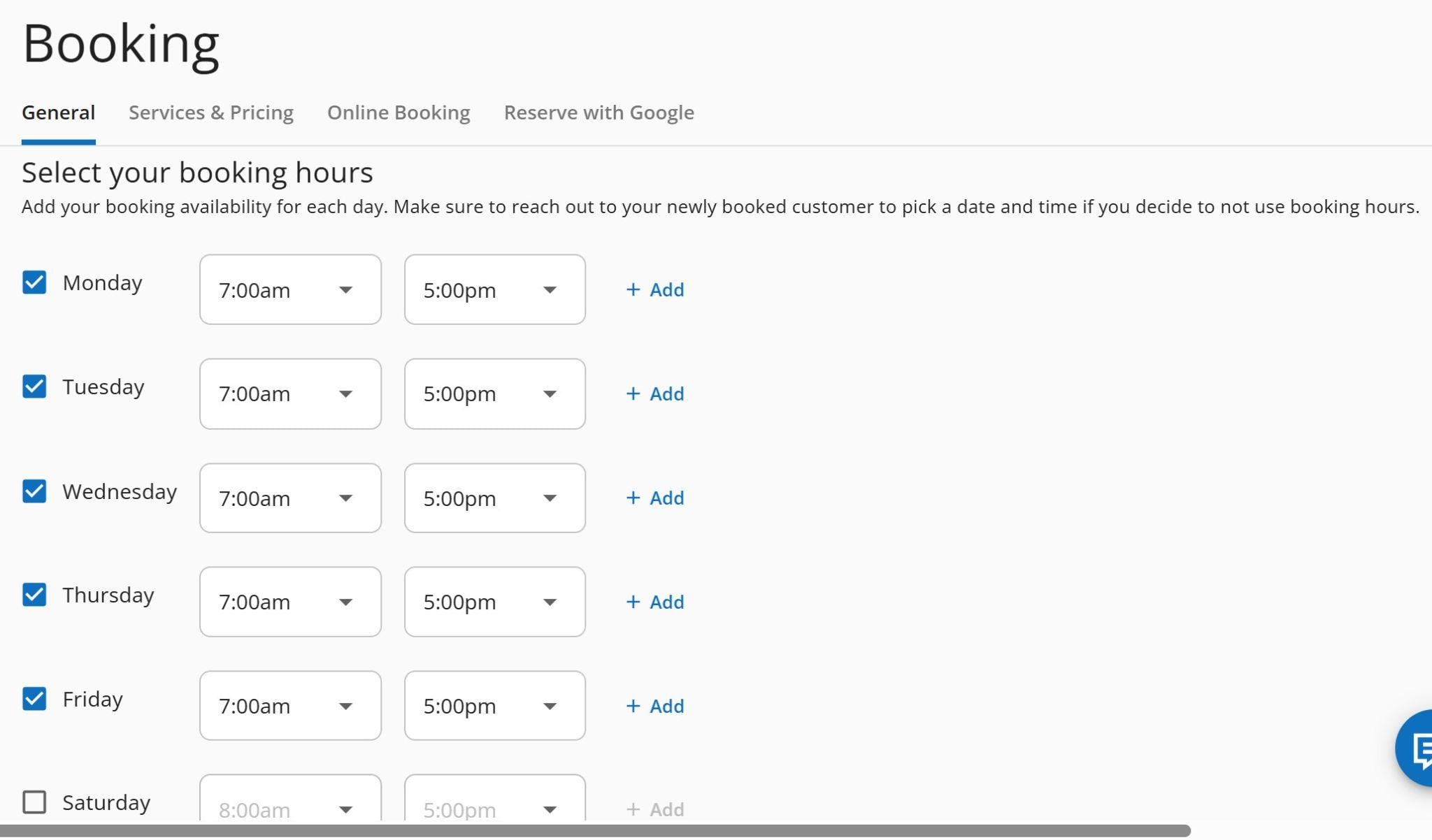
You can embed the bookings page on your website or share a link directly with customers. I really liked the booking page because it makes booking services easy for all customers, regardless of their tech know-how.
Housecall Pro also lets you set a minimum notice period to block last-minute bookings. I set a 2-day notice window, and the app enforced it perfectly.
Team and customer communication
Verdict: 7/10
Useful built-in messaging for customers, employees, and leads, though employee chat is fairly basic.
Housecall Pro offers a unified chat system with 3 separate inboxes for customers, employees, and jobs. The customer chat tool requires a paid plan, so I wasn’t able to test it. But as the name suggests, this workspace enables managers and technicians to stay in touch with customers.
The employee inbox allows employees to connect, share ideas, and brainstorm. To start a new conversation with a colleague, I only needed to click the new message icon at the top right of the workspace. The tool lets you add as many colleagues as you like, making it ideal for 1-on-1 and group chats.
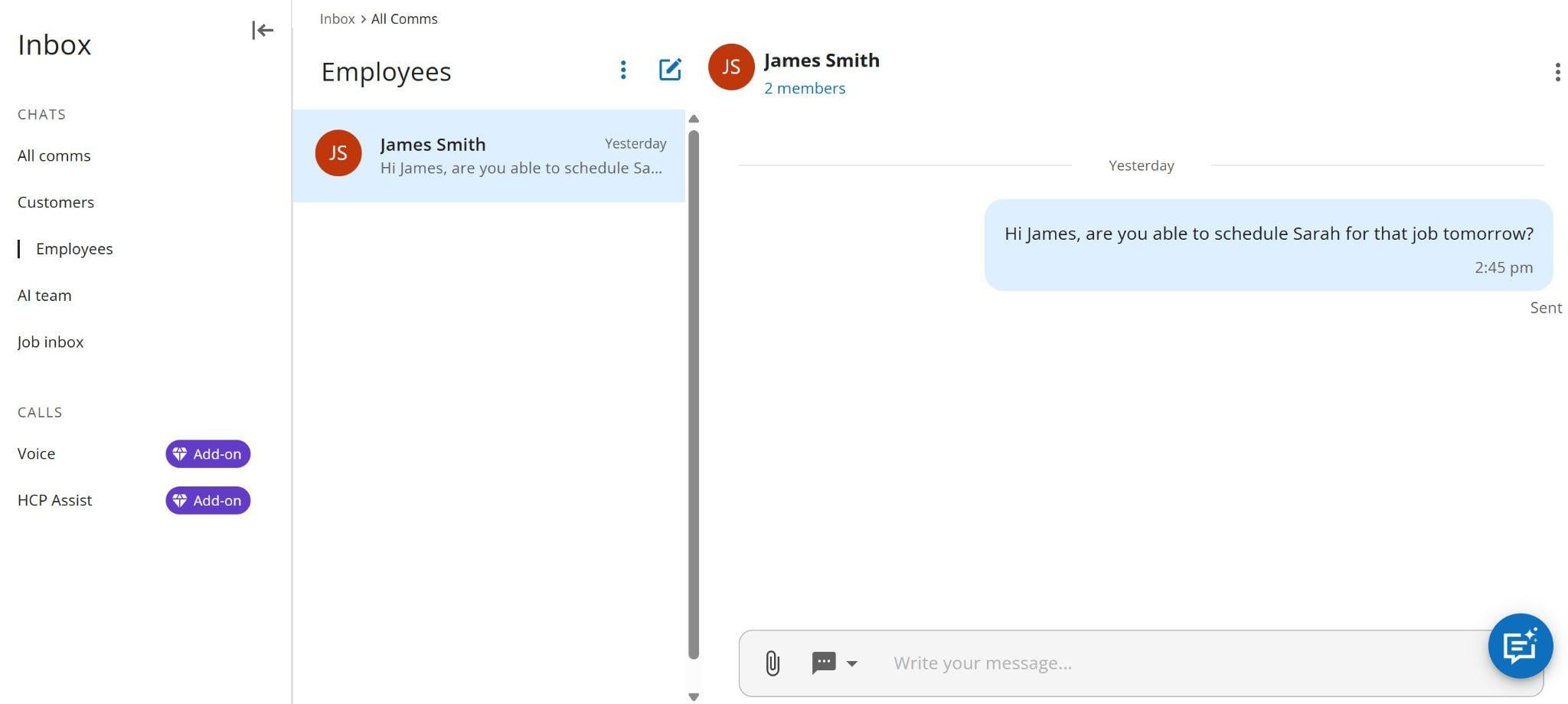
The employee chat tool is relatively basic, offering essential features like file sharing and mentions, but not threaded messages. It’s functional enough, but it’s hardly competitive with more modern employee chat tools.
The jobs inbox essentially provides a unified view of your marketing communications. It pulls in messages from your website’s online chat, Google Business Profile, Yelp, and any online lead forms you create with Housecall Pro. It’s nice to have this all in one place, even if it feels very different from the customer and employee inboxes.
Integrations
Verdict: 8/10
A solid integration selection covering accounting, payroll, marketing, and other field-service workflows.
Housecall Pro supports 29 native integrations for features like route optimization, payroll, accounting, marketing, and more. Notable integrations include:
- QuickBooks Desktop
- Gusto
- CHIIRP
- CompanyCam
- Mailchimp
- Force by Mojio
Housecall Pro also supports Zapier, allowing you to connect a variety of apps that aren’t supported natively. On the Max plan, you can also leverage Housecall Pro’s public API to create custom integrations.
Housecall Pro Reporting and Analytics
Verdict: 9/10
One of Housecall Pro’s strongest areas, with detailed reports, flexible filtering, and useful dashboards.
Housecall Pro has dozens of pre-made reports that drill down into your jobs, estimates, service plans, and payments. You can view revenue by job or customer, see what zip codes most of your jobs are located in, track profitability across your jobs, and even monitor revenue from specific invoice line items.
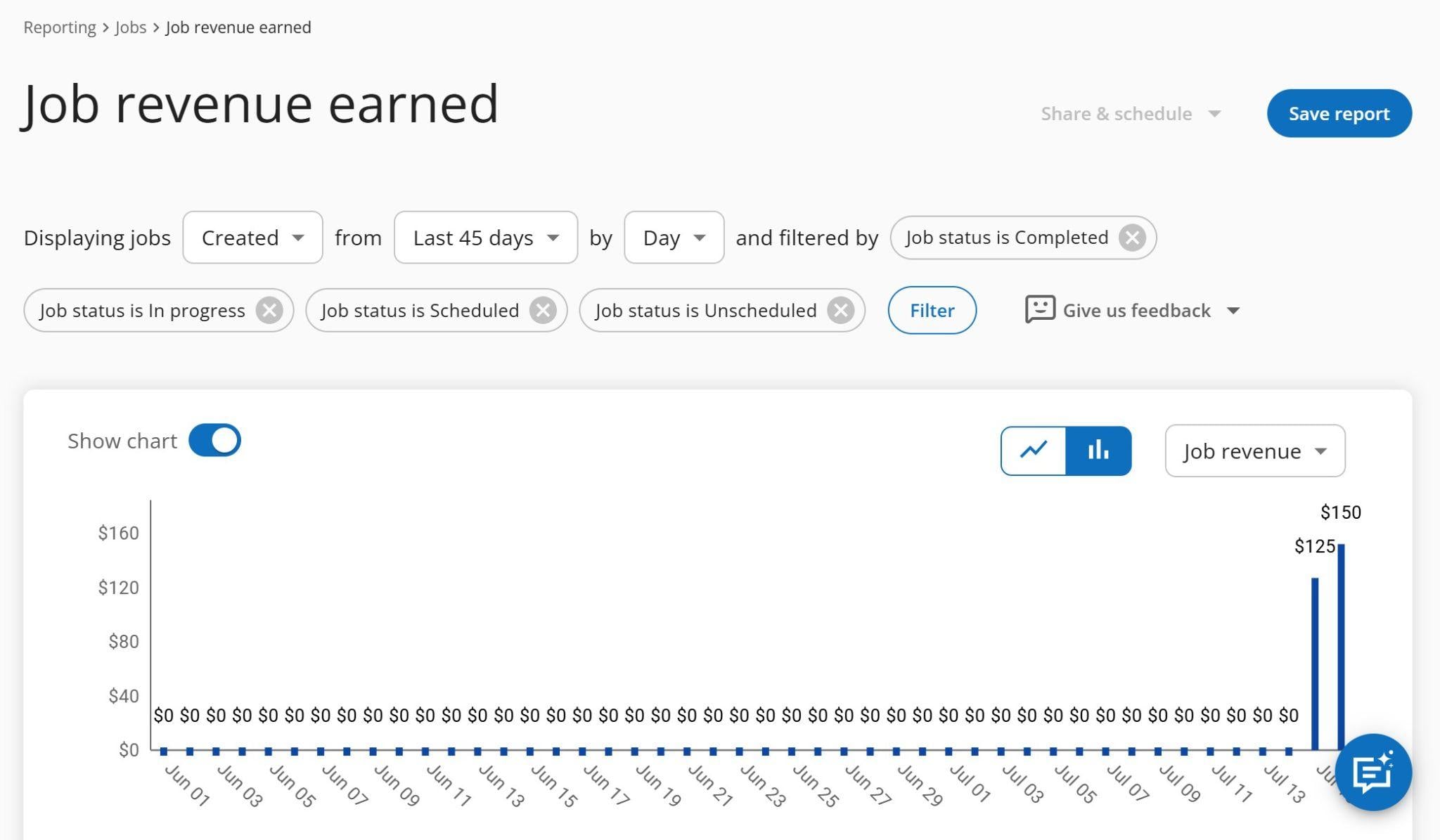
Having pre-made reports was a big plus, and I was also happy with the ability to create custom reports using Housecall Pro’s filters. You can filter data based on a variety of parameters, including customers, employees, zip codes, job size, job tags, and more. It felt pretty flexible, and I appreciated that Housecall Pro displays report data in both graph and table forms.
If you want to dig in deeper, you can export any report as a CSV. PDF downloads aren’t available, but you can share reports with employees and even schedule them to be created and shared on a recurring schedule.
In addition to the reports, Housecall Pro also has three different dashboards for technician performance, admin metrics, and industry-specific metrics. I really liked these since they provide more holistic data about how your business is doing.
For example, the admin dashboard showed how many jobs had outstanding balances and how many jobs were created but not scheduled. You can also create your own custom dashboards if you want to look at a different set of metrics.
Housecall Pro Security & Privacy
Verdict: 7/10
Strong core protections including SOC 2 Type 2, PCI DSS, 2FA, permissions, encryption, and security testing.
Housecall Pro gets mixed marks on its security. The company hosts all data on Amazon Web Services and encrypts data at rest. It also uses 256-bit AES encryption to protect customers’ payment information and is compliant with the California Consumer Privacy Act (CCPA). It’s also certified to System and Organization Controls 2 (SOC 2) Type II or ISO 27001 cybersecurity standards.
User accounts are protected with 2-factor authentication (2FA), although this isn’t enabled by default. Role-based permissions allow you to assign varying levels of access to your employees within the software.
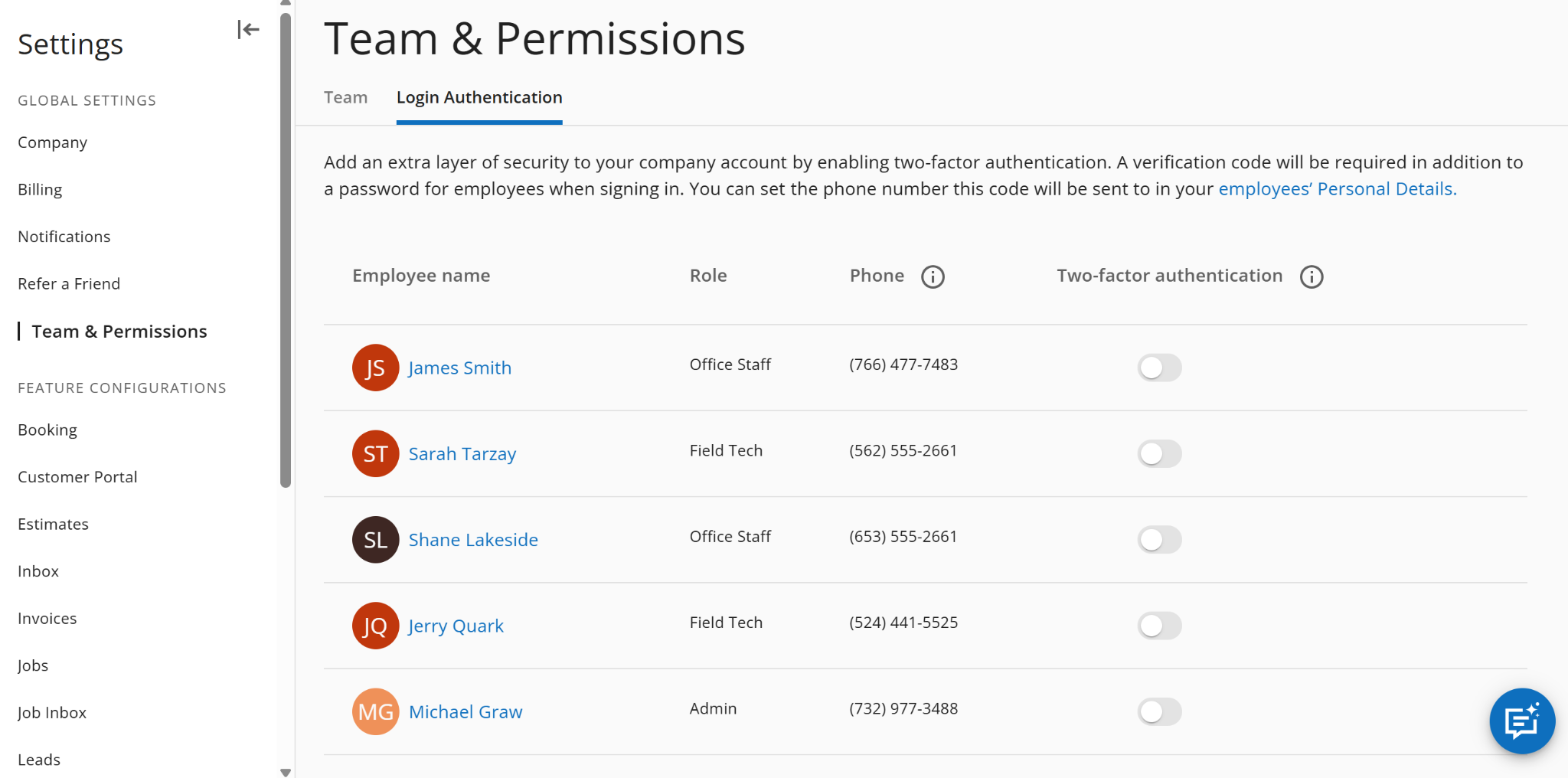
It’s worth noting that Housecall Pro isn’t HIPAA-compliant, so it can’t easily be used by home care businesses that need to store details about patients.
| Feature | Availability |
|---|---|
| Data encryption | ✅ |
| GDPR compliant | No |
| HIPAA compliant | No |
| Certification | ✅ SOC 2 Type 2; PCI DSS |
| MFA/2FA | ✅ |
| Admin controls | ✅ Role-based permissions |
| Hosting | ✅ Amazon Web Services (AWS) |
| Data backups | ✅ |
Housecall Pro Customer Support
Verdict: 8/10
Responsive support backed by an extensive help center, though phone availability is more limited on weekends.
Housecall Pro offers support by Chat: Mon–Fri 5–5 and Sat/Sun 8–4. Phone: Mon–Fri 5–5 and Saturday 8–4 only; no Sunday phone support. Help AI is available 24/7. Pacific Time (PT). I used the live chat, and it only took about a minute to get connected to a support agent.
The platform has a detailed online knowledge base with hundreds of articles to walk you through all of its features. The articles are rich with screenshots, which are helpful for following along.
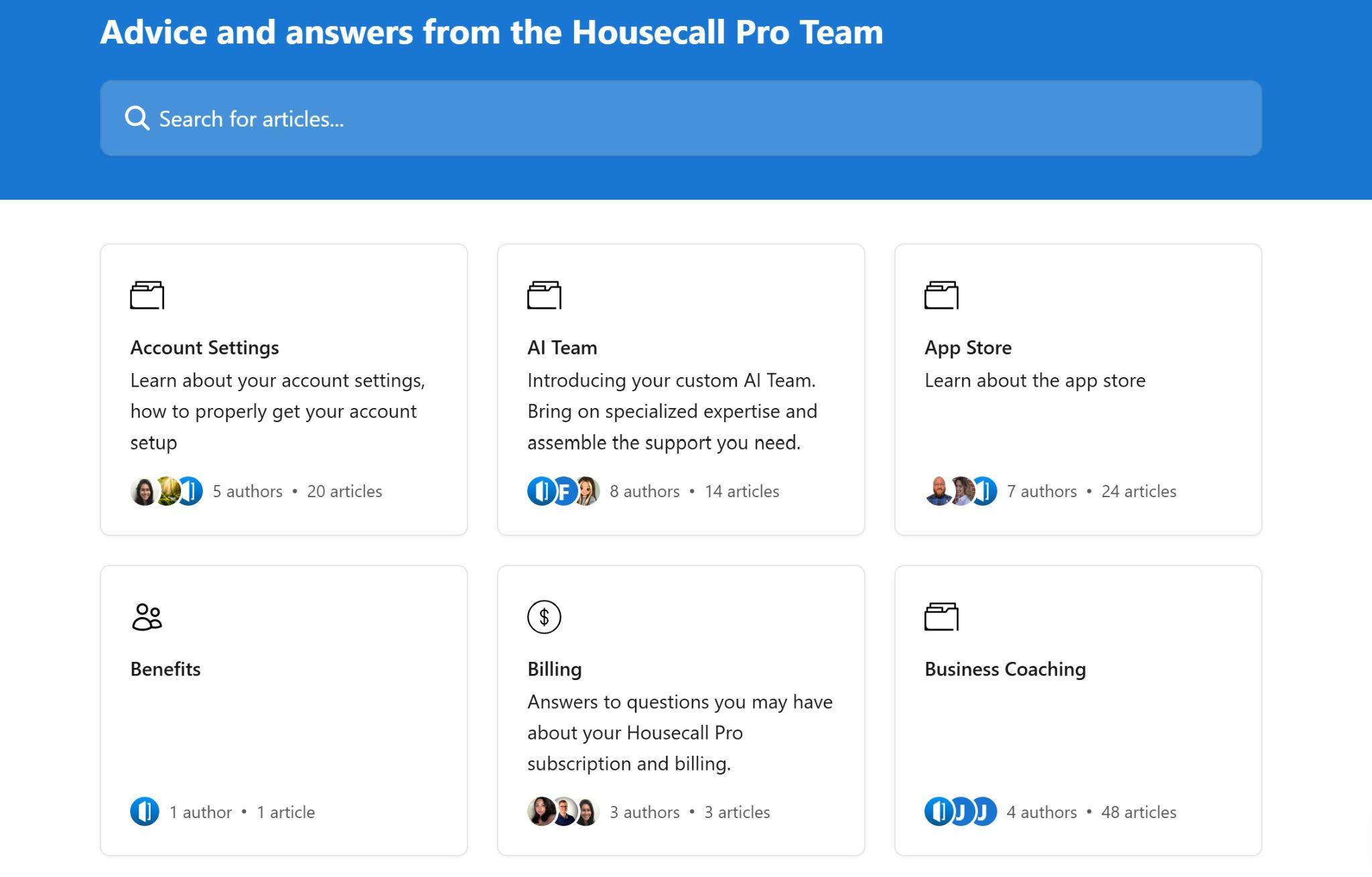
Housecall Pro also has a community page on Facebook that’s quite active and can be a good resource for industry-specific questions.
What Are Housecall Pro’s Review Ratings from Review Sites?
(As of September 2026)
Capterra: 4.7/5 (2,745 reviews)
G2: 4.3/5 (205 reviews)
Software Advice: 4.7/5 (2,745 reviews)
TrustRadius: 8.5/10 (17 reviews)
GetApp: 4.7/5 (2,745 reviews)
Google Play Store: 4.5/5 (6,749 reviews)
Apple App Store: 4.6/5 (30K reviews)
Housecall Pro App Review
Housecall Pro offers a wide range of features for field service businesses, but the quality of these features is mixed. Tools like online booking and payments work well, but scheduling and time tracking need significant improvement.
Given this, I recommend Housecall Pro mainly for small field service providers that mainly need a way to communicate with customers and collect payments for jobs. If your goal is to manage your field and office employees and stay compliant with labor laws, Housecall Pro simply has too many shortcomings to be effective.
Connecteam: The Better Housecall Pro Alternative
If you’re in the market for a budget-friendly service management app to streamline operations while staying compliant, use Connecteam. Here’s how Connecteam helps your business coordinate employees in the field and deliver for customers.
Automatic employee scheduling
Connecteam’s employee scheduler enables you to build schedules in minutes. You can auto-assign employees to jobs based on their qualifications and work preferences, drag and drop shifts to fine-tune your schedule, and turn any schedule into a reusable template. Connecteam automatically minimizes overtime, ensures work is distributed evenly across your team, and flags potential conflicts before they become disruptions.
Connecteam also gives you flexibility. You can create open shifts and allow employees to self-assign work with a manager’s approval. Employees can also swap shifts with one another. Connecteam includes time off management tools, so you have full visibility into who’s available to work within your schedule.
GPS-enabled time tracking
Connecteam’s employee time clock makes it easy for employees to accurately record the time they spend on jobs. They can start and stop the timer with just a tap.
The time clock is GPS-enabled so you can see where employees are whenever they’re clocked in. Unlike Housecall Pro, it also lets you set geofences that limit clock-ins to job sites and automatically clock employees out when they leave a site, helping prevent time theft.
Connecteam generates timesheets automatically and offers approval workflows so you can feel confident that the time you submit for payroll or invoicing is accurate. It also integrates with popular payroll platforms like Xero and QuickBooks.
And so much more
Connecteam is packed with additional features including:
- Digital forms and checklists to make sure every job is completed correctly.
- Task management tools to help you stay ahead of deadlines.
- Online team chat for communicating throughout the workday.
- Employee training software to keep your team’s skills sharp.
- Hiring and onboarding tools so you can grow your business with the right people.
Best of all, Connecteam is completely free for small businesses with up to 10 employees. Paid plans start at just $29 per month for up to 30 employees plus $0.80 per month for each additional employee.
Try out Connecteam free for 14 days to see how it can help your business work better.
FAQs
Yes, Housecall Pro offers a 14-day free trial of the Max plan when you sign up. There’s no credit card required.
No, Housecall Pro is not HIPAA compliant. It cannot be used to store protected health information.
